Channels
In Odoo 19 Enterprise, Channels within the Discuss module are designed to support organized, topic-based communication across teams. Channels can be used for departments, projects, announcements, or any subject that requires ongoing group discussions, helping teams collaborate in a structured and transparent way.
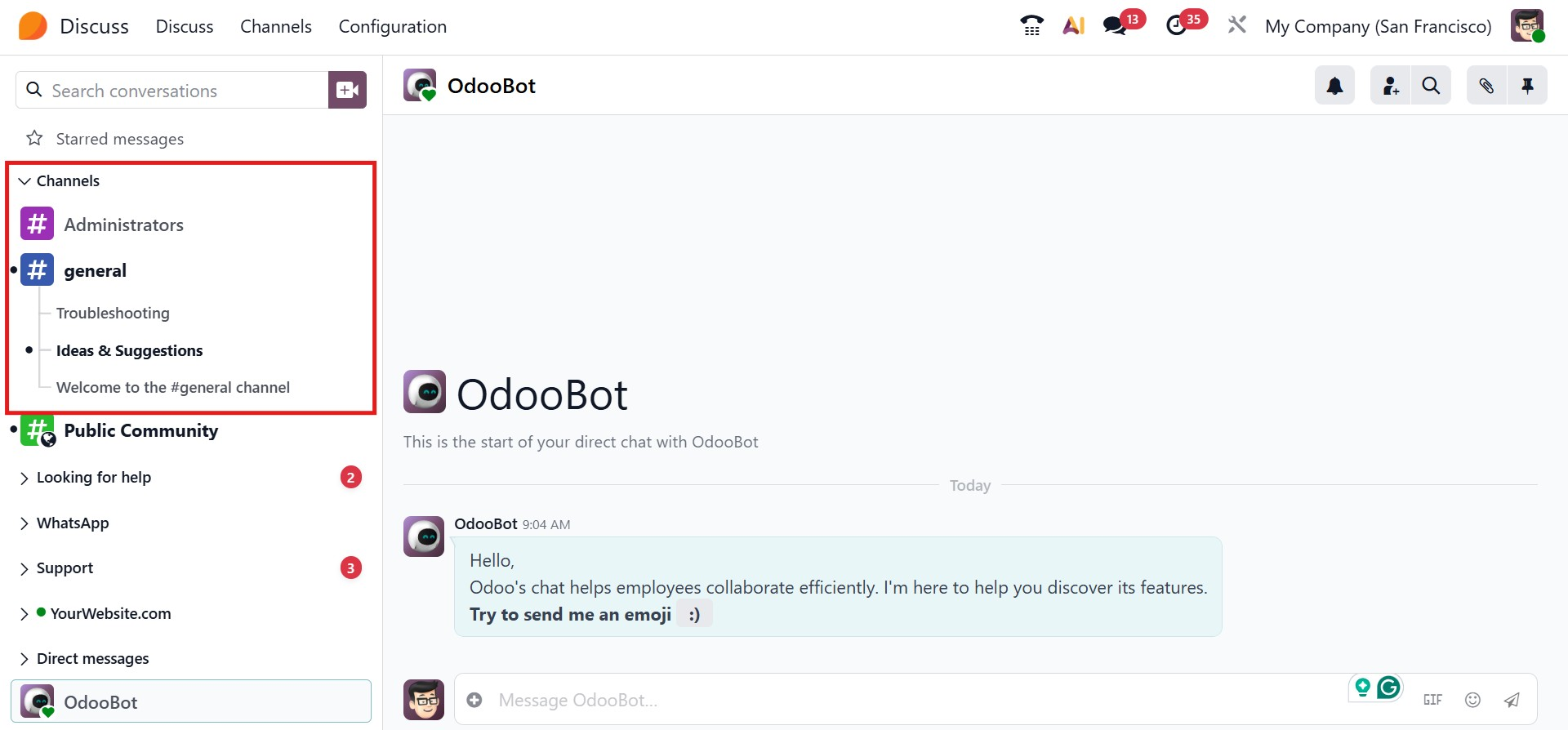
Odoo 19 provides a Channels management view, accessible from the top menu, Channels. From here, users can browse available channels and choose to join or leave them as needed. Visual indicators and unread message counters help users quickly identify active or pending discussions.
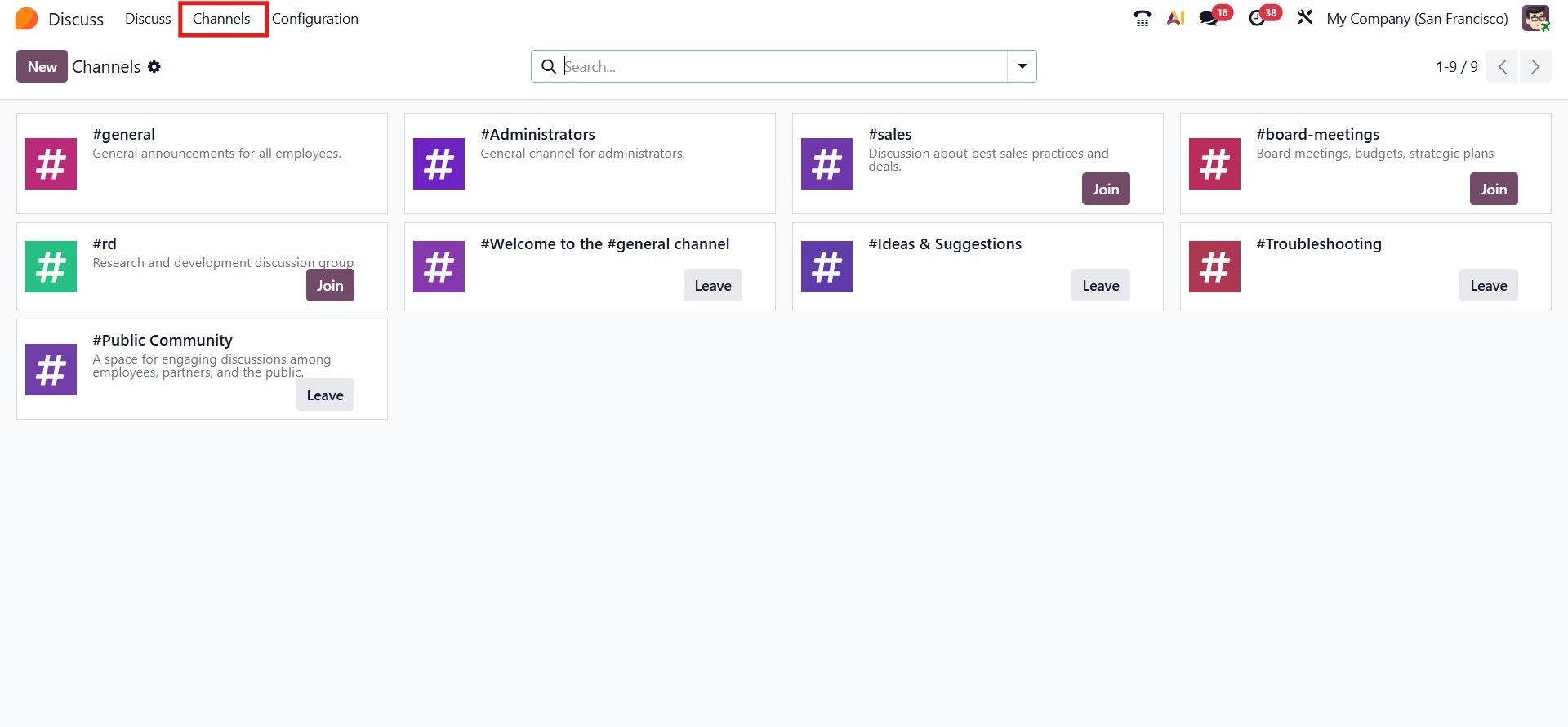
To streamline navigation and enhance organization, the Discuss module includes ‘Filters’ and ‘Group By’ options in the advanced search bar. These features help users narrow down the list of channels based on criteria relevant to their workflow. Furthermore, frequently used channels can be saved under the ‘Favourites’ section for quicker access.
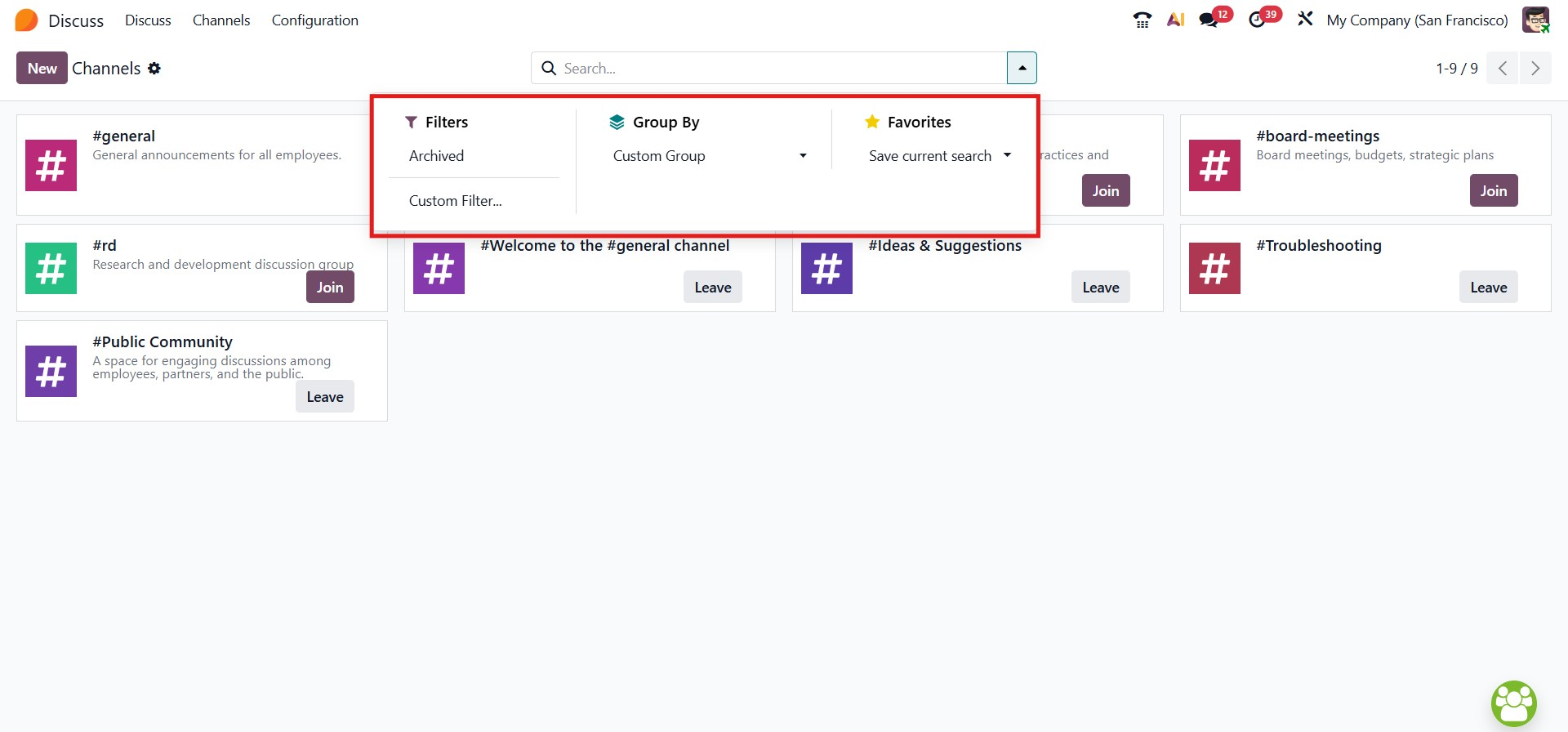
The Action button provides several options to manage and reuse records efficiently. From this menu, users can import records or Export All as needed. It also allows records to be linked to an article, either by inserting a direct link or embedding the view directly into the article for reference. In addition, this menu can be connected to a Spreadsheet, enabling users to analyze, track, or share the data in a structured and collaborative format.
Alternatively, a channel can be created using the New button, which opens a detailed configuration form. In this form, users can define the Group Name and provide a more comprehensive Description explaining its purpose or scope.
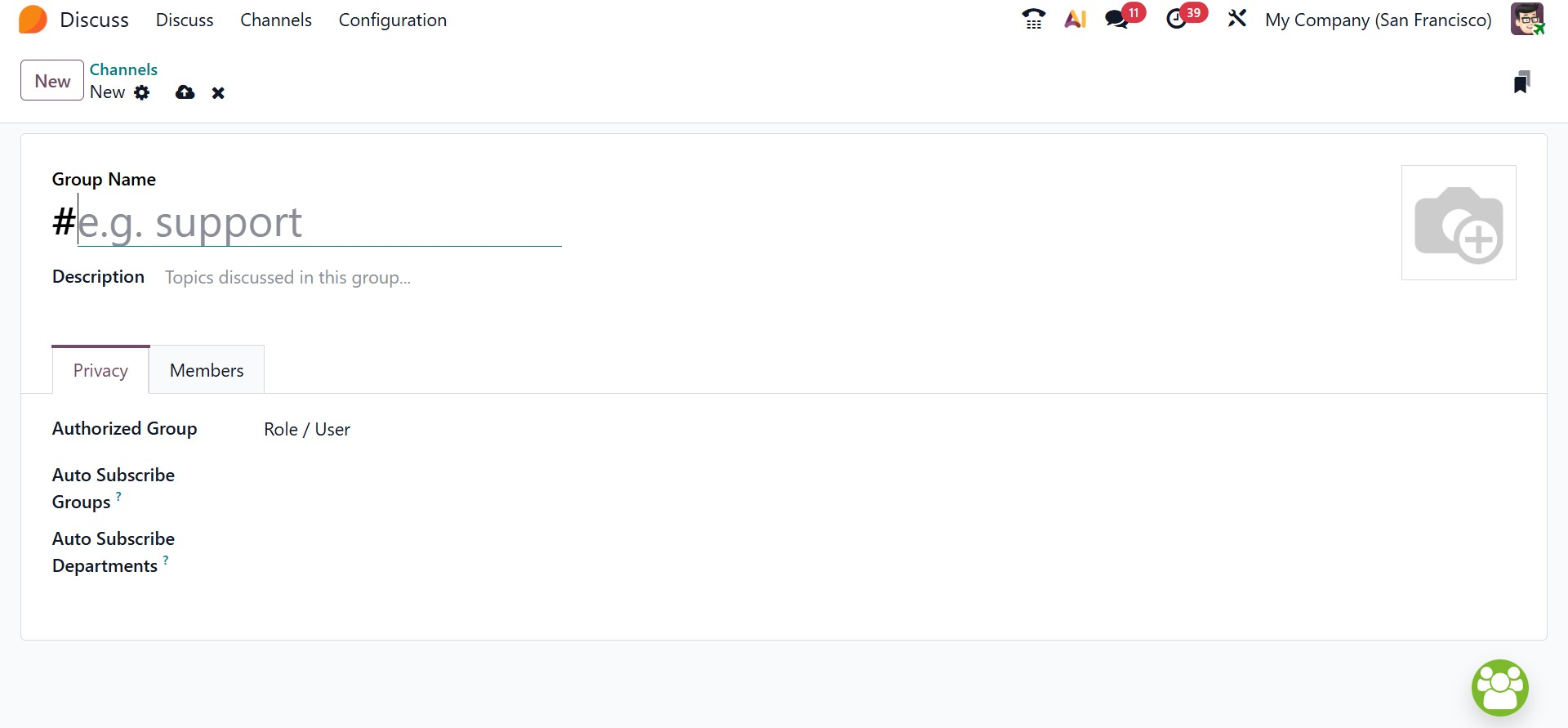
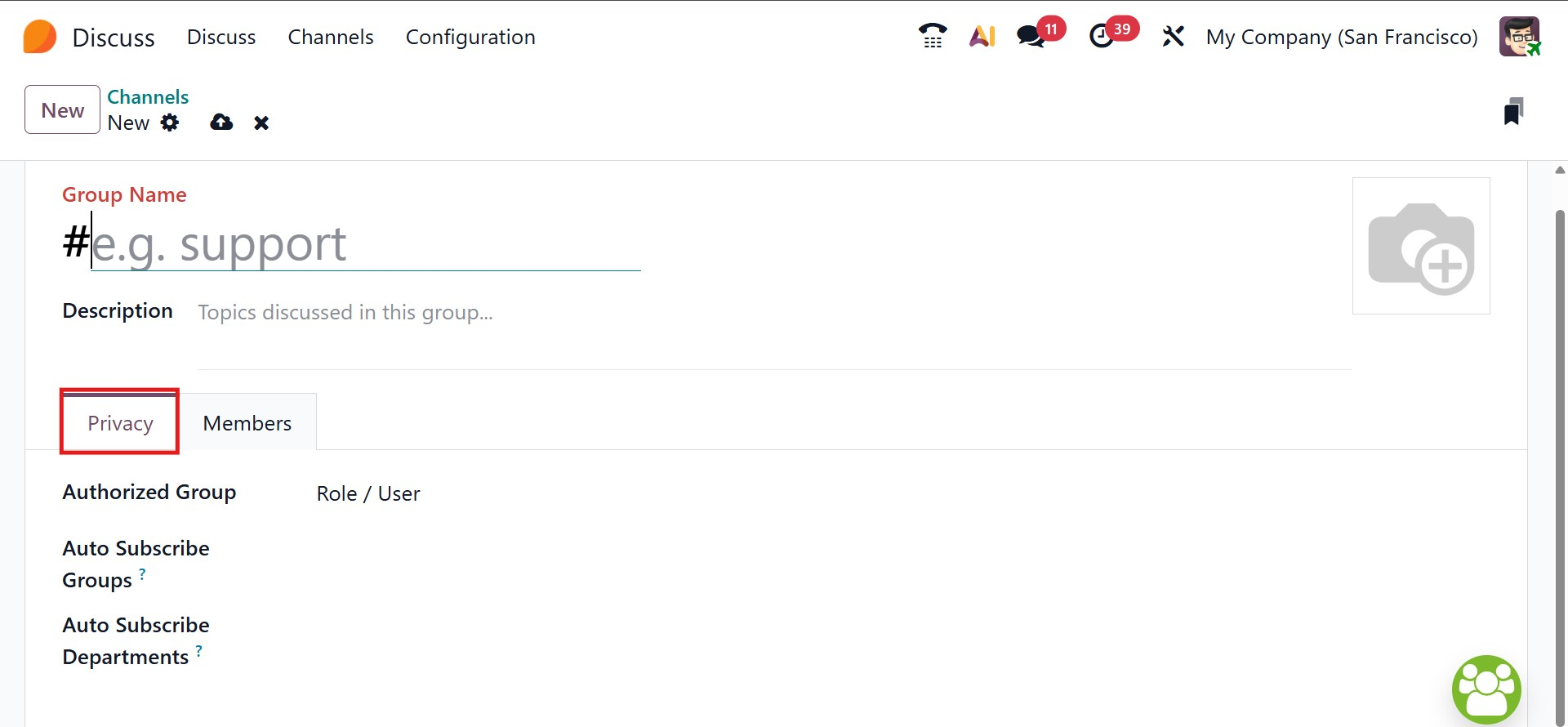
Under the Privacy tab, administrators can define rules like Auto Subscribe Departments, Authorized Subscribe Groups, and Authorized Groups. These controls help enforce proper access by automatically adding specified users to the group and regulating visibility based on roles or departmental membership.
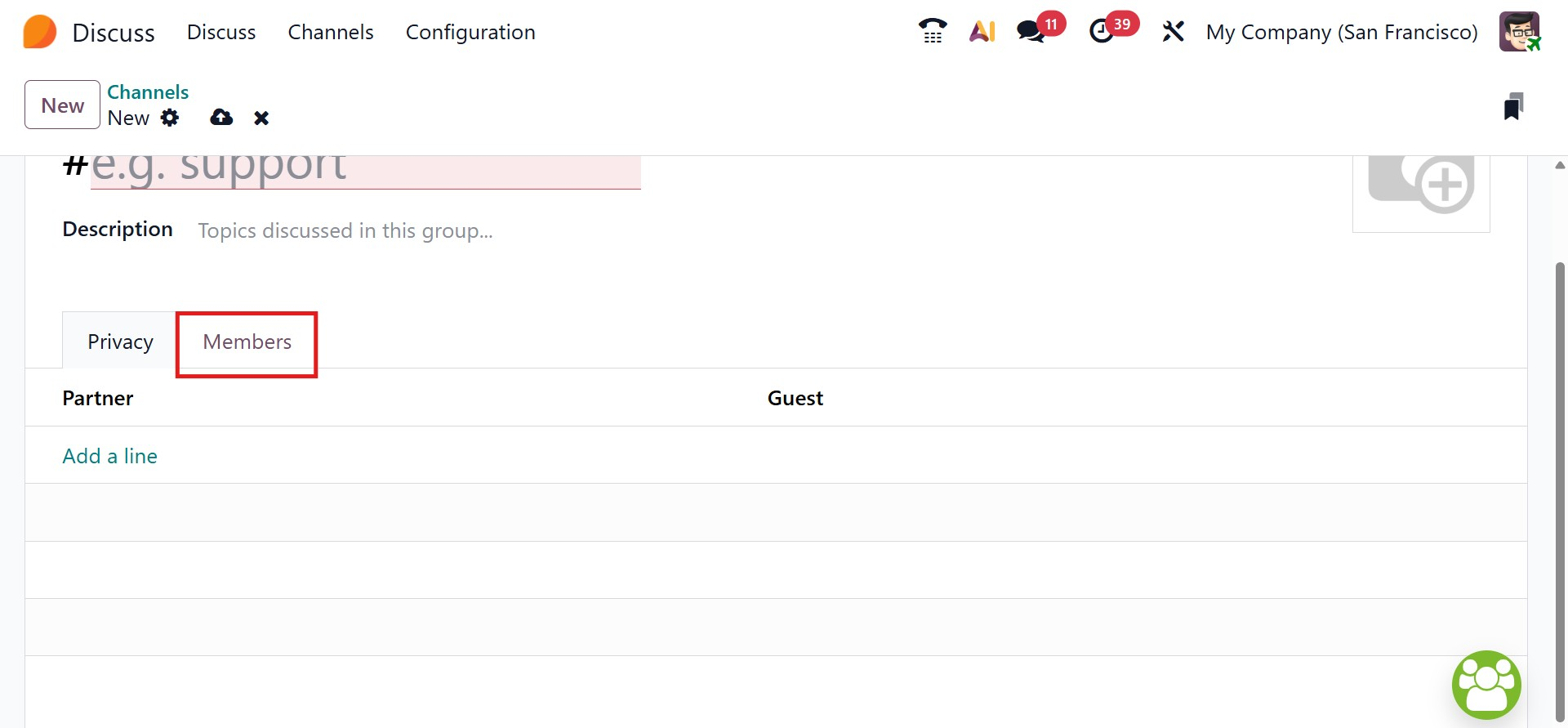
Within the Members section, specific users can be added manually by selecting the ‘Add a line’ option, allowing precise control over who participates in the discussion. Once all settings are configured and saved, the channel becomes immediately available for collaboration, enabling focused and efficient group communication across the organization.
Direct Messages
In Odoo 19 Enterprise, users can begin a private conversation in the Discuss module by selecting the “+” icon in the main chat window. This opens a secure, one-to-one messaging space designed for confidential communication between colleagues.
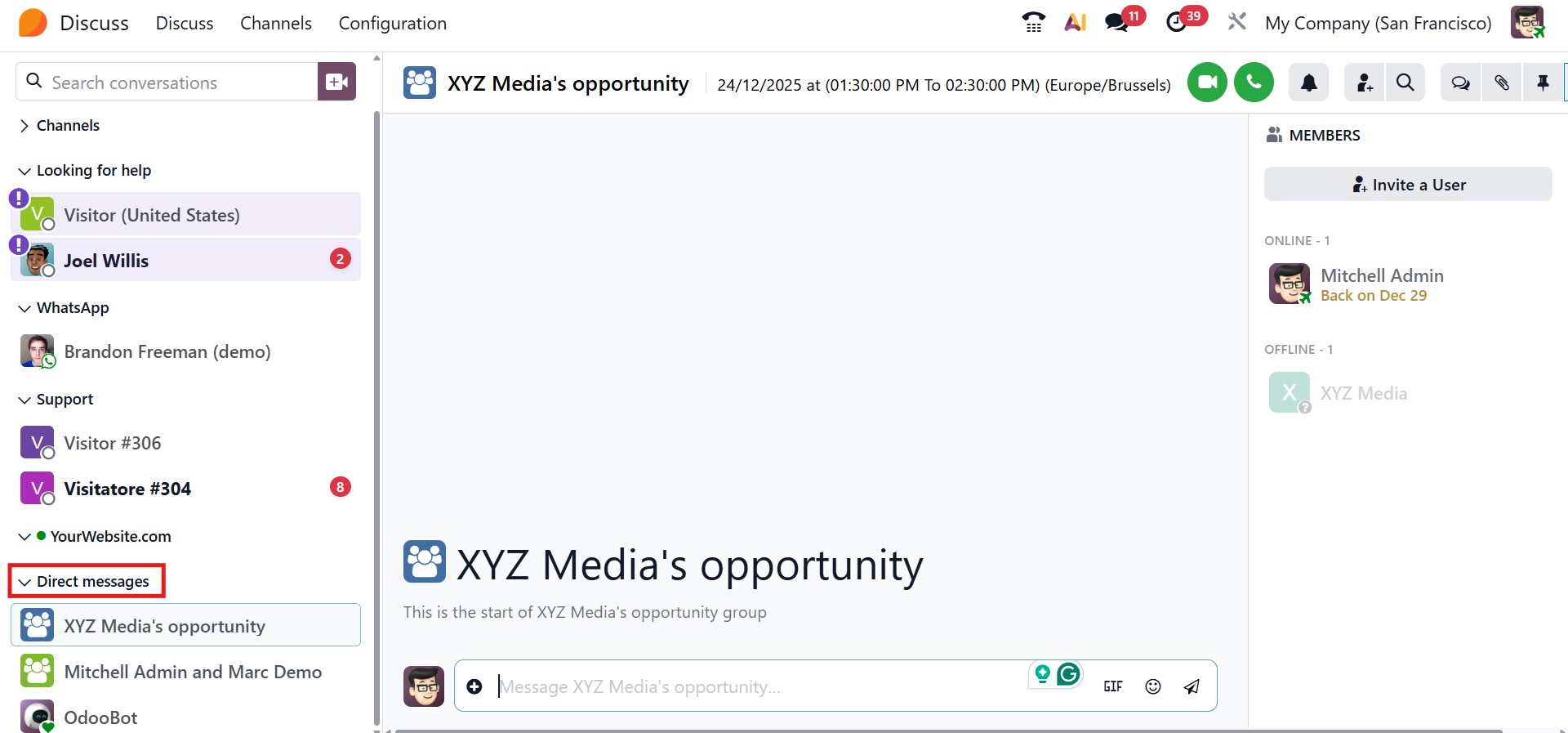
Direct messaging includes a variety of interactive tools that make conversations more engaging. Users can send emojis, GIFs, files, voice notes, and initiate video calls directly from the chat. When a URL is shared, Odoo automatically displays a preview of the link content, allowing users to understand the context without leaving the conversation. Video calls also support background blur, helping participants maintain a professional and distraction-free appearance during meetings.
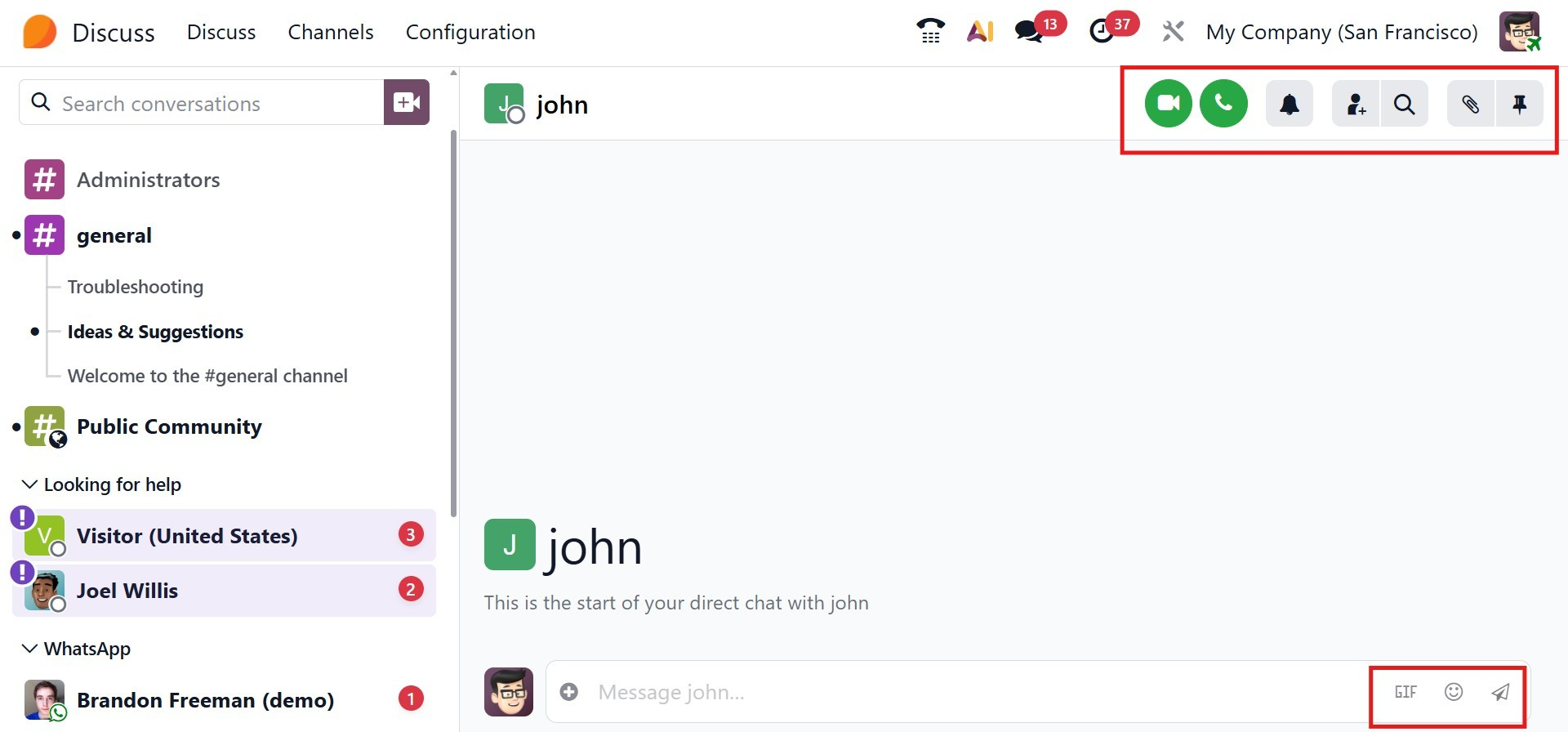
To keep users informed, new messages are highlighted through notification indicators in the interface. Quick access Phone and Video Call buttons appear in the upper-right corner of the chat window, enabling instant voice or video communication. The Search option allows users to locate specific messages, while the Pin feature helps highlight important information for easy reference.
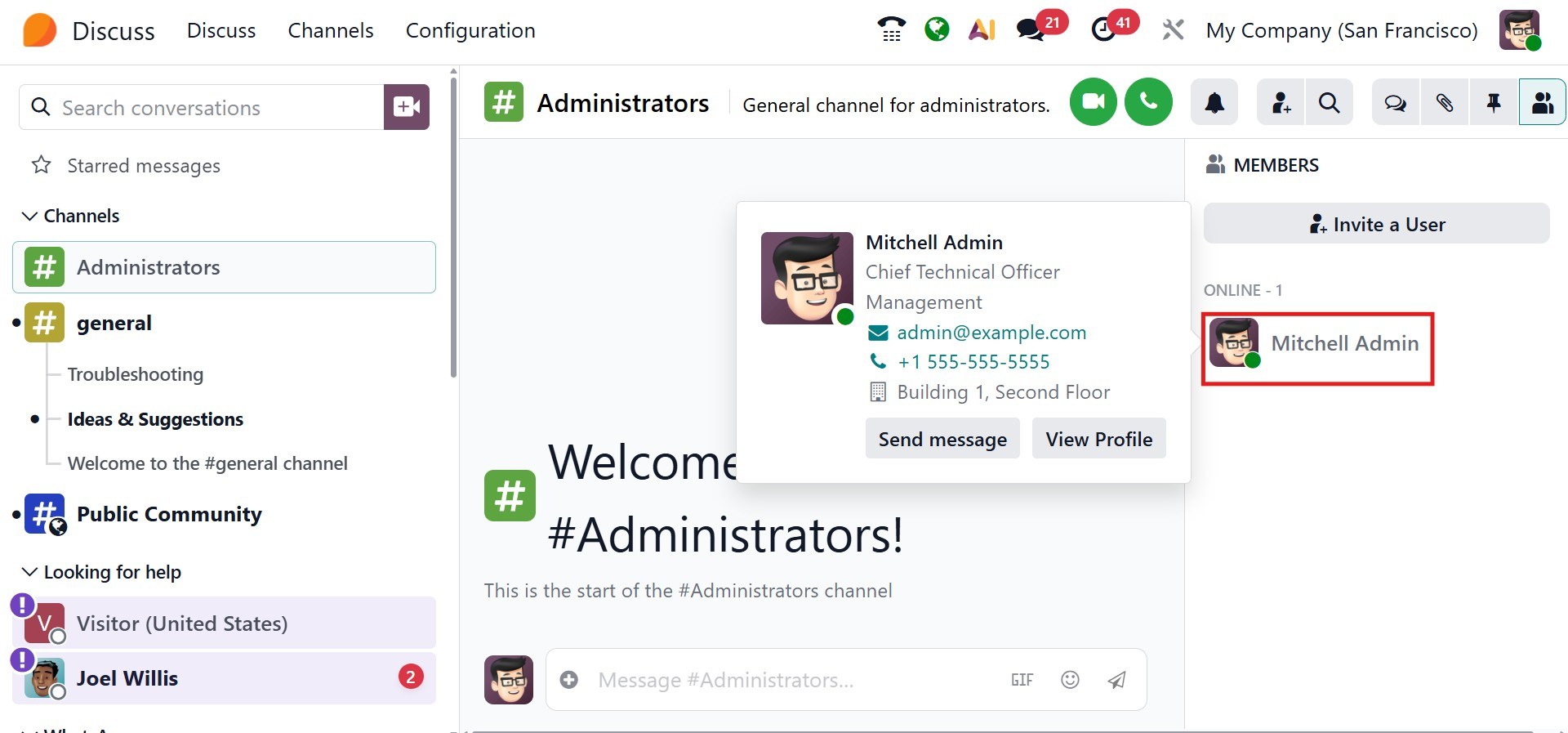
The Discuss module makes it easy to understand the availability of colleagues by displaying their current user status. This helps users decide when to initiate conversations and set realistic expectations for response times. A user’s status appears as a small indicator icon located at the bottom-right corner of their profile picture in the Members List.
Each status is represented by a distinct color or icon:
- Green – The user is online and actively available.
- Orange – The user is away and may not respond immediately.
- White – The user is offline.
- Airplane icon – The user is marked as out of the office.
This visual status system improves internal communication by providing quick insights into team availability, enabling more efficient and timely interactions within the Discuss module.
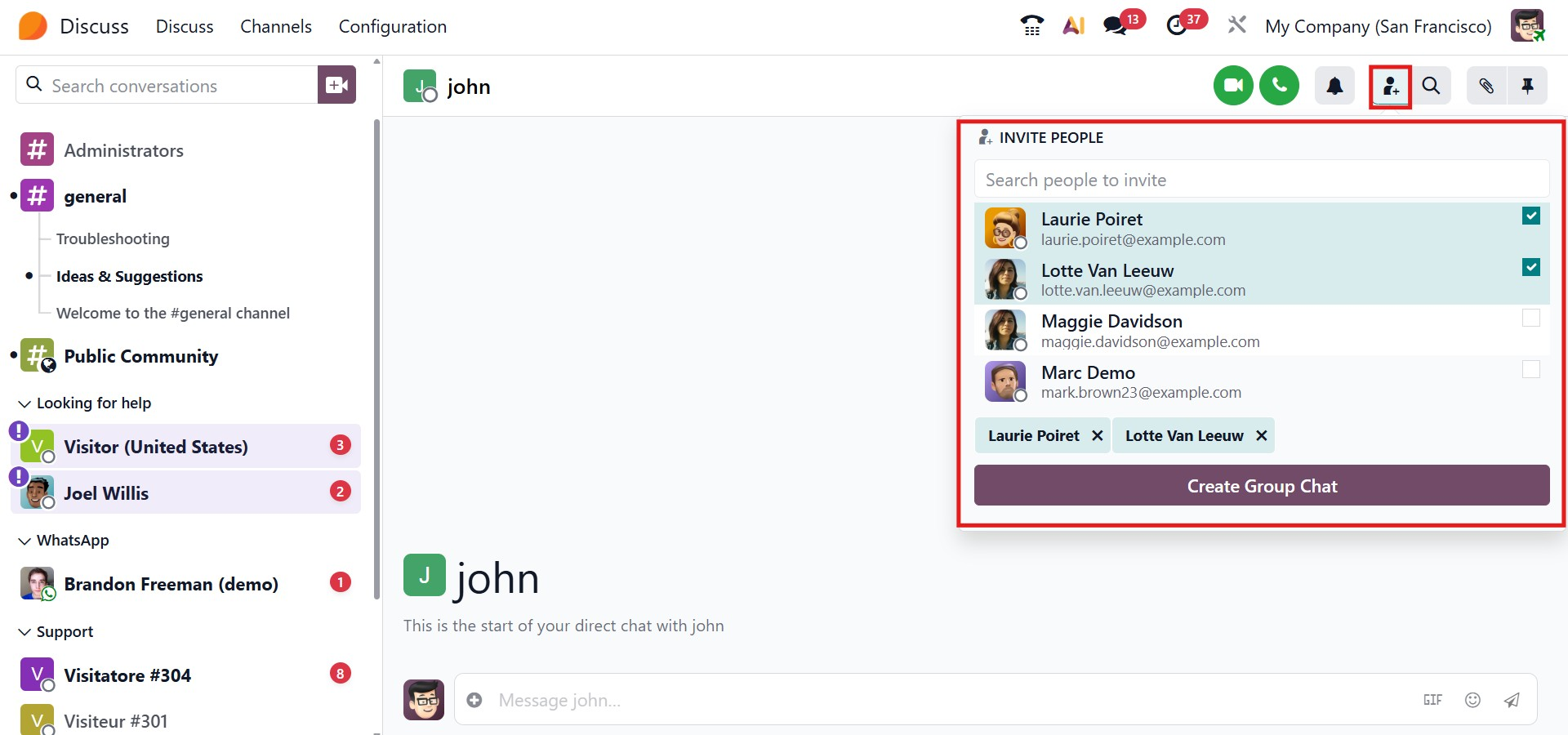
For group discussions, users can create chat rooms by inviting multiple participants. This is done by clicking Invite People, selecting users from the list, and confirming with Create Group Chat. Odoo also generates shareable channel links that can be copied and sent via direct messages or email, making it easy to include additional team members in relevant discussions.
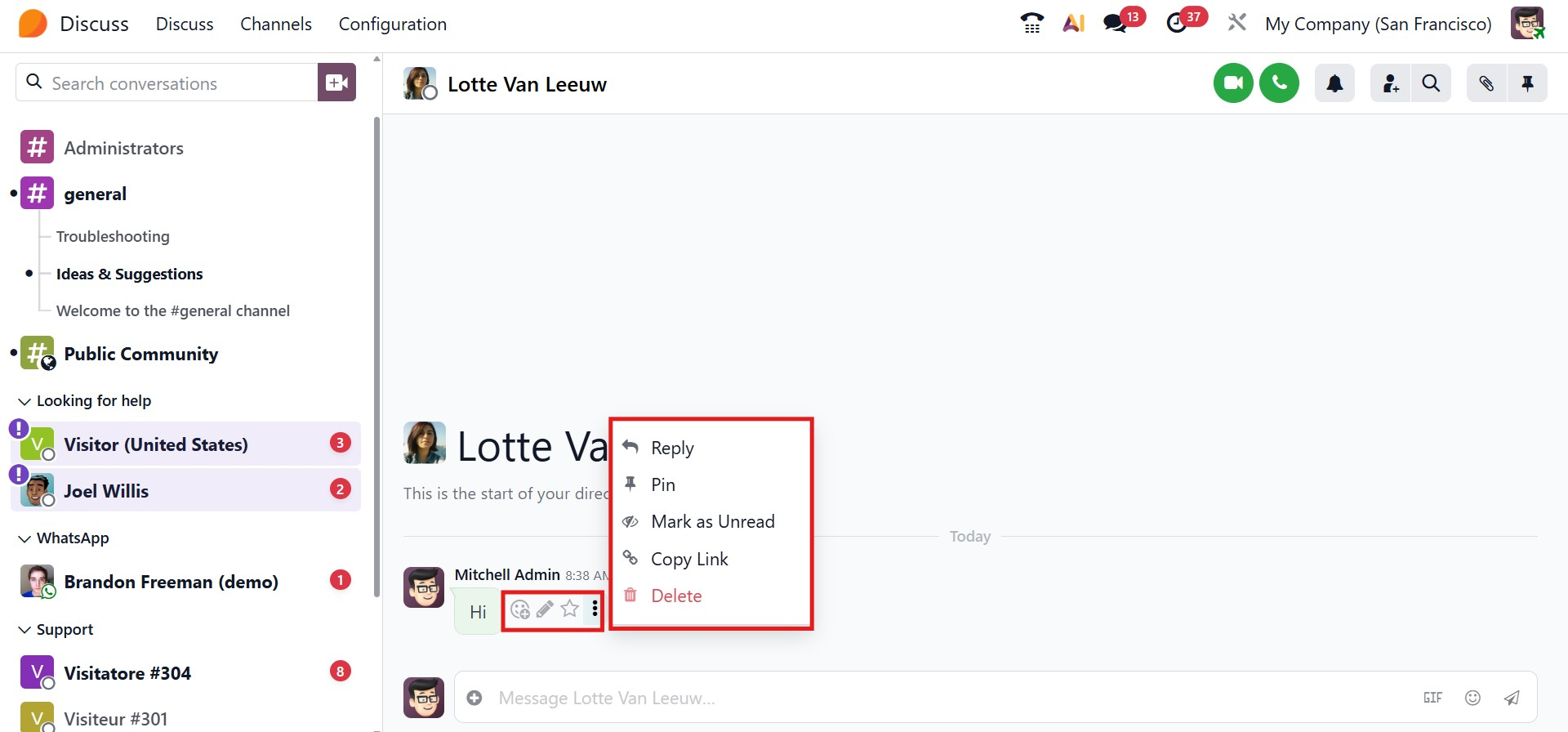
When hovering over a message in a direct chat, Odoo displays a contextual menu with several useful actions:
When hovering over a message in a direct chat, Odoo displays a contextual menu with several useful actions:
- Add Reaction: Choose an emoji to respond quickly and expressively.
- Reply: Respond directly within a thread to maintain conversation clarity.
- Mark as To-do: Save the message in the Starred section for follow-up.
- Pin the message for quick visibility.
- Mark as Unread to revisit it later
- Edit the message (available to the sender)
- Delete the message (subject to user permissions)
- Copy Link to share the message through chat, email, or other platforms
The Discuss module also supports desktop notifications, ensuring users receive real-time alerts for new messages. These can be enabled through the Notification icon, where users can customize alert preferences based on their needs. This feature helps users stay informed even when working in other parts of Odoo.
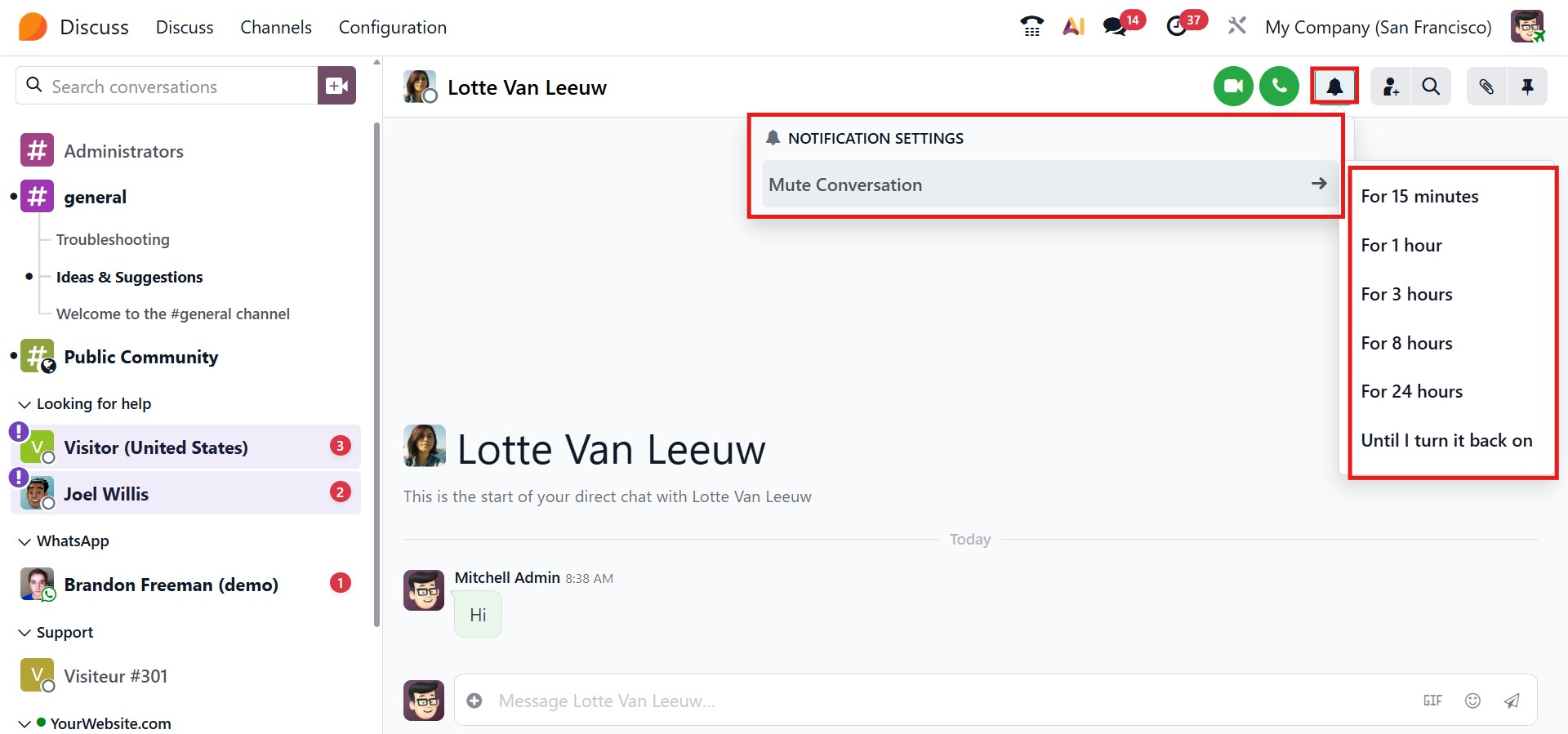
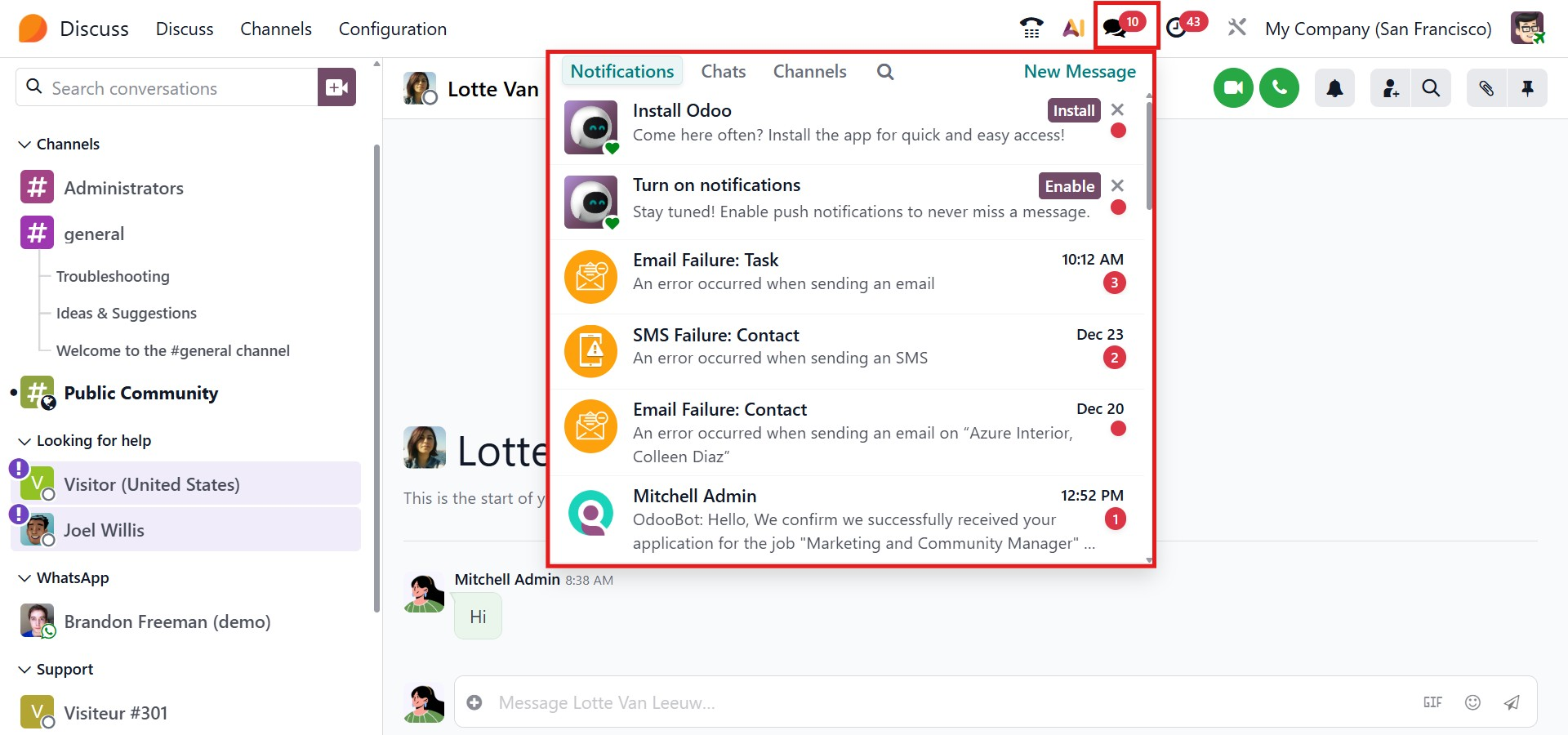
Additionally, the Chat icon in the main navigation bar allows users to access conversations instantly from anywhere within the platform. This seamless integration ensures uninterrupted communication and improves overall productivity.
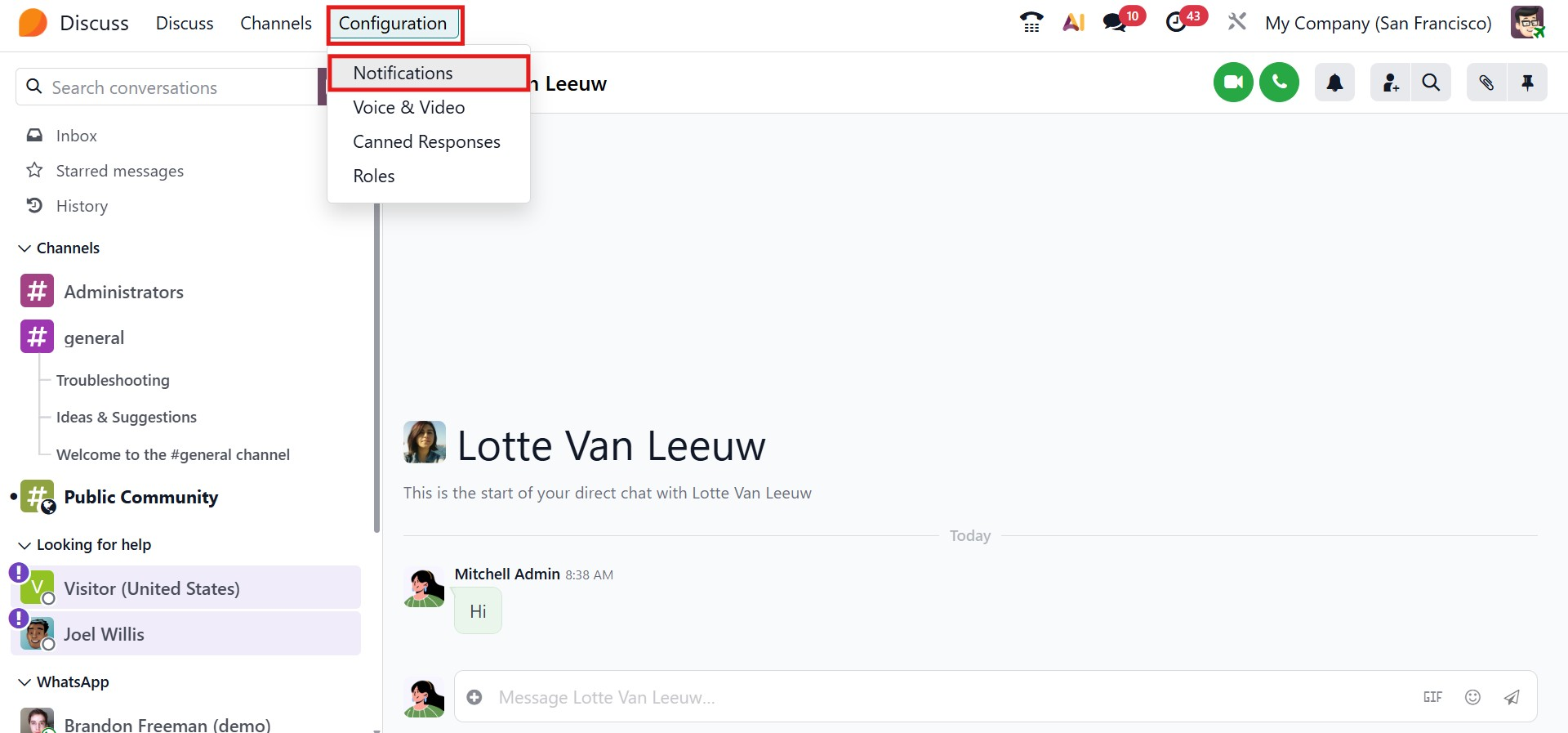
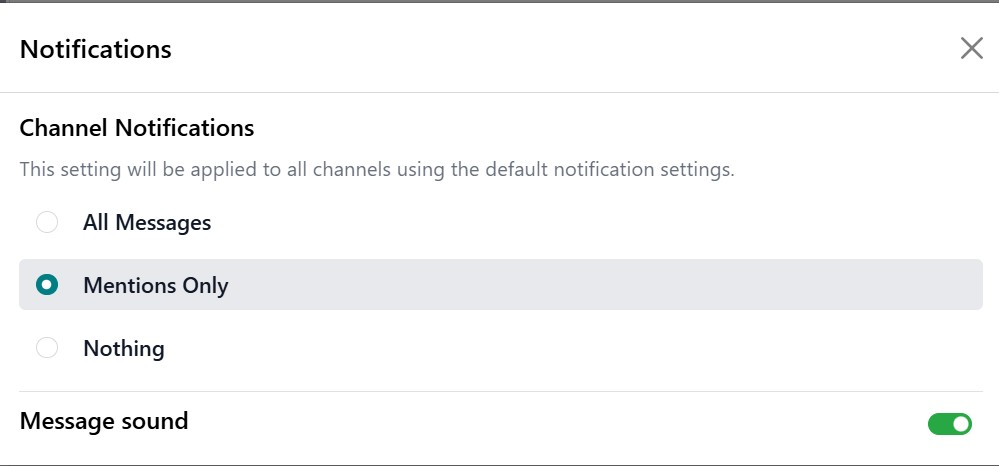
Odoo 19 further enhances focus with advanced notification controls. Through the Configuration → Notifications menu, users can manage how and when they receive alerts.
Enabling Mute All Conversations silences notifications and unread indicators across all chats and channels, while still allowing messages to be reviewed later within the Discuss module. This flexibility helps users minimize distractions without losing access to important conversations.
Meetings
The Discuss module in Odoo 19 enhances internal collaboration by enabling users to organize and host online meetings directly from the system.
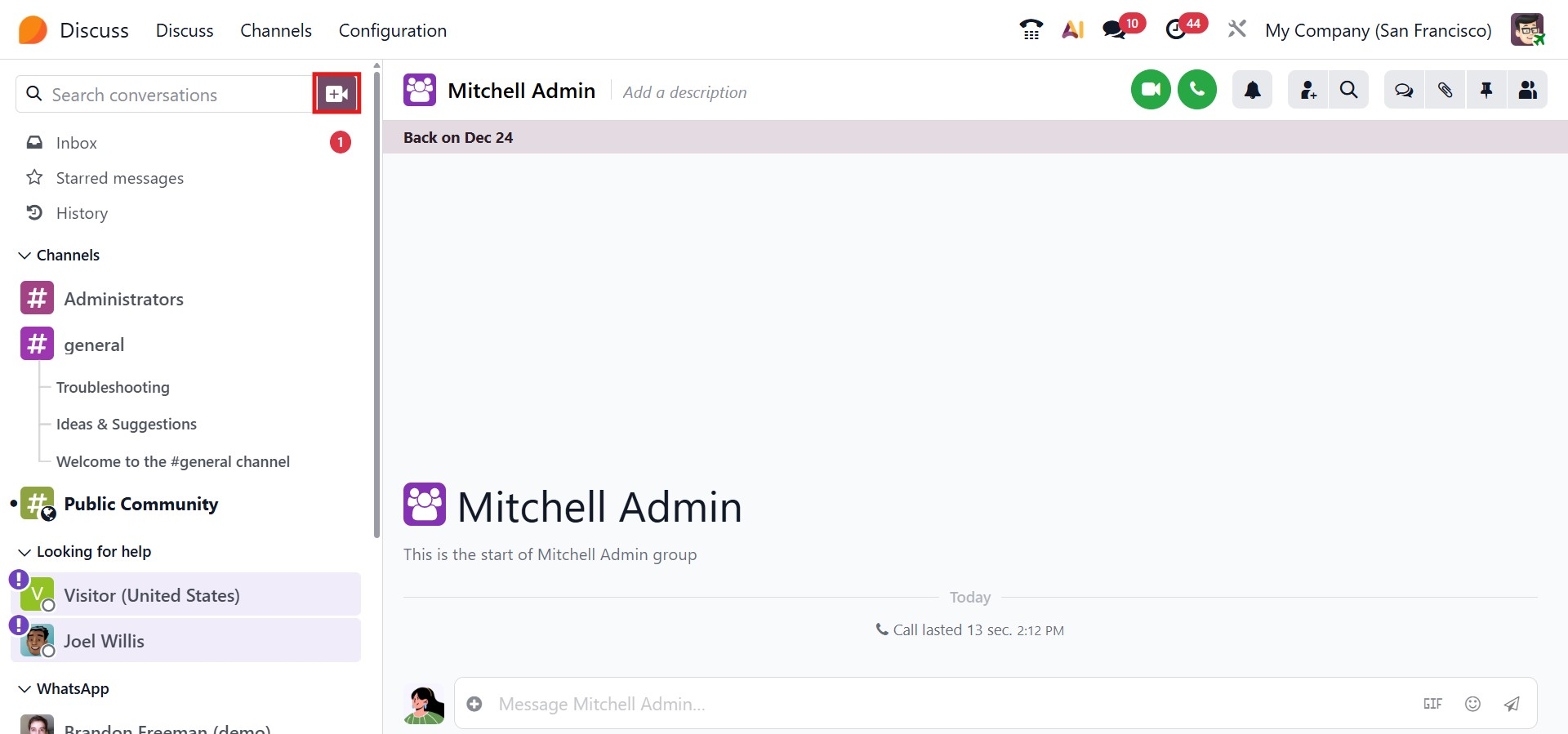
A meeting can be started by clicking the New Meeting button, which opens a dialog box where participants can be added individually. Once participants are selected, users can either invite them into a group chat instantly or distribute a meeting link for quick and easy access.
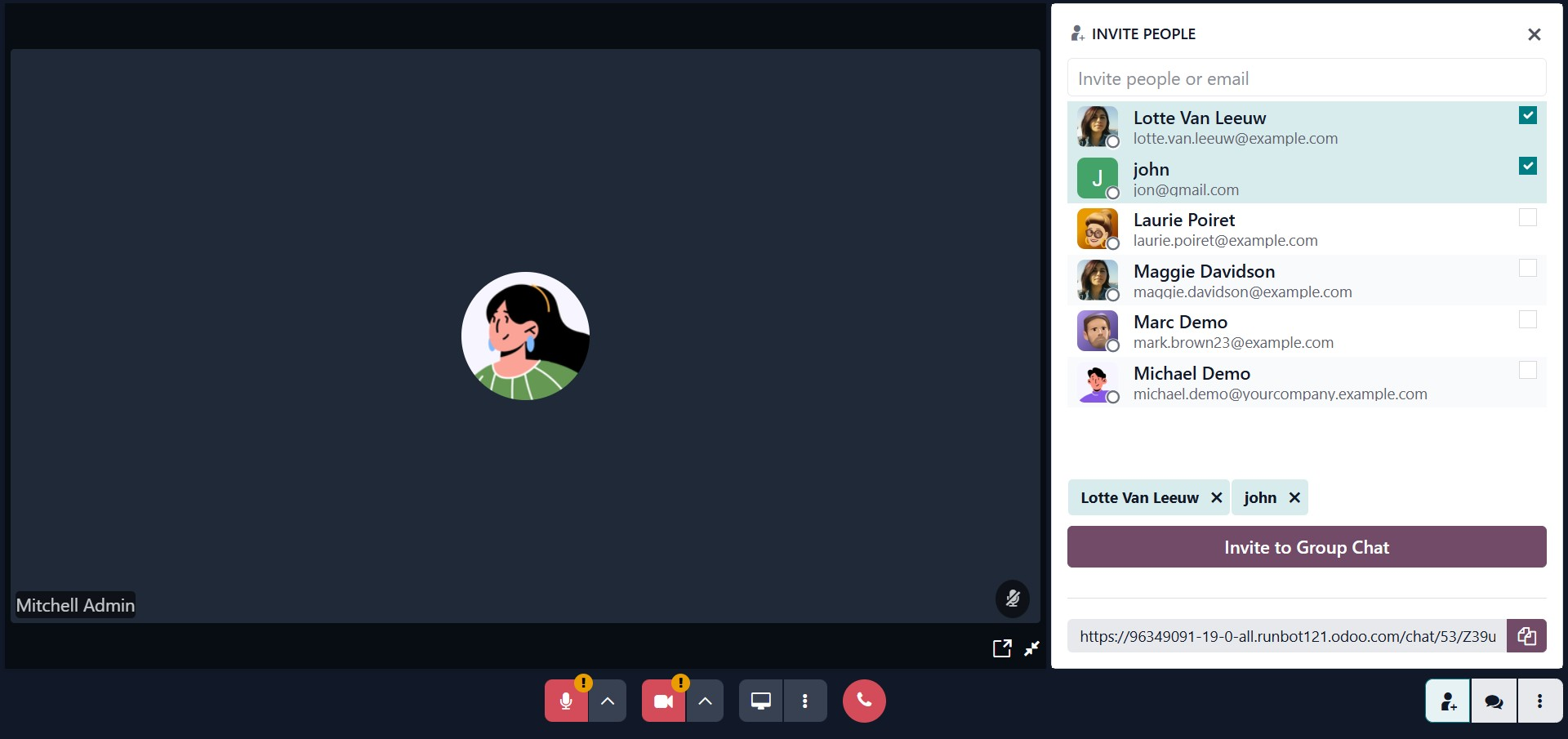
During a meeting, several built-in tools help create a focused and productive environment. Users can temporarily silence notifications, mute ongoing conversations, and share their screens to present documents or applications to other attendees. These features support smooth communication and efficient collaboration.
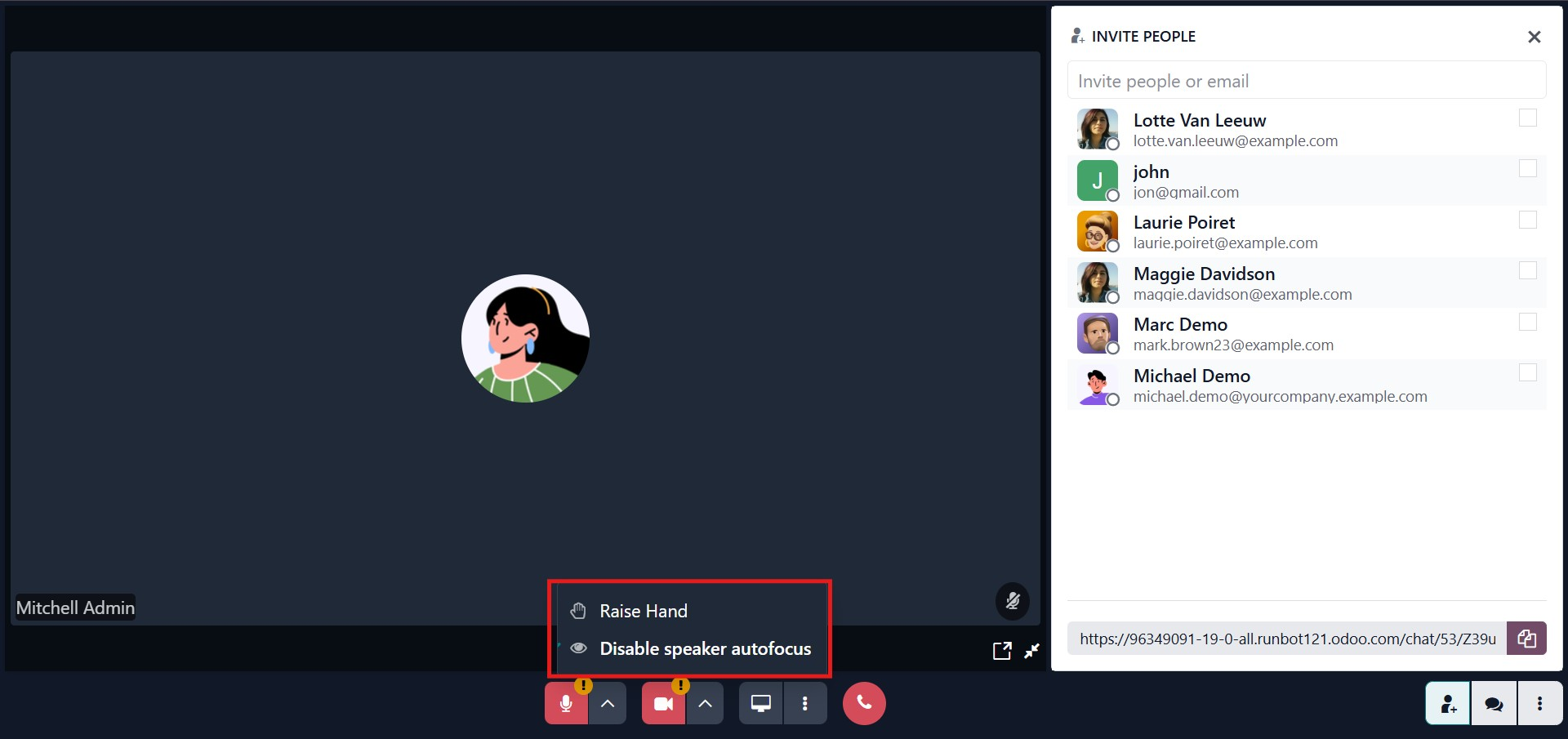
Odoo 19 provides a variety of meeting controls, including:
- Raise Hand: Enables participants to indicate they wish to speak, helping maintain structured discussions. The hand indicator can be raised or lowered as needed.
- Full-Screen View:xpands the meeting interface for better visibility and engagement.
- Background Blur: Improves privacy by masking the user’s surroundings during video calls.
- Push-to-Talk: Allows users to control when their microphone is active, which is especially helpful in larger meetings to avoid background noise.
- Deafen: Temporarily mutes notifications from a selected conversation or channel without exiting it, allowing users to stay focused while still retaining access to messages later.
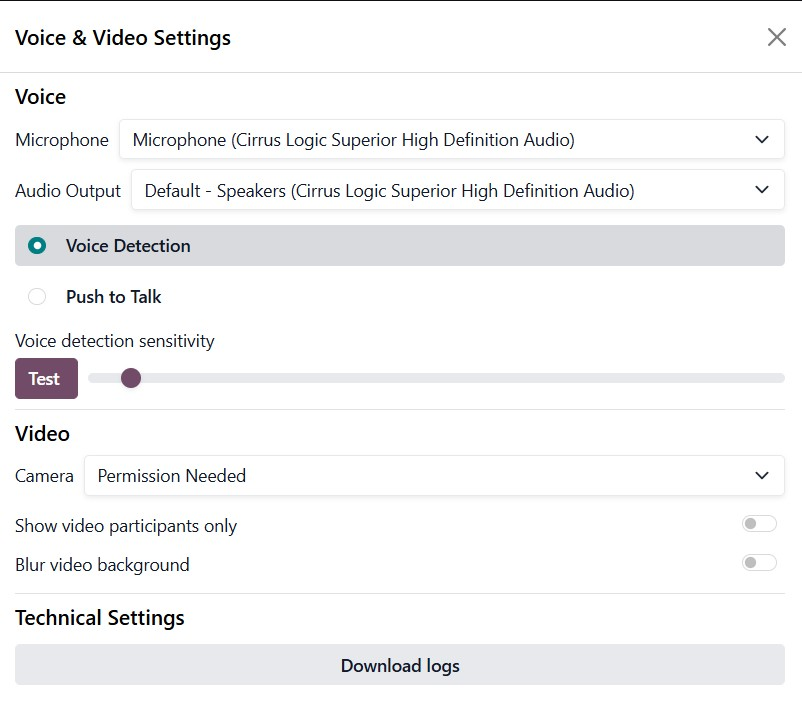
Participants can further customize their experience by enabling options such as Show Video Participants Only, which simplifies the display and reduces distractions. Meeting behavior is also influenced by browser and device settings, ensuring seamless integration of audio and video features. These preferences can be managed under Voice & Video Settings within the module’s Configuration menu.
The Deafen feature applies only to the individual user’s notification preferences and can be switched on or off at any time. This flexibility allows users to manage interruptions effectively while ensuring they remain connected to important discussions.