Station
A station is just an office's workstation. Consequently, any workstation that has been built can be examined straight from the dashboard. Click the New button to add a new one.
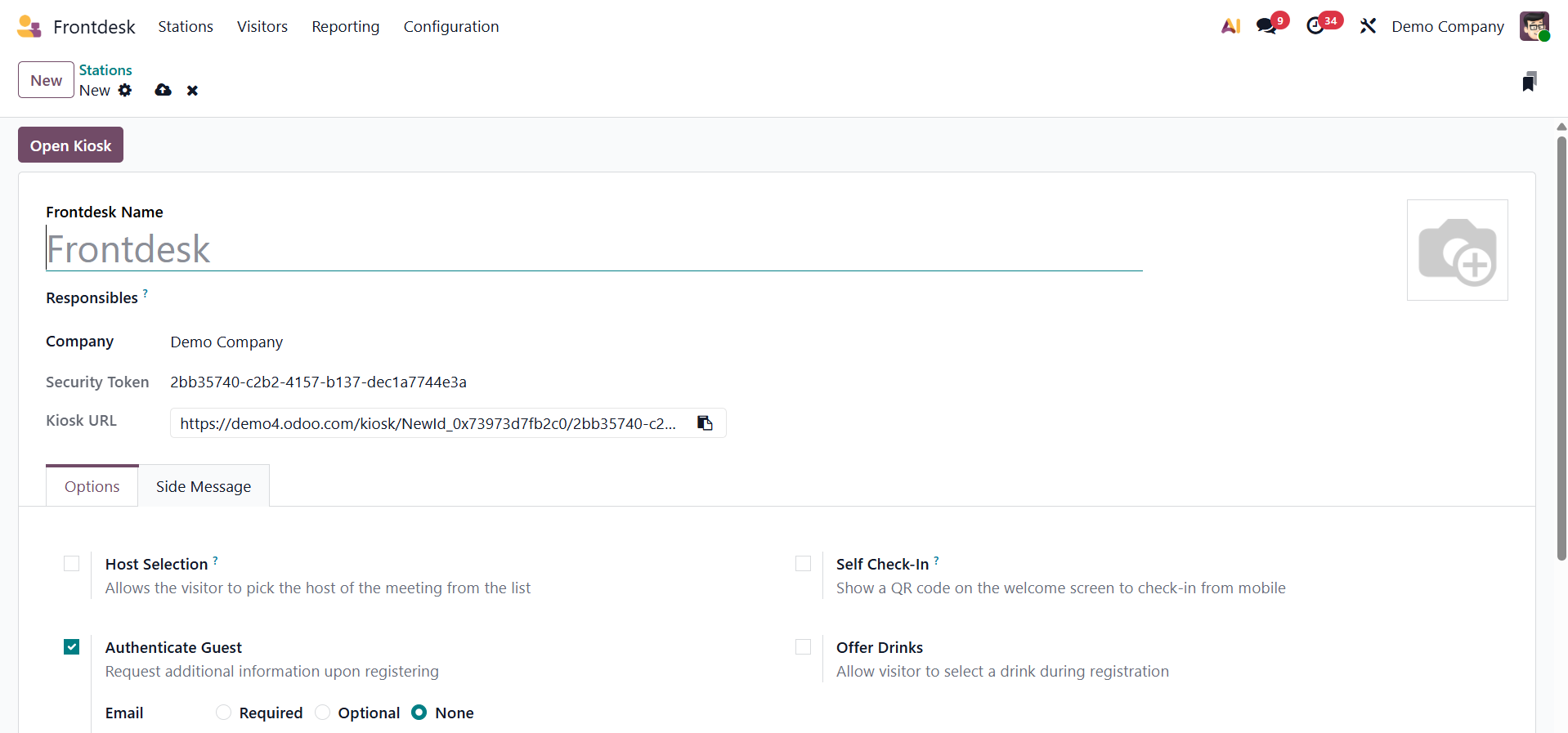
Give the front desk's name first. Visitor notifications are sent to the responsible users. The name of the business can then be entered. The form view then displays the Kiosk URL as well. The Options menu then makes it easier to add more configurations.
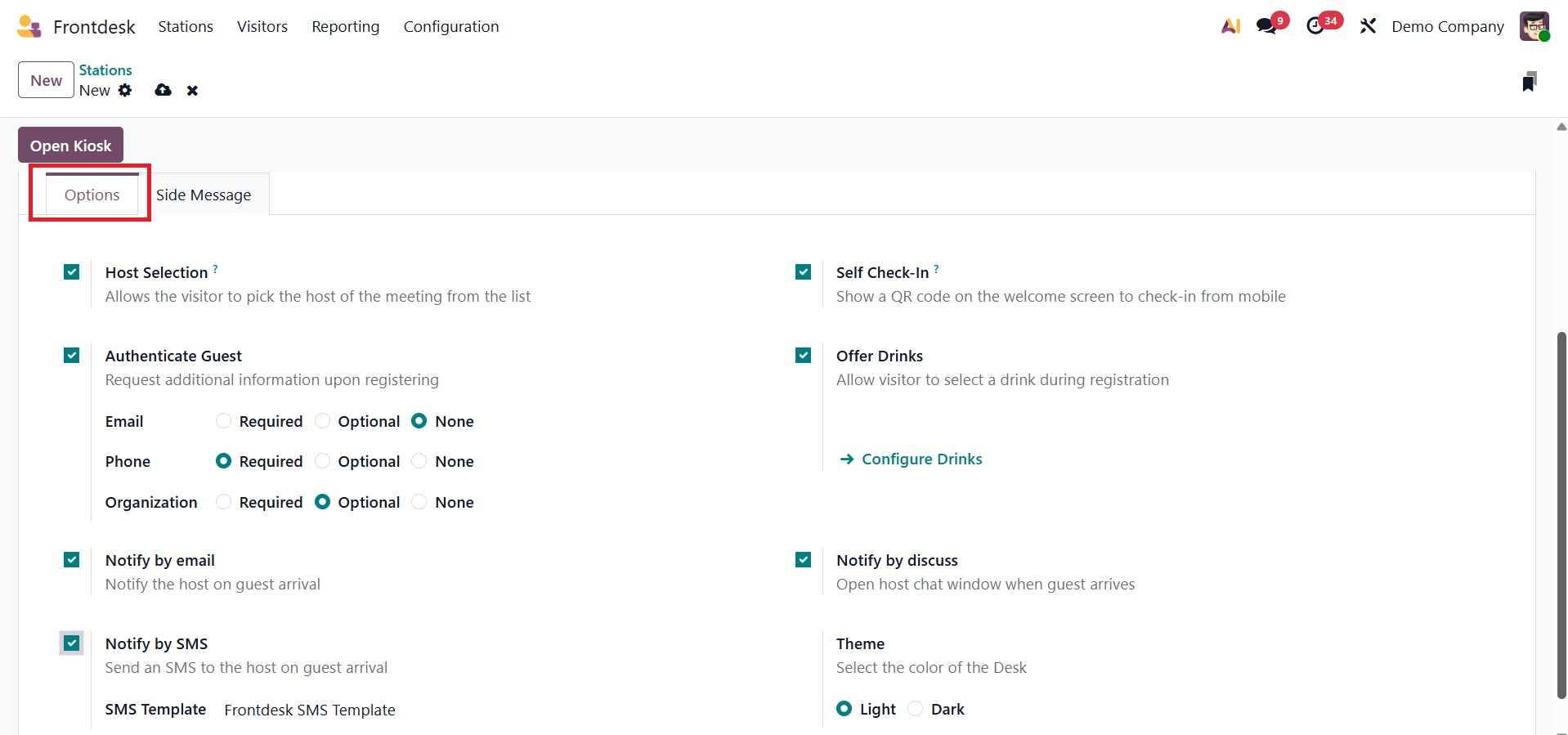
The guest will be able to select the meeting's host from the list by using host selection. Make sure visitors will be prompted for further information when they sign up. When visitors arrive, the Notify by Email and Notify by SMS features help notify the host via email and SMS. For mobile device check-in, Self Check-In provides a QR Code on the welcome screen. Offer Drinks lets you give guests food or drinks and lets them choose what they want to drink when they sign up. When a visitor arrives, the user's computer will open a chat window if they have selected "Notify by discuss." Depending on the topic, the desk's hue might be either light or dark.
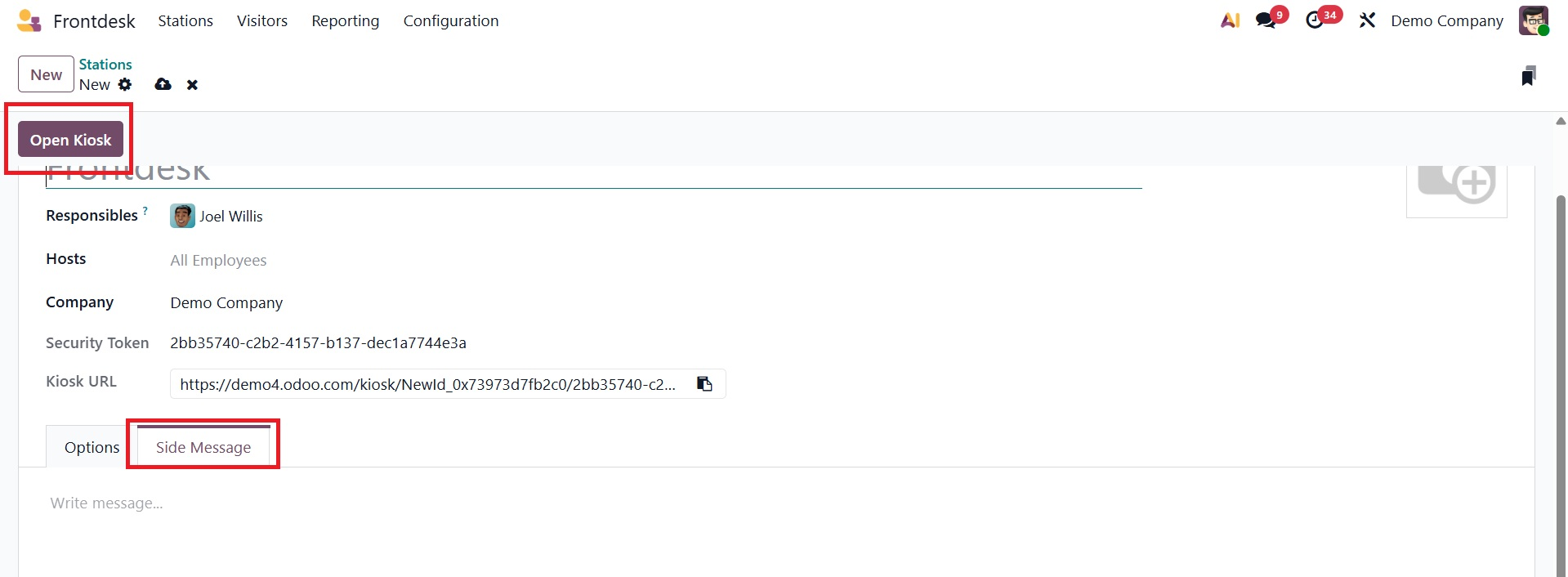
Adding any messages is made easier by the Side Message tab that follows. Once the setting is finished, click the Open Kiosk sign in the upper left corner.
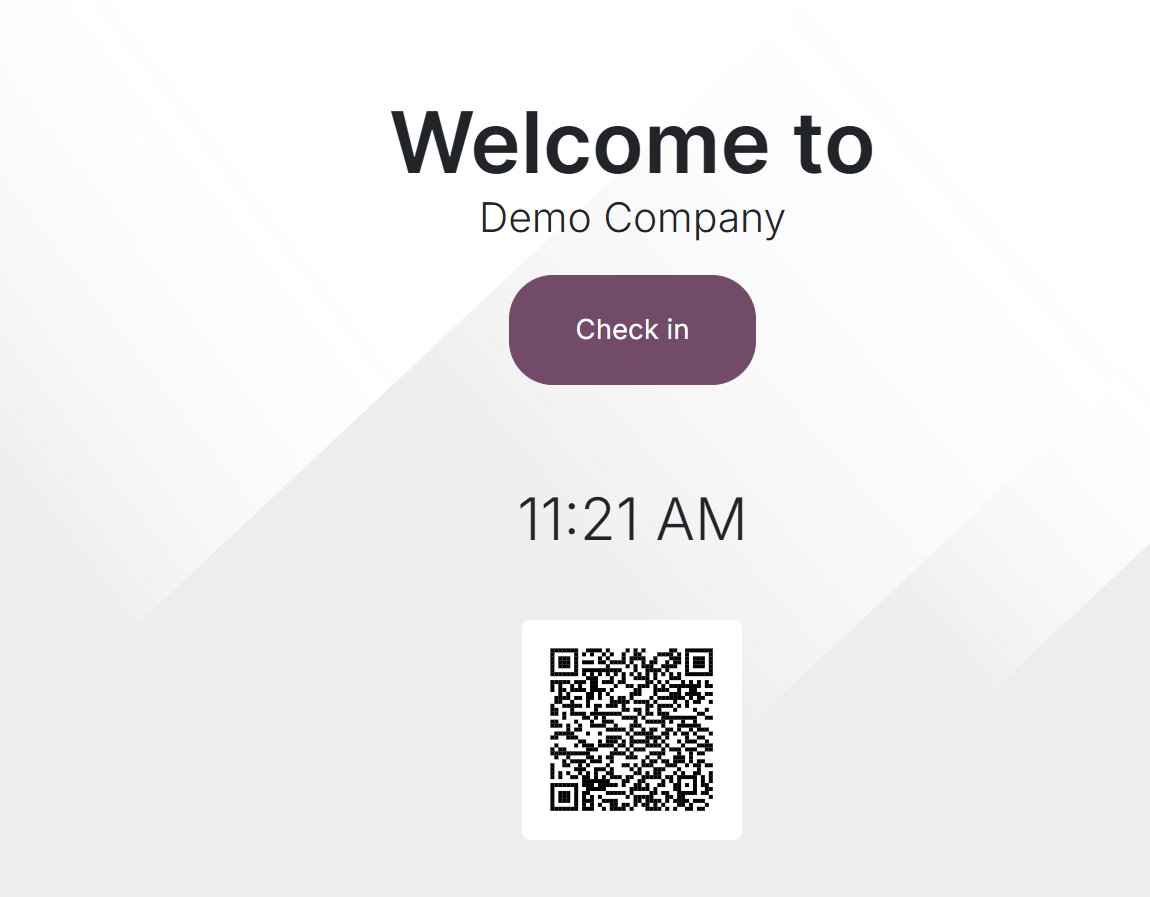
A welcome message appears on the screen. To check in, visitors can either scan the QR code or click the Check In button.
At the top of the screen is a language selection option. If Odoo has many languages enabled, we will be able to select between them. so that users can choose the appropriate language to submit details.
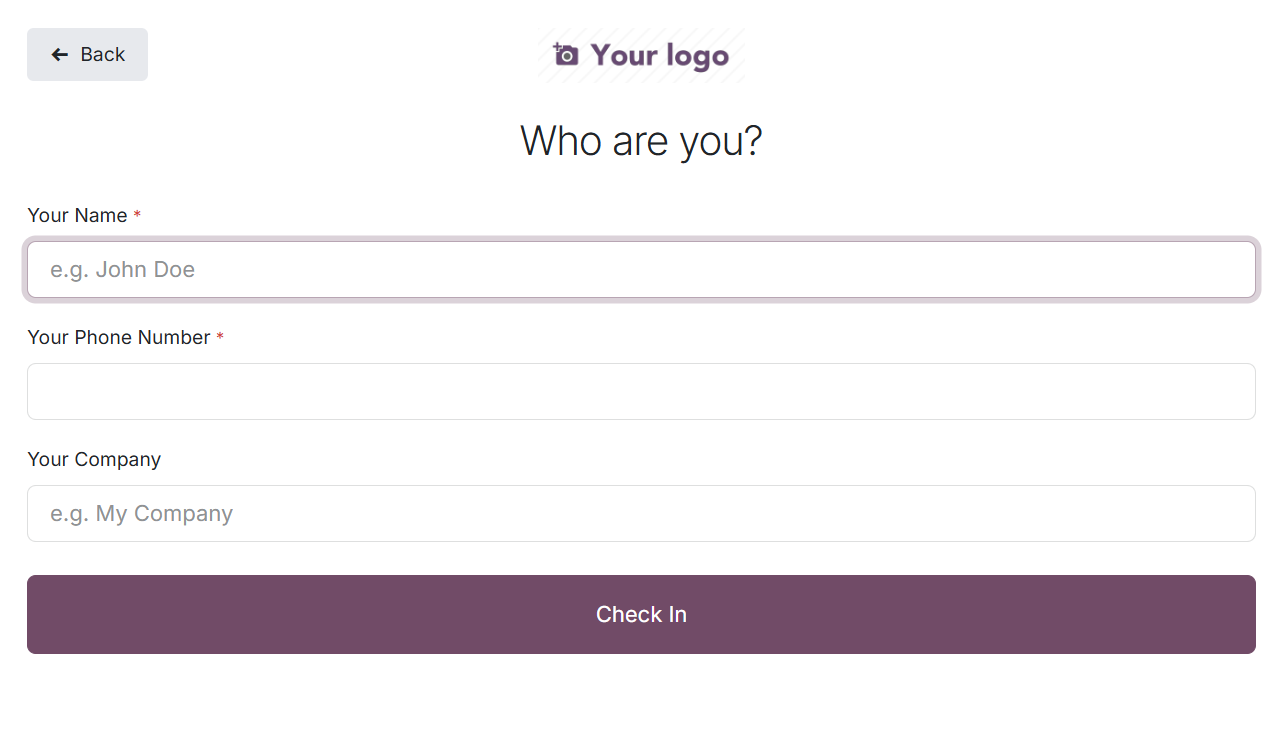
On the following page, visitors are requested to submit their personal information, including name, phone number, and company name. Next, click the "Check In" button.
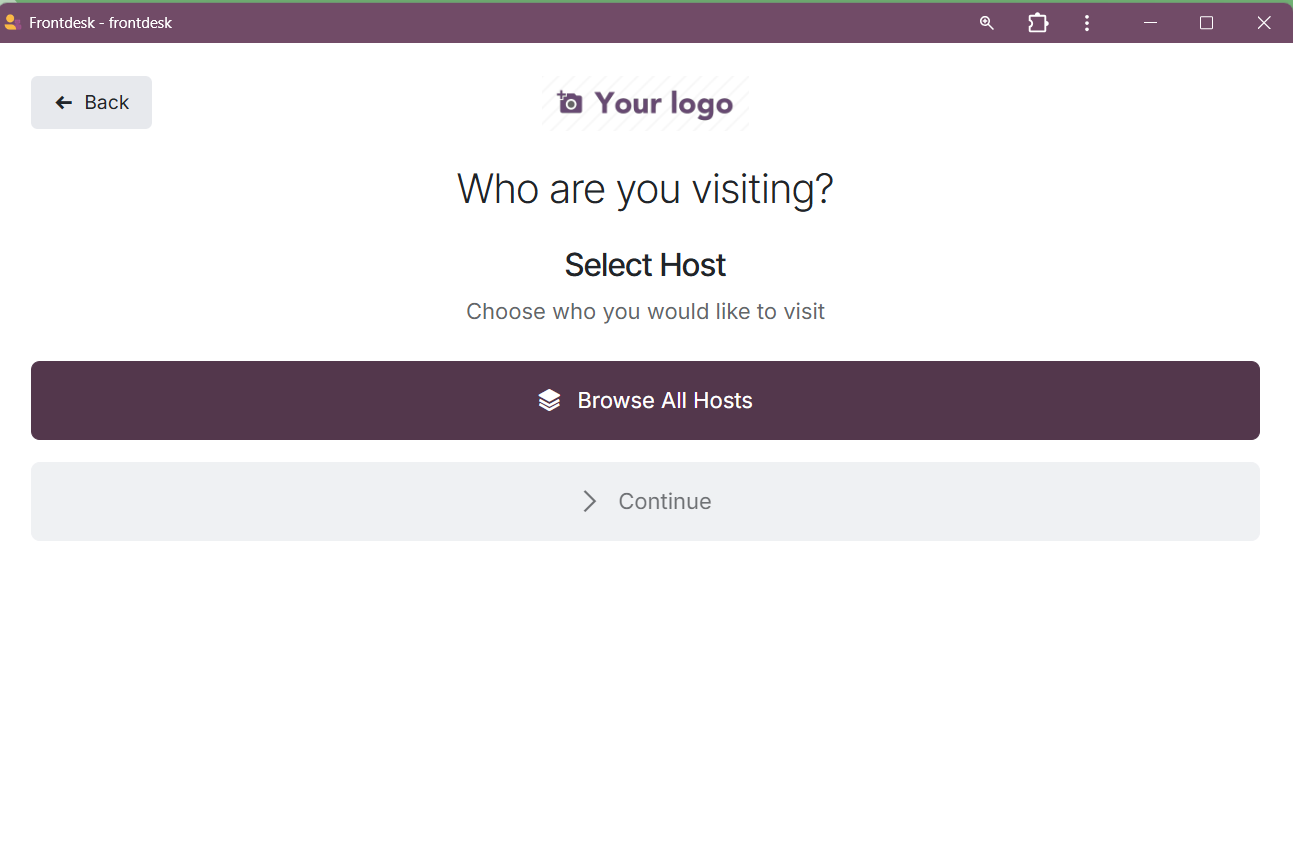
Next, ascertain which user or employee the visitor wants to view. After selecting the employee from the list, click the Confirm button.
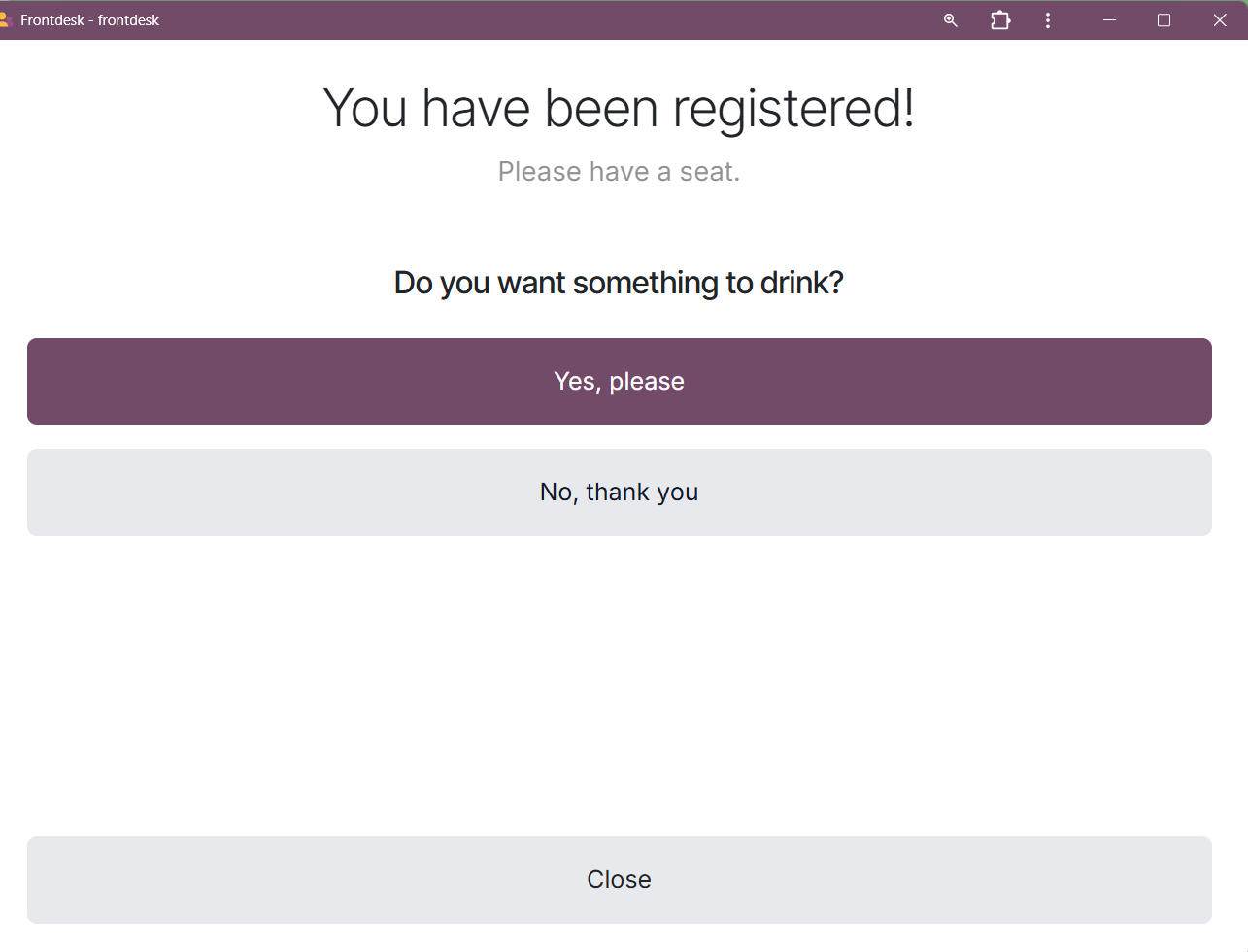
The establishment then provides its patrons with some appetizers or refreshments. Click "Yes, please" if that's what they want. Alternatively, clients can click the "No, thank you" button to decline the offer.
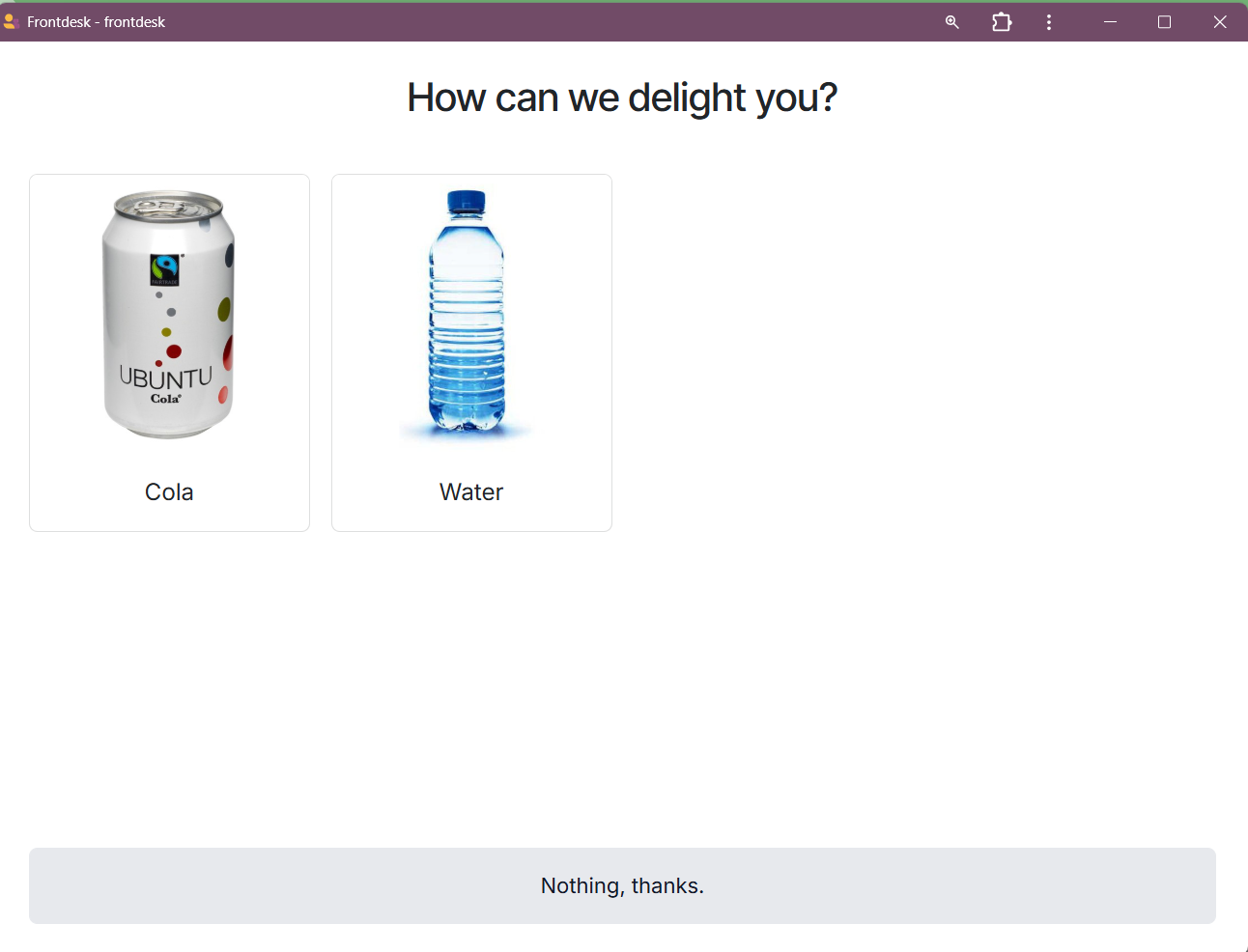
The list is displayed on the very next page if visitors would like to make a choice.
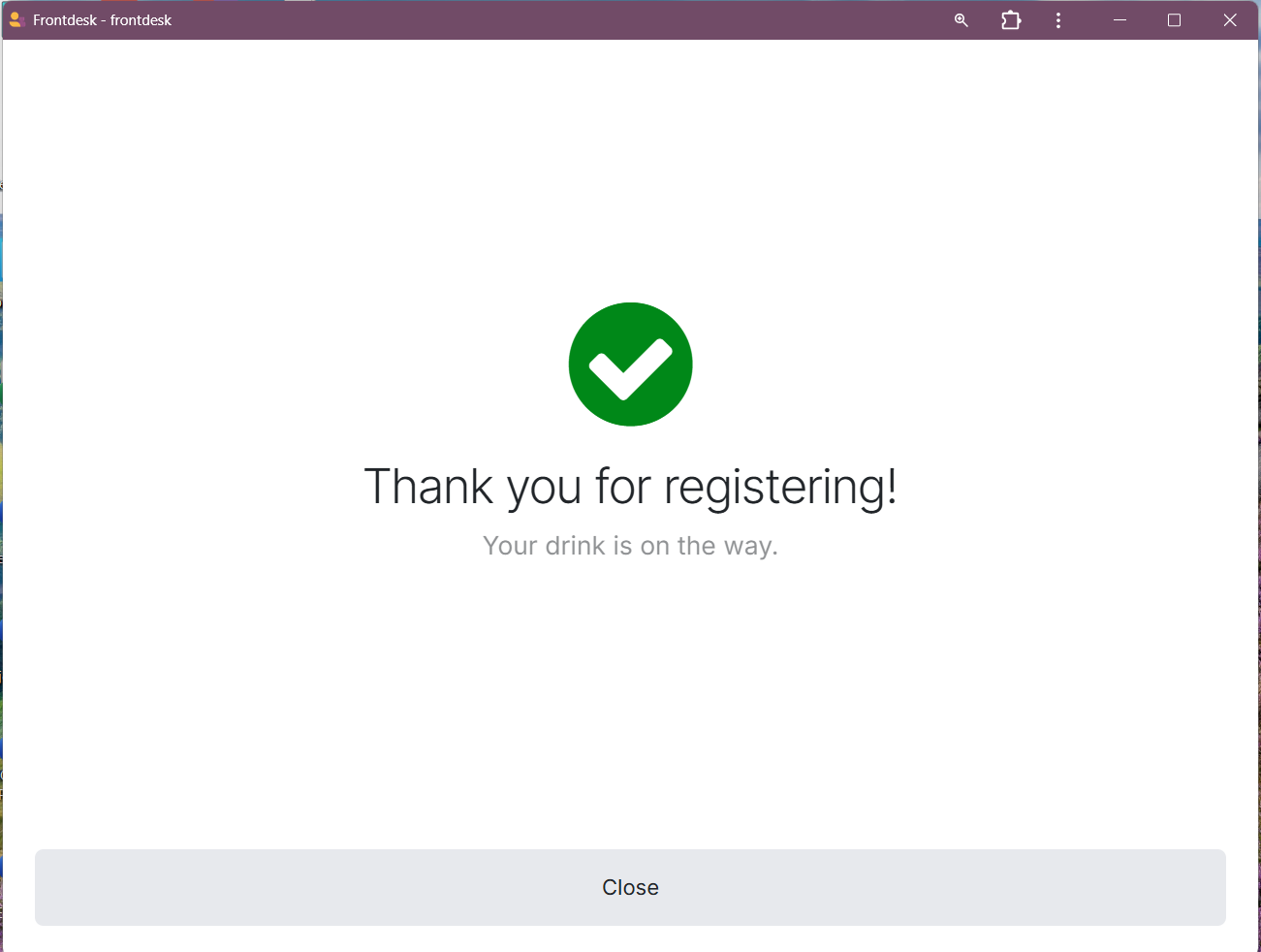
The registration process is complete. As soon as the guest notices the confirmation message below.
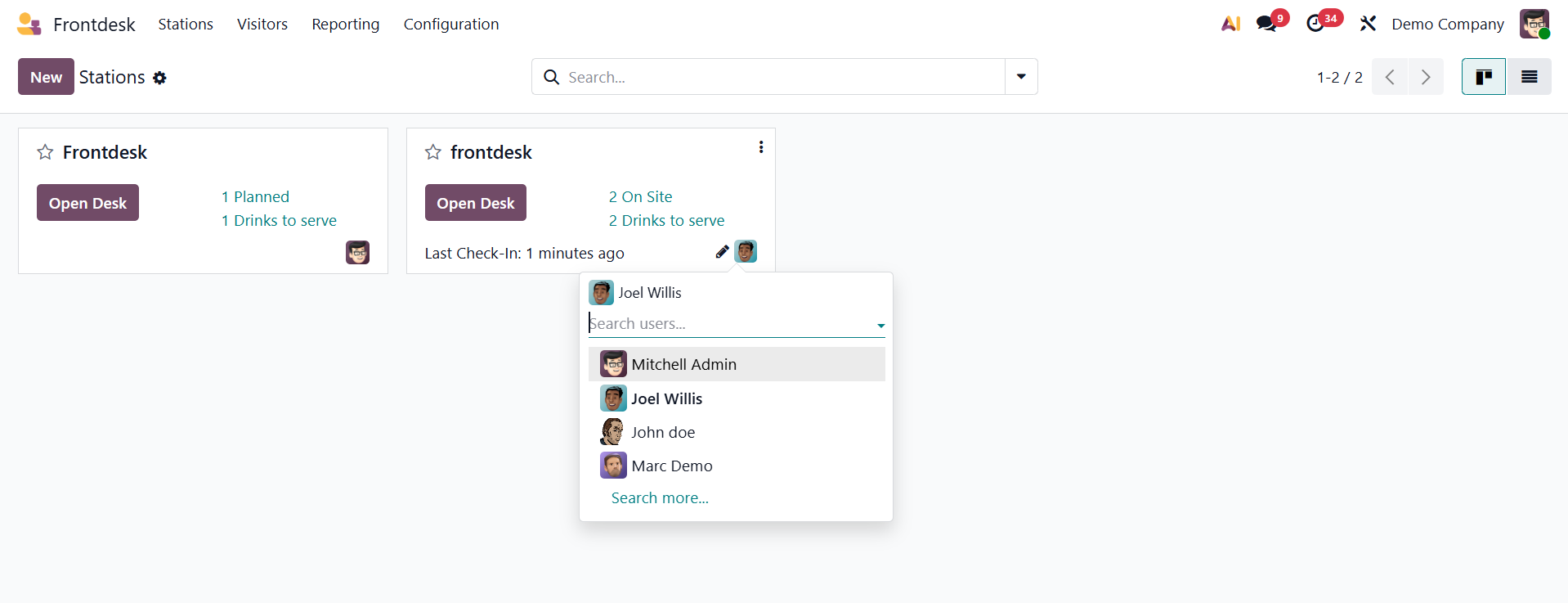
The station's current status is then shown on the dashboard. How many people are in line, how many beverages might be served, when was the last check-in? From the dashboard, a responsible individual can be added.
The option to install the PWA will appear when you click the three dots, as shown in the picture below.
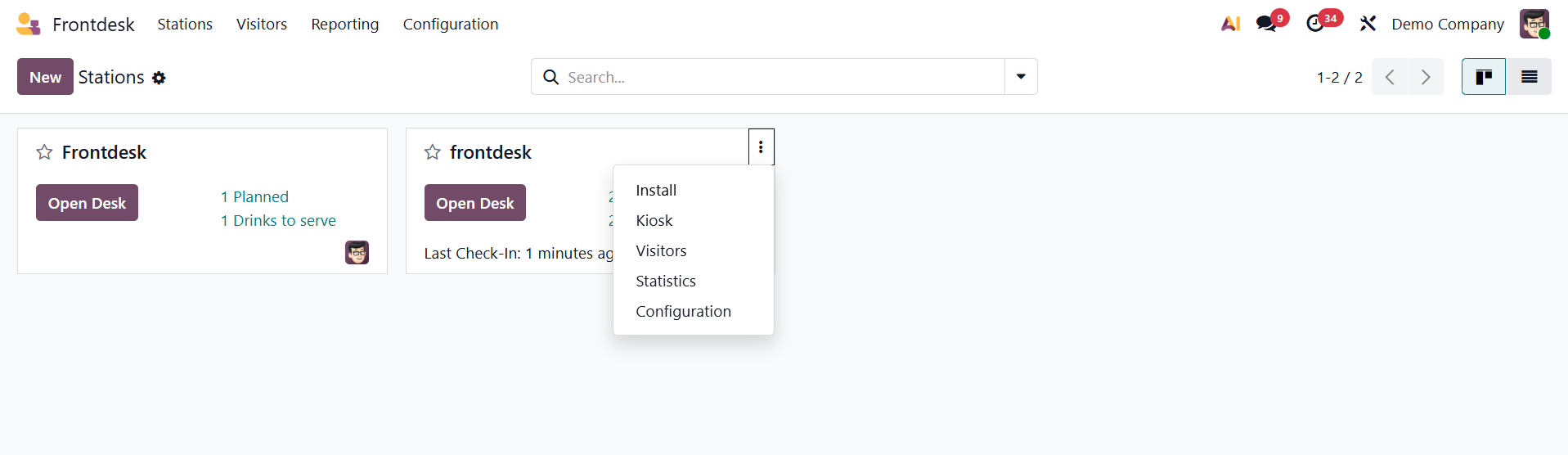
The install option assists you in defining and activating the Odoo 19 Frontdesk module's "Install" option for a Progressive Web App (PWA). The "Install" option is occasionally used to add the web application to the user's desktop or home screen so that it operates like a native program.