Configuration
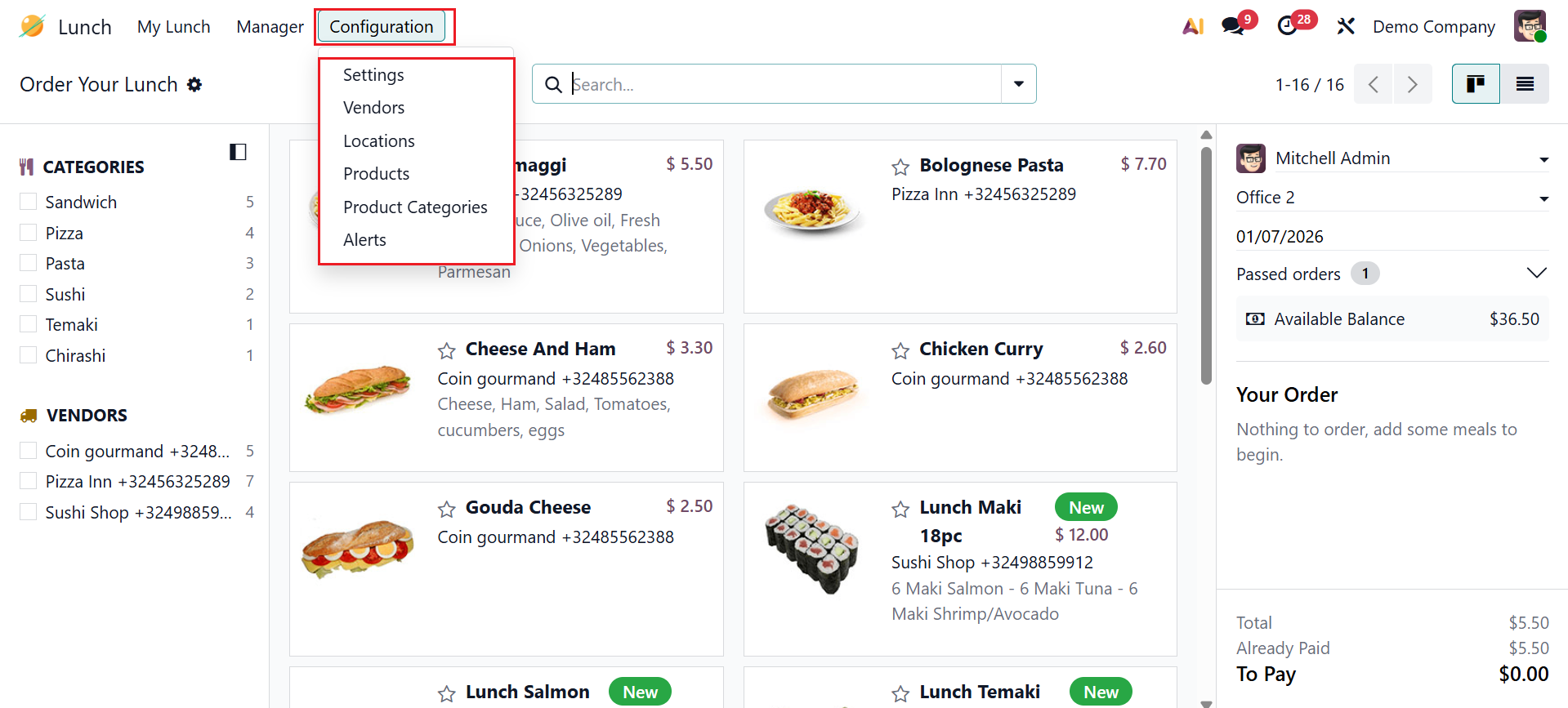
In the Configuration menu, you can access Settings, Vendors, Locations, Products, Product Categories, and Alerts.
1.1 Settings
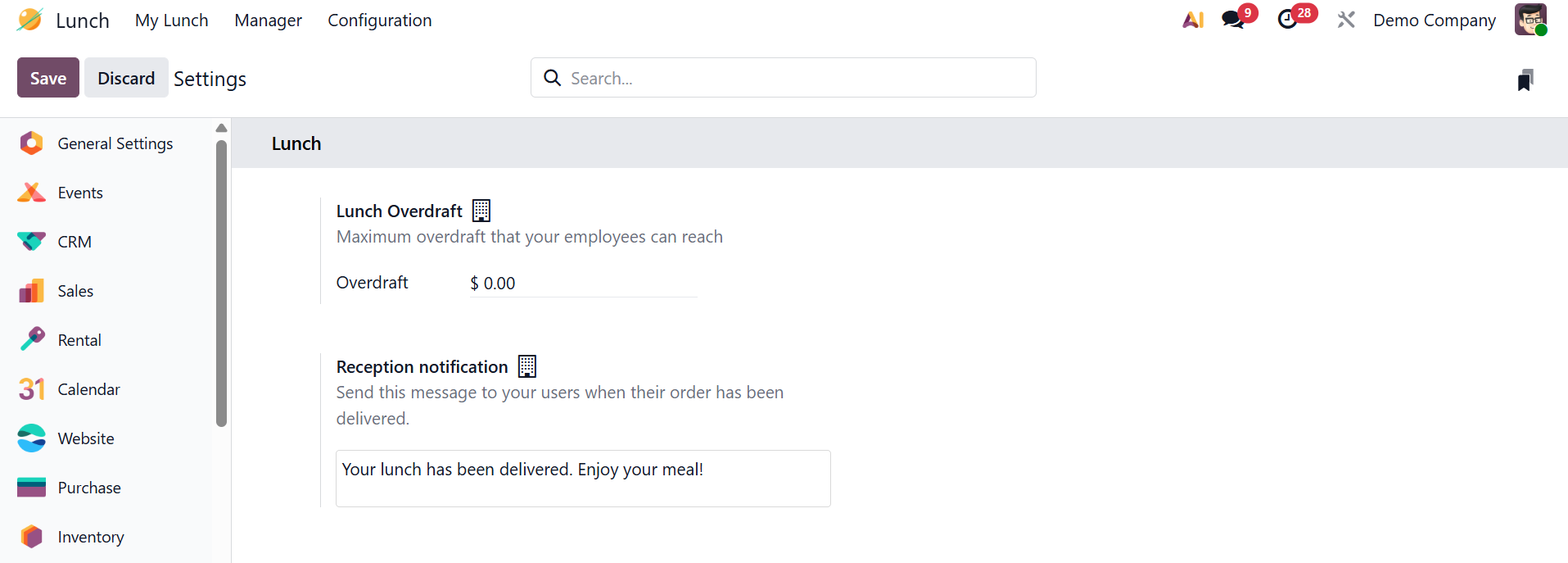
Under the Settings menu, you can see two options:
- *Lunch Overdraft:You can add the maximum overdraft that your employee can reach to place lunch orders.
- *Reception notification: You may add notifications to inform users when their order has been delivered.
1.2 Vendors
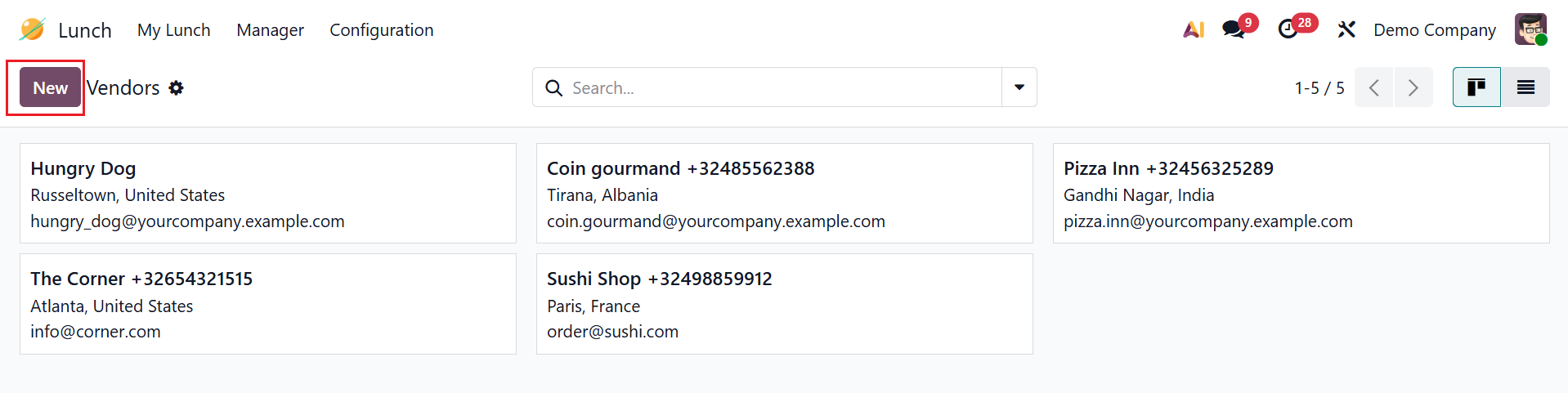
In Odoo 19, Vendors are the restaurants or suppliers from whom the lunch orders are configured and ordered by employees. In the Vendors dashboard, each supplier is arranged as cards as shown below. Click the New button to create a new vendor entry.
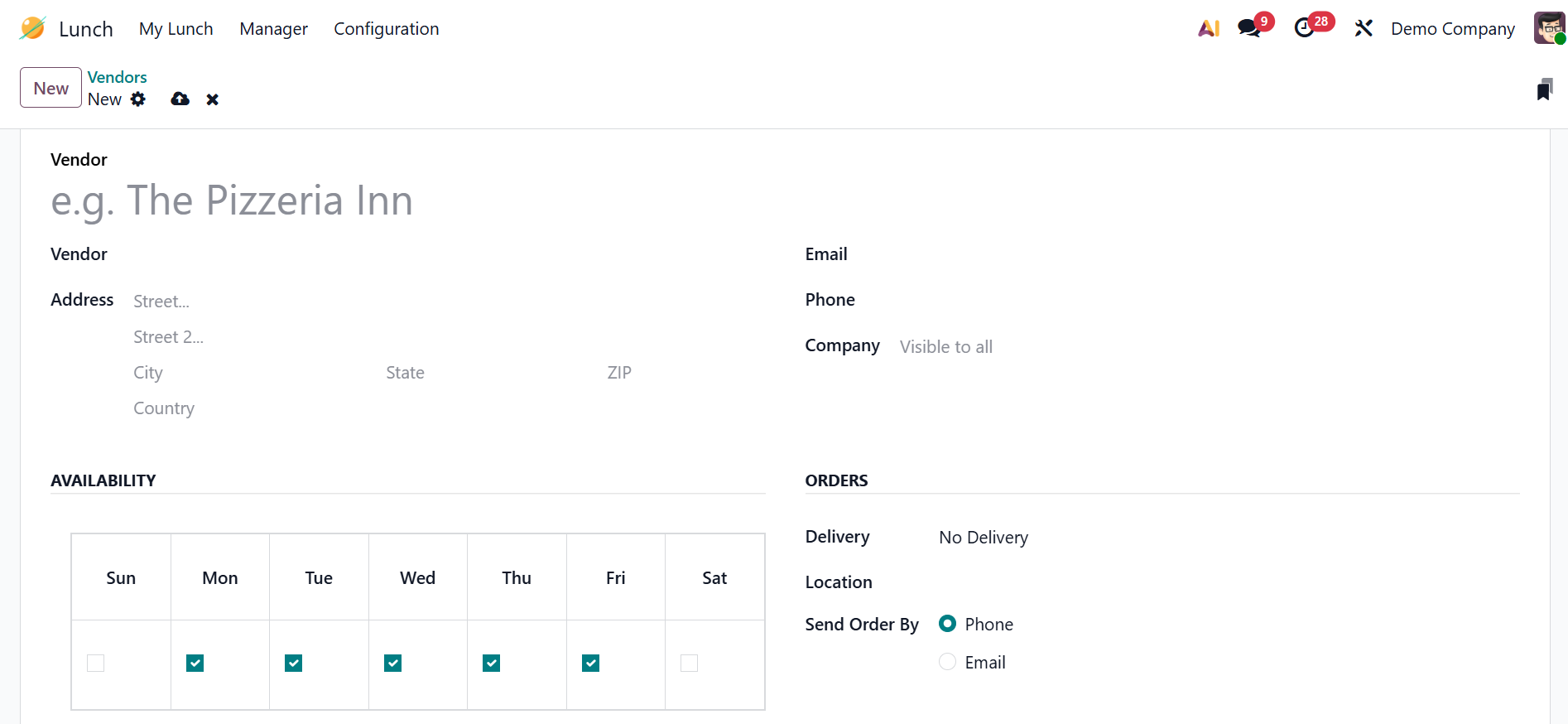
In the Vendors field, add the name of the vendor and from the drop-down menu, select the corresponding vendor from the contact app. Then, add the vendor’s Address, Email, Phone, and Company (if available).
Under the Availability field, you can see two rows. The first row shows the days of the week, and in the second row, mark the checkbox corresponding to each day of the week the vendor is available.
Under the Orders section, select either Delivery if the vendor delivers to the office or No Delivery if the orders must be picked up. You can select locations where the employees are able to order from this vendor. You can select the Send Order By field as either Phone or Email.
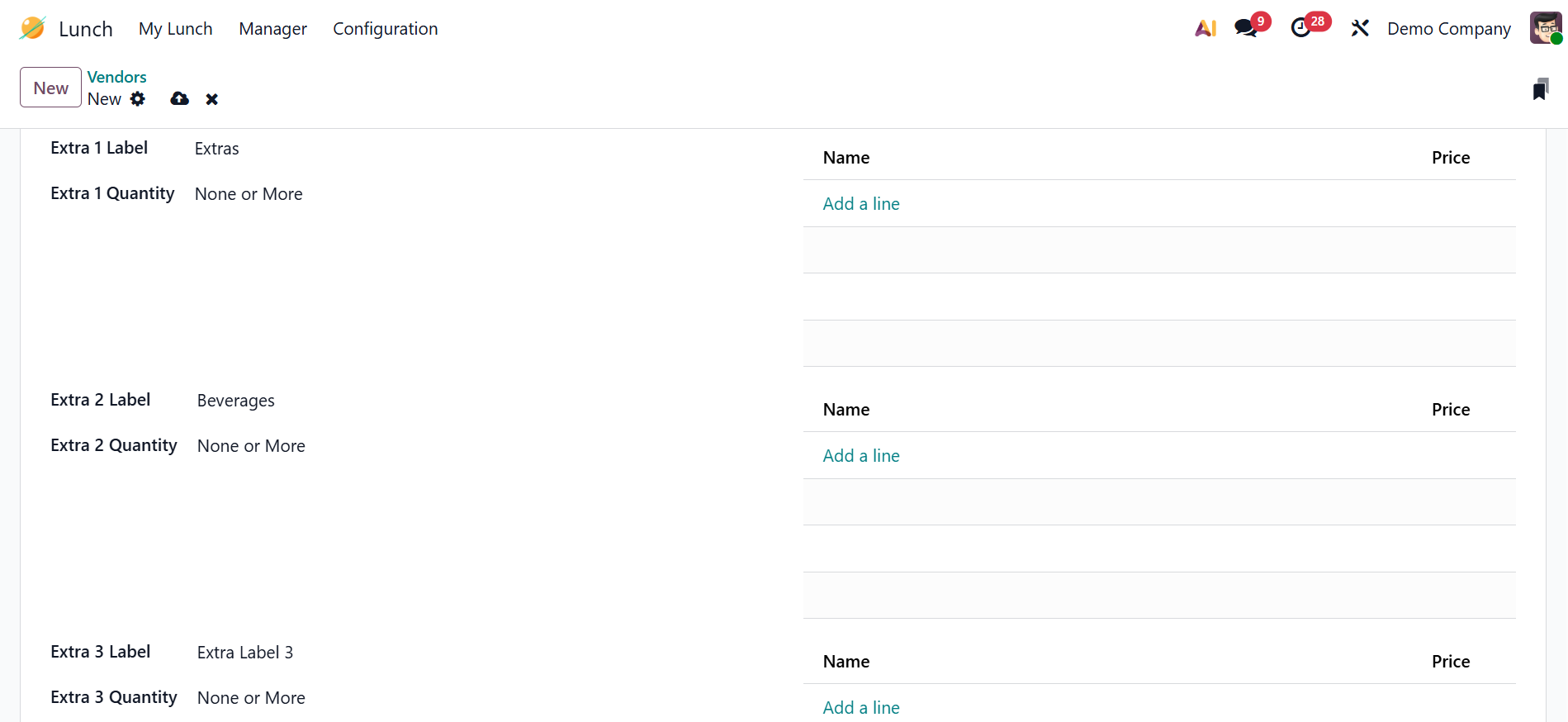
You can add three types of extra items to your orders, labeled as Extras. In the Extra # Label field, you can add the name for the type of extra. In the Extra # Quantity field, you can select the extra as either None or More, One or More, or Only One. By clicking the Add a line button under the Name field, you can add the Name and Price of the individual extra items from each category.
1.3 Locations
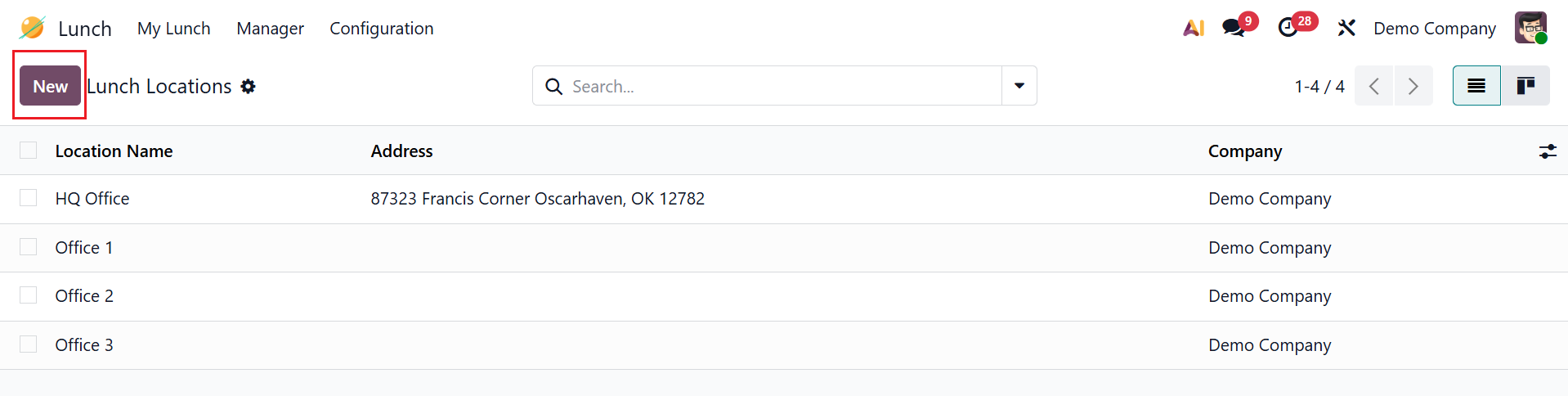
In Odoo 19, Locations are used to define delivery or pickup points where lunch orders are received within the company. To add a new location in the Odoo 19 Lunch module, click New. Provide the location details, including Location Name, Address, and Company.
1.4 Products
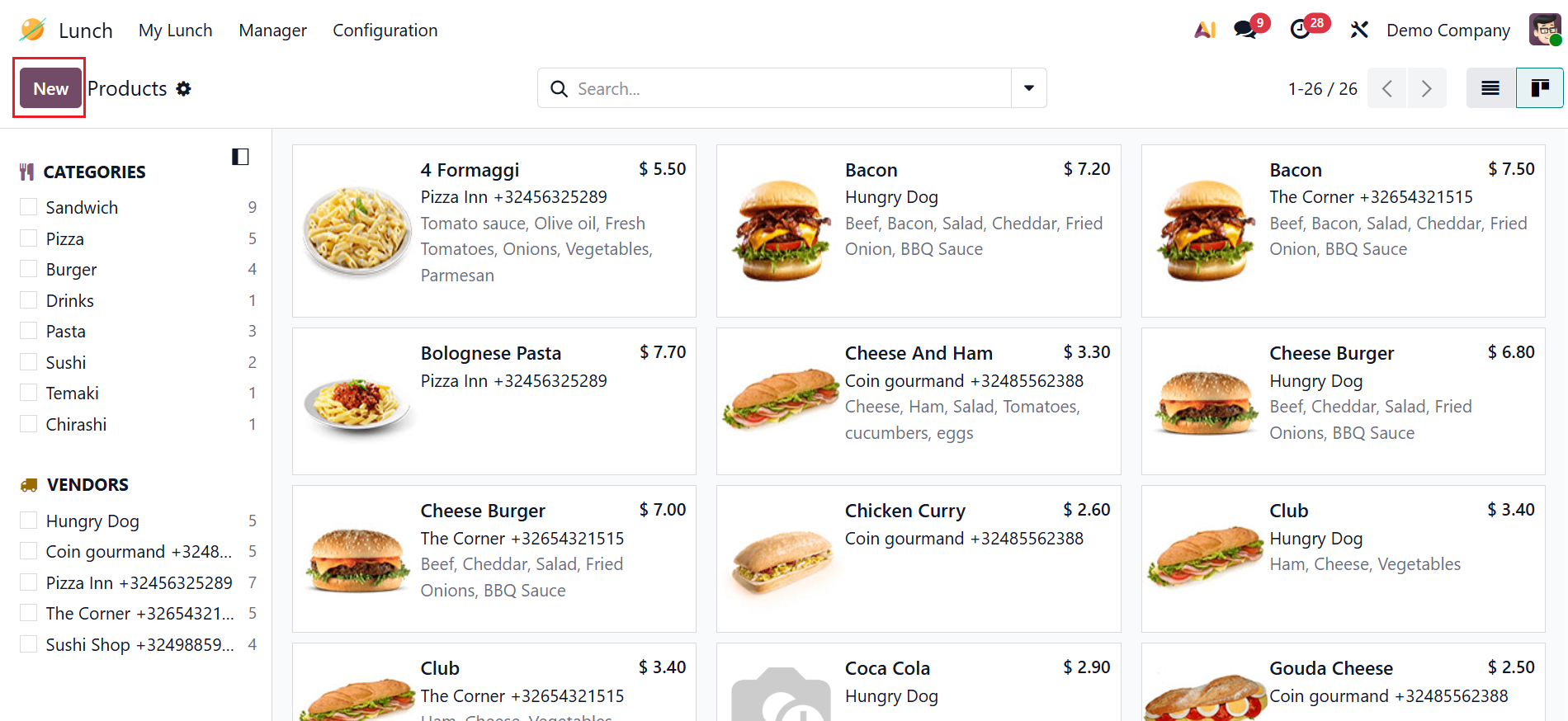
In Odoo 19, Products are the food items offered by vendors that employees can select and order for lunch. Here, you can see the product details, categories, and vendors. Click the New button to create a new product.
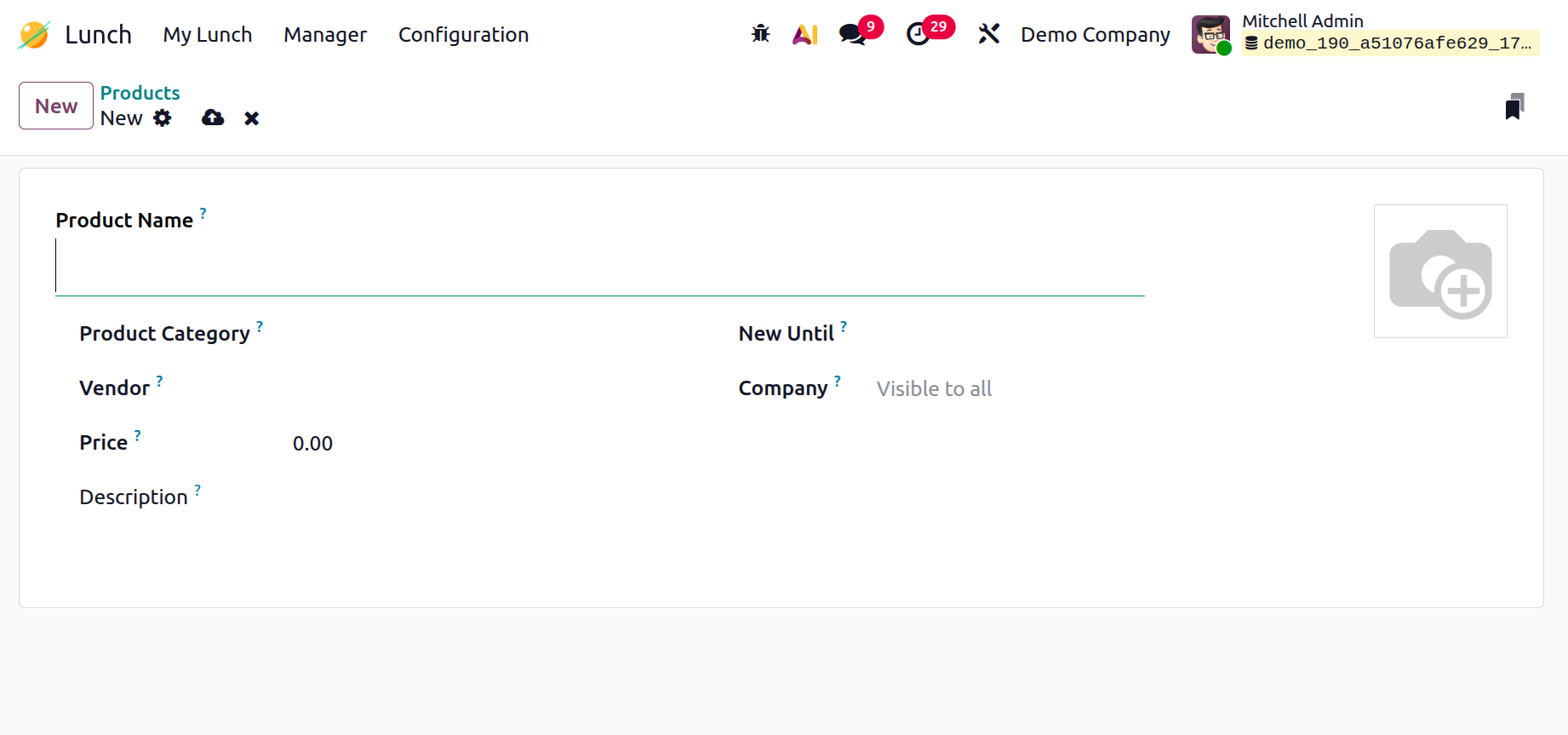
Here, you can add the details of the new product, such as Product Name, Product Category, Vendor, Price, New Until (select a date up to which a lunch product is marked as new and highlighted for employees), Company, and Description.
3.5 Product Categories
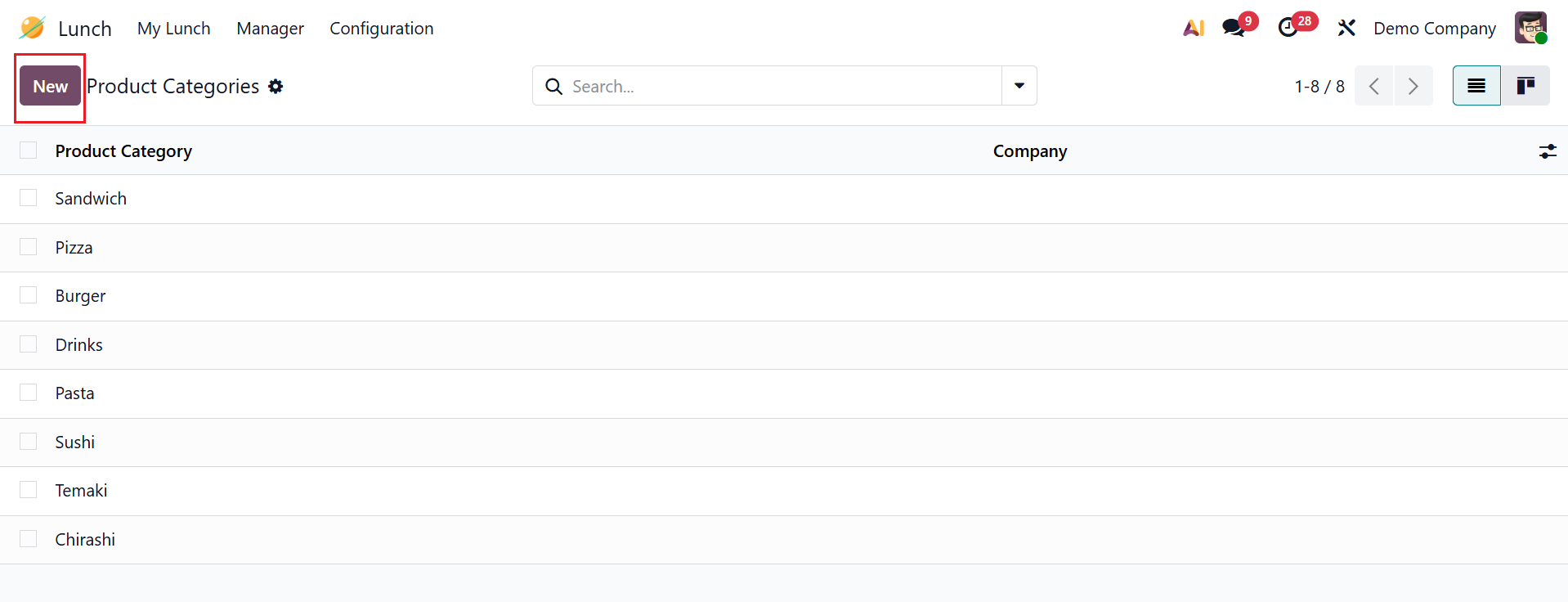
In Odoo 19, Product Categories are used to group lunch items to organize the menu and make selection easier. Here, you can see a list of product categories with details such as the name of the product category and the company it belongs to. To create a new product category, click on the New button.
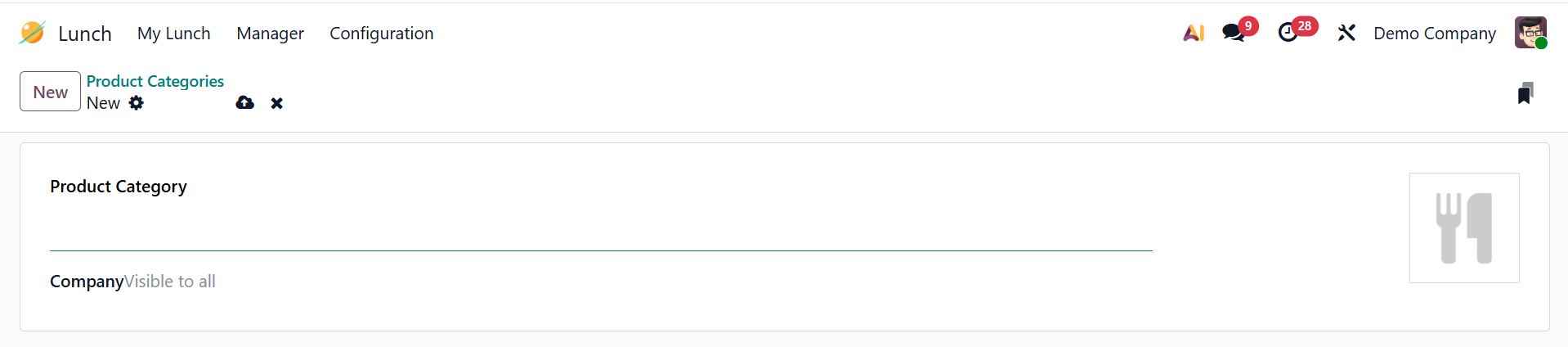
Here, add the details such as Product Category and Company.
1.6 Alerts
In Odoo 19, Alerts are used to send notifications or warnings to employees or managers about lunch orders and deliveries. Alert information, including Alert Name, Display, Is Displayed Today, and Active, is displayed in this section. To add a new lunch alert, click on the New button as shown below:

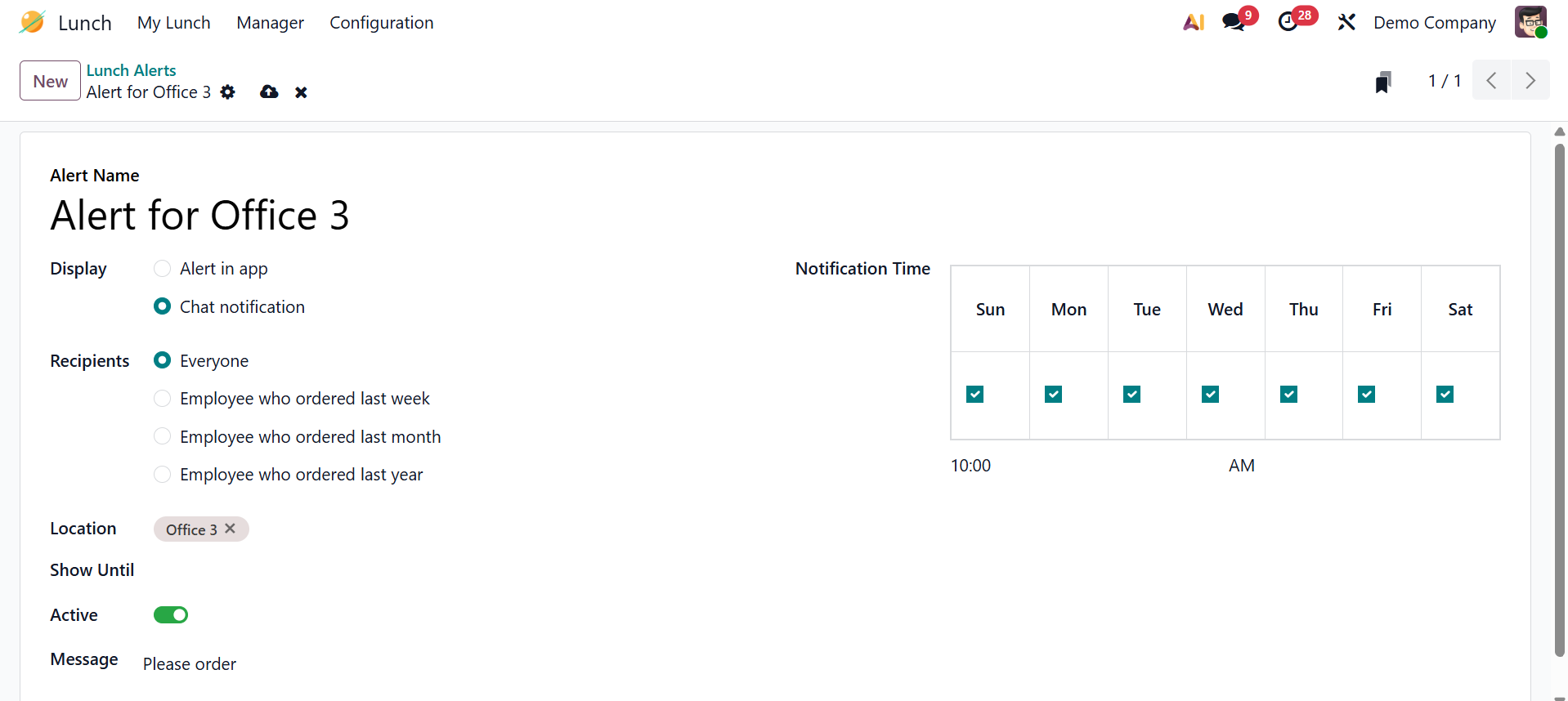
Here, add a name for the new alert in the Alert Name field. In the Display field, select either Alert in app (alert visible in the Lunch module) or Chat notification (alert sent to employees through the Discuss app). When you select the Display field as Chat Notification, a new field appears as Recipients, where you can add the users who receive the chat alerts. From the Locations drop-down menu, select a location to view the corresponding alerts. In the Show Until field, select a date by which an alert remains available to users. To activate the lunch alerts, enable the Active button. In the Message field, add an alert message. In the Notification Time field, select the days of the week the alerts should be sent.
In Odoo 19, the Lunch module provides a smart and efficient way for organizations to manage employee meal services. It centralizes lunch ordering, vendor management, and payments within one integrated system. Employees benefit from an easy-to-use interface, digital wallets, and flexible ordering options, while employers gain better cost control, transparency, and reporting. By automating daily lunch operations, the module reduces administrative effort and errors. Overall, the Lunch module enhances workplace convenience, supports employee satisfaction, and contributes to smoother HR and administrative processes, making it a valuable feature for Odoo 19 across growing organizations worldwide today.