Work Entries
An organization needs work entries in order to monitor and manage real-time data from its work entry source. It serves as a record of the employees' prearranged work schedule. The options under the Work Entries tab are Time Off to Report and Work Entries.
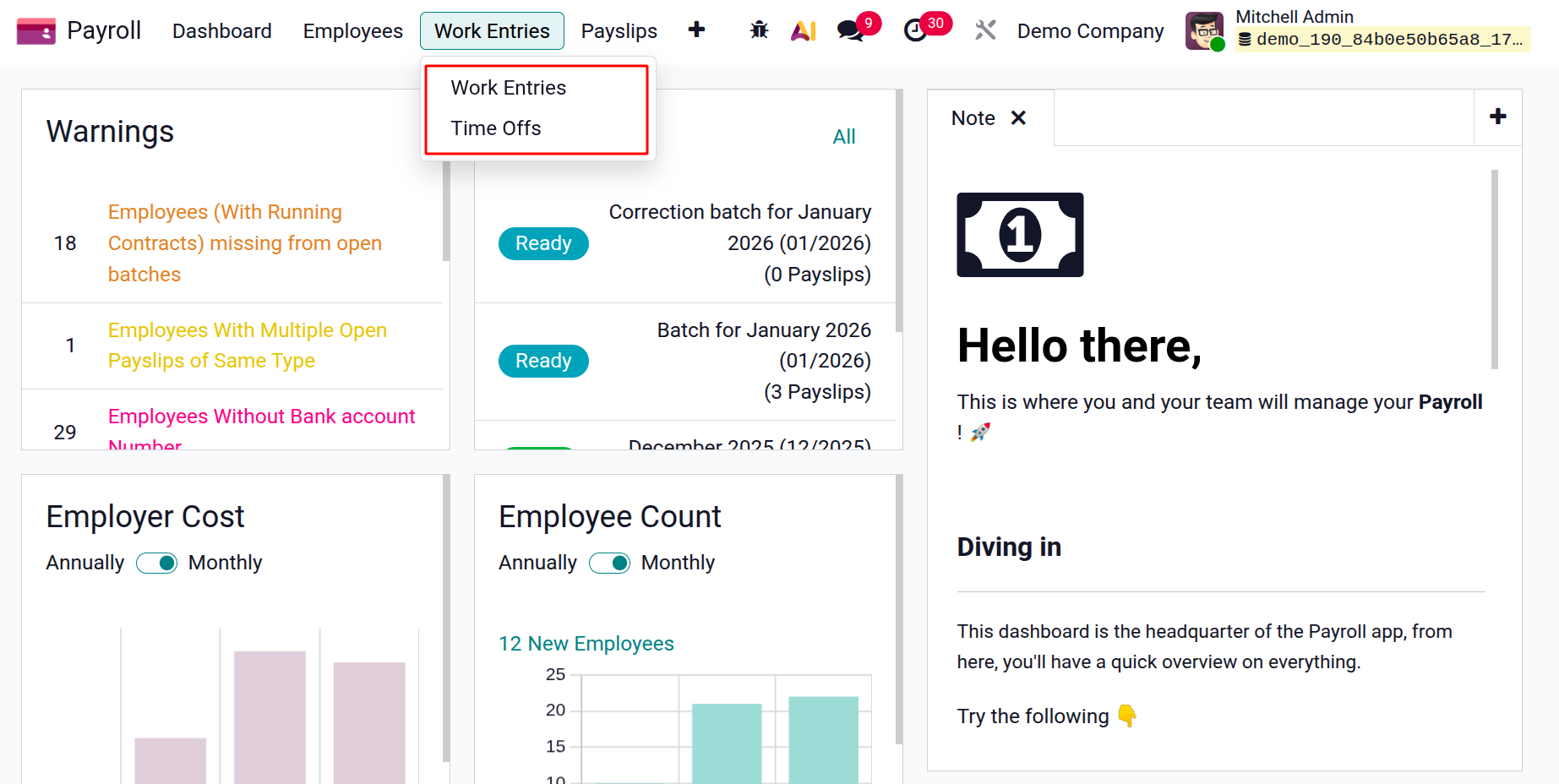
Work Entries
Under the Work Entries page, we can manage each employee's work entries, requests for time off, and conflicts.
After selecting the Work Entries option from the Work Entries menu, each employee's work entry may be easily maintained. Odoo 19 automatically groups all conflicts into work items. The employee's name and any conflicting work entries are shown in the Work Entry window. Overlapping or inconsistent records of an employee's working hours, leaves, or other time-related entries may result in conflicting work entries in the Odoo 19 Payroll module. Strong tools are available in Odoo 19 for locating and resolving these problems.
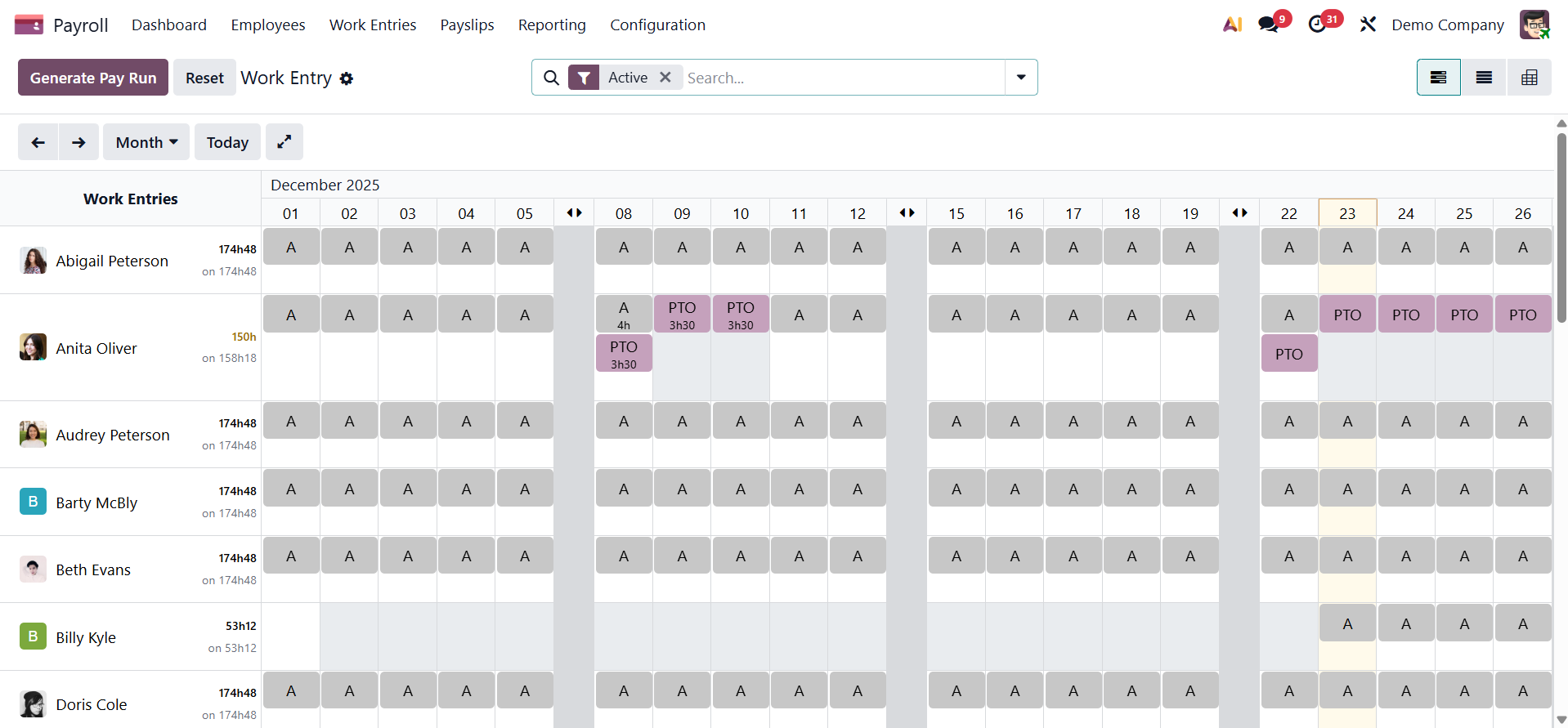
Invalid and undefinable work entries are shown in the Work Entry window of the Gantt view.
The Gantt view shows a summary of each employee's work entries for a specific month. The employee work input can be sorted by DAY, MONTH, and WEEK. The employee's overtime is represented by the color blue. The normal entries are also shown in grayscale.
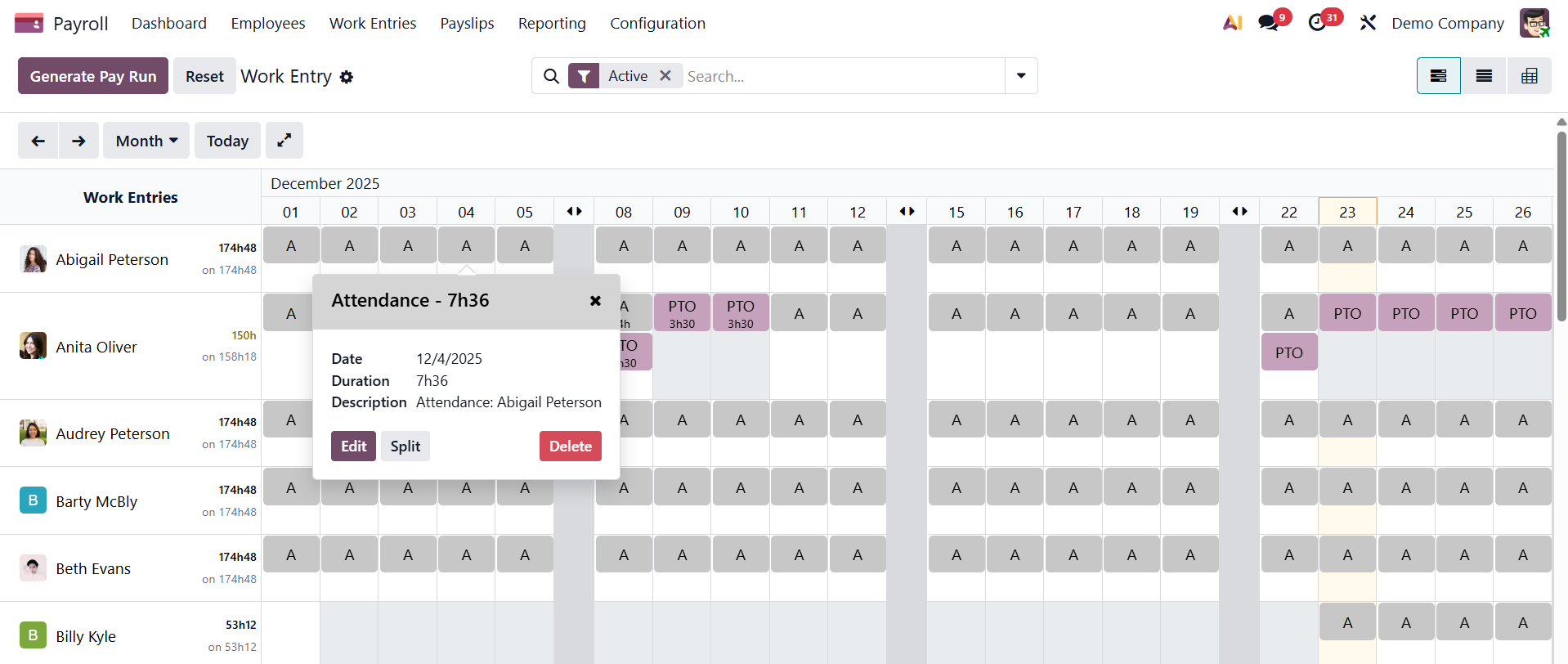
- Generate Pay Run button:Creates a new payroll batch by grouping the selected work entries into a pay run for the chosen period, preparing them for payslip generation.
- Reset button:Clears or resets the selected work entries back to a draft or unprocessed state, allowing corrections before generating or regenerating the pay run.
Each employee's unique work entry is visible in the List view, together with information such as Name, Type of Work Entry, Duration, State, Start, Finish, and so on.
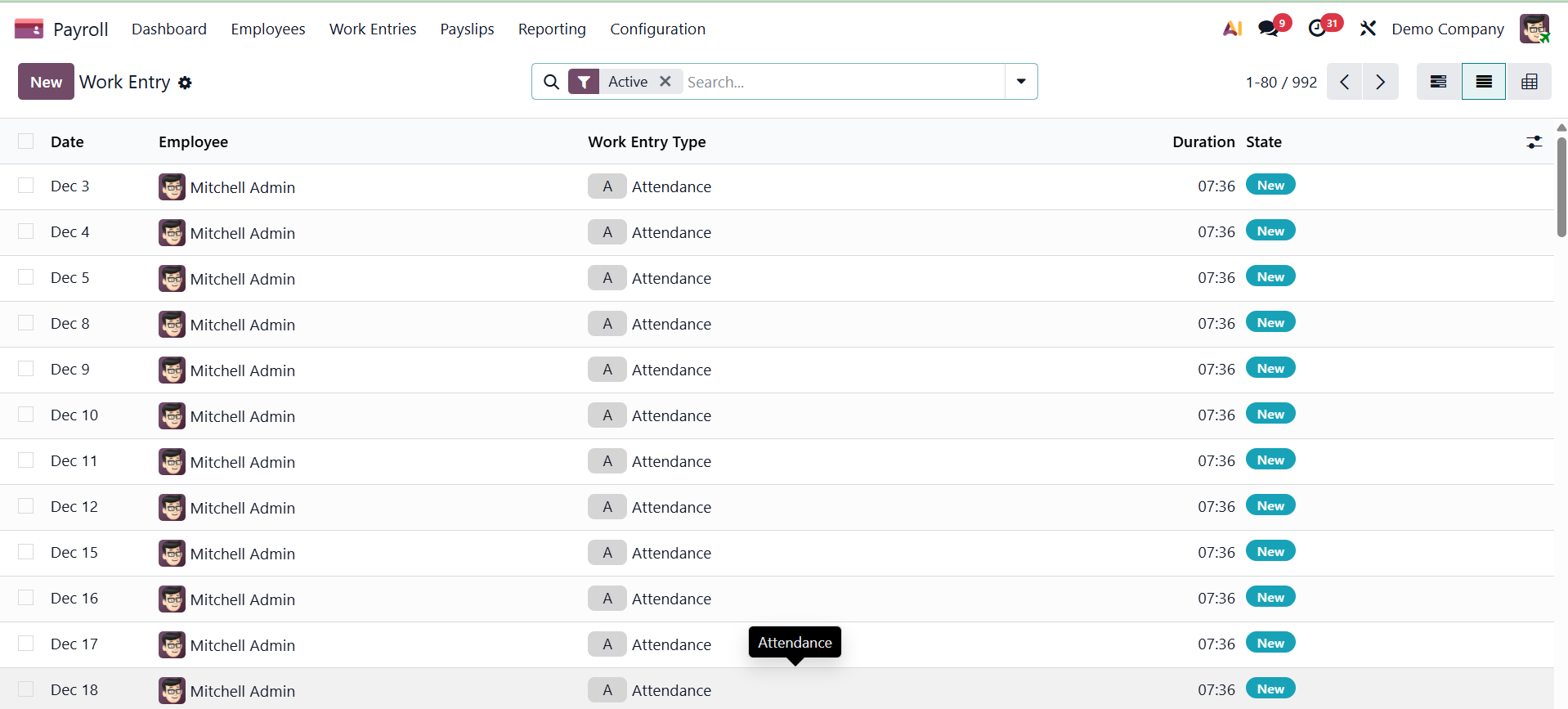
To create a new employee work entry, click the New button. However, the work entry will typically be updated automatically using the work entry source specified in the employee contract. Once the work entry type name has been applied, choose your employee from the open screen. The Work Entry Type can then be chosen from options such as Extra Hours, Attendance, and Sick Time Off. The From and To dates of an employee's work entry can be specified. If an employee has two work entries on the same day, such as time off and attendance, there will be a conflict.
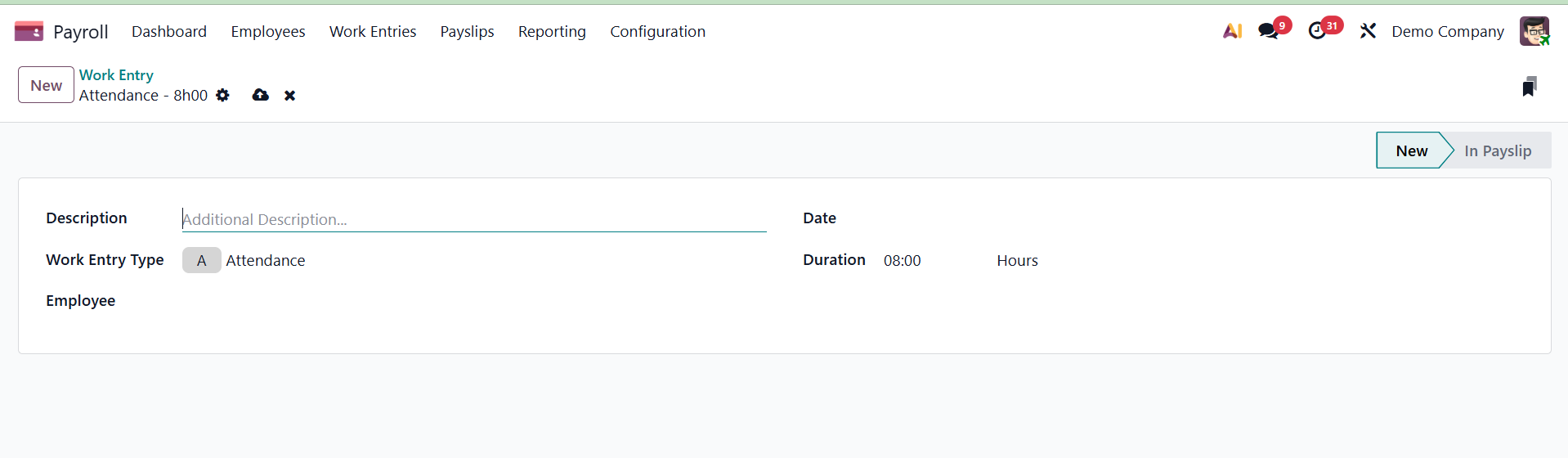
Each piece of information may be readily saved in the Work Entry box once all the data has been entered.
Time Offs
A user can check each employee's deferred time off details by selecting the Time Off to Report option from the Work Entries menu. The List view of the Time Off window displays the Start Date, Duration, Payslip State, Time Off Type, End Date, and further information about each employee's leave. The DEPARTMENT and STATUS parts are also shown separately on the left side of the window. The Time Off window allows you to view the corresponding updates and sort the time off by authorized or unapproved.
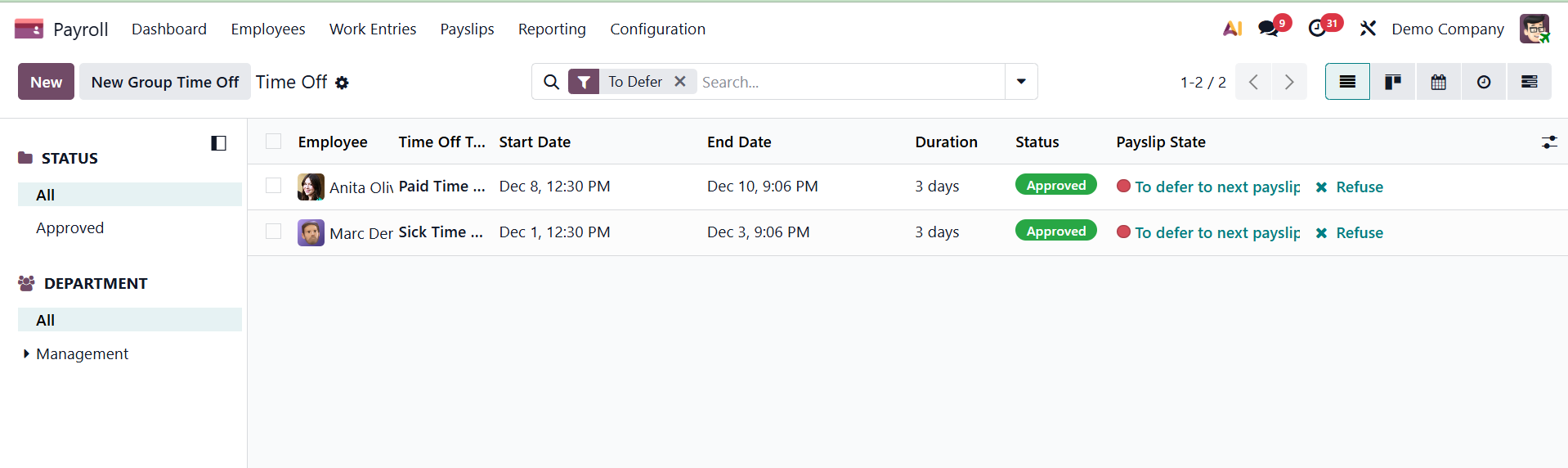
The Time Off window is available to users in a variety of formats, including Calendar, List, Gantt, Activity, and Kanban. Click the New button on the Time Off screen to create a fresh time off report for an employee. The New Group Time Off button in the Time Off option of the Odoo Payroll module is used to create a grouped time-off entry for multiple employees at once, ensuring their leave is recorded consistently and correctly reflected in payroll and work entries. On selecting the option, you will get the pop up, as shown below.
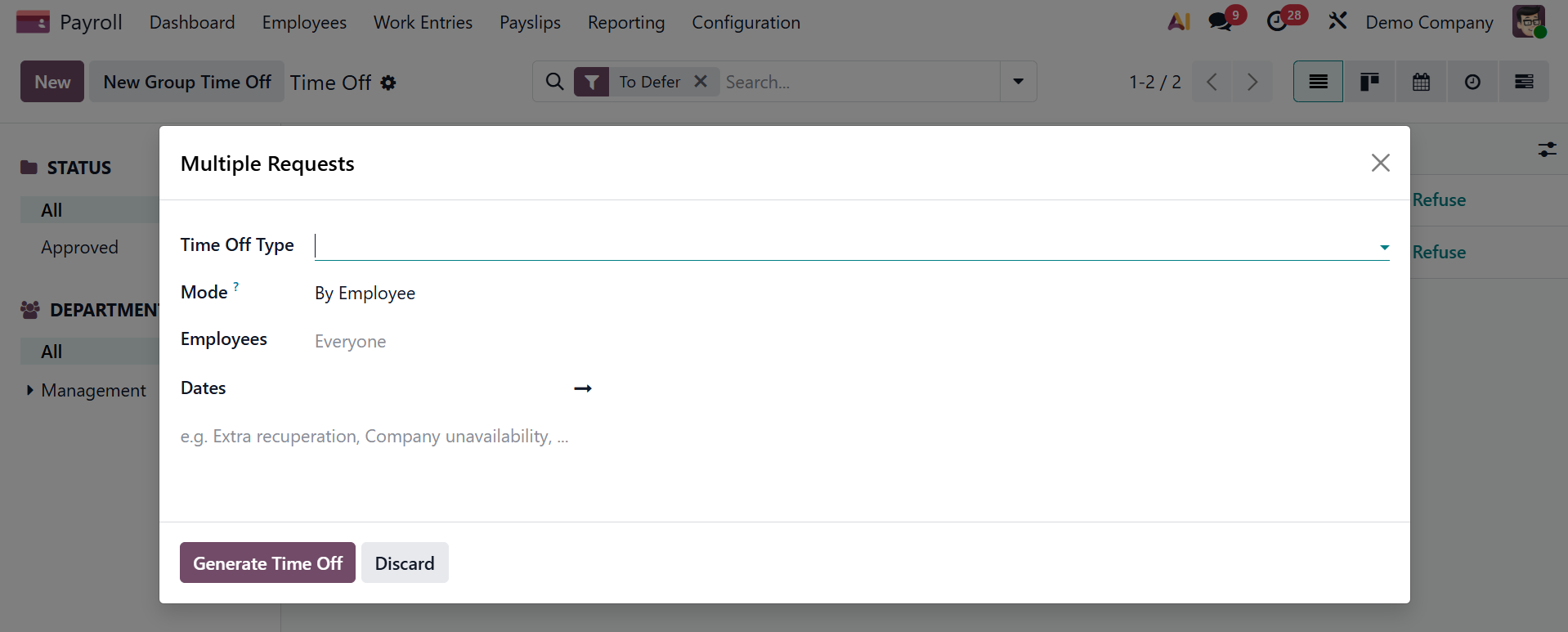
There, you can add the time off type, mode, employee, and dates. And then, you can generate the time off.
Go to the NEW option to start a new time off. The creation page will look like the picture below.
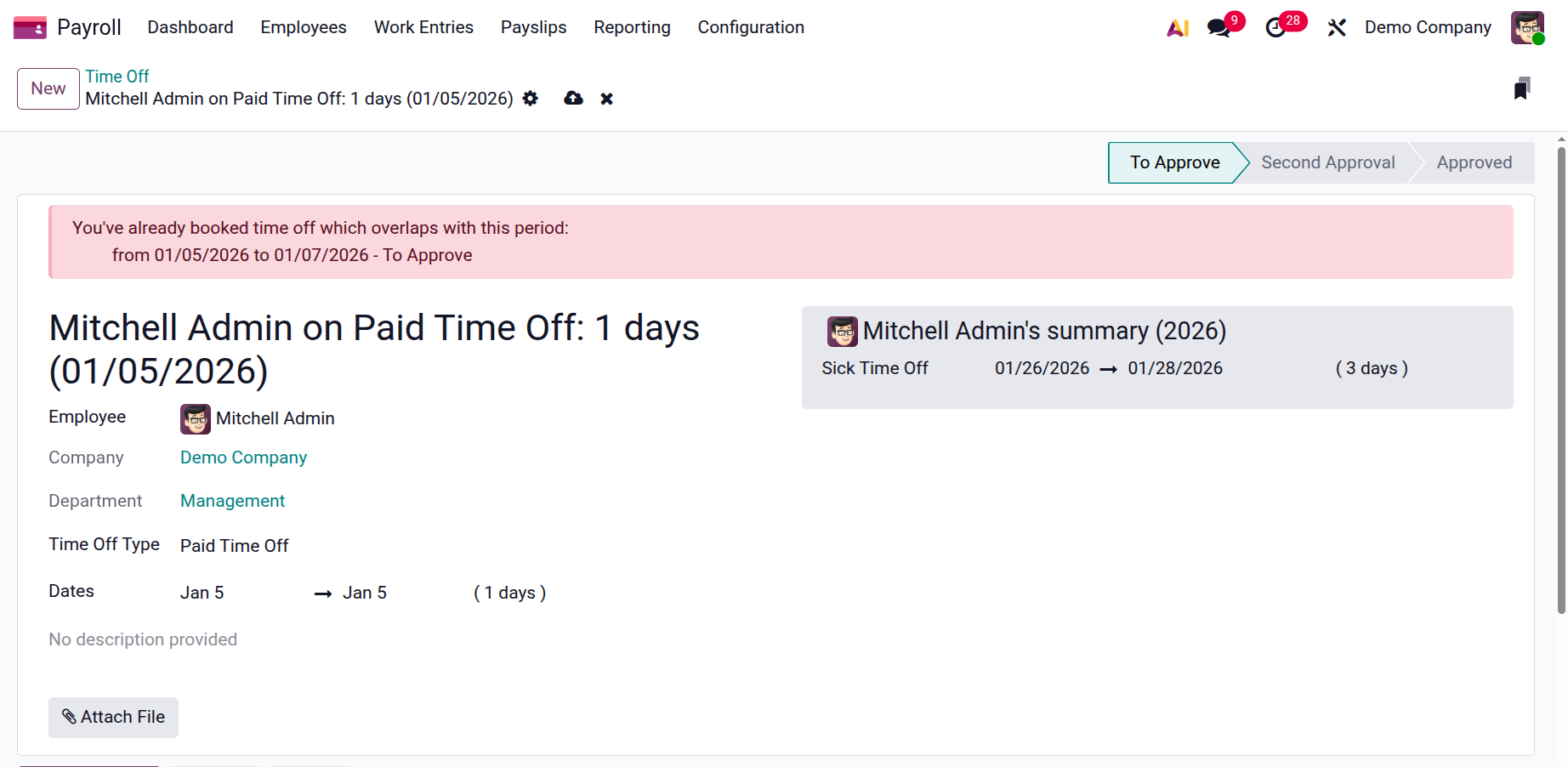
The Employee, Company, Department, kind of time off, payslip state, dates, and description can all be added there. The "Time Off to Report" section's payslip state option shows the current condition of a time off request and how it will affect the employee's payslip. It assists in monitoring if the time off has been taken into account and factored into the payroll computations. It is also possible to specify the payslip state to delay the subsequent payslip.
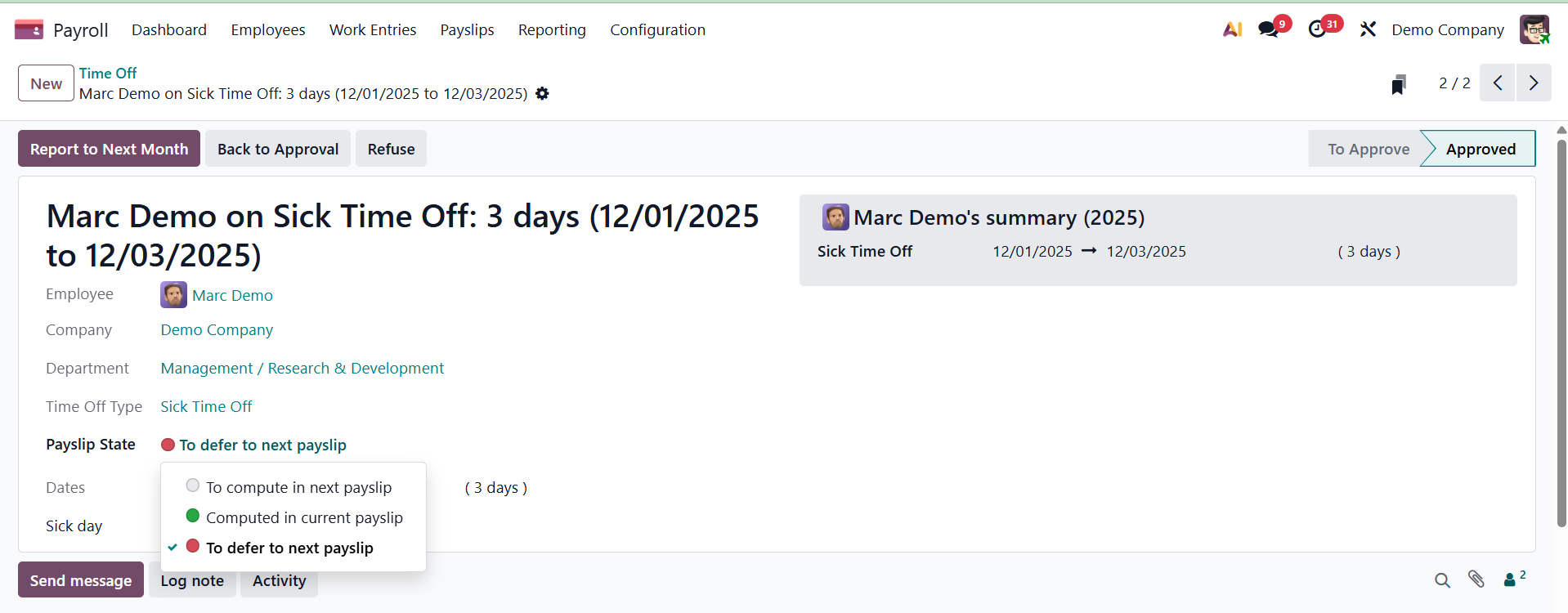
A feature known as "Defer to next payslip" occurs when time off entries are not processed in the payslips for the current pay period. Rather, they are carried over to the payslip for the subsequent pay period in order to be calculated and paid.