Configuration
The Configuration section allows users to manage key elements such as Settings, Job positions, Rewards, Levels, Friends, Alerts, and Onboarding. These options help companies customize and control how their referral program works. Each configuration feature is explained below.
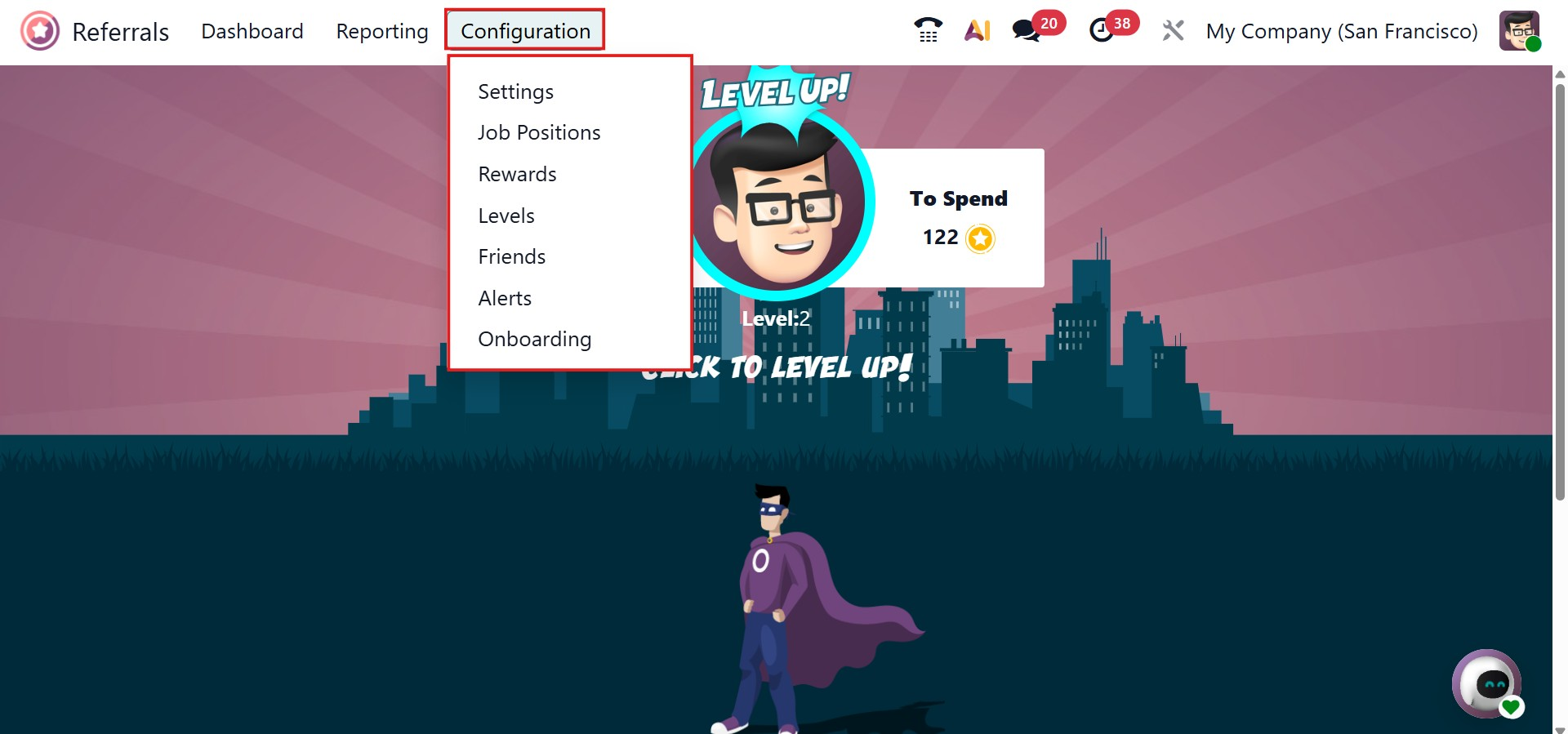
1.1 Settings
Under the Settings menu, users can customize the appearance of the Referral dashboard. The Background option allows you to upload a custom background image for the module.
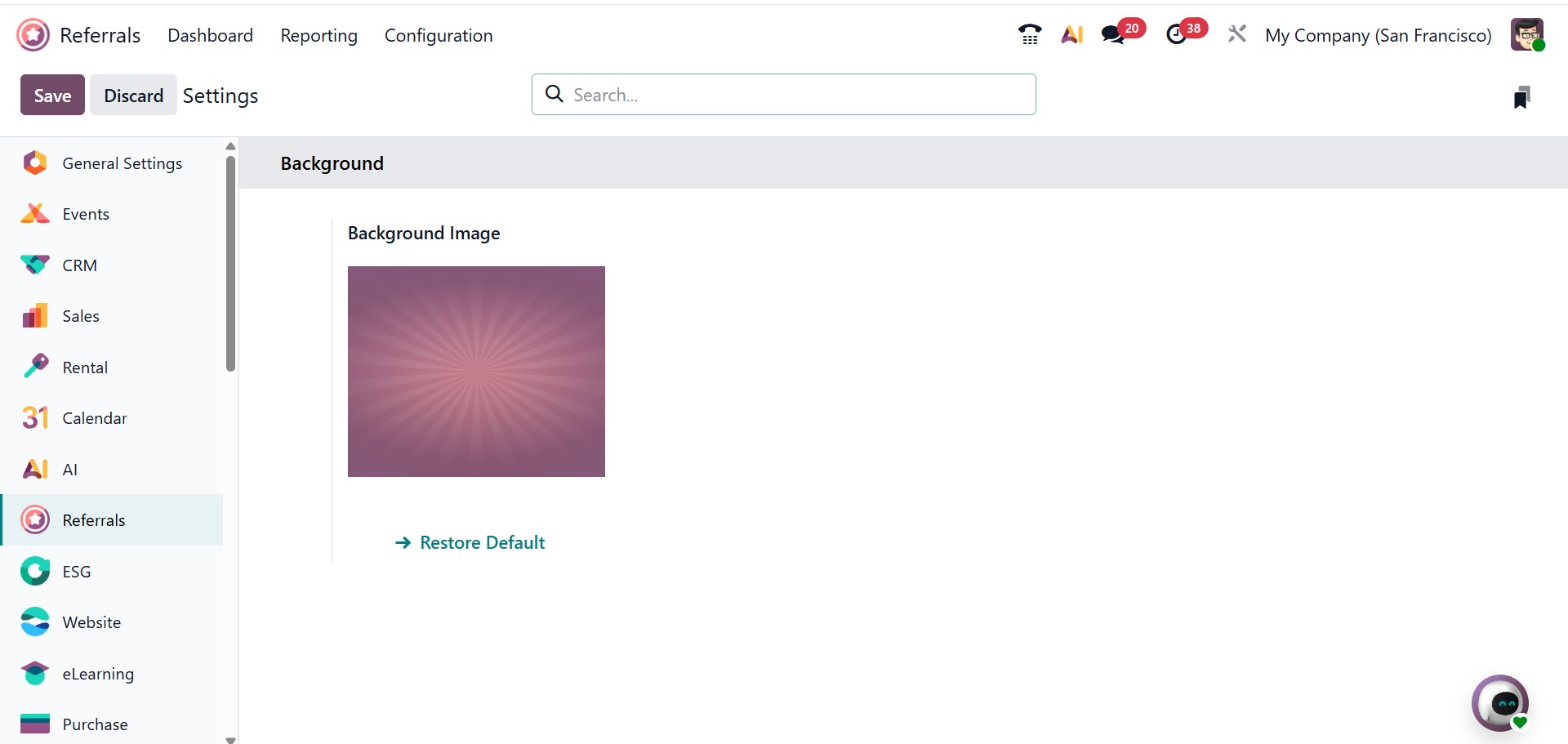
If needed, the original background can be restored easily by using the Restore Default option.
1.2 Job Positions
The Job Positions option under the Configuration menu allows users to manage and control the job roles that are available for referrals within the company. This ensures that employees can refer candidates only for predefined and approved positions.
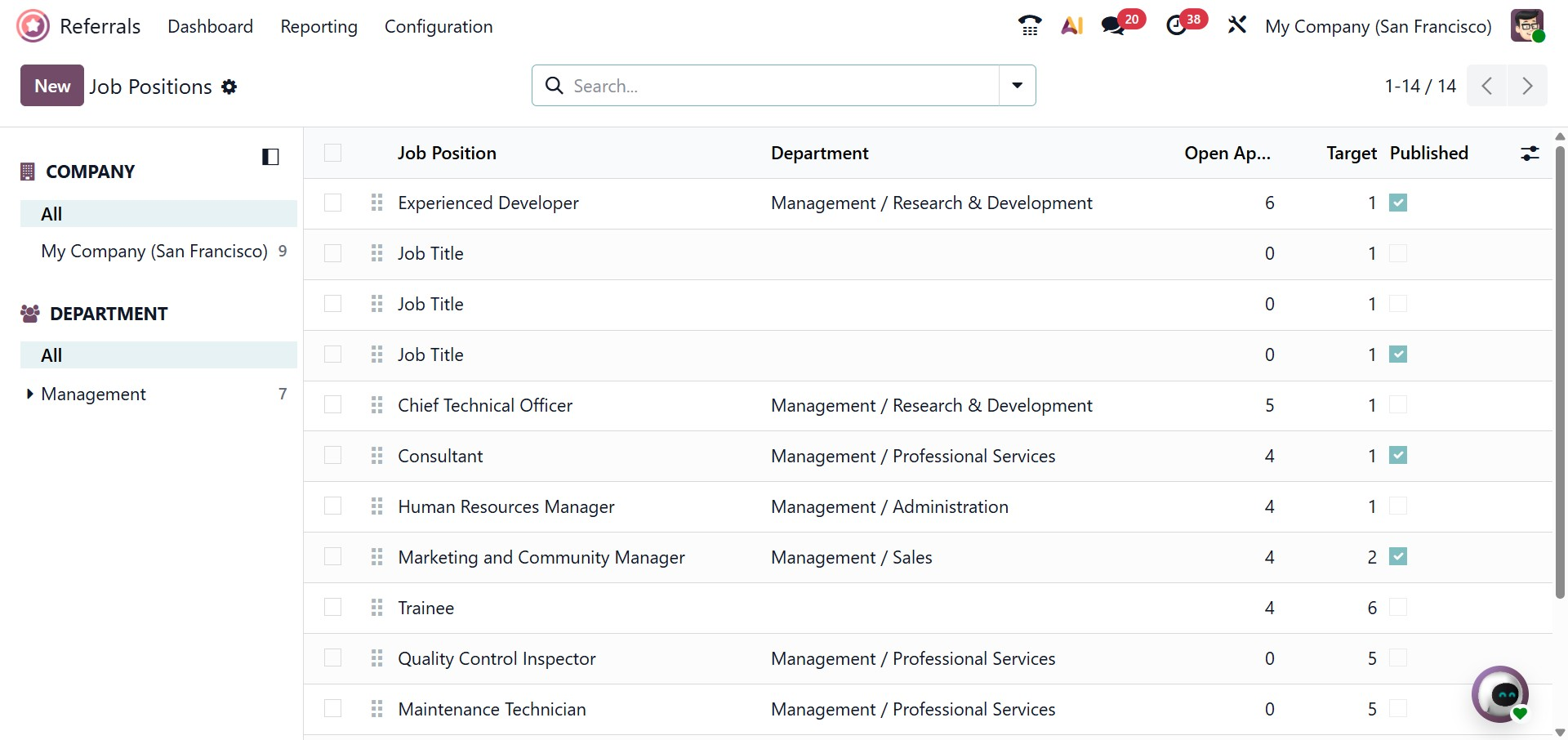
When selecting Job Positions, the system displays a list view showing details such as Job Position, Department, Open Applications, Target, and Published status. This view helps HR teams quickly monitor hiring needs and referral availability for each role.
At the top of the form, users must enter the Job Position title, such as Sales Manager. This title represents the role and will be displayed across the Recruitment and Referral modules. The form is organized into multiple tabs to ensure structured data entry and easy management.
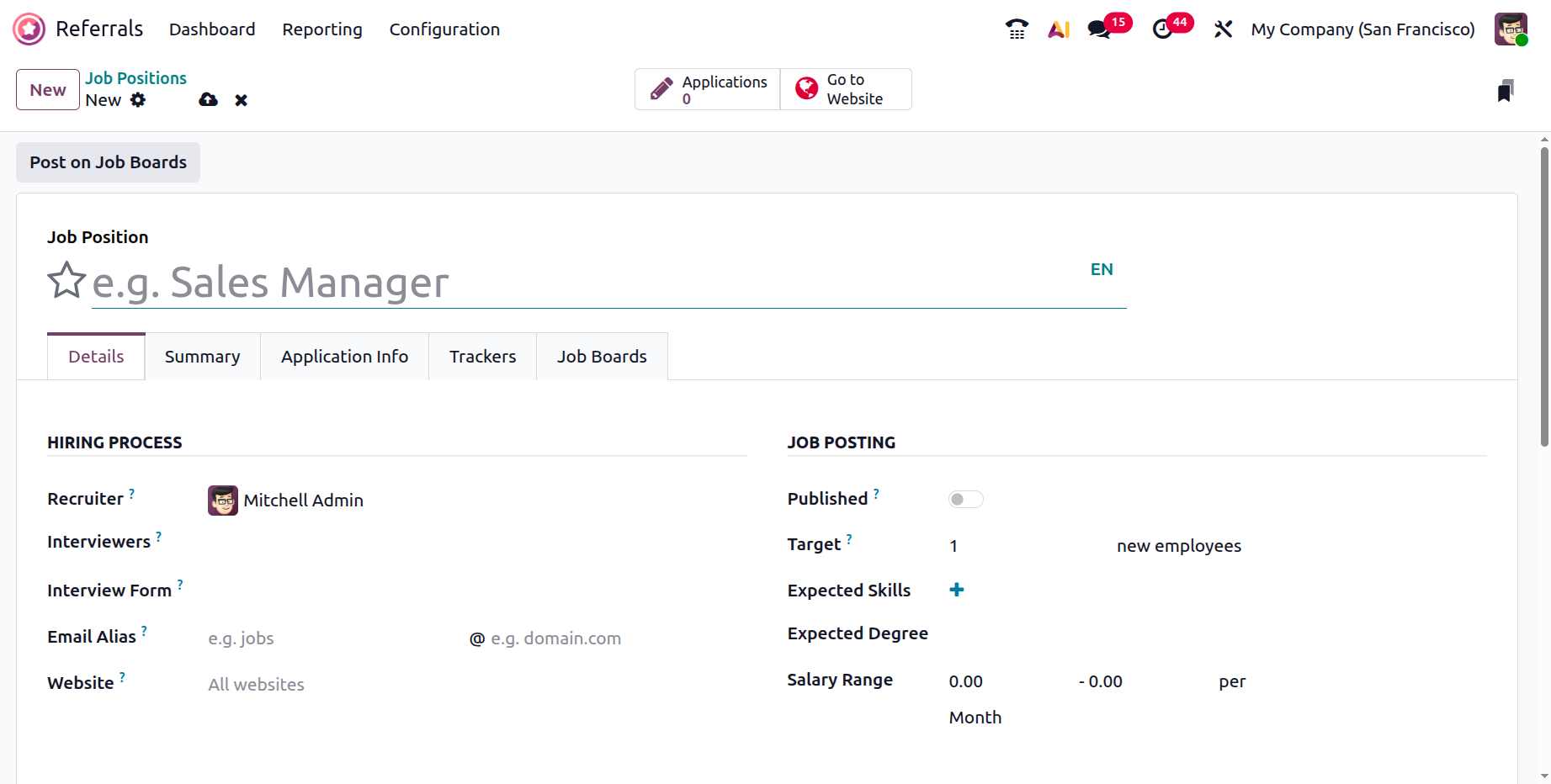
The Hiring Process section allows users to assign a recruiter responsible for the position, select interviewers, choose an interview form, configure an email alias for receiving applications, and define the website where the job will be published. These settings help streamline the recruitment workflow and ensure proper communication throughout the hiring process.
The Job Posting section within the Details tab allows users to control how the job appears to candidates and employees. Users can publish or unpublish the job position, define the hiring target, specify expected skills and educational qualifications, and set a salary range. These details provide clarity to applicants and help align expectations during recruitment.
In the Job section, users can assign the job position to a specific company and department while also defining the job location. This ensures that the role is correctly categorized within the organizational structure and visible to the appropriate audience.
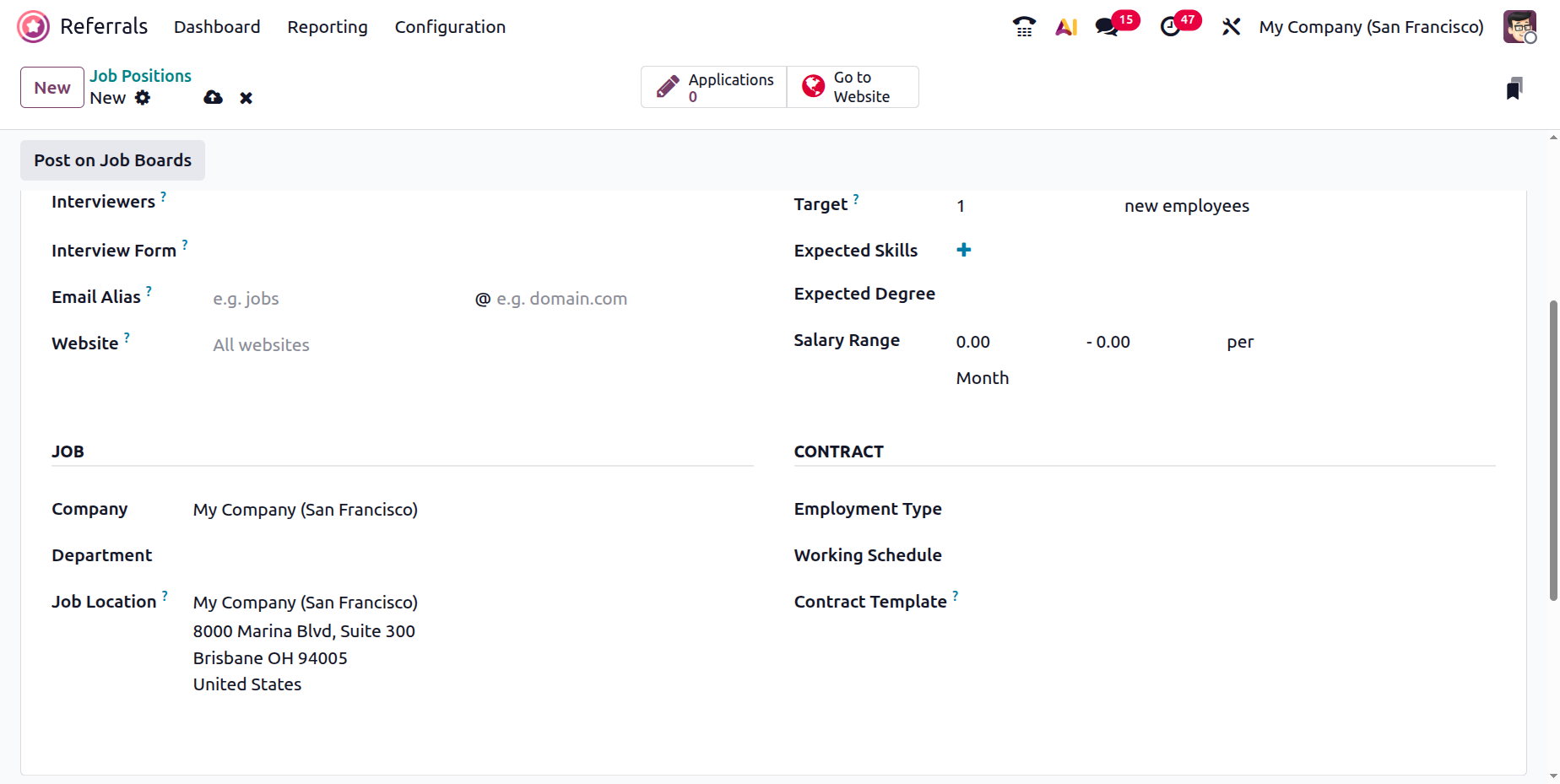
The Contract section enables users to define employment-related details such as employment type, working schedule, and contract template. This helps standardize employment terms and ensures consistency across job offers.
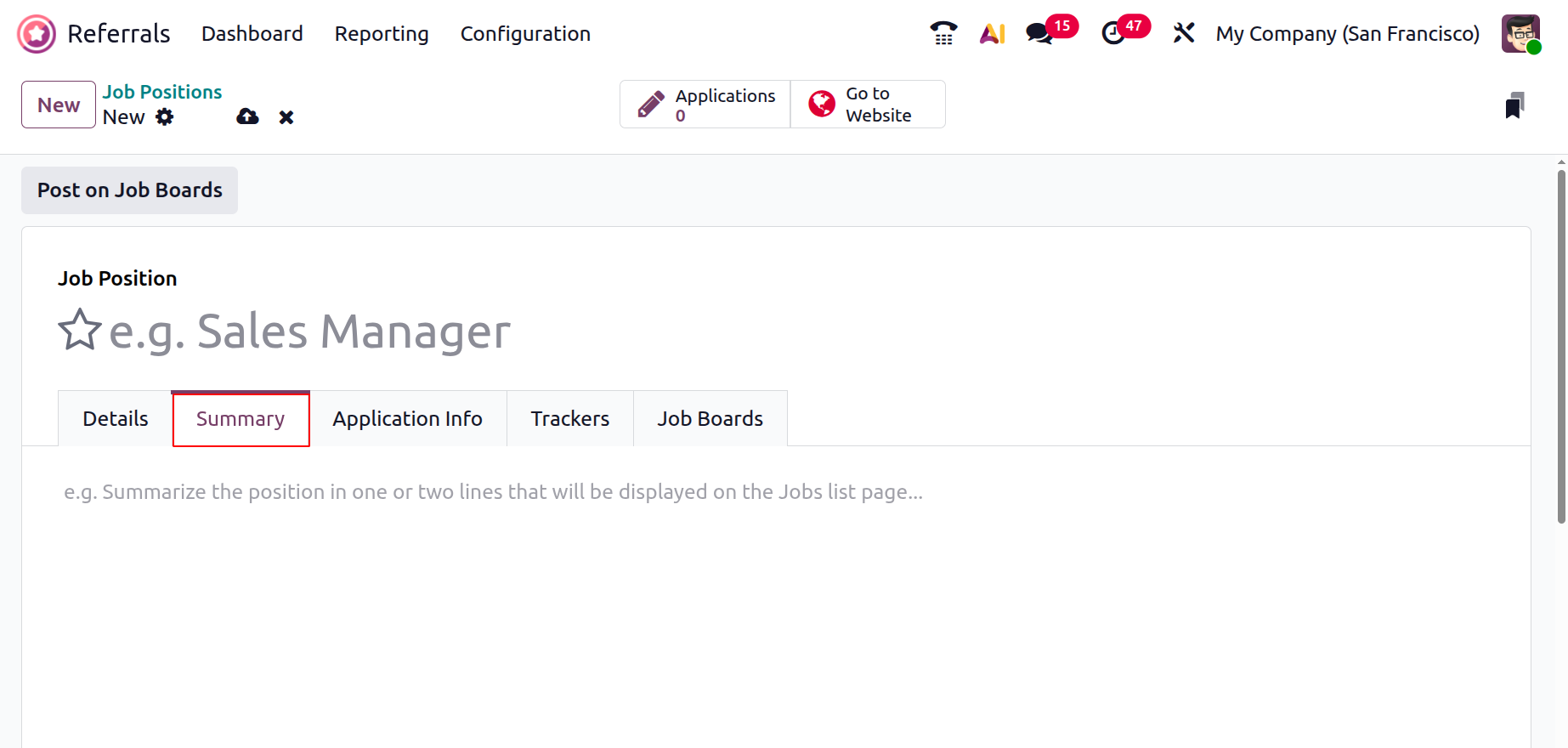
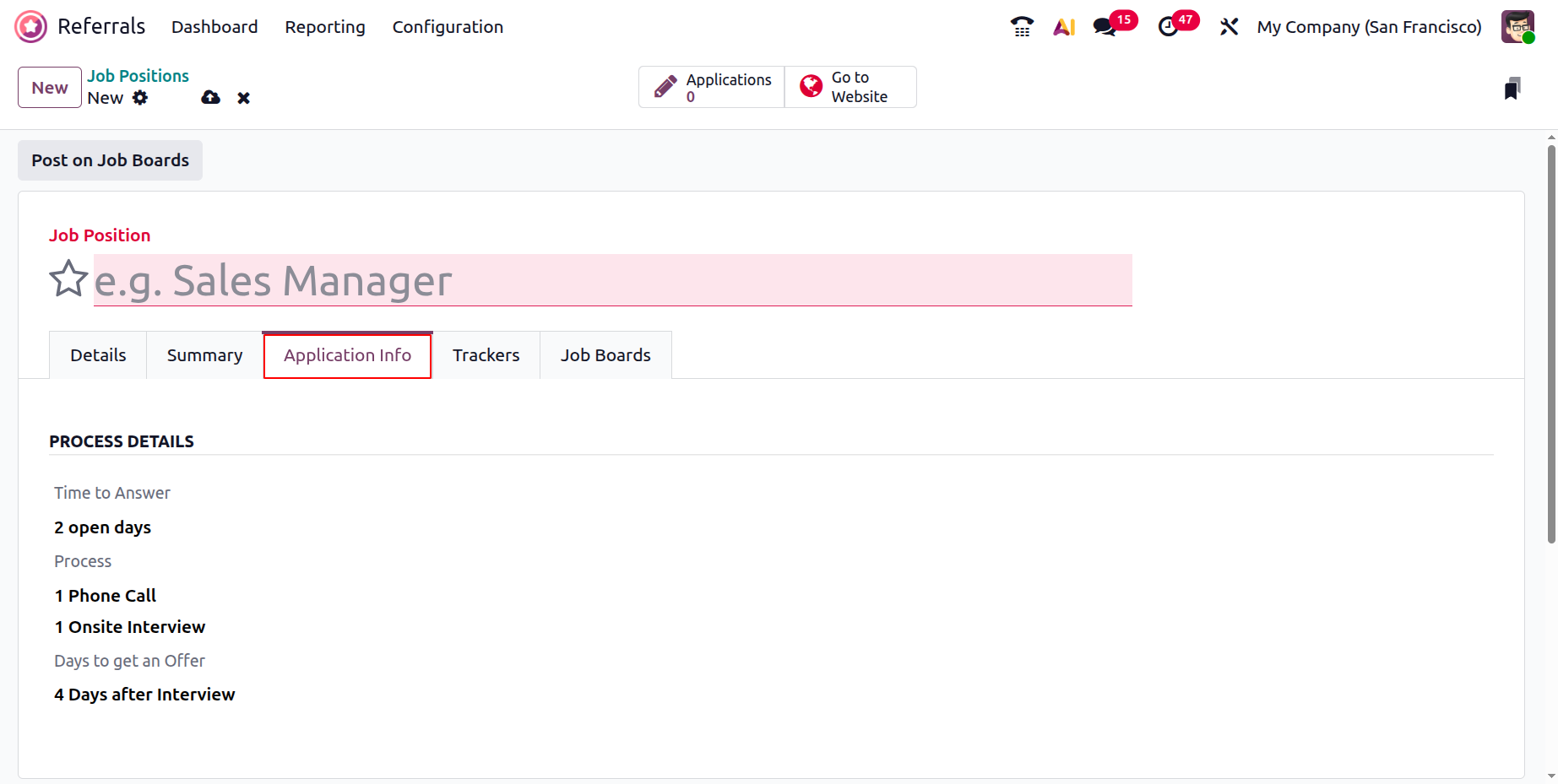
The Summary tab allows users to add a brief description of the job role, which appears on the job posting and helps candidates quickly understand the nature of the position. The Application Info tab provides details about the recruitment process that candidates will experience after applying for the job position. This section helps set clear expectations regarding communication and interview timelines. It displays information such as the expected time taken to respond to applicants, the stages involved in the selection process (for example, phone calls or onsite interviews), and the estimated number of days required to make an offer after the interview.
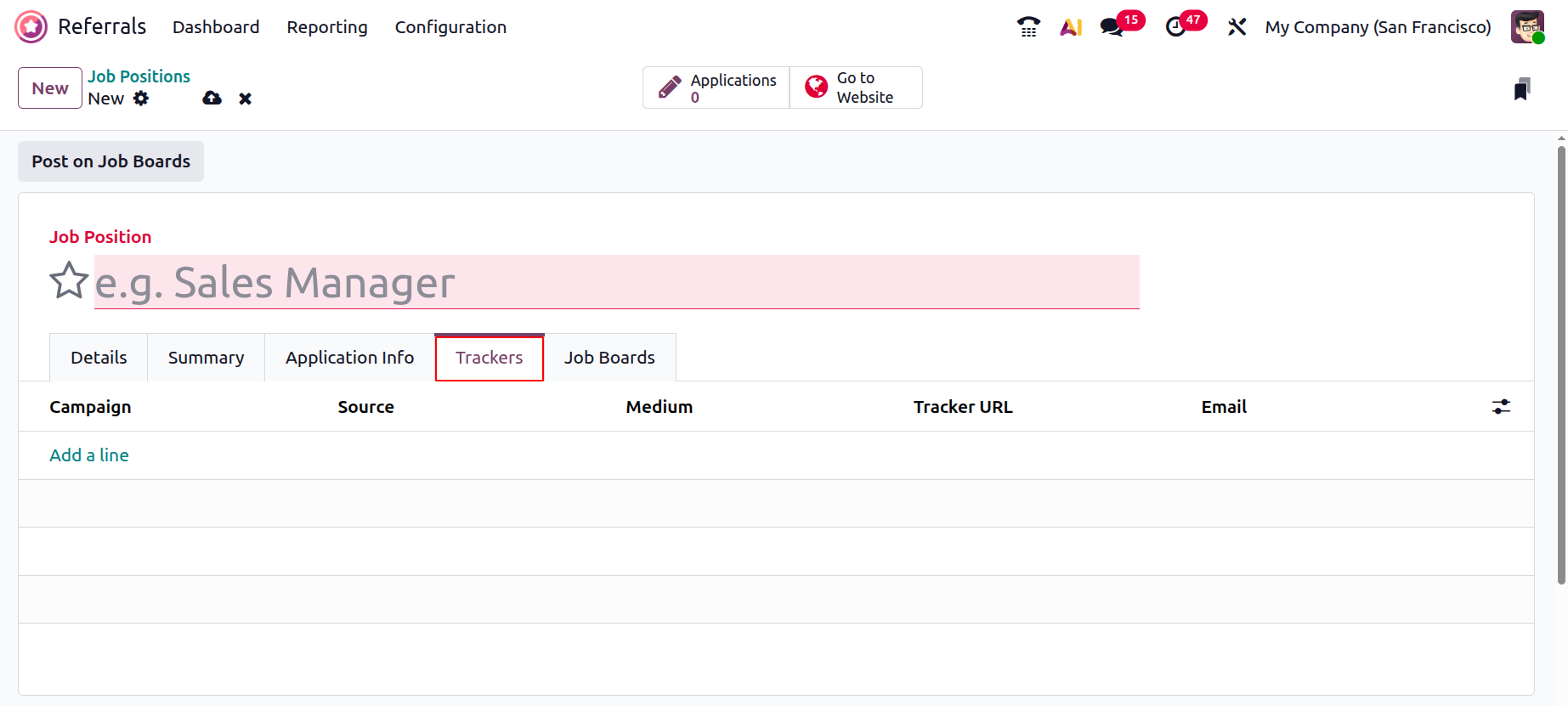
The Trackers tab is used to monitor and analyze the effectiveness of different recruitment campaigns. In this section, users can add tracking details such as campaign name, source, medium, tracker URL, and contact email. These trackers help identify where applications are coming from and measure the performance of referral links or external recruitment channels.
The Job Boards tab allows users to manage and control the publication of job positions across various job platforms. This section displays details such as the platform name, start date, end date, contact method, and current status of the job posting. From this tab, users can post job openings to internal or external job boards and track their availability over time.
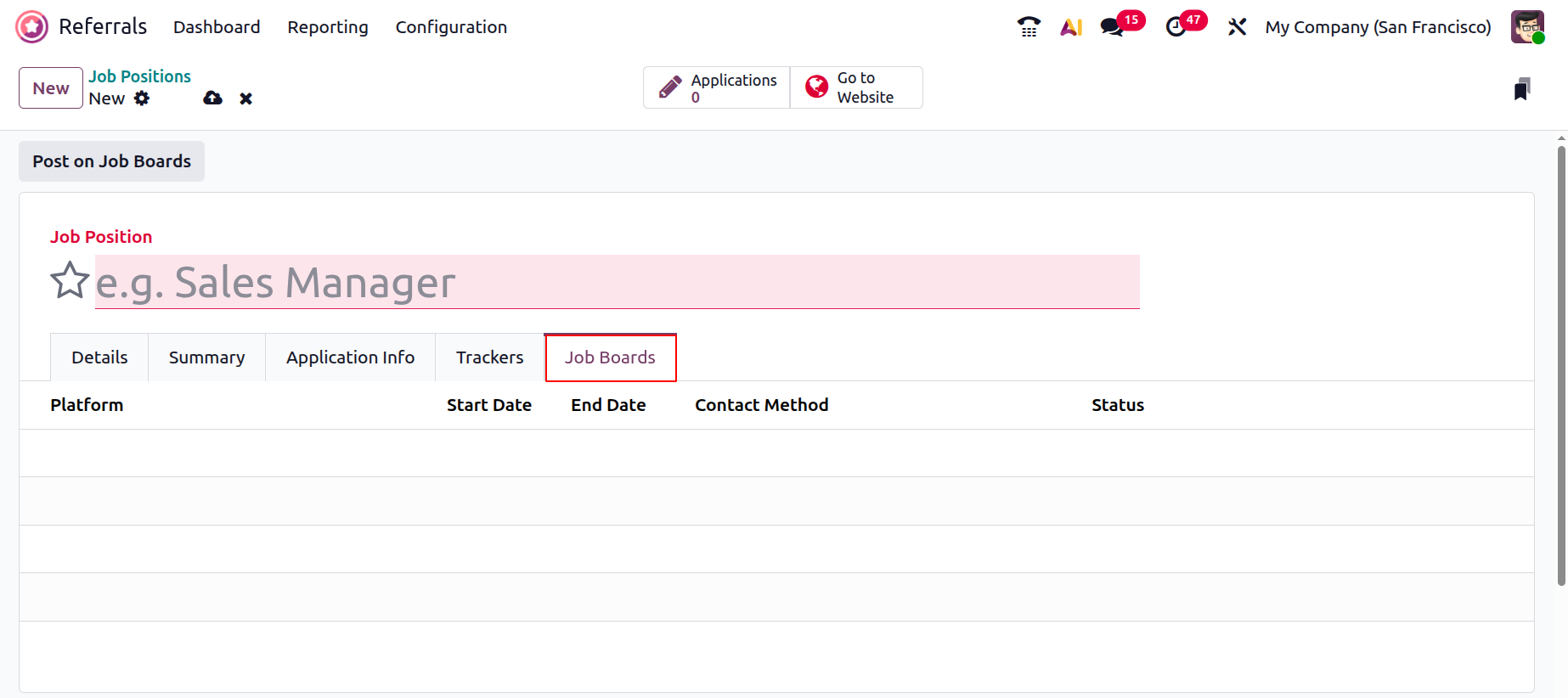
Once all necessary information is entered, the job position can be saved and published, making it available for referrals and candidate applications within the Odoo 19 Referral and Recruitment modules. Existing job positions can be edited or unpublished at any time, allowing companies to keep their referral program aligned with current recruitment requirements.
1.3 Rewards
Rewards are used to recognize employee effort, loyalty, and successful referrals. In the Odoo 19 Referral module, employees earn points for each candidate they refer to during the recruitment process. These points can later be redeemed for rewards available through the company’s website or physical store.
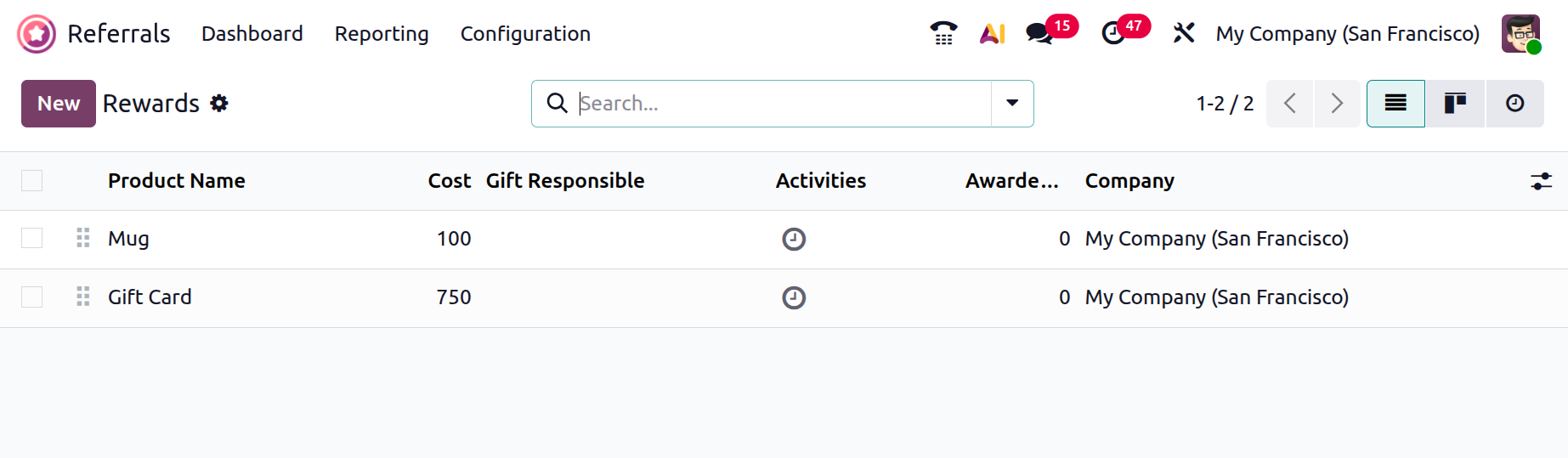
By selecting Rewards from the Configuration menu, users can view all available rewards in a list format. The Rewards window displays details such as Cost, Company, Product Name, Activities, and List View. To create a new reward, click the New button.
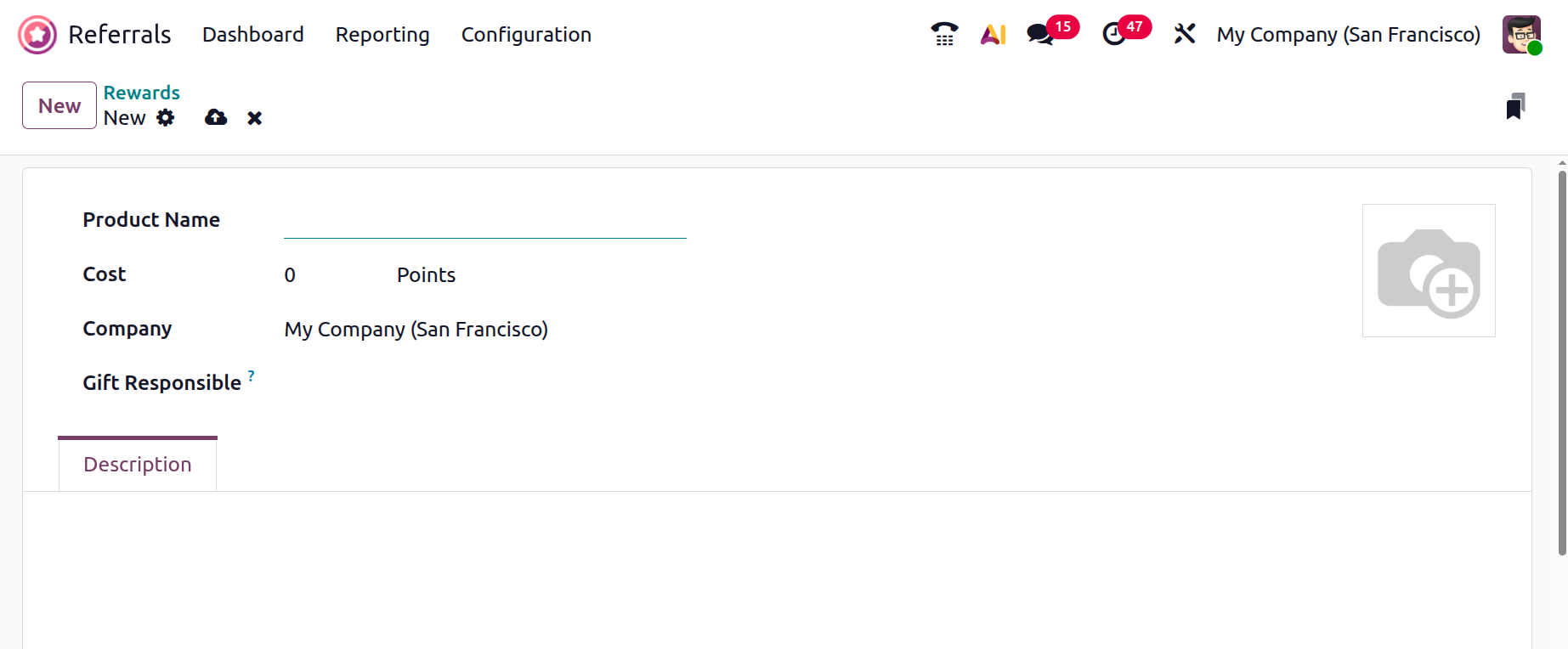
In the creation form, enter the Product Name and Cost per Point. You can also select the Company and assign a responsible person. Additional details about the reward can be added under the Description tab.
1.4 Levels
The Levels feature in Odoo 19 helps classify employees based on the progress of their referred candidates in the recruitment process. The Levels option is available under the Configuration menu.
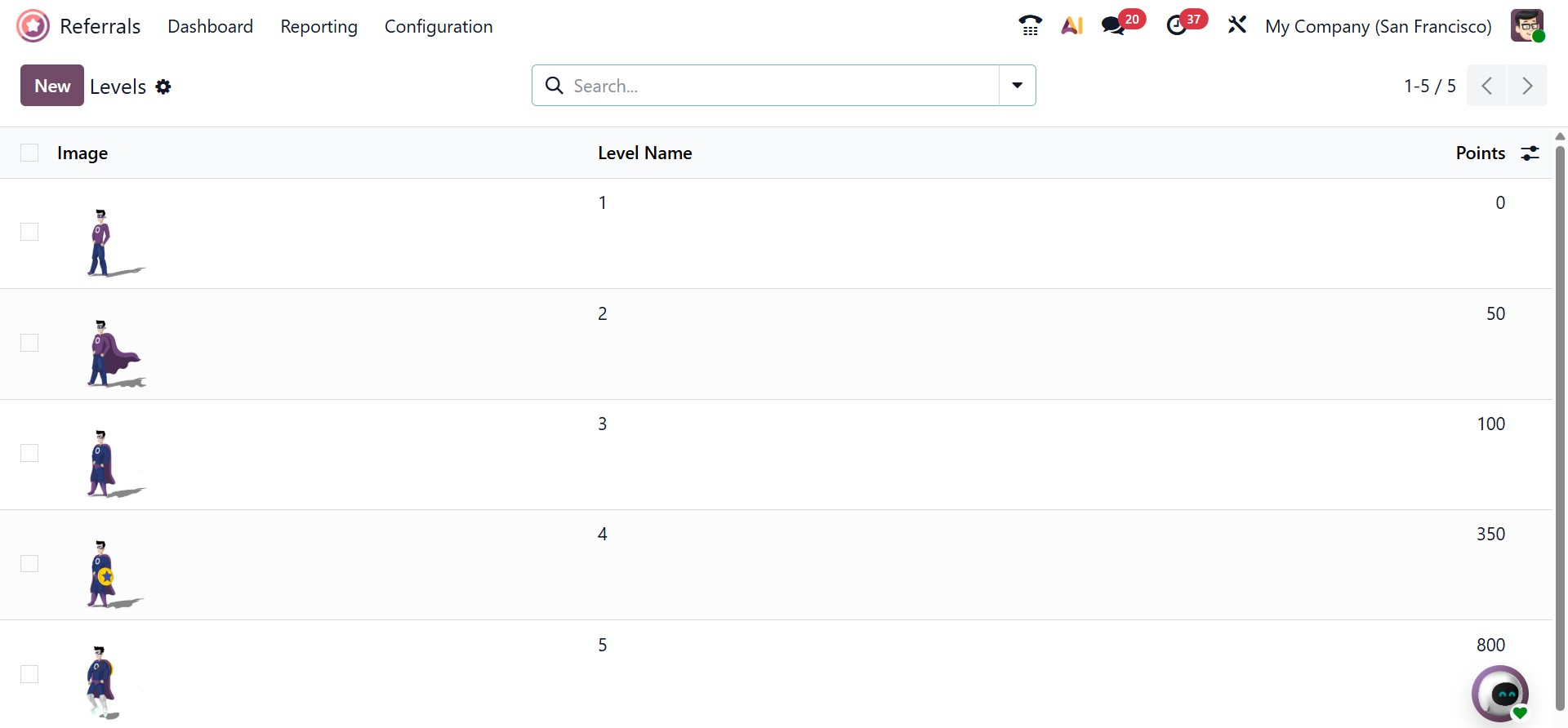
The Levels window displays information such as Level Name, Image, and Required Points. Users can create a new level by clicking the New button.
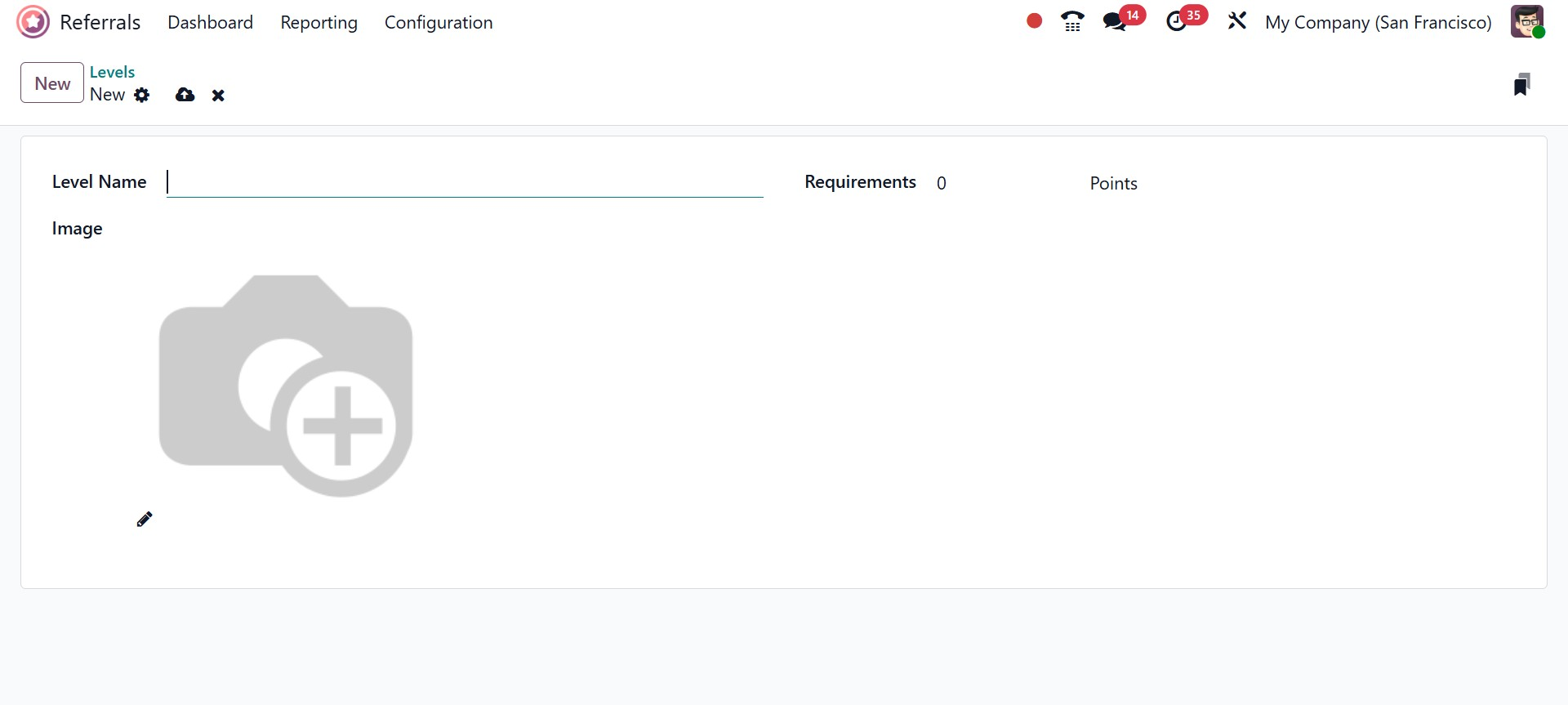
In the creation screen, enter the Level Name and define the number of points needed to reach that level. An image can also be added to visually represent the level. All changes are saved automatically.
1.4 Friends
The Friends feature enhances the referral dashboard with visual elements and animations. It allows users to manage images and characters that appear during different stages of the referral process.
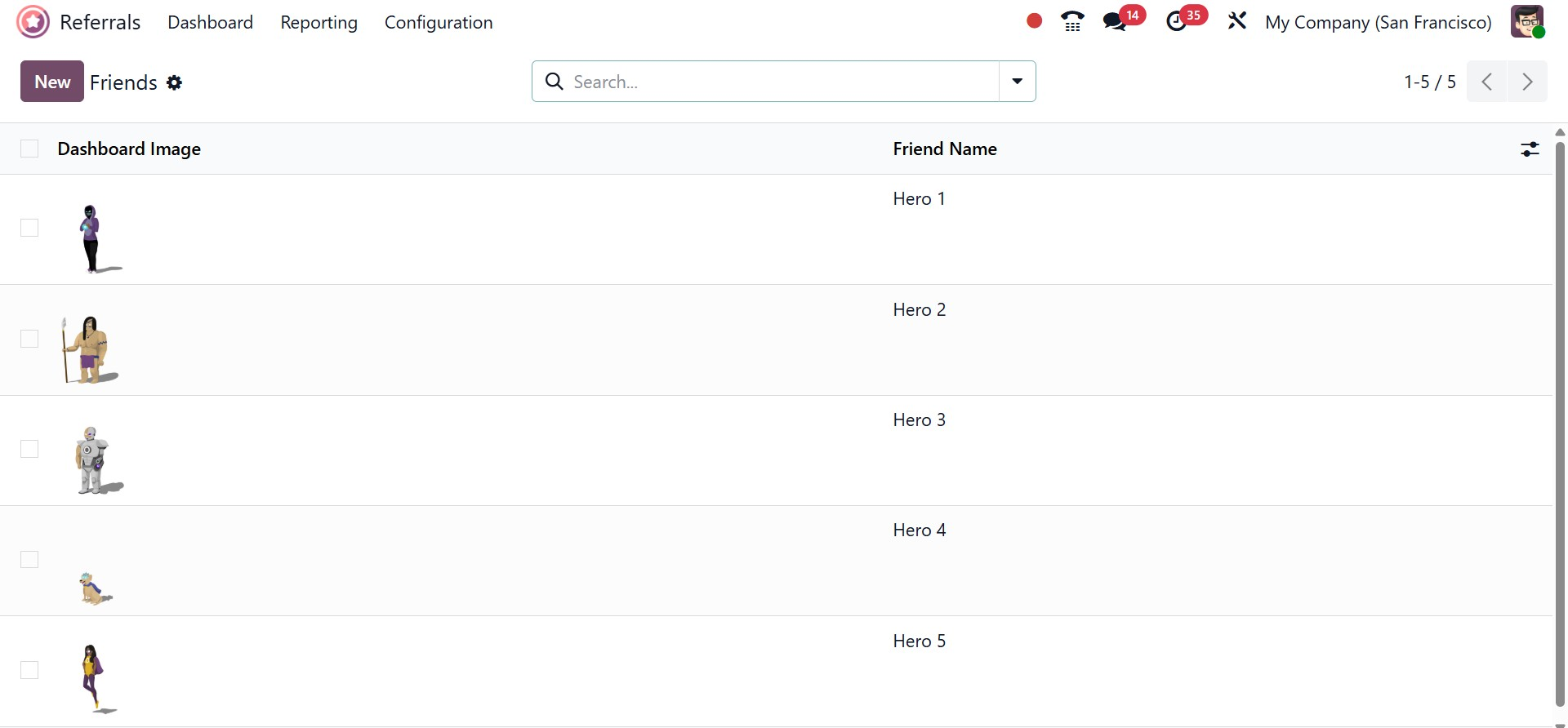
By selecting Friends under Configuration, users can view all existing friends along with their Friend Name and Dashboard Image. To add a new friend, click the New button.
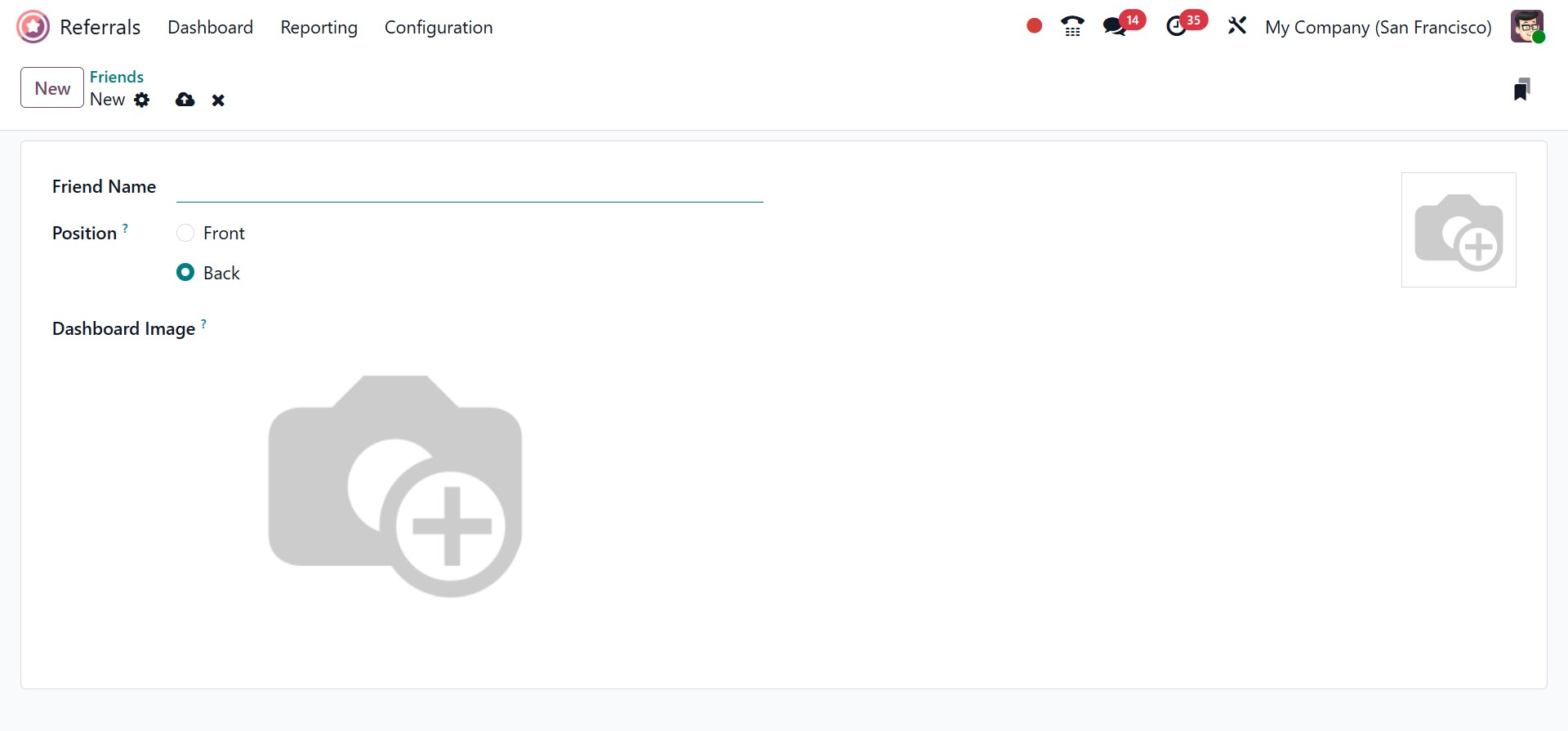
Enter the friend’s name and choose whether the character should appear in the foreground or background. You can then upload an image using the Dashboard Image field. These visuals improve user engagement within the Referral module.
1.5 Alerts
The Alerts option allows users to create notifications for important announcements or events. These alerts help keep employees informed about updates related to referrals or recruitment.
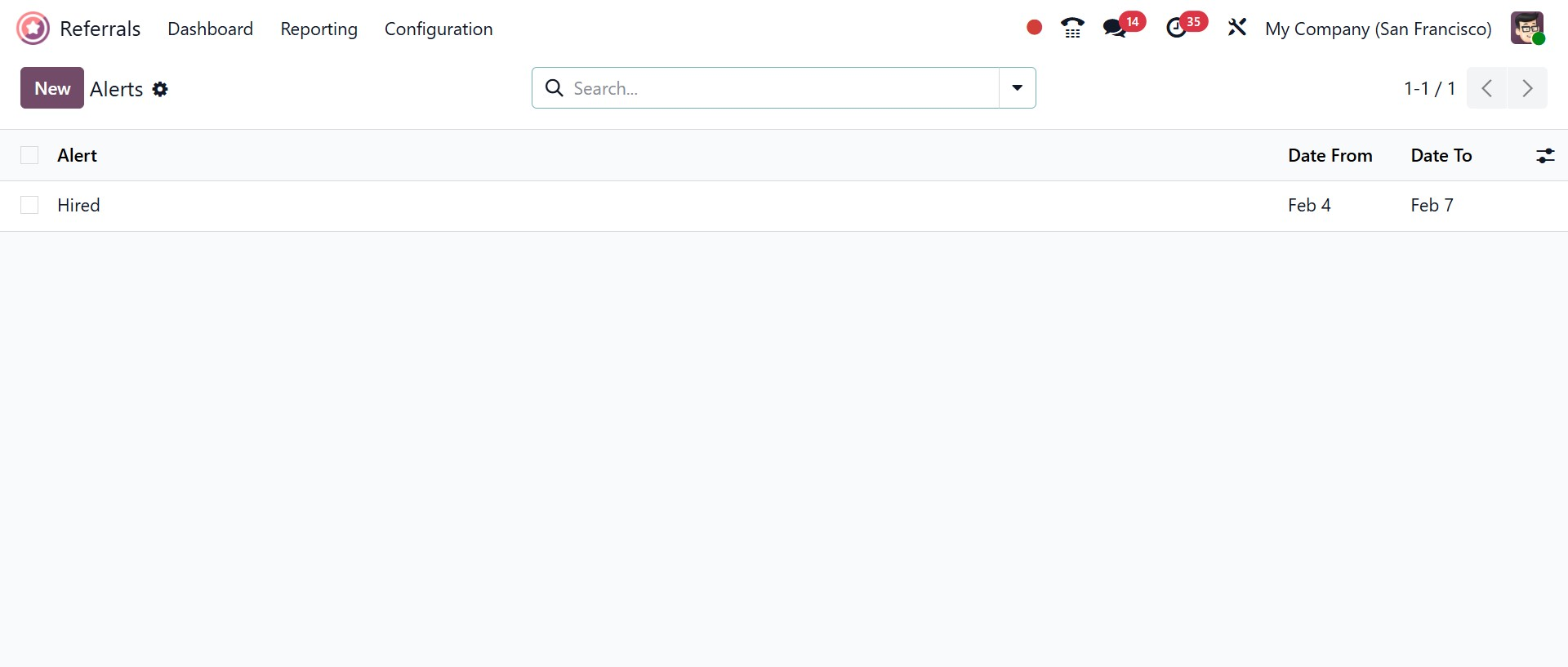
The Alerts window displays details such as Alert Name, Date From, and Date To. Click the New button to create a new alert.
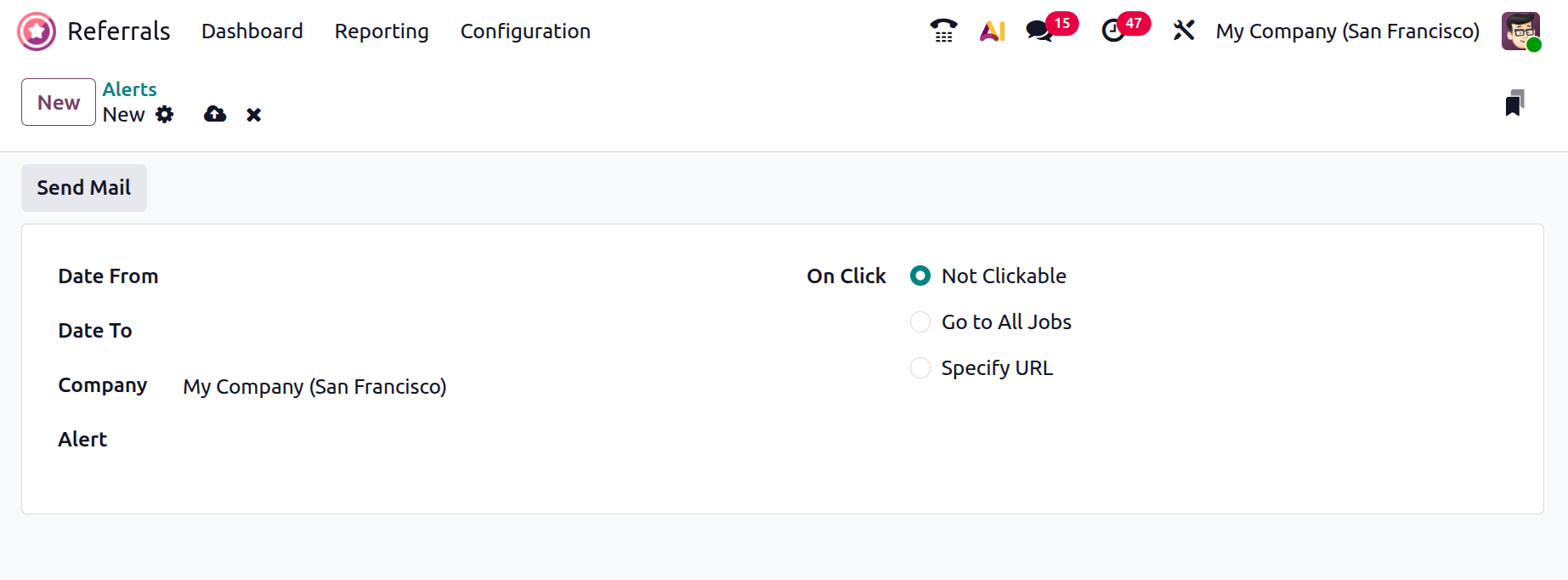
In the form, enter the start and end dates, alert name, and company name. In the On Click field, you can choose actions such as Go to All Jobs, Not Clickable, or Specify URL. To notify employees, use the Send Mail button.
1.6 Onboarding
The Onboarding option displays all onboarding messages created for the Referral module. These messages guide employees on how to use the referral system.
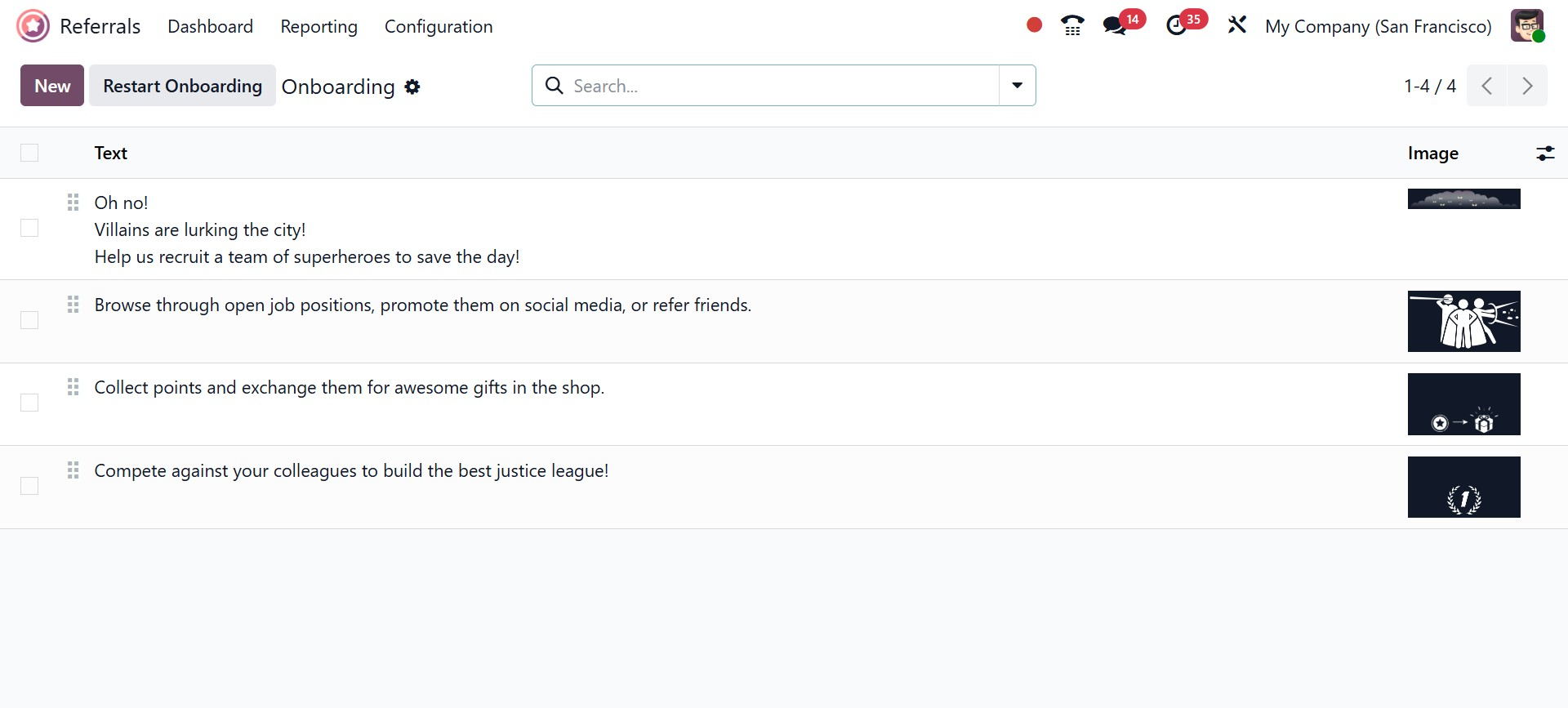
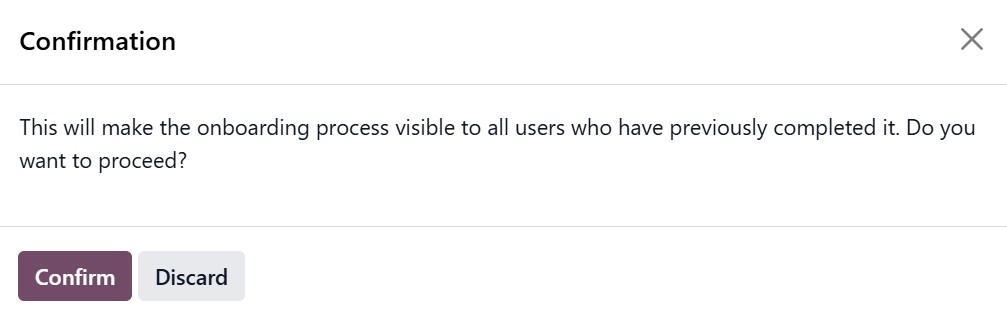
The Restart Onboarding button allows administrators to restart the onboarding process for employees who skipped or completed it earlier. Once activated, the onboarding messages will appear again for those users after confirmation.
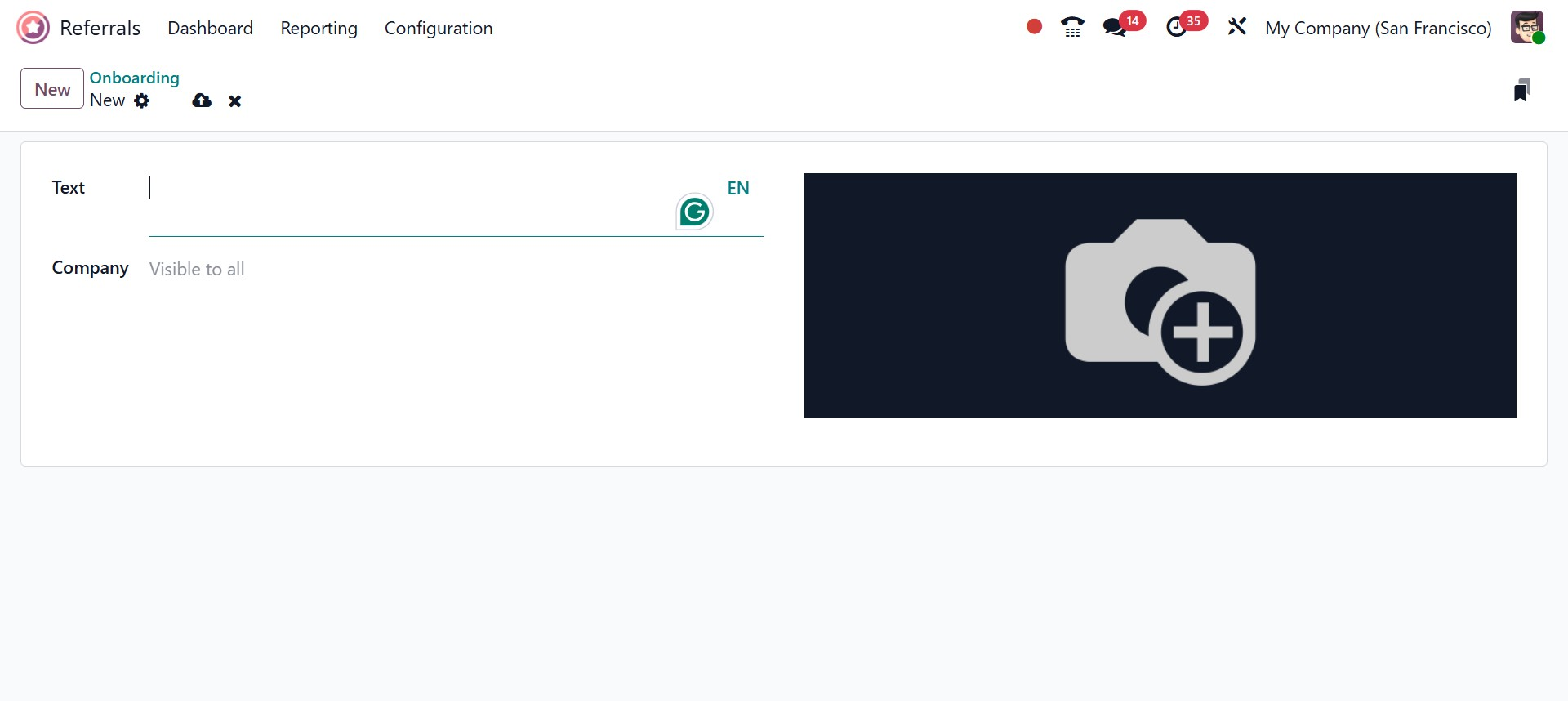
To create a new onboarding message, click the New button. On the next screen, select the Company and enter the onboarding content in the text field. All information is saved automatically in Odoo 19.
The Odoo Referral module provides a digital solution for identifying suitable candidates more efficiently by streamlining the employee referral process. It offers a centralized platform for managing referrals, rewards, and progress tracking by seamlessly integrating with other Odoo applications such as Recruitment, Employees, and Website. By leveraging employee networks and introducing gamification through points and rewards, the module helps organizations reduce both referral time and hiring costs. Overall, evaluating and managing employee referrals in Odoo 19 is simple, effective, and well-organized.