Configuration
The Configuration menu in the Odoo 19 Time Off module allows HR managers to define and control how leave is handled in the organization.
Time Off Types
Using the Time Off Types option, managers can create different leave categories and set rules such as approval requirements, leave duration (full day, half day, or hours), and notification settings. In the list view, details like Display Name, Allocation Approval, Work Entry Type, Company, and Country are shown.
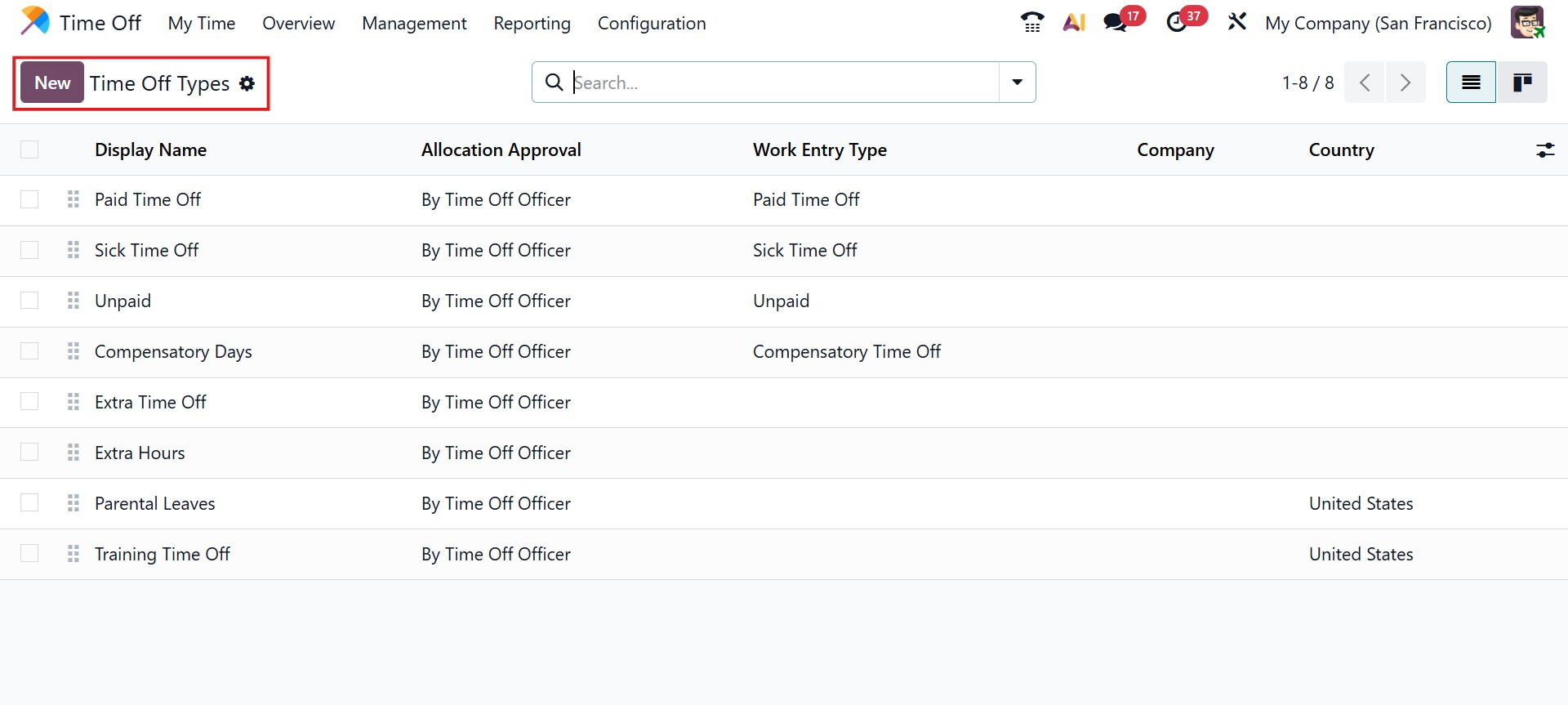
By clicking the New button in the Time Off Types section under the Configuration menu, administrators can create a new time-off type based on company requirements, such as Yearly Vacation, Sick Leave, or Compensatory Time.
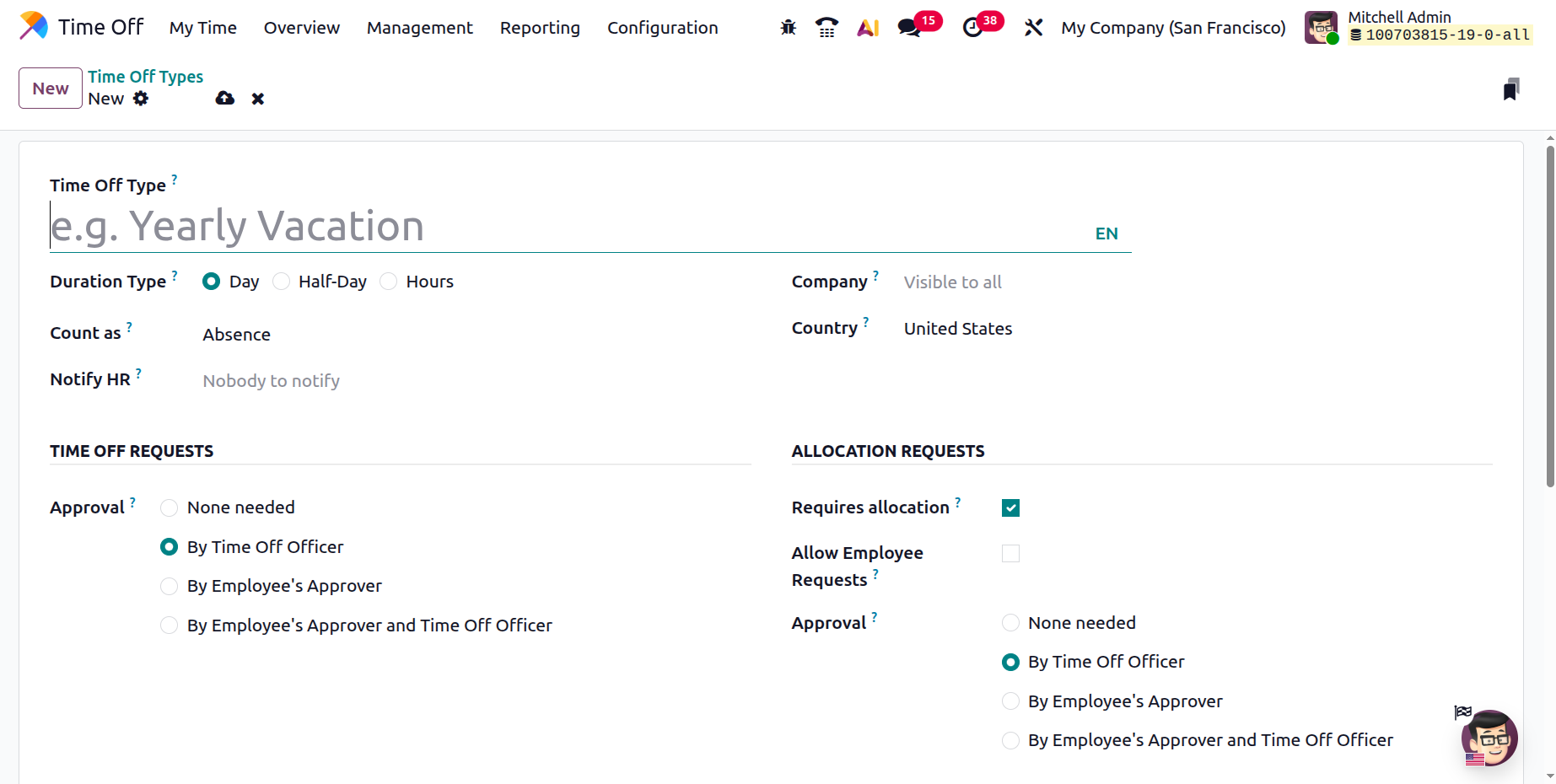
At the top of the form, the Time Off Type name is defined. Administrators can then choose the Duration Type, specifying whether the leave is calculated in Days, Half Day, or Hours. The Count As field determines whether the leave is treated as Absence or Worked Time, which directly affects attendance tracking and accrual calculations. The Notify HR option allows selecting a responsible HR person who will receive notifications related to this leave type. The Company field controls visibility, while the Country field limits the leave type to a specific country if required.
Under the Time Off Requests section, approval rules can be configured. Administrators can configure the validation process to require approval by the Time Off Officer, by the Employee’s Approver, or by both the Employee’s Approver and the Time Off Officer, depending on the company’s leave approval policy.
The Allocation Requests section controls how leave allocations are handled. By enabling Requires Allocation, employees must have an approved allocation before requesting this type of leave. If this option is active, the Allow Employee Requests checkbox appears, allowing employees to request additional leave allocations when needed. Allocation approval rules can also be defined here, using the same approval options as time-off requests.
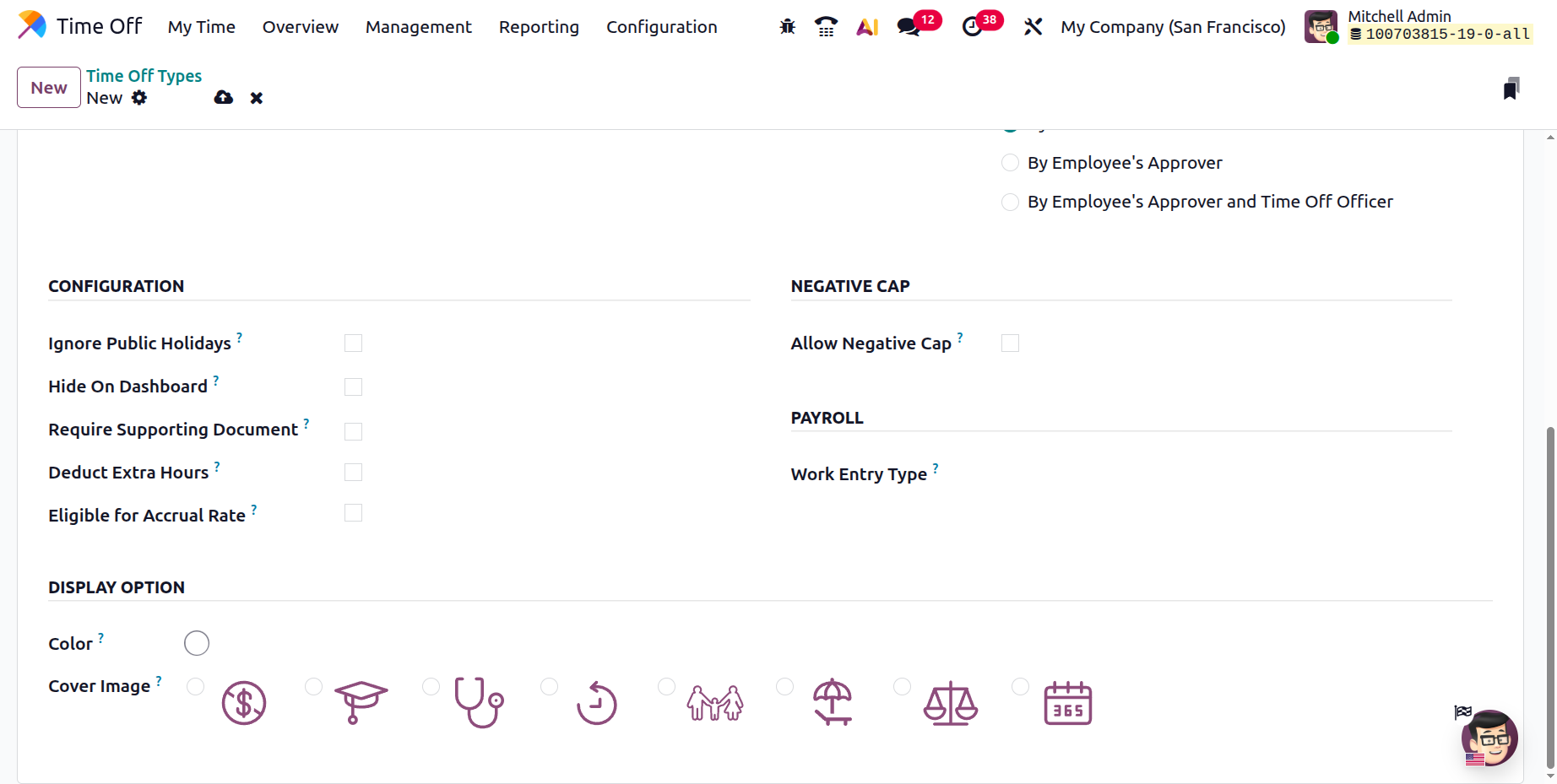
In the Configuration section of the Time Off Type form, administrators can define how a specific leave type behaves across the system. The Ignore Public Holidays option ensures that public holidays are not counted as leave days, even if they fall within the selected time-off period. The Hide on Dashboard option removes this leave type from the employee dashboard, preventing employees from selecting it while keeping it accessible for HR administrators. When the Require Supporting Document option is enabled, employees must upload a document, such as a medical certificate or official proof, when submitting a leave request. The Deduct Extra Hours setting allows the system to deduct accumulated extra working hours instead of standard leave days when applicable. This option is commonly used for compensatory leave, where employees can take time off by utilizing the additional hours they have worked beyond their regular schedule. Additionally, enabling Eligible for Accrual Rate makes the leave type eligible for accrual rules, allowing leave balances to accumulate over time according to predefined company policies.
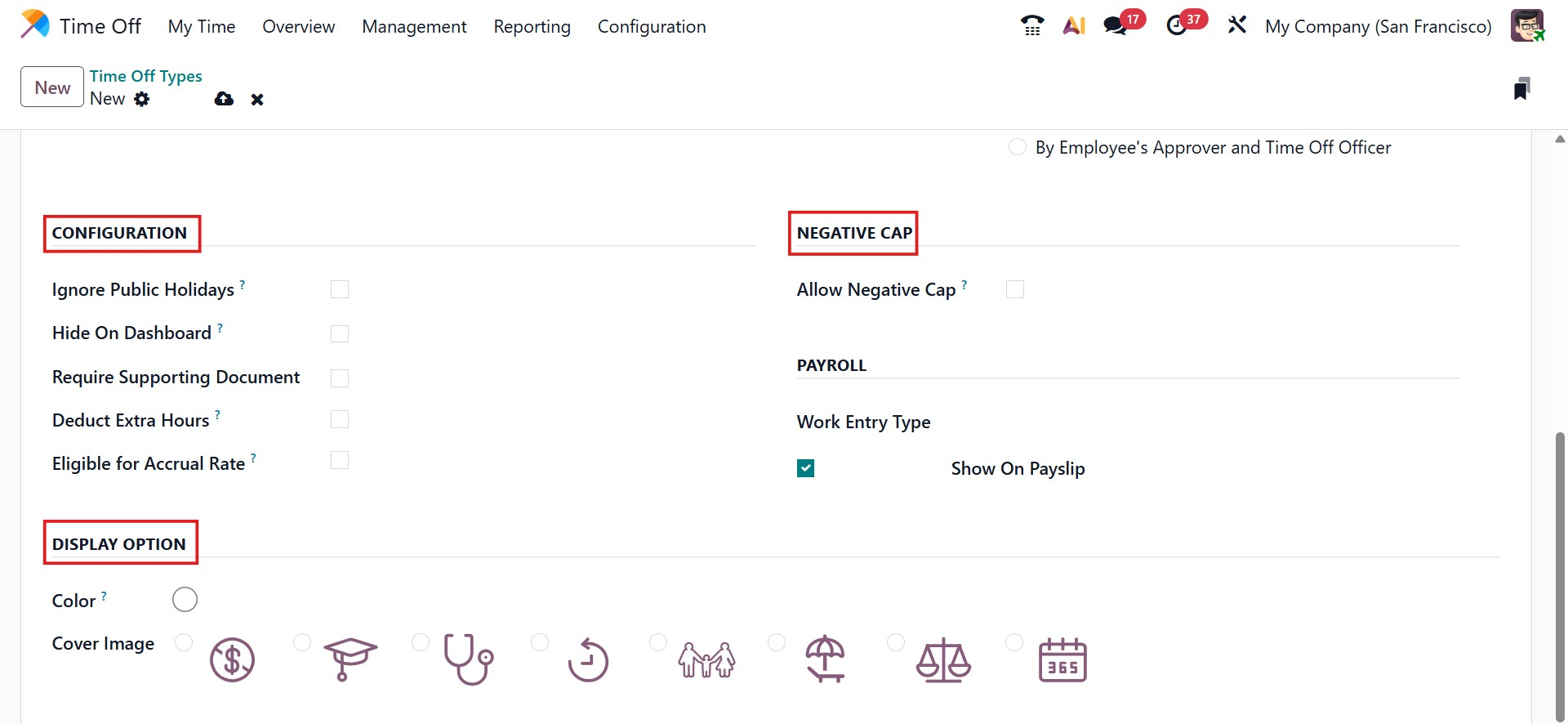
The Negative Cap section provides flexibility by allowing employees to request leave even when their available balance is insufficient. When the Allow Negative Cap option is enabled, employees can take this time-off type even if it results in a negative balance. This ensures flexibility for exceptional situations while still allowing administrators to control leave policies.
The Payroll section links the time-off type with payroll processing. The Work Entry Type field defines how the leave is recorded in payroll work entries, ensuring accurate salary calculations. When the Show on Payslip option is enabled, the leave details appear on the employee’s payslip, providing transparency in payroll records.
The Display Option section controls how the time-off type appears visually within the system. Administrators can assign a specific Color to the leave type, making it easily identifiable in calendars, dashboards, and reports. A Cover Image can also be selected to visually represent the leave type, improving usability and recognition for employees.
Once all required fields are completed and the necessary settings are configured, saving the form makes the new Time Off Type available across Odoo 19 for employee leave requests, allocations, approvals, payroll processing, and reporting.
Accrual Plans
Accrual Plans, available under the Configuration menu, automate leave allocation based on predefined rules such as worked time or specific durations. While regular allocations grant a fixed number of leave days, accrual allocations allow employees to earn leave gradually.
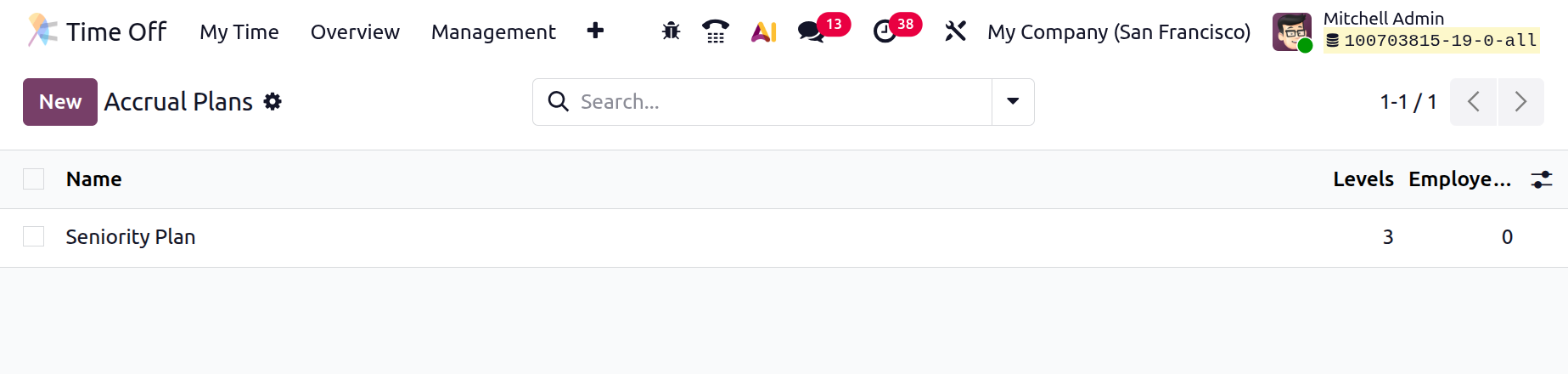
The Accrual Plans menu in Odoo 19 displays a structured overview of existing plans, including the plan title, defined accrual levels, and the employees to whom each plan is assigned. Administrators can create a new accrual plan by clicking the New button. While configuring an accrual plan, they can define the plan title and specify when the time is accrued, choosing whether leave is granted at the start or at the end of the accrual period. The Based on Worked Time option determines whether accrual is calculated using actual worked hours or by considering the entire accrual period based on calendar days. Administrators can also enable carry-over of accrued days to allow unused leave to be transferred from one year to the next. Accrual rules are managed through milestones, where leave entitlements are defined based on employee seniority or duration, ensuring accurate and flexible leave accumulation across the organization.
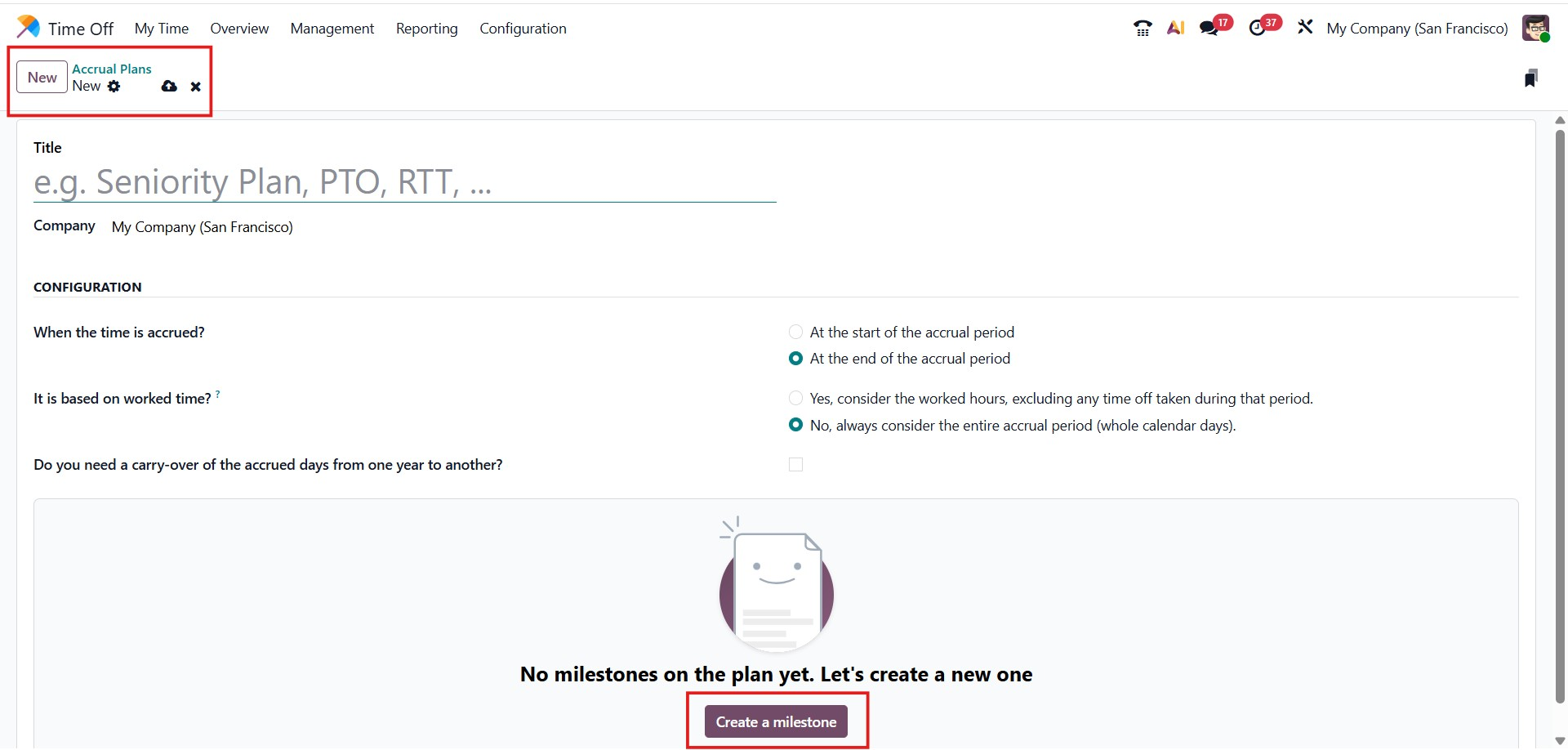
Custom milestones can be created by clicking the Create a Milestone button within an accrual plan. In Odoo 19, administrators define the employee accrual frequency by specifying how often leave is earned, such as daily or monthly, along with the number of days or hours added for each period. The milestone activation can be set to begin either immediately at the time of allocation or after a specified number of days from the start of the allocation.
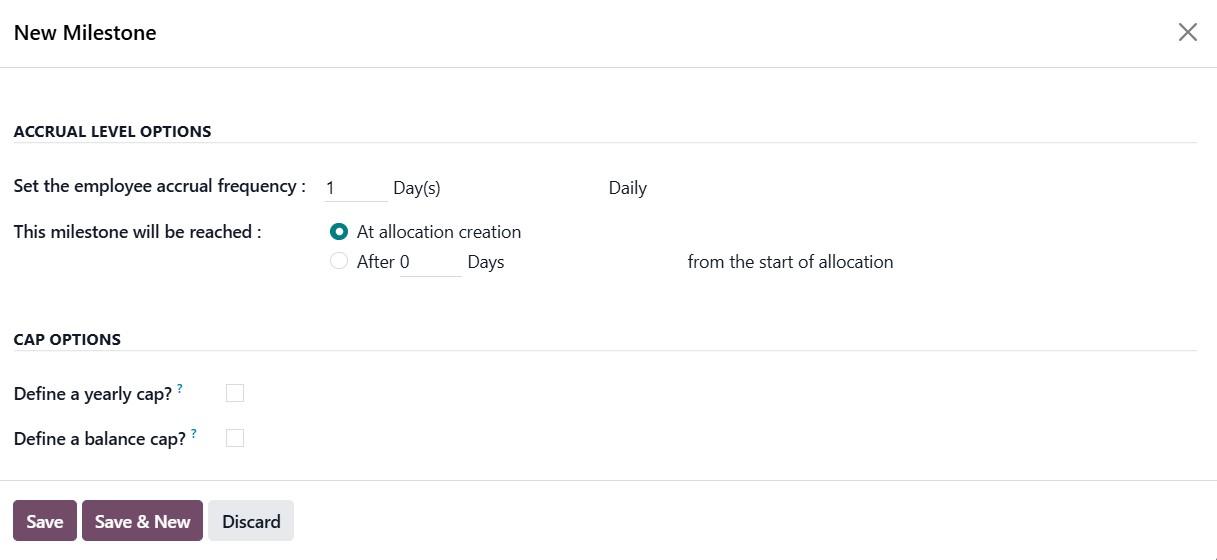
To maintain control over leave accumulation, cap options allow administrators to define a yearly limit or a maximum balance limit for accrued time. Once all milestone details are configured, saving the record applies the accrual rule to the plan, enabling automatic and consistent leave accrual for employees.
Public Holidays
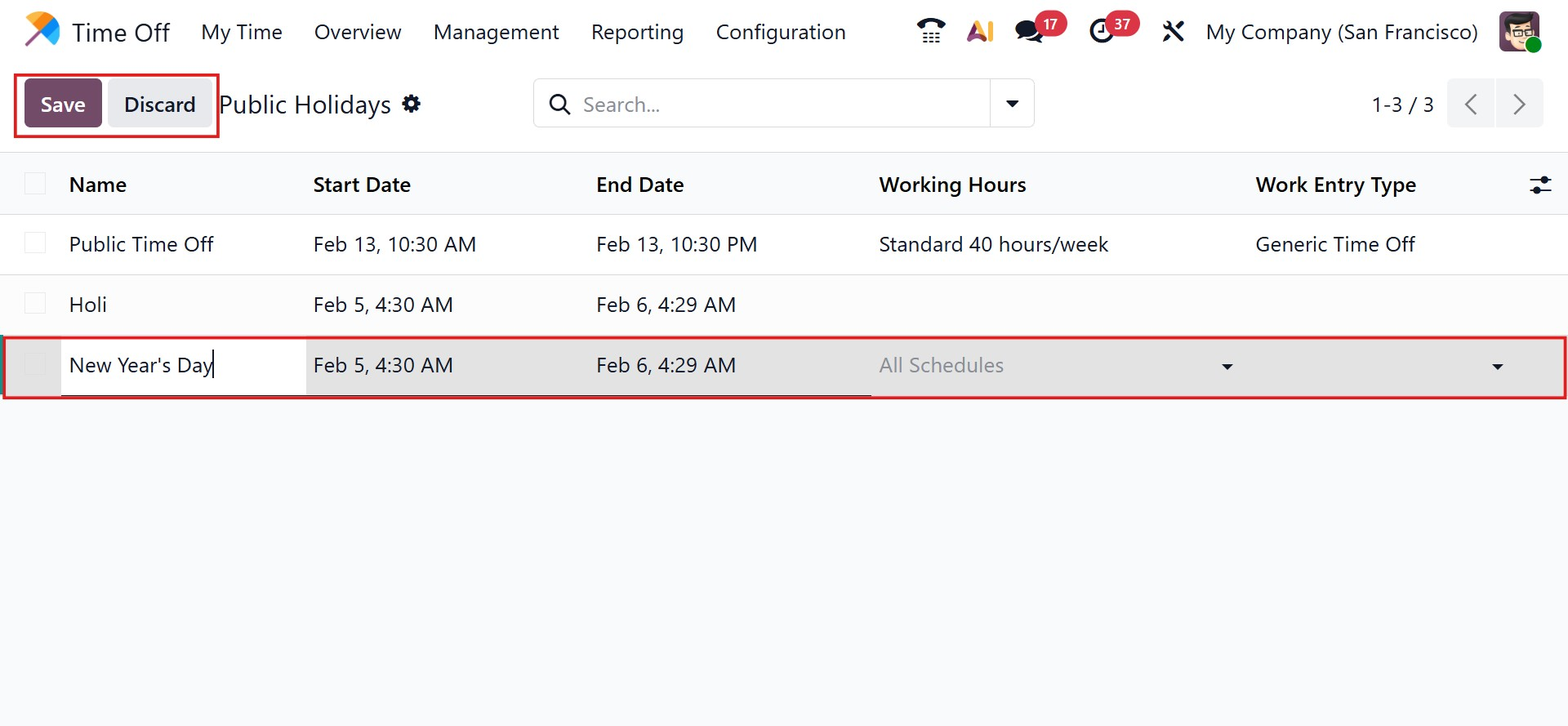
Public holidays can be managed from the Configuration menu to ensure company-wide visibility. The Public Holidays page lists all holidays with details such as Holiday Name, Start and End Dates, Working Hours, and Work Entry Type.
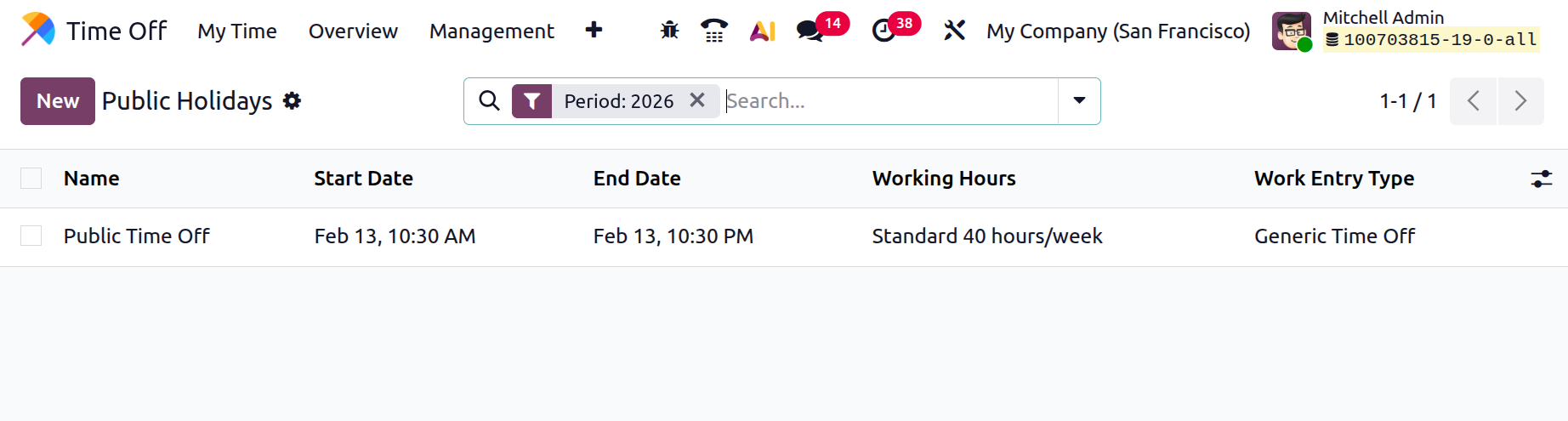
New public holidays can be added using the New button. Users can define the holiday name, select the applicable dates, set working hours, and adjust other relevant details. This helps organizations maintain an accurate annual holiday calendar and manage overlapping or canceled holidays. After entering the details, click Save to confirm.
Mandatory Days
The Mandatory Days feature highlights important workdays where employee attendance is required. These days help ensure clear communication of attendance expectations across the organization.
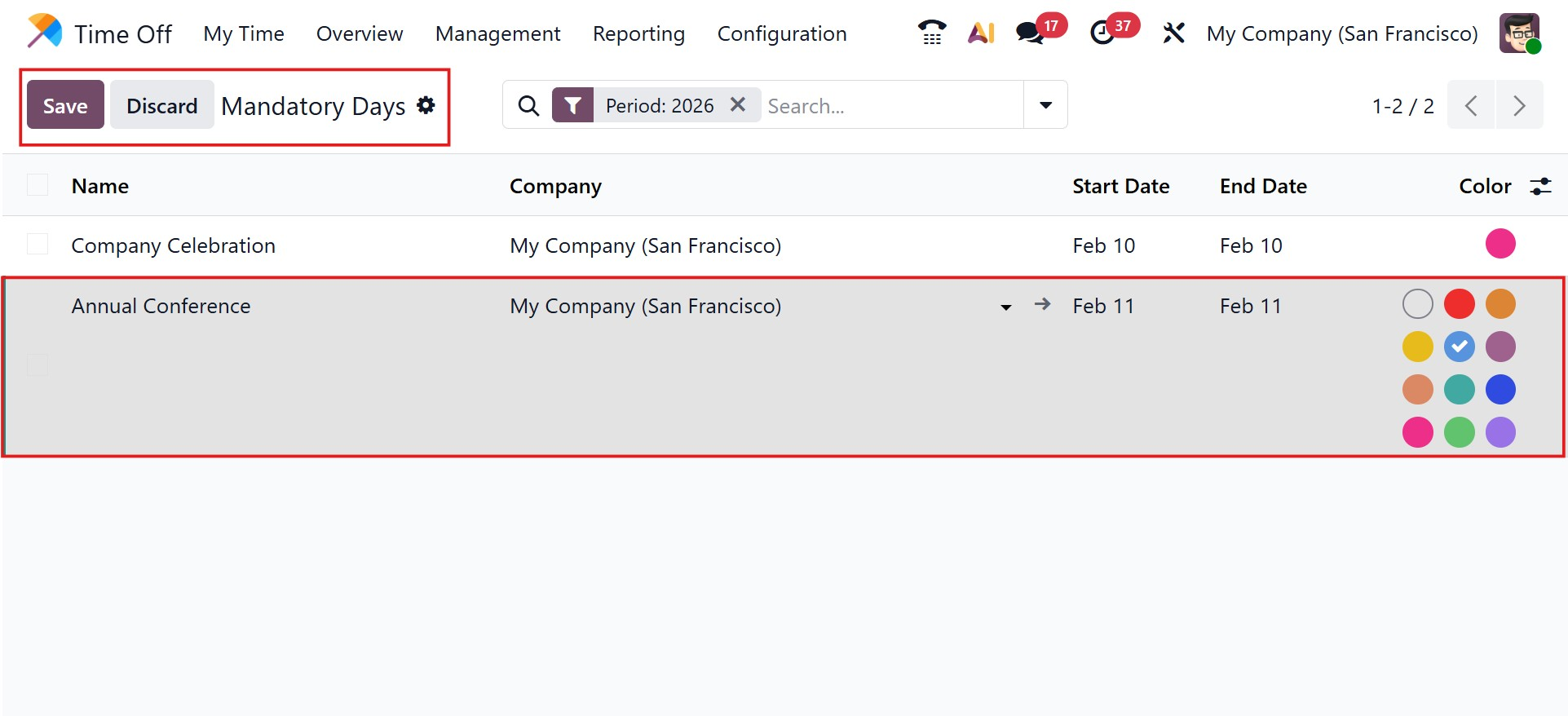
From the Configuration menu, users can view all predefined mandatory days along with their start and end dates. New mandatory days can be created using the New button by entering the required information. A color can also be assigned to highlight the importance of the day, making it easier to identify on the dashboard.