In a dynamic work environment, having a clear system to manage tasks, notes, and reminders is crucial. The To-do in Odoo 19 provides a streamlined and efficient way to handle personal tasks and key information directly from your Odoo workspace. From jotting down quick ideas to organizing meeting notes or outlining next steps, this module helps you stay organized and productive throughout the day.
Built with simplicity and adaptability in mind, the To-Do module enables you to create, update, and organize entries using customizable stages that align with your workflow. You can plan follow-up activities, collaborate with colleagues, and seamlessly transform to-dos into project tasks when needed. Everything works together smoothly within the Odoo ecosystem.
This chapter explores the functionality of the To-do module in Odoo 19, guiding you through its features so you can optimize your daily planning and task management with confidence.
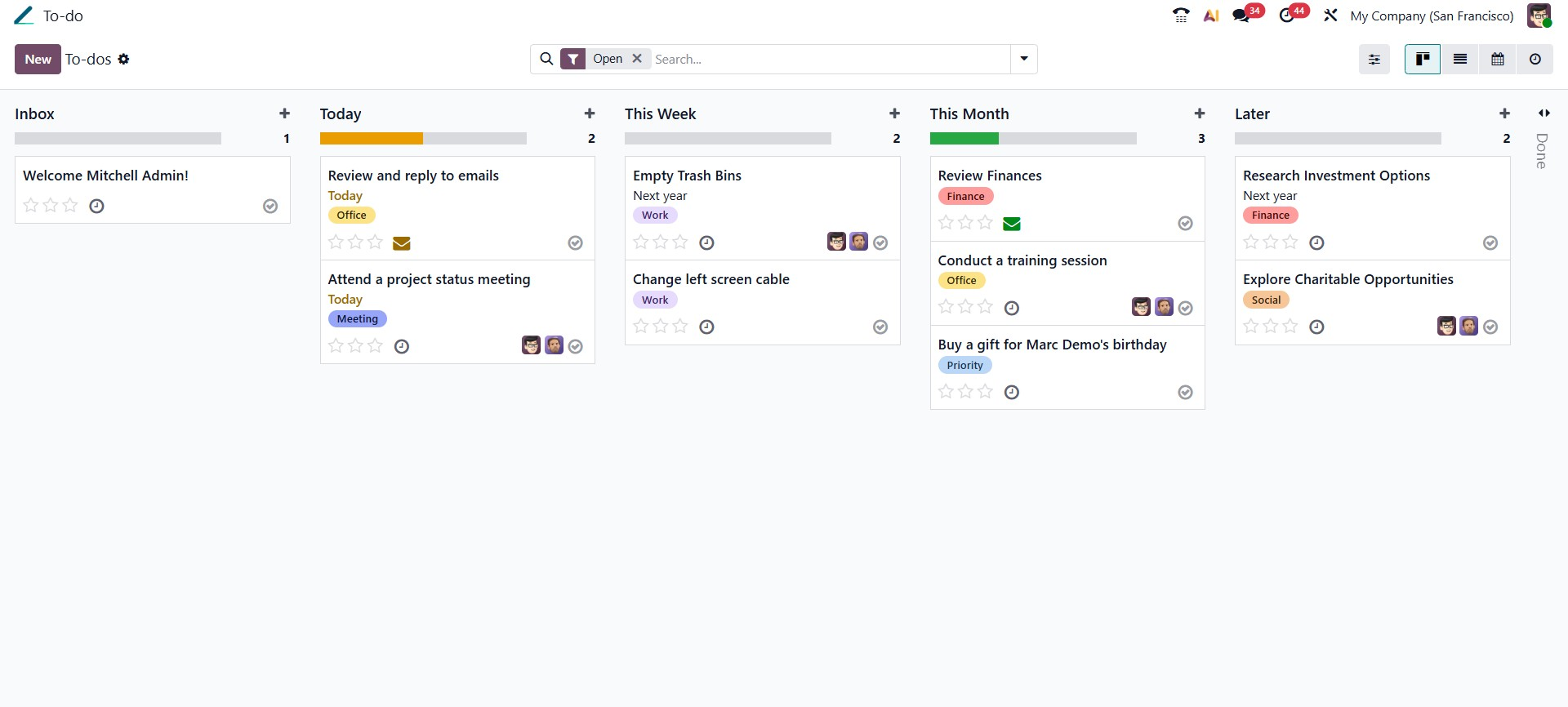
In Odoo 19, creating a new to-do is quick and straightforward. You can start by clicking the New button or by selecting the + icon next to any stage in the To-Do pipeline. After entering a title, you may save it instantly by clicking Add, or select Edit to open the detailed form and customize the to-do further.
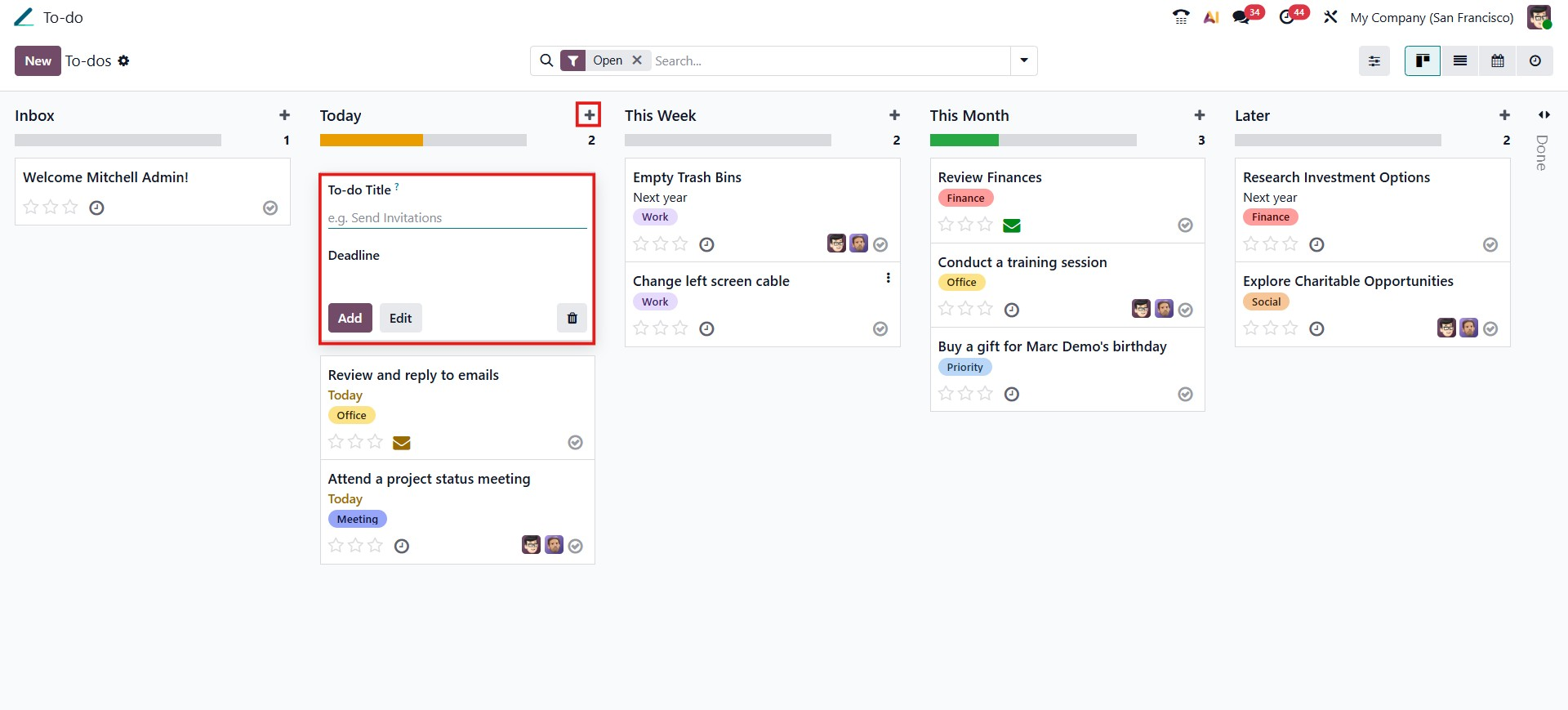
Within the edit view, you can enhance your entry by adding tags, assigning it to one or more users, deadline, and expanding the content using the built-in Odoo editor. Assigning users ensures the to-do is shared with the right people, making teamwork and follow-ups more effective.
The editor in Odoo 19 supports rich formatting and interactive content. By typing a forward slash (/), you can access a contextual menu to organize text, insert elements, and include media. Additionally, Odoo allows you to create a to-do from anywhere in the system: open the command palette using Ctrl + K and choose Add a To-do, or click the clock icon in the top navigation bar and select Add a To-do from the dropdown menu. This flexibility helps you capture tasks and ideas the moment they arise.
When editing, you can enrich its content by inserting interactive elements such as buttons, hyperlinks, upload files, create lists, generate or transform content with AI, images, and videos. To add a link, select the link icon from the editor toolbar. A dialog box will appear where you can enter a web address or email, define the link text, and choose its appearance and type, such as primary or secondary.
In the same way, you can include a button by clicking the button icon in the editor. Enter the button label, adjust its settings as needed, and click Save to embed it directly into the to-do. Odoo also allows you to embed media directly within the content. Use the media option to attach images, articles, or files, making your notes more interactive and informative. These features allow you to make your notes more actionable and visually structured, improving clarity and usability within the Odoo 19 To-do module.
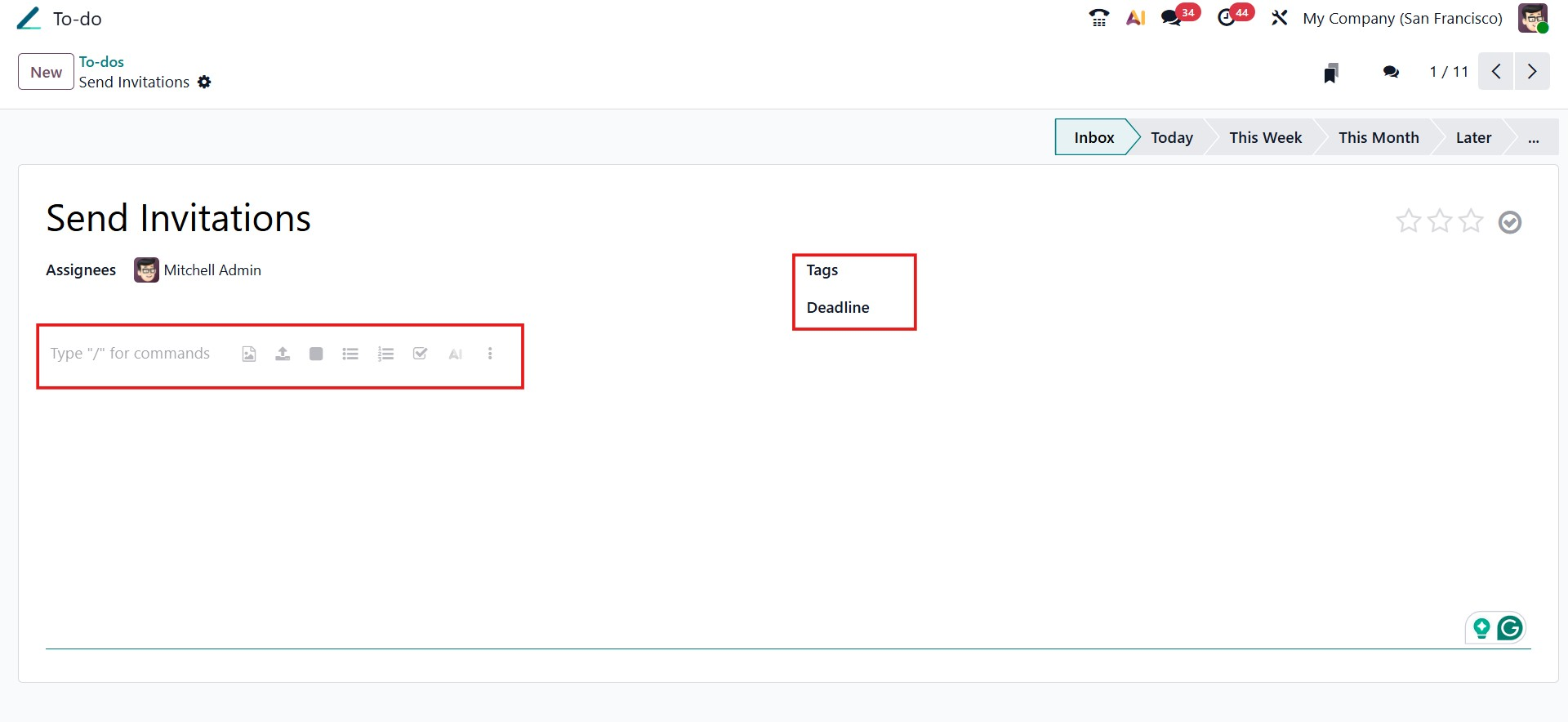
In Odoo 19, to-dos are organized into stages, giving you a clear, visual overview of their status and progress. By default, you may see stages such as Notes, Meeting Minutes, and To-do List, but the system is fully flexible. You can add your own personalized stages at any time by clicking the + Personal Stage option on the left side of the pipeline view.

Managing progress is intuitive and efficient; each to-do can be moved from one stage to another using simple drag-and-drop actions. This visual approach makes it easy to adjust priorities, monitor your workflow, and stay organized as tasks evolve.
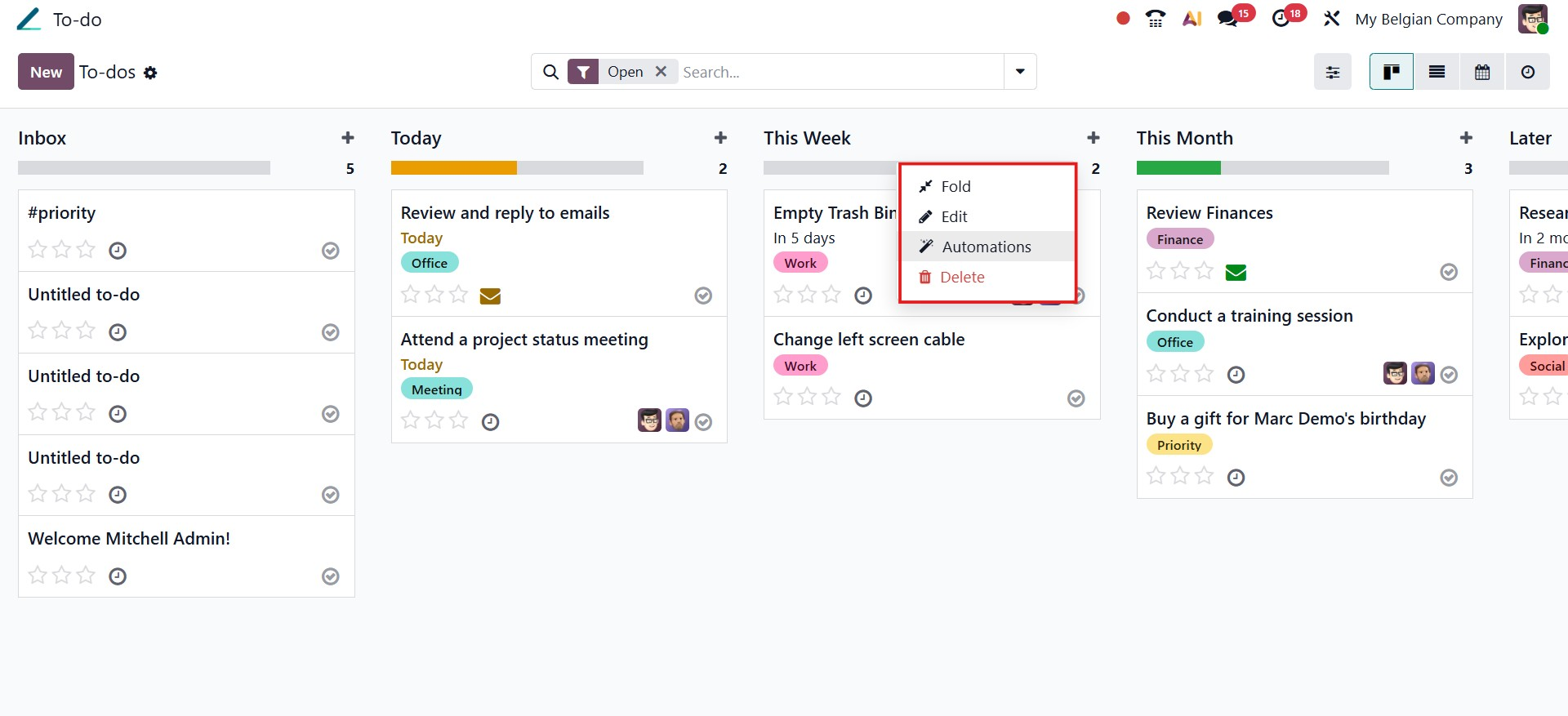
In Odoo 19, each stage can be tailored to better fit your workflow. By clicking the settings icon next to a stage name, you can access options to Fold, Edit, or Delete the stage as needed.
A key feature within this menu is Automation, which lets you define actions that run automatically when a to-do enters that stage. Using automation rules, you can assign responsible users, send email notifications, adjust deadlines, or update specific fields without manual intervention. This helps streamline task handling and ensures consistency across your process.
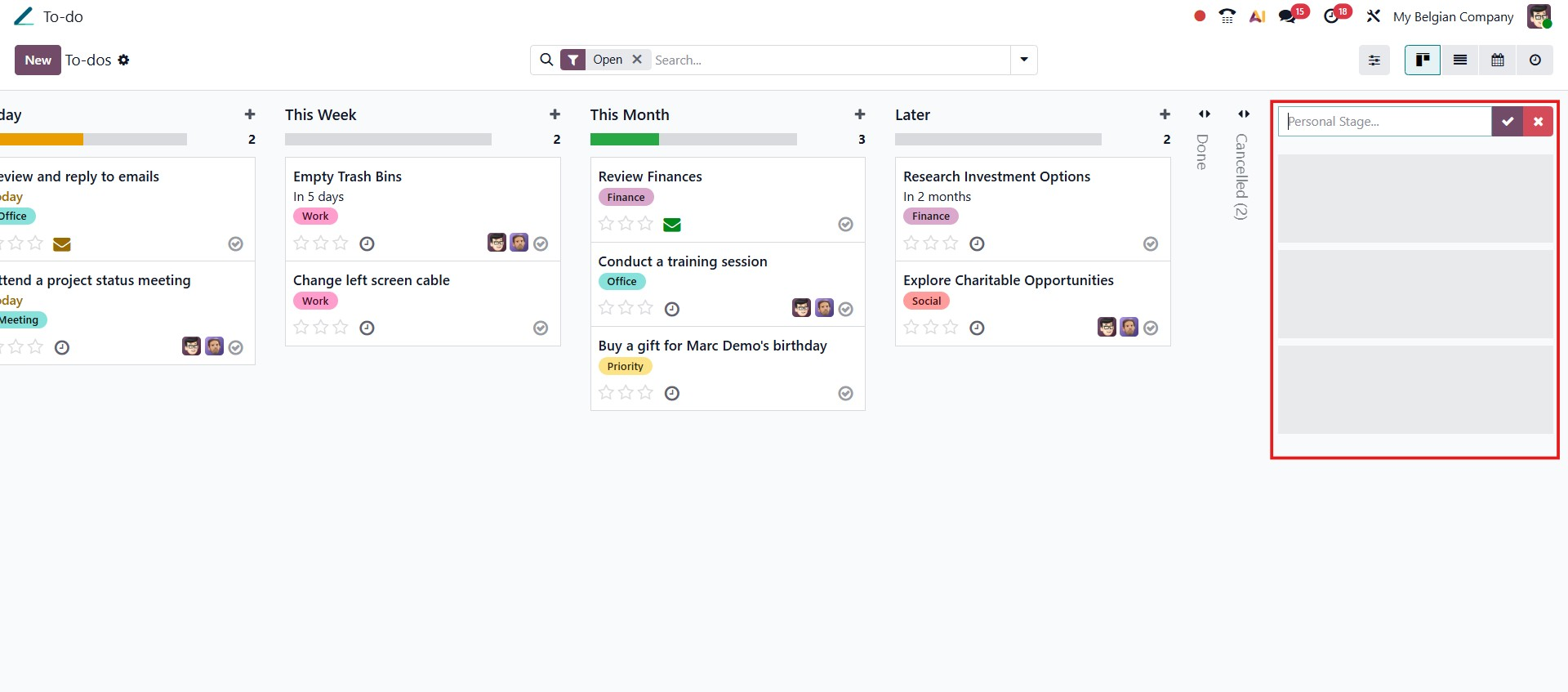
Additionally, each kanban card includes a grey checkmark icon that allows users to quickly mark a to-do as completed. Once marked, the card turns green, providing a clear visual indicator that the task has been successfully finished.
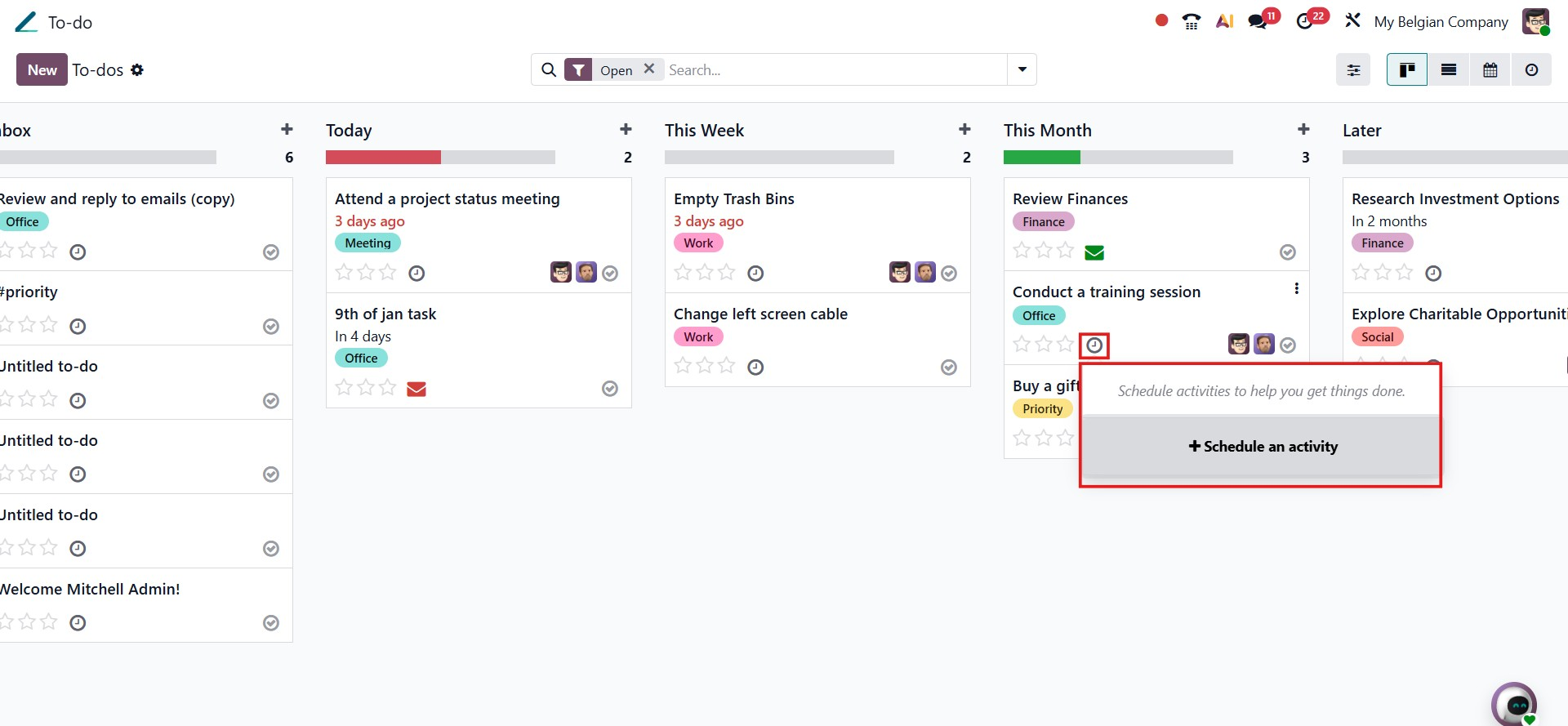
In Odoo 19, planning follow-ups for your to-dos is simple and efficient. From the To-do dashboard, click the clock icon on a task and choose + Schedule an Activity to set up a reminder or required action. This ensures you always know what needs attention and when it should be addressed.
After completing the activity, you can mark it as finished by clicking the checkmark icon next to the scheduled activity. The activity status is immediately updated, and the visual indicators on the to-do reflect its completion. This keeps your dashboard clean, current, and easy to manage.
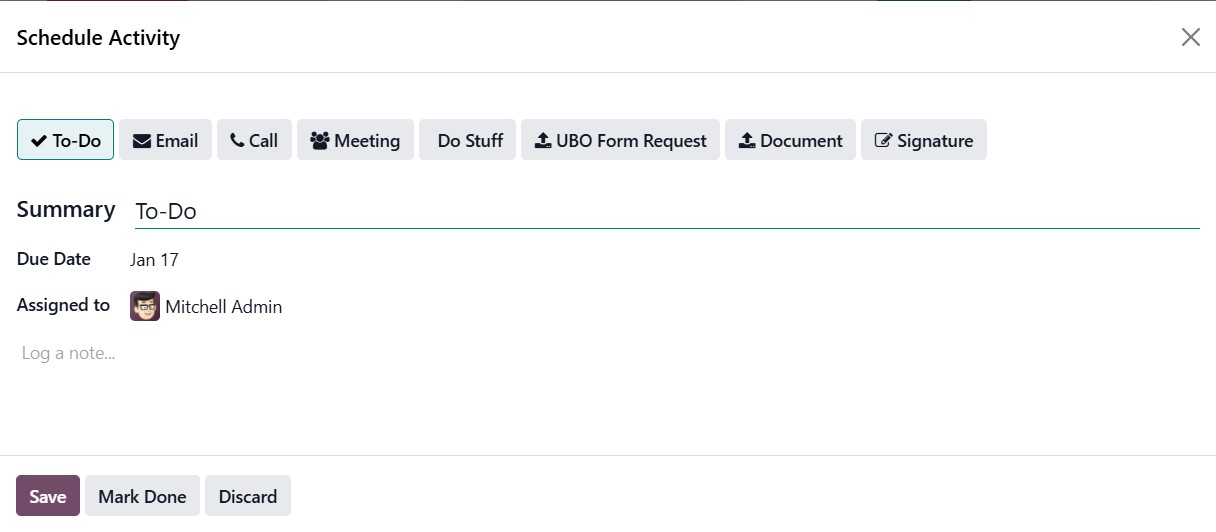
The Activity Scheduling window provides a clear and user-friendly interface for planning follow-ups on your to-dos. From this window, you can start by selecting the activity type at the top, such as To-Do, Email, Call, Meeting, or other available options, depending on the action you want to schedule.
Next, enter a Summary to describe the activity, choose a Due Date, and assign it to the relevant user to ensure accountability. The Log a note section allows you to add detailed instructions or context, helping the assignee understand what needs to be done.
Once all the details are filled in, you can click Save to schedule the activity, Mark Done if the task is already completed, or Discard to cancel.
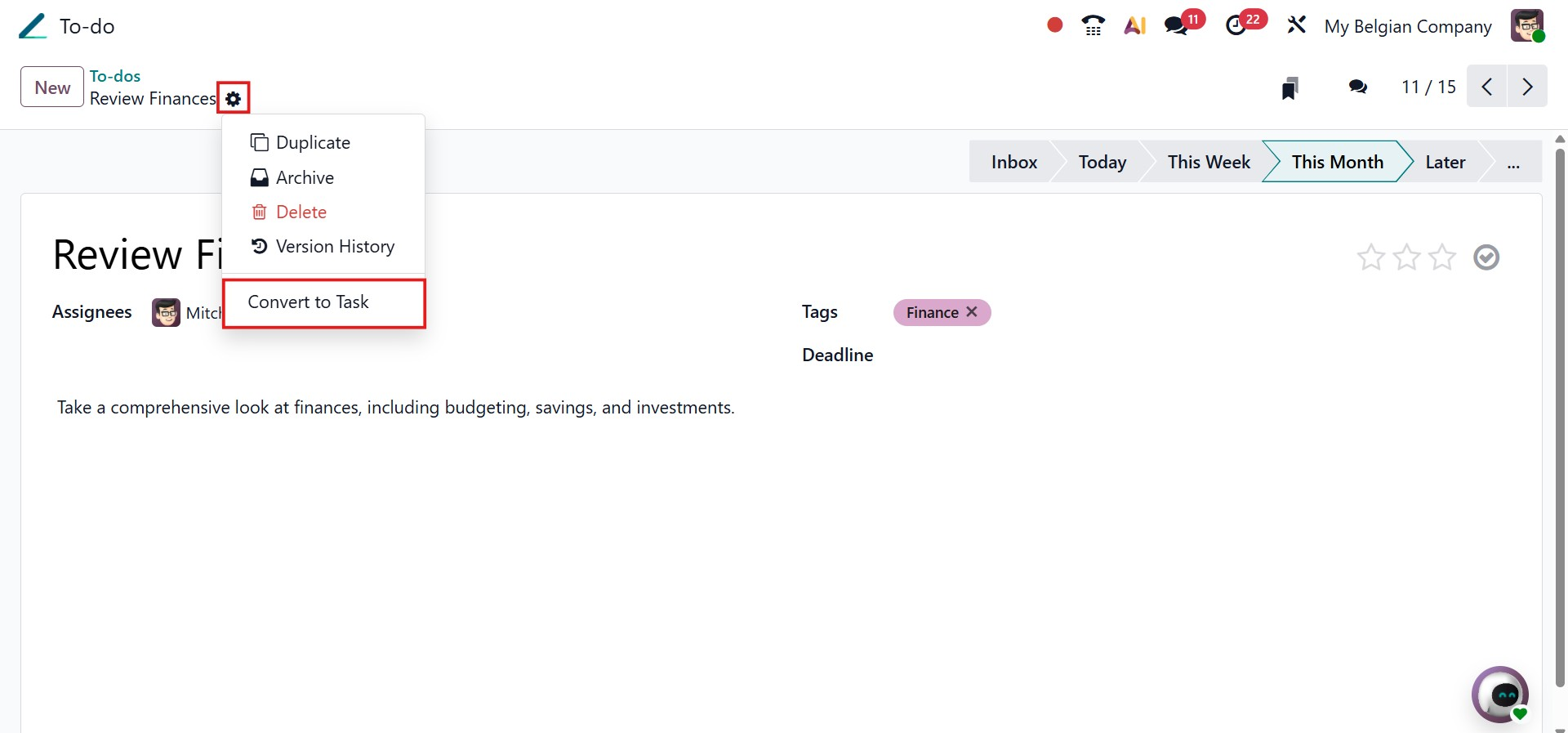
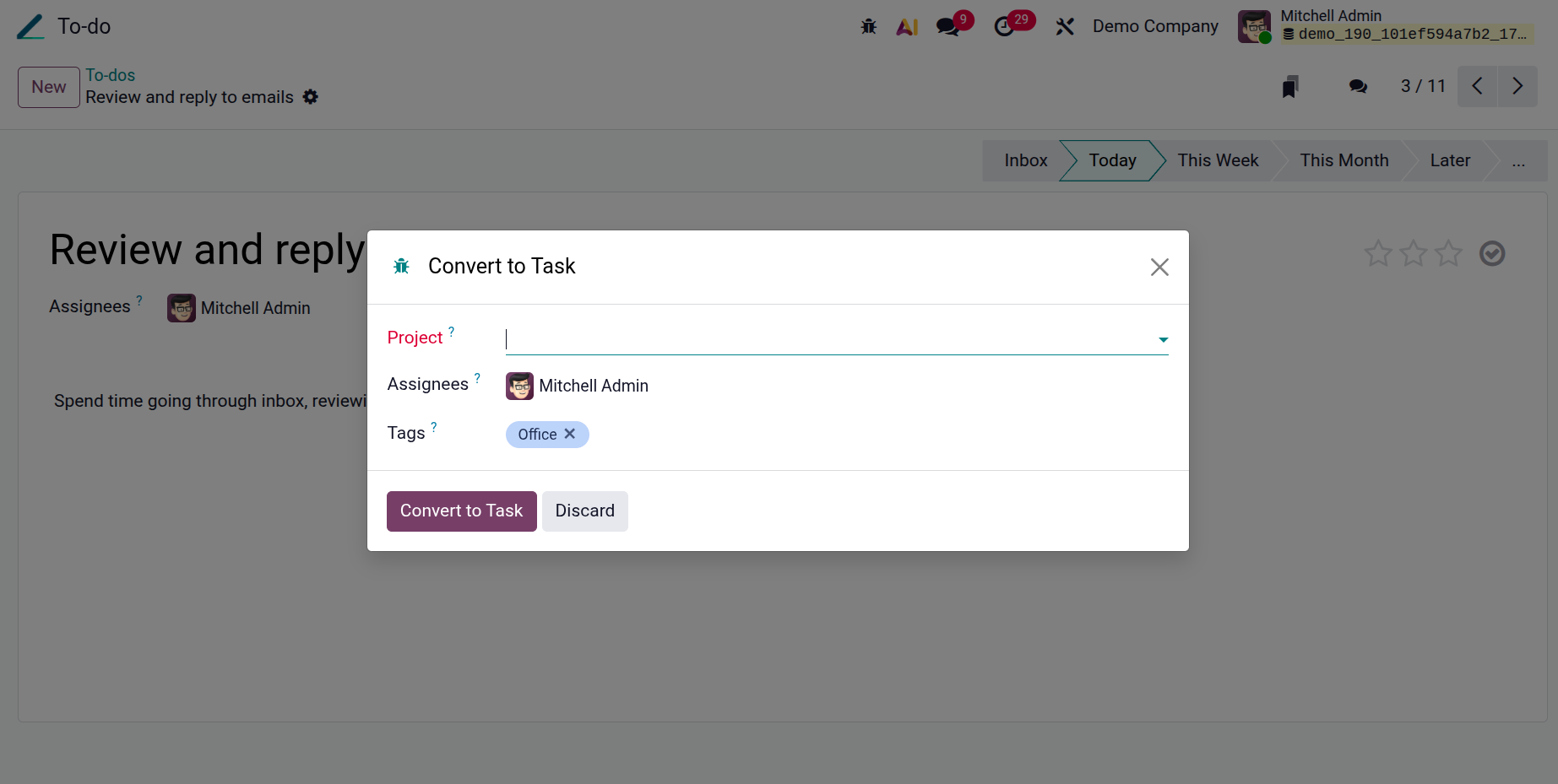
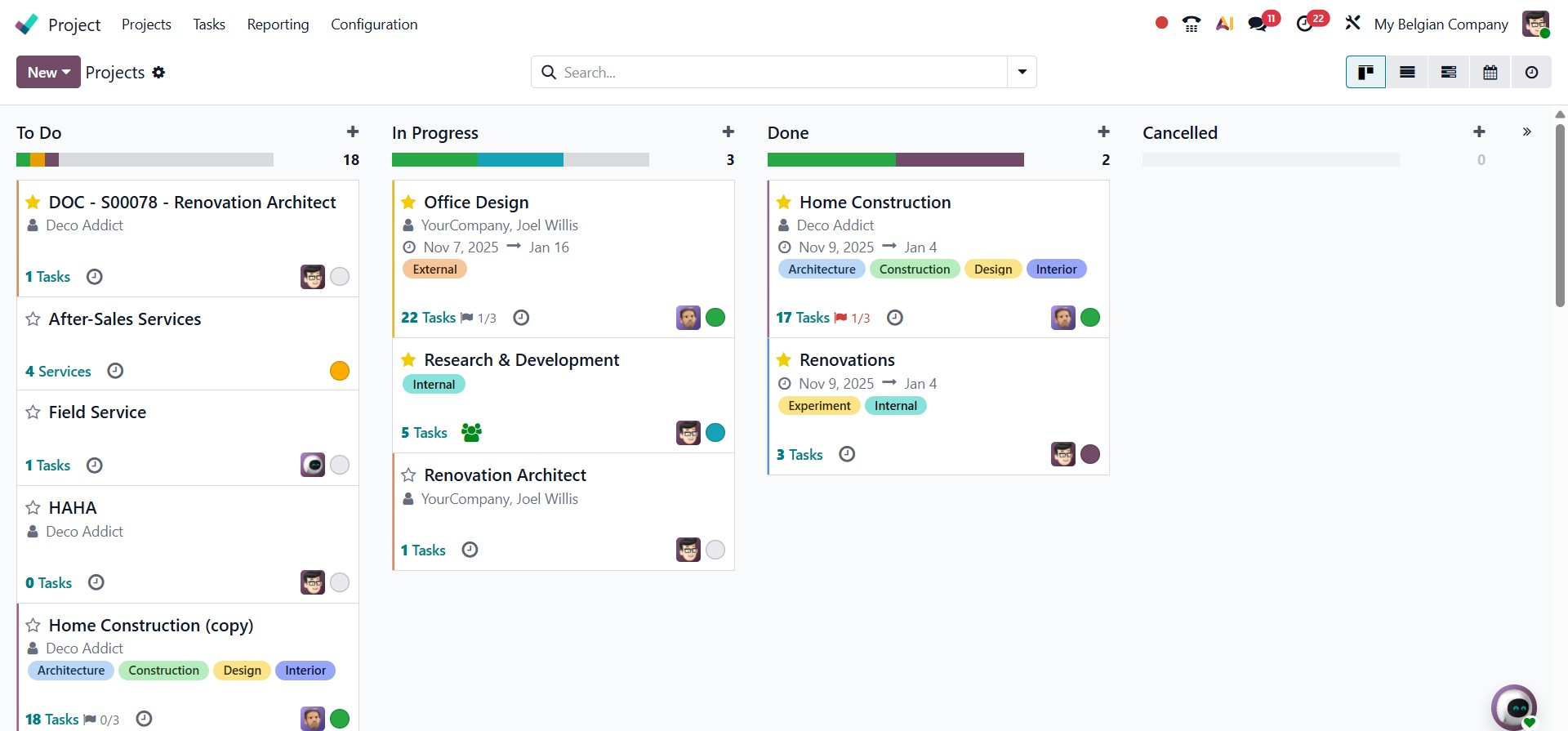
Odoo 19 seamlessly connects the To-do module with the Project app, making it easy to turn a simple note into a structured, trackable task. To convert a to-do, open the relevant entry, click the settings icon, and choose Convert to Task.
A dialog box will then appear where you can select the target project, assign a responsible user, and optionally apply tags for better organization. Once confirmed, the to-do is transformed into a project task, allowing you to manage it with deadlines, stages, and team collaboration tools within the Project application.
After clicking Convert to Task in Odoo 19, the to-do is instantly transformed into a project task and automatically transferred to the chosen project. From there, it can be managed like any other task, with full access to project stages, assignments, deadlines, and collaboration features.
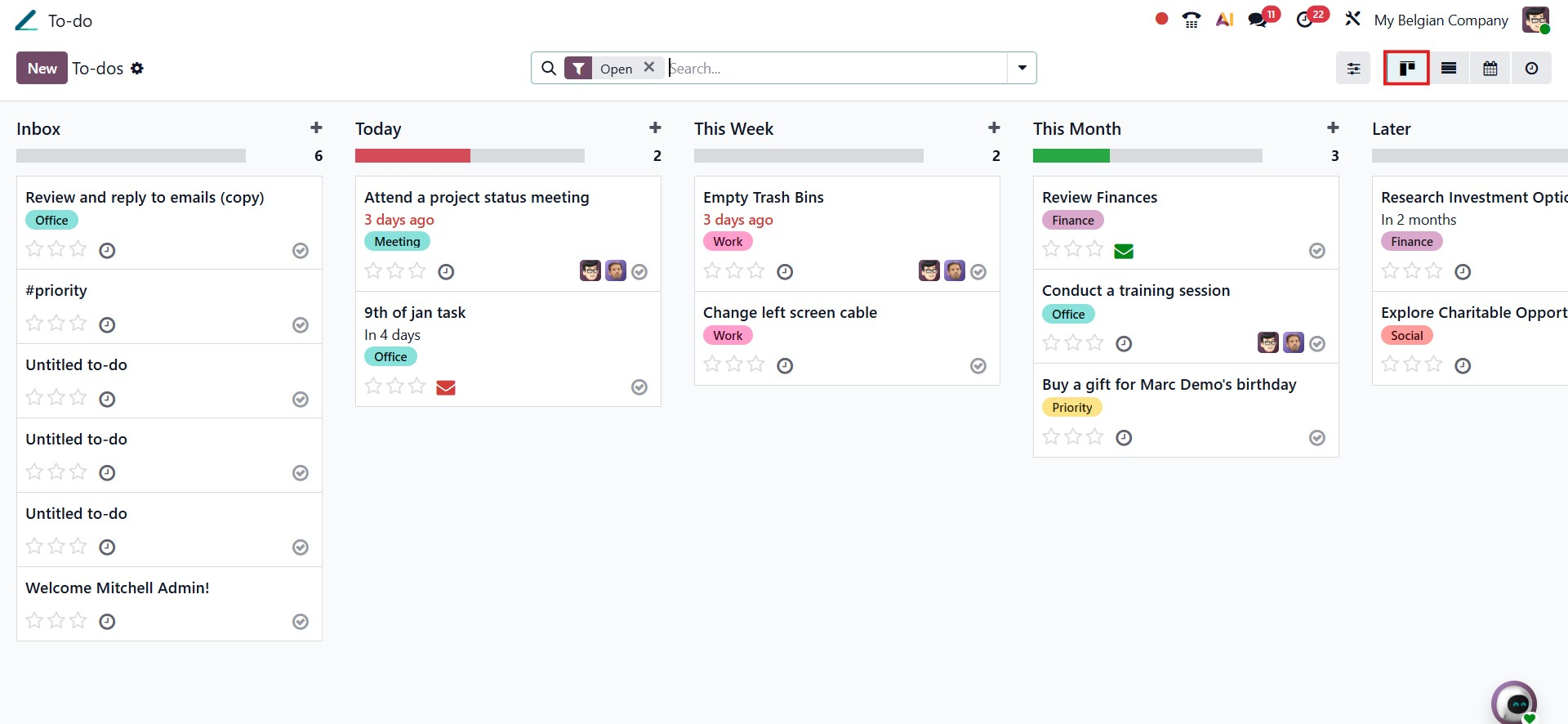
Odoo 19 offers multiple intuitive views to help you organize and manage your to-dos efficiently. One of the most commonly used is the Kanban view, which presents tasks in a board-style layout grouped by stages such as New, In Progress, and Done.
This visual format makes it easy to understand the status of each to-do at a glance. You can quickly update progress by simply dragging and dropping items from one stage to another, allowing for smooth and interactive task management throughout your workflow.
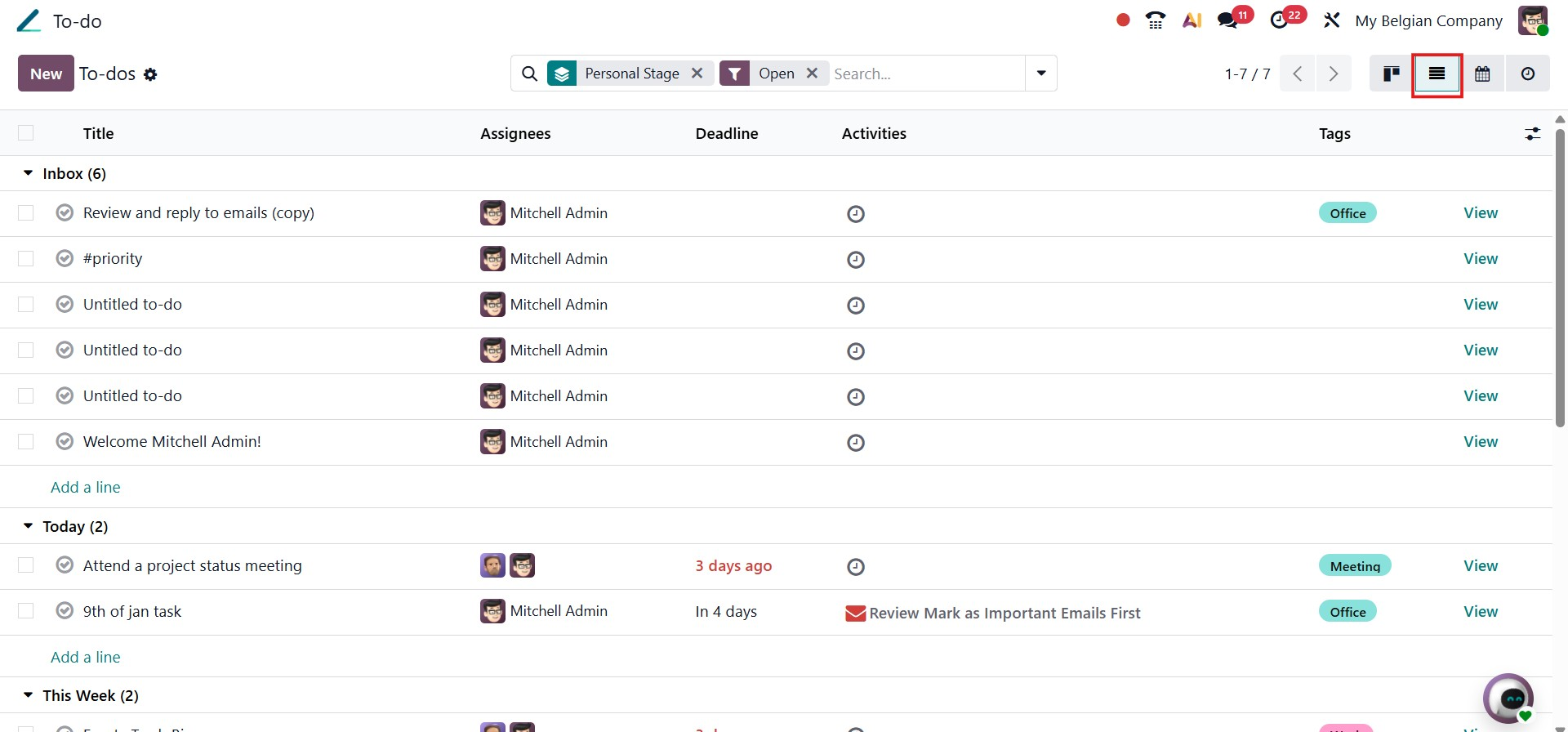
The List view in Odoo 19 displays to-dos in a clean, tabular layout, making it easy to review and compare key details such as due dates, assigned users, and priorities in a structured manner. This view is especially useful when you need a clear, data-driven overview of multiple tasks at once.
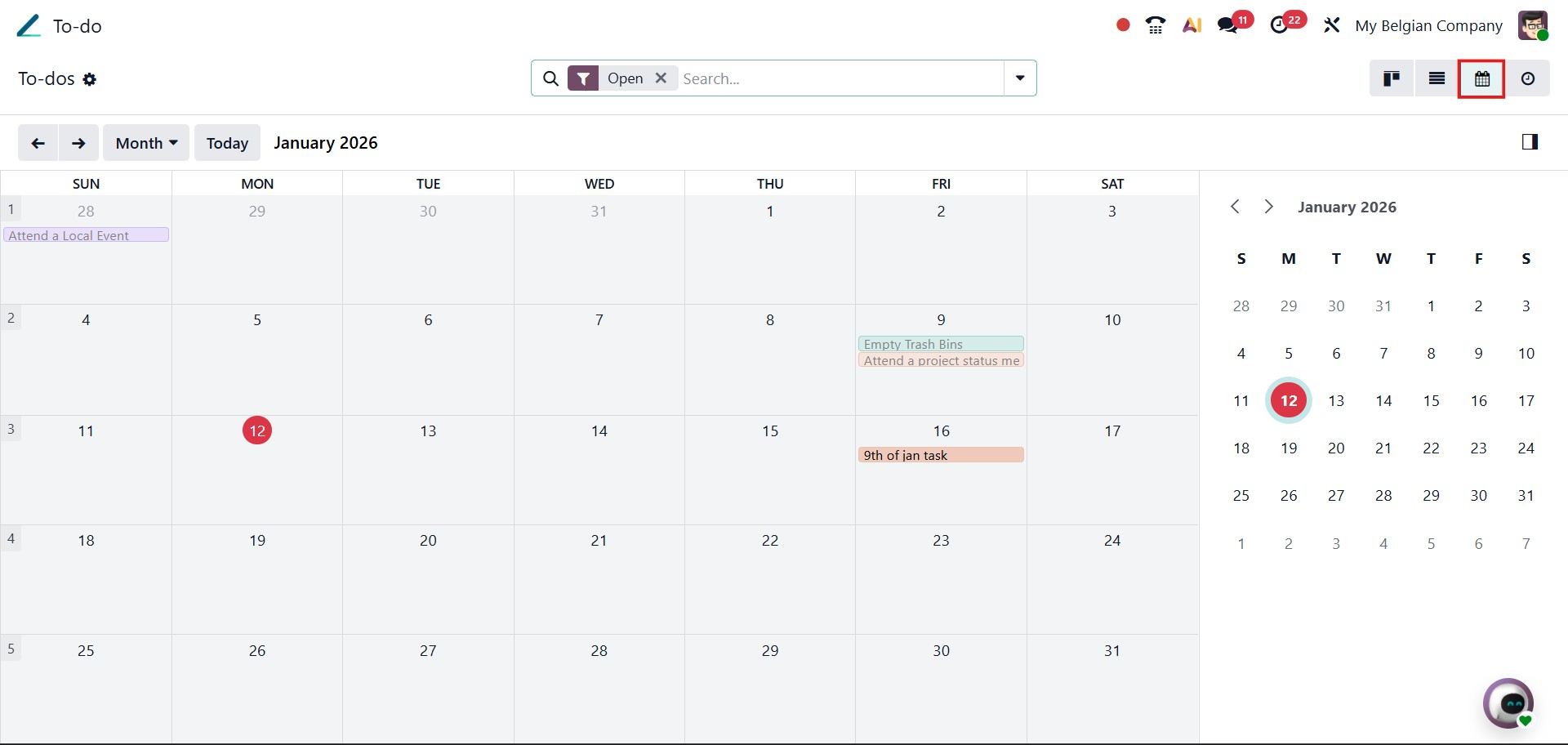
For time-oriented planning, the Calendar view organizes to-dos by date, showing them on specific days within a timeline. This perspective helps users plan workloads more effectively, anticipate upcoming tasks, and manage deadlines with greater clarity.
In Odoo 19, to-dos are clearly separated based on their status into open and closed lists. The Open To-do List contains all tasks that are currently active or underway. These items still require attention and may involve scheduled activities, updates, or movement through different stages. Users can interact with open to-dos by assigning responsibilities, setting reminders, or refining task details as work progresses.
The Closed To-do List, on the other hand, stores tasks that have been marked as completed. Once a to-do and its related activities are finished, they are automatically moved to this section. While no longer active, closed to-dos remain available for future reference, reporting, or auditing, ensuring a complete record of completed work is maintained.
With this overview of creating, organizing, scheduling, and converting tasks, it’s evident that Odoo 19 provides a streamlined and collaborative environment for capturing ideas, monitoring progress, and staying organized, seamlessly integrated into your everyday workflow.