1. Dashboard Menu
Odoo 18's point-of-sale (POS) sessions are displayed on the PoS
module's dashboard, making management of them simple. The dashboard
features a Kanban view, with options to ‘Open Register,’ ‘Continue
Selling’ or ‘Start a new session’. Customers can place orders using
their kiosk by clicking the "Start Kiosk" button.
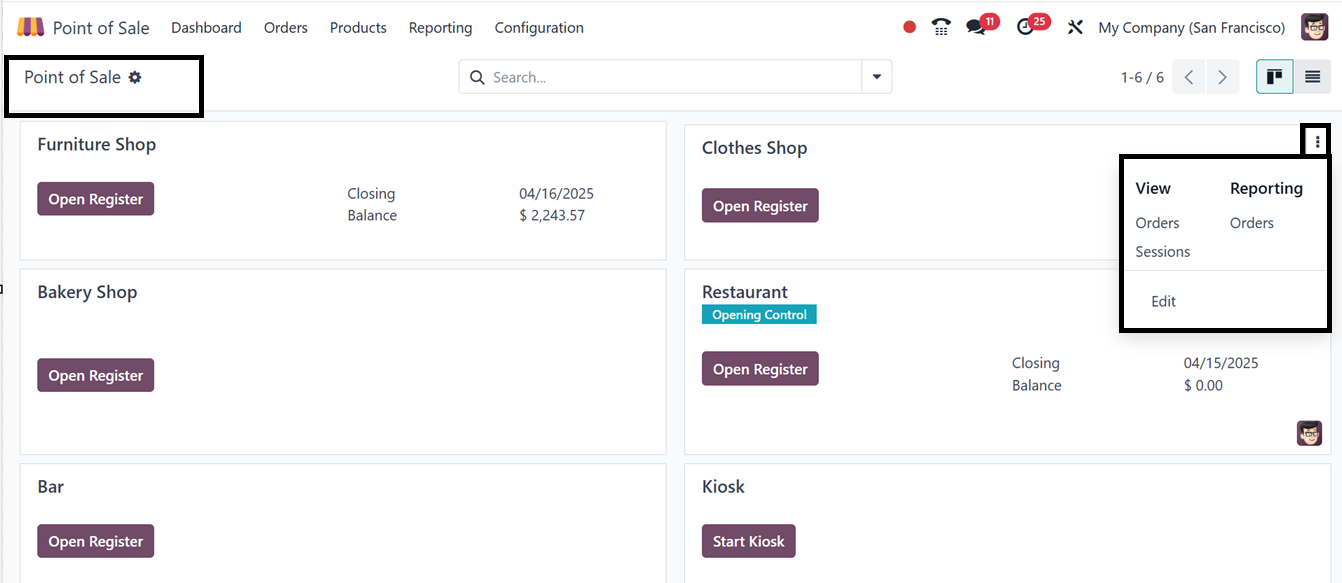
The vertical menu placed on each Point of sale session’s kanban card
can be used to view all the Orders and Sessions related to that
particular PoS shop, View the Orders analysis through the Reporting
window and Edit configuration settings, as depicted in the above
screenshot.
You may use the "Filters" and "Group By" options in the search bar at
the top of the window to quickly filter or group the data by
particular categories. The "Status" column shows you the current
status of every order. You may examine the order's detailed form
view by clicking on a certain order column. For an alternative
layout, you may also switch between Pivot and Kanban views.
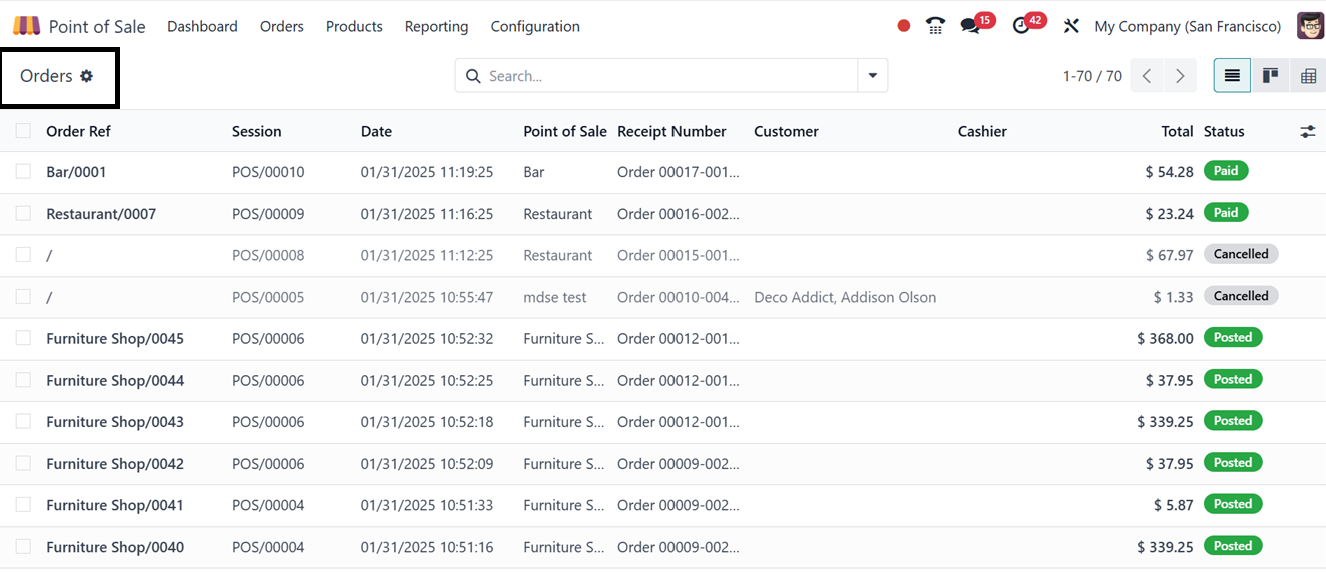
The ‘Action’ button provided near the menu title can be used to
Export All order data, Add data into the Dashboard, Inset Links and
Views in Spreadsheets. With the Odoo Knowledge module integration,
you can also utilize the dashboard links and views to create
articles for future analysis purposes.