24. Add a Bank Account
In Odoo 18 Accounting you can link a bank feed in two ways; direct connection or manual setup.
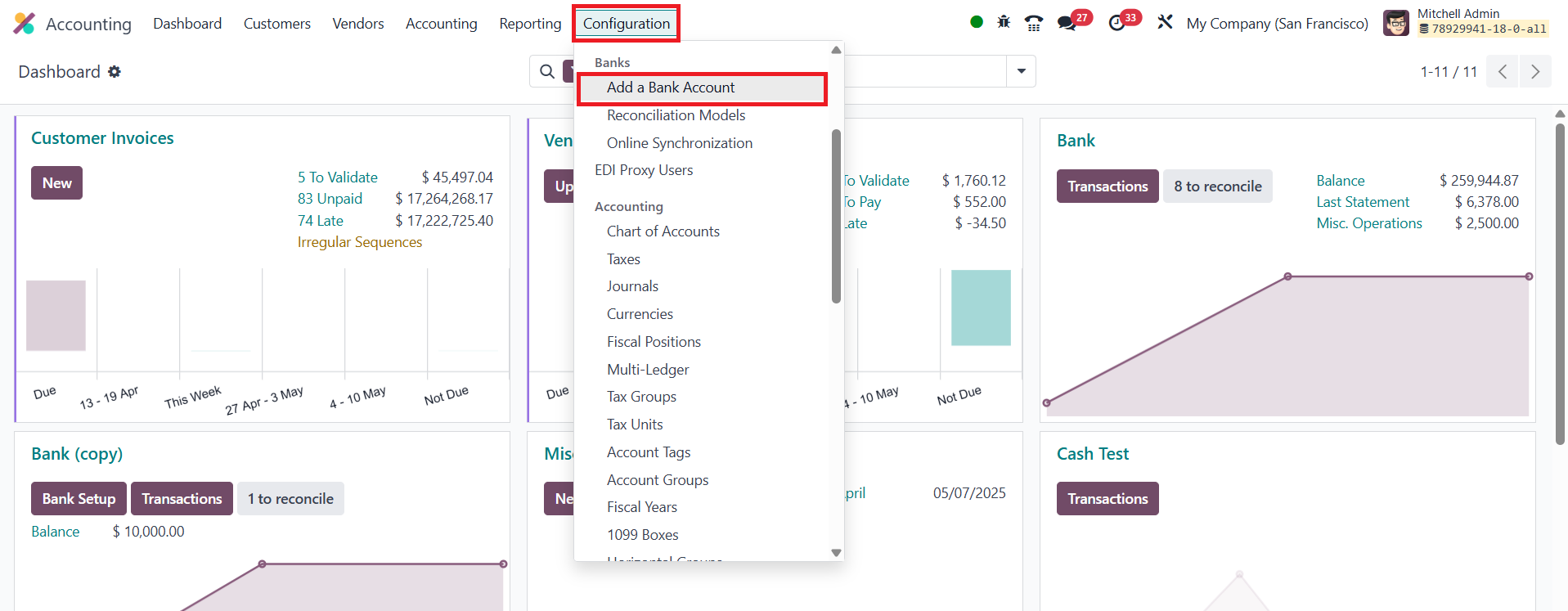
From the Accounting dashboard, open the Configuration menu and choose Add a Bank Account. This launches a wizard that first tries to match your institution against Odoo’s built‑in directory of global banks.
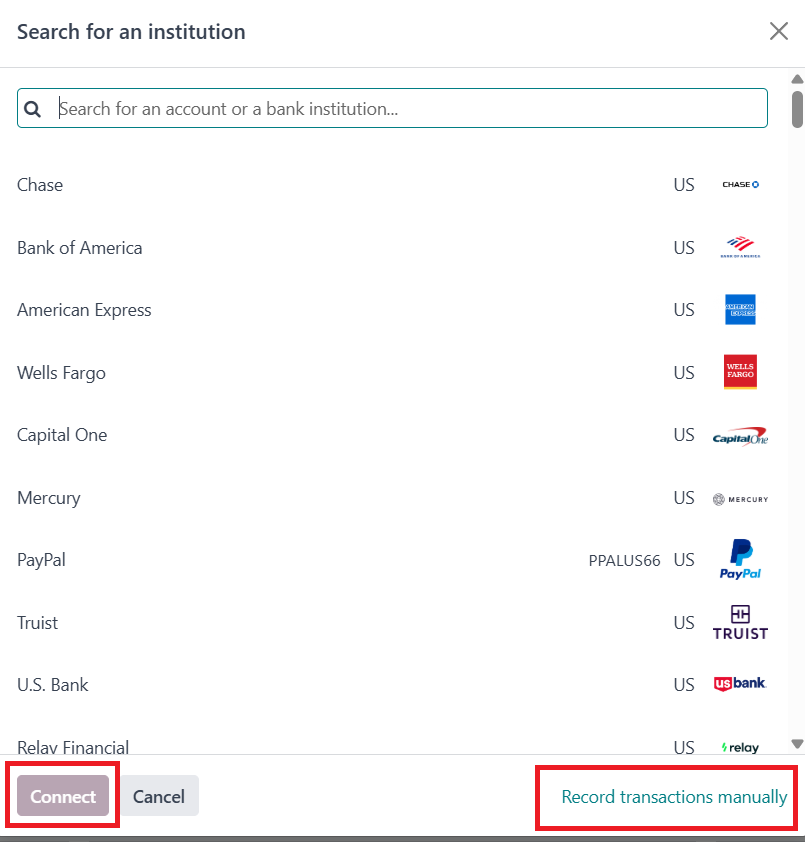
If you spot your bank in the list, simply select it and hit Connect; Odoo drops you into a guided form where you record the account number, currency, journal, and any online‑sync credentials your provider supports. If your institution isn’t listed, or you prefer not to use an online feed, choose Add a Bank Account but scroll to the bottom of the pop‑up and press Record Transactions Manually.
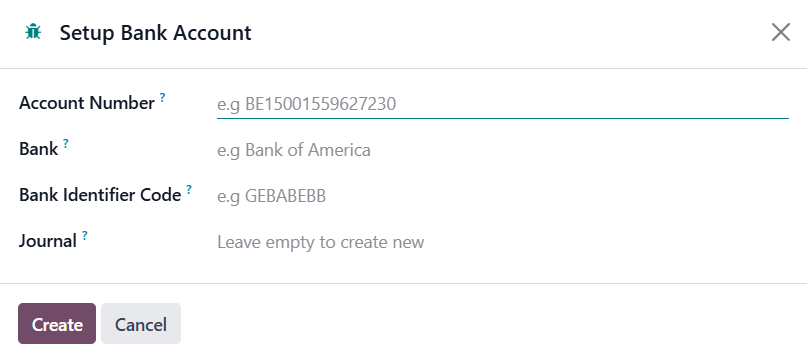
A blank form opens where you enter the Account Number, Bank, Bank Identifier Code, and Journal, then create. The account is now recorded in your database and ready for manual statement uploads, reconciliations, and payment processing.
In Odoo 18 Accounting, the Online Synchronization feature gives you a hands‑free way to keep your on‑premise database and your Odoo Cloud account perfectly aligned; so every bank statement, payment, and reconciliation you record in one environment is automatically reflected in the other. Start by opening the Accounting module and select the Online Synchronization from the Configuration menu.

With synchronization enabled, you can jump between environments; say, reconciling yesterday’s bank feed in the cloud and recording a supplier payment on‑premise, knowing the two systems will converge at the next scheduled cycle. The result is a single source of truth for cash balances and banking activity, achieved without manual exports or imports and without the risk of version drift across databases.