13. Automatic Transfers
In Odoo 18 Accounting, the Automatic Transfers feature offers an
efficient way to automate internal transfers between accounts over a
defined period, minimizing manual bookkeeping and enhancing
financial accuracy. To access this feature, navigate to the
Accounting module and select Transfers from the Accounting menu.
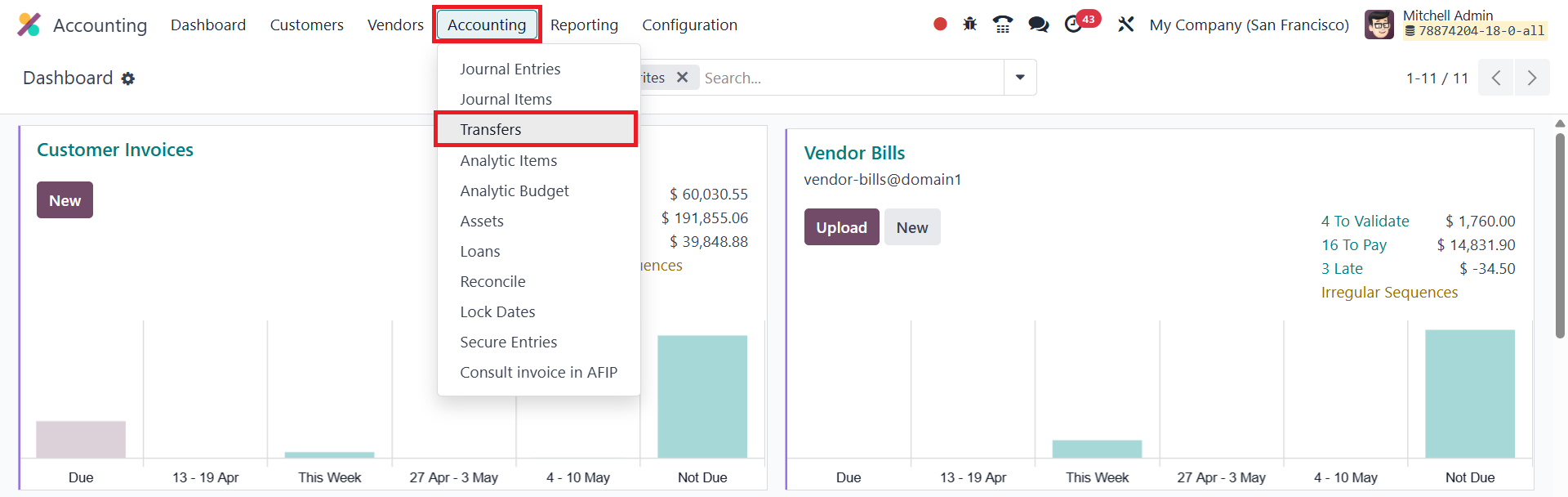
Click the New button to configure a new scheduled transfer.
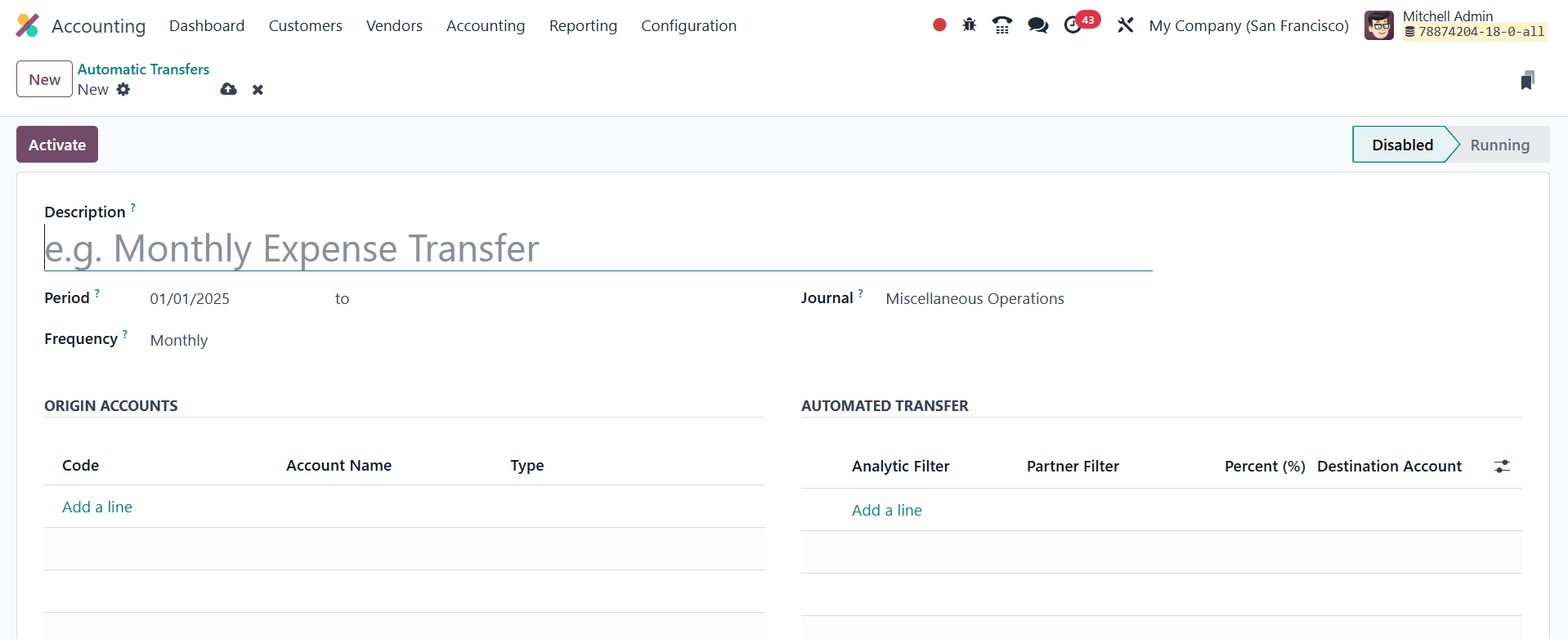
You will begin by giving the transfer a relevant Description. Then,
specify the Start Date and Stop Date under the Period field,
defining the duration for which the transfer should be active. In
the Frequency field, choose how often the transfer should occur;
monthly, quarterly, or yearly, depending on your business needs.
Next, assign a Journal where the resulting accounting entries will be
recorded. This journal will reflect the movement of funds between
accounts during each scheduled transfer. Use the Add a Line button
under the Origin Accounts section to select the source accounts from
which the amounts will be transferred.
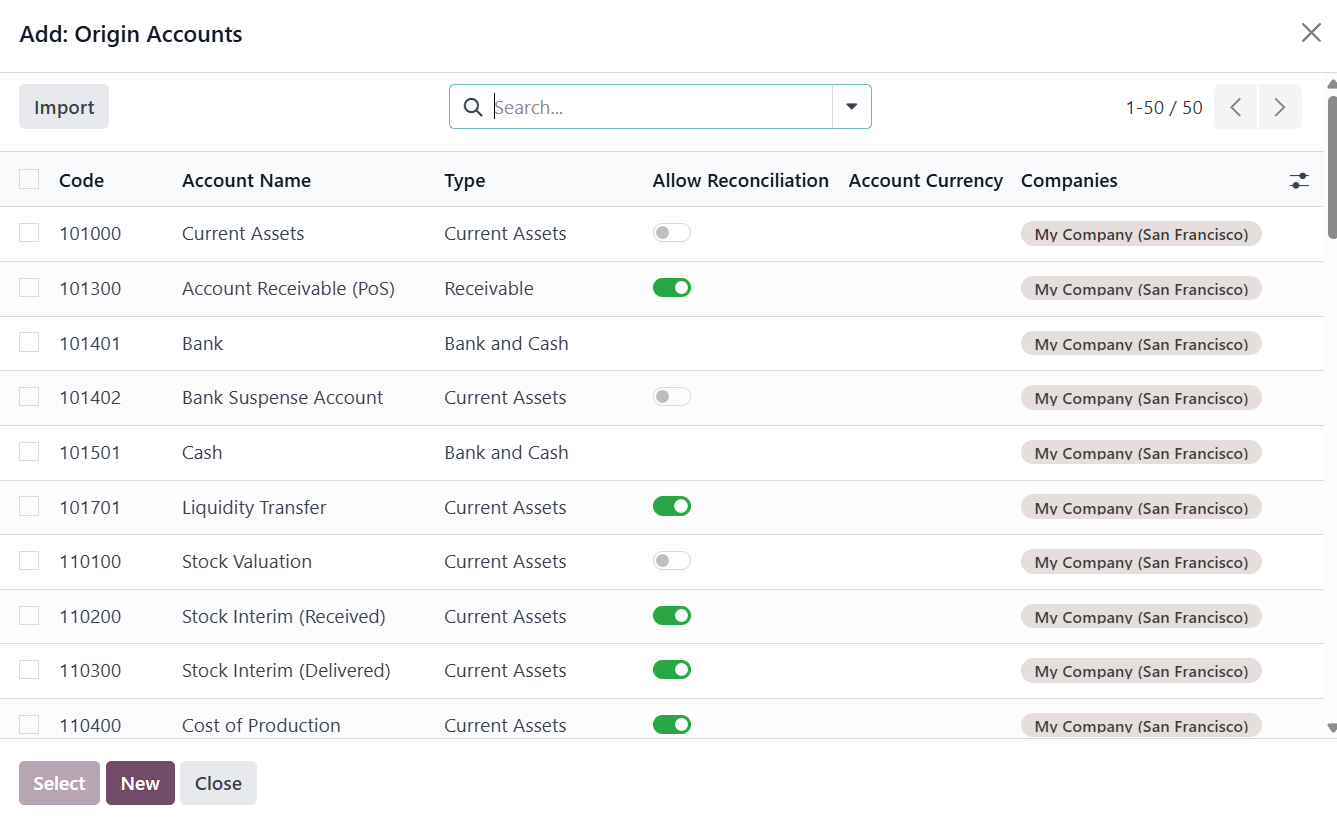
A selection wizard will appear, letting you choose multiple accounts.
Once added, the platform will display the Account Code, Account
Name, and Type for each origin account.
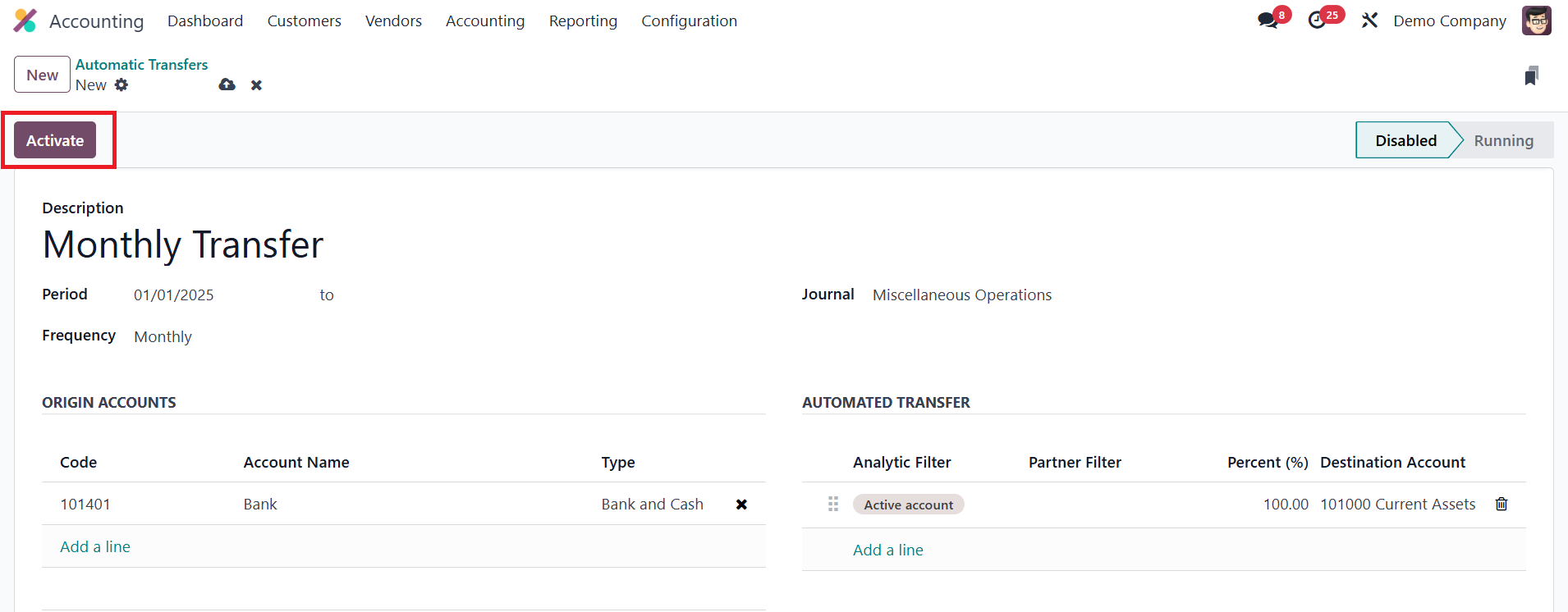
Then, under the Automated Transfer section, click Add a Line again to
specify the destination account(s). You can set Analytic Filters and
Partner Filters to ensure that only amounts matching specific
analytic accounts or partners are transferred. This filtering
provides granular control, especially when allocating shared costs
or revenue across multiple business units or projects. Additionally,
in the Percentage field, you can define what portion of the total
from the origin accounts should be transferred. After completing the
configuration, click Activate to enable the automatic transfer.
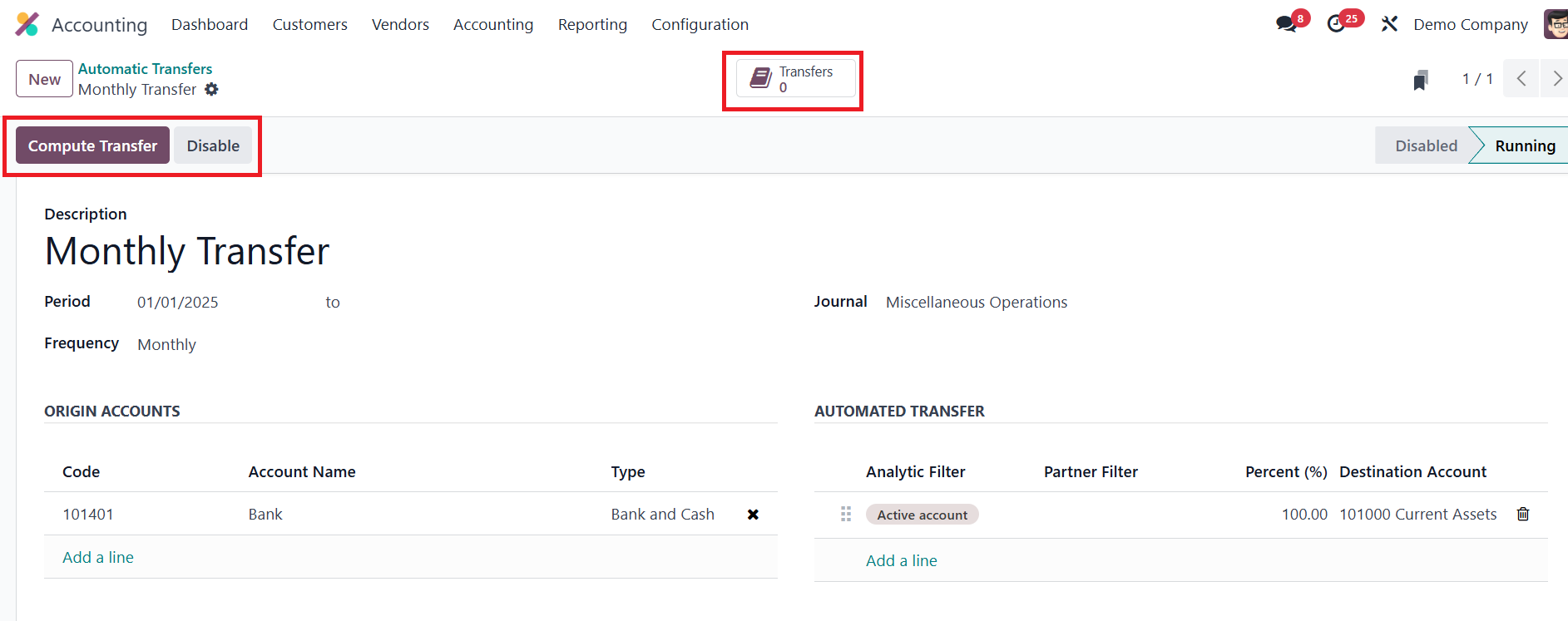
Once activated, you can use the Compute Transfer button to initiate
the transfer and generate the corresponding journal entries for the
scheduled period. You can track the generated entries by clicking
the Transfers smart button, which provides quick access to all
computed transfers under the current plan. If you wish to stop the
scheduled operation before the planned end date, simply click the
Disable button to halt the automation.
With Automatic Transfers in Odoo 18, businesses can streamline
repetitive internal transfers, maintain consistency in financial
reporting, and reduce the risk of errors in account allocation.