2. Credit Note
In Odoo 18 Accounting, credit notes play a crucial role in handling
corrections and reversals related to customer invoices. Whether due
to invoicing errors, product returns, service rejections, or any
overcharges, credit notes allow businesses to maintain accurate
financial records and offer transparency to their clients. Odoo 18
simplifies the management of credit notes by offering a dedicated
Credit Notes section under the Customer menu in the Accounting
module.
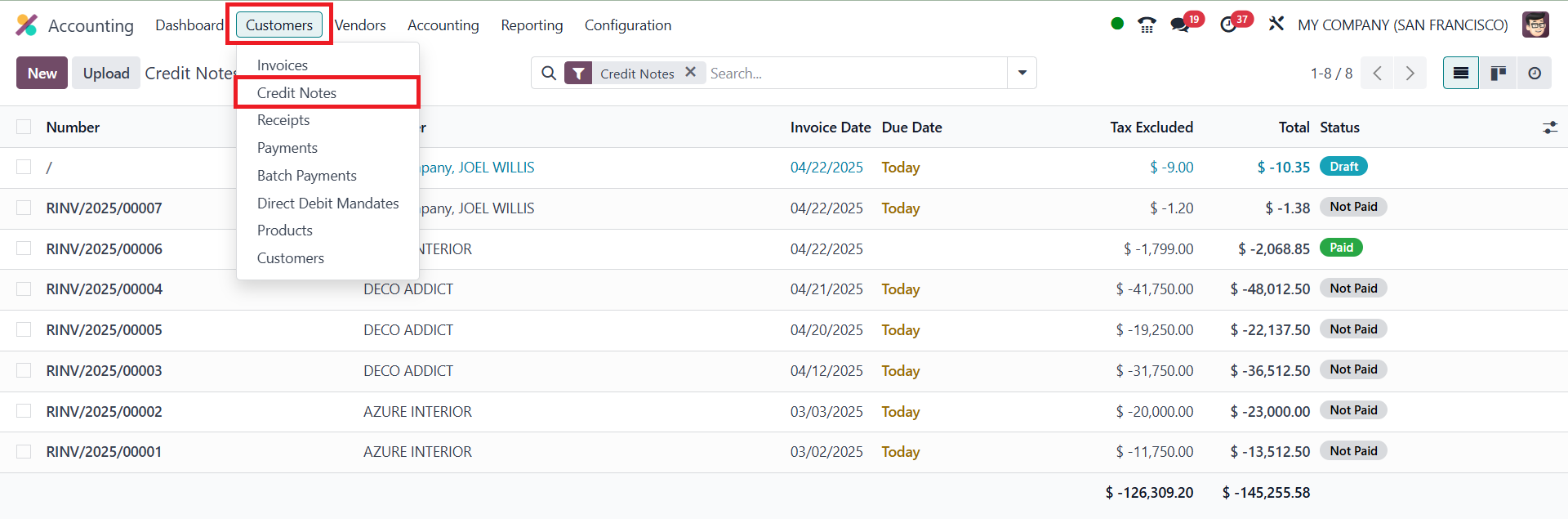
This centralized platform provides a user-friendly interface that
mirrors the layout of the Invoices platform. It displays all the
generated credit notes along with essential details such as Credit
Note Number, Customer, Invoice Date, Due Date, Tax Excluded, Total
Amount, and Status. You can also customize the list view by toggling
on or off the required fields using the column configurator
available through the settings icon.
To handle credit notes efficiently, Odoo 18 offers two primary
methods. The first is automatic credit note generation directly from
an existing invoice. If an error is found or a product return
occurs, users can click the “Add Credit Note” button from within the
posted invoice. This opens a reversal wizard where the reason for
issuing the credit note can be specified, along with the reversal
date. The user can choose to apply the current journal or select a
specific journal if needed. Once the details are confirmed, clicking
Reverse generates the draft credit note.
Alternatively, users can manually create a new credit note by
navigating to the Credit Notes dashboard and clicking the “New”
button.
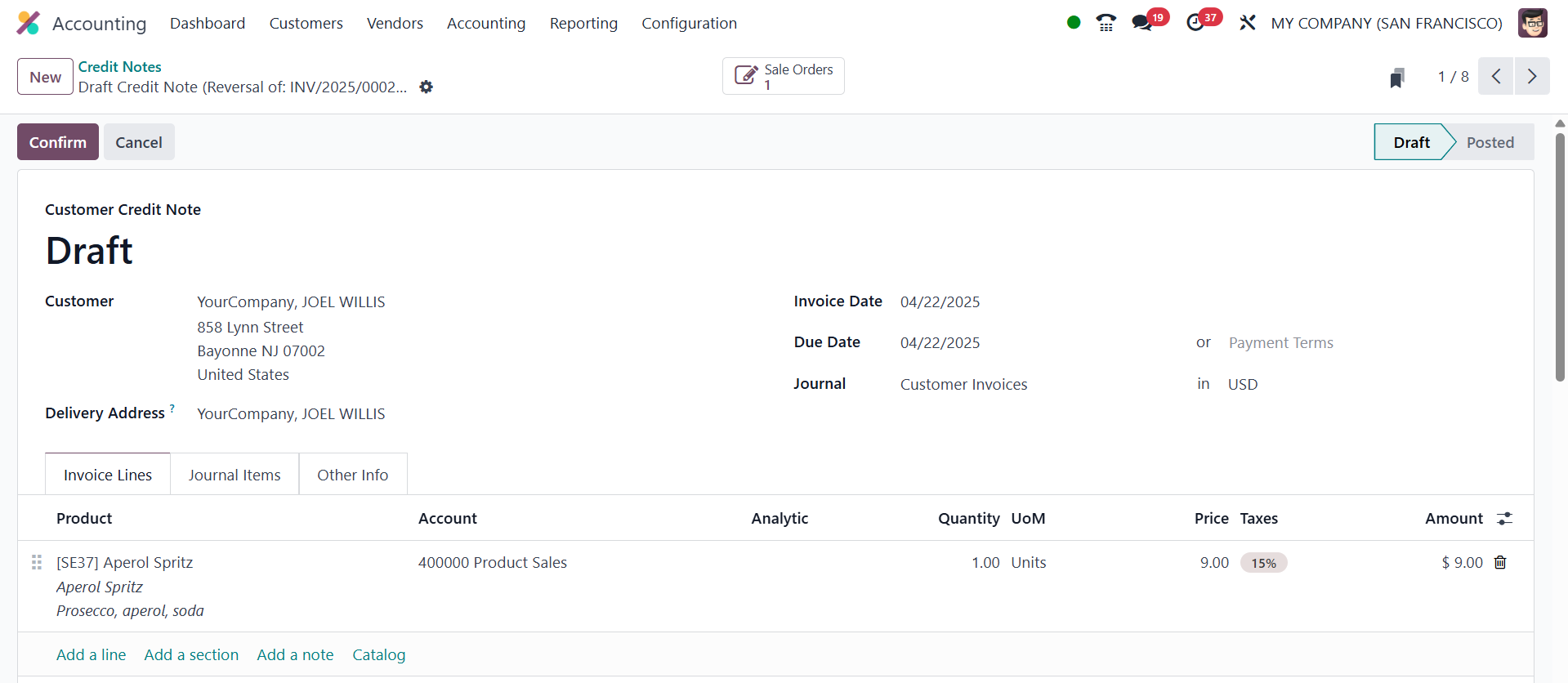
The creation form closely resembles the invoice creation screen. You
can enter the customer details, delivery address, credit note date,
payment terms, and journal. Under the Invoice Lines tab, add the
products or services being credited, along with quantity, unit of
measure, price, applicable taxes, and subtotal. The Journal Items
tab will automatically generate accounting entries based on the
credit line items, which can be manually adjusted if required.
In the Other Info tab, you can provide additional metadata such as
the salesperson, sales team, customer reference, campaign
information, referrer ID, recipient bank account, and accounting
specifics like fiscal position or incoterms. If the credit note
needs to be reviewed before final confirmation, enable the To Check
field.
Once all details are verified, clicking the Confirm button posts the
credit note, making it an official record in the system.
Additionally, documents related to credit notes, such as scanned
copies or PDFs, can be uploaded to the system using the Upload
button. This ensures all relevant documentation is stored and easily
accessible for future audits or client communication.