40. Deferred
Management
In Odoo 18 Accounting, Deferred
Management provides a
streamlined way to handle
prepaid expenses and unearned
revenues, ensuring your
financial reporting aligns
with accrual accounting
principles. When a business
pays for goods or services in
advance or receives payment
before delivering its
service, Odoo automatically
generates deferral journal
entries that spread the
recognition of those
transactions over the
appropriate future periods.
40.1 Deferred Revenue
Deferred revenues, also known as
unearned revenues, represent
payments received from
customers for goods or
services that are yet to be
delivered. Since the company
has not yet fulfilled its
obligation, these revenues
cannot be recognized
immediately in the profit and
loss statement. Instead, they
are recorded as current
liabilities on the balance
sheet until the revenue can
be earned, either all at once
or gradually over a specified
period.
For instance, if a company sells
a one-year software license
for $1200 and invoices the
customer upfront, the revenue
cannot be fully recognized at
the time of invoicing.
Instead, the entire amount is
posted to a deferred revenue
account. Over the next 12
months, $100 is recognized
each month as earned income,
aligning with the delivery of
the licensing service.
In Odoo 18 Accounting, this
process is efficiently
managed through the Deferred
Revenue feature, which
automates the generation of
multiple journal entries
based on the deferral model.
These entries are posted
periodically, monthly,
quarterly, or as configured,
ensuring that revenue is
recognized accurately and in
compliance with accrual
accounting standards.
In Odoo 18 Accounting, managing
deferred revenues is
streamlined through the
configuration options
available under the
Accounting Settings. Within
this module, there is a
specific section titled
Default Accounts, which
displays all the default
accounts used by the company.
Among these, the Deferred
Revenue Account is
prominently listed, serving
as the account where unearned
income is temporarily
recorded until it is eligible
for recognition.
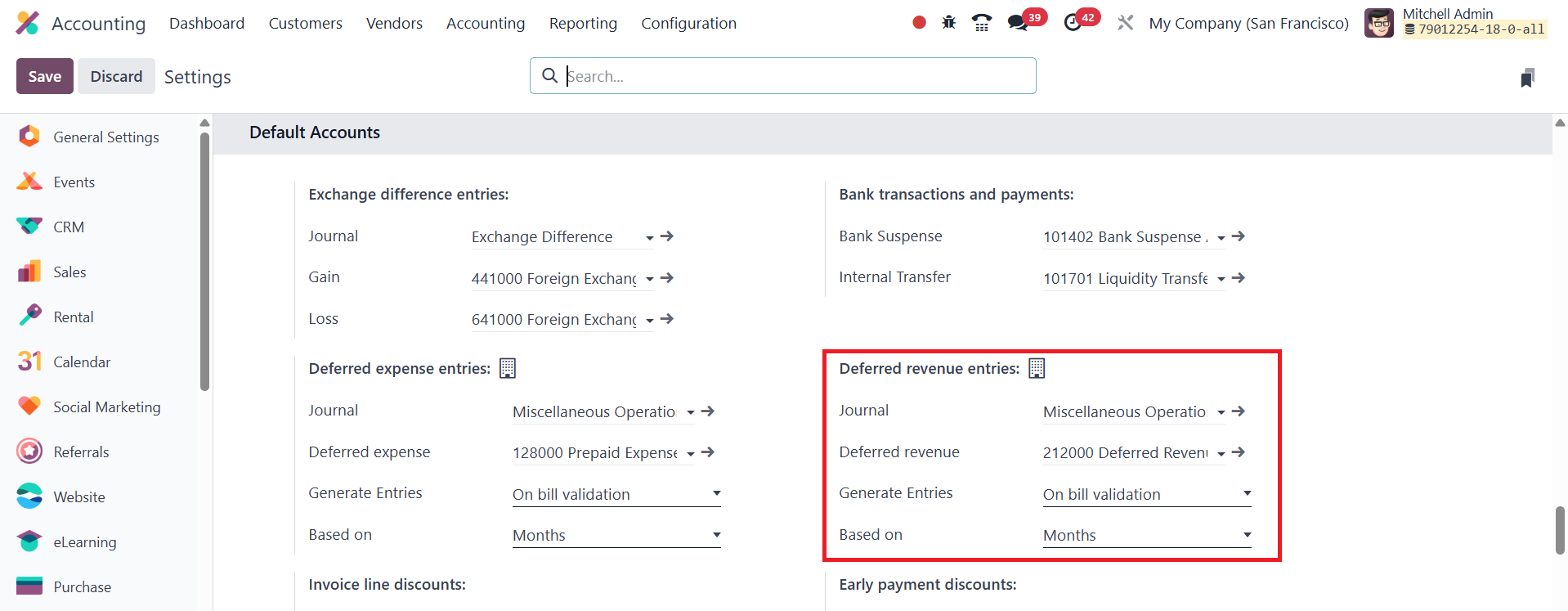
Alongside the deferred revenue
account, users can also
define the journal that will
be used to log deferred
entries. Odoo provides
flexibility in how deferred
entries are generated.
Businesses can choose to
generate these entries
automatically upon bill
verification, enabling an
automated workflow that
ensures timely recognition of
revenue. Alternatively, they
can opt for the Manual &
Grouped method, which allows
users to have more control
over when and how the entries
are created and grouped.
Odoo also allows users to define
how the deferred entries
should be calculated. There
are options to calculate
entries based on days, which
ensures a daily level of
precision, or based on
months, for evenly spread
monthly revenue recognition.
Additionally, the Full Months
option ensures that revenue
is recognized from the
beginning to the end of
calendar months.
Generate Entries on Bill
Validation
In Odoo 18 Accounting, when the
option Generate Entries on
Bill Validation is enabled,
the system is configured to
automatically create deferred
revenue or deferred expense
entries at the moment a bill
is confirmed. This means that
as soon as a bill is
validated, Odoo will
immediately generate the
necessary journal entries to
begin the deferral process.
Let’s consider a scenario where a
customer subscribes to a
service plan offered by the
company. To process this in
Odoo 18 Accounting, we begin
by creating a new invoice.
Navigate to the Customer menu
and select the Invoices
option. To initiate a new
invoice, click the New
button.
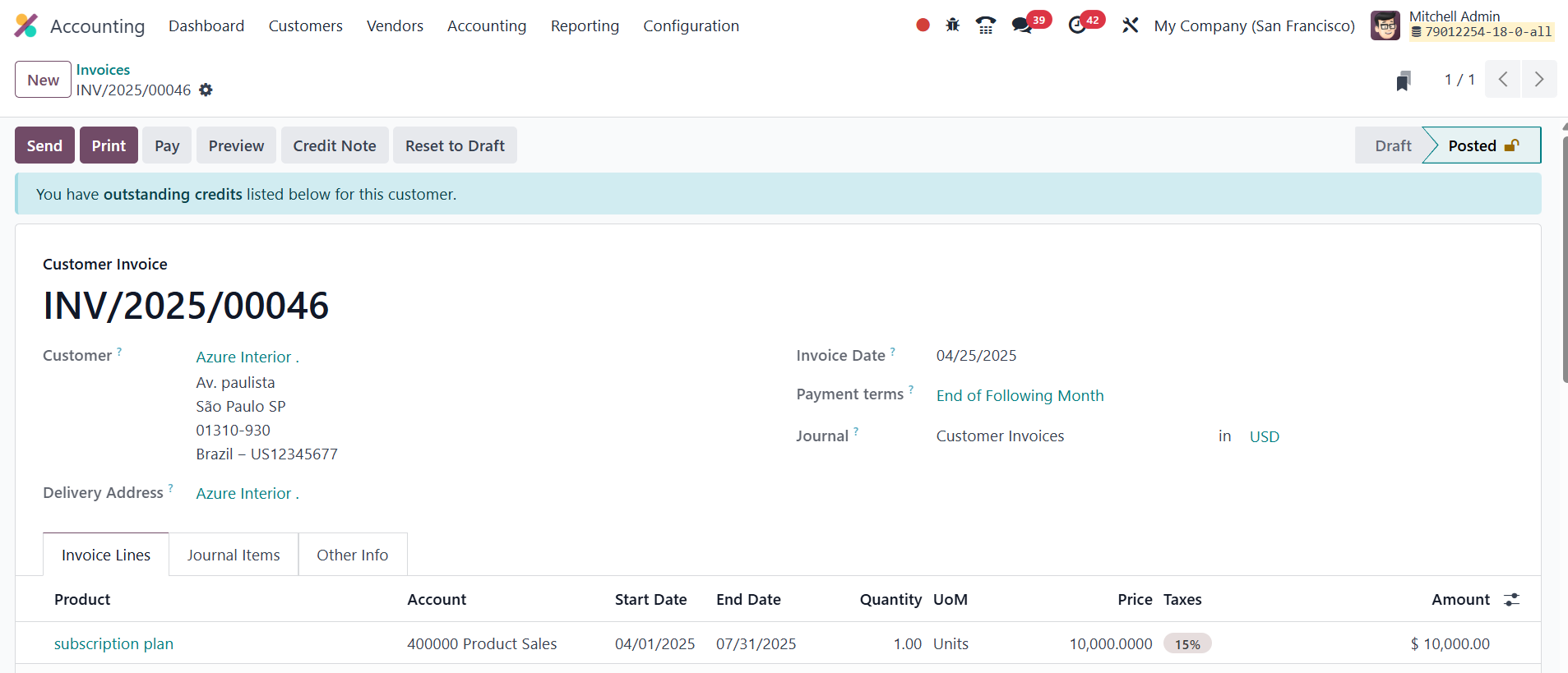
Start by selecting the Customer
name for whom the invoice is
being generated. Then, fill
in other important details
like the Invoice Date,
Payment Terms, and Journal.
In the Invoice Line section,
add the relevant product or
service; in this case, the
subscription plan, along with
the appropriate quantity.
This section also includes
two important fields labeled
Start Date and End Date,
which define the duration of
the service or subscription
being invoiced.
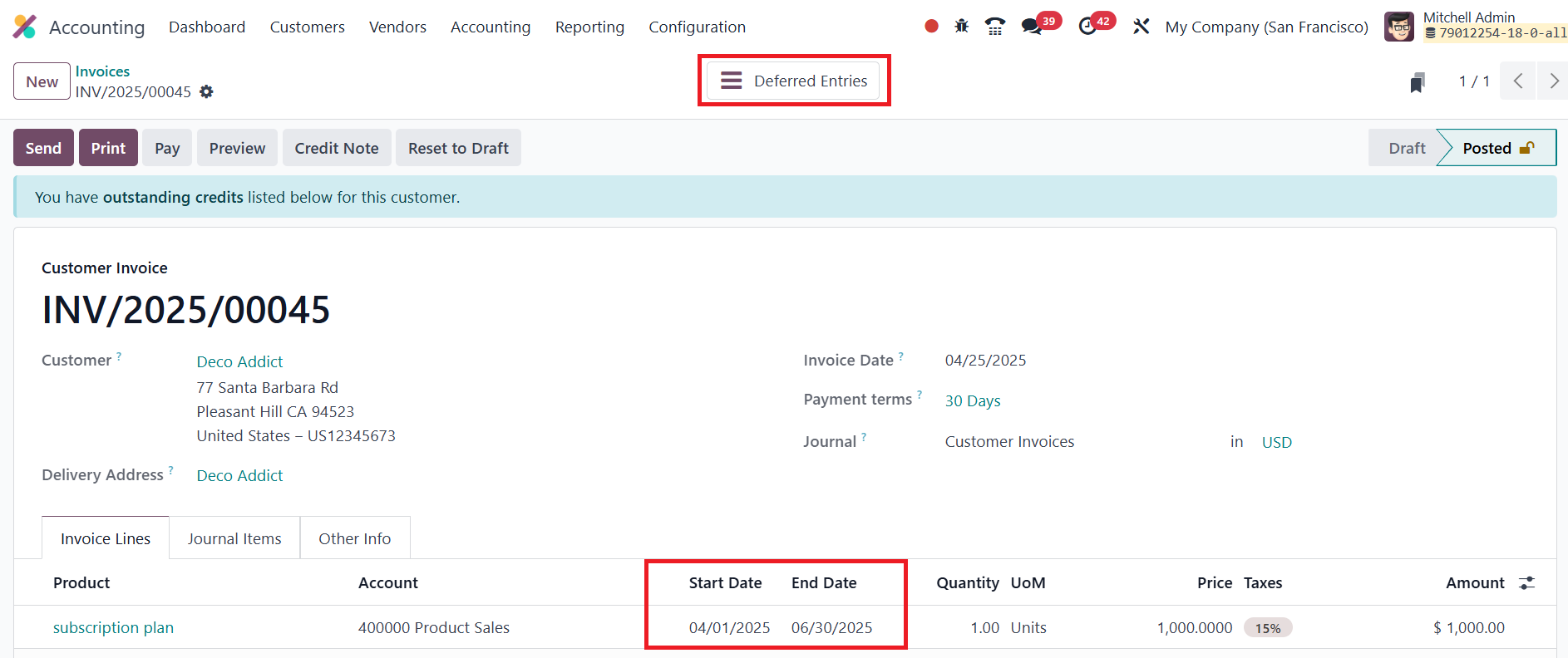
Once all the details are filled
in correctly, the invoice can
be confirmed. After
confirmation, Odoo will
automatically generate the
corresponding accounting
entries, including deferred
revenue entries if
applicable, based on the
duration provided. To view
the deferred entries, simply
click on the smart tab that
appears after confirming the
invoice.
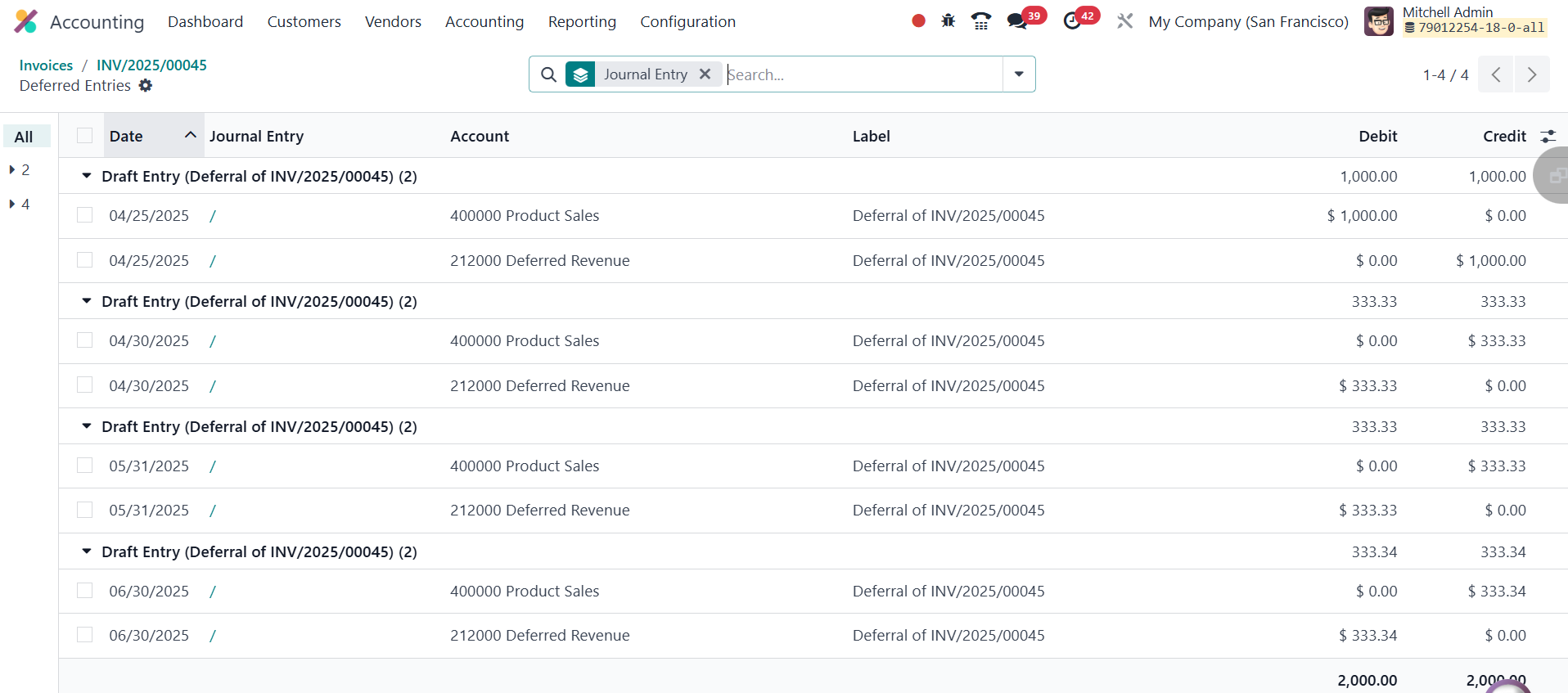
In Odoo 18 Accounting, once the
invoice is confirmed and
deferred entries are
generated, two types of
journal entries are created
to manage deferred revenue
recognition. The first entry,
dated on the same day as the
invoice’s accounting date,
transfers the total invoice
amount from the income
account to the deferred
revenue account. This initial
entry ensures that the
revenue is not immediately
recognized in the Profit and
Loss statement since the
service or product is to be
delivered over time.
Following this, a series of
deferral entries are
automatically generated on a
monthly basis (or based on
the configuration: daily,
monthly, or full months).
These recurring entries
gradually move the amount
from the deferred revenue
account back to the income
account. This process
continues over the duration
defined by the Start Date and
End Date in the invoice,
ensuring that revenue is
recognized progressively, in
alignment with the actual
delivery of goods or
services.
Generate Entries Manually and
Grouped
In Odoo 18 Accounting, an
alternative method for
generating deferred entries
is Manually & Grouped, which
provides more control over
the creation of journal
entries for deferred
revenues. Unlike the
automatic generation method,
in this mode, journal entries
are not created automatically
at the time of bill or
invoice confirmation.
Instead, the user must
generate the entries
manually. To enable this
method, navigate to the
Accounting Settings, and
under the Deferred Entries
section, locate the field
labeled Generate Entries.
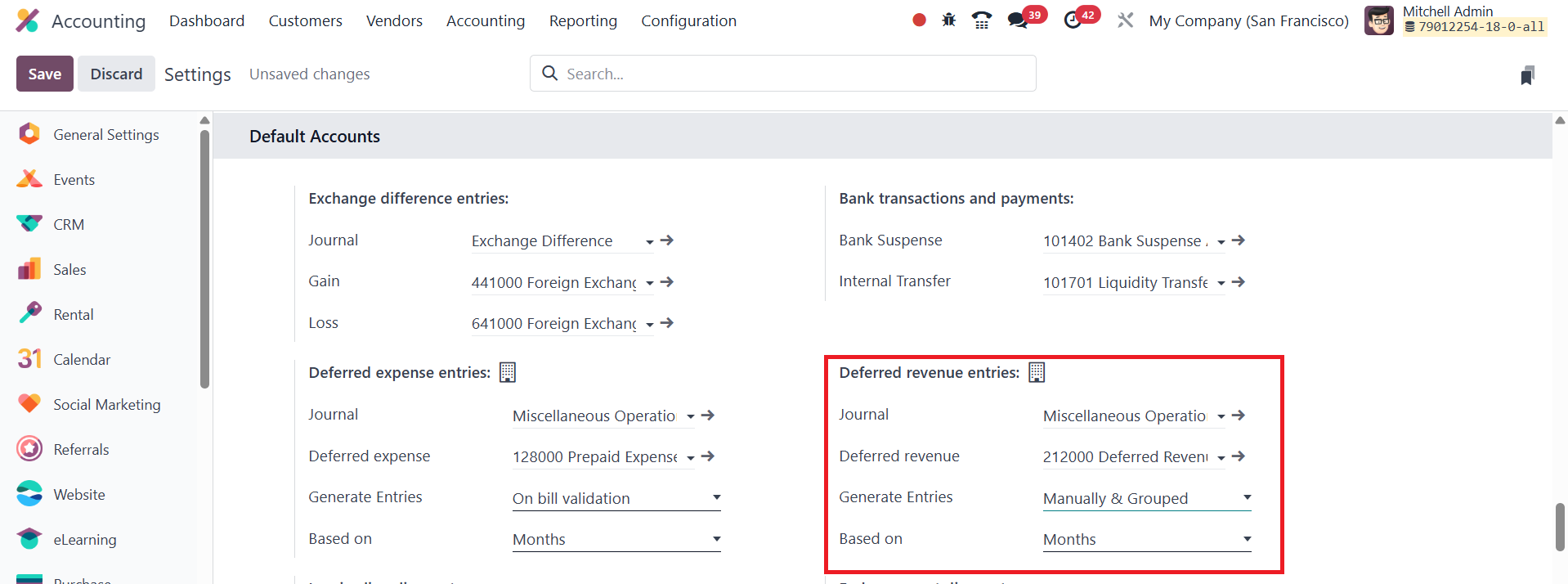
Change this field’s value to
Manually & Grouped. Once this
setting is applied, the
system will stop
automatically creating
deferral entries, and users
will need to manually trigger
the process each month or as
required.
After saving the changes to the
deferred entry settings and
selecting "Manually &
Grouped", the next step is to
create and confirm a new
invoice. Navigate to the
Customer > Invoices menu, and
generate a new invoice by
filling in the necessary
details such as the customer
name, invoice date, journal,
and product details.
Once the invoice is confirmed, no
deferred journal entries will
be automatically created, as
the system now expects the
user to handle them manually.
To proceed with generating and
viewing the deferred entries,
Odoo provides a dedicated
report named Deferred Revenue
Report, which is accessible
under the Reporting menu.
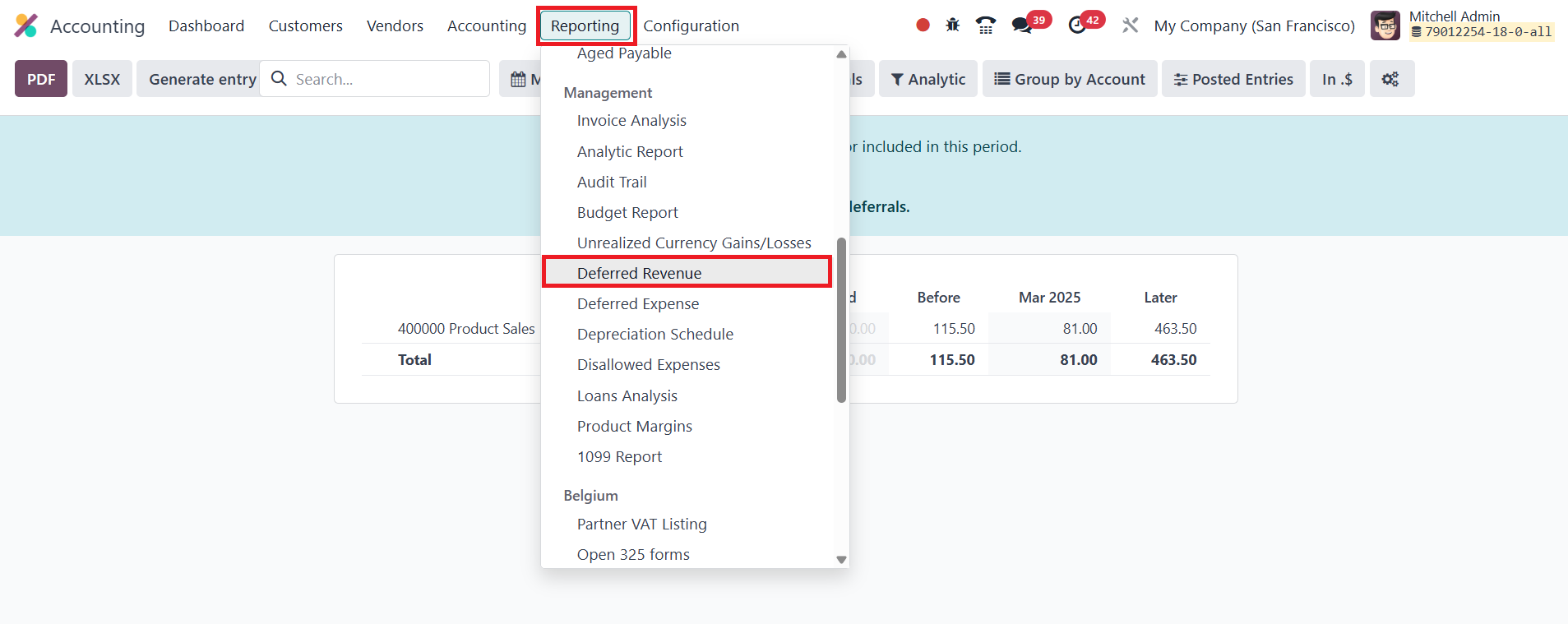
At the end of each month, to
recognize deferred revenues
go to Accounting > Reporting
> Deferred Revenue.
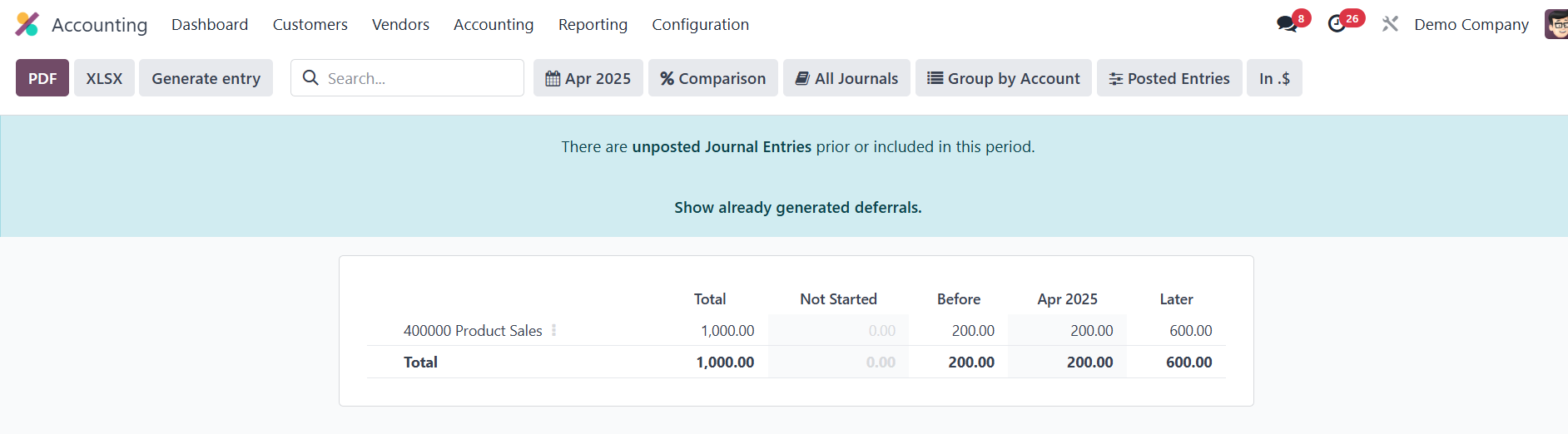
Click the Generate Entries
button.
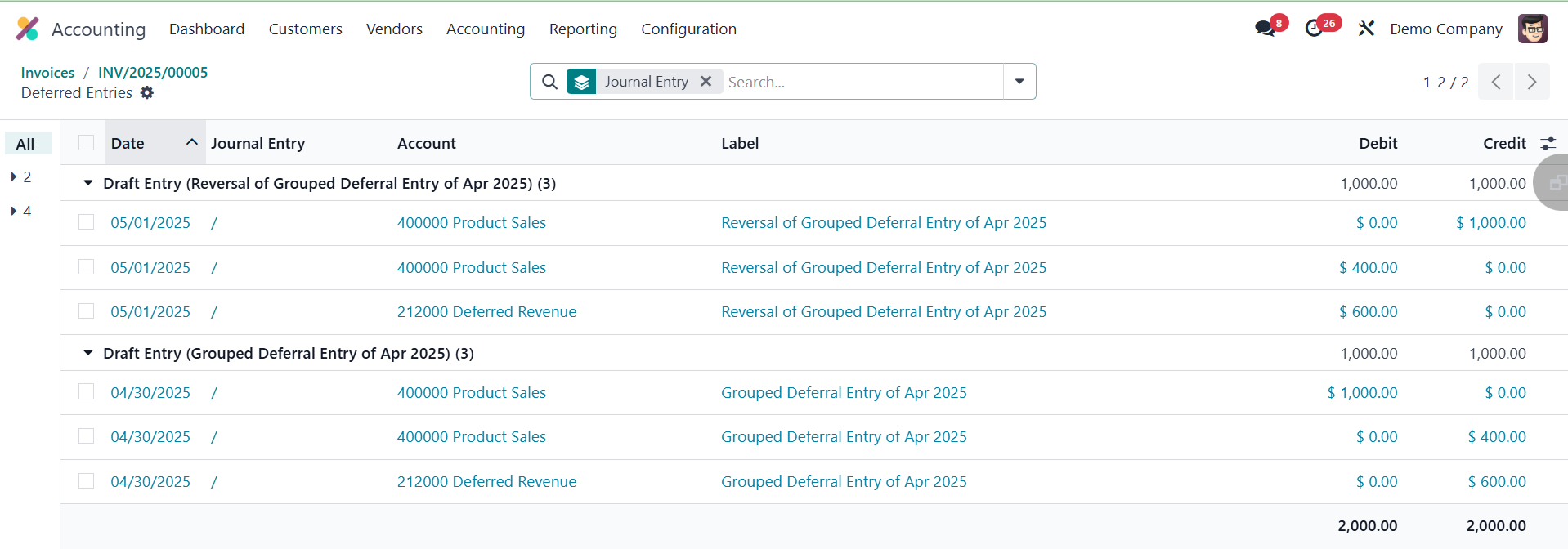
This action will generate two
deferral entries. You can
observe the deferred entries
using the smart button
available in the invoice. The
first entry is created at the
end of the month. This entry
recognizes part of the
deferred revenue for that
specific period and moves it
from the deferred revenue
account to the income
account. The second entry is
created on the following day
(the first day of the next
month). This entry reverses
the previous entry,
effectively canceling it, and
ensures that the deferred
revenue is correctly reset
for the next accounting
period.
40.2 Deferred Expense
Deferred expenses or prepayments
(prepaid expenses) are
financial transactions where
a company pays for goods or
services in advance of
receiving or using them. Even
though the payment has been
made, the benefit of that
expenditure is still to be
realized in the future.
Such costs are treated as assets
on the company’s balance
sheet, as they represent
economic value that will be
consumed over time. Because
the company hasn’t yet
received the product or
service, or has received it
but hasn’t used it, the
expense cannot be recorded
immediately on the profit and
loss statement (income
statement). Instead, these
expenses are deferred,
meaning their recognition is
postponed until the
appropriate time period when
the actual benefit is
realized. Once the service is
delivered or the product is
utilized, the deferred
expense is gradually
expensed, either all at once
or over a specific period,
depending on the nature of
the payment and usage.
To manage deferred expenses in
Odoo 18 Accounting, start by
opening the Accounting module
and navigating to the
Configuration menu. From
there, select Settings.
Inside the Settings page,
scroll down to locate the
section labeled Default
Accounts. Under this section,
you’ll find the configuration
options related to Deferred
Expense Entries.
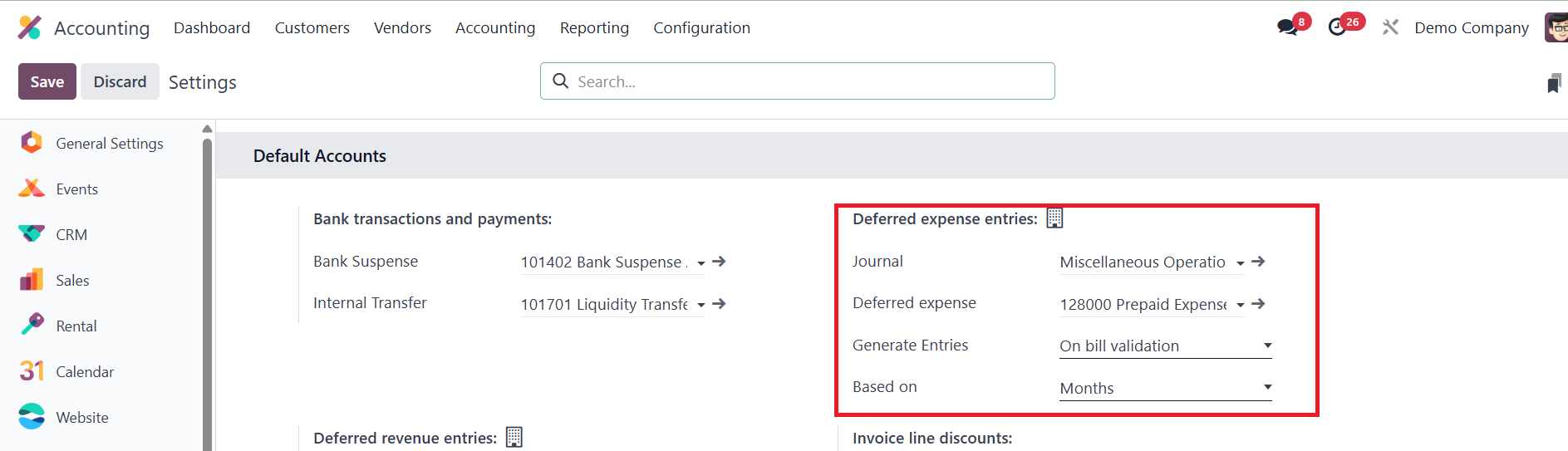
Here, the Journal used for
recording deferred expense
entries is specified first.
Just below that, the Deferred
Expense Account is listed.
This account typically falls
under the Current Assets
category, as deferred
expenses represent payments
made in advance for future
benefits.
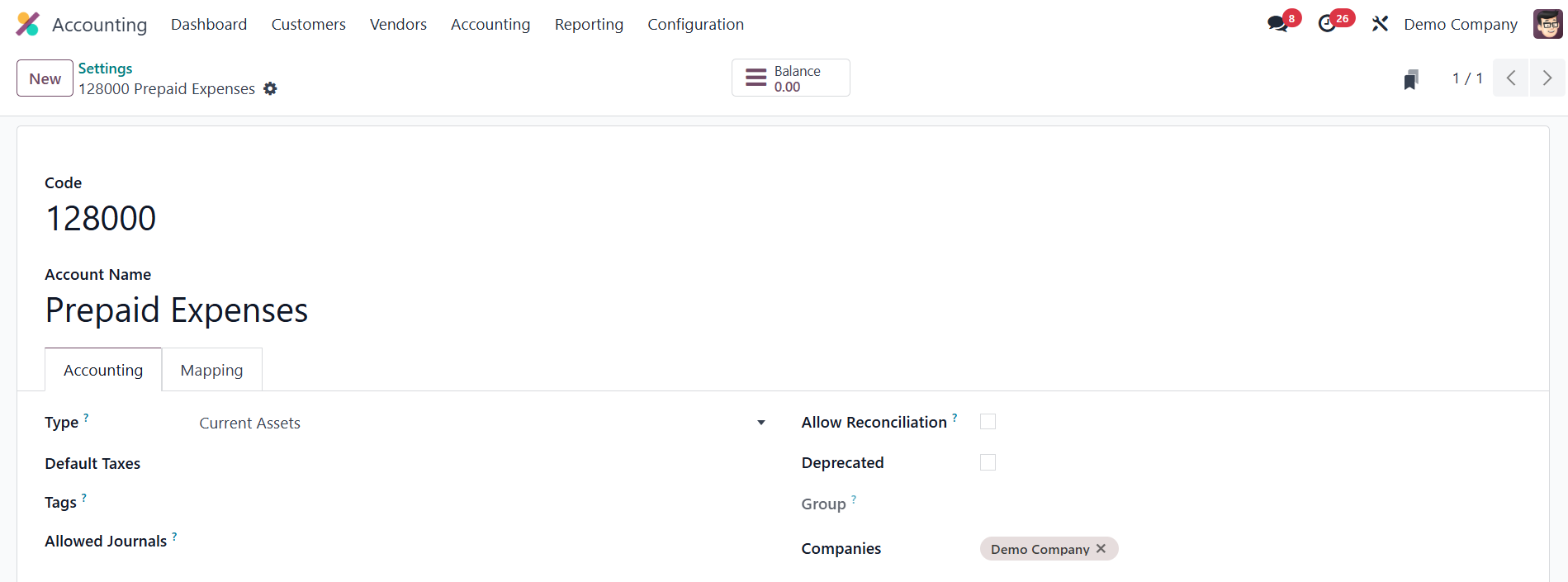
You can click the internal link
provided to open and review
the account details directly
from the settings page.
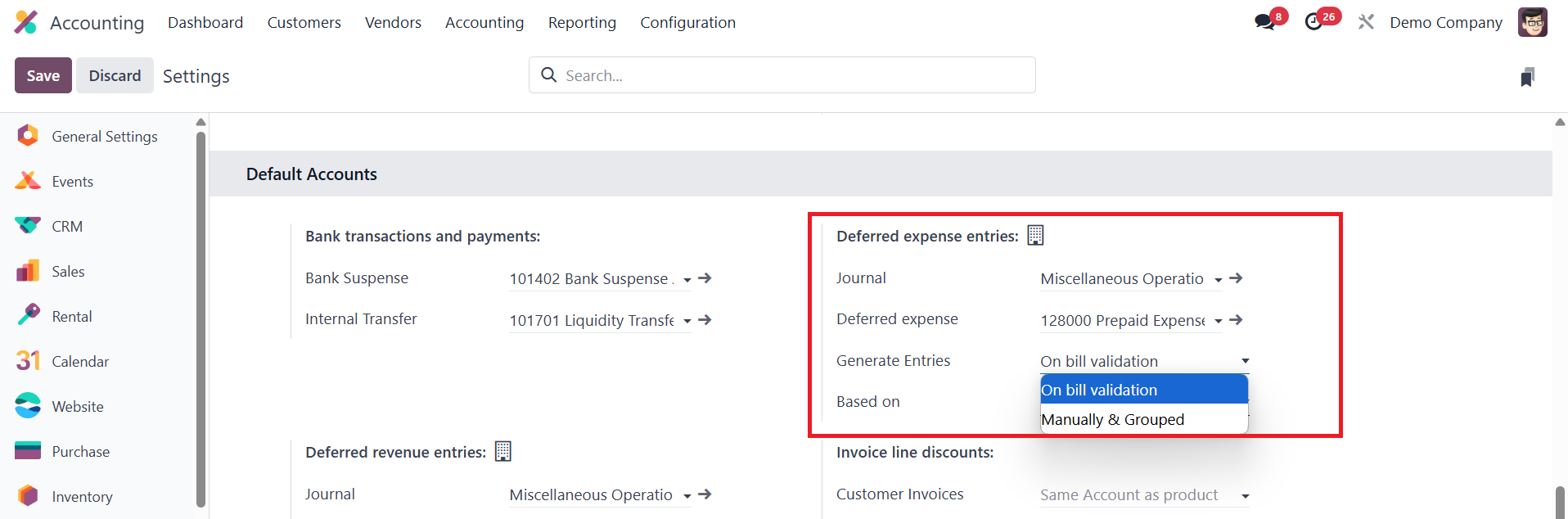
Users have two options for
generating the journal
entries associated with
deferred expenses:
Generate Entries on Bill
Validation:
In this method, deferred entries
are automatically generated
when a vendor bill is
validated. This is a
convenient option as it
automates the process and
ensures accurate posting
without requiring manual
intervention.
Generate Entries Manually:
When this method is selected,
journal entries are not
created automatically.
Instead, the user must
manually generate the
entries; usually at the end
of each period based on the
schedule of the deferred
expense.
Additionally, Odoo allows for
flexible calculation methods
for the depreciation of
deferred amounts. The
available methods include:
Based on Days, Based on
Months, and Full Months.
Depending on the selected
option, the deferred amount
will be amortized accordingly
over the predefined period.
Generate Entries on Bill
Validation
If the Generate Entries
field in Odoo
Accounting is set to
On bill validation,
the system
automatically creates
the required deferral
entries when a bill is
validated. This
configuration
simplifies the
handling of deferred
expenses, ensuring
that accounting
entries are generated
promptly without
manual effort. To
explore this feature,
start by creating a
new vendor bill. This
can be done by
navigating to the
Vendor menu and
selecting the Bills
option. Click the New
button to open the
bill creation form.
Begin by entering the
vendor’s name, and
then fill in other
details such as the
Bill Reference, Bill
Date, Accounting Date,
Payment Reference,
Recipient Bank,
Payment Terms, and the
appropriate Journal.
The Auto-Complete
field available in the
form can speed up the
process by fetching
details from previous
bills or related
purchase orders.
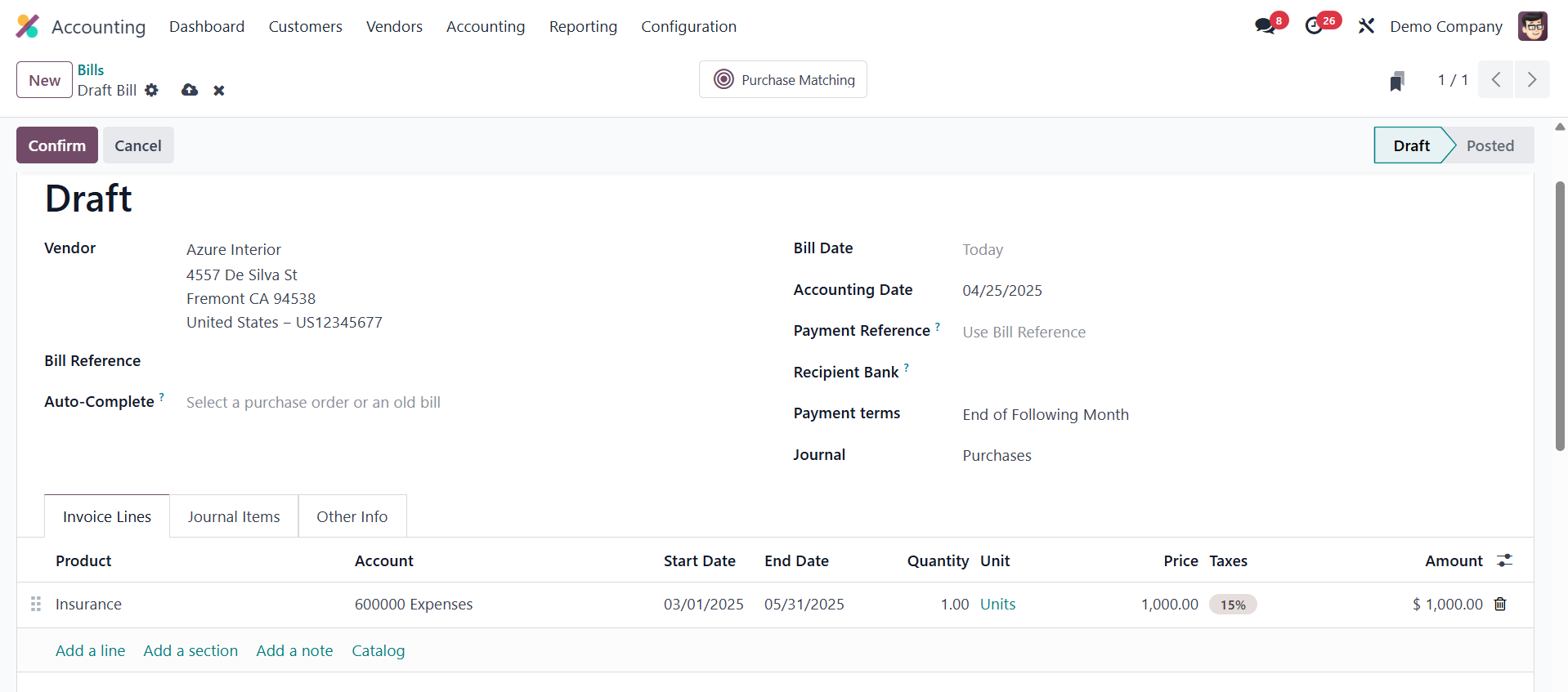
In this example, consider
that the company is
creating a bill for a
service product like
Insurance, which
covers a period of
three months. Within
the Invoice Line
section, select the
product and mention
both the Start Date
and End Date to define
the coverage duration
of the service
clearly.
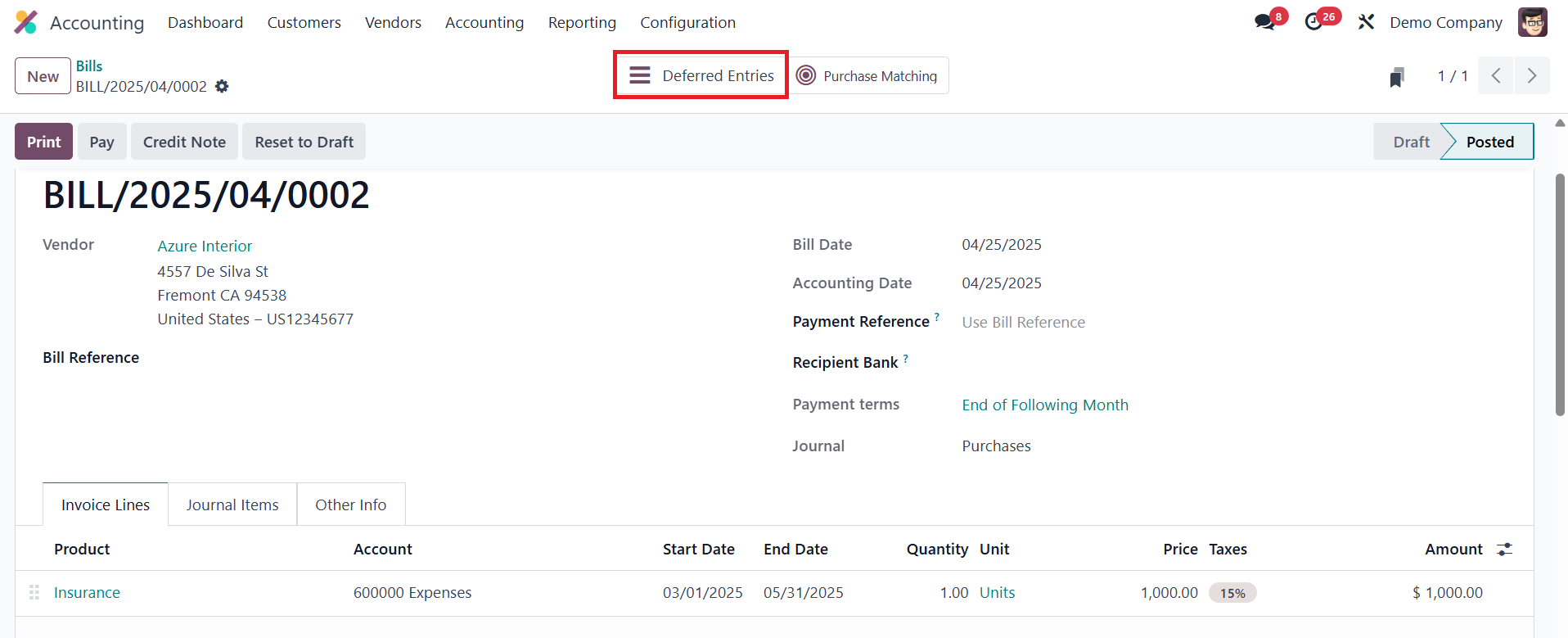
Once all necessary details
are provided, confirm
the bill. Upon
confirmation, the
bill’s status changes
to Posted. At this
point, a smart tab
named Deferred Entries
becomes visible at the
top of the bill page.
Clicking on this tab
provides access to the
automatically
generated deferral
entries.
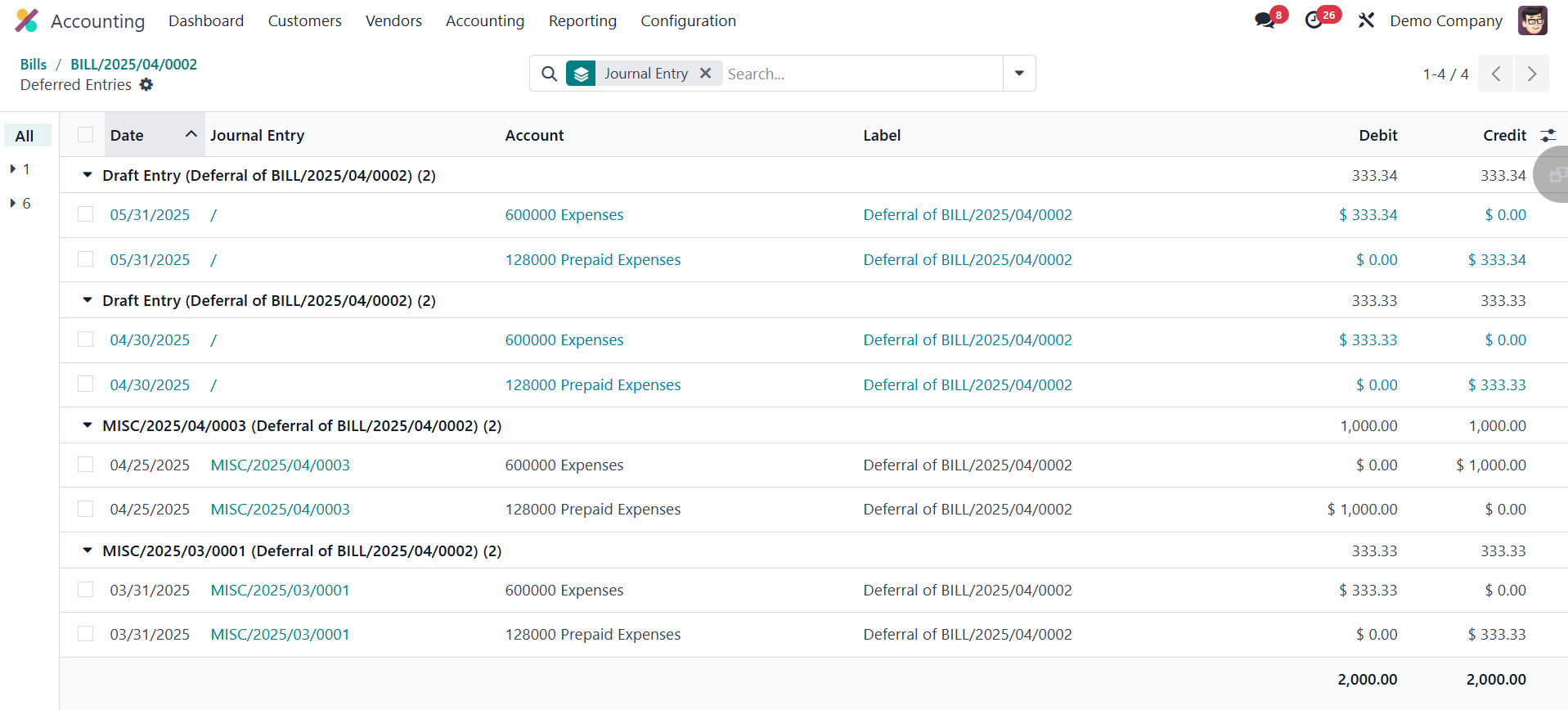
When a bill is validated
under the deferred
expense configuration
in Odoo 18 Accounting,
two types of journal
entries are created to
ensure accurate
recognition of the
expense over time.
The first entry, which is
dated the same day as
the bill’s accounting
date, transfers the
total bill amount from
the expense account to
the deferred expense
account. This action
ensures that the
expense is not
immediately recognized
in the profit and loss
statement, aligning
with accrual
accounting principles.
The subsequent entries are
the deferral entries,
which are posted month
by month. These
entries gradually move
the expense amount
from the deferred
account back to the
expense account,
effectively
recognizing the
portion of the expense
that corresponds to
each accounting
period. This monthly
distribution continues
until the full amount
is recognized over the
defined duration,
offering a clear and
precise representation
of the company’s
financial commitments
and improving the
accuracy of financial
reports.
Generate Entries
Manually and
Grouped
If your company deals with
a large number of
deferred revenues or
expenses and you wish
to minimize the volume
of automatically
generated journal
entries, Odoo 18
Accounting offers a
practical solution by
allowing you to
generate deferral
entries manually. To
enable this, navigate
to the Settings under
the Configuration menu
of the Accounting
module.
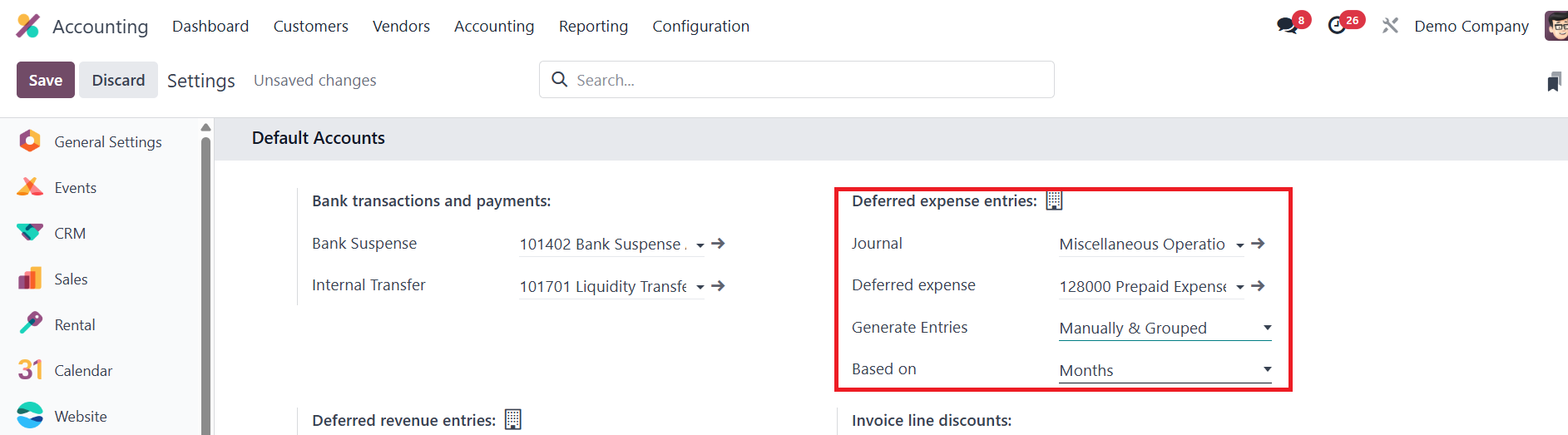
In the Deferred Entries
section, change the
Generate Entries field
to Manually & Grouped
and save the settings.
Once this configuration is
set, proceed to create
a new vendor bill.
Begin by adding the
vendor name and
filling in the
necessary bill details
such as Bill
Reference, Bill Date,
Accounting Date,
Payment Terms, and
Journal. Then, add the
required product. In
this case, let's
consider the Insurance
service product again.
Mention the Start Date
and End Date inside
the invoice line to
indicate the deferral
period.
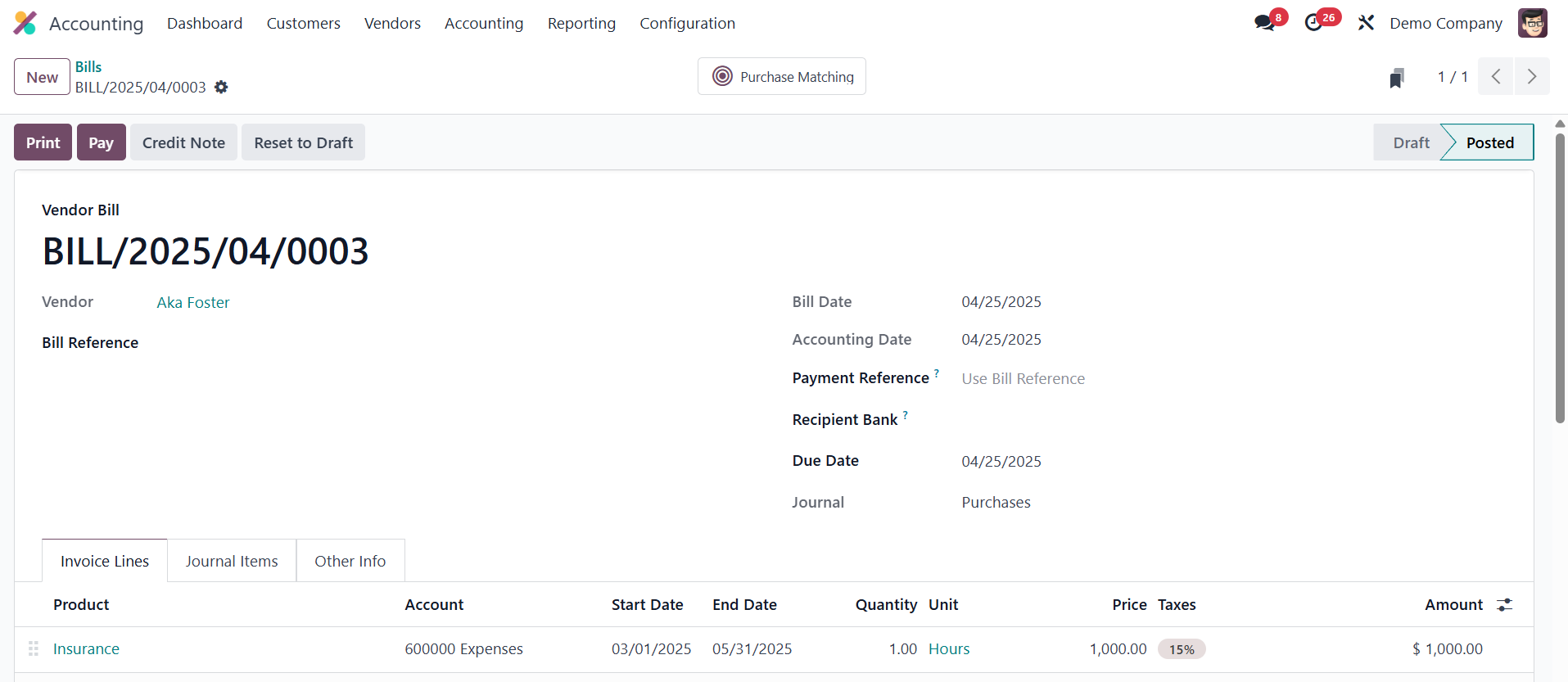
After confirming the bill,
you’ll notice that no
journal entries are
created automatically
because the deferral
process is now manual.
To generate the
deferred journal
entries, go to the
Reporting menu. Under
the Management
Reports, you’ll find
the Deferred Expense
Report.
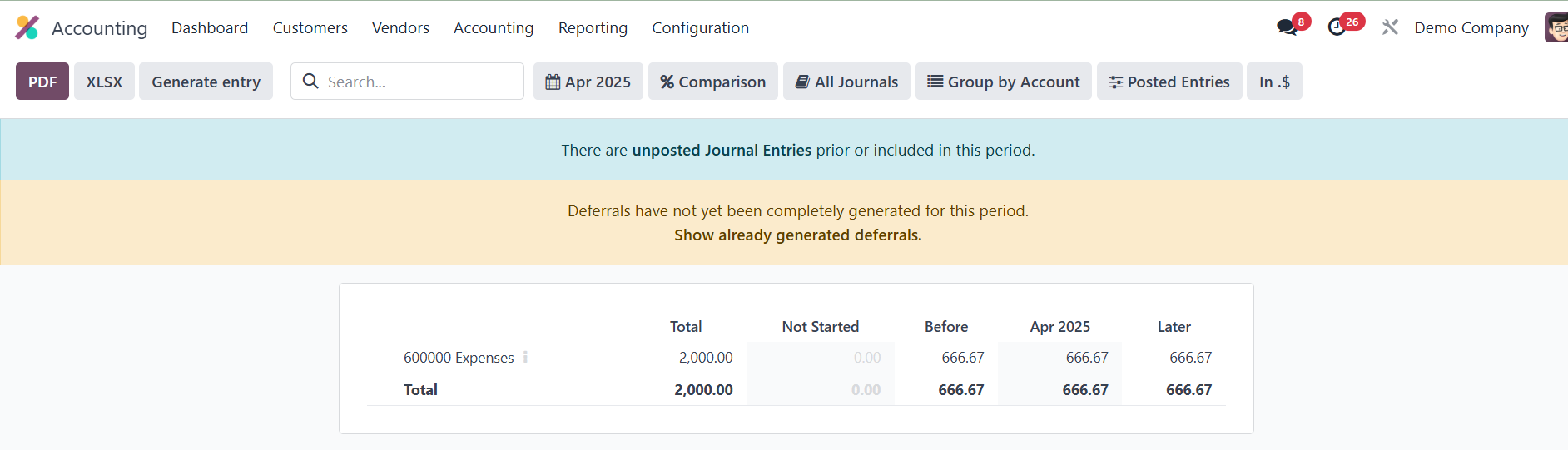
At the end of each month,
to manage manually
grouped deferred
expenses, users should
navigate to the
Deferred Expenses
Report. In this
section, click on the
Generate Entries
button. This action
triggers the creation
of two key deferral
entries for each
account.
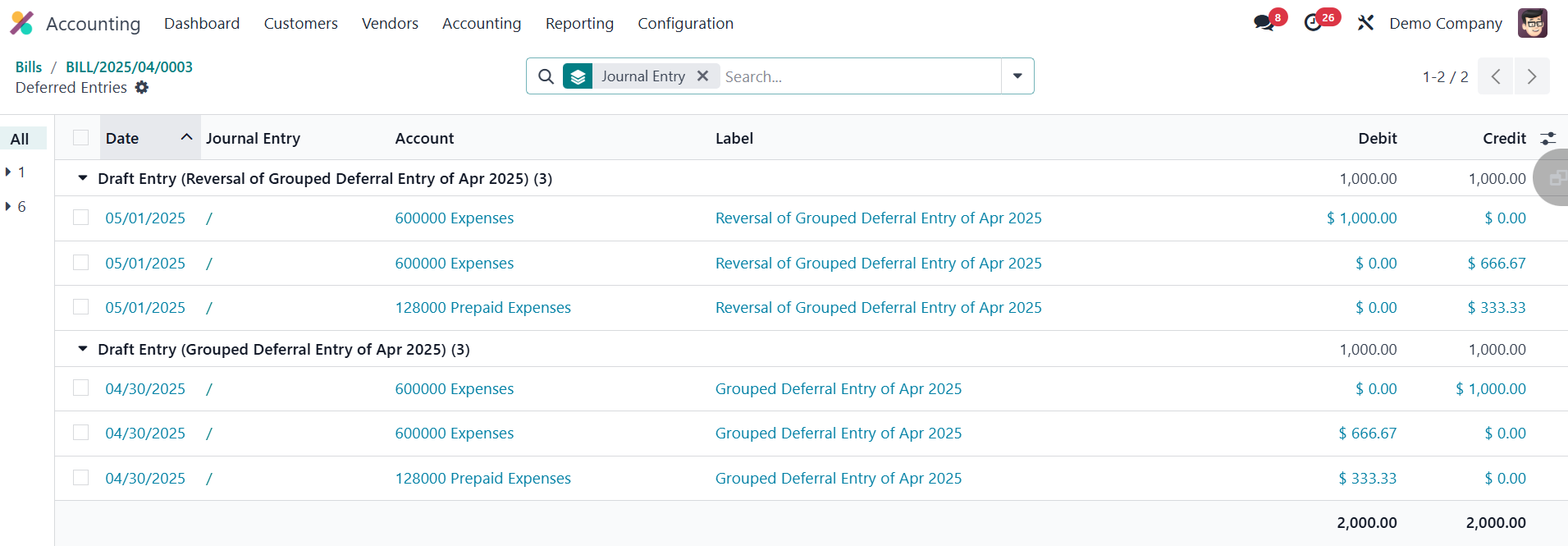
You can observe the
deferred entries using
the smart button
available in the
invoice. The first
entry is dated on the
last day of the month.
It aggregates all the
deferred amounts for
that month, thereby
recognizing a portion
of the expense that
corresponds to the
current accounting
period. This allows
the organization to
reflect the actual
consumption of the
prepaid expense over
time. The second entry
is a reversal of the
first, and it is dated
on the first day of
the following month.
Its purpose is to
cancel out the
previous month's
deferral entry,
resetting the balance
so that a new entry
for the next period
can be generated
accurately.