4. Payments
The Payments feature in Odoo 18 Accounting offers a comprehensive
platform to record, manage, and track both customer payments and
vendor payments, ensuring seamless financial oversight and
reconciliation. Dedicated payment dashboards are accessible under
both the Customers and Vendors menus, enabling users to handle
receipts and disbursements from a unified interface.
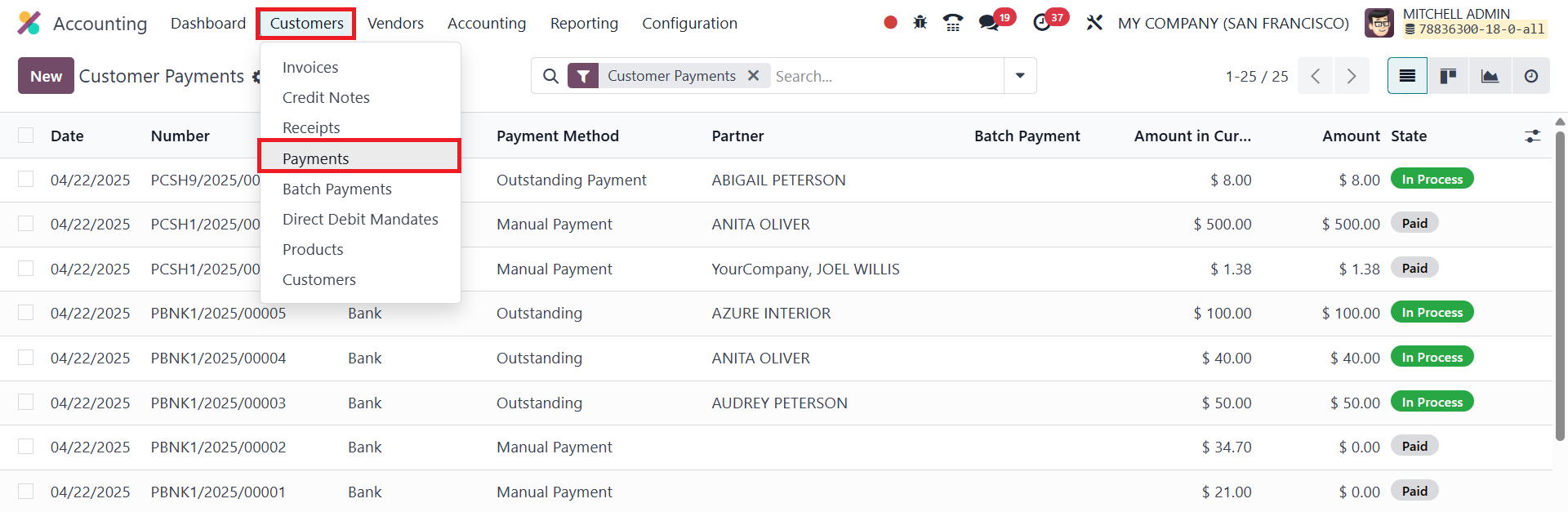
Under the Customers > Payments section, users can access all records
related to incoming payments.
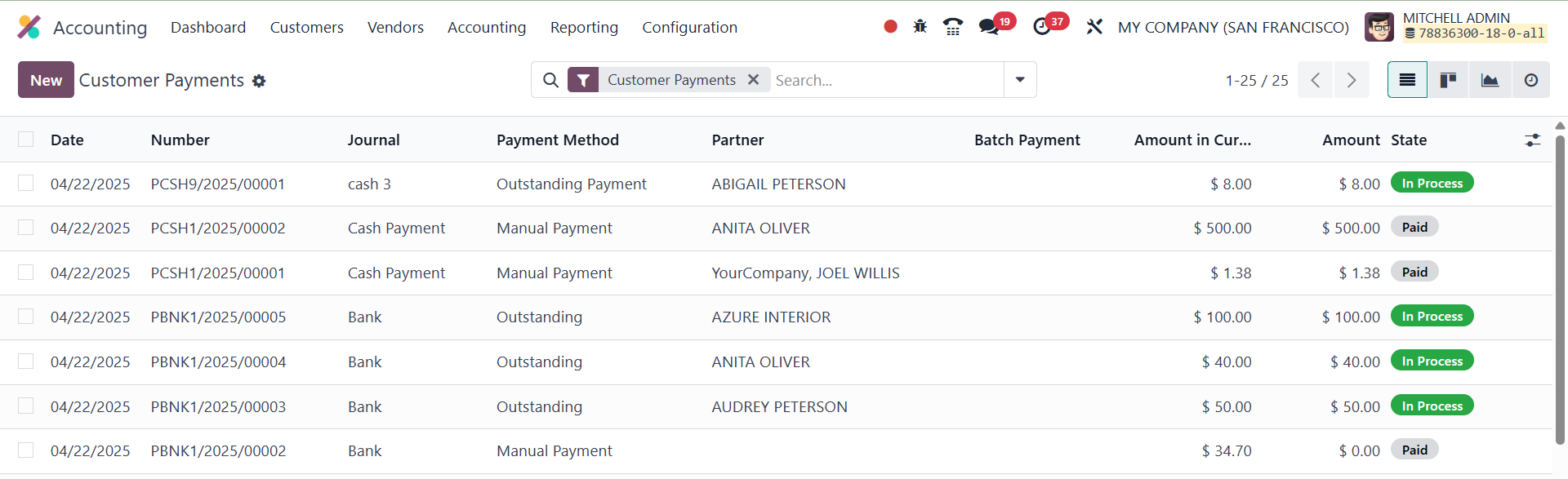
The platform's default list view displays essential details such as
Payment Date, Payment Number, Journal, Payment Method, Customer or
Partner Name, Batch Payment, Amount, and Status. Users can toggle
between List, Kanban, and Graph views, depending on their preference
or the reporting requirement.
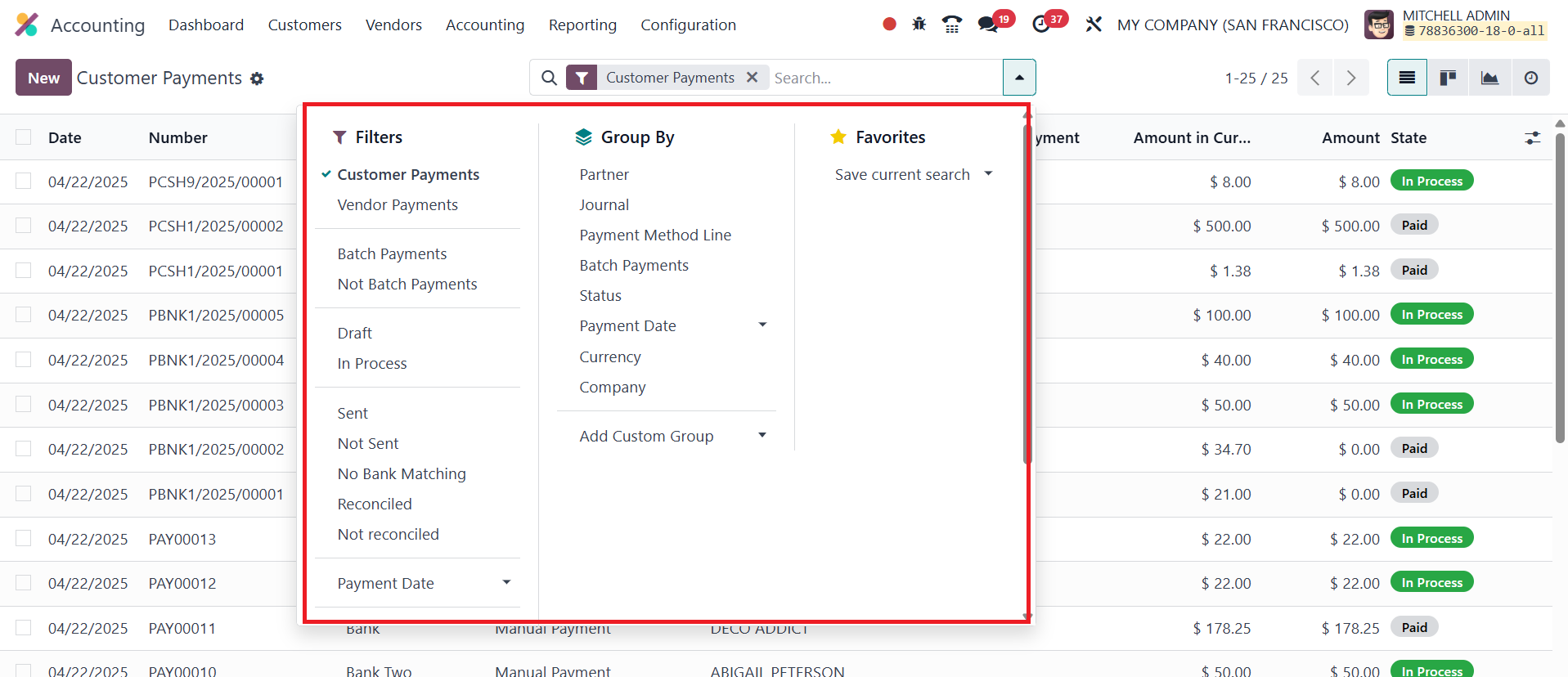
Odoo 18 enhances visibility and usability through a wide range of
filters and grouping options. Built-in filters include Customer
Payments, Vendor Payments, Not Batch Payments, Batch Payments,
Draft, In Process, Sent, Not Sent, No Bank Matching, Reconciled, Not
Reconciled, and Checks to Print, among others. Users can create more
granular filters using the Add Custom Filter function. Similarly,
grouping can be done by Customer/Vendor, Journal, Payment Method,
Batch Payments, Status, Payment Date, Currency, and Company, with an
option to create custom groups as needed.
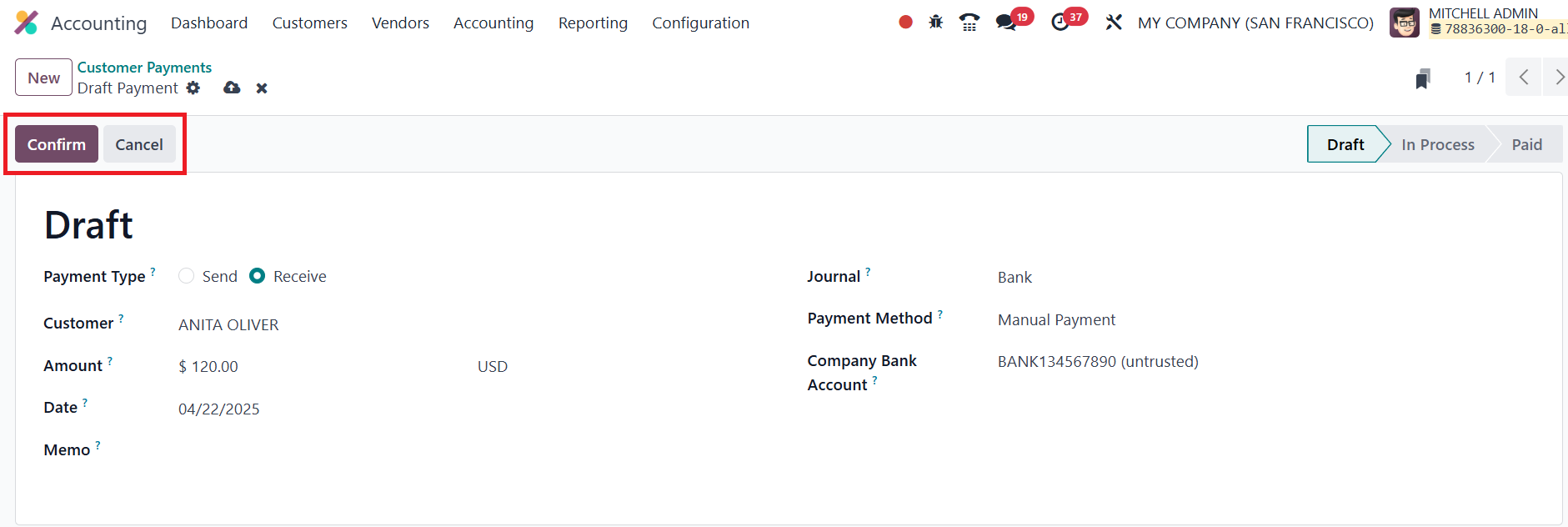
To manually record a payment, click the New button.
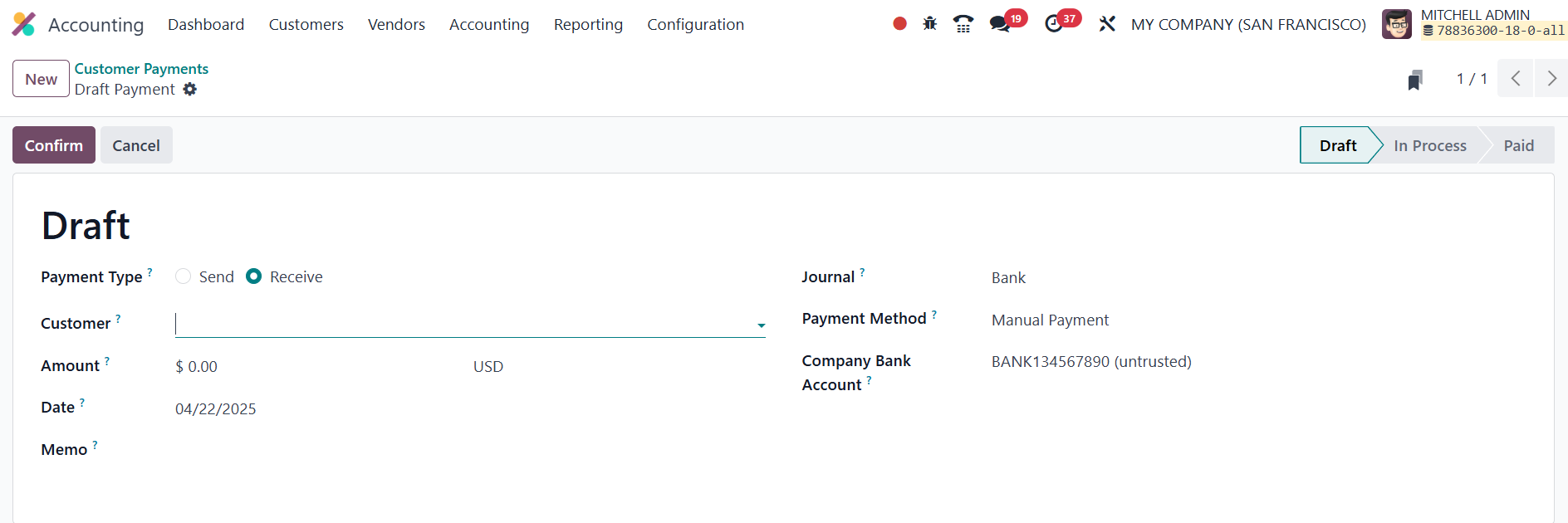
In the payment creation form, users must specify the Payment Type;
Receive for customer payments and Send for vendor payments. Users
need to enter the Customer or Vendor, Amount, Date, Memo, Journal,
Payment Method, and the Company Bank Account. Odoo 18 supports a
variety of payment methods such as Manual, Cheque, Batch Deposit,
SEPA Credit Transfer, and SEPA Direct Debit. Once the payment is
drafted, clicking the Confirm button posts it into the accounting
records.
Each payment record provides a smart button to quickly access Journal
Entries, making it easy to trace the accounting impact of the
payment. To create journal entries for customer and vendor payments
in Odoo 18, the selected journal must have both the Outstanding
Receipts Account and the Outstanding Payments Account properly
configured.
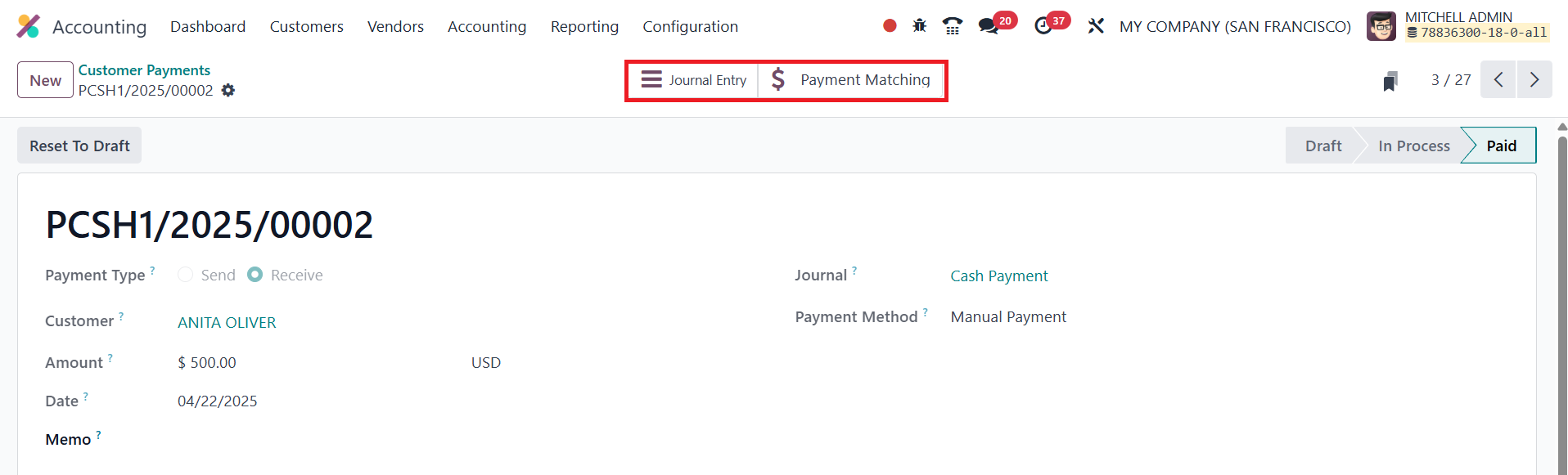
For customer payments, the Payment Matching smart button helps
reconcile payments with outstanding invoices. This feature ensures
that payments are accurately matched and reflected in the accounts
receivable.
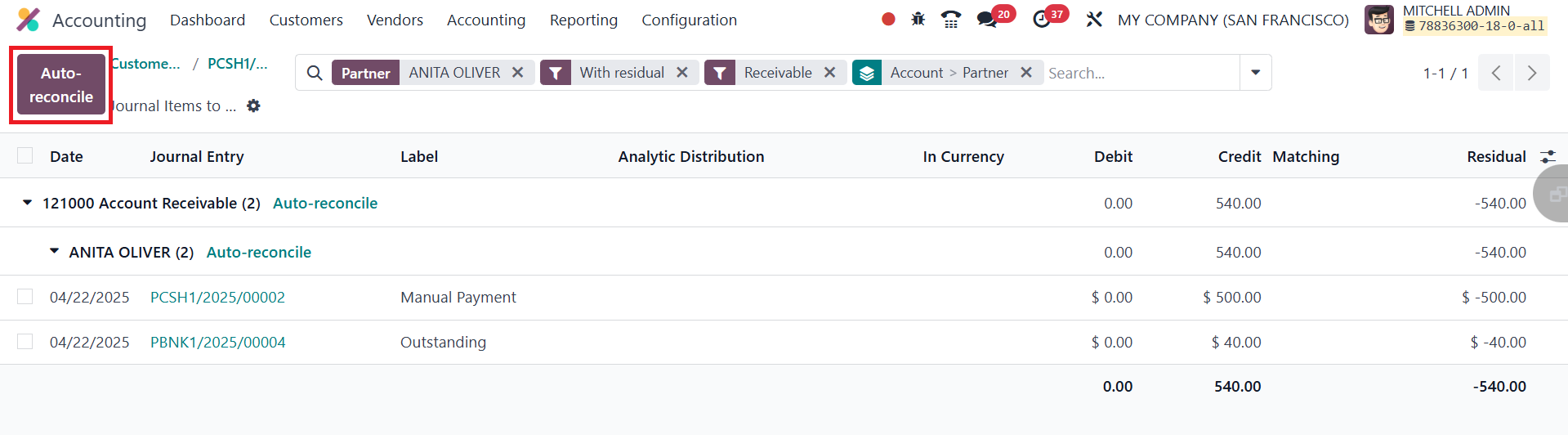
The Payment Matching tab displays related entries, and users can
manually or automatically reconcile them. By clicking the Auto
Reconcile button, a popup window appears where users can select the
Date Range, Account, and whether to match entries with Perfect Match
or Clear Account.
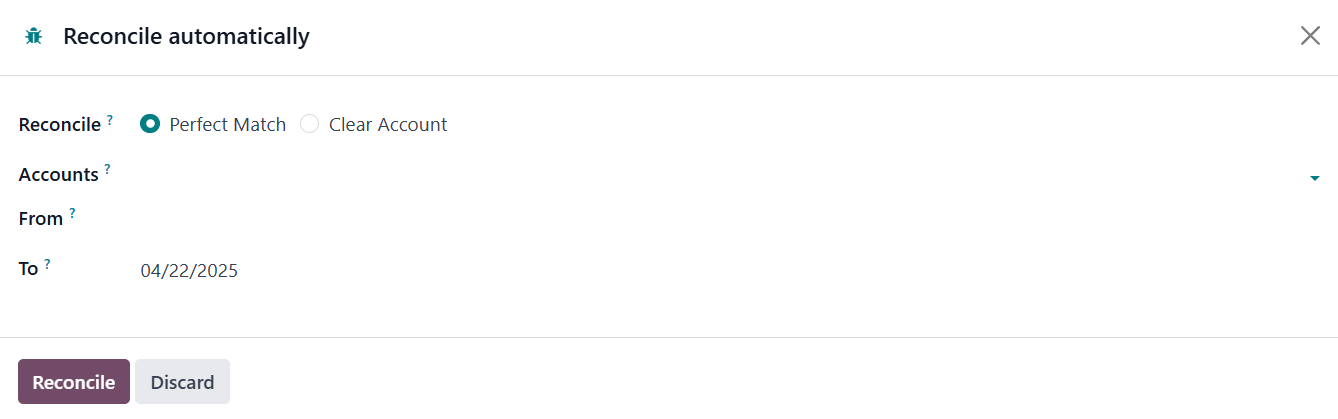
Clicking Reconcile finalizes the reconciliation process.
Similarly, vendor payments can be managed under Vendors > Payments.
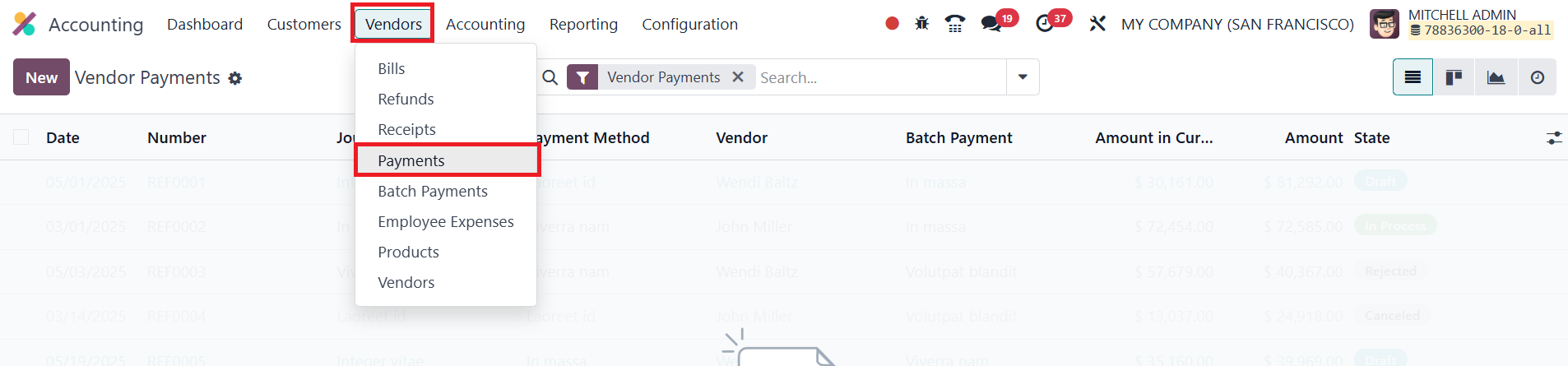
This window is almost identical in structure to the customer payments
view, with the primary difference being the focus on vendor-related
data.
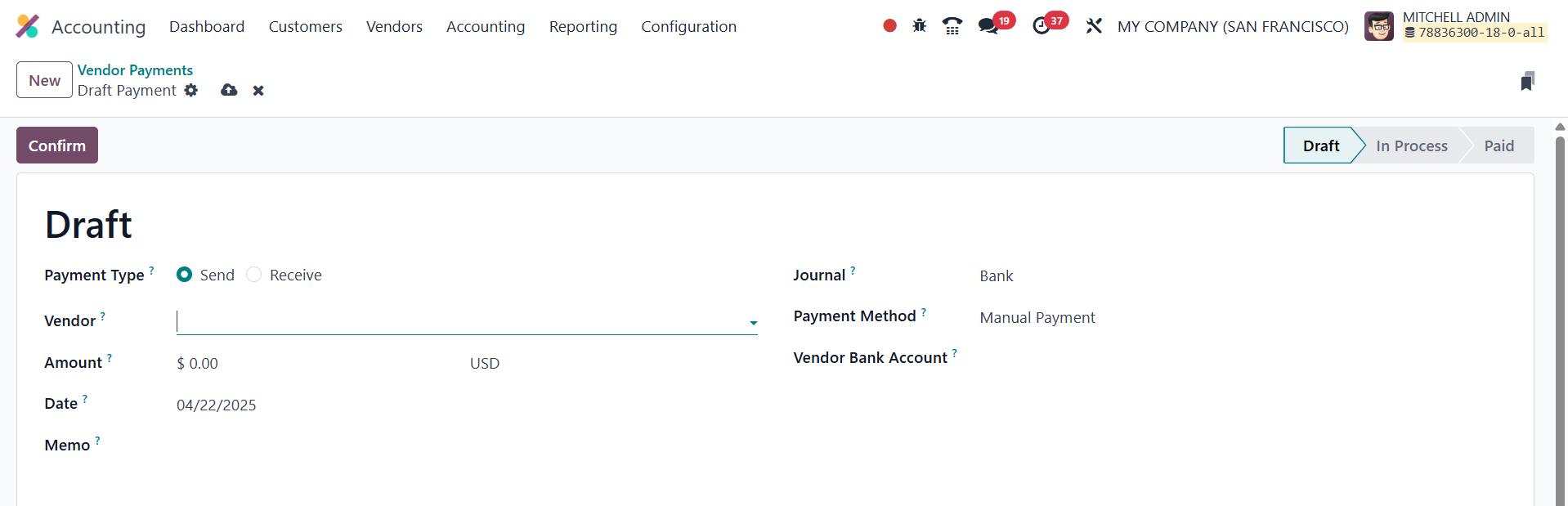
When recording a vendor payment, users must enter the Vendor ID,
Vendor Bank Account, and select Send as the Payment Type. All
associated journal entries and reconciliation options work in the
same way as customer payments.
By integrating these features, Odoo 18 Accounting ensures that
payment tracking, approval, and reconciliation are intuitive and
streamlined.