18. Reconciliation
Reconciling the balances recorded
in your cash and bank
accounts is one of the most
reliable ways to spot and
promptly correct,
discrepancies in your
books. Odoo 18 makes this
control task markedly easier.
From the moment you open the
Accounting Dashboard, the
system highlights every bank
statement line that still
needs attention.
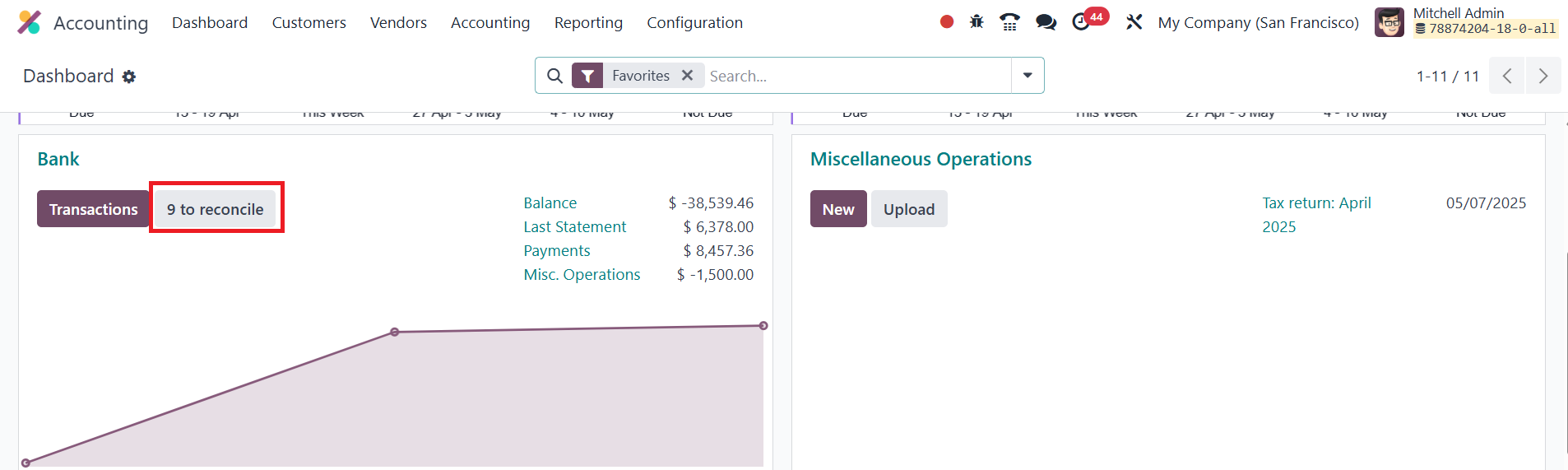
A single click on Reconcile takes
you straight into the
reconciliation workspace,
where Odoo lines up each
outstanding statement item
against the matching journal
entries and proposes the most
likely counterpart.
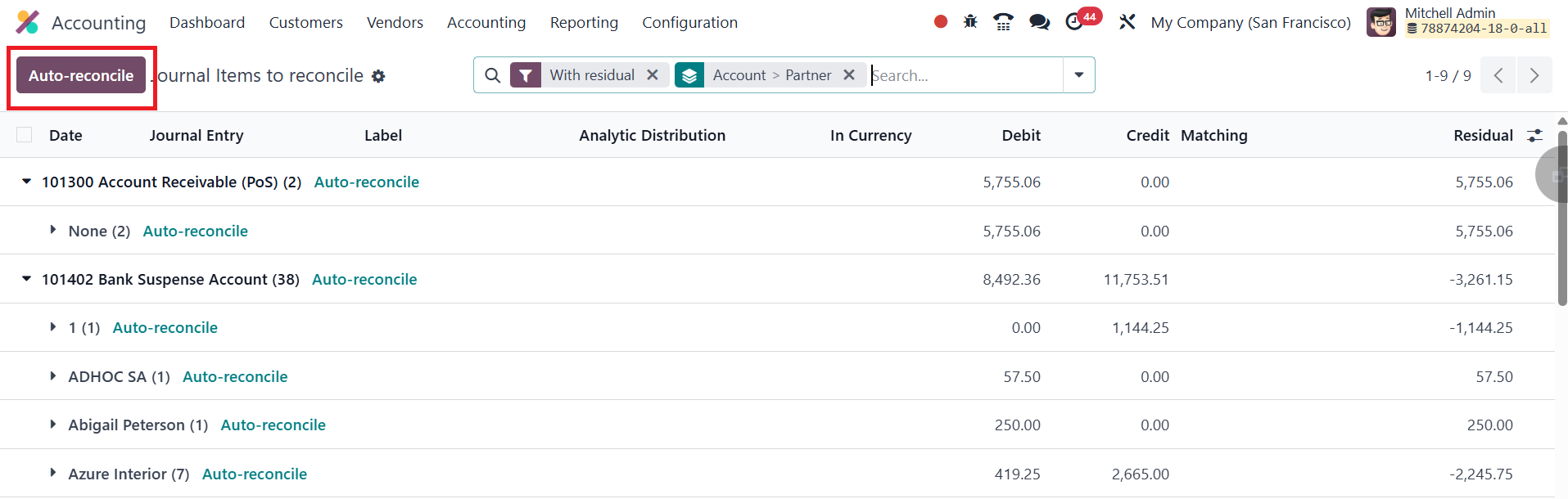
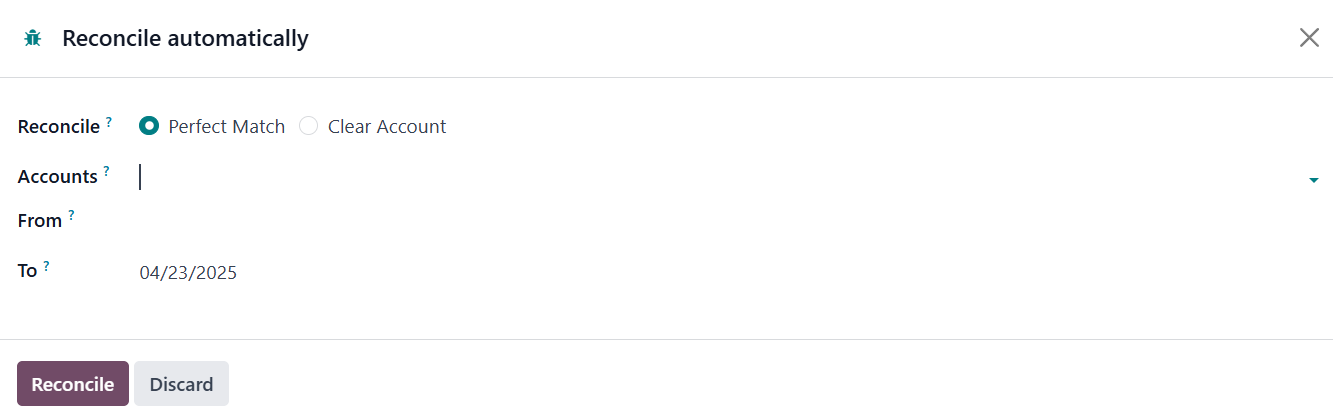
If your process can be fully
automated, you can bypass the
workspace entirely: choose
Auto‑reconcile from the
Accounting ▸ Reconciliation
menu (or the dashboard
ribbon), specify the date
range and the accounts to
scan, and let Odoo create and
post the necessary entries in
one batch; exactly the same
logic that powers payment
matching.
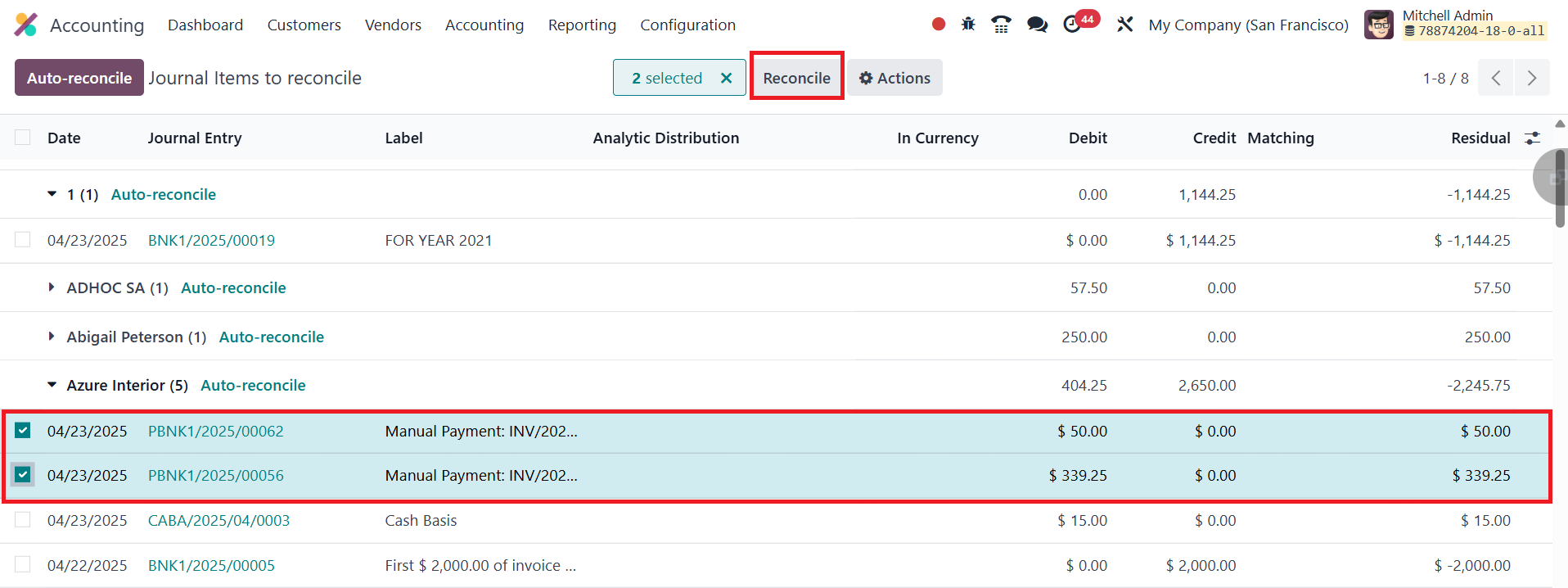
When certain transactions still
need a human eye; perhaps
because narrative text is
vague or a partner is
missing, you can select
Reconcile instead and handle
those items line by line.
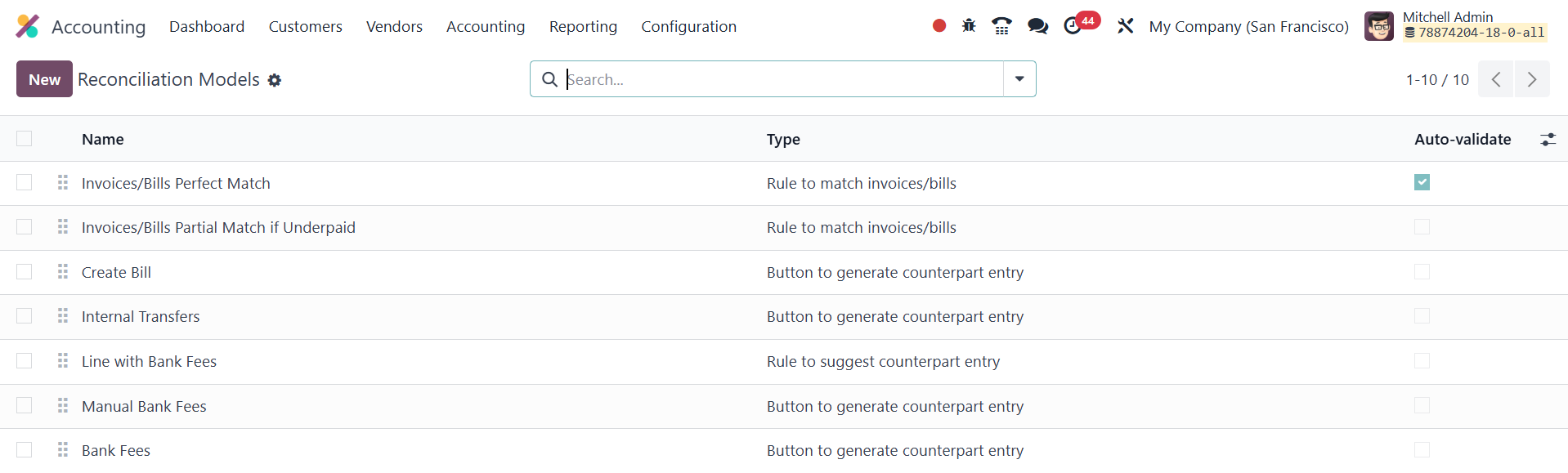
Odoo 18 lets you pre‑define how
the system should treat
recurring patterns through
Configuration ▸
Reconciliation Models. Each
model tells Odoo what to do
when specific criteria are
met, and you can create as
many as you need.
Button to generate counterpart
entry
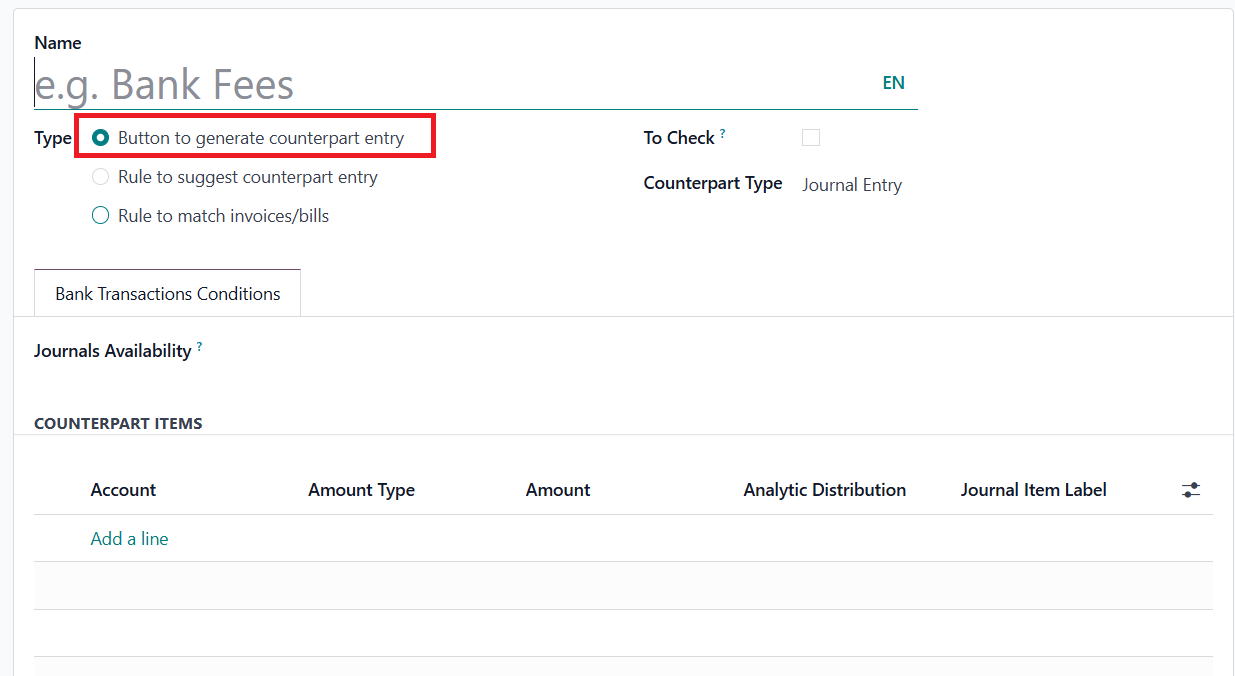
Use this when a statement line
always posts to the same
expense, revenue, or clearing
account. After naming the
model, select the journals to
which it applies (for
example, only your EUR bank
journal). In the Counterpart
Items tab, fill in the
destination account, decide
whether the amount is fixed
or a percentage of the
statement line, add an
analytic tag if required, and
specify the label you want to
see on the journal entry.
Once saved, this model
appears as a smart button
during reconciliation; one
click and the entry is
produced.
Rule to suggest counterpart
entry
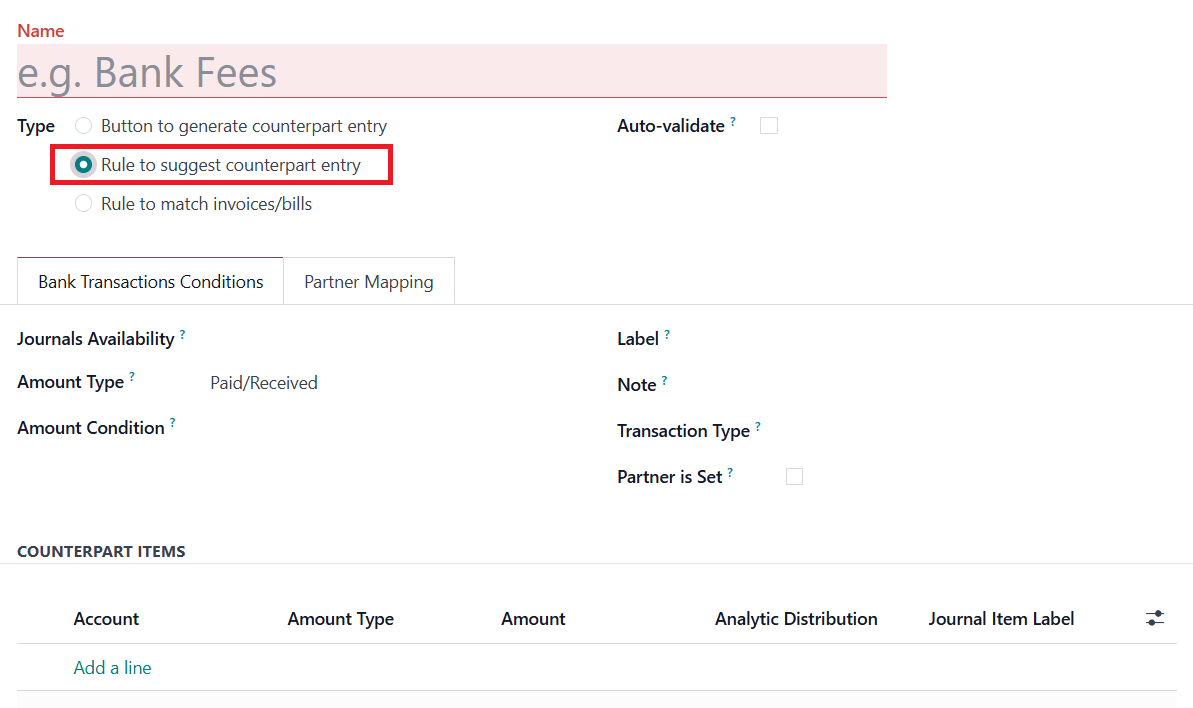
Choose this type when the
counterpart depends on
conditions such as the
amount, the pay‑in/pay‑out
direction, keywords in the
label or note, or whether the
partner is already set. You
can even make the rule
Auto‑validate, so the
statement line is posted
automatically whenever those
conditions are satisfied.
Rule to match
invoices/bills
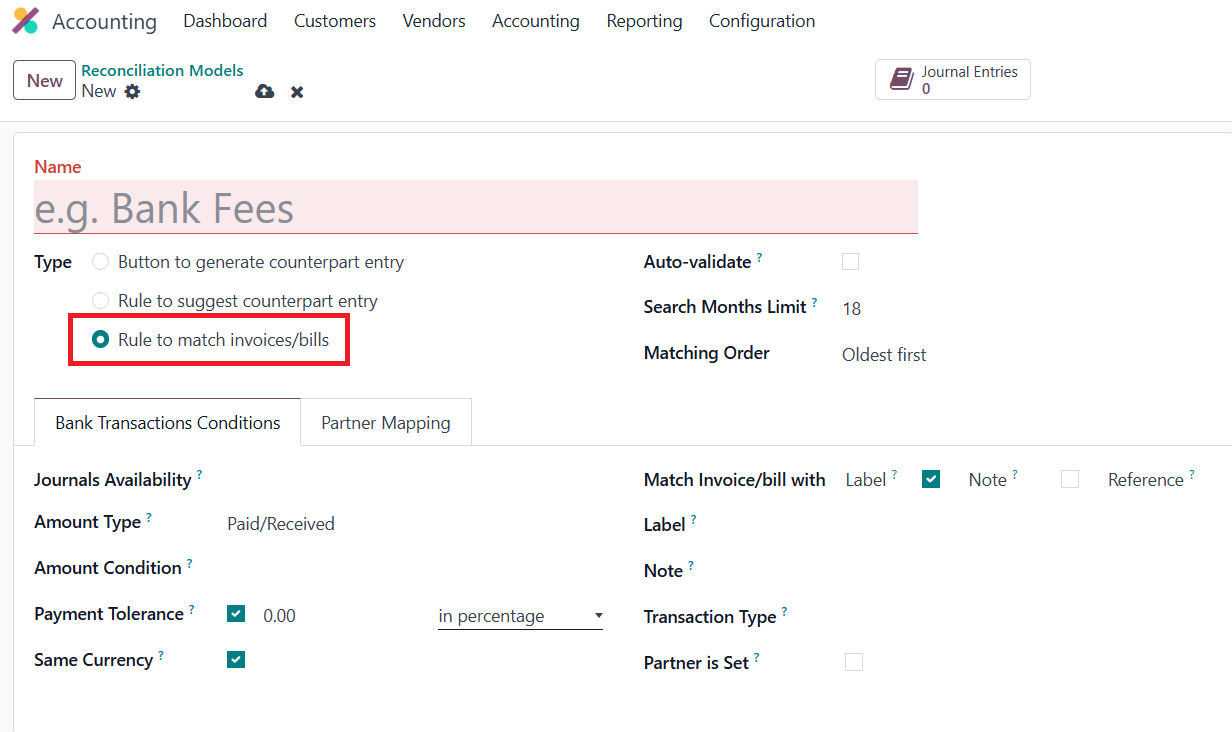
This model focuses on open
receivables or payables.
Define how far back Odoo
should look (e.g., the last
three months), whether to
propose the oldest or newest
invoice first, and how much
payment tolerance you want to
allow. Optional switches
limit suggestions to the same
currency, or force a match on
reference, label, or memo.
Activate Auto‑validate if you
want Odoo to post the payment
the moment it finds a perfect
match.
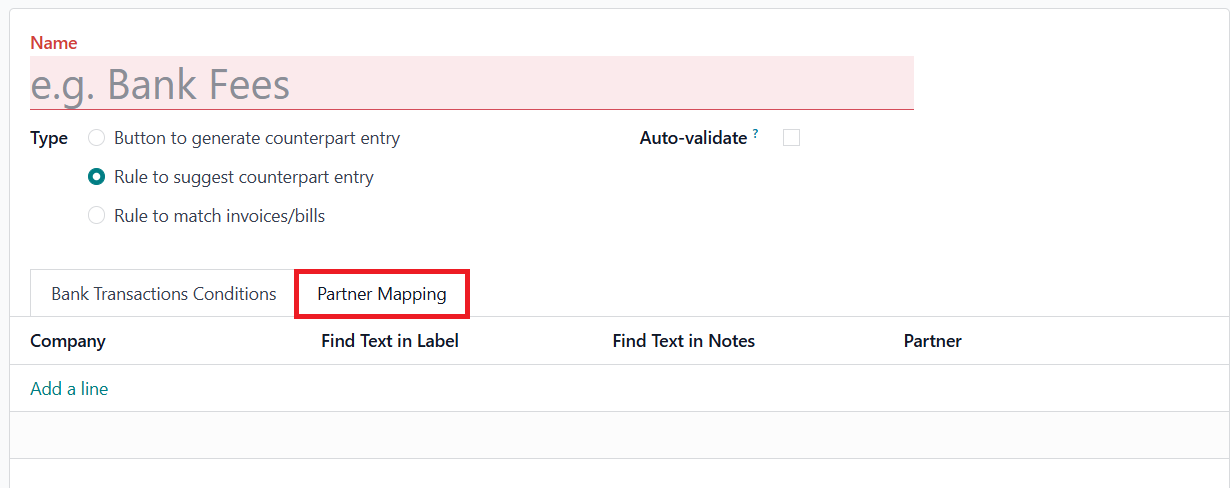
Partner mapping is available on
all rule‑based models,
letting you override the
detected partner or apply the
rule only to specific
customers or vendors.
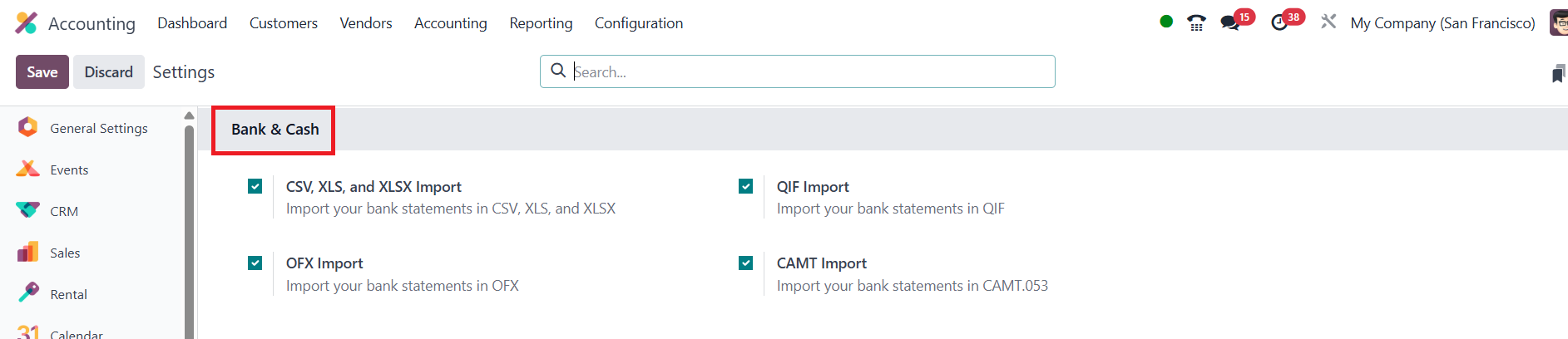
The smoother your data intake,
the less time you spend
reconciling. In Odoo 18 you
can enable support for CSV,
OFX, QIF, and CAMT files
under Settings ▸ Accounting ▸
Bank & Cash.
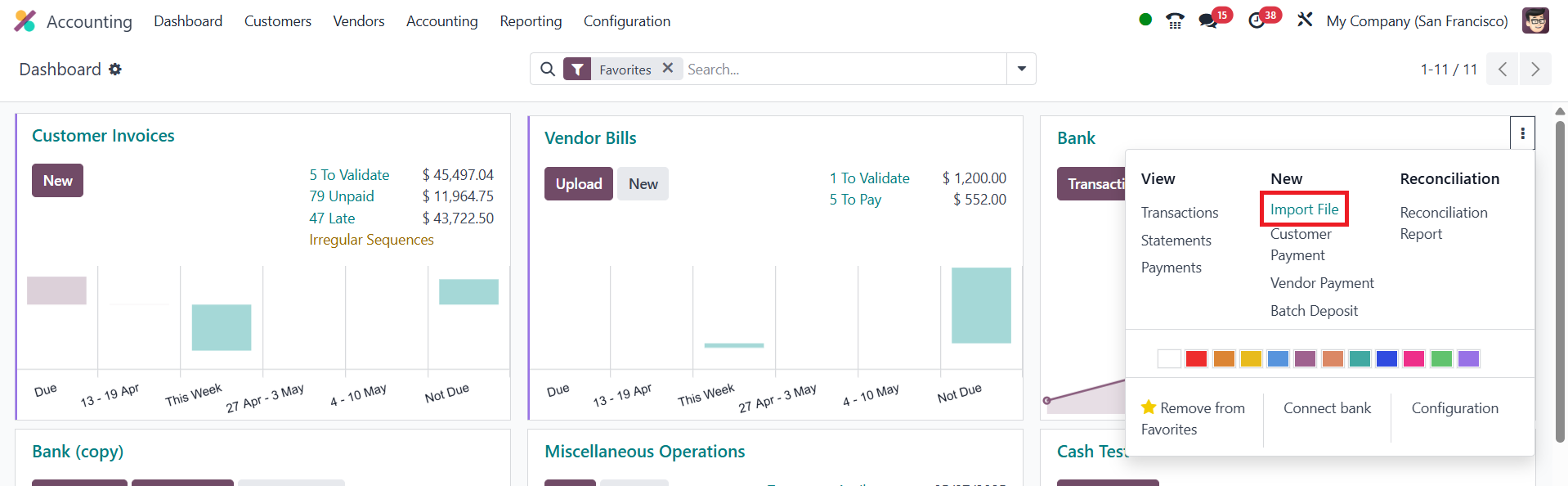
Once activated, the dashboard
shows an Import File button
next; upload the file your
bank provides, and the
statement lines appear
instantly in the
reconciliation queue.
With statement import,
intelligent reconciliation
models, and one‑click
automatic posting, Odoo 18
turns what used to be a
labor‑intensive monthly chore
into a quick daily
checkpoint.