39. Reporting
Every business requires reports
to assess the progress of
operations and analyze
workflows. A well-structured
reporting platform simplifies
the analysis process,
enabling informed
decision-making even in
high-pressure situations.
Reports are essential for
gaining real-time insights
into the management of
finances, particularly in the
context of a company's
internal financial
activities.
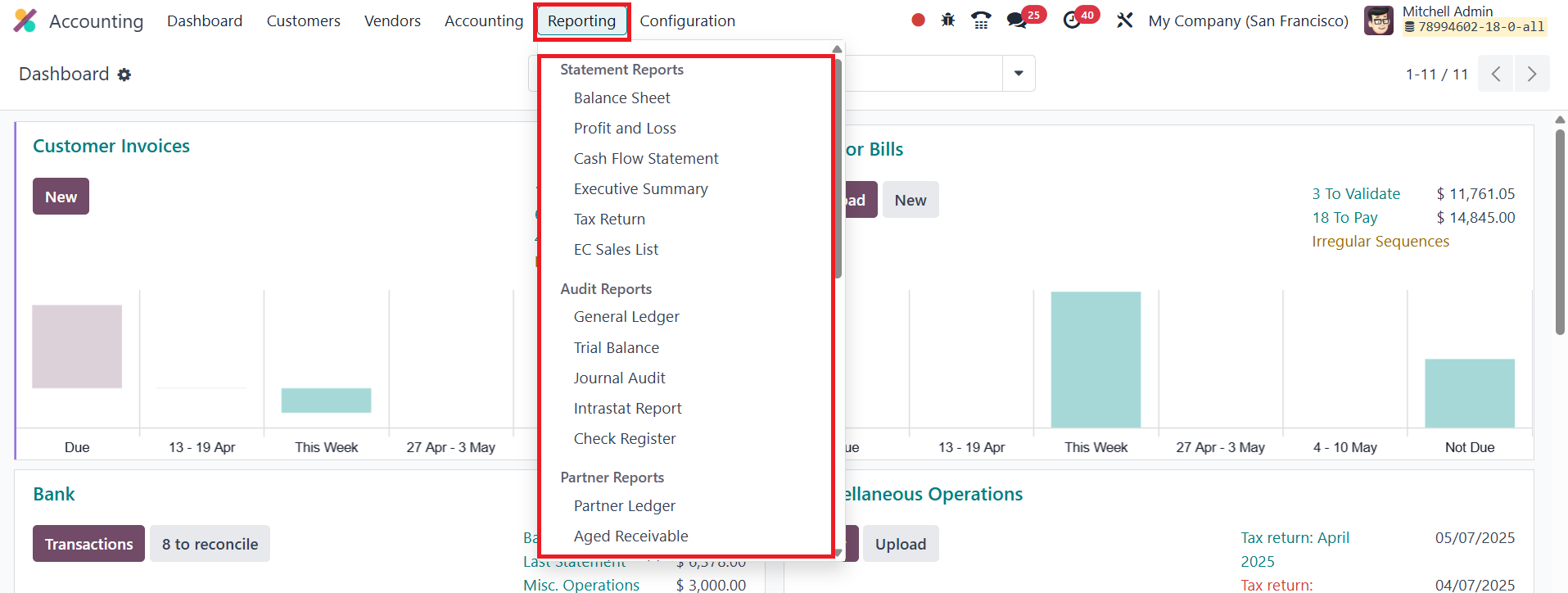
In this section, we will explore
the various reporting
features offered by the Odoo
Accounting module in detail.
39.1 Balance Sheet
The Balance Sheet report provides
a comprehensive view of an
organization's assets,
liabilities, and equity at
any given point in time. Odoo
allows you to create
customized reports using its
additional functionalities.
By selecting a specific date
from the calendar icon on the
screen, you can generate the
balance sheet for that
precise date.
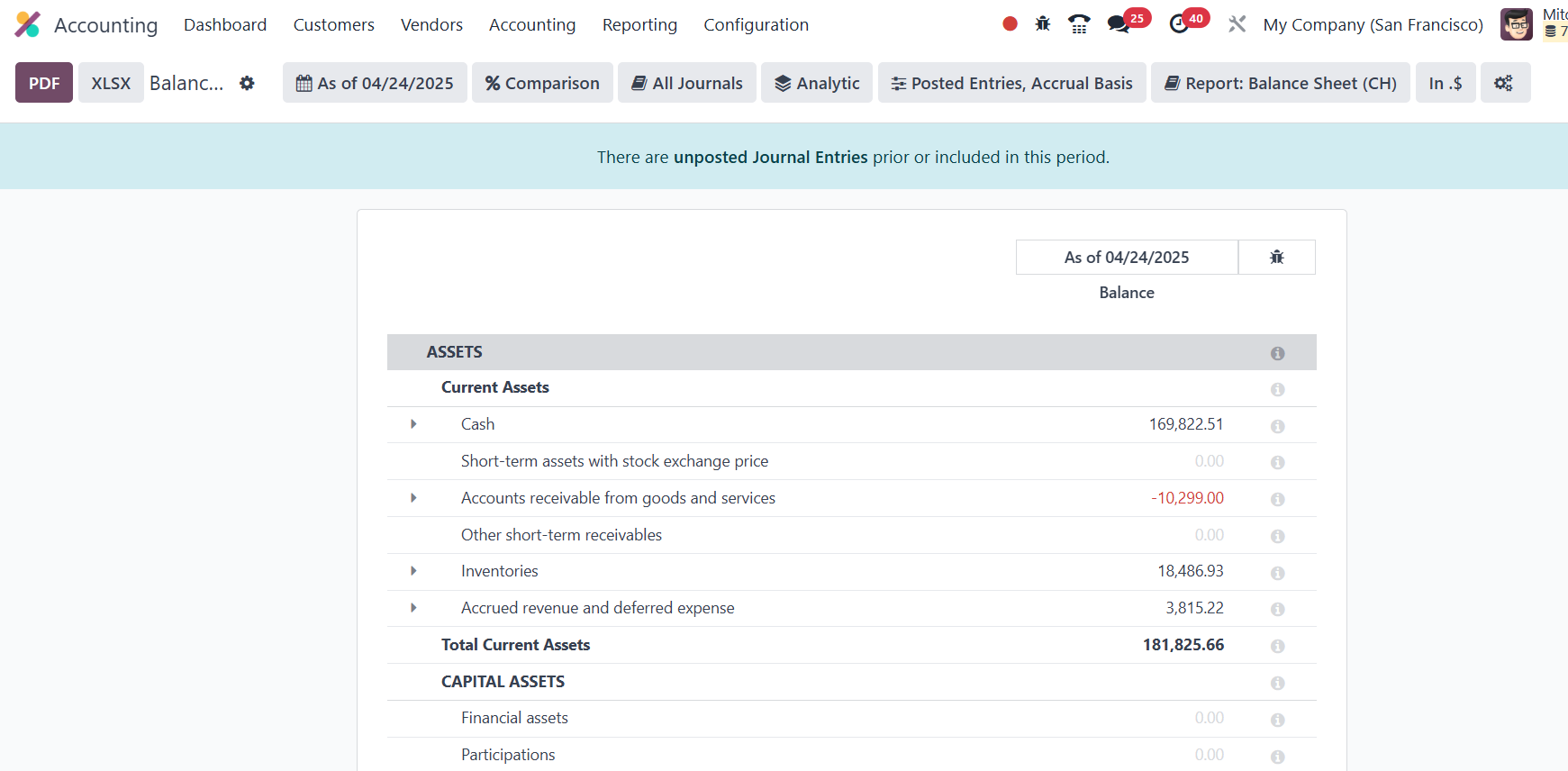
The Comparison tool allows you to
compare reports from
different timeframes. If you
need the balance sheet report
for a particular journal, you
can select the specific
journal from the Journals
option. Additionally,
advanced filters are
available, giving you the
flexibility to organize the
available data according to
your requirements.
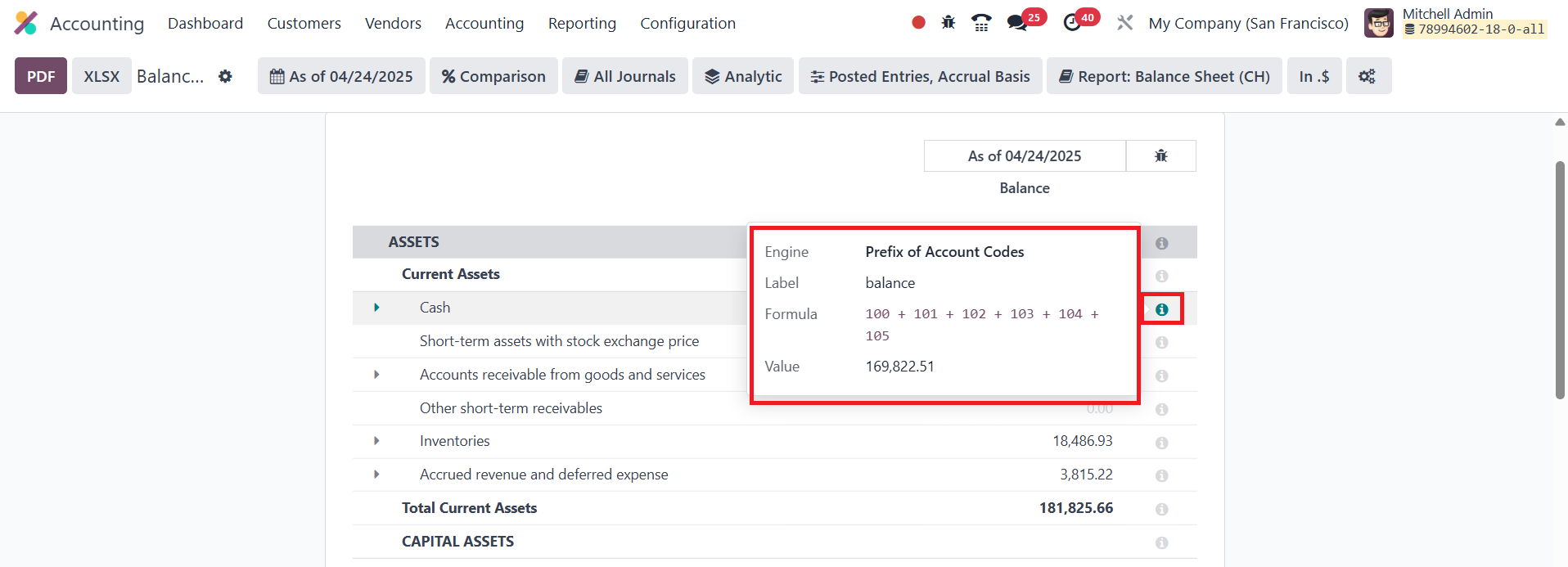
Once developer mode is activated,
an 'i' icon appears at the
end of each reporting line.
This icon reveals the
calculation formula behind
each reporting line. You can
adjust the format of your
data by selecting the PDF or
XLSX options.
39.2 Profit & Loss
The Profit & Loss report is one
of the most essential
elements of financial
reporting, providing a clear
overview of an organization's
income, expenses, profits,
and losses over a specific
period. This report gives
valuable insight into the
financial performance of a
company within a defined
timeframe.
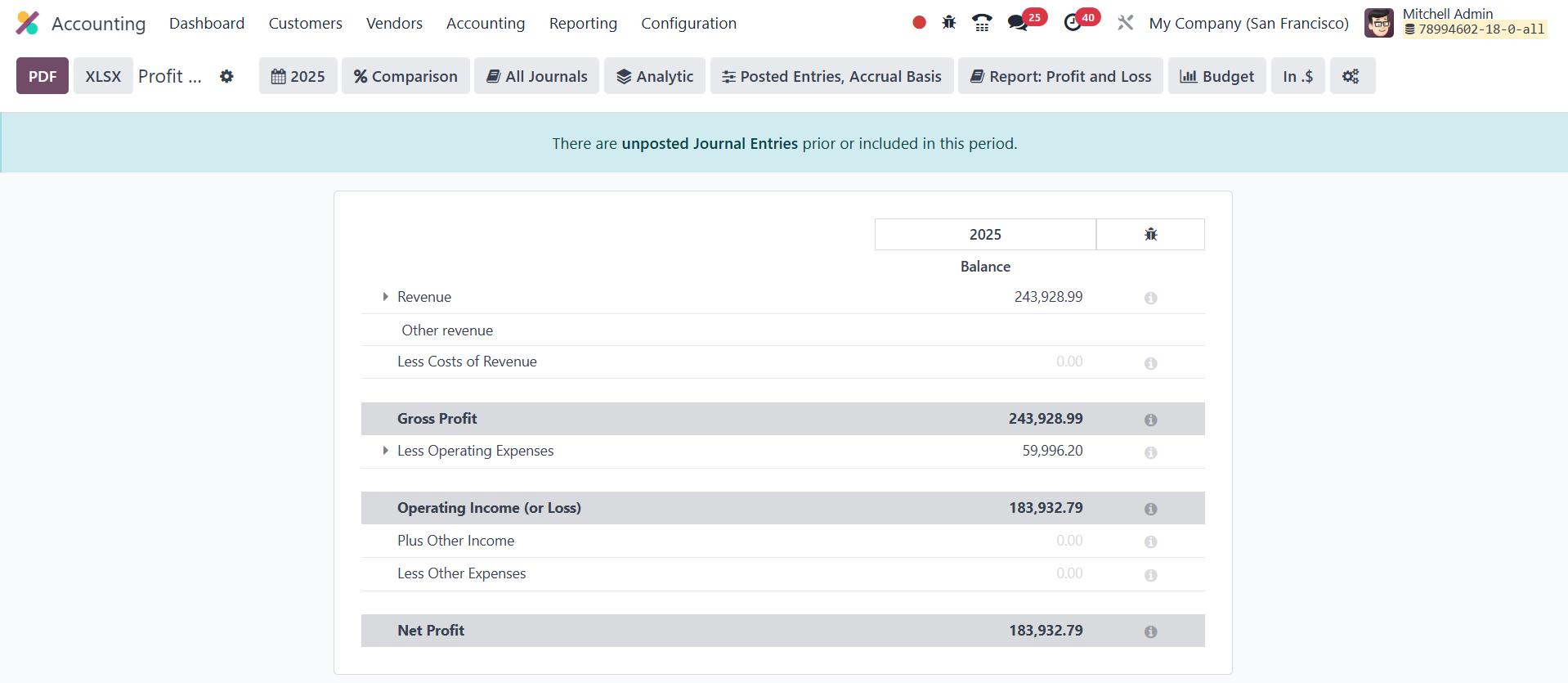
Unlike the balance sheet, the
ending balance of the Profit
& Loss report does not carry
over to the next accounting
period. Each period stands
alone, offering a snapshot of
financial health for that
particular time frame.
39.3 Cash Flow Statement
The Cash Flow Statement report
provides a detailed overview
of all cash inflows and
outflows within a specific
period. It is based on the
accounts set up for the cash
flow statement in the system.
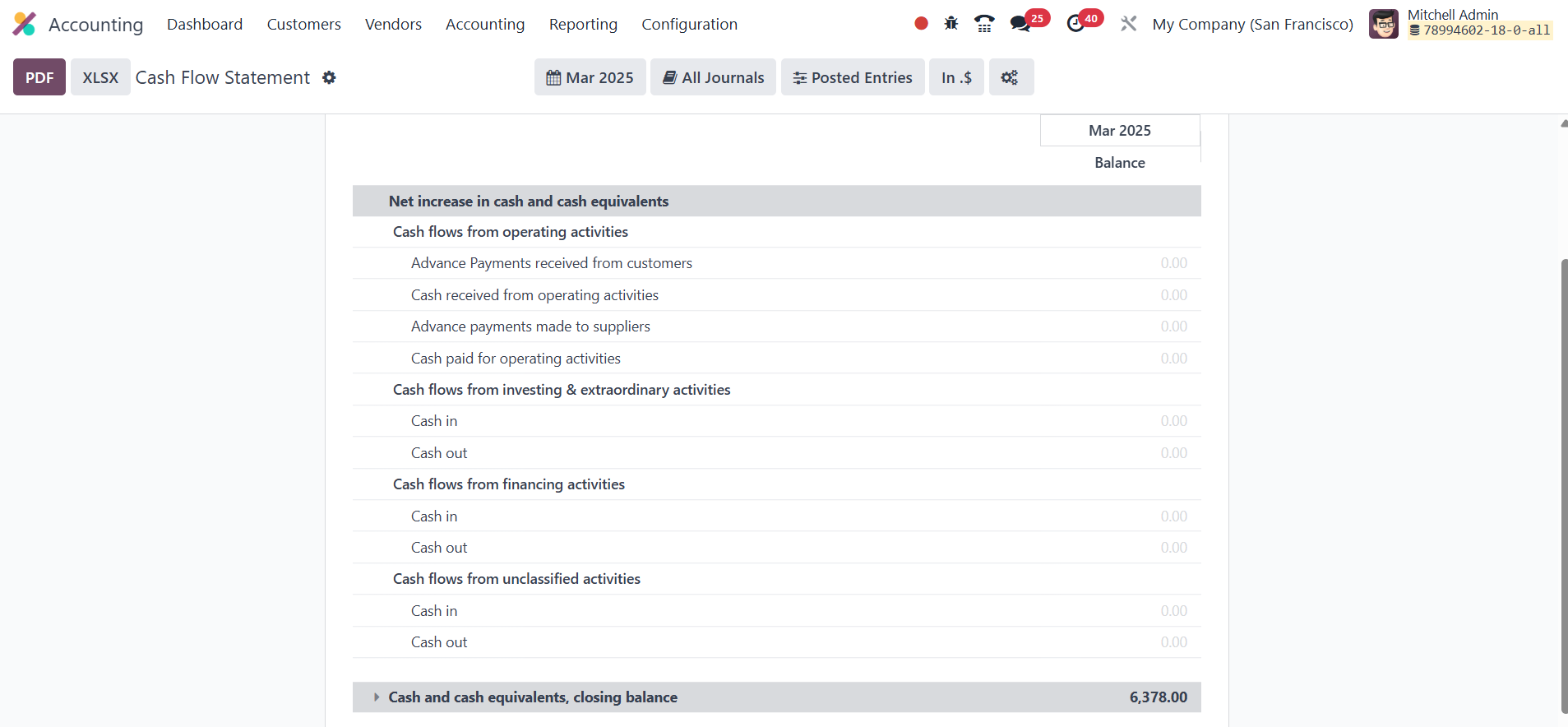
This report is categorized into
three main activities:
operating, investing, and
financing operations. By
analyzing these sections, you
can gain insights into the
company’s liquidity and
financial health, helping you
assess how cash is being
generated and used across
various business activities.
39.4 Executive Summary
The Executive Summary report
consolidates key financial
insights, including cash
flow, profitability, and
balance sheet reports, for a
specific period. This
comprehensive summary can be
accessed from the Reporting
menu. The Performance tab
provides critical performance
indicators such as Return on
Investment (ROI), Gross
Profit Margin, and Net Profit
Margin, helping you assess
the overall financial
performance of the business.
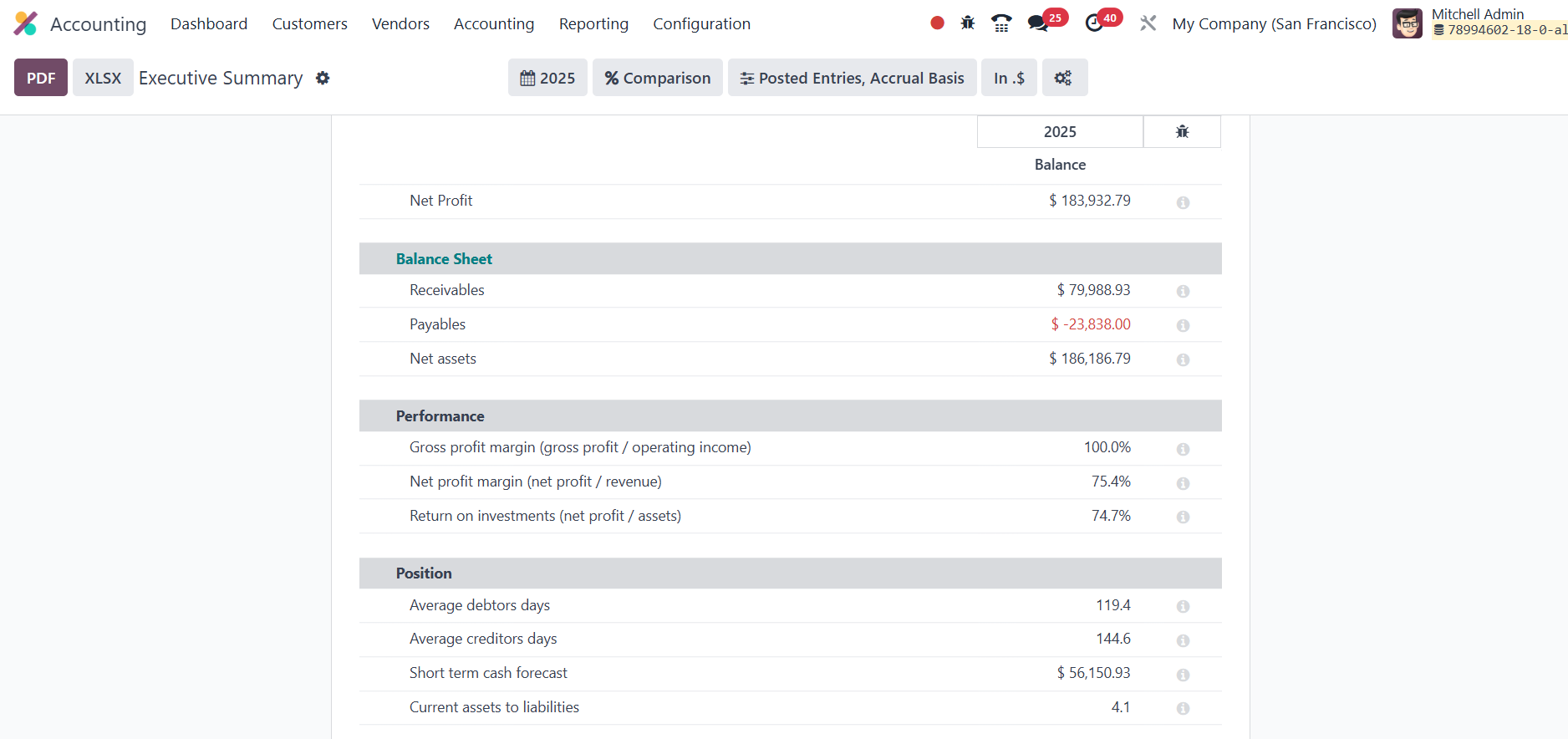
In addition, the Position tab
offers insights into the
company's financial standing,
displaying metrics like
Average Debtors Day, Average
Creditors Days, Short-Term
Cash Forecast, and the ratio
of Current Assets to
Liabilities. These indicators
are essential for
understanding liquidity,
efficiency, and financial
stability.
39.5 Tax Return
The Tax Return platform,
available through the
Reporting menu, allows you to
generate detailed reports on
both sales and purchase taxes
for a specific period.
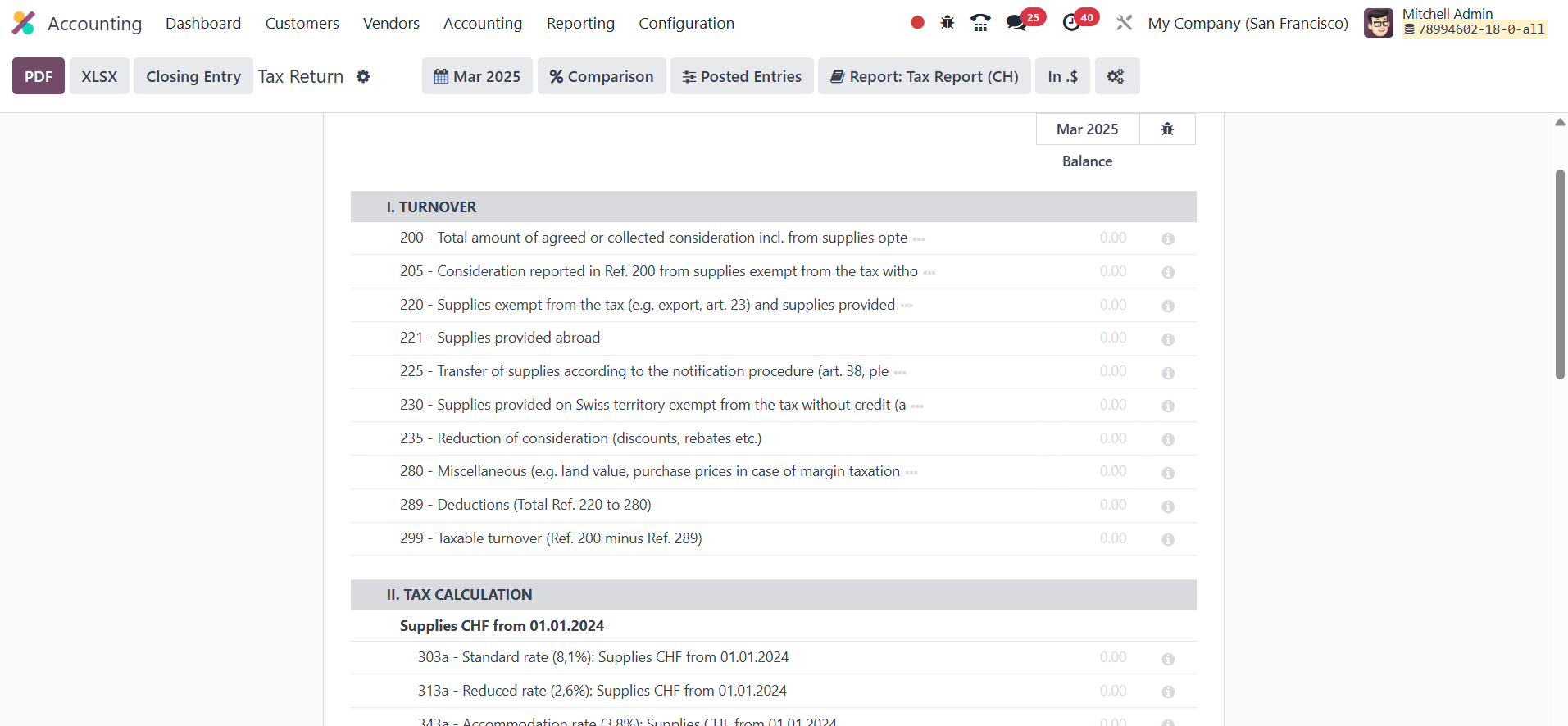
These reports provide an overview
of your tax obligations and
can help ensure compliance
with tax regulations.
Additionally, the Closing
Entry option enables you to
submit the return tax for the
selected period, streamlining
the process of filing your
tax returns.
39.6 EC Sales List
In Odoo 18 Accounting, the EC
Sales List (ECSL) is a
reporting tool designed to
track the sales and transfers
of goods and services to
VAT-registered companies in
other EU countries.
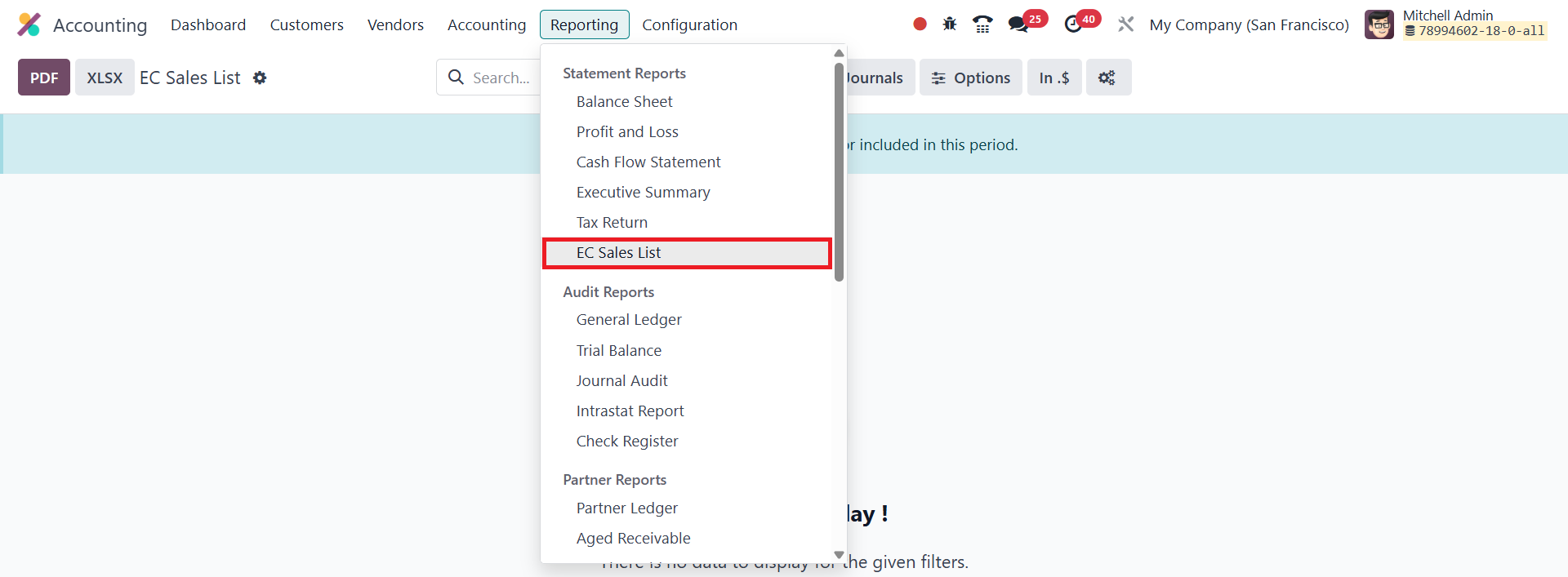
This report helps VAT-registered
businesses, particularly in
the UK, meet their reporting
obligations to Her Majesty's
Revenue and Customs (HMRC).
The ECSL provides a clear
overview of sales to EU
companies and is easily
accessible through the
Reporting tab in the Odoo
Accounting module, ensuring
compliance with VAT
regulations.
39.7 General Ledger
The General Ledger report in Odoo
provides a comprehensive
overview of all financial
transactions across all
accounts set up in your
system for a selected time
period.
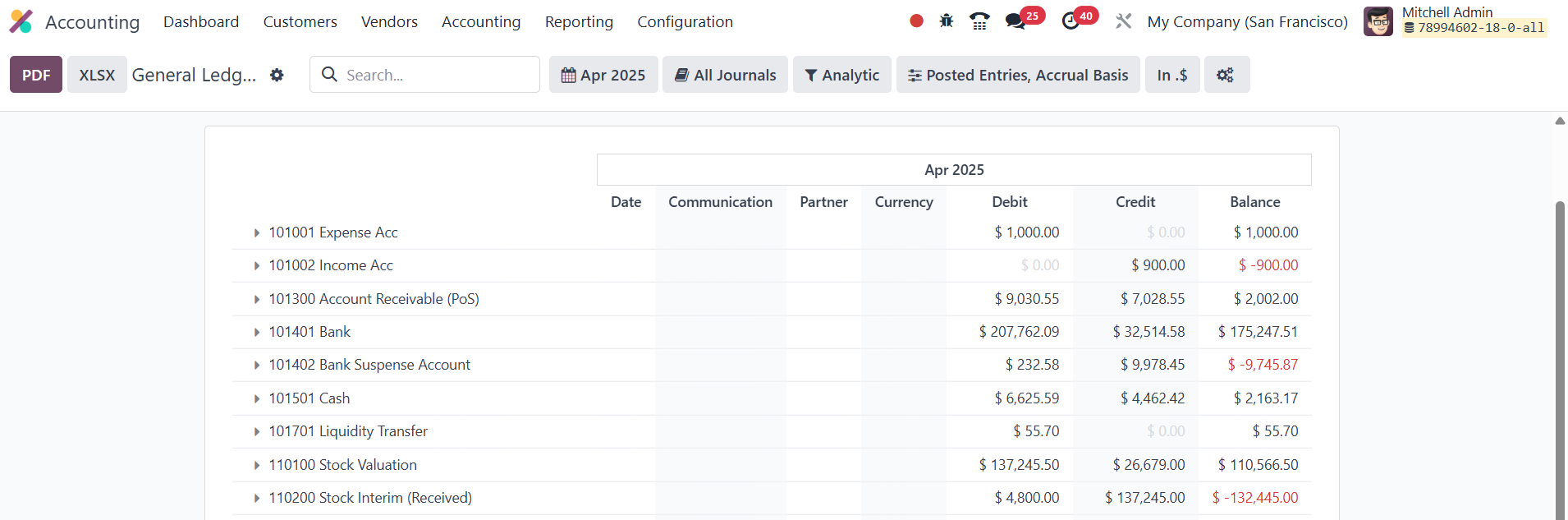
It displays key details such as
the account name, Date,
Communication, Partner,
Currency, Debit, Credit, and
Balance for each transaction.
This report serves as a
complete record of your
organization's financial
activities throughout the
fiscal year, allowing you to
track and analyze all
accounting entries
systematically.
39.8 Trial Balance
The Trial Balance report is an
essential accounting report
that summarizes the outcomes
of all accounting entries
made through various
journals. It is typically
generated at the end of the
organization's financial year
and plays a crucial role in
the auditing process.
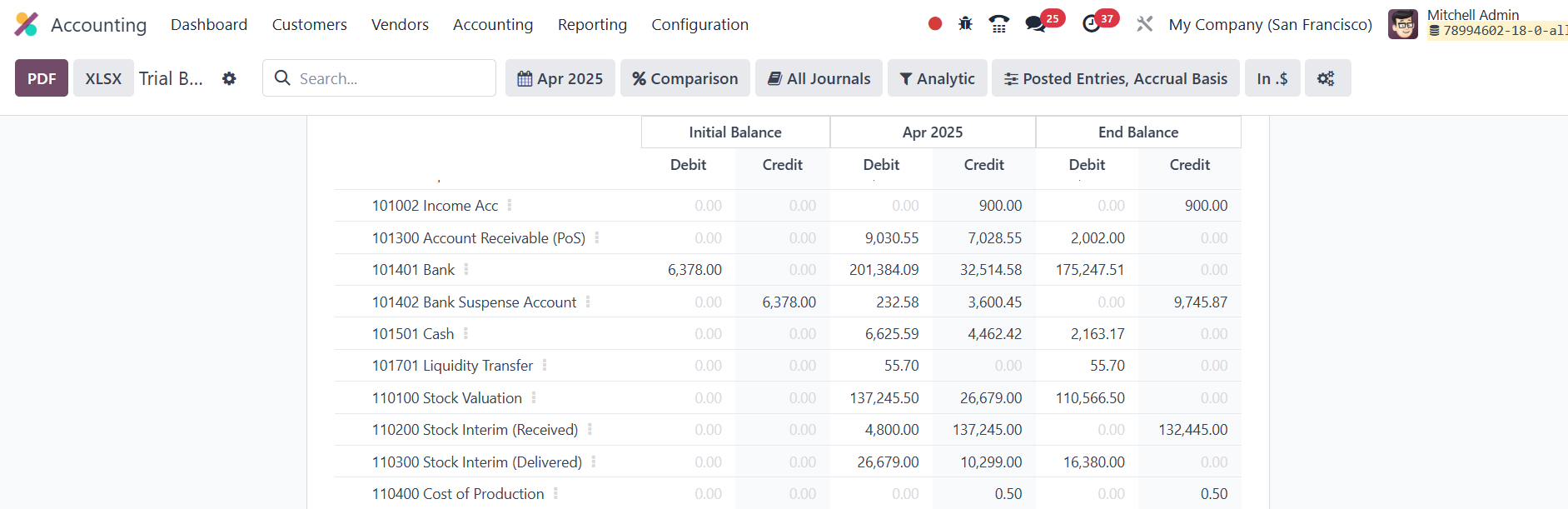
The report displays key
information, including the
credit and debit amounts from
the opening balance, the
chosen month/year, and the
final balance of the journal
entries. This provides a
clear picture of the overall
financial position of the
organization, helping ensure
that the books are balanced
and accurate.
39.9 Journal Audit
The Journal Audit feature lets
you generate detailed
accounting reports for any
journal configured in the
Accounting module.
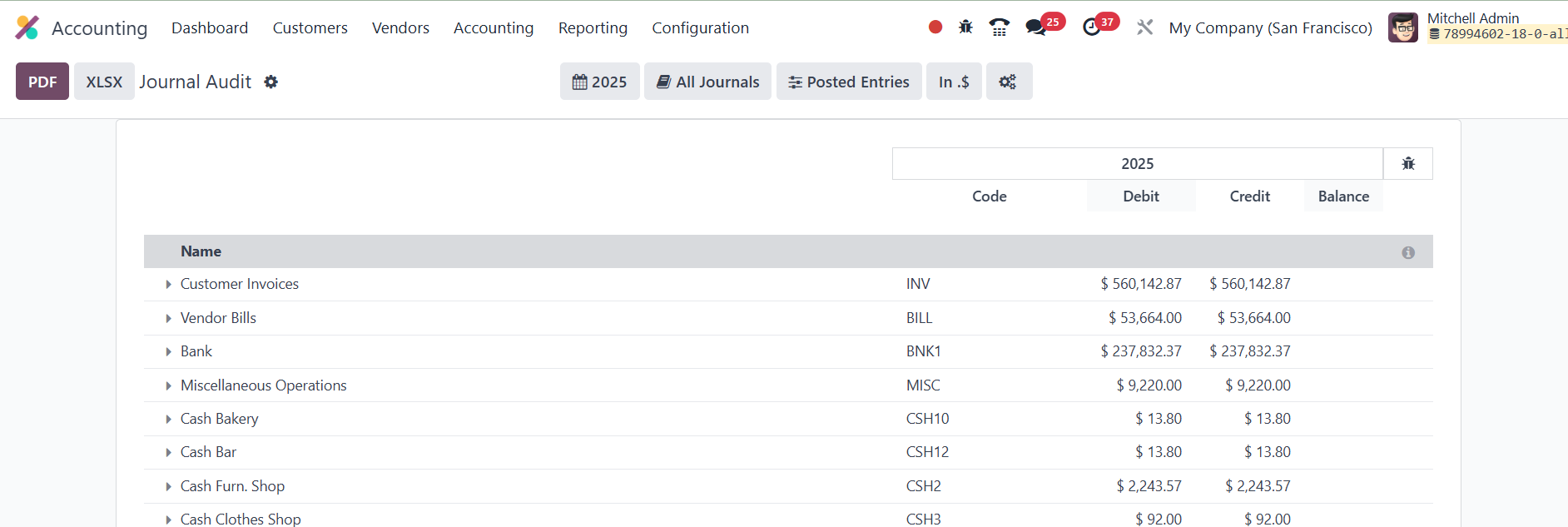
For each journal, you’ll see a
list of its corresponding
entries; complete with the
entry Name, Code, Debit,
Credit, and Balance, so you
can review activity and
balances at a glance.
39.10 Intrastat
Report
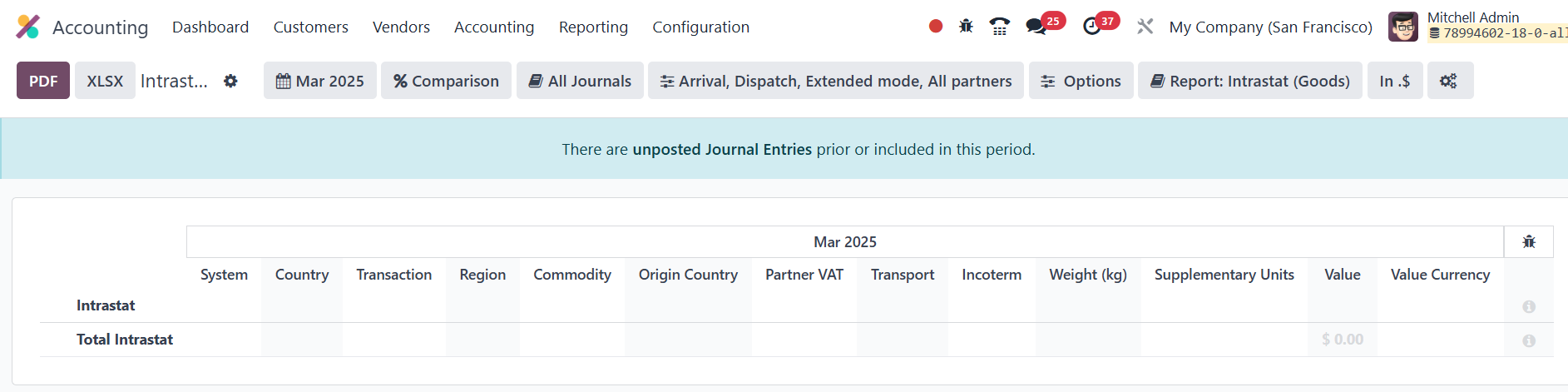
The Intrastat report records the
movement of goods between EU
member states, helping
businesses comply with EU
trade‑statistics
requirements. In Odoo
Accounting you can access it
from Reporting ▸ Intrastat
Report.
39.11 Check Register
In Odoo 18 Accounting, you can
handle large vendor payments
by issuing and printing
checks once you activate
the Checks feature
in Settings › Accounting ›
Payments.
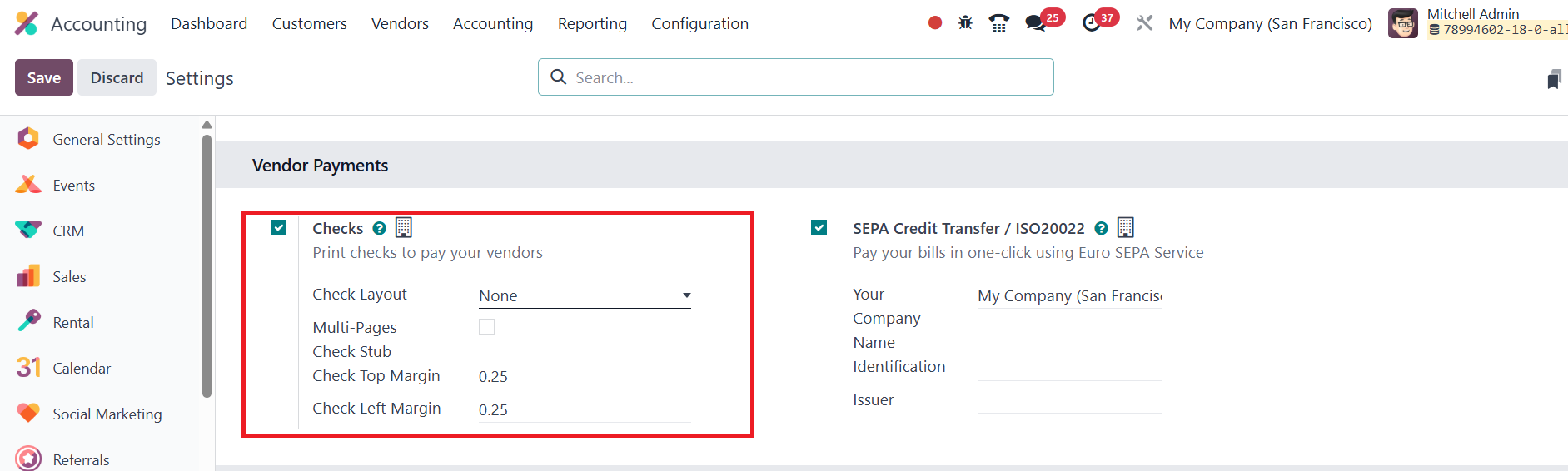
After enabling it, specify your
preferred checks layout along
with the top and left
margins, then save the
configuration.
Next, open your relevant bank
journal, switch to the
Outgoing Payments tab, and
add Checks as an available
payment method.
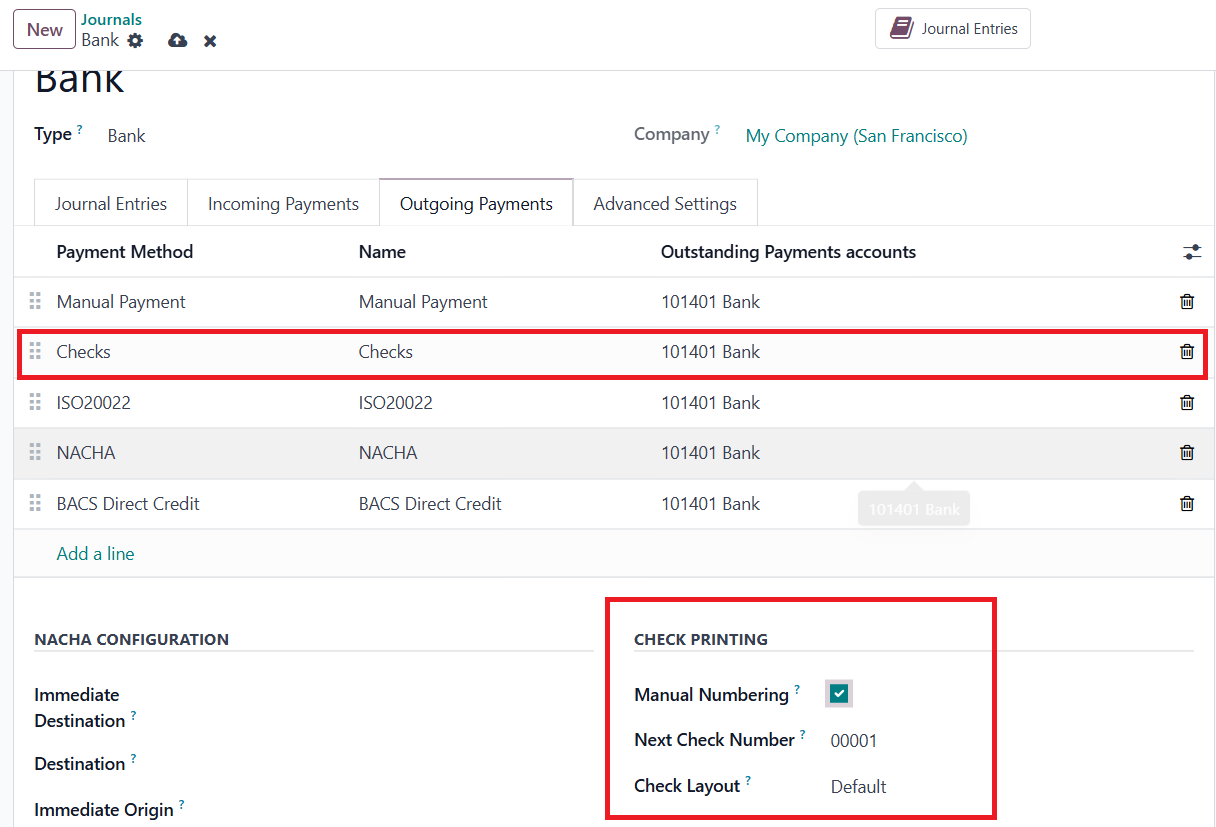
A new Check Printing section
appears at the lower‑right of
the journal form;
enable Manual Numbering there
and enter
the Next Check Number, Odoo
will automatically increment
this number with each new
check.
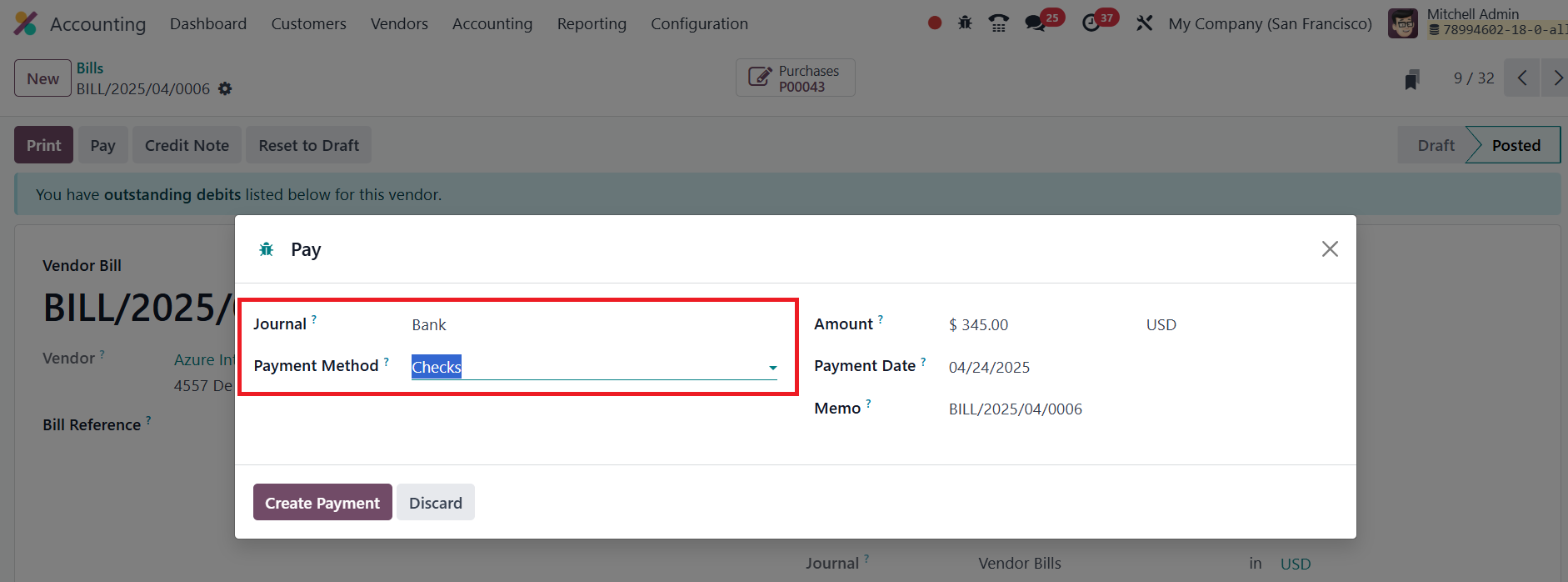
When paying a vendor bill, click
Pay on the bill, choose the
bank journal you configured,
and select Check as the
payment method. After
validating, you can print the
check directly.
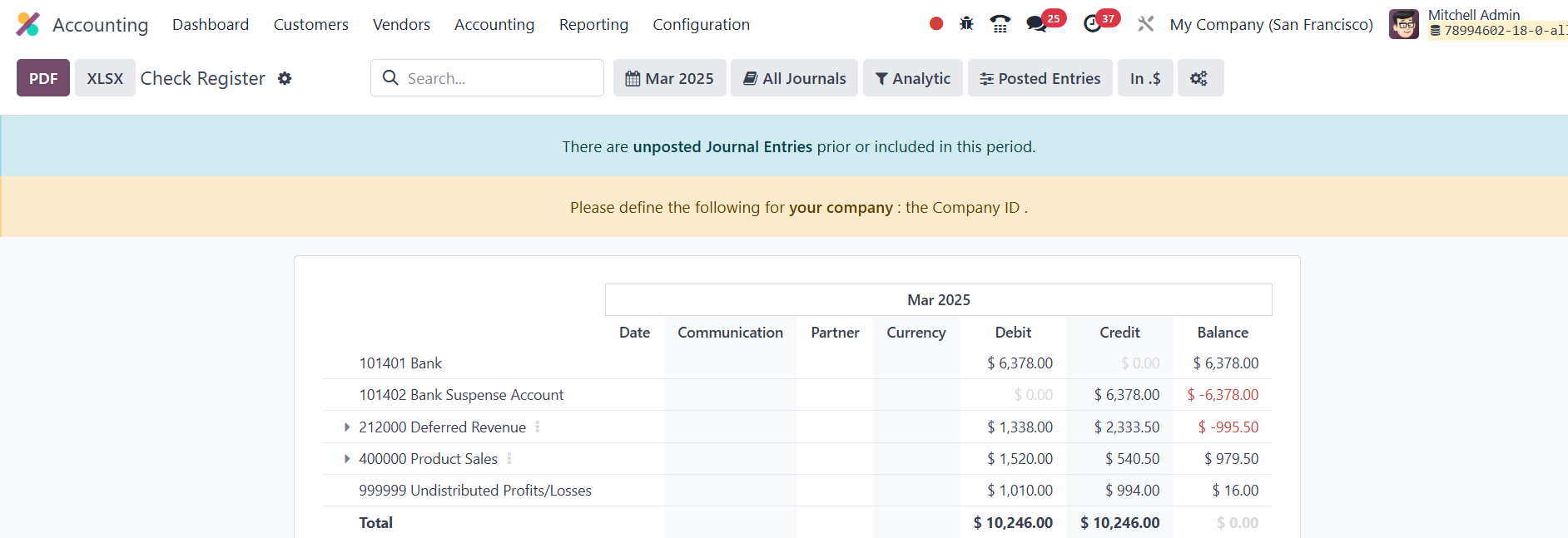
For auditing purposes, go
to Reporting and select Check
Register. This report lists
every check‑based payment,
supports filters for quickly
isolating the data you need,
and can be exported to PDF if
required.
39.12 Partner Ledger
The Partner Ledger report in
Odoo 18 gives you a
consolidated view of every
receivable and payable
journal entry linked to each
partner for a selected
period.
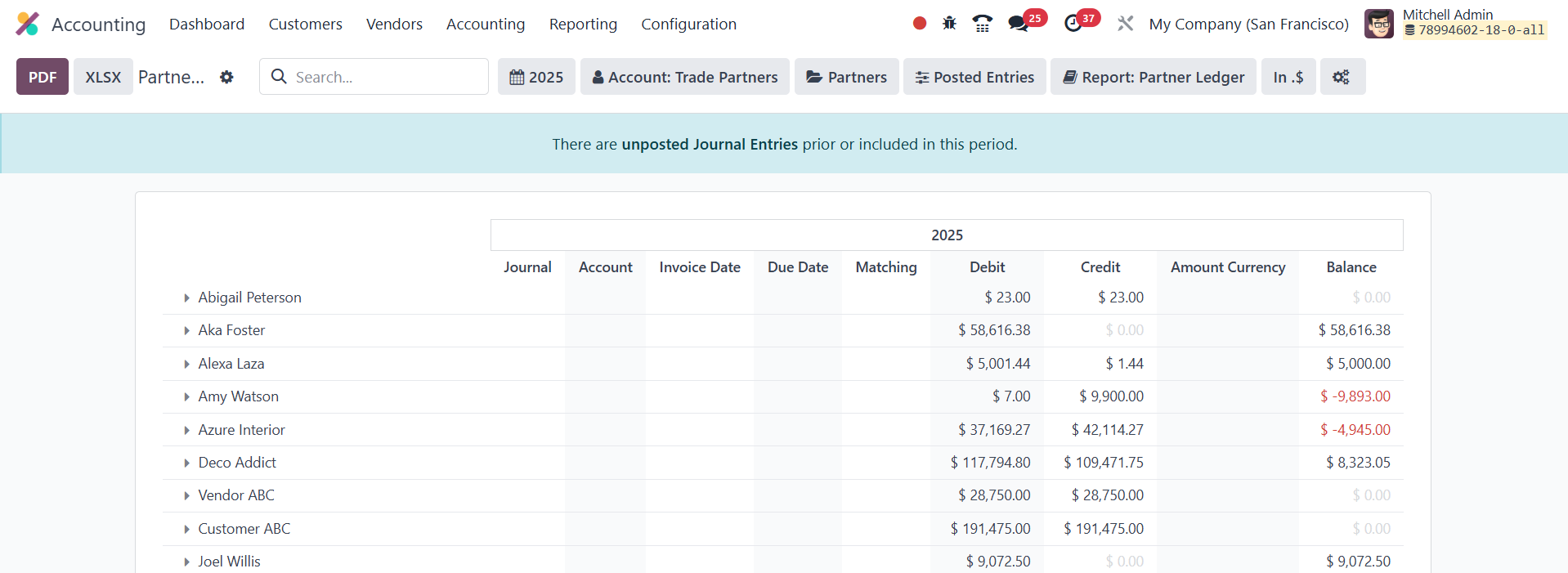
For every partner it lists the
associated journal, account,
internal reference, due date,
matching number, debit,
credit, original amount,
transaction currency, and the
running balance.
39.13
Aged Receivable
In Odoo 18’s Aged Receivable
report, found under the
Reporting, you can instantly
see every customer invoice
that remains unpaid as of a
specific cut‑off date.
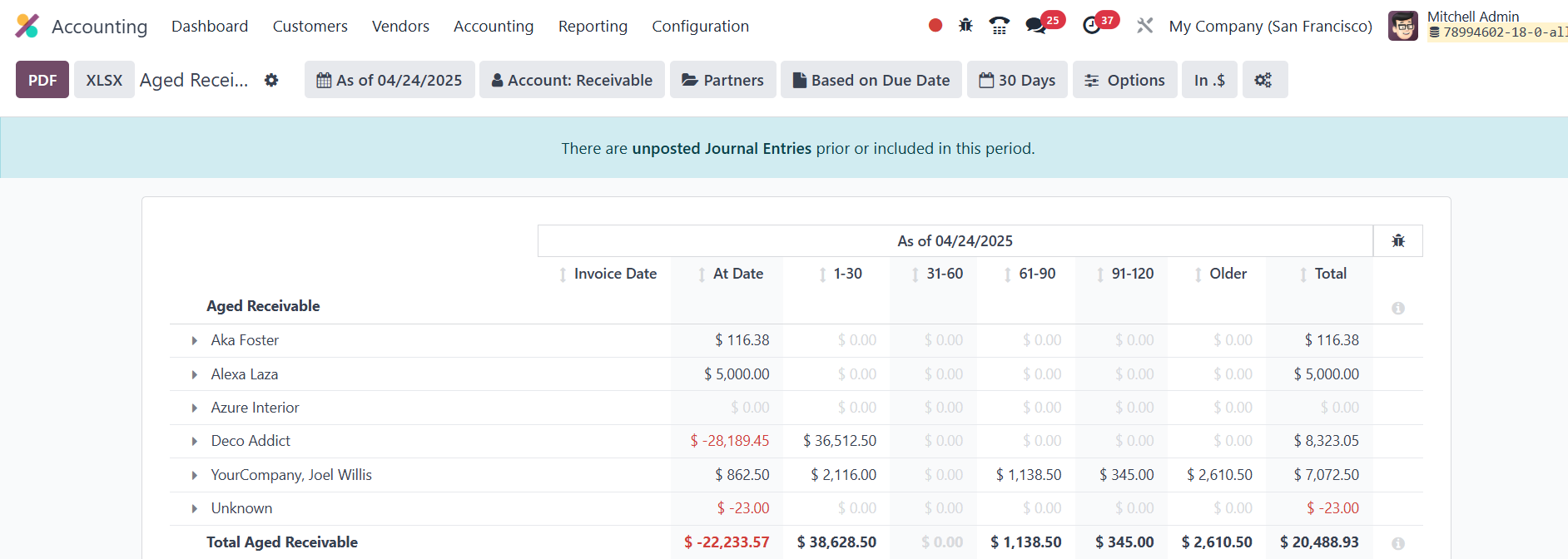
The report organises each open
item into ageing buckets
based on the payment terms
you defined, so any invoice
that has drifted past its due
date is flagged as part of
your aged receivables. When
generating reports in Odoo
18, you can choose specific
criteria to filter and refine
your results. Common
filtering options include
Date, which lets you select a
specific month, quarter,
fiscal year, or custom range;
Journal, allowing you to
narrow down entries by the
journal type, such as
customer invoices or vendor
bills; and Partner, which
filters results based on
specific customers or
vendors. Depending on the
type of report, you may also
filter using other fields,
such as product category,
user, or analytic account,
helping you gain more
targeted and insightful
financial data.
39.14 Aged Payable
The Aged Payable report in
Odoo 18 mirrors the logic of
the Aged Receivable view but
focuses on your company’s
overdue supplier bills.
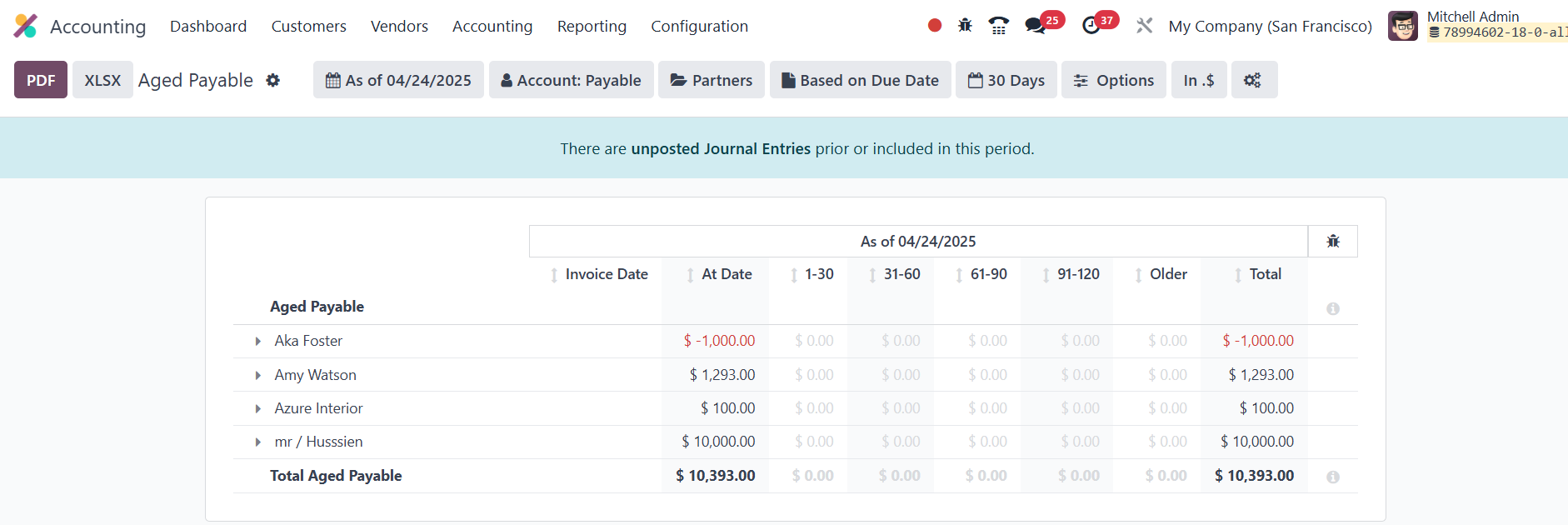
It lists every vendor invoice
that remained unpaid past its
contractual due date as of
the chosen cut‑off date,
grouping the amounts into
ageing buckets so you can see
how long each liability has
been outstanding.
39.15 Invoice
Analysis
In Odoo 18, you can analyze sales
and purchase performance by
opening Reporting ›
Invoice Analysis and
selecting the accounting
period you want to study.
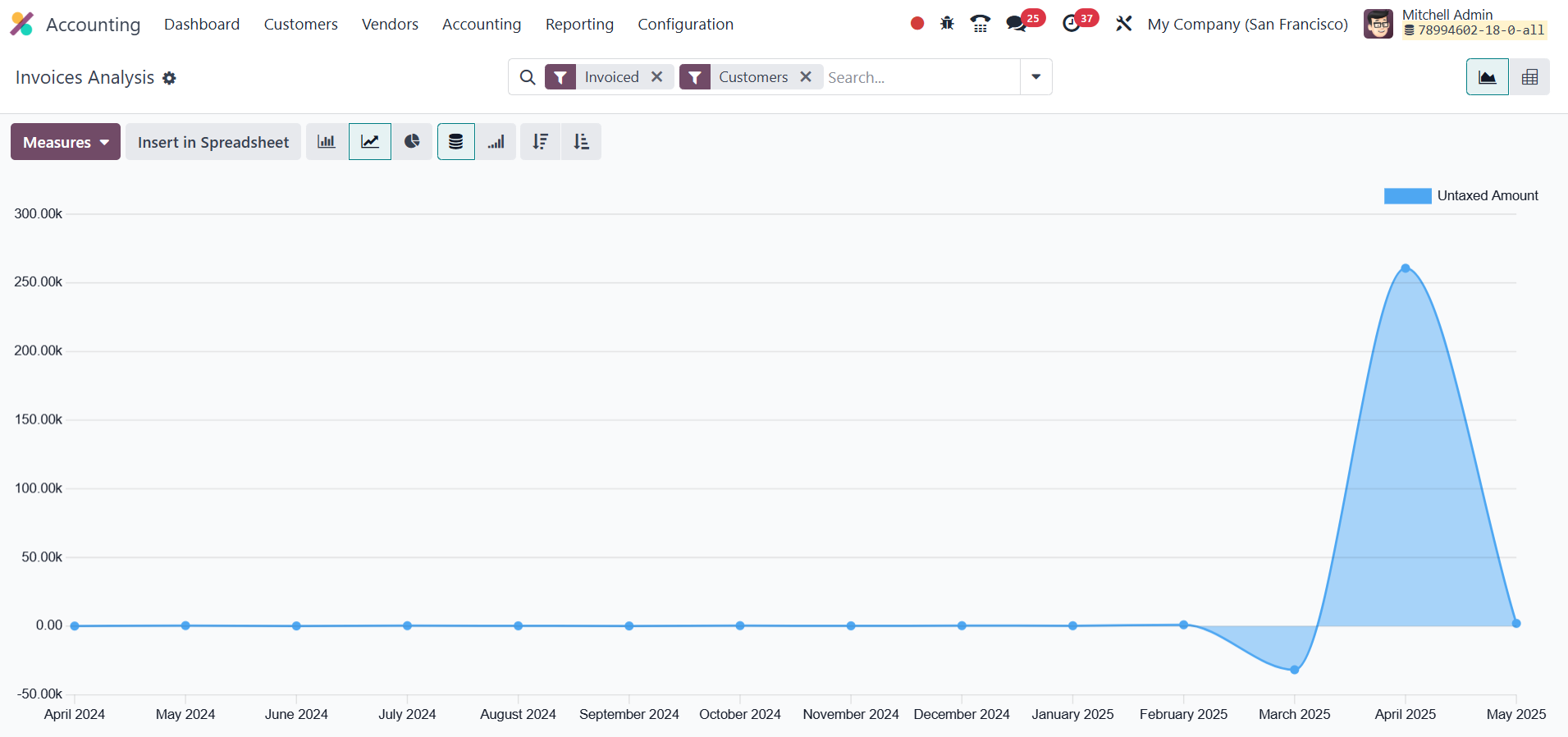
The view can be switched between
dynamic graphs and an
interactive pivot table,
letting you slice data
however you prefer.
Key measures available
include Average Price, Product Quantity, Total, Untaxed Total,
and a simple
transaction Count. Built‑in
filters; such as My Invoice,
To Invoice, Customer, Vendor,
Invoice/Credit Note,
Invoice Date, and Due Date,
let you narrow the dataset
instantly, while the
Customize panel allows you to
add your own fields and
conditions so you can build
bespoke filters for deeper
invoice analysis.
39.16 Analytic
Report
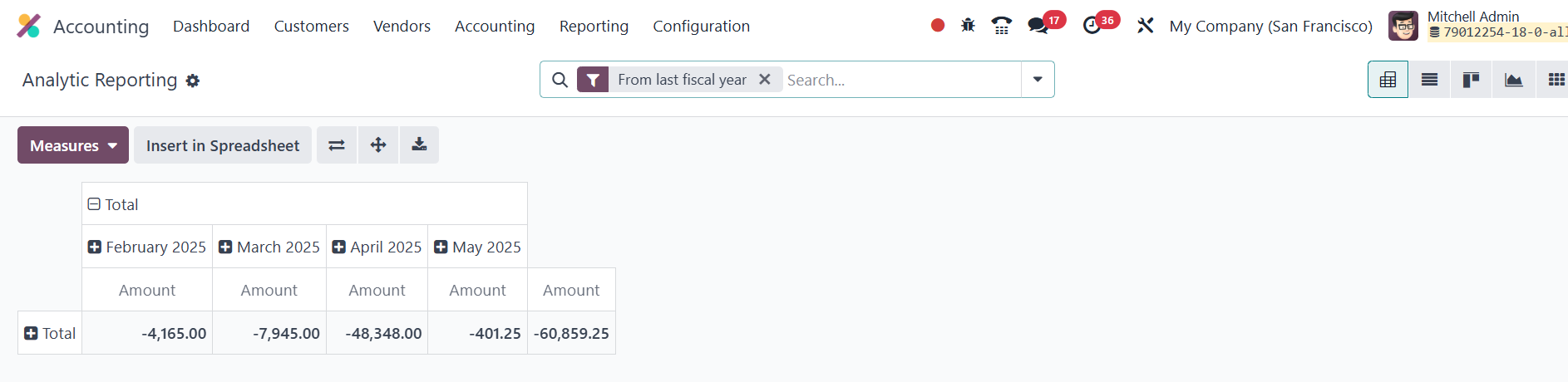
The Analytical Accounting report
in Odoo 18 serves as a
powerful tool for drilling
into your company’s financial
data. By leveraging analytic
accounts and tags, it lets
you interpret costs,
revenues, and margins across
projects, departments, or any
dimension you define in your
chart of accounts.
39.17 Audit Trails
Audit trails are vital for
accountability and
transparency: they log every
step of a financial
transaction so auditors can
verify accuracy, spot errors
or fraud, and ensure
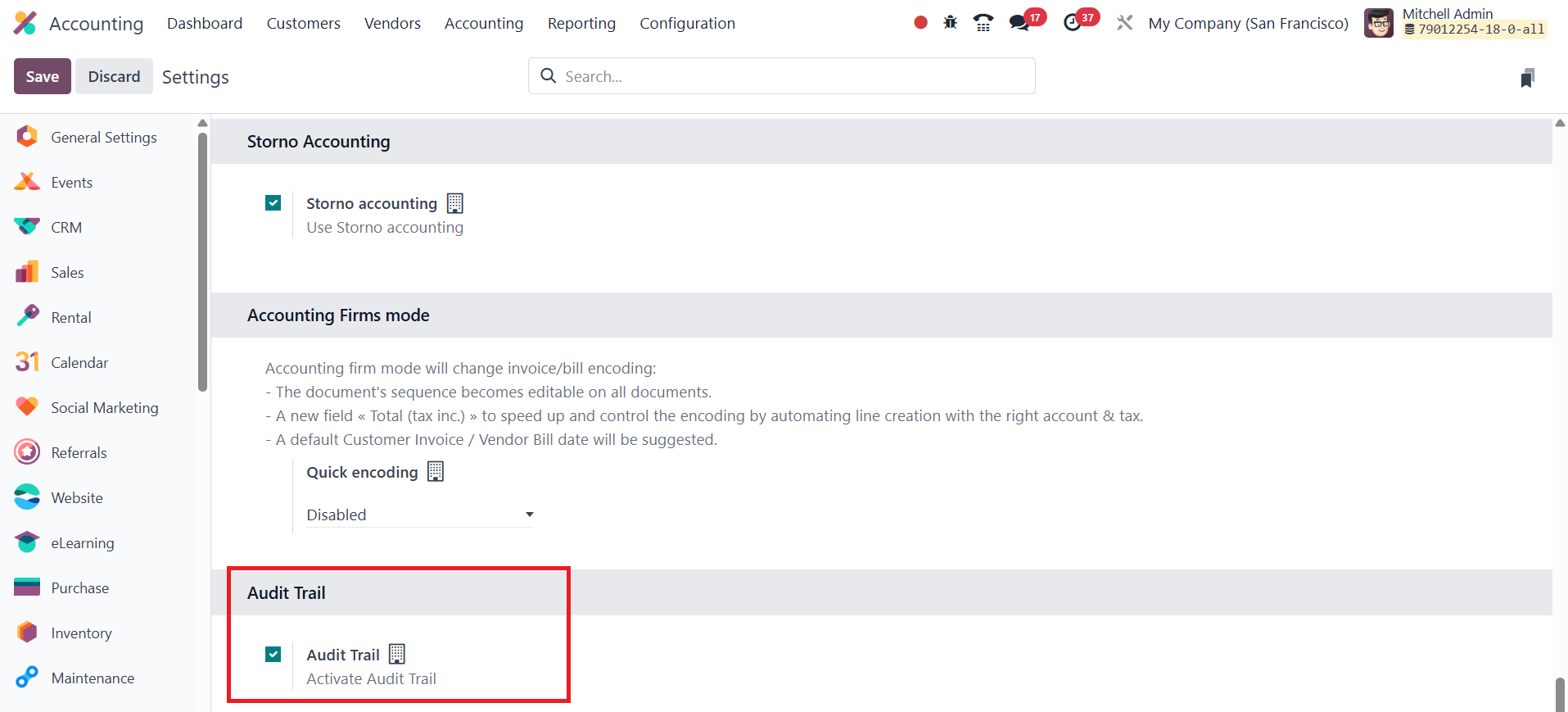
compliance. In Odoo 18
Accounting, you can activate
this safeguard by enabling
Audit Trail in Settings ›
Accounting.
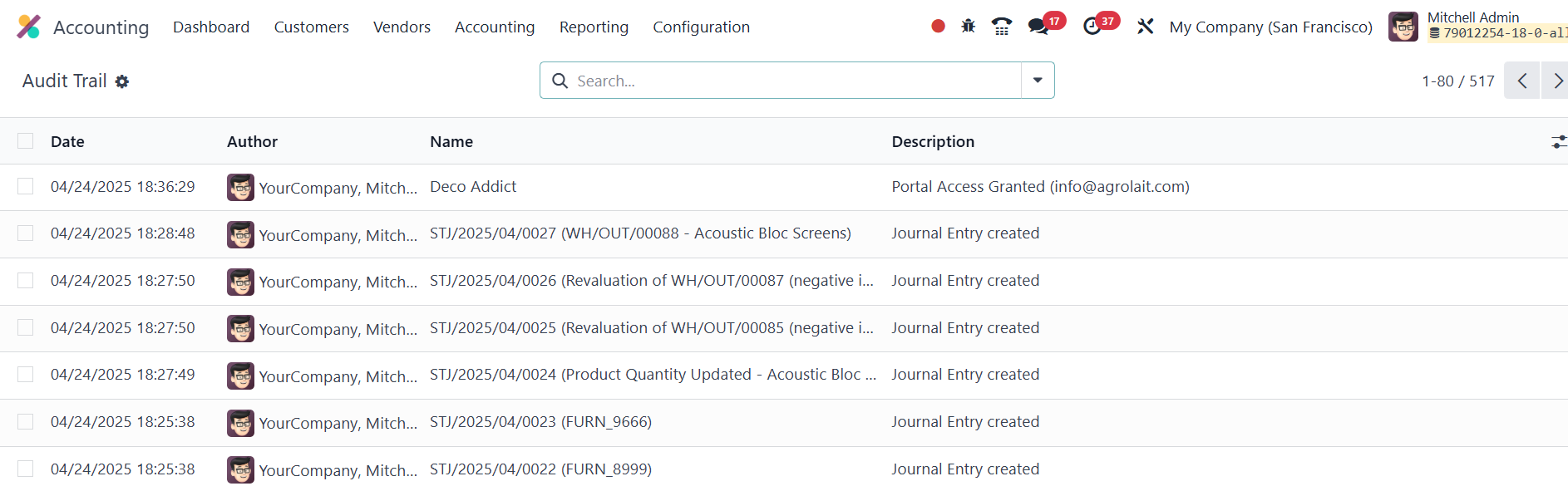
Once turned on, every change a
user makes to an invoice is
timestamped and stored.
Clicking the Audit Trail from
the Reporting menu opens a
detailed ledger that lists
the date of each
modification, the user who
made it, the affected journal
entry, and a concise
description of what changed.
This chronological record lets
auditors trace alterations
easily, bolstering data
integrity and reinforcing
stakeholder confidence in
your financial statements.
39.18 Unrealized
Currency Gains/Losses
In Odoo 18 Accounting, the
Unrealized Currency
Gains/Losses report under the
Reporting menu provides a
detailed view of all open
accounts on your balance
sheet that need to be
re-evaluated based on the
current exchange rates.
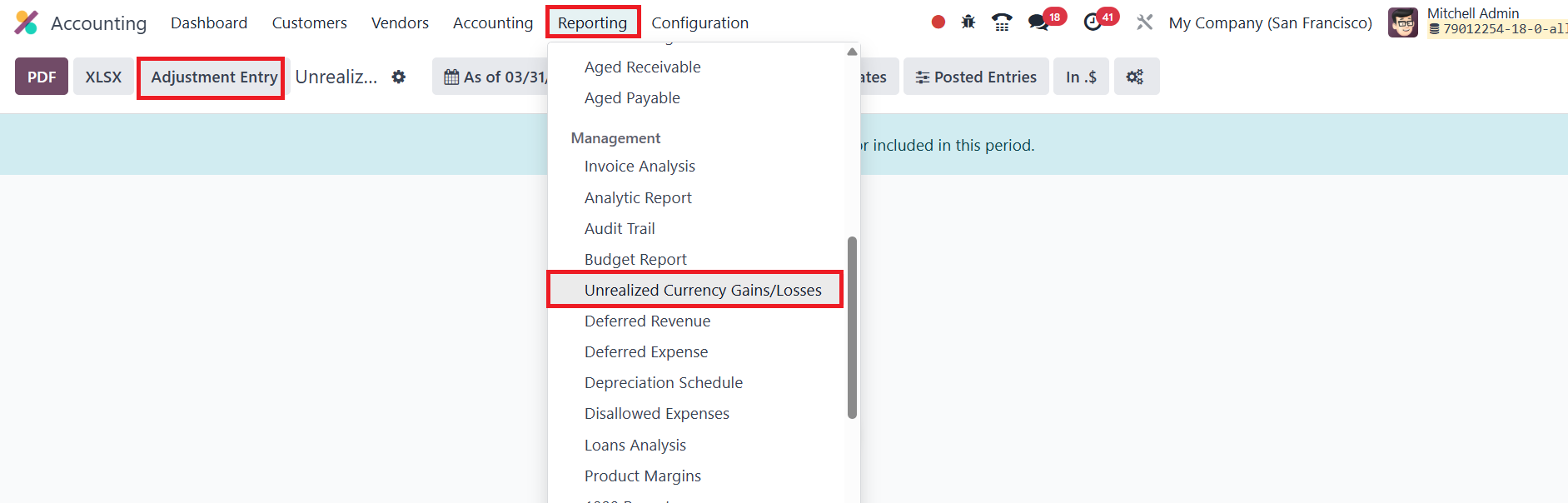
The report is grouped by the
currency used in each account
and displays key information,
such as Balance in Foreign
Currency, Balance at
Operation Rate, Balance at
Current Rate, and the
Adjustment details. If
needed, you can make
adjustments to your entries
using the Adjustment Entry
button.
39.19 Product Margin
Odoo 18’s Product Margin report
lets you drill into the
profitability of each item
you sell. Open it
through Reporting ›
Product Margin and enter a
date range; you can also
filter by invoice state to
focus on Paid, Open and Paid,
and Draft, Open, and Paid.
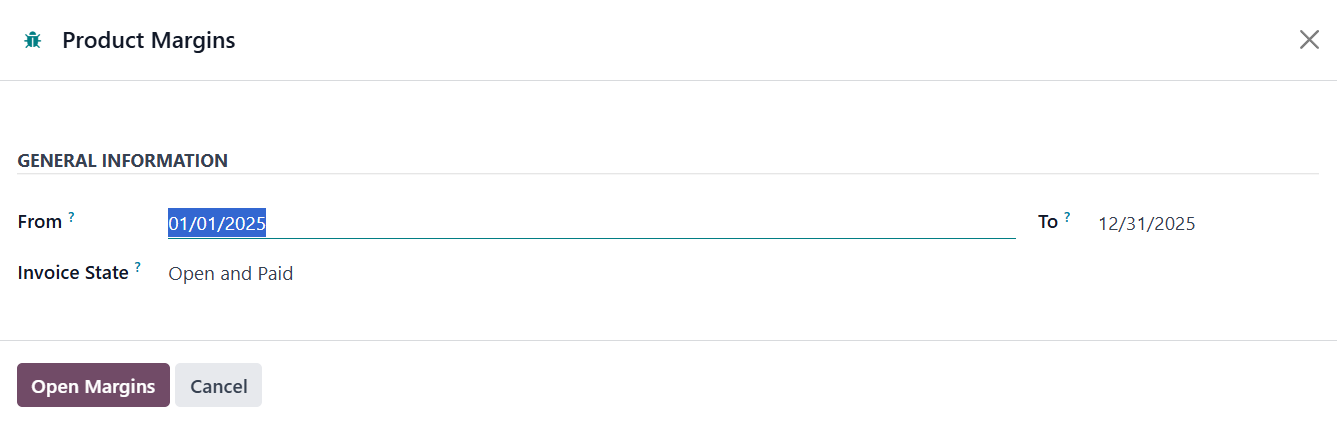
Click Open Margin and Odoo
generates a table that lists
every product alongside its
internal reference, average
selling price, invoiced
quantity, turnover, sales gap
(difference between turnover
and cost), total cost,
purchased quantity, realised
margin, expected margin,
margin rate, and the
percentage variance from the
expected margin.
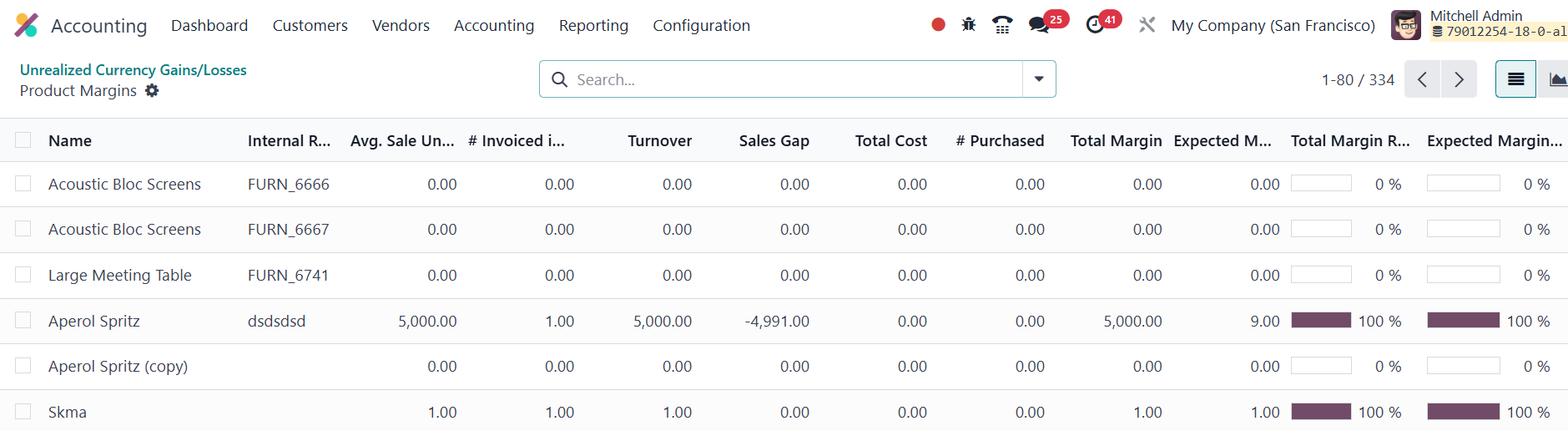
These metrics give you a clear
snapshot of which products
are driving profit, where
costs may be eroding returns,
and how actual performance
compares to your forecasts.