47. Settings
Odoo 18 offers several
enhancements in the
Accounting module's settings,
offering businesses more
flexibility and control over
their financial processes.
Here are some notable
features:
47.1 Taxes in Company
Currency
Odoo 18 introduces a new feature
in the Accounting module that
allows users to configure and
display tax amounts in their
company’s base currency,
regardless of the currency
used in the transaction. This
feature is especially useful
for businesses that operate
internationally or deal with
multiple currencies, as it
helps maintain accurate tax
calculations and simplifies
financial reporting.

To activate this functionality,
users need to navigate to the
Accounting module and open
the Settings menu under the
Configuration tab. In the
Customer Invoices section,
there is an option labeled
Taxes in Company Currency.
Once this option is enabled
and the changes are saved,
Odoo will begin displaying
all tax amounts in the
company's local currency on
invoices, even when the
invoice is created using a
different currency.
For example, if an invoice is
issued in a foreign currency,
Odoo will automatically
calculate the equivalent
amount in the company’s
currency and display the tax
values accordingly.
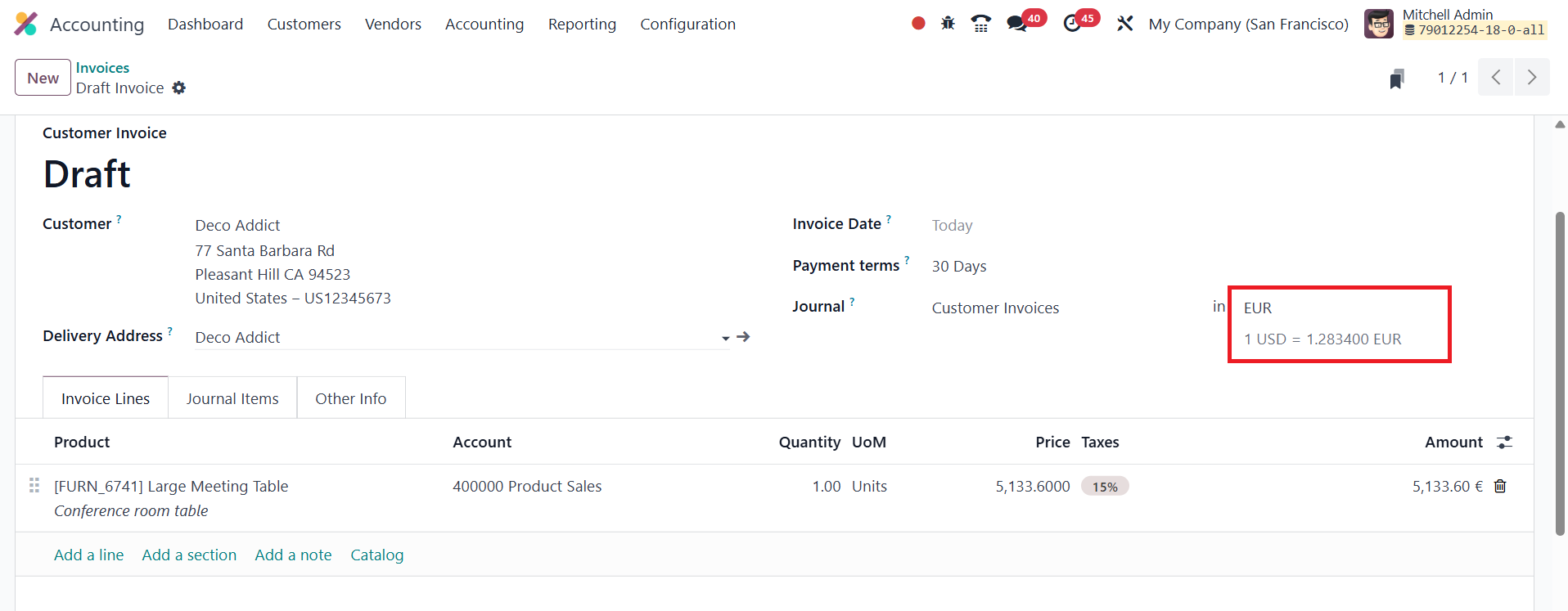
After confirming the invoice,
users can click the Print
button to generate the
invoice document.
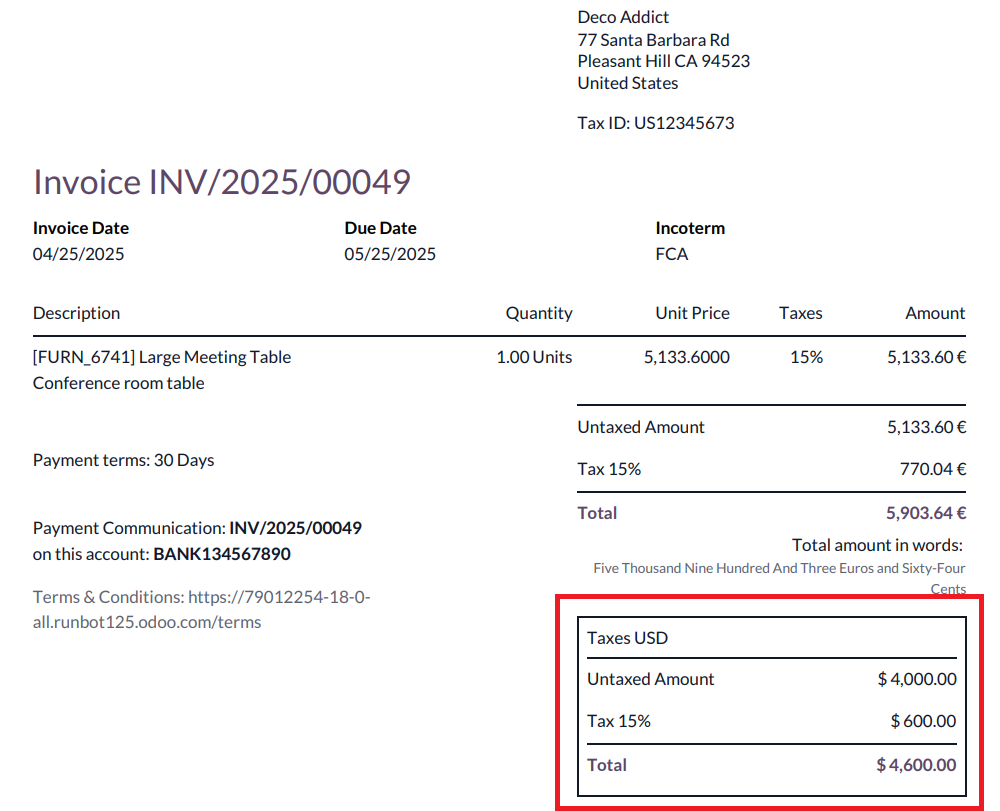
The tax amount will then be
visible in the company’s
currency, such as USD, under
the Taxes USD section. This
feature brings added
transparency and consistency
to multi-currency
transactions, supporting more
reliable tax documentation
and financial oversight.
47.2 Authorized Signatory on
Invoice
In Odoo 18, adding an authorized
signatory to invoices is a
valuable feature that
enhances the authenticity and
legal validity of financial
documents. This setup can be
easily managed through the
Accounting module. To begin,
navigate to the Configuration
Settings and locate the
Customer Invoices section.
Here, you’ll find the option
to enable the authorized
signatory feature.

Once this feature is activated, a
dedicated field labeled Legal
Signatory becomes available.
You can use this field to
assign an authorized
individual as the official
signatory for your invoices.
After selecting the
appropriate user, their name
and associated digital
signature (if configured)
will appear on all outgoing
invoices.
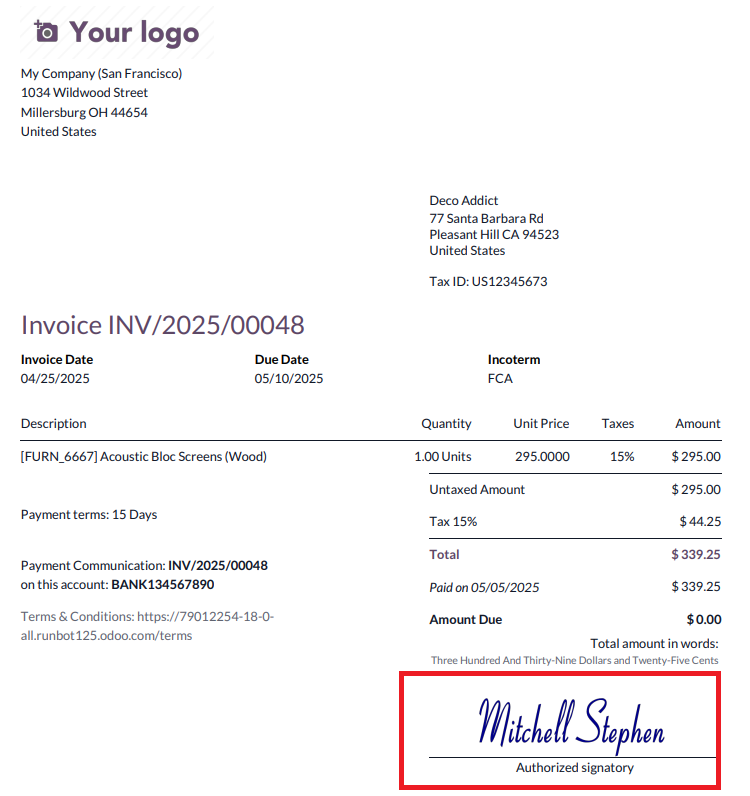
This feature not only helps
reinforce the professional
appearance of invoices but
also supports compliance with
business and legal standards,
especially in organizations
where approval hierarchies
are crucial.
47.3 QR Codes
QR codes in an e-invoicing system
provide a quick and efficient
way to access invoice
details, eliminating the need
for external references. Odoo
simplifies this process by
introducing the ability to
include payment QR codes on
invoices. This feature,
available in the Odoo 18
Accounting module, enables
businesses to offer clients a
seamless payment experience
by incorporating a QR code
directly on the invoice.
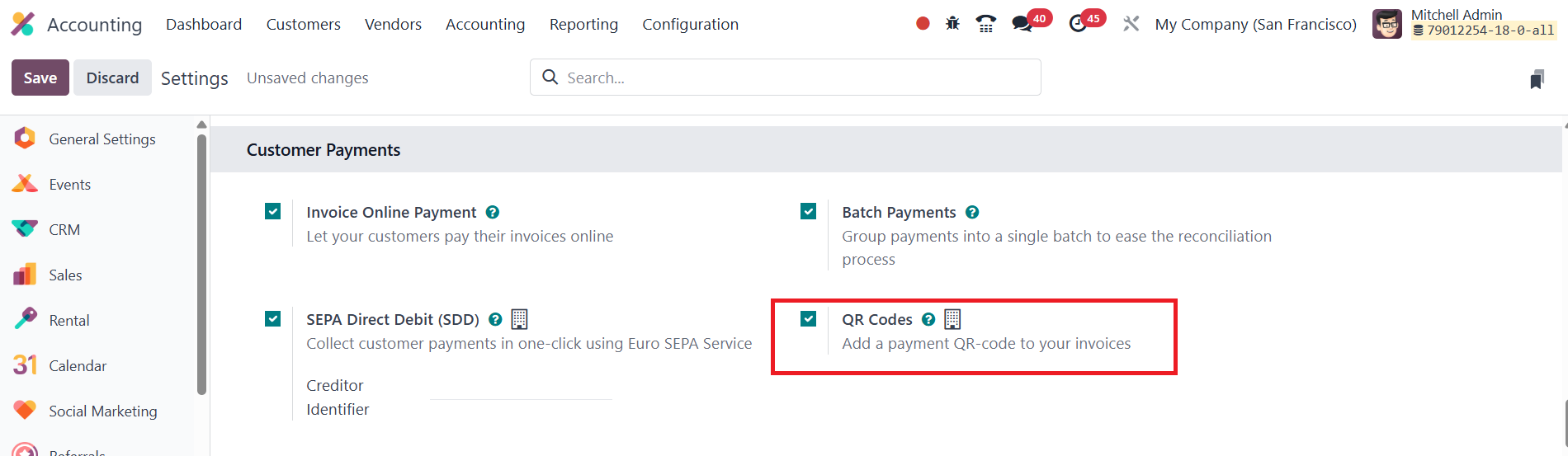
To set up payment QR codes in
Odoo 18, begin by navigating
to the Configuration menu and
selecting Settings within the
Accounting module. From
there, activate the QR Codes
feature under the Customer
Payments tab, and be sure to
save your changes. Once this
is done, you can choose the
type of QR code you wish to
generate for payment in the
Other Info section of the
invoice.
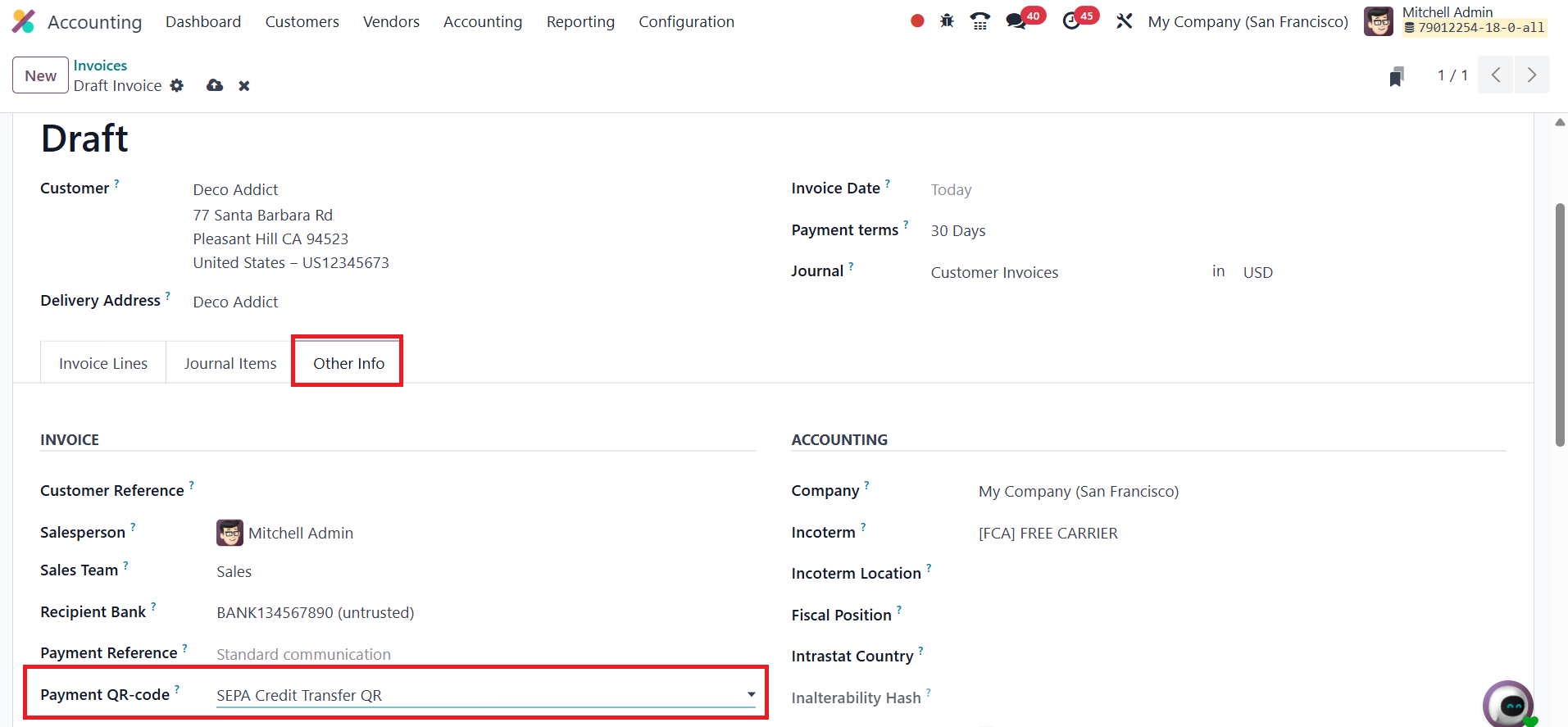
In this section, you will find
the Payment QR-Code field,
where you can specify the
kind of QR code to use. After
entering all the necessary
details, confirm the invoice
by hitting the Confirm
button. Clicking the Preview
button will open a preview
that includes the payment QR
code, allowing your clients
to easily scan and make
payments directly from the
invoice, streamlining the
payment process for both
businesses and customers.
47.4 Auto-Validate Bills
The Auto-validate Bills feature
in Odoo simplifies the
billing process by
automatically validating
vendor bills after they have
been imported, as long as no
changes are made to the bill.
Once you've imported three
bills for a specific vendor
without any modifications,
Odoo will suggest enabling
the automatic validation for
future bills from that
vendor.
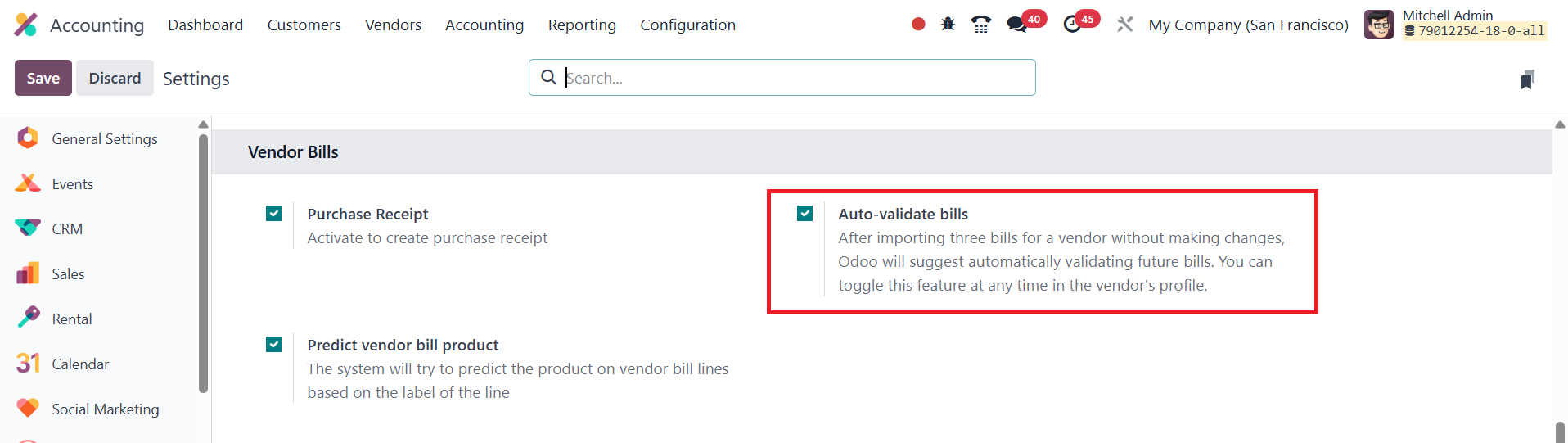
This feature can be toggled on or
off at any time in the
vendor’s profile, allowing
businesses to maintain
control over their billing
process while also benefiting
from the convenience of
automated bill validation.
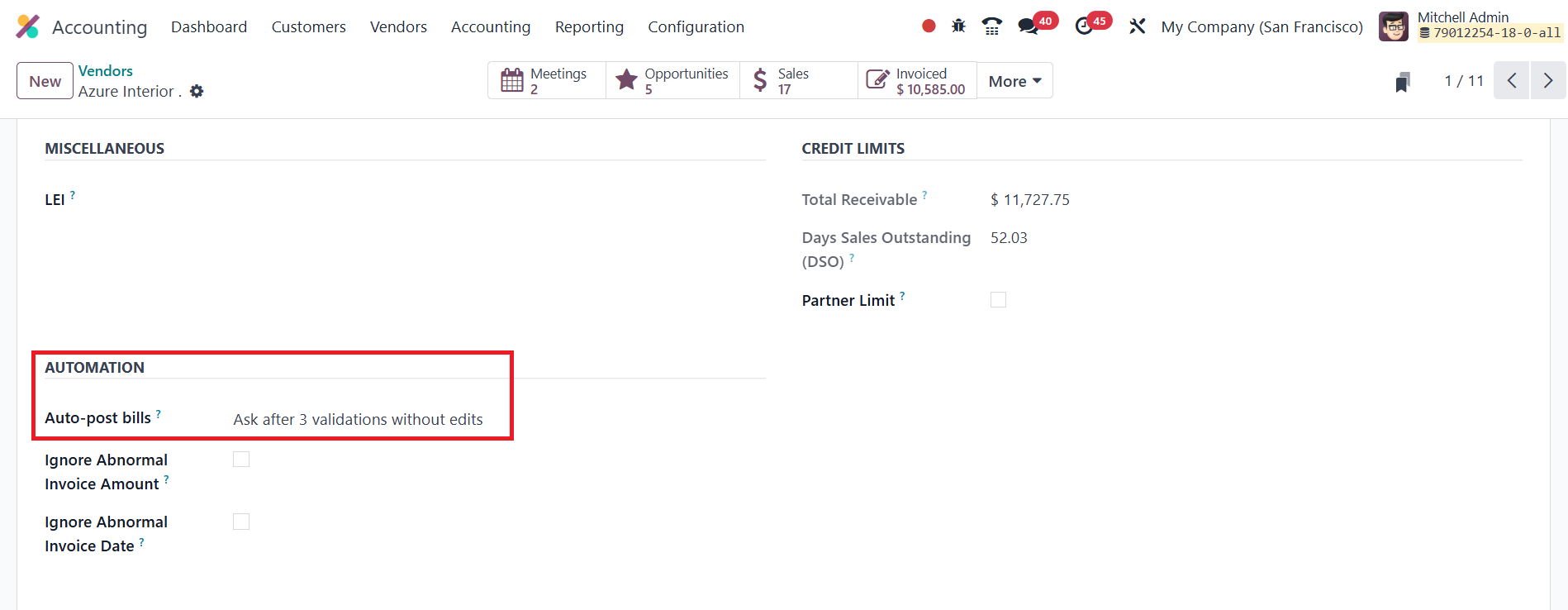
This streamlines workflows,
reduces manual oversight, and
ensures that bills are
processed efficiently without
unnecessary delays.
47.5 Invoicing Switch
Threshold
The Invoicing Switch Threshold in
Odoo 18 is an important
feature within the Accounting
module that allows businesses
to set a specific date to
control the inclusion of
invoices in accounting
entries.
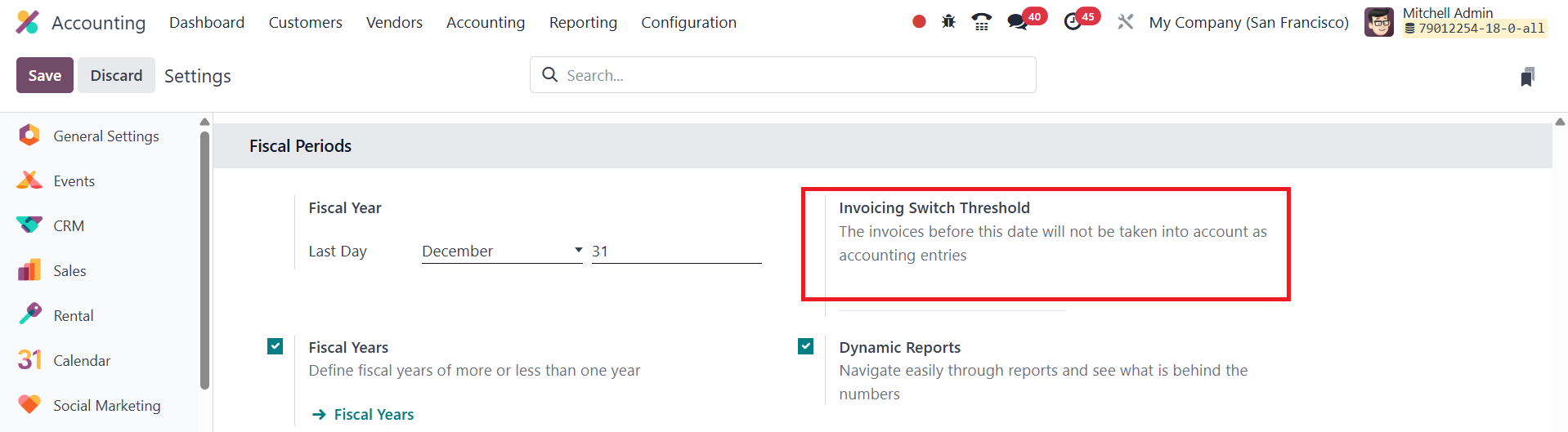
Once this threshold date is
defined, any invoices created
before it will not be
considered for accounting
entries, providing greater
flexibility in managing and
organizing financial data.
This option is particularly
useful for businesses that
want to streamline their
accounting processes and
ensure that only invoices
from a certain date forward
are included in the financial
records.
47.6 Dynamic Reports
In Odoo 18 Accounting, the
Dynamic Reports feature
allows users to easily
navigate through reports and
gain a deeper understanding
of the data behind the
numbers.
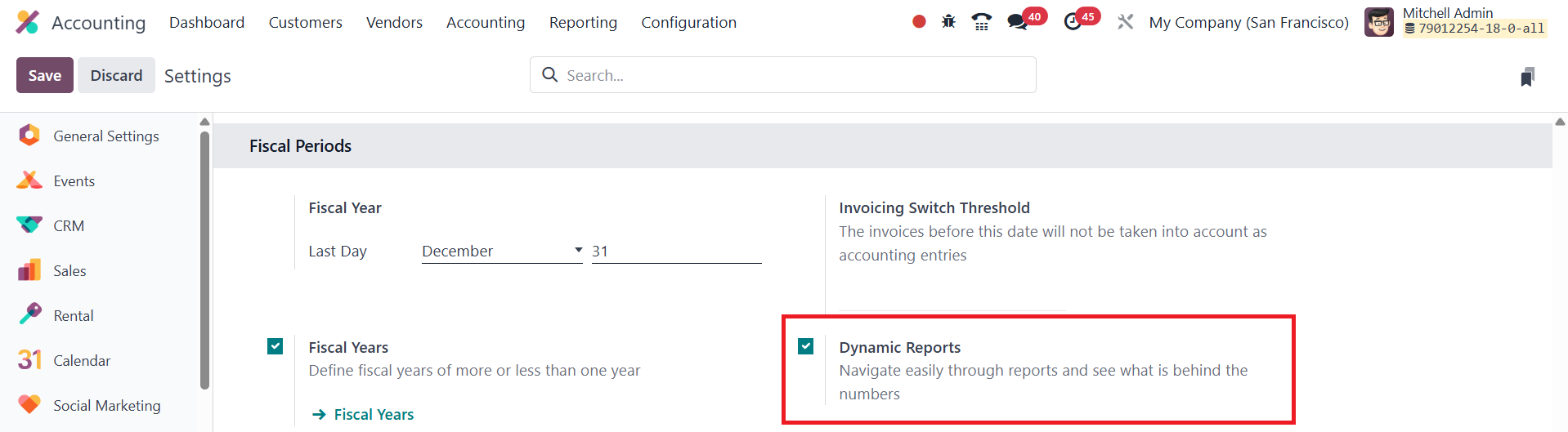
Once this option is enabled under
the Fiscal Period section in
the Settings, users can
quickly access the underlying
journal entries by selecting
the values within the
reports.
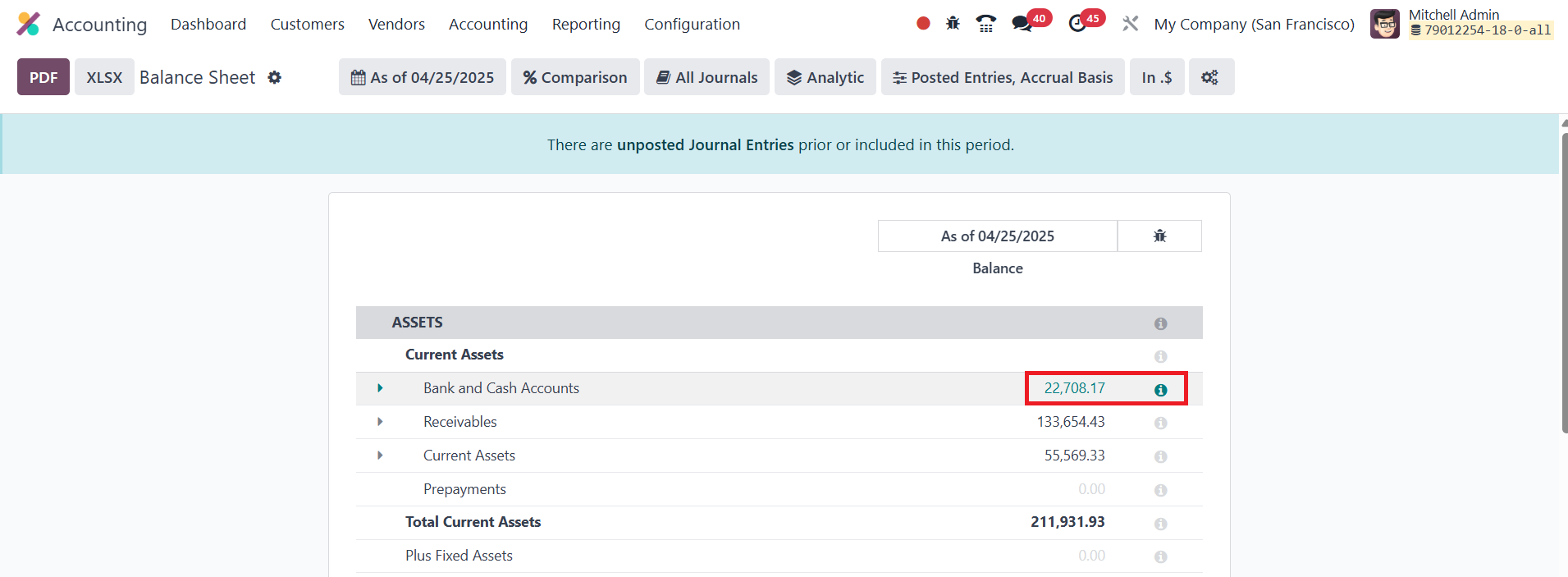
This functionality simplifies the
process of drilling down into
the details, helping users to
view and verify the exact
journal entries associated
with any figure shown in the
report.
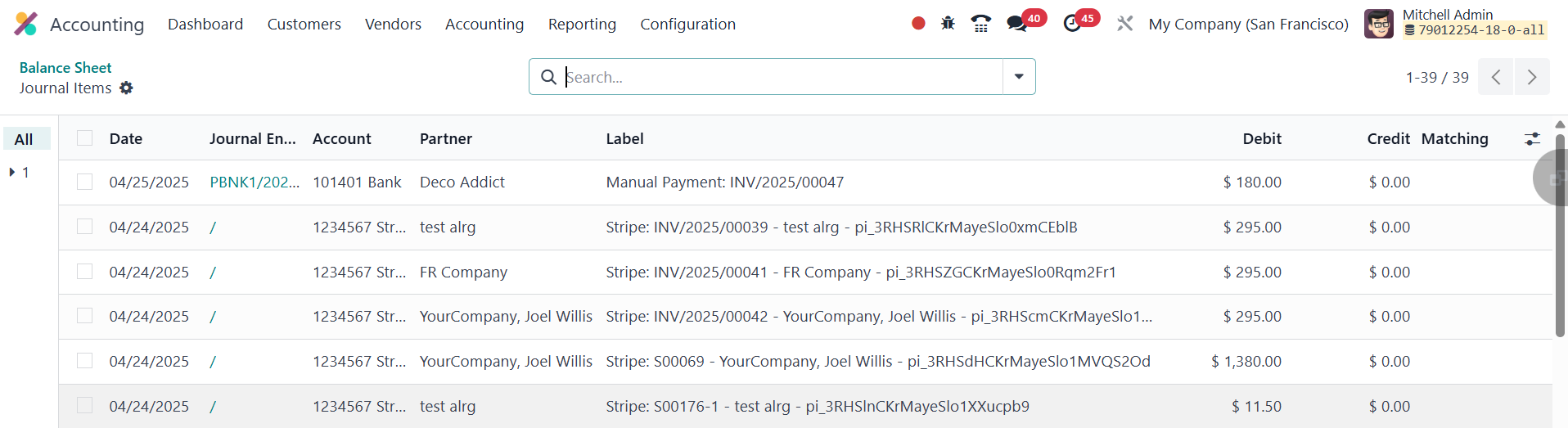
By clicking on a value in the
report, users are directly
linked to the corresponding
journal entries, making it
more efficient to trace the
source of the data and
ensuring greater transparency
in financial reporting.
47.7 Add Totals Below
Sections
In Odoo 18 Accounting, the Add
Totals Below Sections option
allows users to display
totals and subtotals at the
bottom of each section within
financial reports. When this
option is enabled, it
provides a clearer breakdown
of the figures by adding
summations of the values for
each section, improving the
readability and
comprehensibility of the
reports.
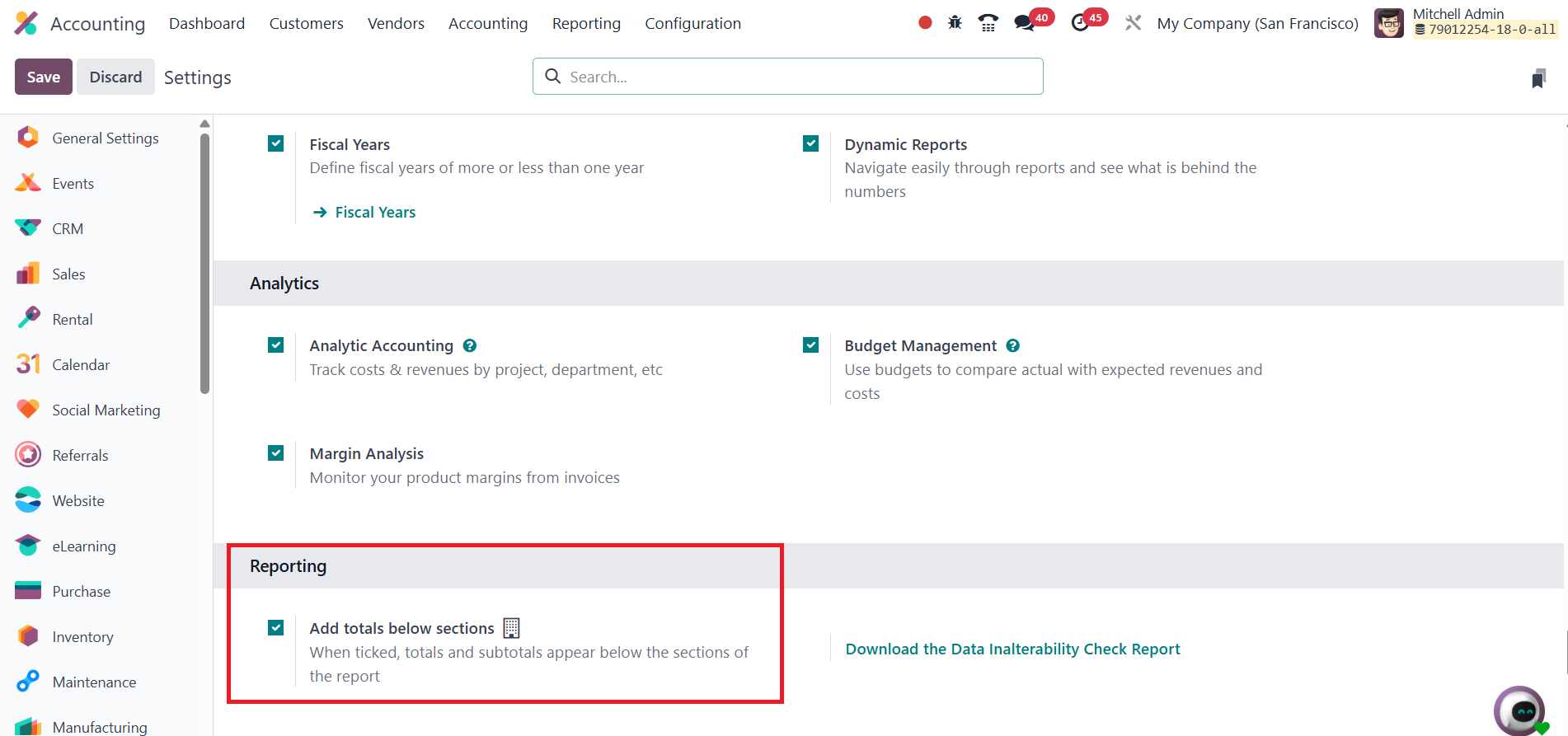
This feature is especially useful
for users who need to quickly
assess the overall totals for
specific categories, helping
them to better analyze the
financial data and make
informed decisions.
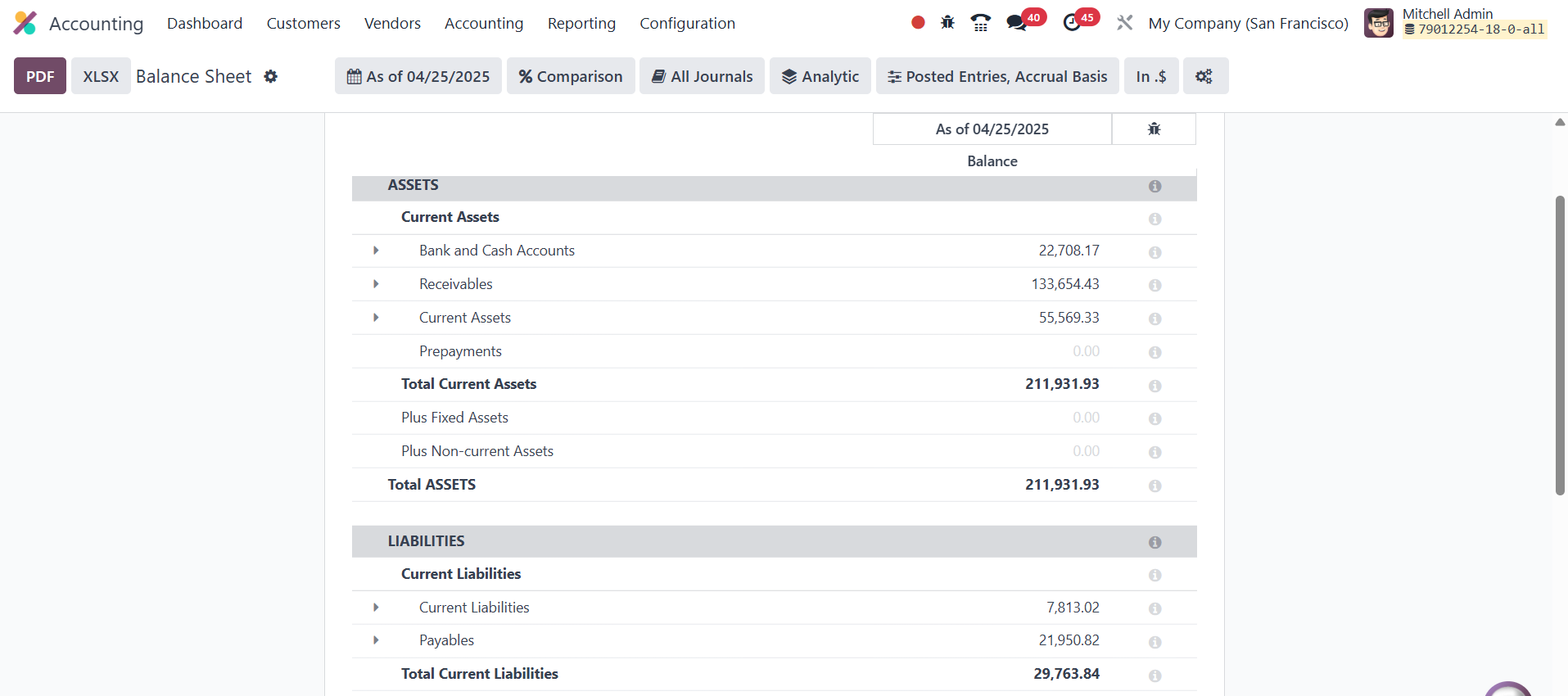
By ticking this option, users can
ensure that important
financial summaries are
readily accessible at the end
of each report section.
47.8 Accounting Firms Mode
The Odoo 18 offers the Accounting
Firm Mode, which is designed
to streamline and enhance the
invoice and bill encoding
process.
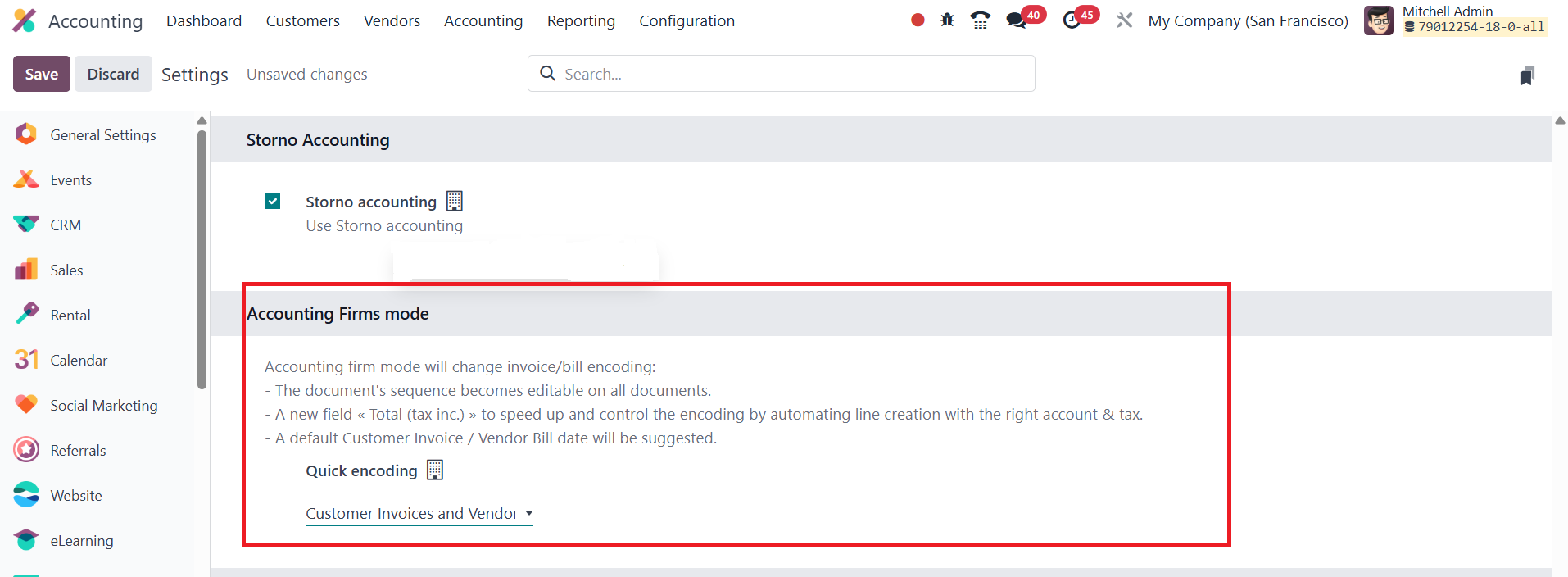
It is available in the Settings
menu of the Odoo Accounting
module. This feature is
beneficial for users who need
to modify invoice or bill
details more efficiently.
When activated, Accounting
Firm Mode provides several
key enhancements. First,
users can modify the sequence
number of invoices and bills,
allowing for better tracking
and organization of
documents. Additionally, the
default date for vendor bills
or customer invoices is
automatically recommended,
which eliminates the need for
manual date entry and speeds
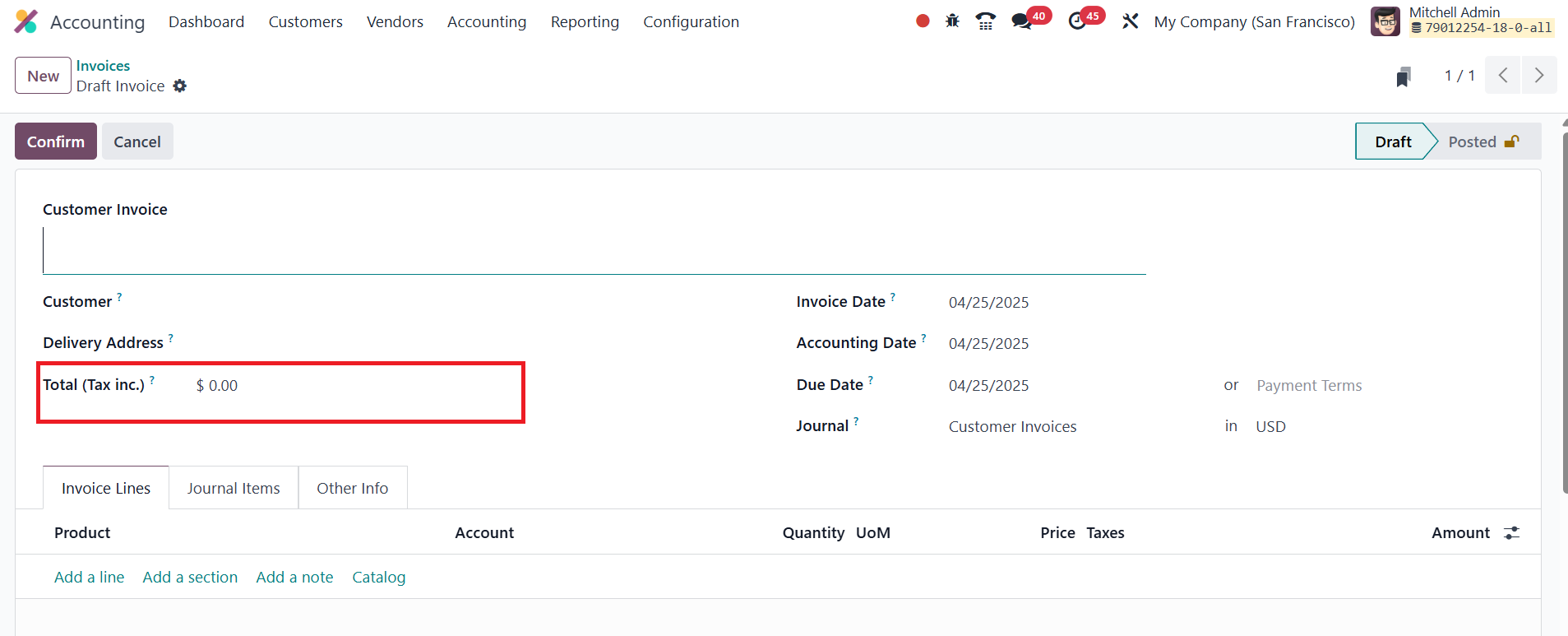
up the process. The feature
also includes a new field
called Total (tax inclusive),
which helps automate the
creation of lines with the
correct account and tax,
ensuring more accurate
encoding.
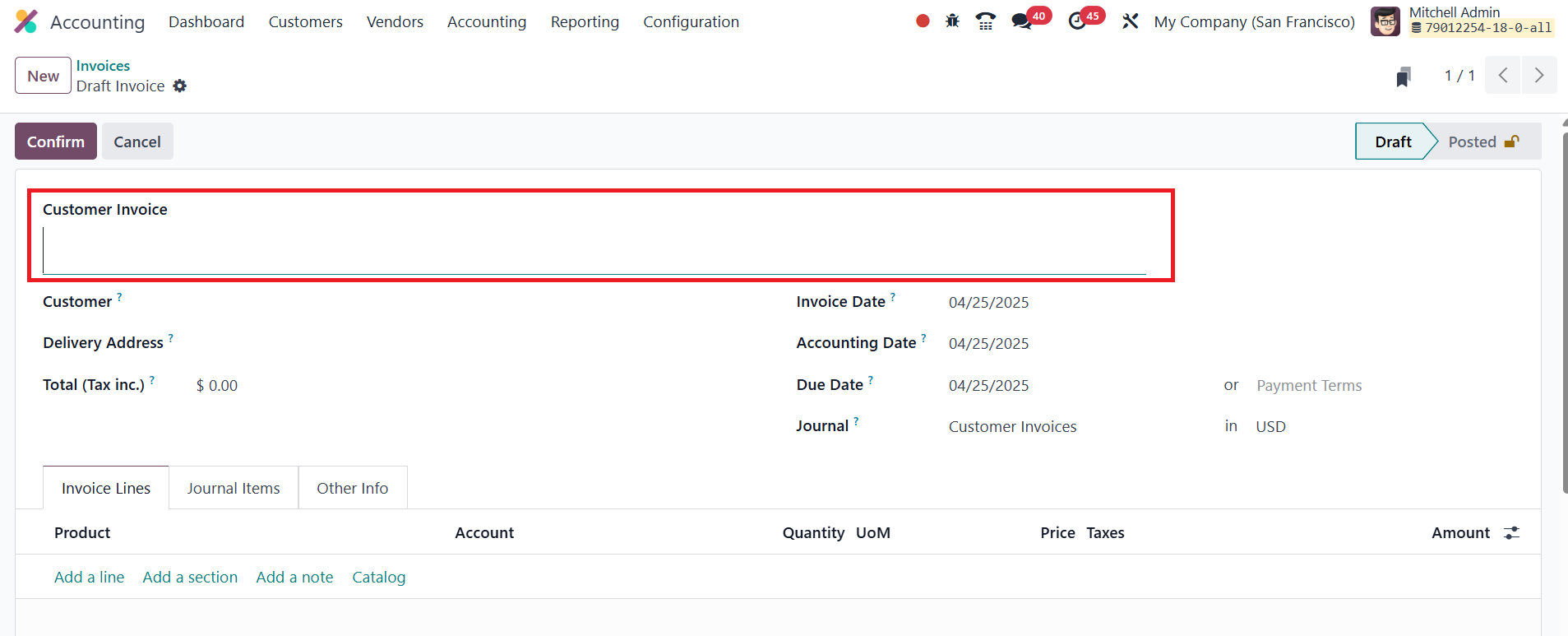
In practical terms, this mode
enables users to specify a
personalized invoice sequence
number during invoice
creation, and Odoo will
automatically append the bill
date and accounting date.
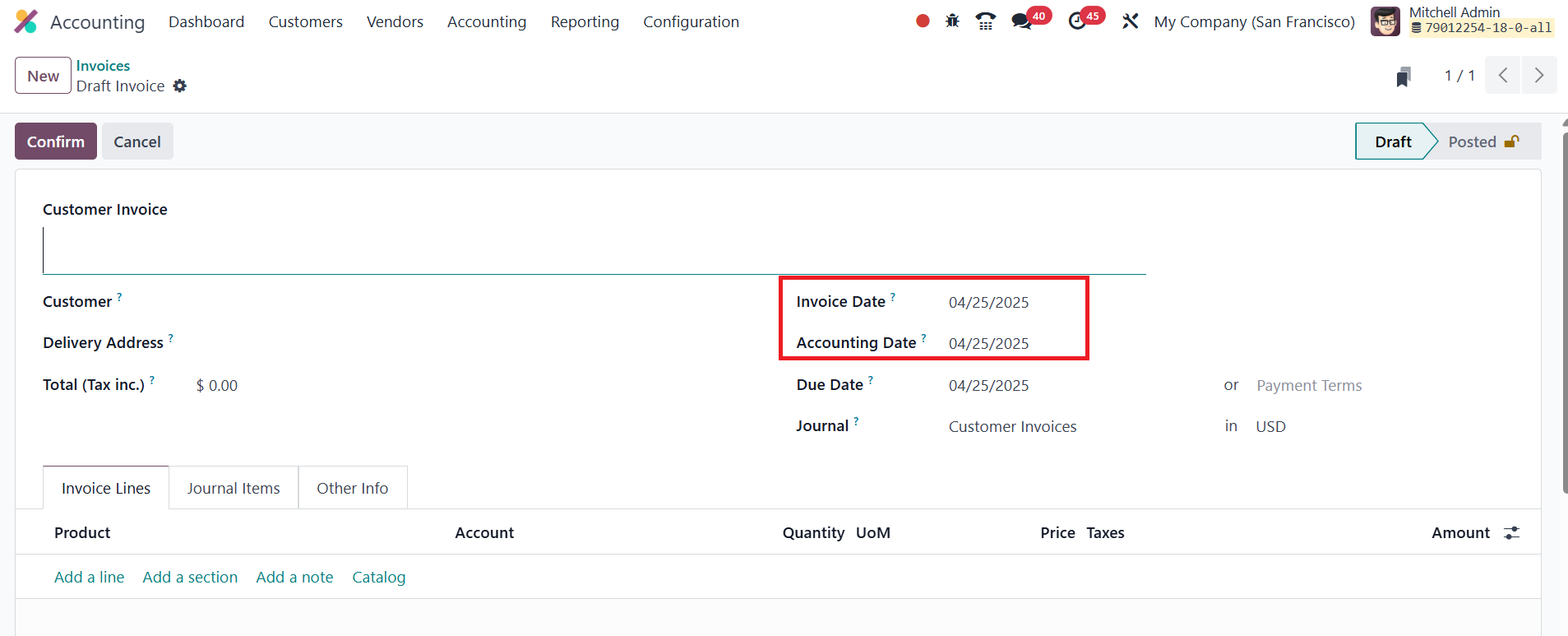
While these dates are suggested,
users still have the option
to modify them if necessary.
Furthermore, the Accounting
Firm Mode allows users to
enter the total price,
including tax, before adding
products to the invoice line,
with Odoo automatically
adjusting the pricing based
on that input.
This series of enhancements
simplifies invoice and bill
management, making the
process faster and more
accurate for users.
47.9 SEPA Credit Transfer /
ISO20022
SEPA, or the Single Euro Payments
Area, is an EU initiative
aimed at streamlining and
harmonizing euro-denominated
bank transfers across member
countries. It enables
businesses to automate bank
wire transfers by sending
payment instructions directly
to their banks in a
standardized format. In Odoo
18 Accounting, to make use of
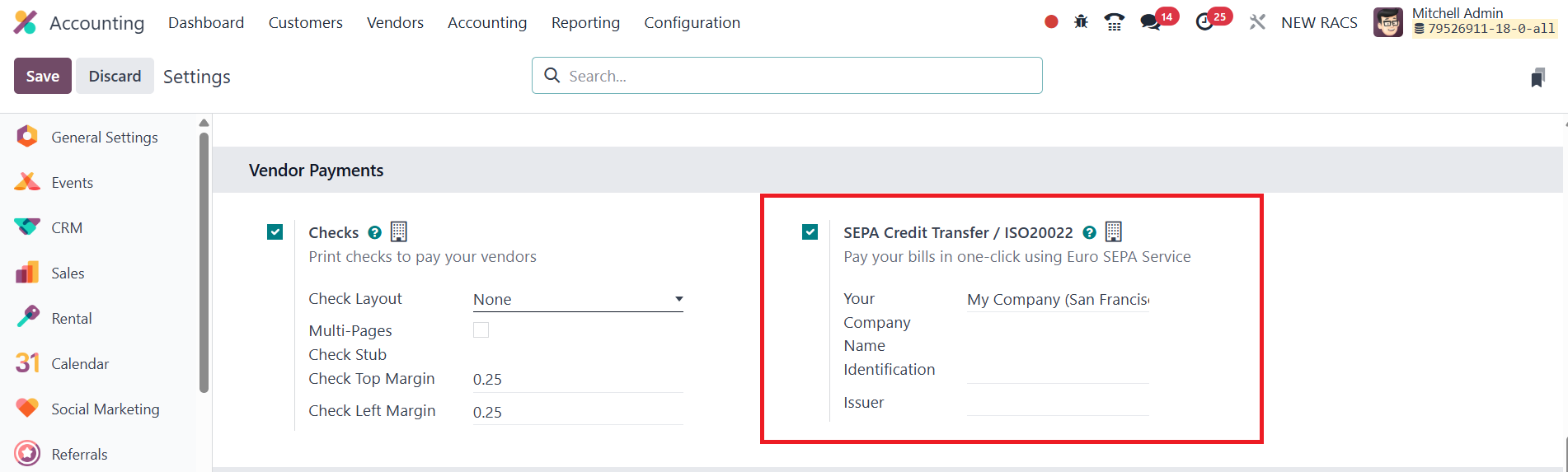
SEPA for vendor payments, you
need to activate the SEPA
Credit Transfer (SCT)
feature. This can be done by
navigating to Accounting >
Configuration > Settings >
Vendor Payments and enabling
the SEPA Credit Transfer
(SCT) checkbox.
Once activated and your company
information is properly
filled out (including IBAN
and BIC details), you can
select SCT as a payment
method while paying vendors,
allowing for smooth and
compliant processing of euro
payments through SEPA. In the
specified fields, mention the
Identification and Issuer.
To activate SEPA payment methods
on bank journals in Odoo 18,
go to the Accounting
Dashboard, locate your bank
journal and click on the
three-dot menu (⋮) to open
additional options.
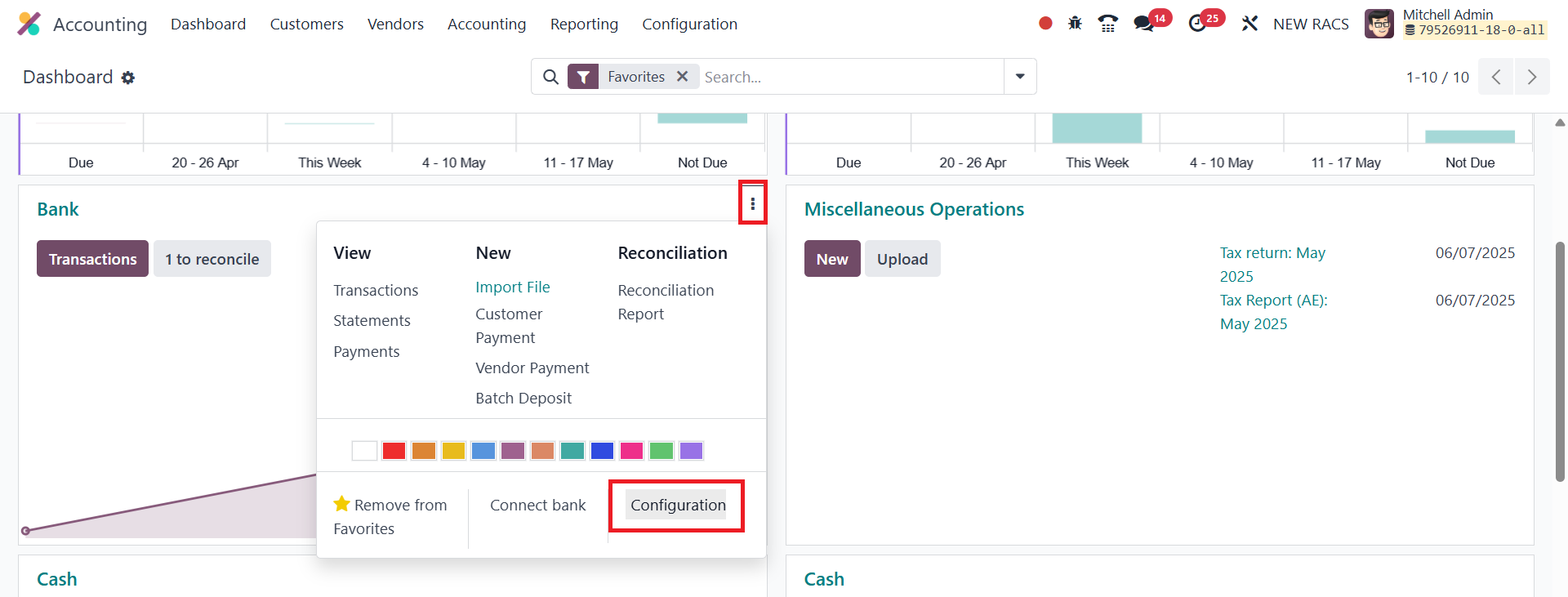
Choose Configuration from the
dropdown.
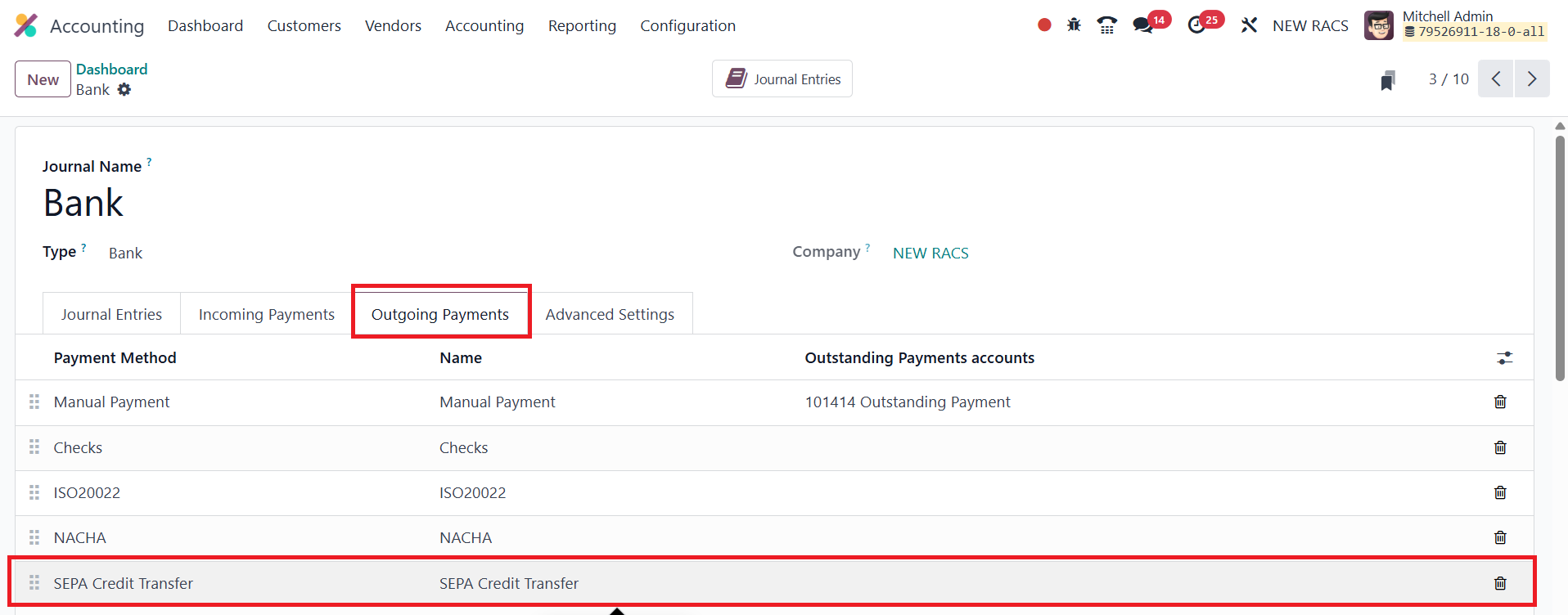
In the Outgoing Payments tab of
the bank journal settings,
ensure that SEPA Credit
Transfer is selected under
Payment Method. If it’s not
already listed, you can add
it using the "Add a line"
option.
In Odoo 18 Accounting, you can
register vendor payments made
via SEPA Credit Transfer with
ease. To do this, navigate to
Accounting ‣ Vendors ‣
Payments, and when creating a
new payment, simply select
SEPA Credit Transfer/
ISO20022 as the Payment
Method.
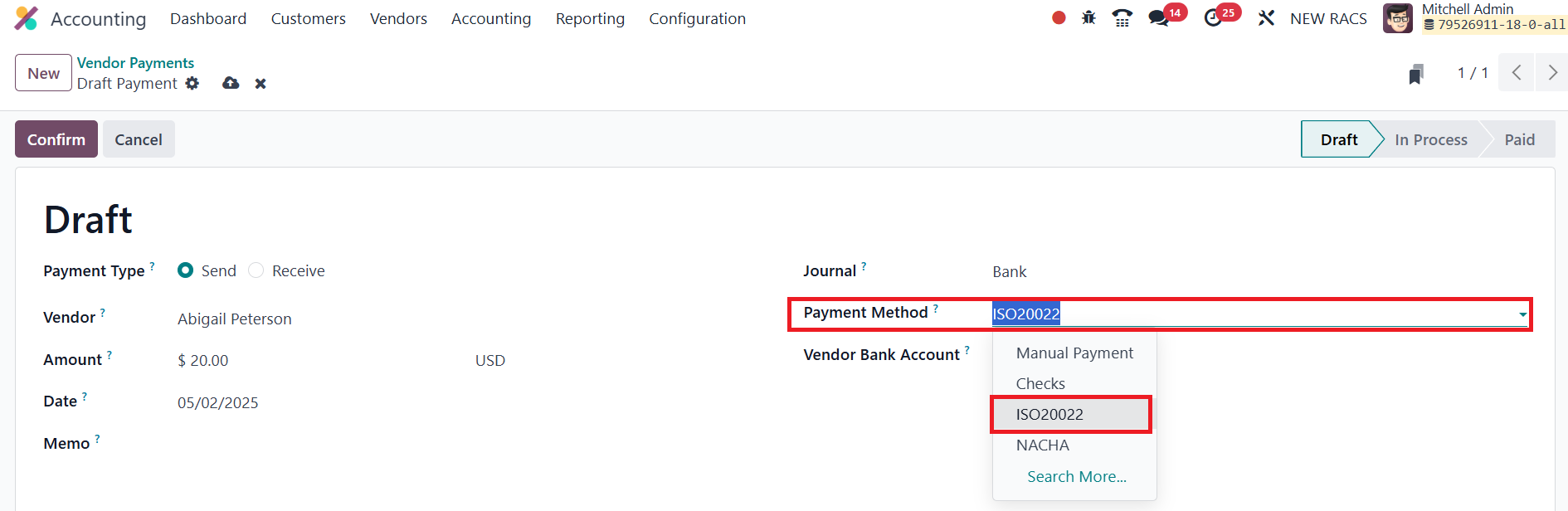
For the first SEPA payment to a
vendor, you must fill out the
Recipient Bank Account field
with IBAN, and BIC (Bank
Identifier Code). Odoo will
automatically validate the
IBAN format to ensure it
meets international
standards. For subsequent
payments, Odoo will remember
and automatically suggest the
previously used bank account
details. However, you still
have the flexibility to
select a different account if
needed.
Once the payment is recorded,
make sure to confirm it.
Alternatively, if you're
paying a vendor bill
directly, you can use the Pay
button at the top of the
bill. This method opens the
same payment form, but links
the payment directly to the
bill, allowing automatic
reconciliation between the
bill and the payment.
47.10 Stock
Valuation
Under the Stock Valuation tab in
the Settings menu of Odoo 18
Accounting, the General
Account Properties field
includes configuration
options such as the Income
Account and Expense Account.
The Income Account is the
account that records the
revenue generated from the
sale of stockable products.
It reflects the income side
of stock transactions and is
essential for recognizing
sales in your financial
statements. The Expense
Account, on the other hand,
records the cost associated
with purchasing stockable
products. It reflects the
outgoing value when stock is
received or consumed and is
important for accurate cost
accounting and profit
calculation.
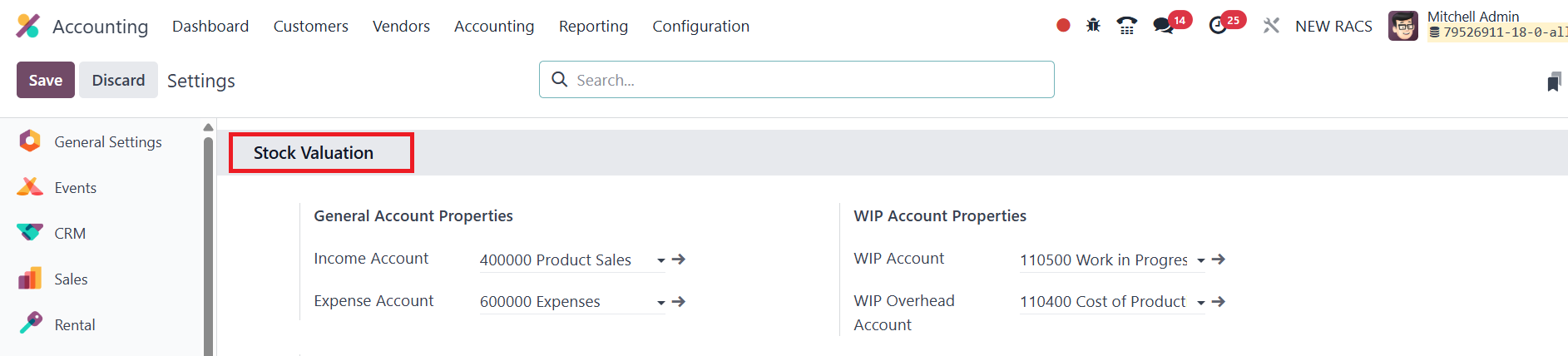
These account fields are
essential for automating the
financial impact of inventory
movements and ensuring that
income and expenses related
to inventory are properly
tracked in your books.
In Odoo 18 Accounting,
Work-in-Progress (WIP)
accounts are used to track
the value of unfinished goods
during the production
process. These accounts
temporarily hold the costs
incurred; such as materials
and labor, until the
manufacturing of the product
is completed. Once the
production is finalized, the
accumulated costs are
transferred from the WIP
account to the appropriate
inventory or expense account.
Two key types of WIP accounts can
be configured:
- WIP Account: This account
stores the direct
production costs
associated with goods
in progress. It
typically includes raw
materials consumed and
any direct labor
applied during the
manufacturing phase.
- WIP Overhead Account:
This account tracks
the indirect
production costs, such
as factory overheads
(utilities,
depreciation, etc.),
that are associated
with goods under
production but not
directly tied to any
one unit.
By using both accounts,
businesses can accurately
capture and allocate total
production costs, ensuring
proper valuation of inventory
and better visibility into
manufacturing efficiency.
Odoo 18 Accounting continues to
enhance business efficiency
with its comprehensive
features, ensuring
streamlined financial
management. With these
advanced tools, companies can
simplify their accounting
processes, improve accuracy,
and stay ahead in a rapidly
evolving financial landscape.