4. Configuration
Under the configuration, you have reminders, resources, resource
leaves, and invitations.By choosing the "Reminders" option from the
Calendar module's settings, you can set either offline or online
appointment reminders.
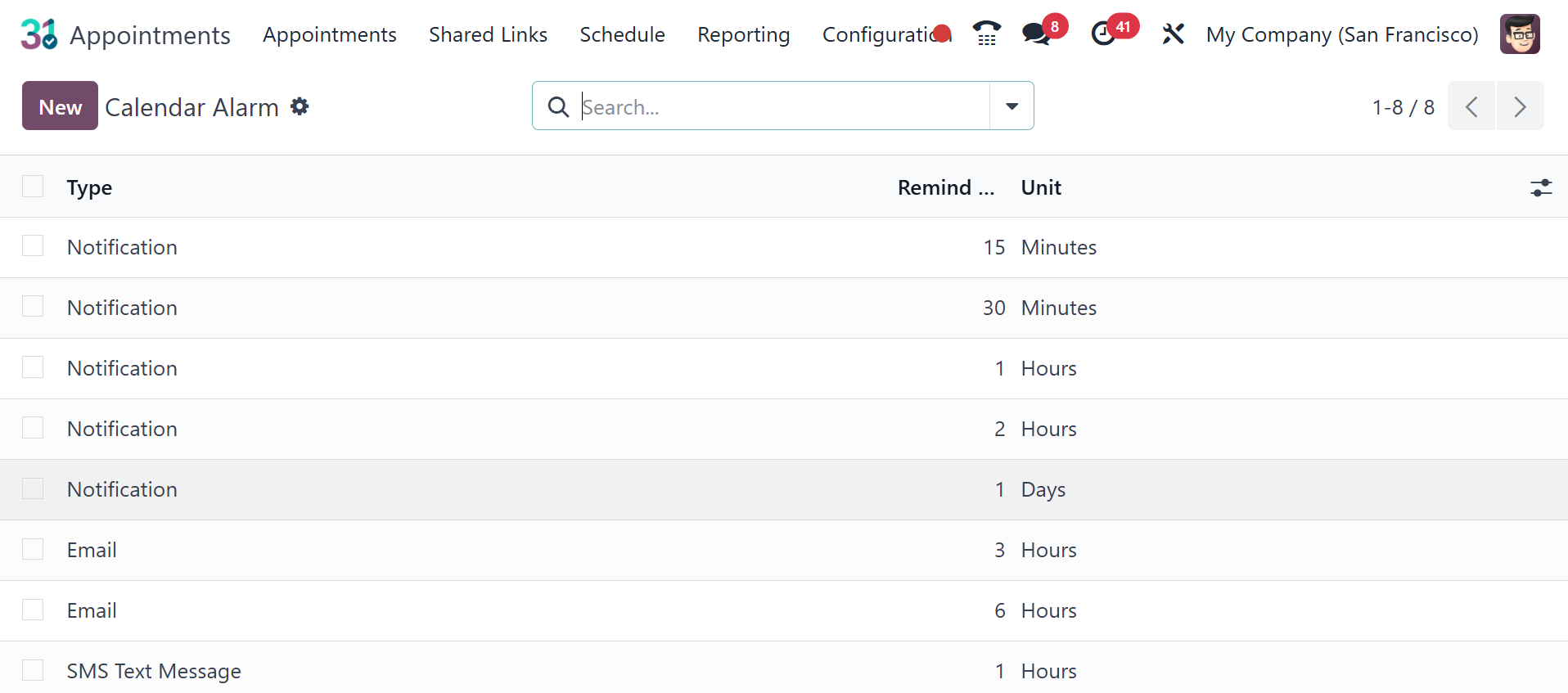
This function in the Calendar module allows you to be reminded of
forthcoming appointments. Multiple reminders can be created to
assist employees in remembering certain appointment. Calendar alarms
can be created in the reminders section of the settings menu.
On this page, you can view all of the notifications that have been
configured for certain appointments. The page's information provides
choices for types, units, and previous reminders. To set an alarm or
reminder similar to the appointment, just click the New icon on the
left side of the screen.
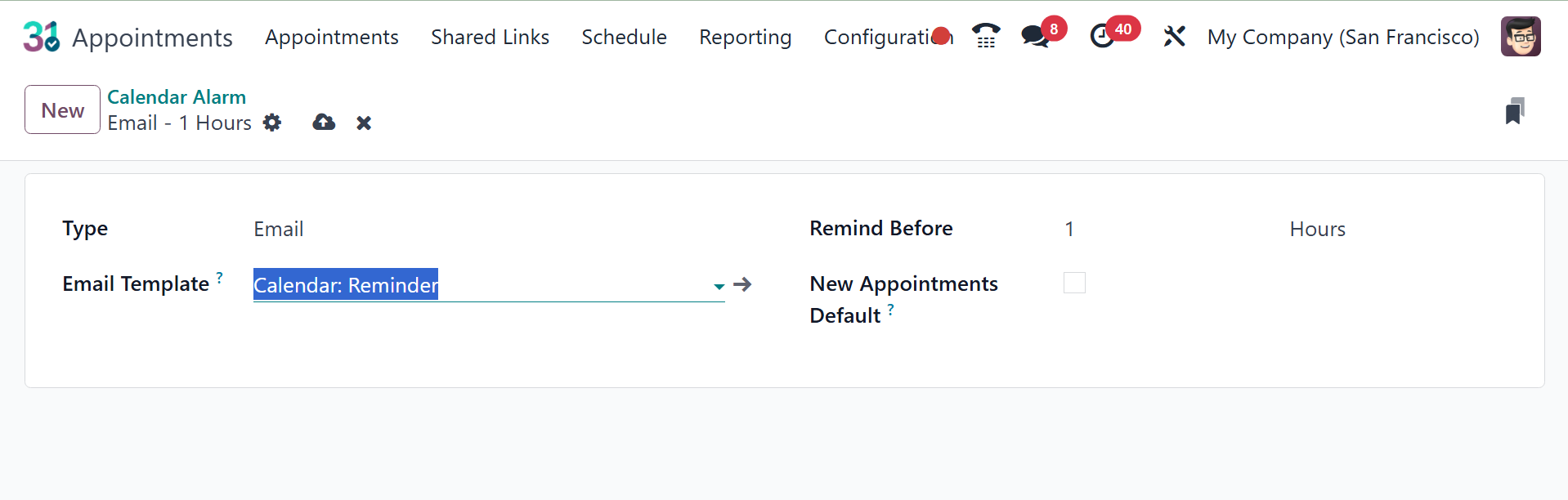
Here, you can select the "Type" of reminder in the first space that
becomes available. The format can be emails, SMS, or notifications.
There's also space for you to add the Email Template. With the
Remind Before option, you can now set the alarm to sound at a
specific time, even minutes, hours, or days before the appointment.
You can also enable the new appointments default option to add
alarms to new appointments. Click the Save icon now to add this
newly created alarm to the existing list.
4.1 Resources
The Resources is a new feature that came with Odoo 18. The setup has
a resources option. The page lists capacity and appointment
resources. You can search or filter the group according to your
choices to generate a new resource. Choose the "New" option.
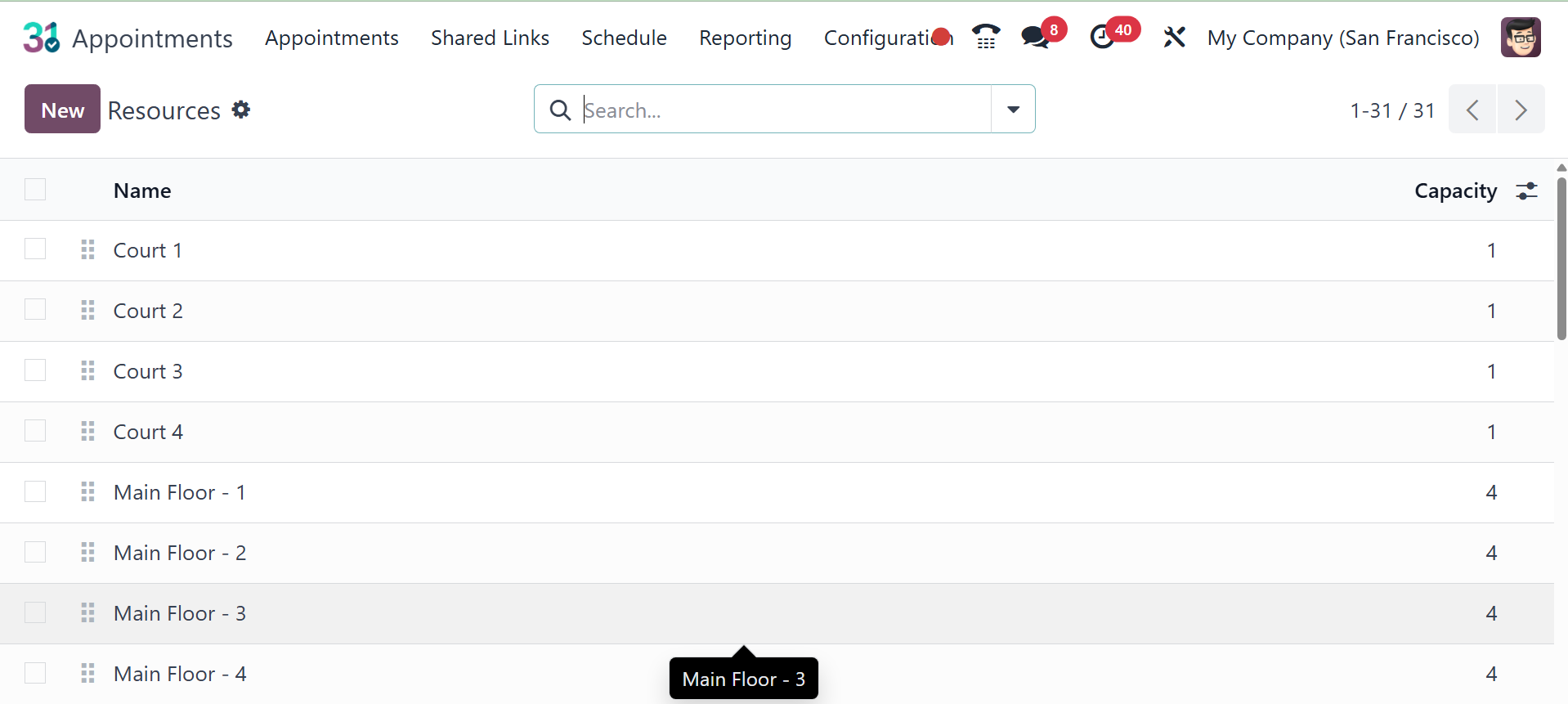
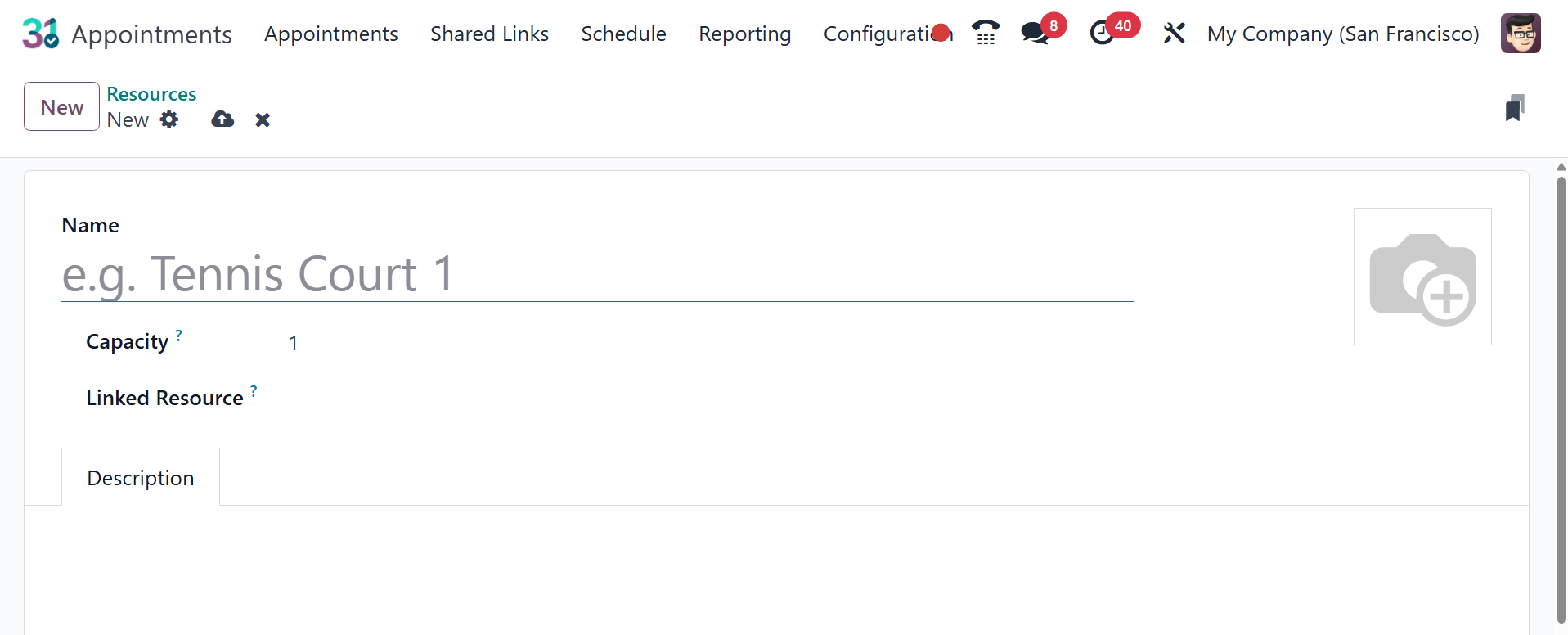
The Appointment Resource field on the creation page now includes the
resource name. In the Capacity area, you can select the resource's
maximum user count. A list of resources that cooperate to meet high
requests can be added to Linked Resources. You can also use the
supplied area to select the opening hours. The Description tab can
contain any description of the resources.
4.2 Resource leaves
Setting up times when a resource, such as a meeting space, table, or
tennis court, is unavailable is known as "resource leave." This
effectively blocks appointment availability by guaranteeing that the
resource cannot be reserved during specific times.
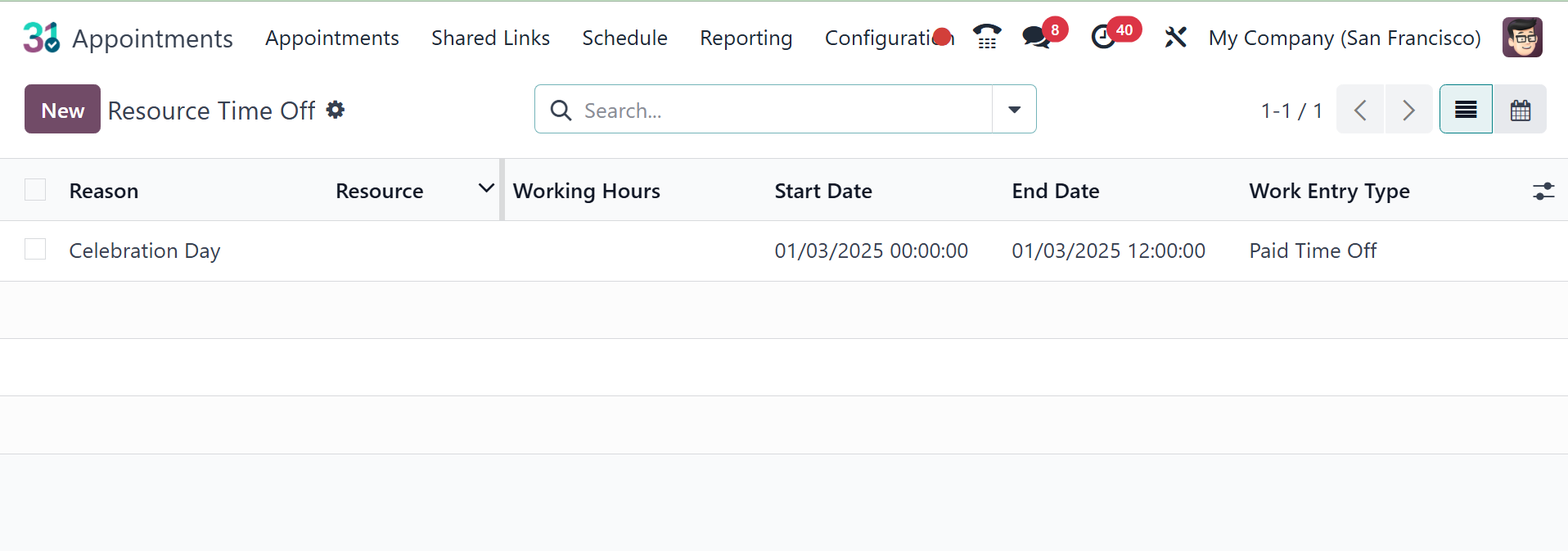
To create a new resource time off, go to the NEW icon, as shown in
the image below.
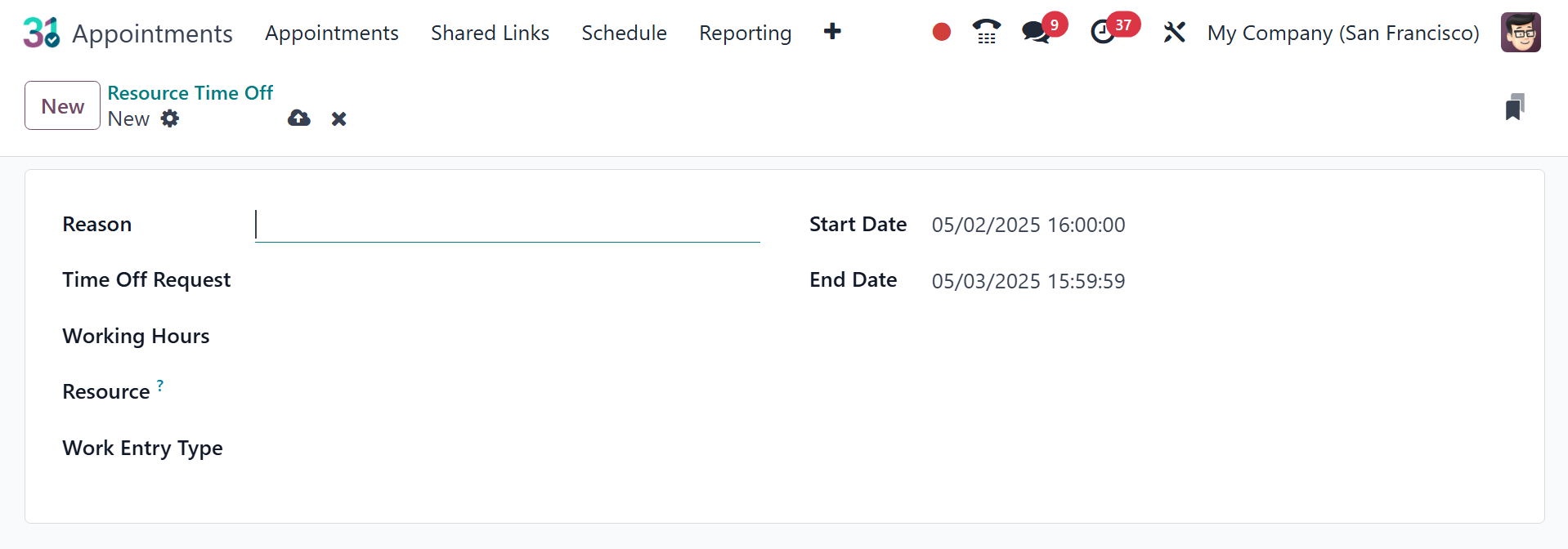
Here, provide the reason for the resource time off, time off request,
working hours, resource, work entry type, start date, and end date,
respectively. Finally, save the data provided.
4.3 Invitations
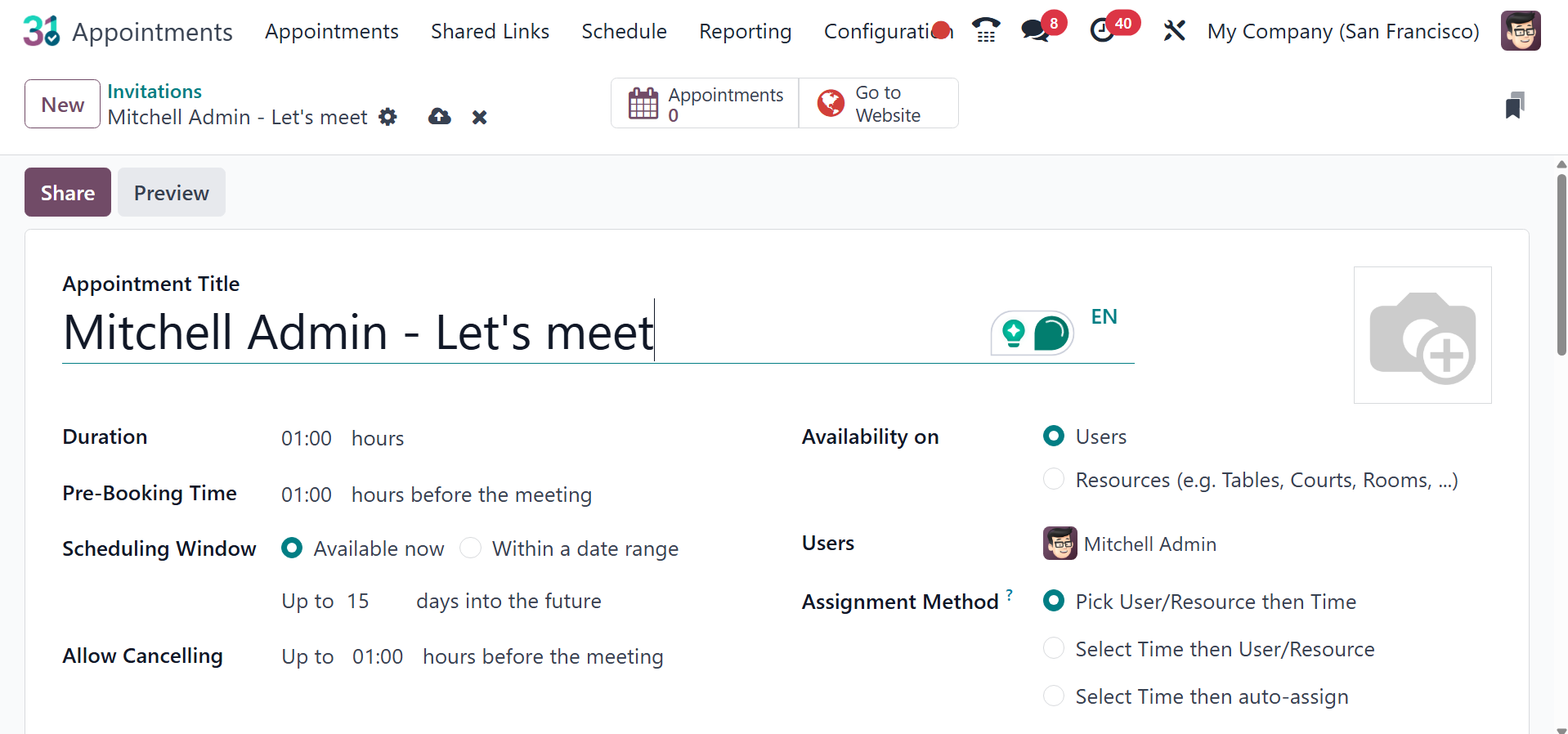
Within the Invitations, which can be found in the Configurations
menu, a new offline appointment can be made. Click the New button to
create a new invitation. An appointment form is comparable to the
creation form.
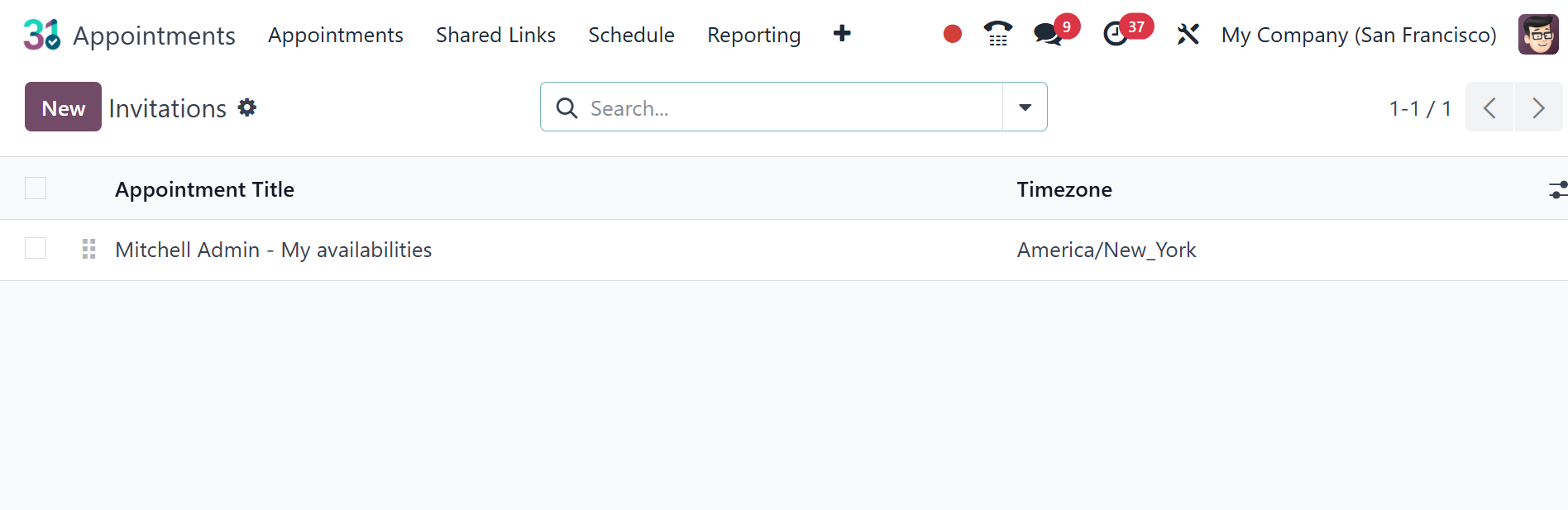
The new page will be as in the image below, which will be the same as
that of creating an appointment.