3. Configuration
Users can manage extra settings related to employee attendees with
Odoo 18 Attendance's Configuration functionality. A Settings window
appears after the user selects the Configurations tab. Modes, Kiosk
Settings, and Extra Hours are the three sections that the user can
view in the Settings window.
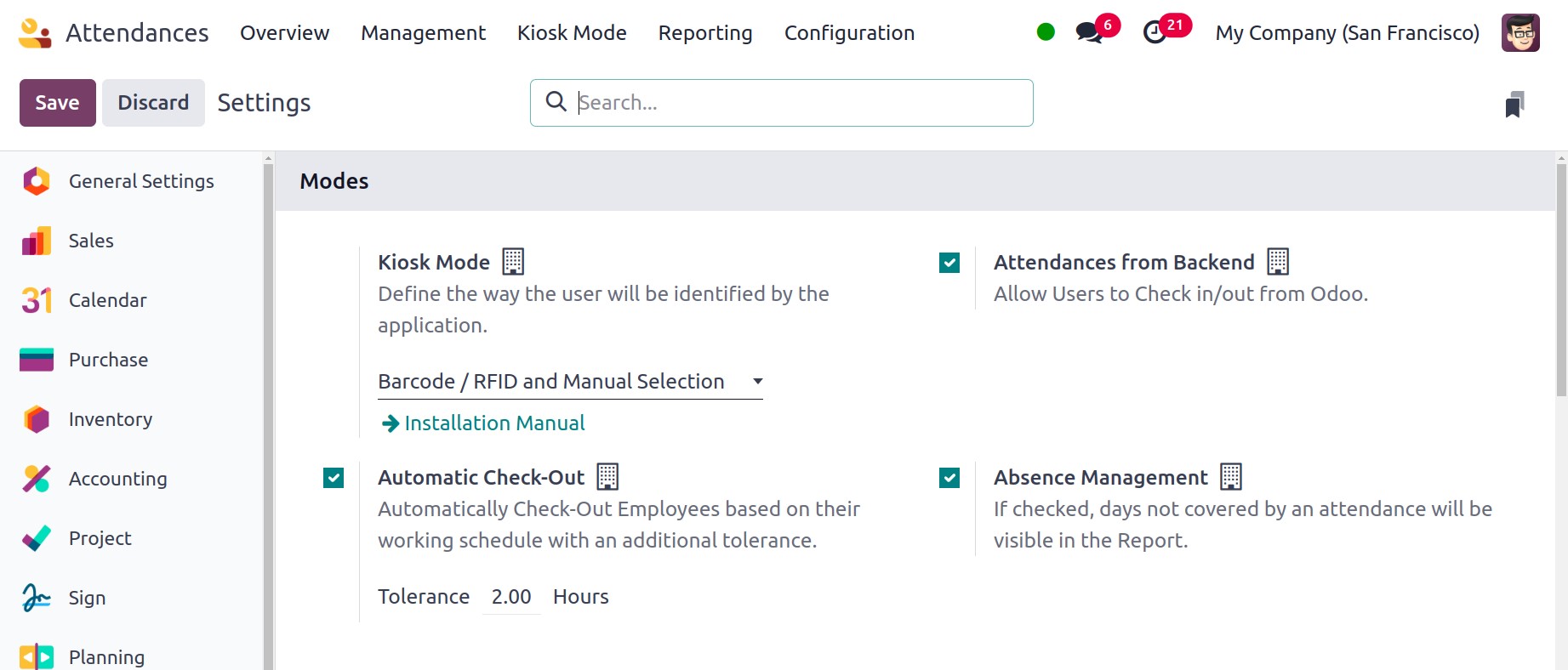
After choosing a Mode, users can customize how the kiosk application
will identify them in the Kiosk Mode area. The Attendances From
Backend feature then allows users to log in and out of Odoo.
Automatic check-out option helps automatically check-out employees
based on their working schedule with an additional tolerance.
Absence management option if checked, days not covered by attendance
will be visible in the report.
Users are able to recognize each application as soon as they access
the Kiosk Settings area. Under the Barcode Source option, you can
discuss the camera that was used to scan the barcodes. You can set
the number of seconds that a greeting message will play in the
Display Time option. An employee can use PIN codes to log in to work
after the Employee PIN identification field has been activated.
After entering all check-in and check-out information in kiosk mode,
click the SAVE icon.
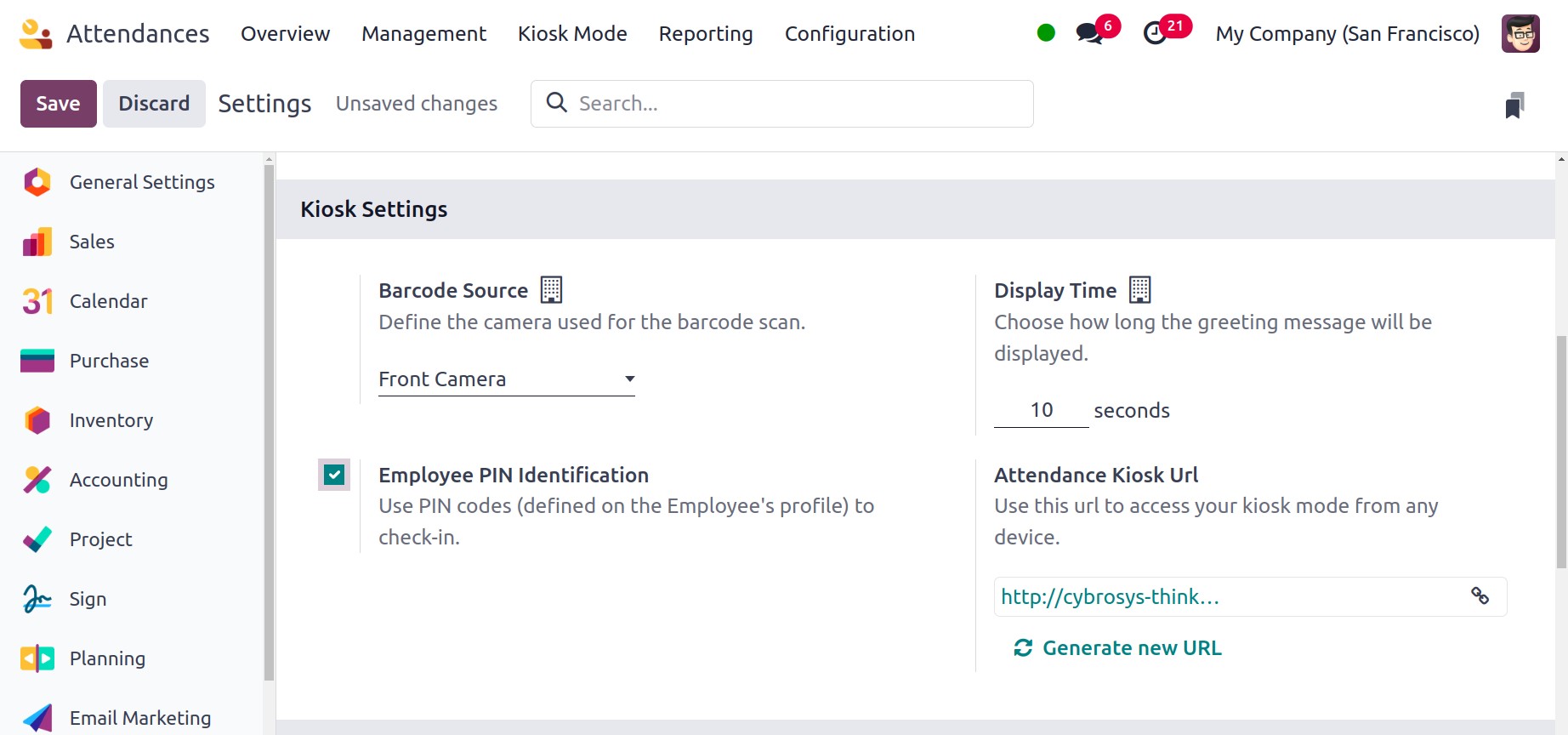
Participation accesses your kiosk mode on any device by using the URL
supplied in the Attendance Kiosk Url section. Note that your kiosk
is open to anybody with a connection. In the event that your address
has been compromised, you can create a new one by refreshing it.
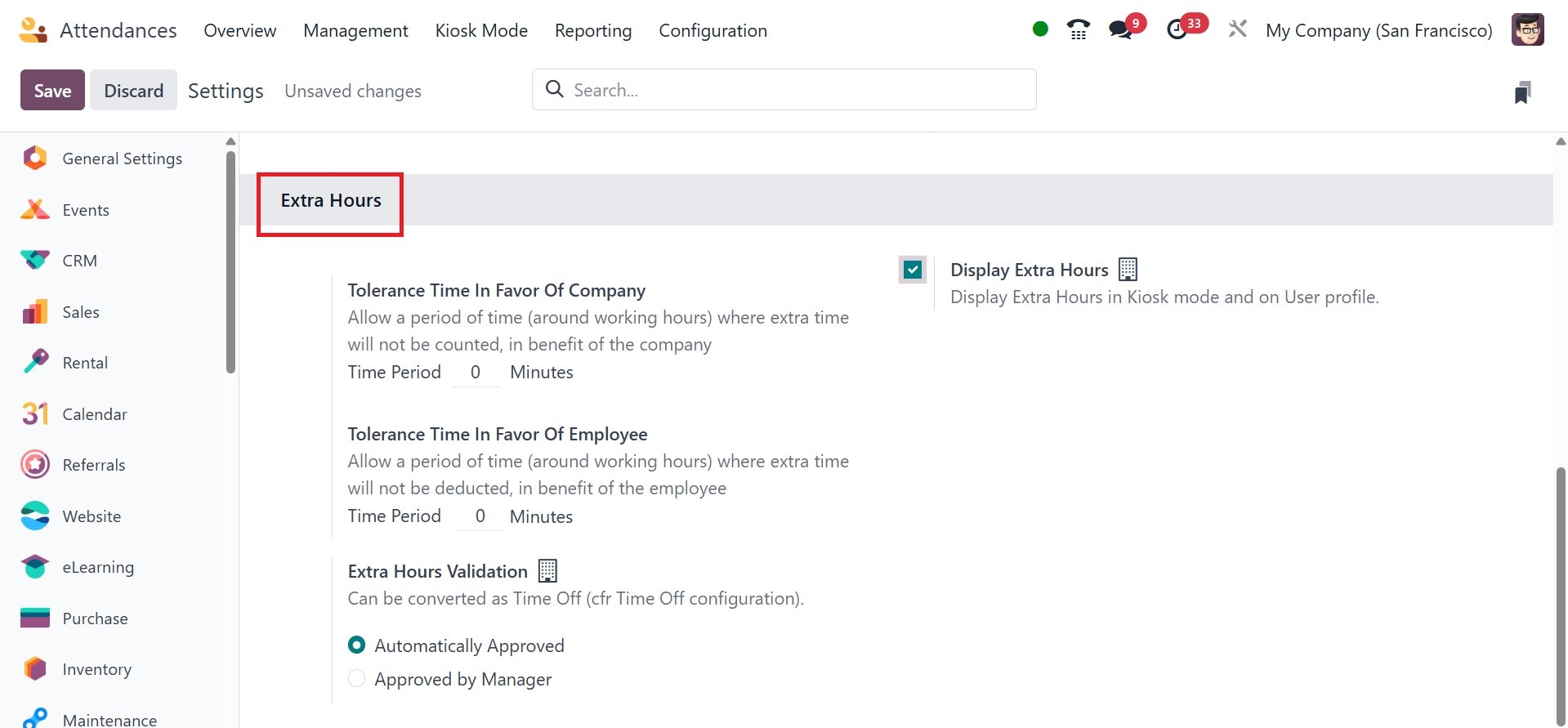
The next step is to manage the Extra Hours that have been established
in the Odoo 18 Attendance module. Under the Extra Hours option, you
may establish a tolerance period that is advantageous to both the
employer and the worker. Within the Tolerance Time in Favor of the
Company, you can promptly give the company certain working hours.
The time that benefits an employee and from which extra time is not
deducted should also be entered in the Tolerance Time in Favor of
Employee field. Display extra hours option displays extra hours in
kiosk mode and on user profile. And the Extra Hours Validation
option is used to convert time off. It can be automatically approved
or approved by the manager.