2. Kiosk Mode
With Odoo18's kiosk mode, you may interact with your business in a
new way. By selecting the Kiosk Mode option in the Attendance
module, you can access this method. The "Install" option under Kiosk
Mode of Odoo's Attendance module refers to installing the Kiosk App,
which enables staff members to check in and out via a specialized
kiosk interface by either manually identifying themselves or
scanning badges.
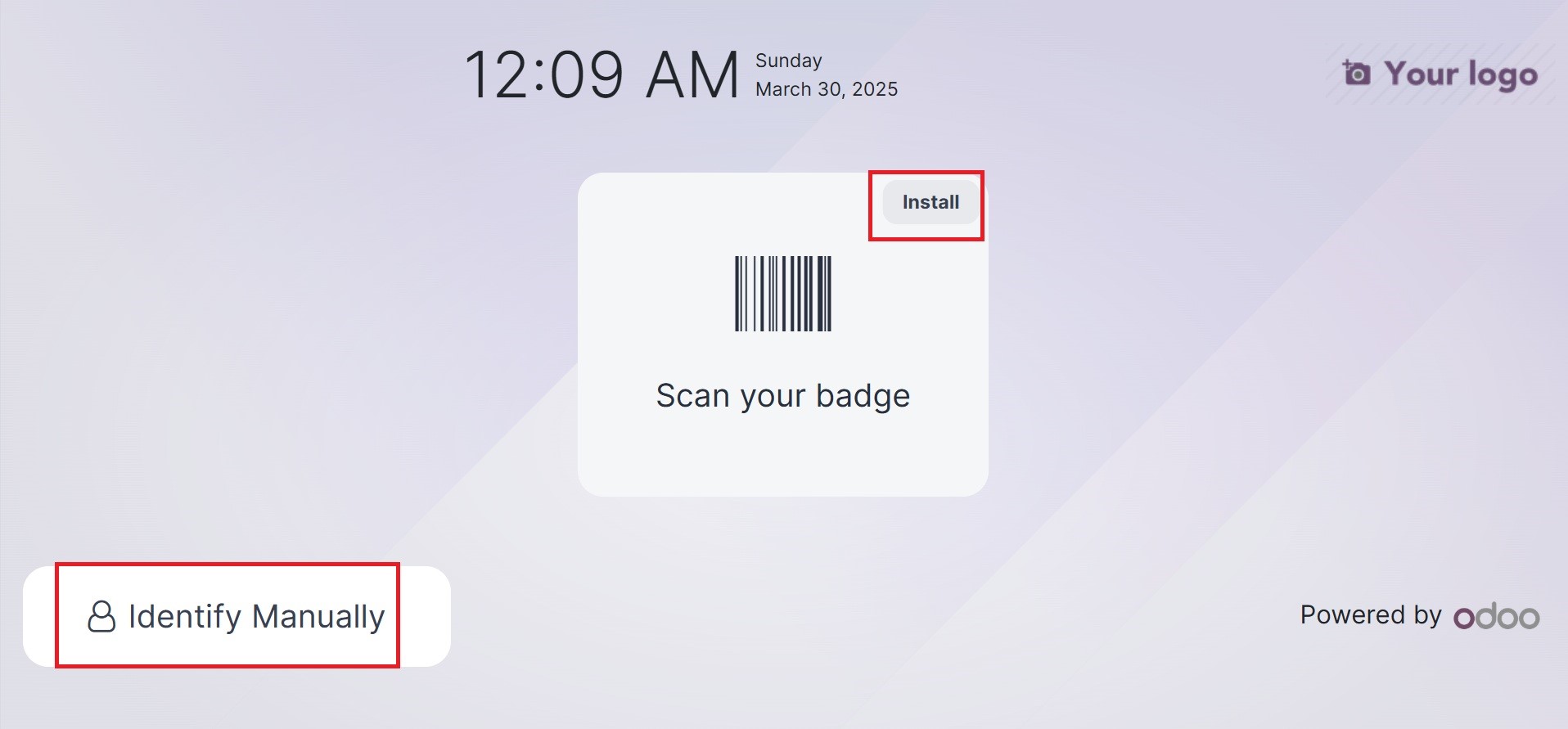
Selecting the kiosk mode brings up a new page. Option, like Identify
manually, is visible. It's easy to scan your badges with the Scan
your badge button. You can manually identify the employee after
choosing Identify Manually.
Barcode integration helps the Odoo18 system in several phases of
business operations. A barcode can be added to the employee ID card
that is used to access and exit the platform. An employee can use
the reader to scan the barcode after logging into the window. The
Employee window allows you to specify the employee barcode. For
example, select your employee in Odoo 18's Employees module. By
choosing the HR Settings tab, the user can access the Badge ID
option on the open page.
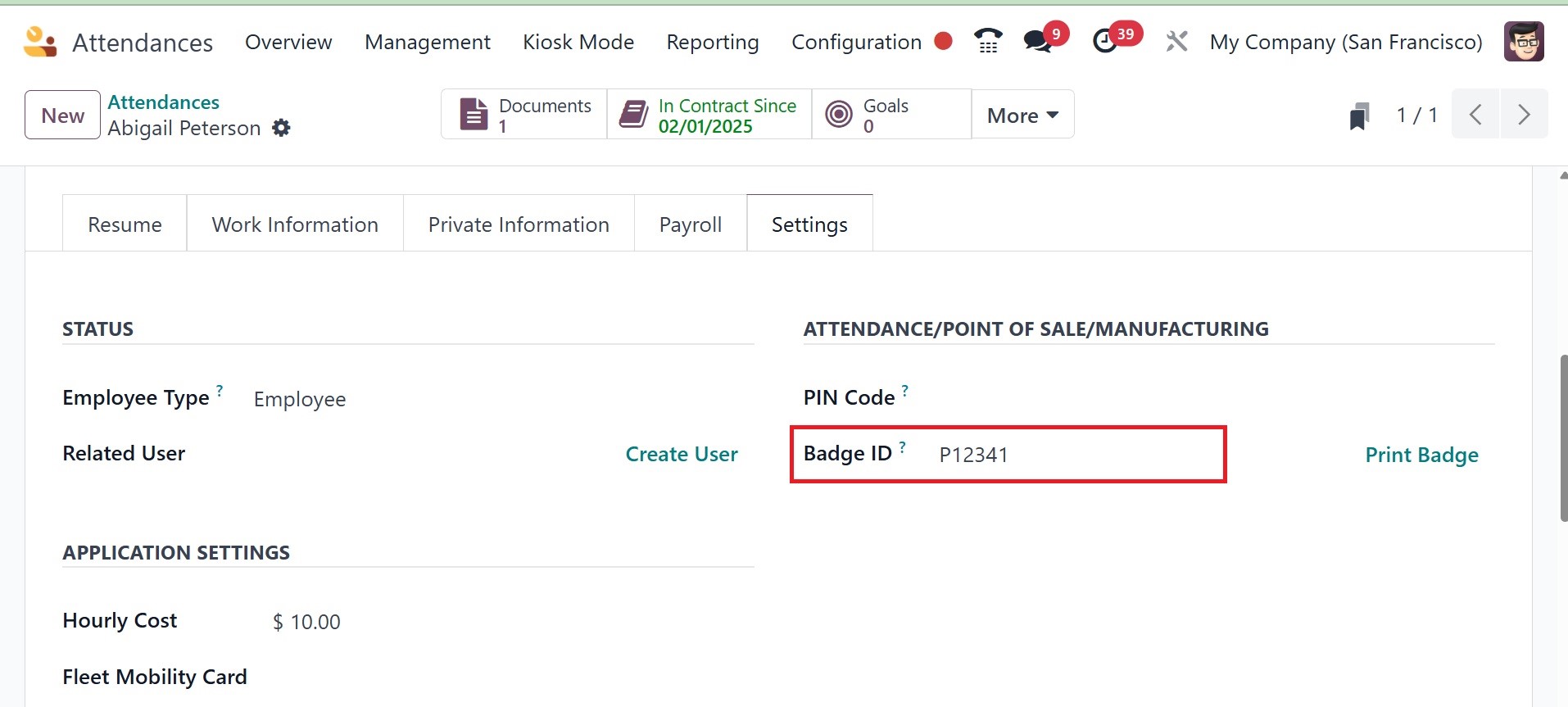
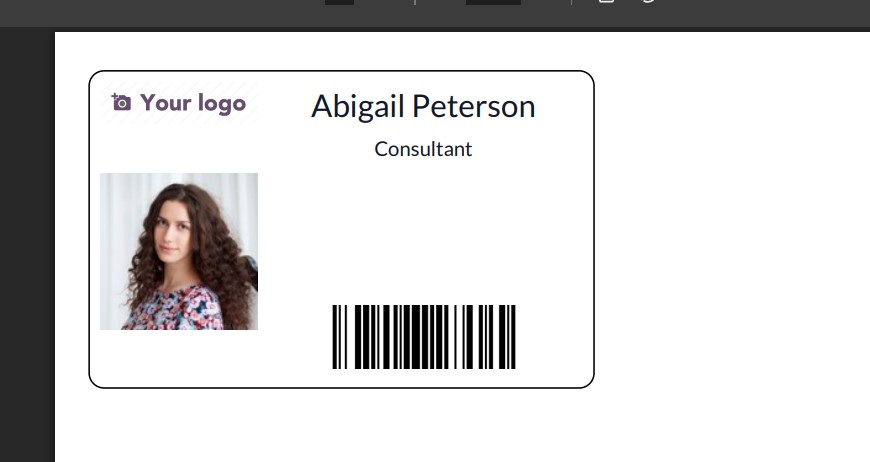
The badge ID is printed into your system when you select "Print
Badge." This allows us to give a badge ID to every employee in a
corporation.
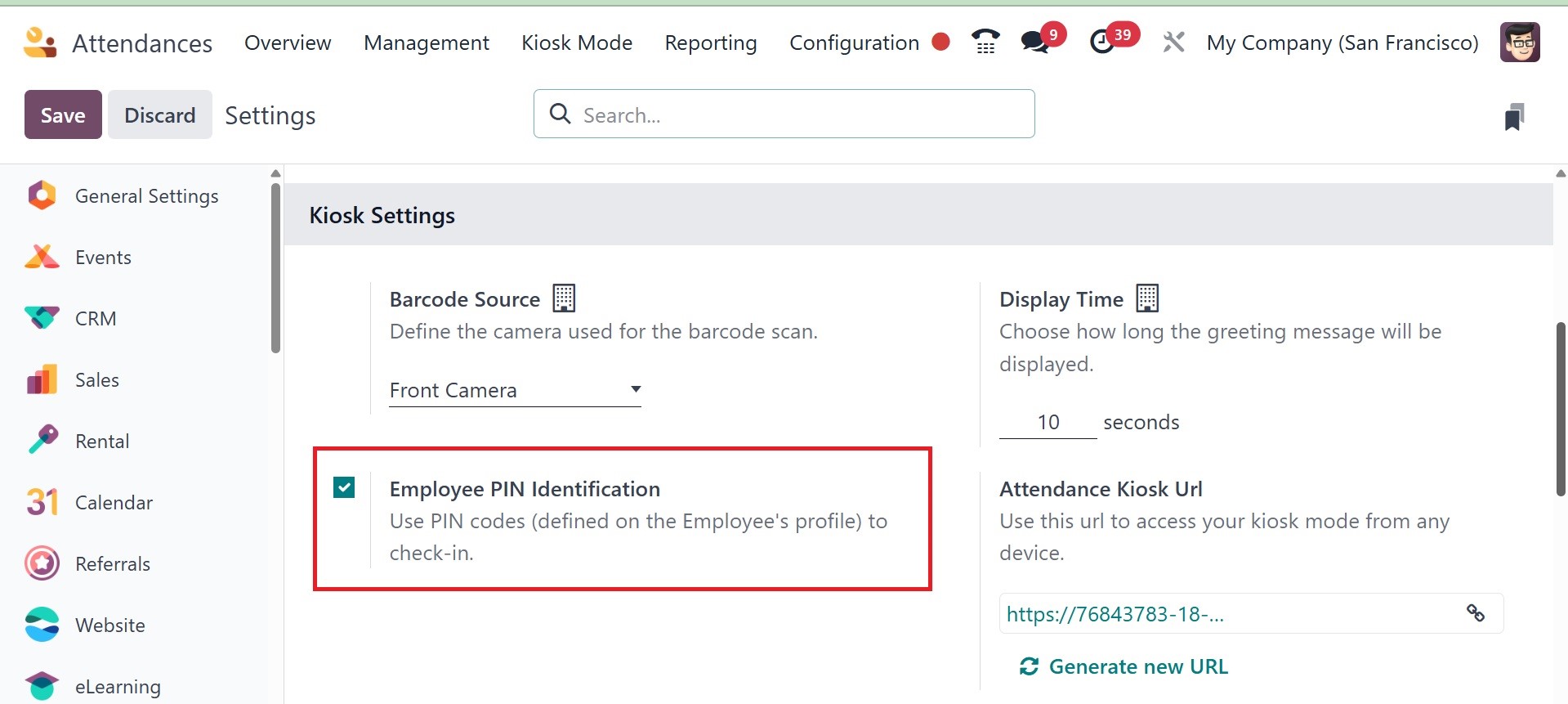
In a similar vein, we may assign a PIN to every employee in a
company. You must enable the Employee PIN option in the
Configuration > Settings box of the Attendance module in order to do
this. It ensures that in order to access your employee profile, you
must input a PIN. Click the "Save" button under Settings after
activation.
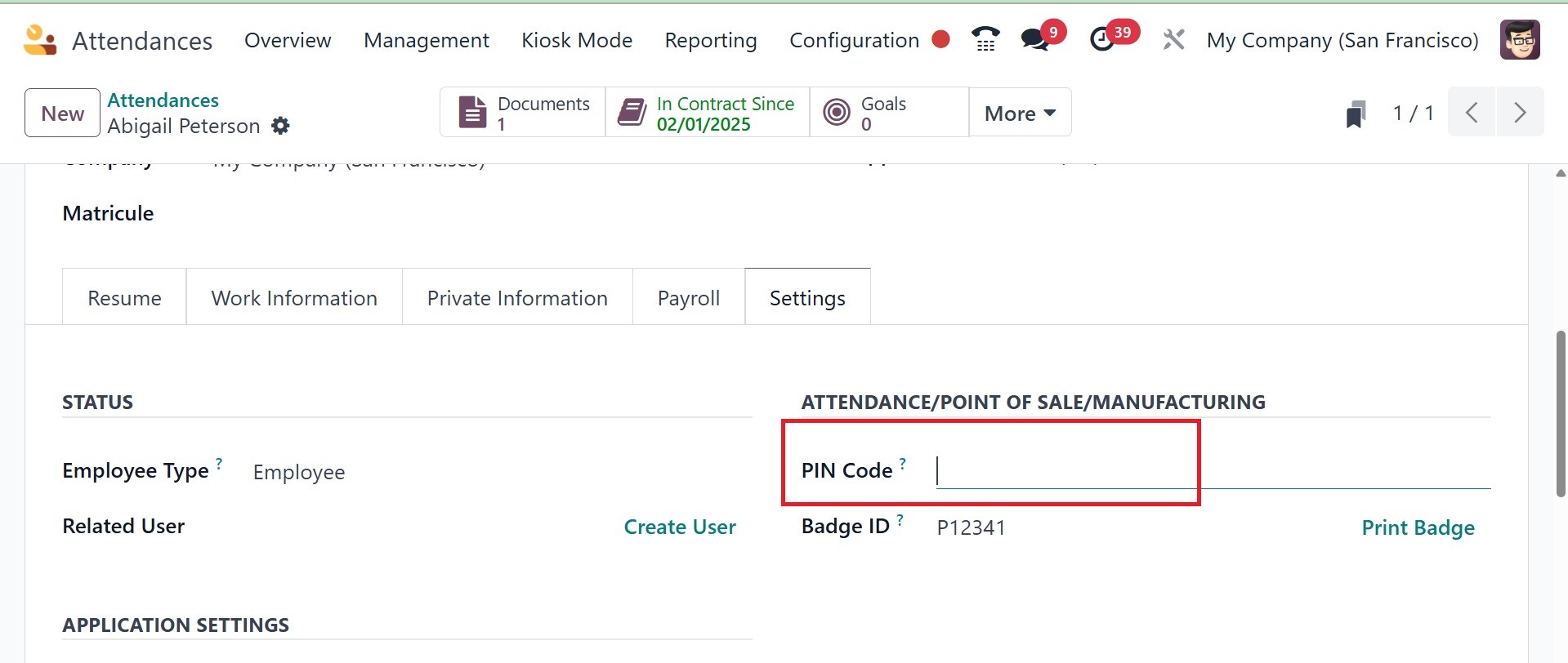
You can assign each employee a unique PIN number after entering their
information in Odoo 18. The PIN Code option is located on the HR tab
of the Employees window.
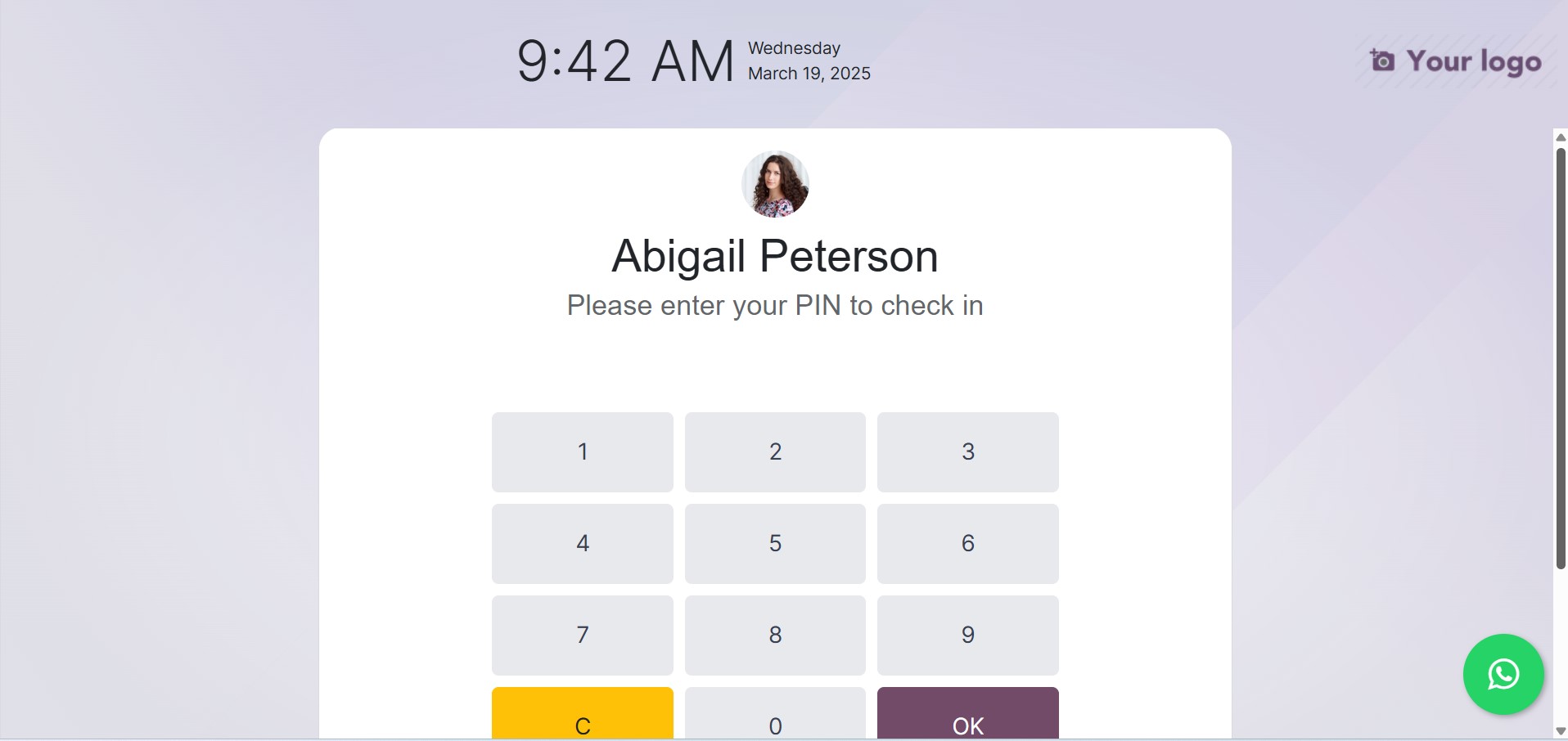
Odoo18 shows a pin code entry option when an employee attempts to
access the platform after you've set a pin action. Now let's examine
the operation of the Identify Manually option in Kiosk mode. The
list of employees is shown to users who choose the Identify Manually
option. You can use the grouping and filtering tools and choose the
right staff names. You can choose the desired employee from the
Employees pane.
The system shows the employee profile in kiosk mode so you can check
in once you enter your PIN and select your employee record. You can
log in to work after entering the PIN.
A message is then displayed in a window, as seen in the screenshot
below.
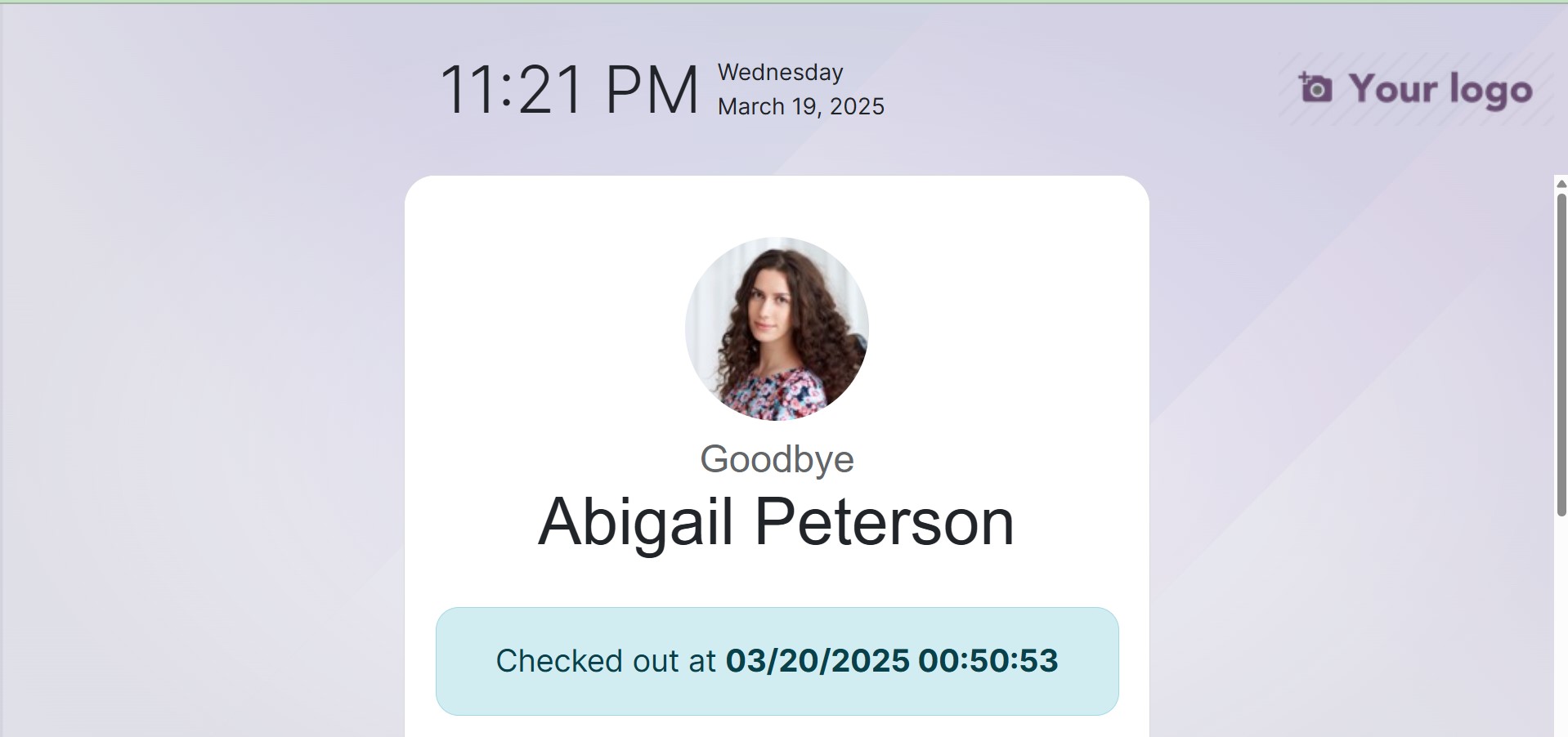
An employee can record their attendance using their PIN and badges
that have been manually activated using Kiosk Mode in Odoo18
Attendance.