A barcode is a crucial element in product identification, alongside
details such as product name, serial or lot number, and price. One
of its significant advantages is enabling rapid product
identification through barcode scanning, which greatly enhances
efficiency. Barcode attribution serves as a convenient method for
handling products at various stages, including point of sale (POS),
manufacturing, purchasing, and inventory management.
The Odoo 18 Barcode module extends barcode functionality to include
batch transfers, inventory adjustments, and other essential
operations. To use the barcode functionality effectively, ensure
that the Barcode App is installed in Odoo 18.
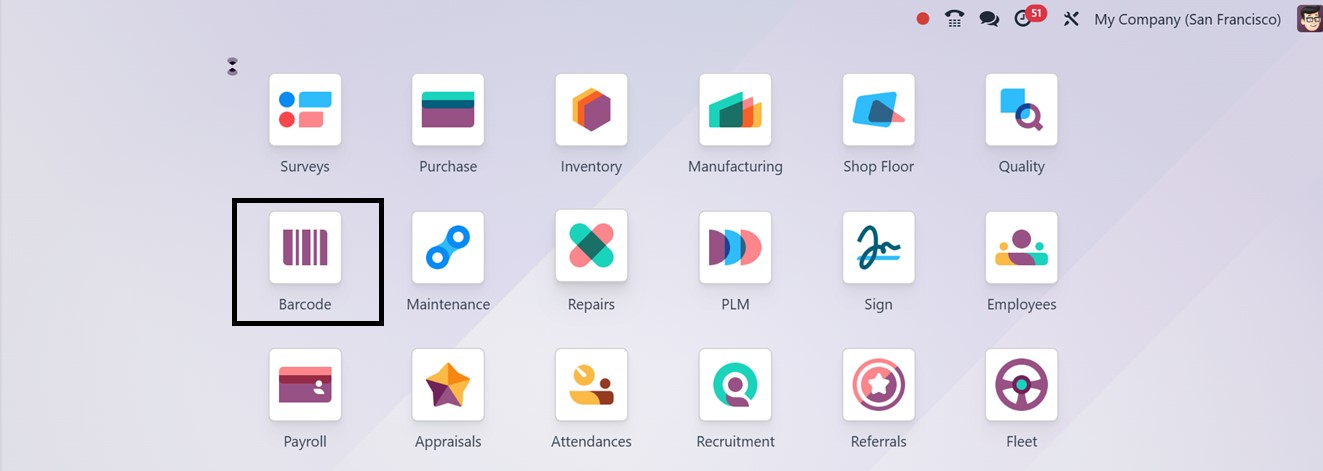
Once the Barcode App is installed, open it by clicking on the Barcode
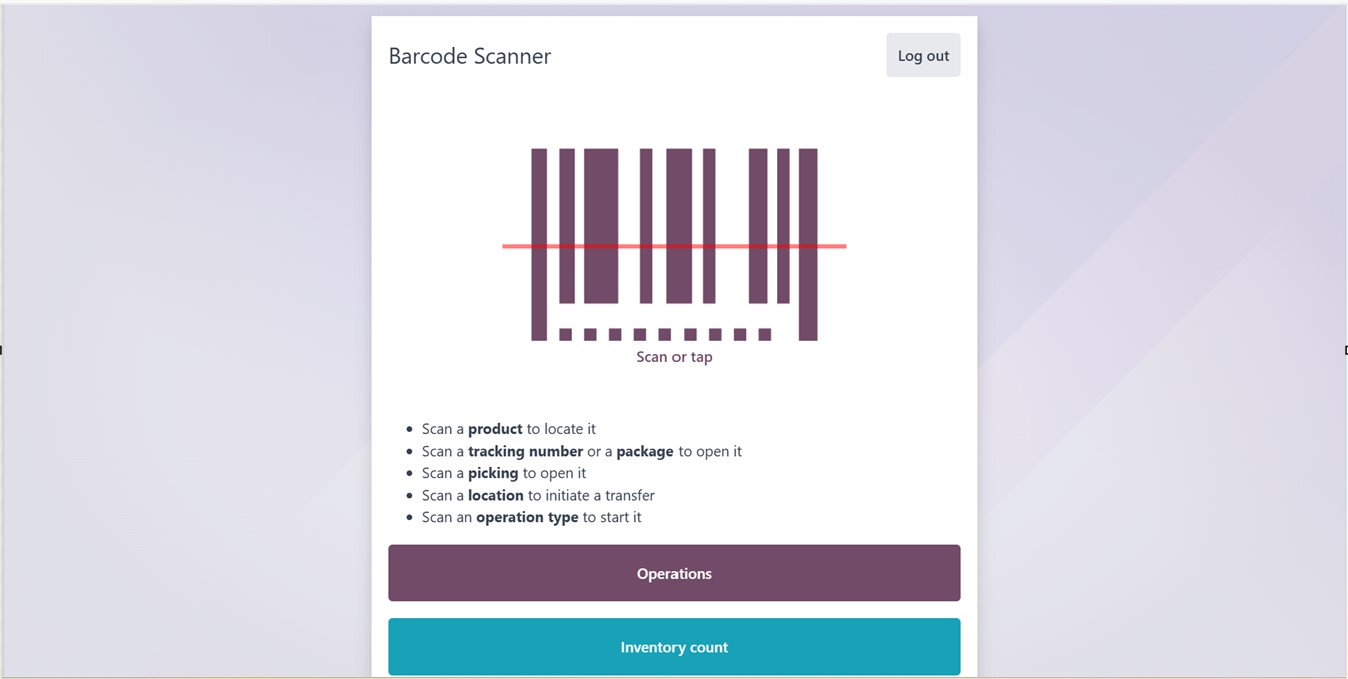
App icon in the Odoo 18 dashboard. Additionally, to enable barcode
functionality, the user must have access to the Inventory App, which
plays a critical role in barcode-related processes. Opening the
application interface will show a Barcode Scanner interface, as
illustrated in the screenshot below.
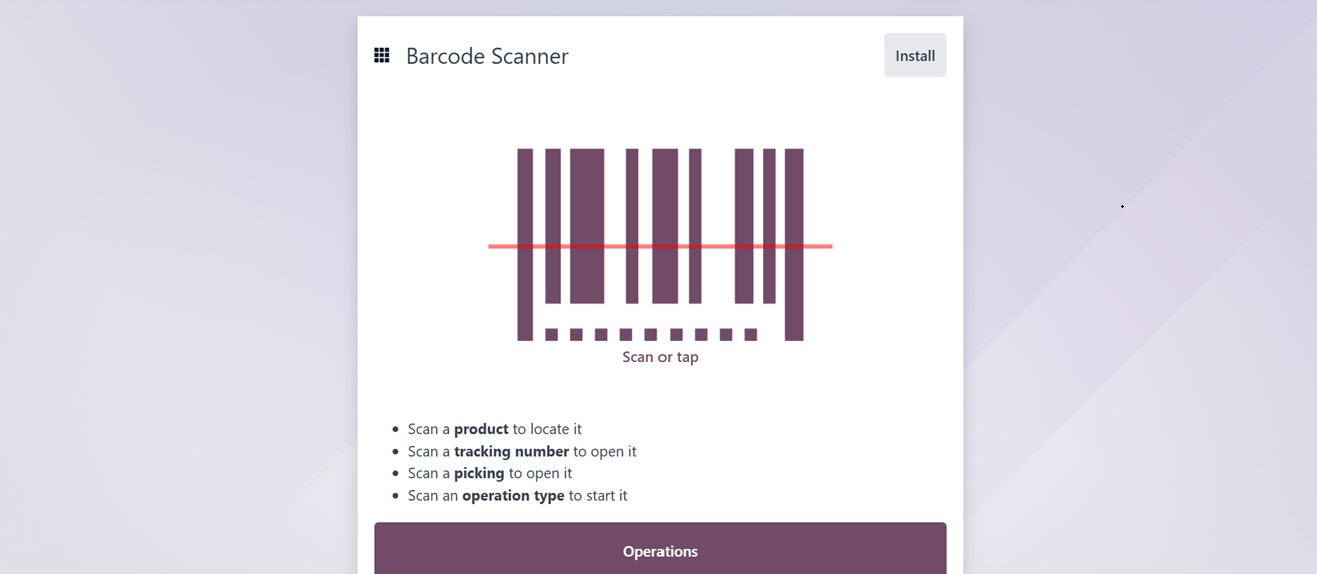
You may either manually enter the barcode into the relevant Barcode
Scanner input box or use a scanning device to directly scan a
product's barcode by clicking the "Scan or Tap" button, as
illustrated in the screenshot below.
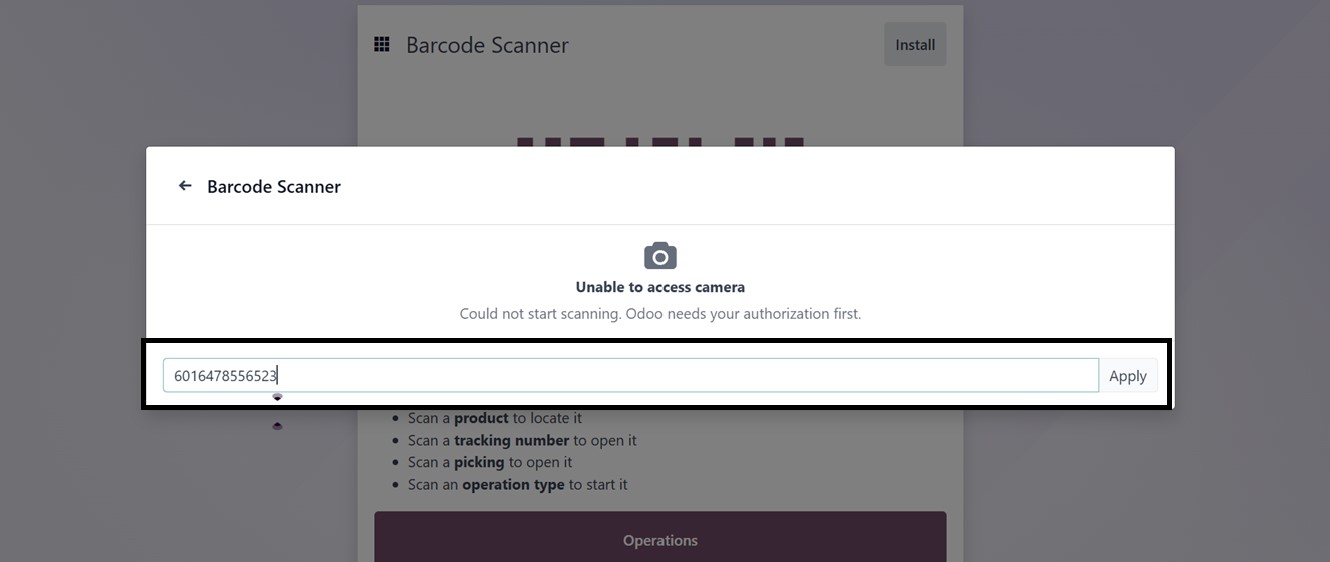
This feature ensures seamless and effective product identification
throughout operations by giving users options when using both
automated scanners and manual barcode entry. After scanning, the
product will be added to the inventory and you will be directed to
the barcode internal locations window, as shown below.

Then, you can install the barcode scanner using the ‘Install’ button.
Installing the app will open another window. Once again, click on
the ‘Install’ button to proceed.

This will install the barcode application into your system, as
depicted in the screenshot below.