1. Configuration
First, we can look into the Deduplication Rules. To do this, you can select the
Deduplication menu. By going to the Deduplication Rules pane, you can now see each
Deduplication Rule set up in the system.
1.1 Deduplication rule
Below is a screenshot of the window.
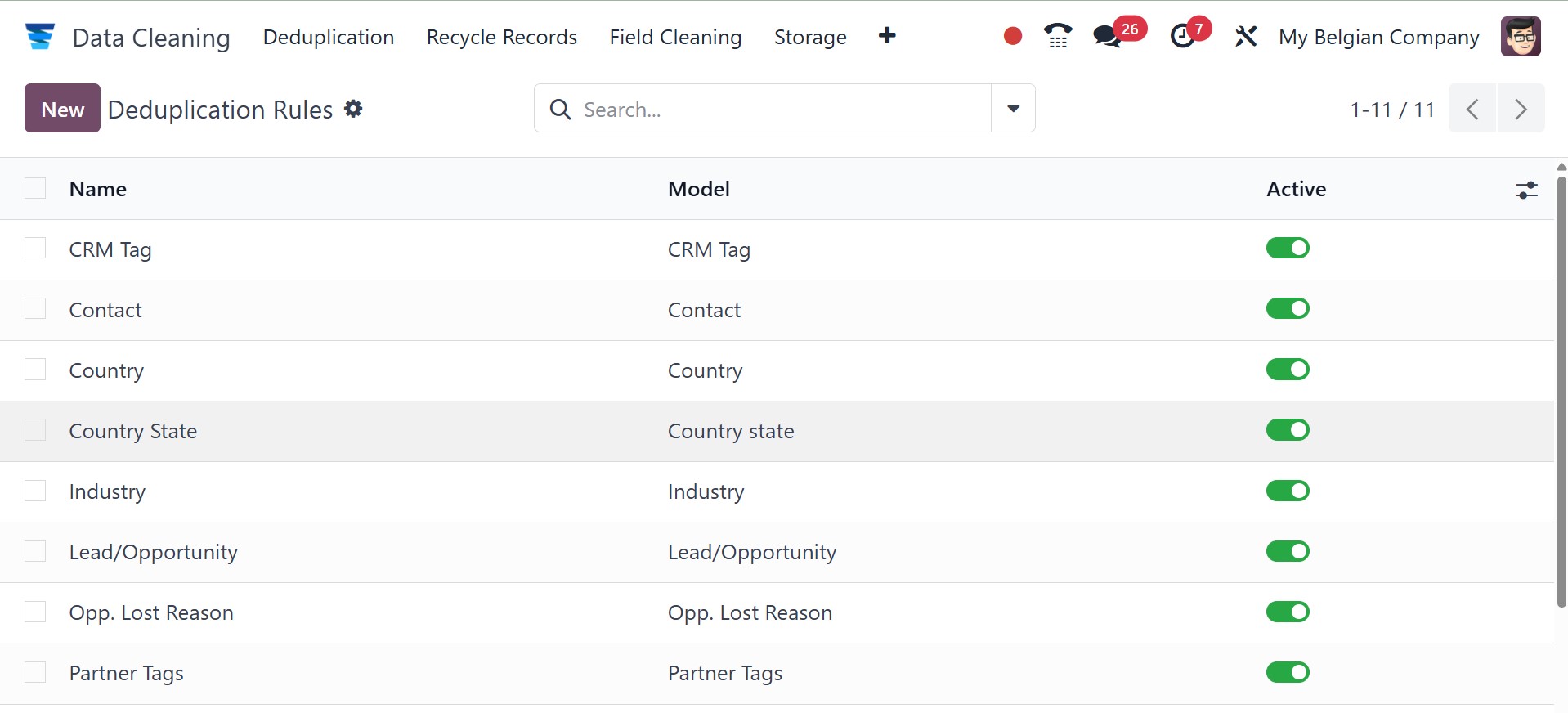
The Deduplication Rule can be viewed and configured using the Configuration menu.
The list shows the name, active state, and model merge mode. Click the New button
to add a new deduplication rule.
The model facilitates the inclusion of filters; select the model and input the name
of the deduplication rule. Enabling the Cross-Company option will result in the
recommendation of duplicates across many organizations. The alternatives for Duplicate
Removal are Archive or Delete. There are two merge modes: manual and automatic.
In the Notify Users section, add the recipients of the notification. If the Suggestion
Threshold is added, duplicates with similarity below it won't be recommended.
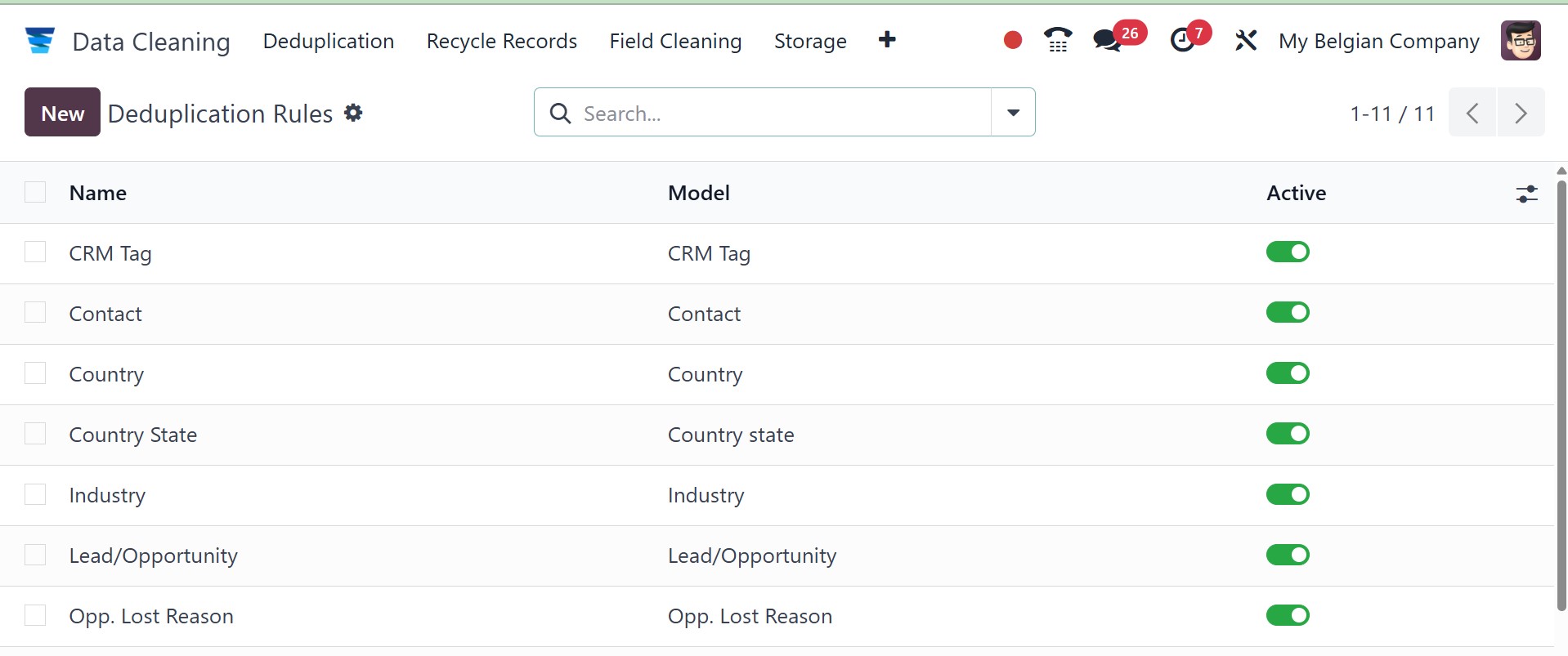
The addition of deduplication rules is feasible.
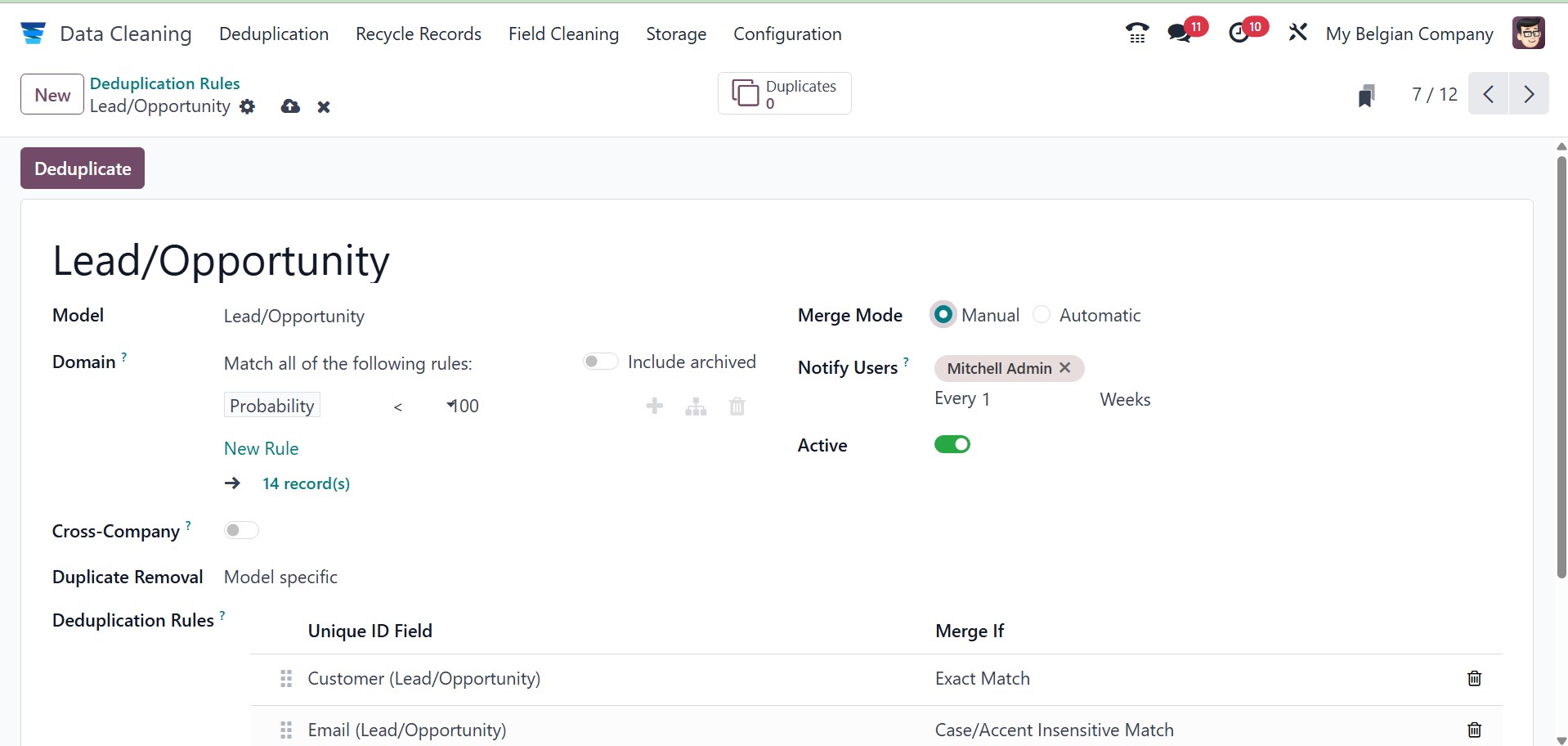
You can start by giving the new Duplication Rule a name. Next, you must use the
dropdown menu to select the Model. You will find a list of models that we have already
discussed in the dropdown menu. A toggle switch and a Cross Company field appear
after this field. This is an option that you can activate. Different firms would
be recommended if you enabled duplicate access. The Duplicate Removal field then
appears. Here, you can choose between Archive and Delete from the system. If you
wish to permanently remove duplicate data, you can turn on the Delete option. If
not, you can use the Archive option to archive the data.
The Merge Mode must now be chosen. Both manual and automatic modes are possible.
You can turn on the necessary option. You can see a Notify Users field if you use
the Manual Merge model. You can enter a list of users in this box to be notified
when new entries need to be merged. Additionally, you can remind users to clean
their data. Users can manually merge records by doing this in the same field on
a daily, weekly, or monthly basis. If the Merge mode is selected as Automatic, you
have to fill an additional field called ‘Similarity Threshold’. Here you have the
option to provide a percentage value. So the records with a similarity percentage
above this threshold will automatically merge.
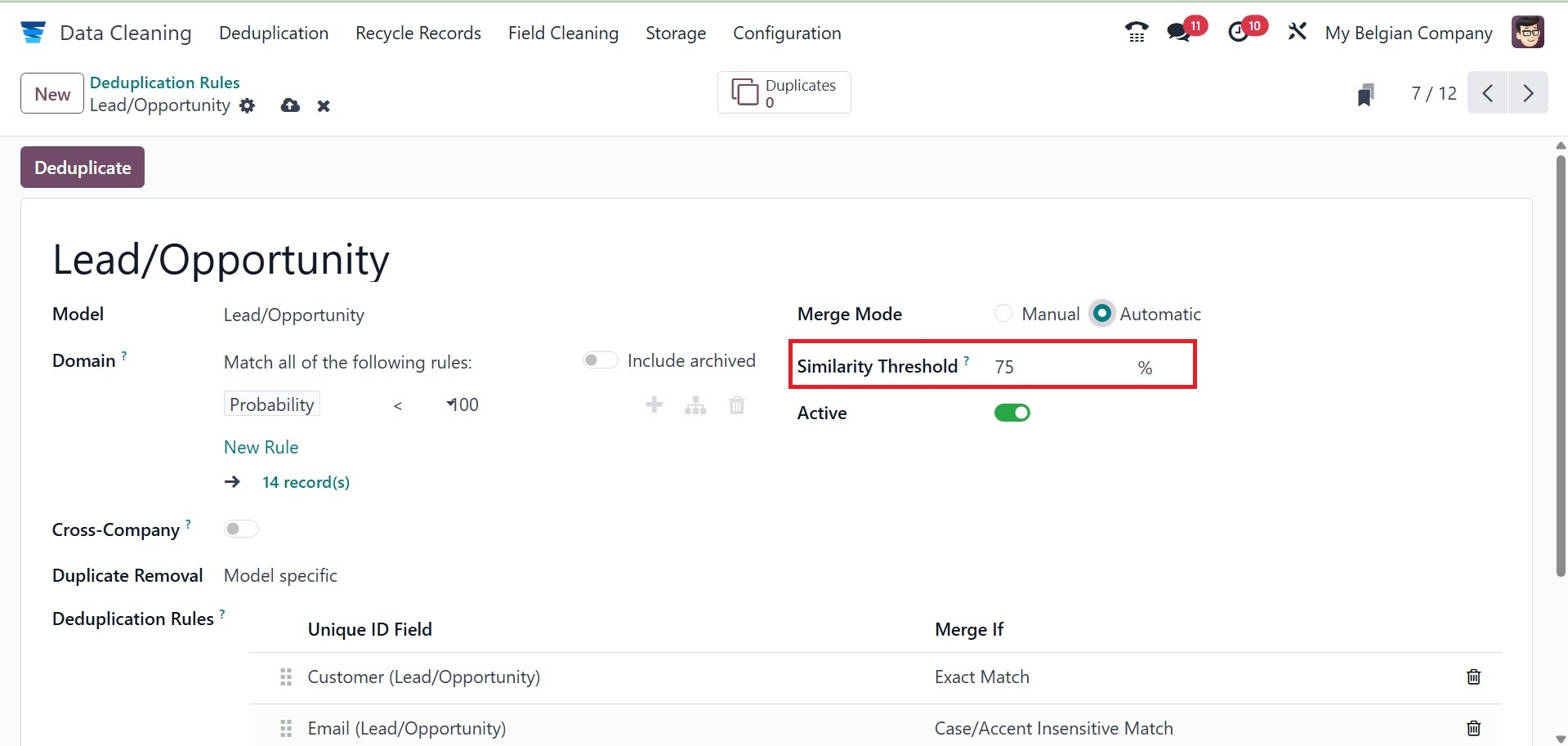
An active/inactive toggle button to enable the deduplication rule is also visible.
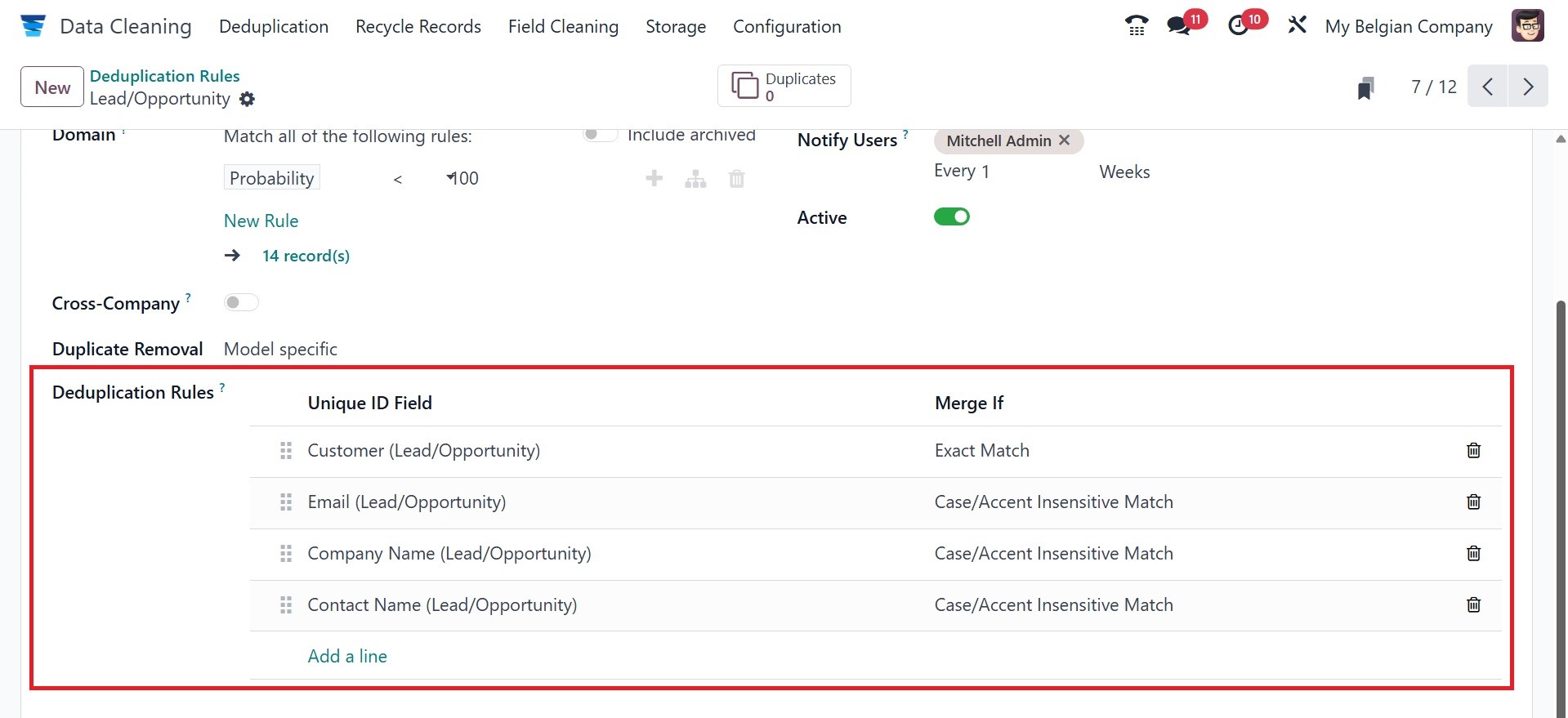
Finally, the Deduplication Rules option allows you to specify different deduplication
rules. The system will then recommend that you merge data that matches at least
one of these rules. You can choose to enter the condition and the unique ID here.
You can specify requirements for data merging as either case case-insensitive match
or an exact match. The Add a line option can be used to add this duplication rule.
The Add a line button allows you to define more than one field or condition.
Once all the required information has been entered, click the SAVE button to save
the newly constructed Deduplication rule.
You can then deduplicate the documents by clicking the Deduplication button.
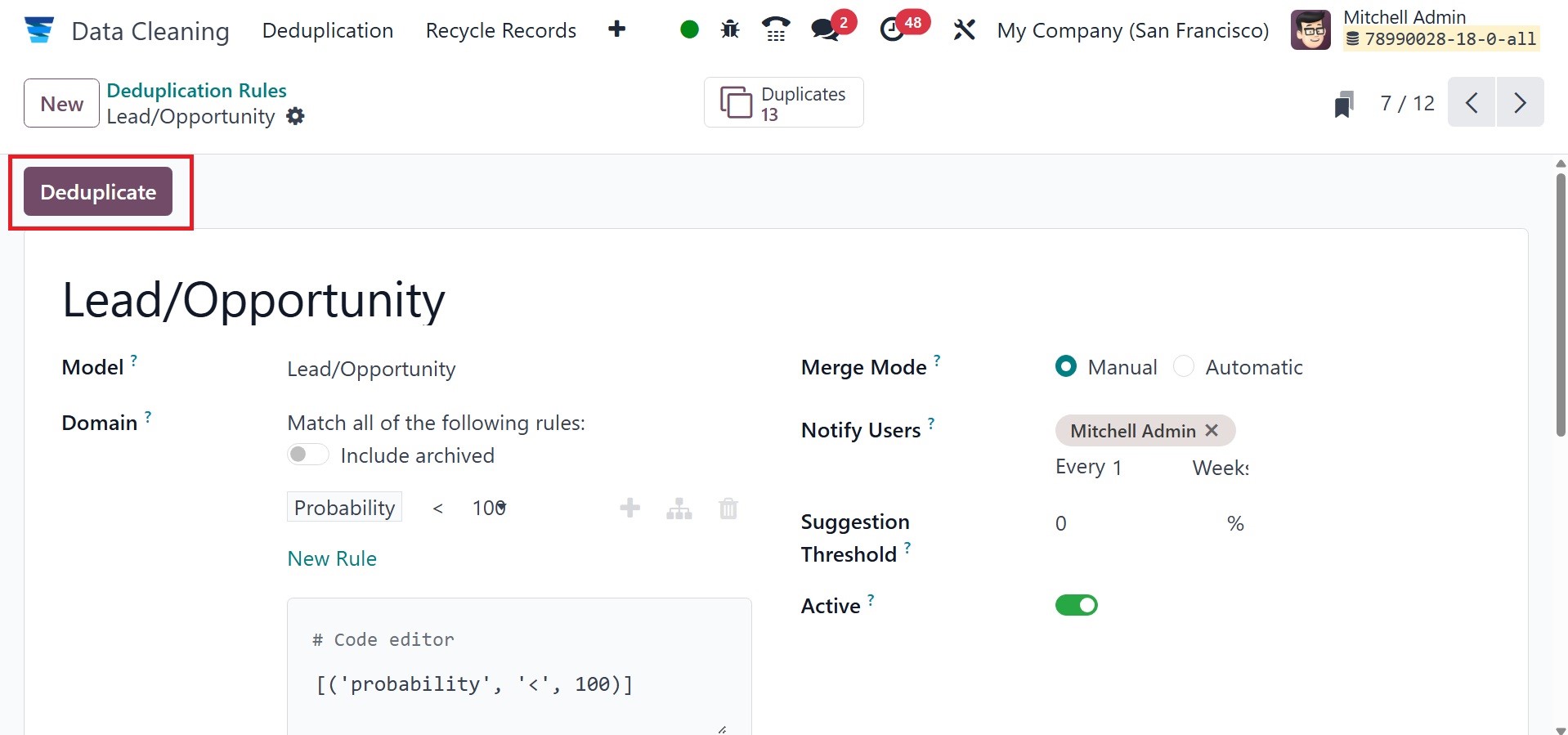
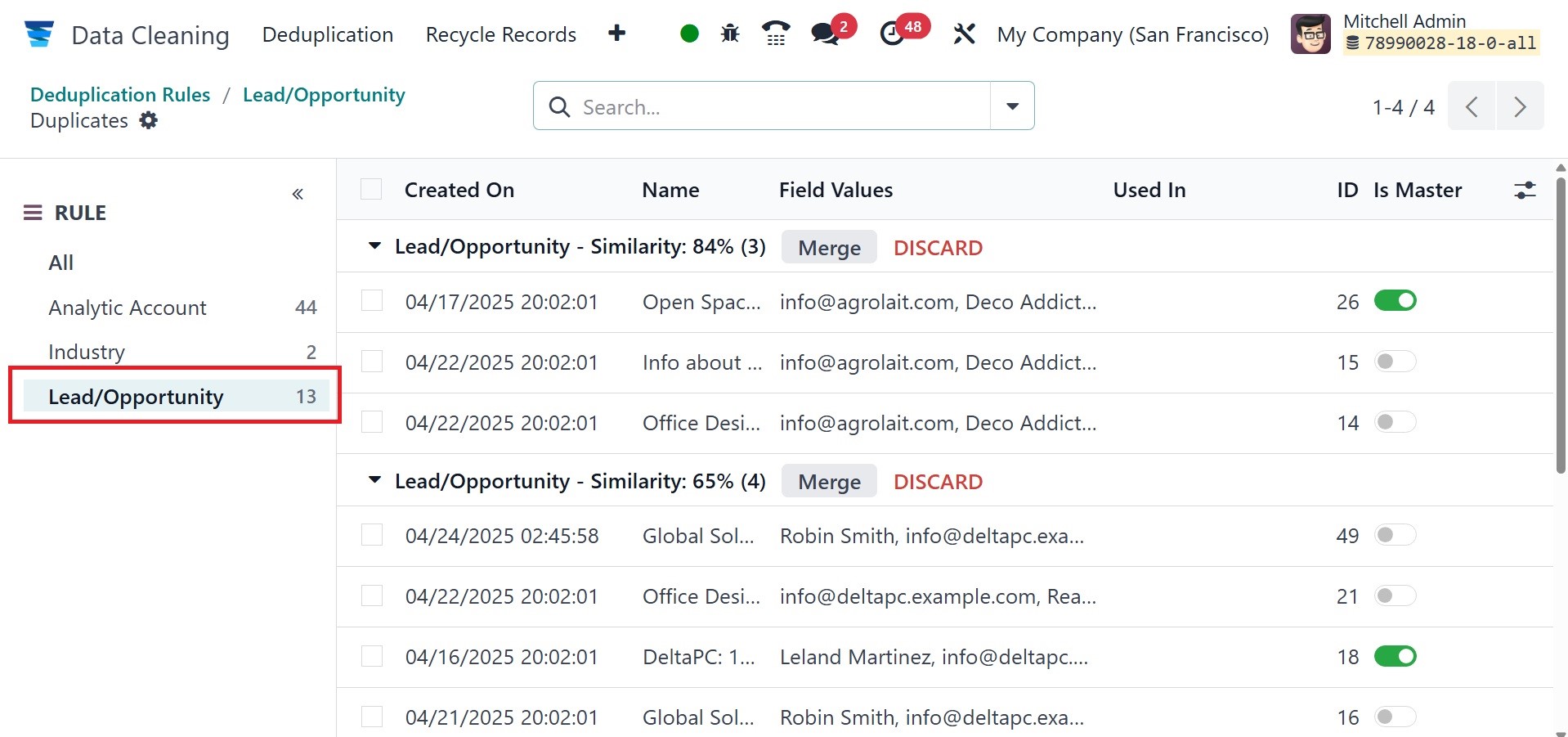
The records can be merged through deduplication. The Unique ID field can be combined
with Exact Match and Case/Accent Insensitive Match. Adding more deduplicated rules
will increase your options. Click the Deduplicate icon in the Deduplication Rules
window after entering the necessary information. As seen in the screenshot below,
it points you to comparable records in your Lead/Opportunity model.
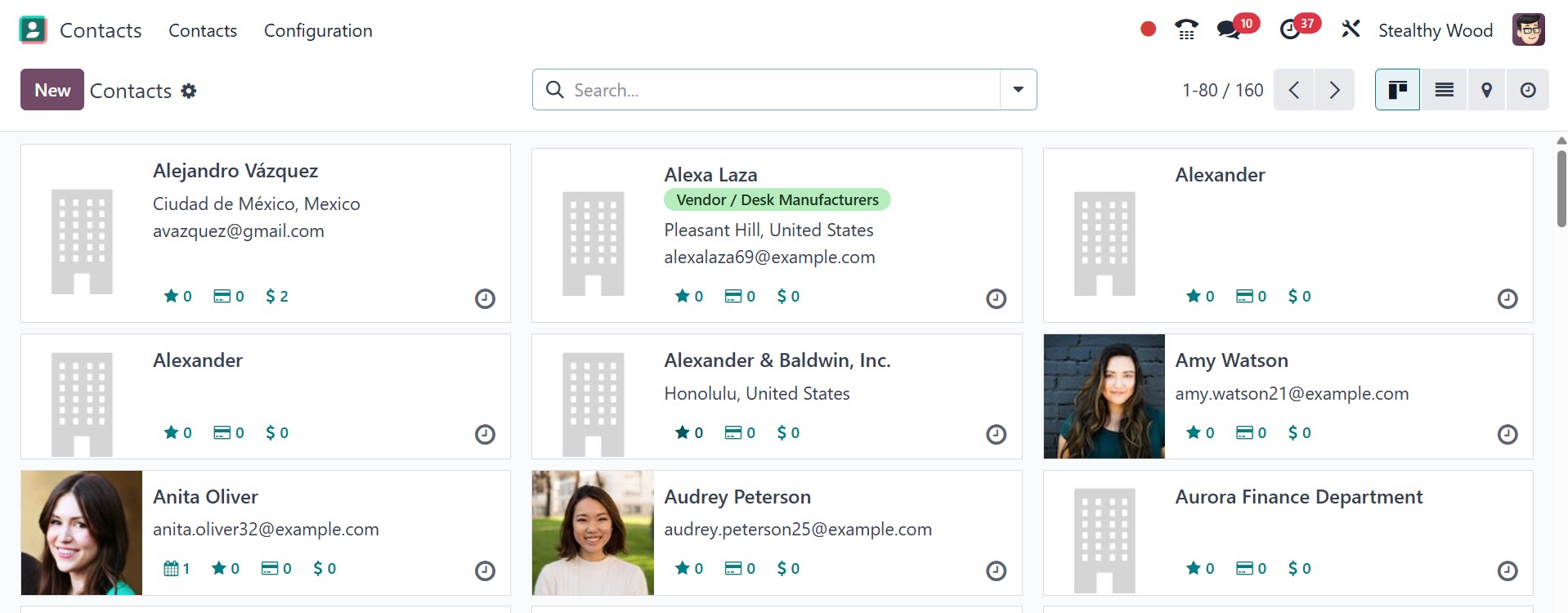
Let's see an example of combining two contacts that are comparable according to
the Deduplication Rules. Two contacts with similar names must be created from the
Odoo 18 Contacts module. Create a contact named "Alexander" in the new window that
appears after clicking on the New icon in the Contacts dashboard. As seen in the
screenshot below, we created two contacts in the Odoo 18 Contacts module with the
name Alexander.
Return to the Odoo 18 Data Cleaning module's Deduplication Rules window. The Deduplication
Rule model should be created as 'Contact', as shown in the screenshot below.
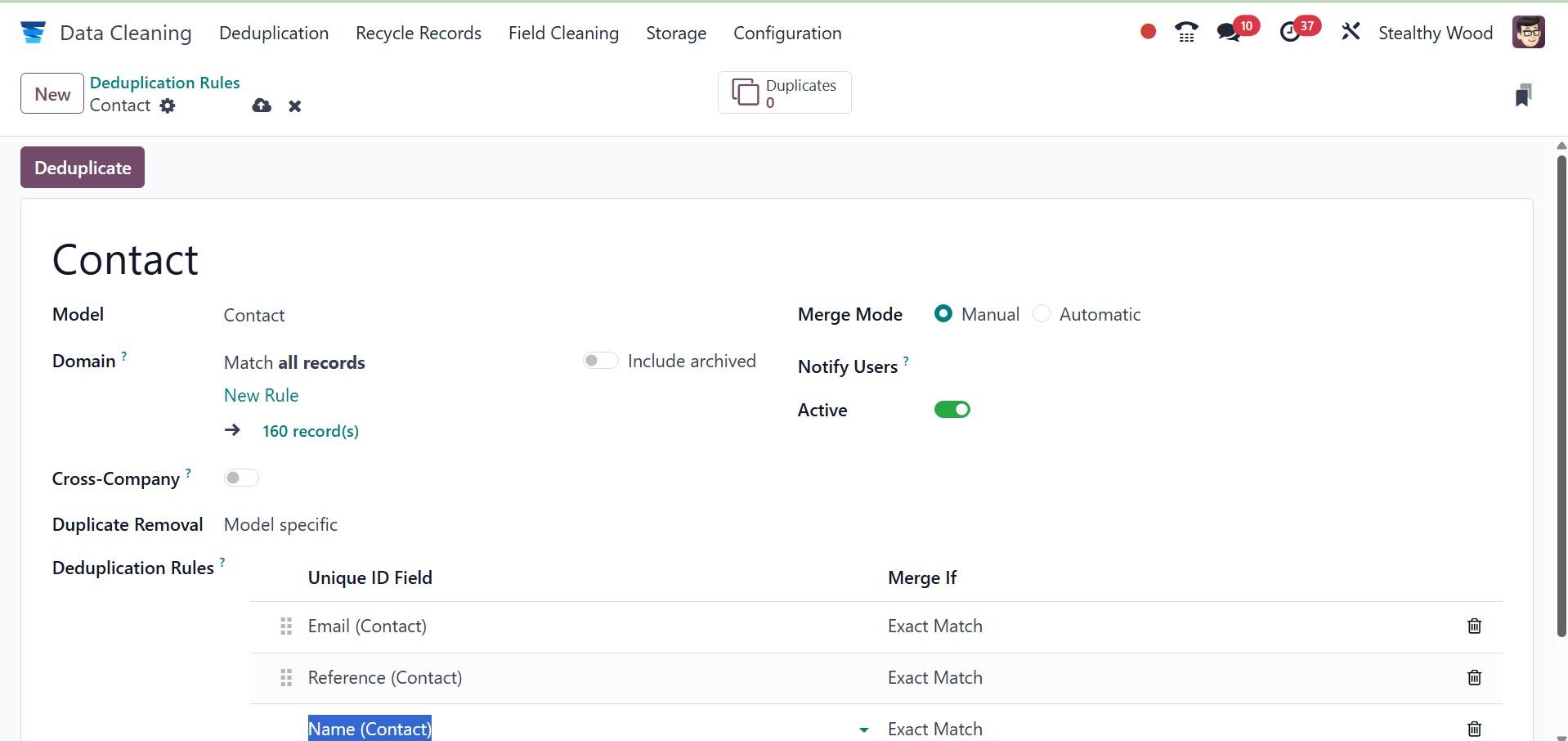
By selecting the Enter a line option, you may enter the required Deduplication Rules
pertaining to the contact. The use of other fields is identical to what we previously
covered in the Lead/Opportunity Deduplication Rule. Once all of these facts have
been added, you will be taken to the Duplicates window of the contact rule by selecting
the Deduplicate icon. Here, you can view all of the identical duplicate contacts
as well as contact data like Name, Field Value, ID, and more. The Duplicates window
also displays the percentage of similarity between two contacts. As seen in the
screenshot below, we can view Alexander's duplicate contacts here, and they have
a 98% resemblance.
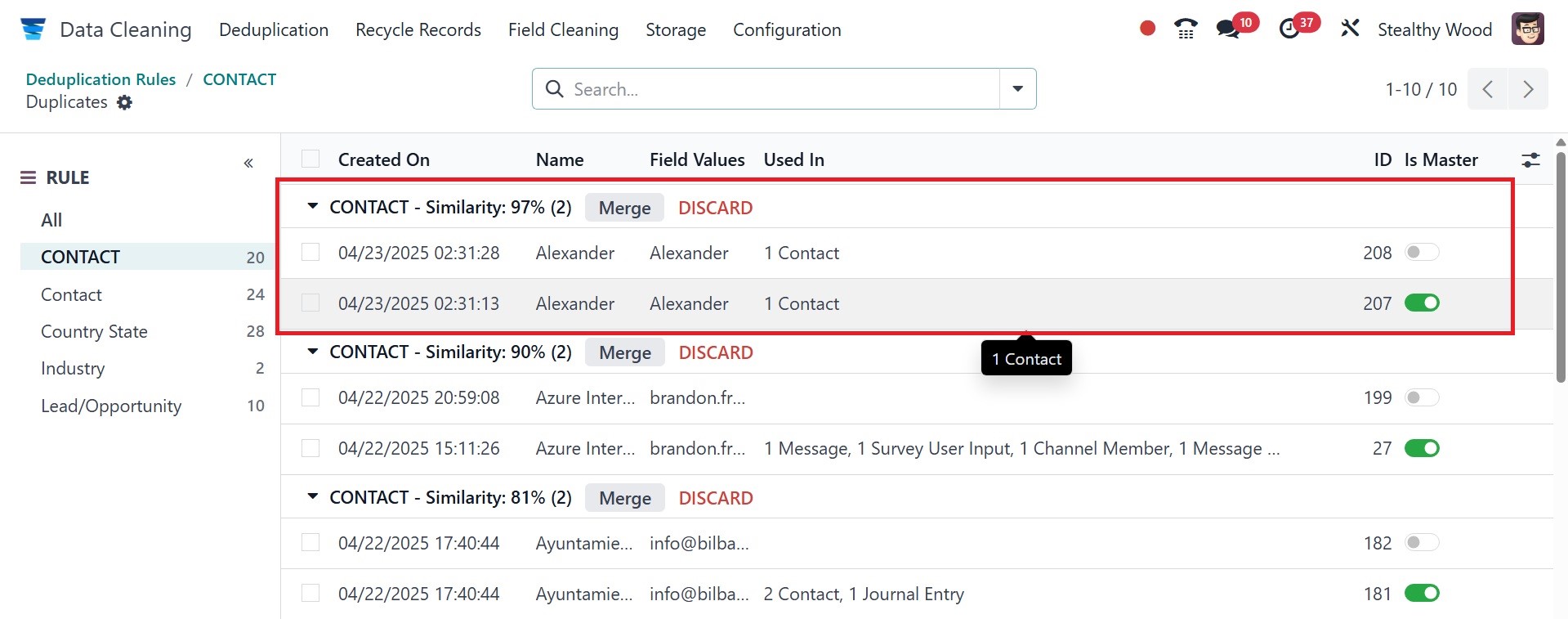
By choosing the Merge icon next to the contact's similarity %, you can prevent duplicates.
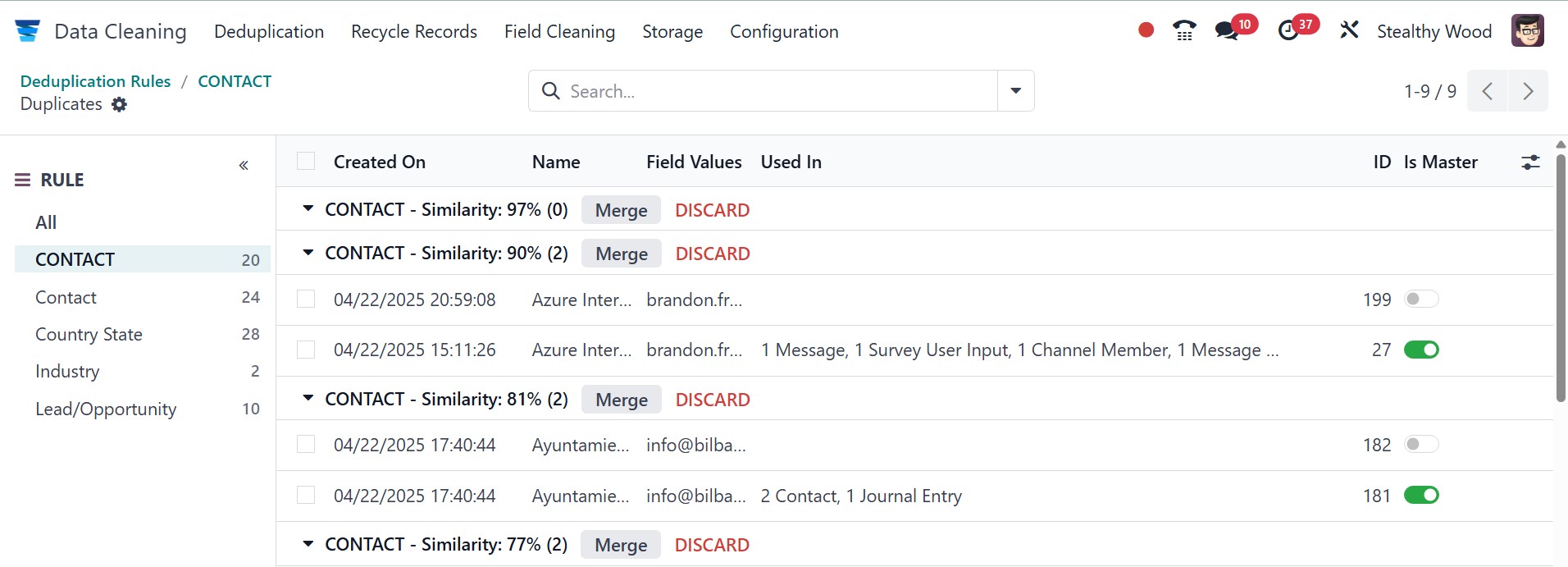
A confirmation screen for merging appears after you pick the Merge option, and you
click the Ok button. As a result, the two records are combined into a single format,
and the screen no longer shows the resemblance of contact "Alexander."
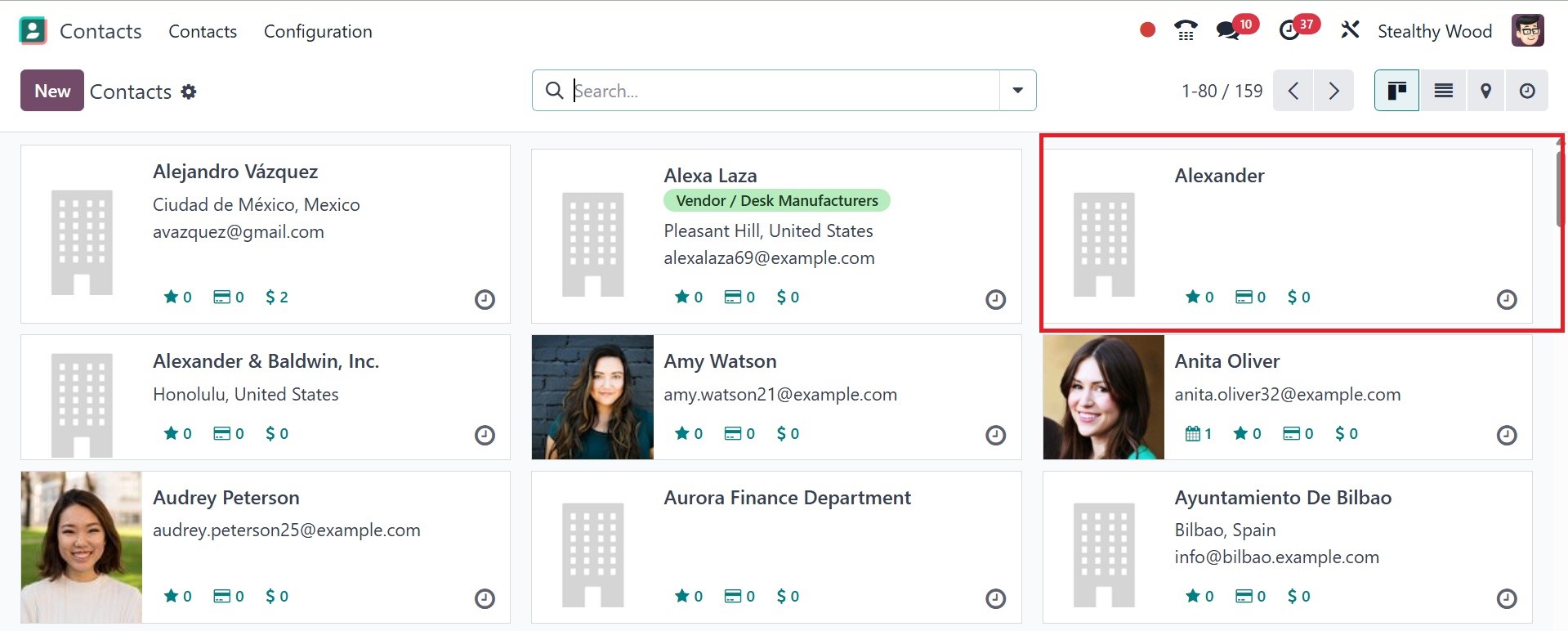
Let's return to the Odoo 18 Contacts module to verify it. The contact 'Alexander'
is the only one visible in the Contacts dashboard. It indicates that Alexander's
duplicate contact is easily merged with the help of the Odoo 18 Data Cleaning module.
The deduplication rules are set up this way; let's now examine the Recycle records
rule.
1.2. Recycle Records Rule
The Configuration menu also has a Data Recycle Rules section. According to the rules established, the data recycling rule determines which records should be recycled, and those records are either archived or deleted. Click the New button to add a new rule. Add the rule name and choose the model to be recycled in order to set up recycling activities. It is necessary to select the model. Recycling can be done manually or automatically, and the possible actions are Archive or Delete. It is possible for users to be added.
Mode of Recycle: Manual - Before each record is discarded, user confirmation is needed, and Automatic - Records are recycled automatically without human input.
Recycle Action is of two types:
- Archive: Transfers documents to an archive, where they remain accessible but inaccessible, and
- Delete: Removes records from the database permanently.
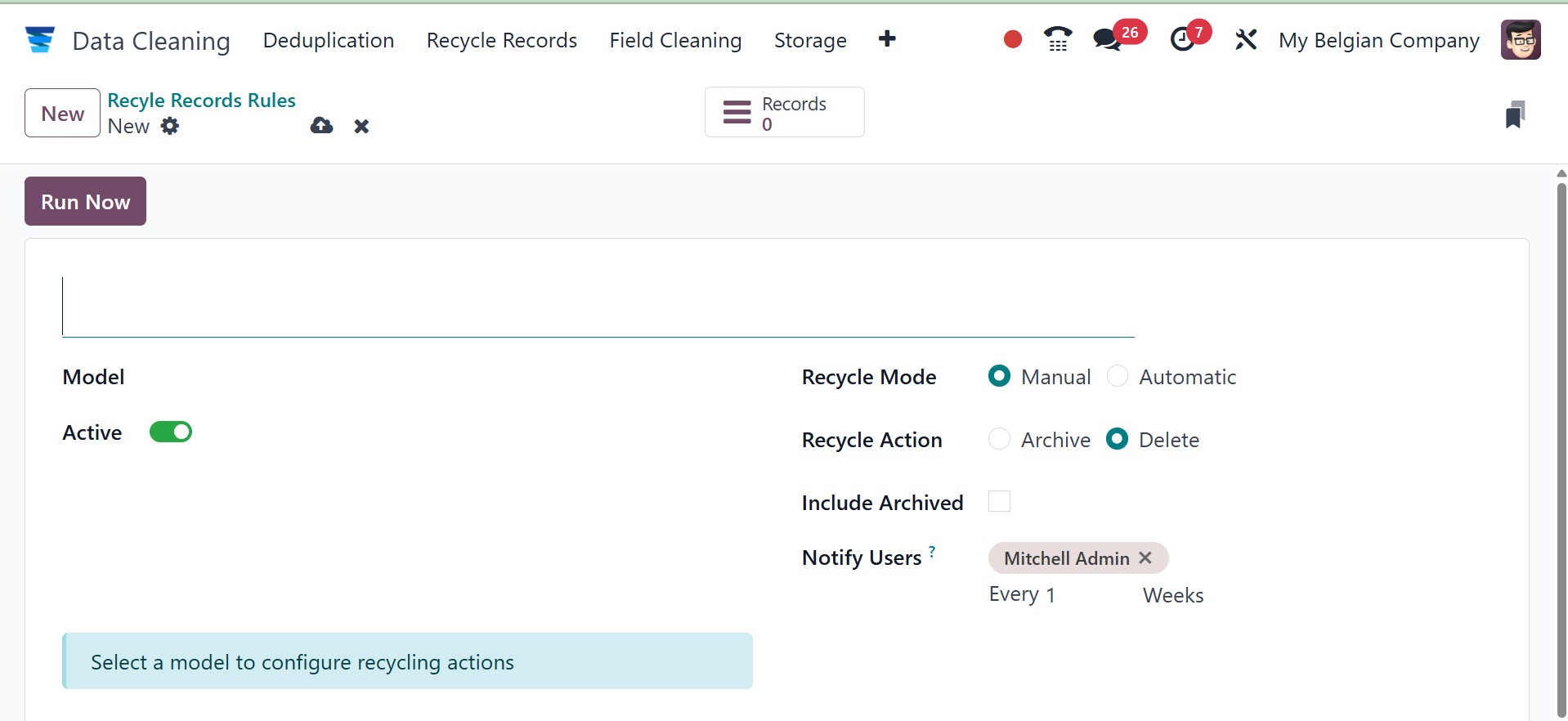
Then, to recycle the records, select the Run Now option.
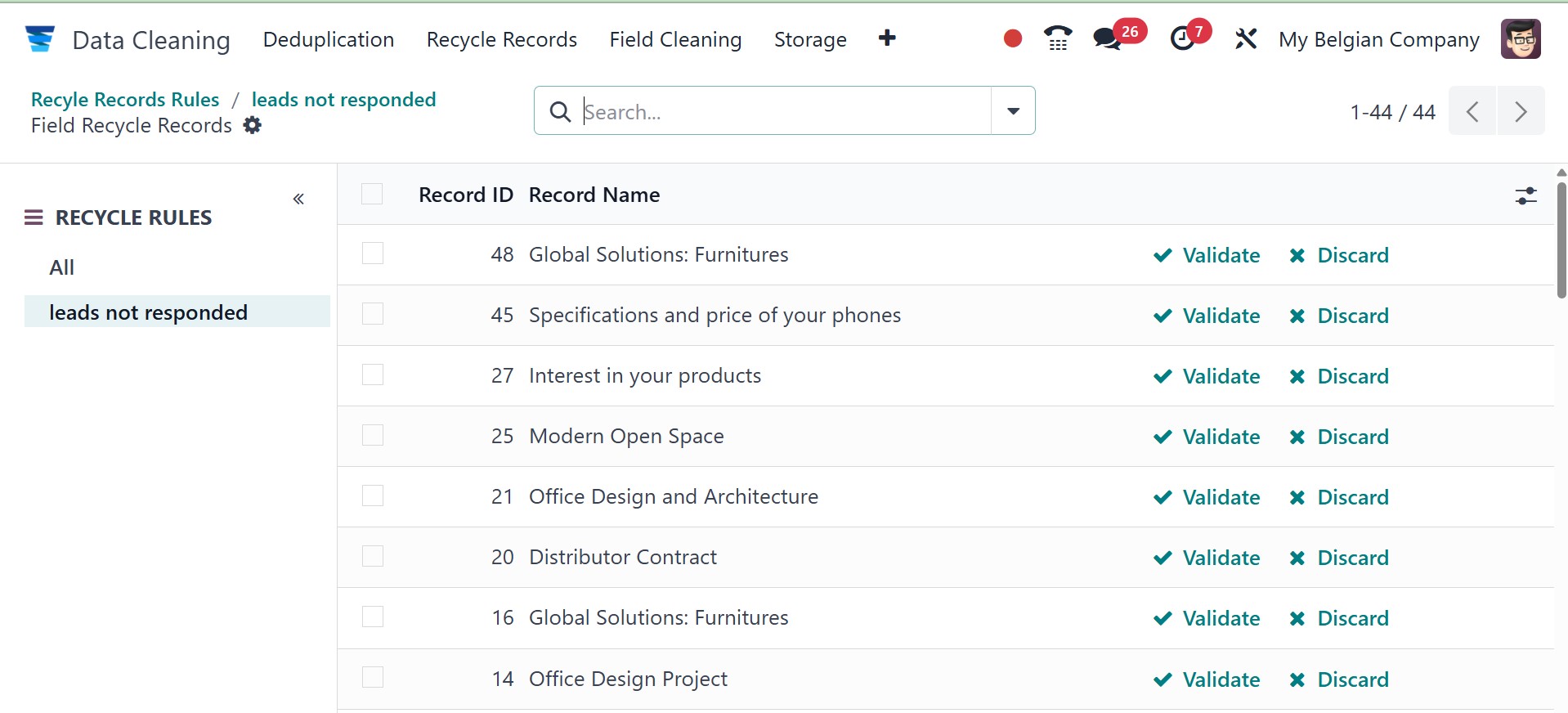
The "Recycle records" menu contains the created recycled records. Validating allows users to remove all the unresponsive leads from the database.
1.3 Field Cleaning
The Odoo Data Cleaning module offers additional options to restore or organize your data format in the individual data fields, in addition to identifying duplicates. The Configuration tab's Field Cleaning option can be used for all of these. You can navigate to the module's Configuration tab to view the menu. The field cleaning menu is visible under the configuration tab. To access the module, click on this menu. Below is a picture of the Field Cleaning Rules window.
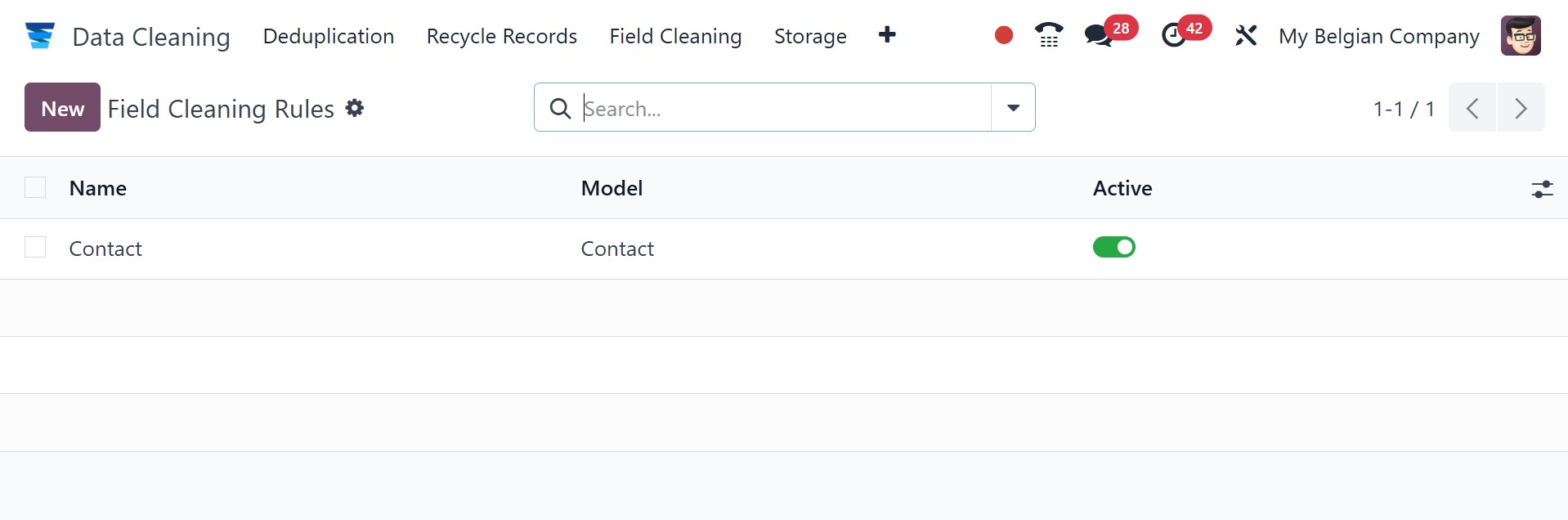
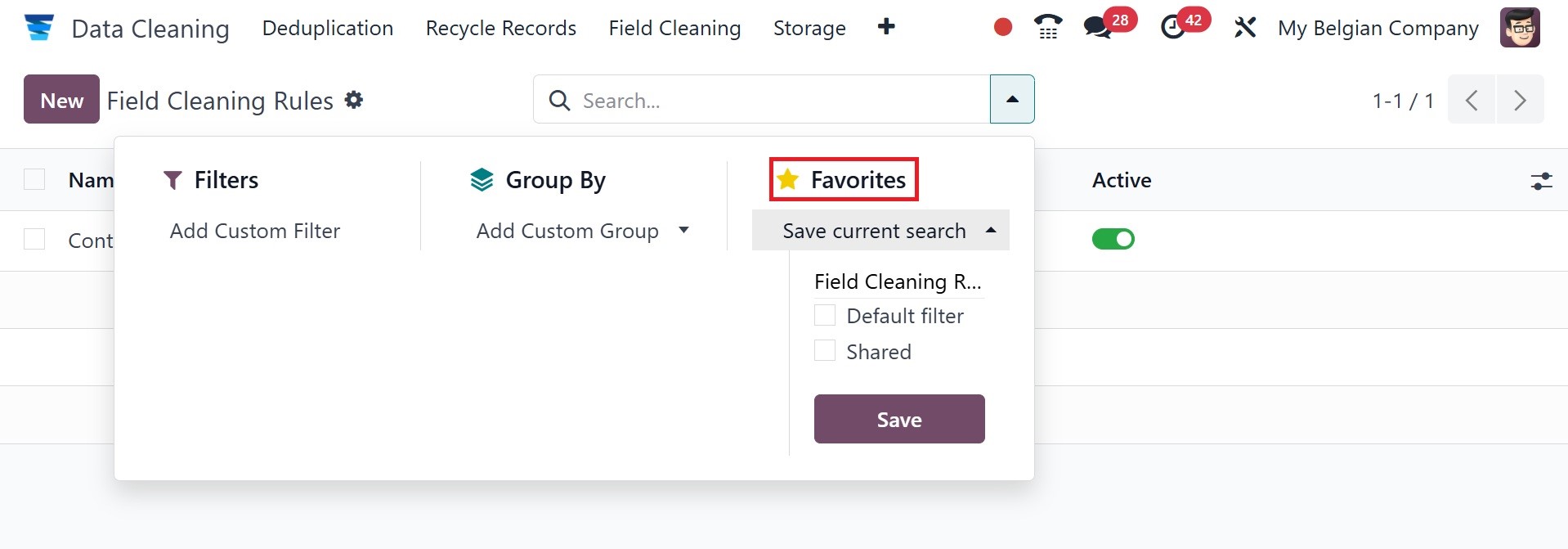
You can see a preview of all the rules the system has already established for cleaning the data field in this window. The Name, Model, and Active status of each of the predefined Field Cleaning Rules are listed. You can choose to edit the current data here as well as create a new one. You can set up customizable sorting features for effectively sorting the data using the Filters, Group By tab. You can quickly discover the information you need by using the Search option. Useful choices like save current search, import records, link menu in spreadsheet, insert list in spreadsheet, add to my dashboard, and add to Google Spreadsheet are also available on the Favorites tab.
You can click the NEW button to set up a new Field Cleaning Rule. The creation form is shown in the image below.
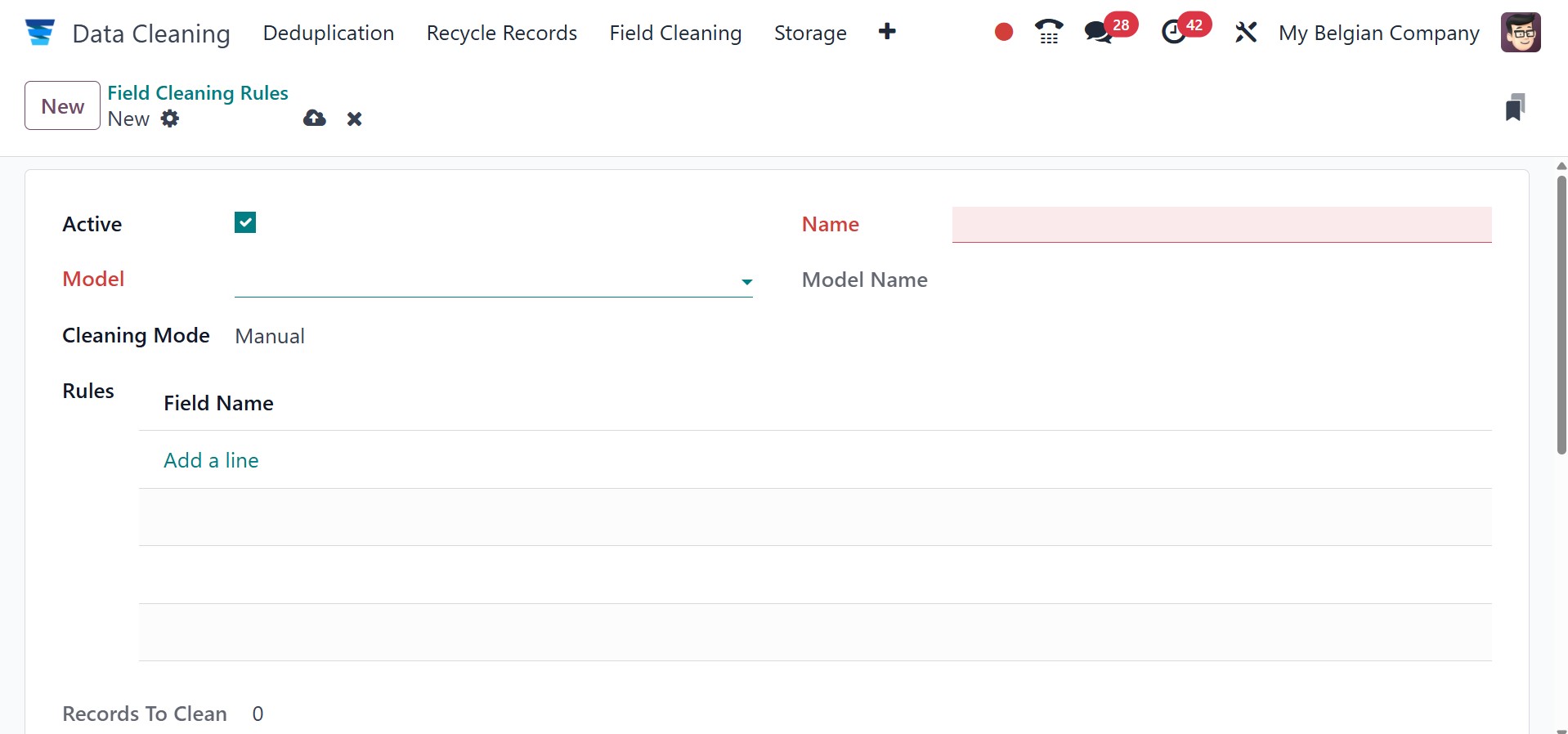
You can give the rule a name, just like we did with the deduplication rule. Likewise, the Model column allows you to select the data model. You can also specify how the data field will be cleaned. You only need to specify the rule that will be used for the data fields clean-up check if you choose Automatic. The list of users should be supplied if the Manual Method is chosen as the cleaning method, so that they are informed when new records need to be cleaned.
You can use the Add a line option to define Rules. The system will now provide a pop-up window where users can create rules.
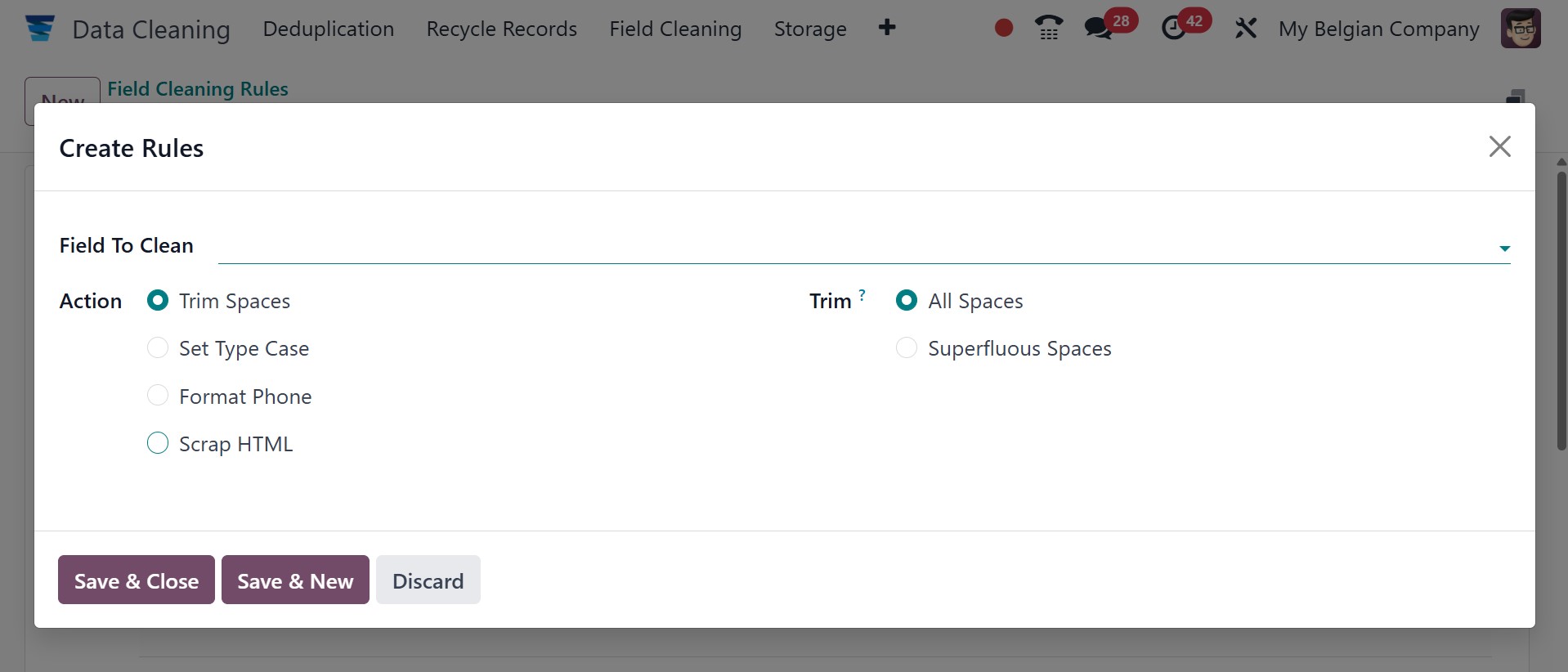
Here, you can use the Field To Clean option to describe the data field. After then, you have a variety of options. Among the several actions are
- Trim Spaces
- Set Type Case
- Format Phone
- Scrap HTML
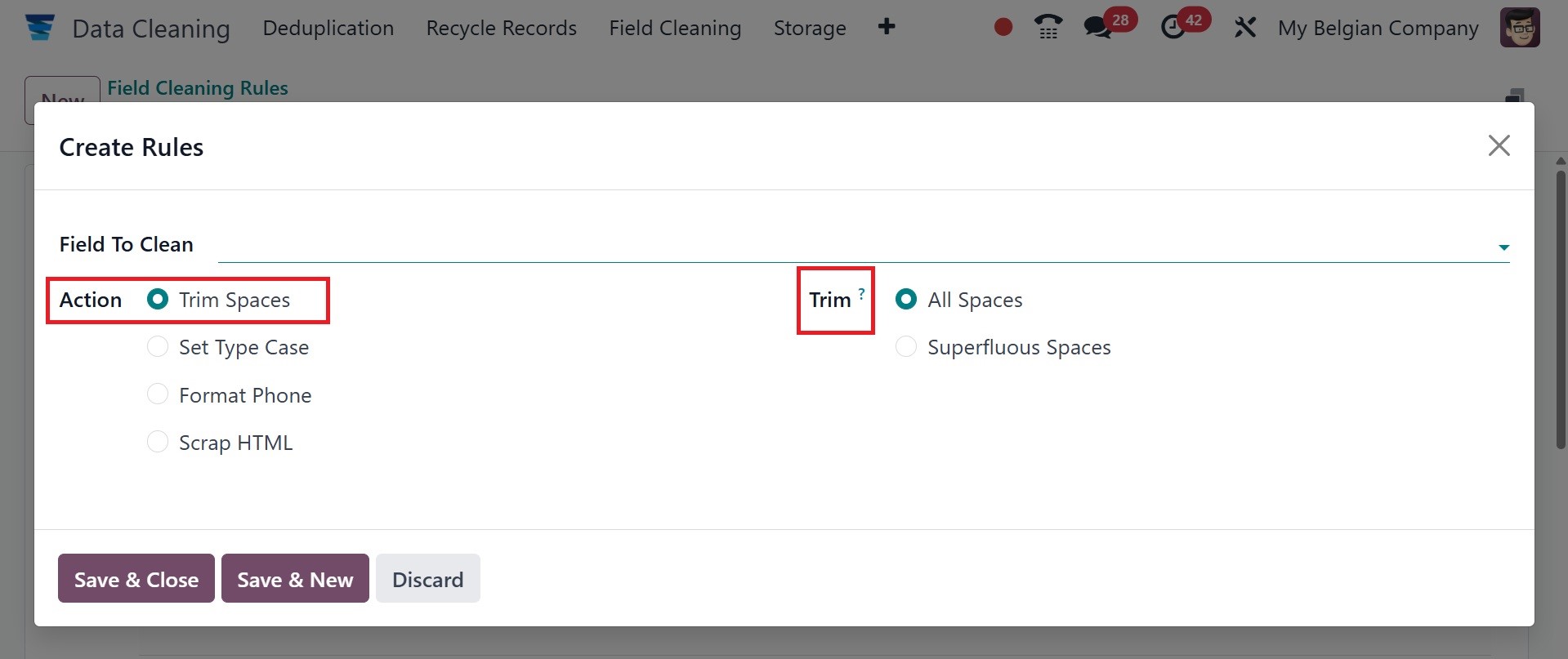
You can eliminate spaces by using the Trim Spaces option. You can choose Superfluous Space or All Spaces.
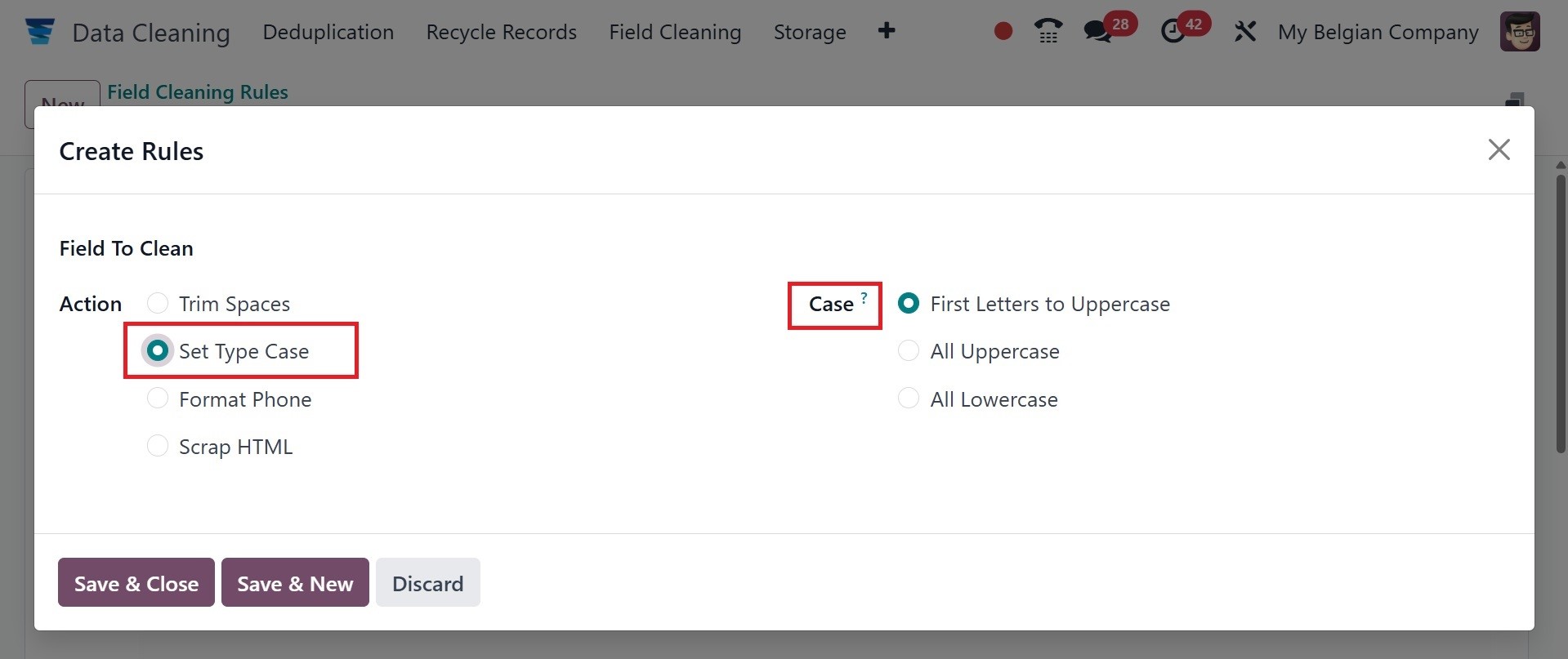
You can change the upper and lower case with the Set Type Cases option. There are three ways to set up cases here, which are All Lowercase, All Uppercase, and First Letter to Uppercase.
It can also be set as format phone and scrap HTML. The format phone option converts phone numbers in a field to an international format, which is useful for ensuring consistency across different regions. And the scrap HTML removes any HTML tags or code from a field's value, ensuring that the data is clean and usable.
You can also specify the default format for phone numbers using the system. After filling out these forms, you can save the information by clicking the SAVE & CLOSE button.
1.4 Manual Merge
The pre-configured manual merge list will be seen, as in the image below.
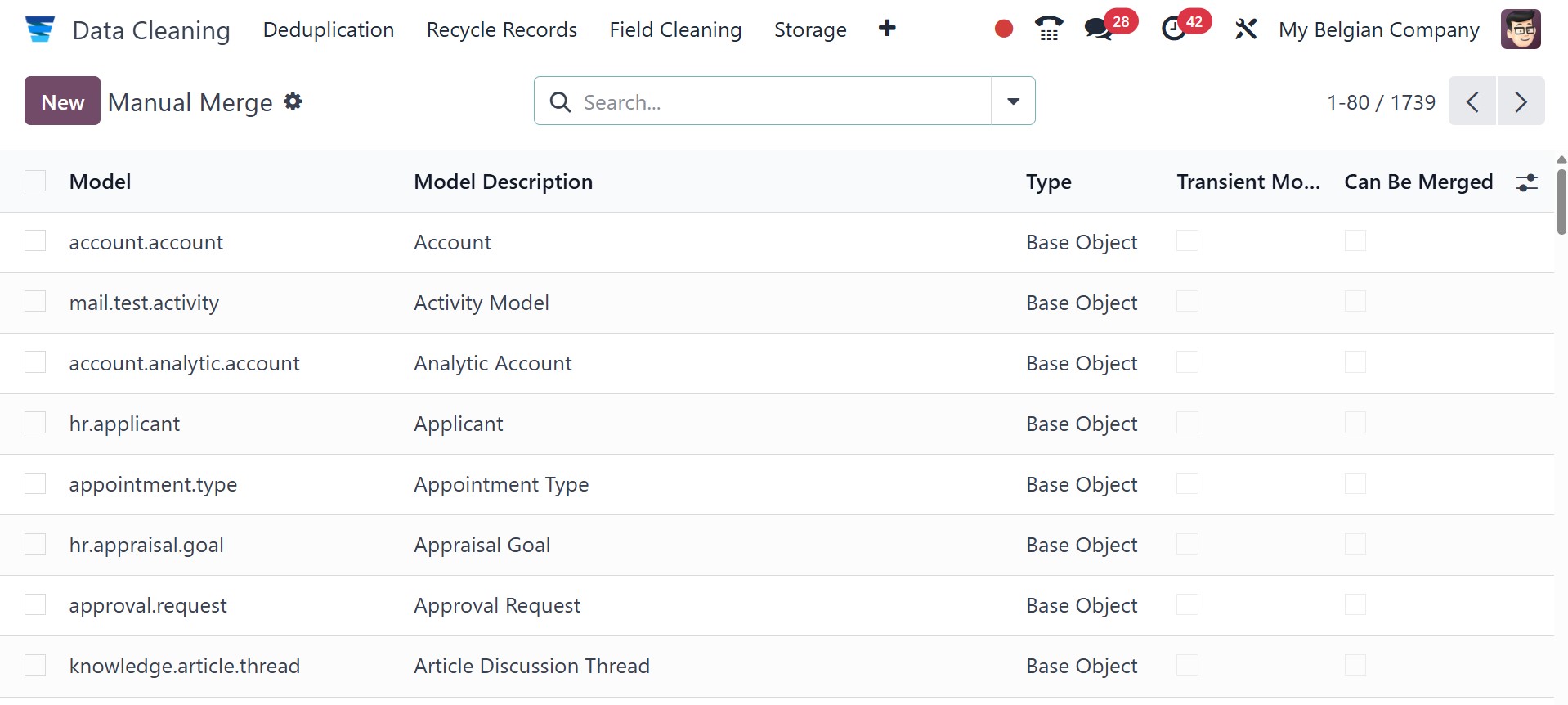
On selecting the NEW option, you will be directed to the image below. There, select Merge Action Manager to add rules for combining actions. Add the model and a description of it. The Field tab is used to add rules, while the Access Privilege tab is used to provide access privileges. Once the Enable Merge button has been configured, the records can be merged.
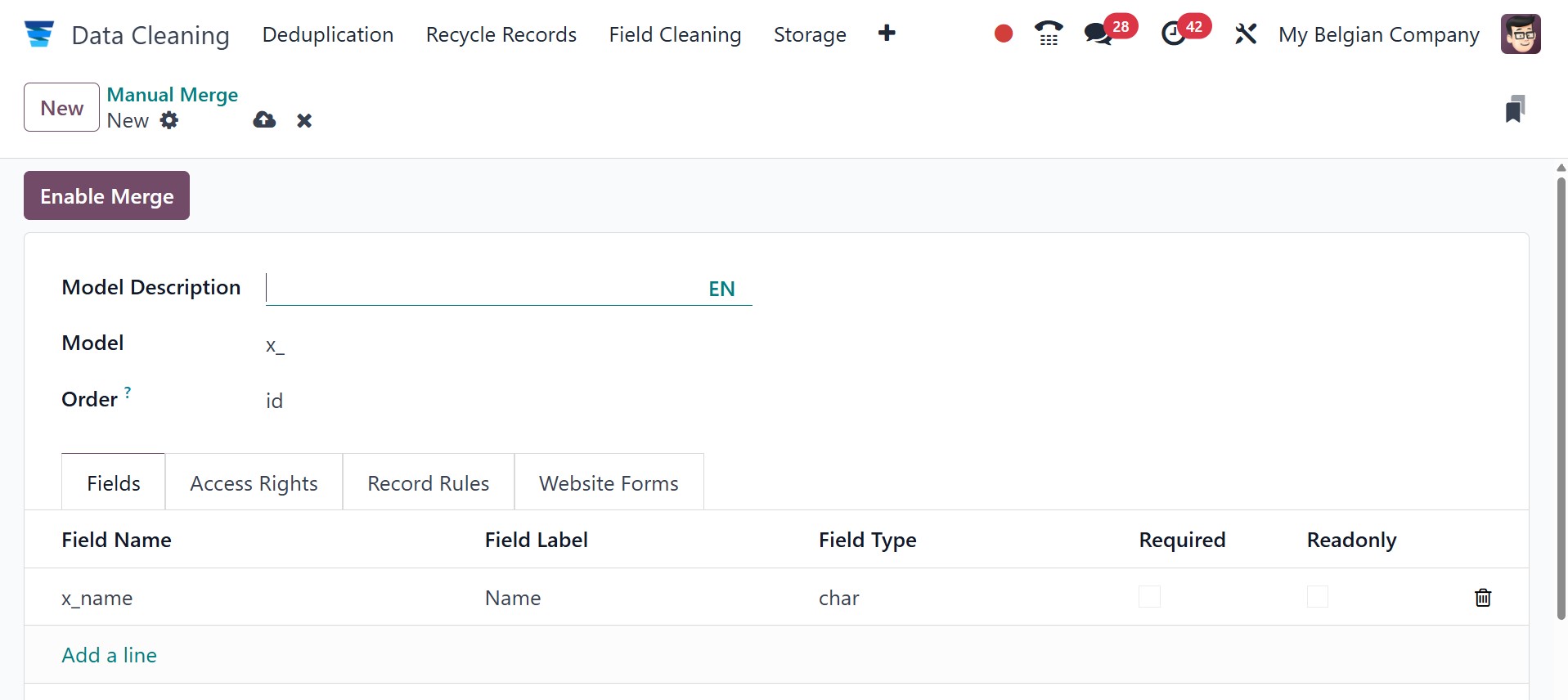
As mentioned above, in Odoo's Data Cleaning module, the menus Deduplication, Recycle Records, and Field Cleaning serve distinct purposes for maintaining data integrity: Deduplication identifies and merges or removes duplicate records. Recycle Records allows for managing outdated data, archiving, or deleting it. Field Cleaning ensures consistent data formatting by applying rules to fields.
Deduplication
The goal is to find and deal with duplicate records in the database.
Functionality: Enables users to combine or remove duplicate records and find related records according to pre-configured rules.
Recycle Records
Goal: Handles data that isn't being used anymore, enabling its deletion or archiving.
Functionality: Gives users the ability to establish rules that will automatically archive or remove records according to parameters like age or inactivity.
Field Cleaning
The goal of field cleaning is to provide uniform and standardized data formatting in designated fields.
Functionality: Uses rules to automatically format and clean data, such as formatting phone numbers, deleting excess spaces, or changing text to a particular case.