4. Canned Responses
In Odoo 18, the Discuss module offers a feature known as canned
responses, designed to streamline communication by allowing users to
insert predefined messages using simple shortcuts. This
functionality is particularly beneficial for handling repetitive
inquiries, ensuring consistency, and saving time across various
communication channels within Odoo.
To create or manage canned responses, navigate to the Discuss
application, then proceed to Configuration > Canned Responses. Here,
you'll find a list of existing responses. To add a new one, click on
the New button located at the top-left corner of the list.

This action will open a form where you can define the main components
of a canned response:
Shortcut: A memorable keyword prefixed with a colon (e.g.,
:welcome) that, when typed, triggers the insertion of the predefined
message.
Substitution: The full message text that replaces the
shortcut upon activation (e.g., "Welcome to our support chat! How
can I assist you today?").
Description: Provide context or guidelines for when the
response should or should not be used.
Created by: This field automatically populates with the name
of the user creating the response and cannot be edited.
Authorized Groups: To share the response with other users,
select one or more groups that should have access.
Last Used: This field records the date and time the response
was most recently used and is updated automatically.
By default, canned responses are only available to the user who
created them. To make a response accessible to others, you must
assign it to specific user groups by adding them to the Authorized
Groups field. Users with Administrator access rights can view and
edit canned responses created by others but can only use them if
they belong to an authorized group designated for that response.
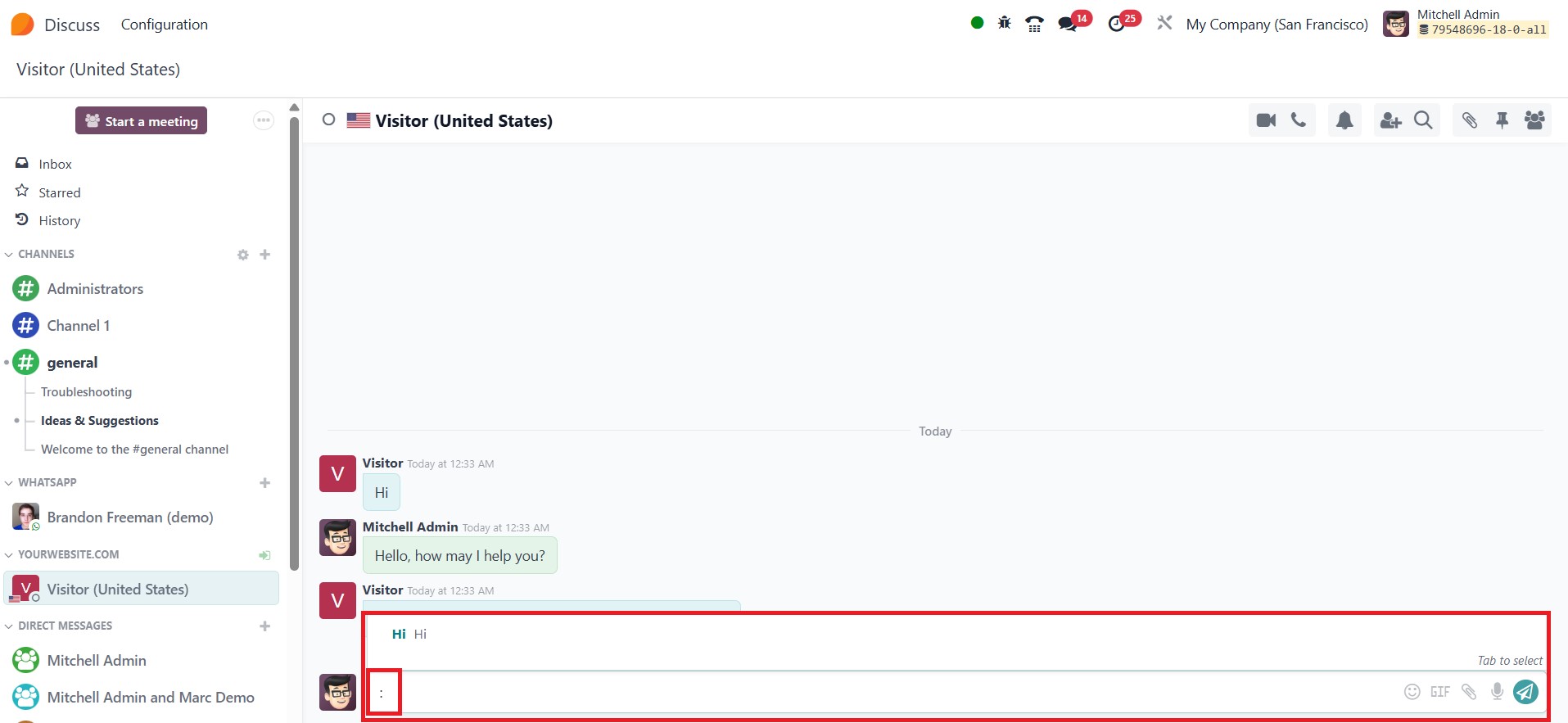
To use a canned response, type a colon (:) followed by the shortcut
in any chat window, such as in the Discuss app, Live Chat
conversations, or the Chatter composer on any record. As you type, a
list of matching canned responses will appear. Select the desired
response from the list, and it will automatically populate in the
message field. You can then edit the message if needed before
sending it.
These features make the Discuss module a robust internal
communication and collaboration tool, integrating seamlessly with
broader workflows in Odoo 18.