2. Direct Messages
To start a direct message in the Discuss module of Odoo 18 Enterprise
Edition, users can click on the ‘+’ icon in the main Discuss window.
This action initiates a new private chat, enabling one-on-one
communication with specific colleagues in a confidential space.
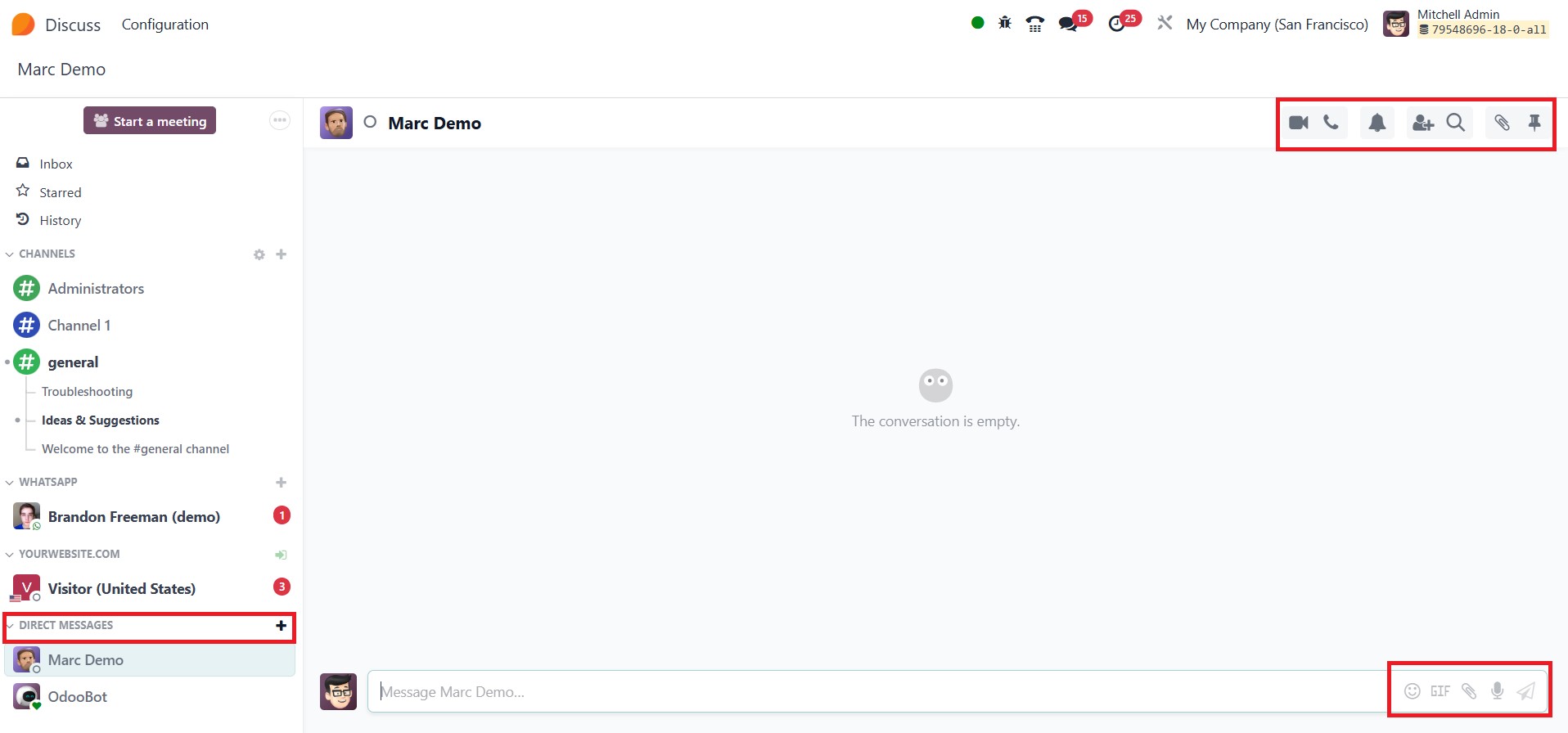
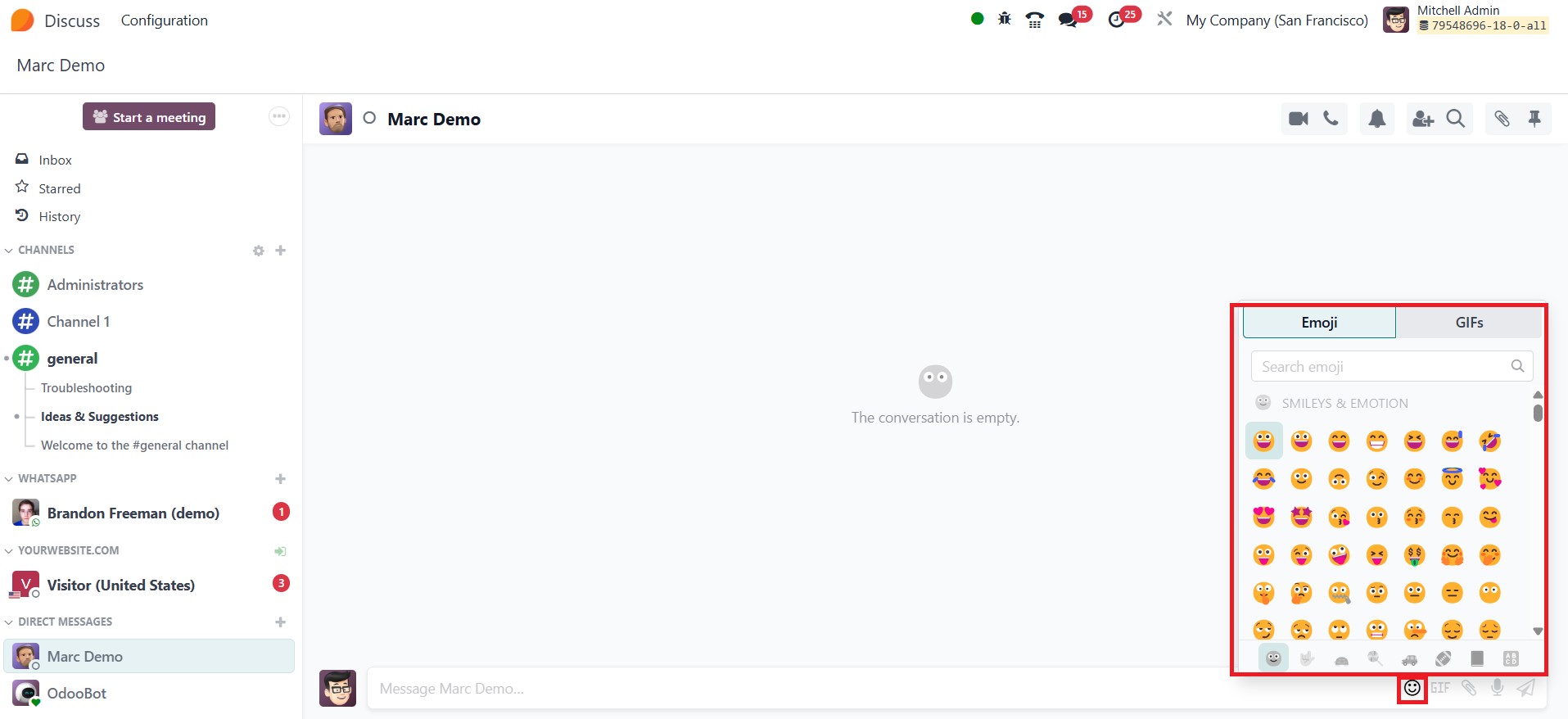
Direct messaging is enhanced with a range of interactive features,
including support for emojis, GIFs, file attachments, voice
messages, and video calls, making the conversations more expressive
and dynamic. Among the advanced functionalities, link previews are
automatically generated when URLs are shared, providing a snapshot
of the content without needing to leave the chat. The video call
option includes capabilities like blurred backgrounds, offering a
cleaner and distraction-free visual during virtual meetings.
Additionally, users can attach files and use emojis to create a more
engaging and visually rich communication experience.
To ensure users stay updated, the notification symbol in the
interface alerts them to any new messages. Located at the top-right
corner, the Phone and Video Call buttons offer instant connectivity
options for quick voice or video interactions. The Search icon
assists users to search messages and important messages can be
pinned in a chat using the Pin icon.
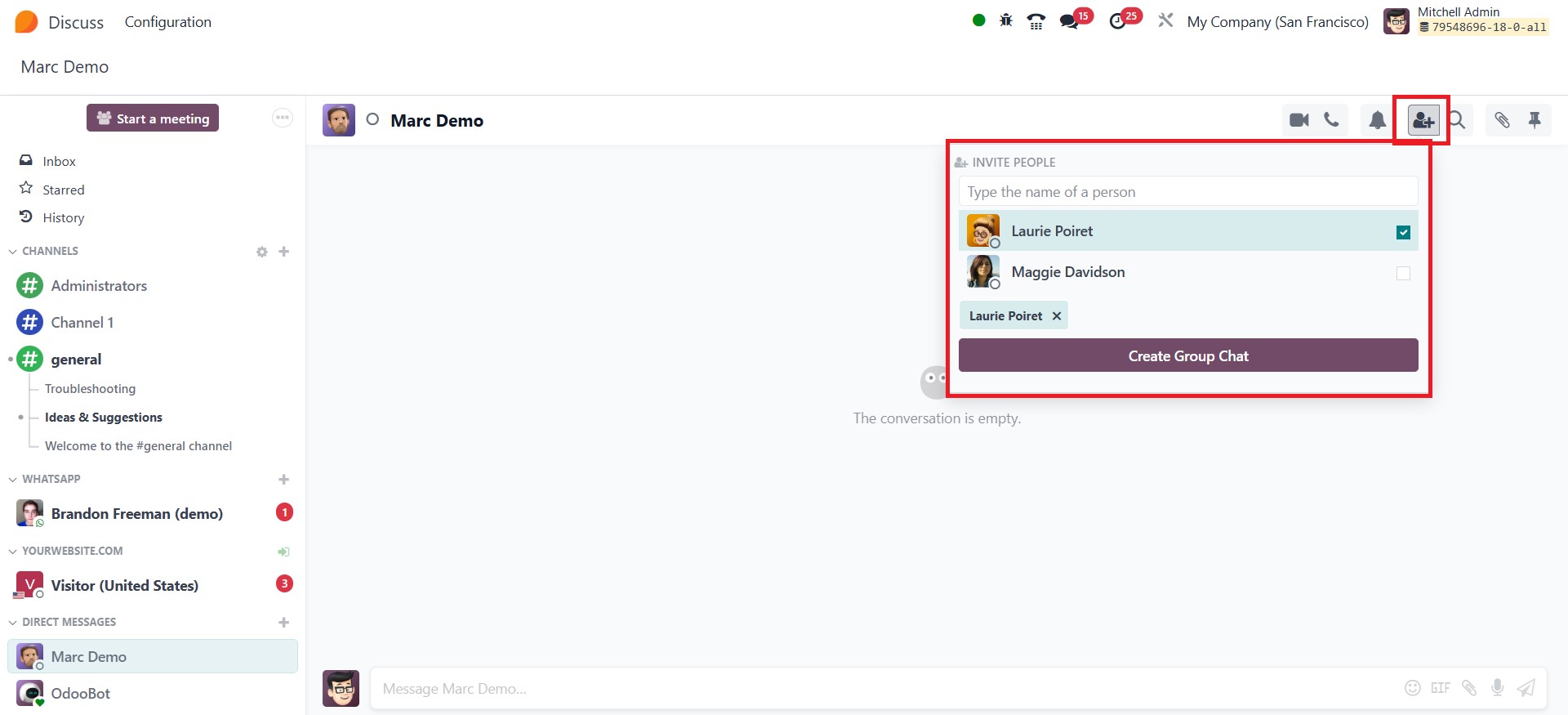
For broader team conversations, users can create chat rooms by adding
multiple participants. This can be done easily by clicking the
Invite People button and entering the names of individuals or
selecting them from the available list. Once the participants are
chosen, clicking on Create Group Chat adds them to the conversation.
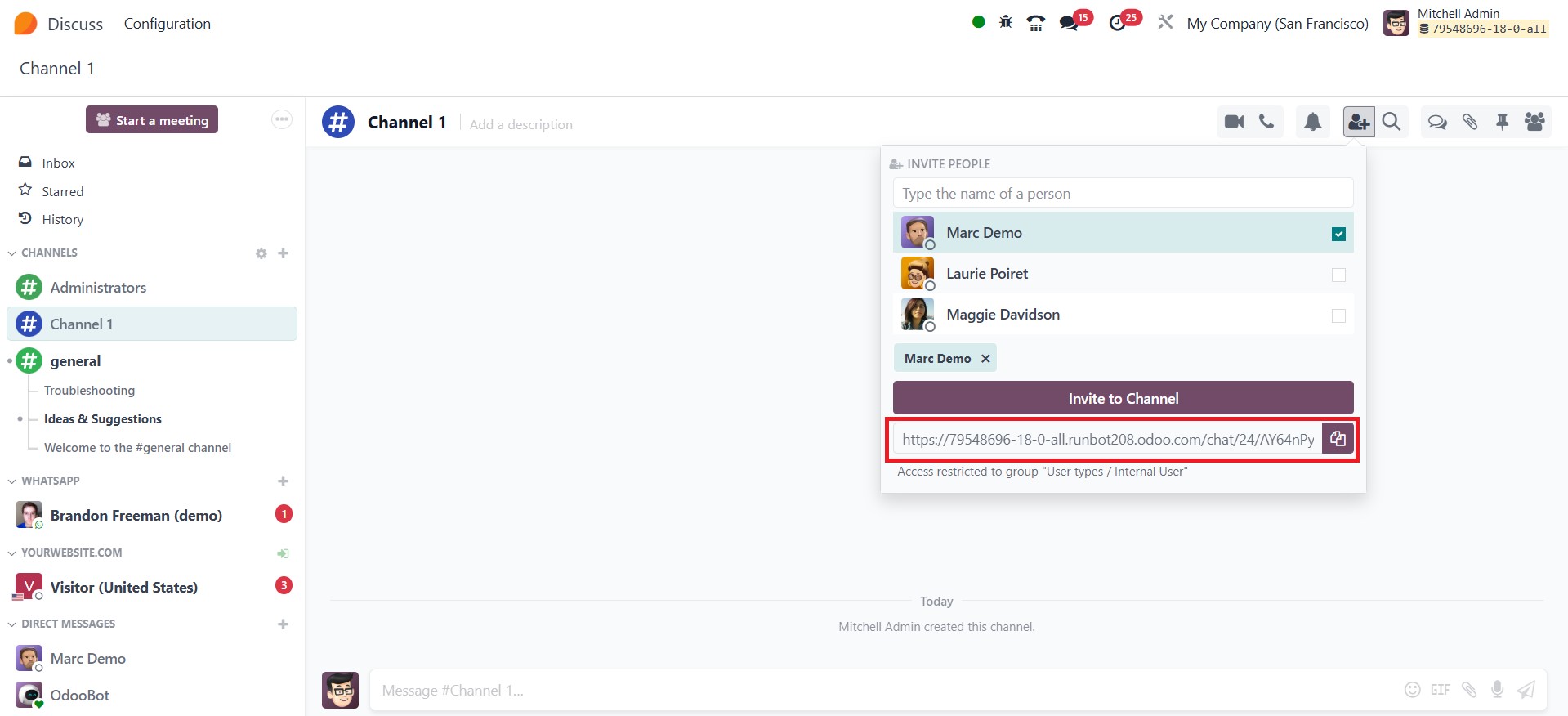
Odoo also supports the creation of channel URL links, which can be
copied and shared with others via direct messages or email, making
it easier to bring team members into relevant discussions.
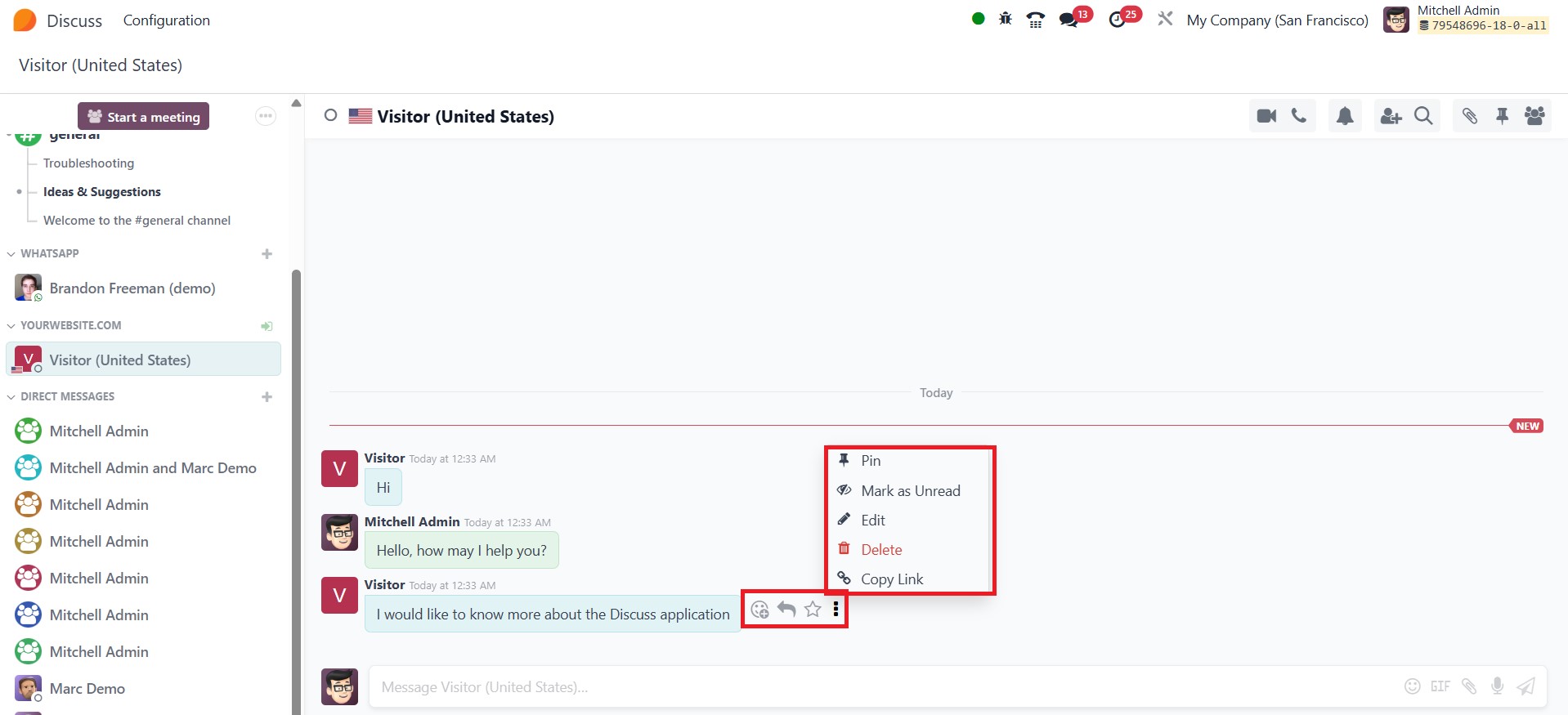
In Odoo 18 Enterprise Edition, hovering over a direct message within
the chat window reveals a contextual action menu that allows users
to interact with messages more efficiently. This interactive menu
provides several key options:
Add a Reaction: Clicking this opens a drop-down menu of
emojis, allowing users to quickly react to messages in a fun and
expressive way.
Reply: Enables users to respond directly to the message within
a threaded conversation, keeping discussions organized and
contextually linked.
Mark as To-do: Adds the message to the Starred tab for easy
reference, allowing users to track important messages or follow up
later.
Expand: Displays additional message management options such as:
Pin: Pins the message for visibility and quick access.
Mark as Unread: Flags the message as unread, serving as a
reminder to revisit it later.
Edit: Allows the sender to modify the message content.
Delete: Removes the message from the chat, available only to
users with the appropriate permissions.
Copy Link: The link will be copied and allow you to share it
with others via chat, email, or any other communication channel.
The Discuss module offers users the convenience of enabling desktop
notifications to stay updated on incoming messages in real time.
This feature can be activated by clicking on the Notification icon,
where users can adjust the notification settings according to their
preferences.
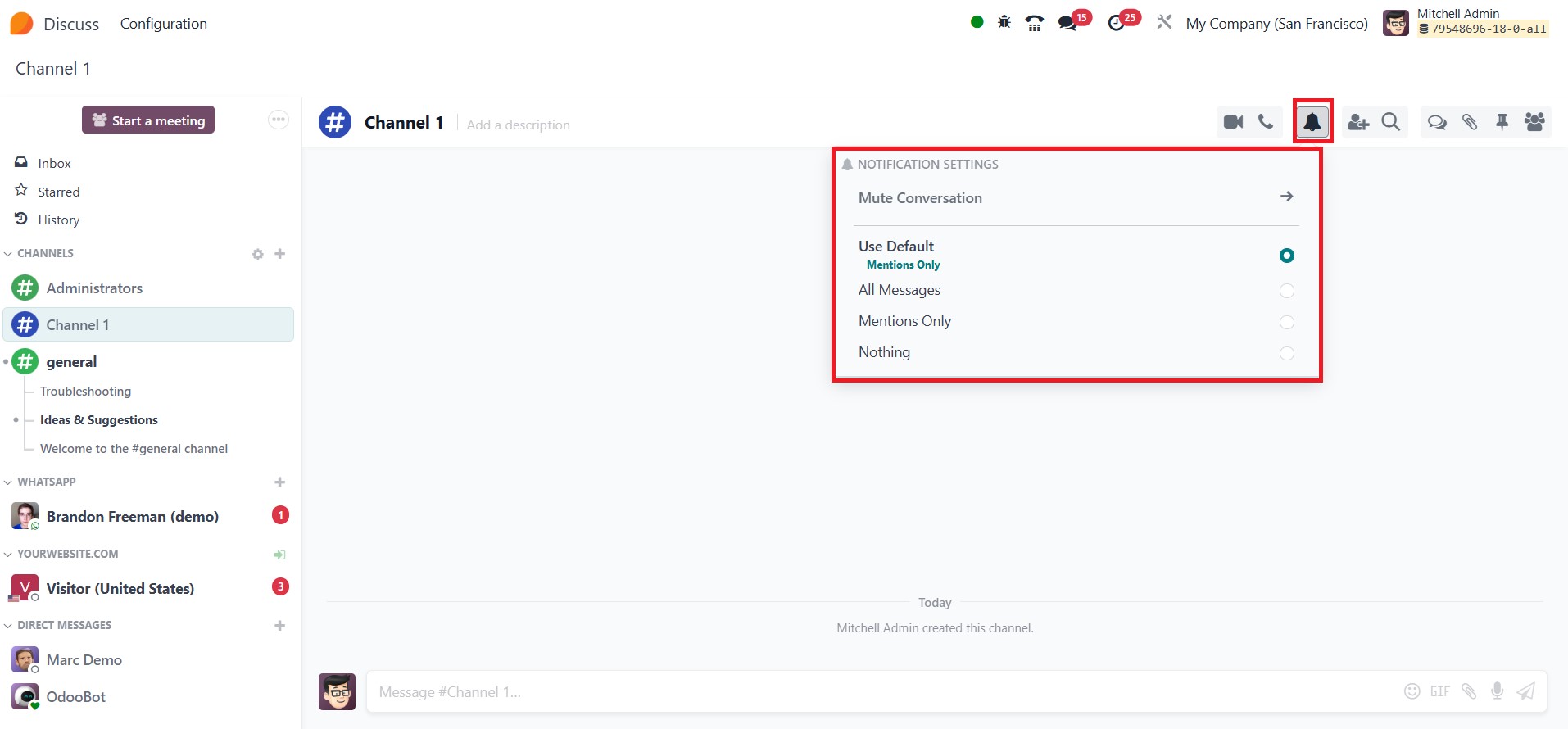
This ensures they never miss an important update, even while working
in other areas of the platform.
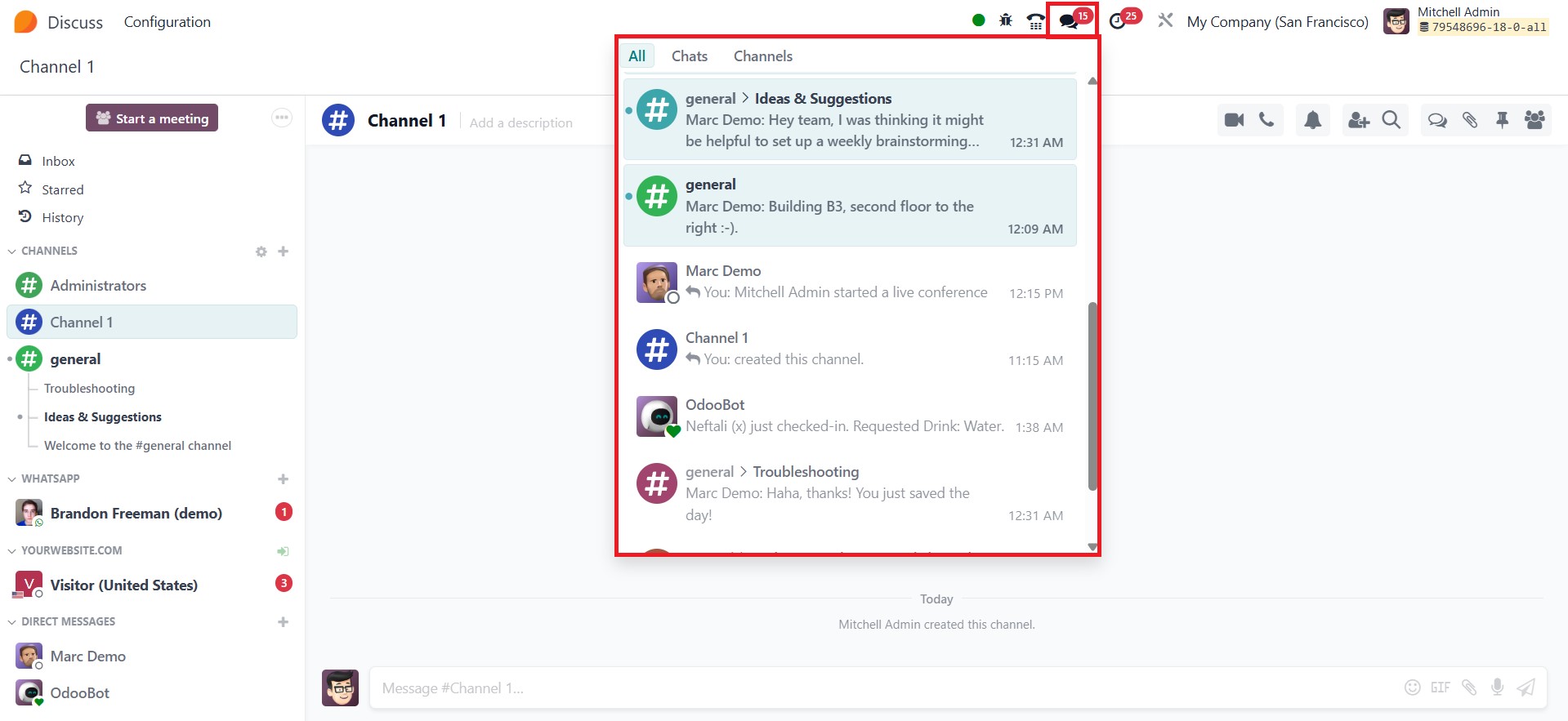
Additionally, the Chat icon located on the main menu bar provides
seamless access to new messages from anywhere within Odoo. With just
a click, users can view and respond to messages instantly, without
having to return to the Discuss module. This integrated
communication experience enhances productivity by keeping
conversations easily accessible and uninterrupted across the
platform.
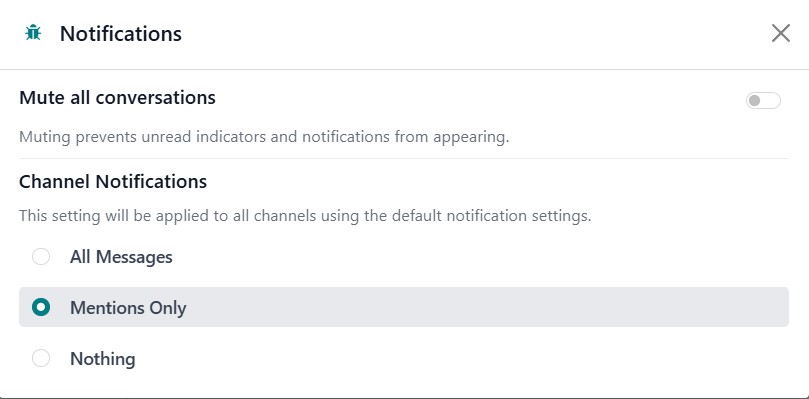
In Odoo 18, the Discuss module offers flexible notification
management to help users maintain focus and reduce distractions. By
selecting the Notifications option from the Configuration menu, you
can manage them. To mute all conversations, users can enable the
Mute All Conversations. Selecting the option to mute conversations
will suppress unread indicators and notifications across all
channels and direct messages. This ensures that while notifications
are silenced, messages remain accessible within the Discuss module
for review at any time.