1. Documents Dashboards
As you can see in the above image, the documents dashboard panel
provides you with a preview of all the predefined documents that are
saved in the system. The workspace information is displayed on the
left side of the window. The system allows you to arrange your
papers by workspace and a number of categories, including Internal,
Payroll, Finance, HR, Marketing, Products, Recruitments, and many
more.
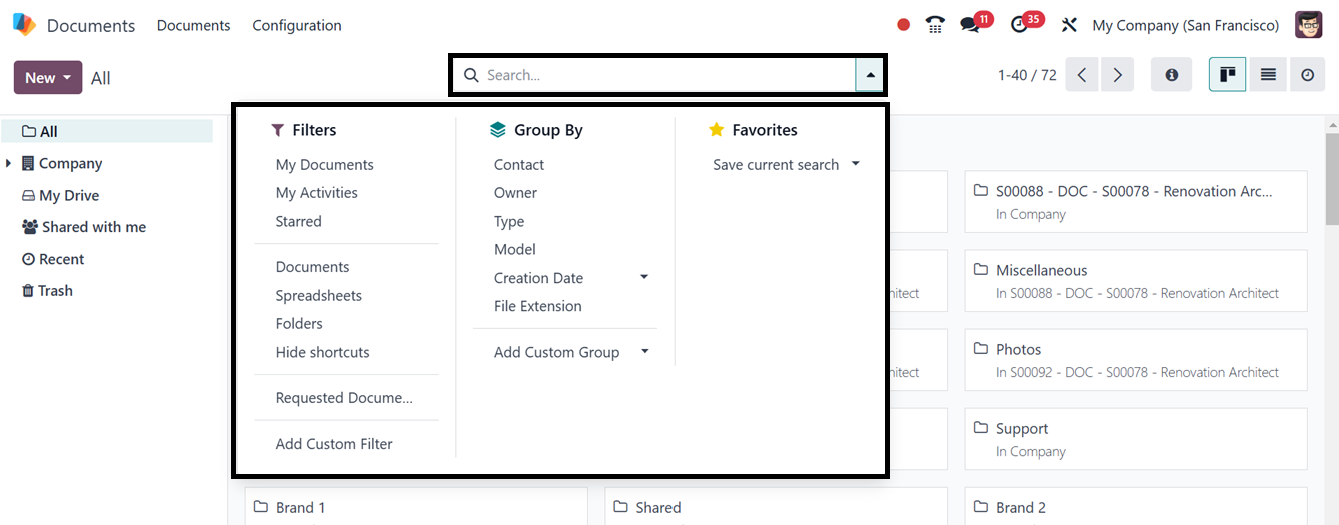
You can utilize the advanced search bar options to get targeted
documents using various filters and sorting categories in the
Filters and Group By options. The Dashboard panel offers several
pre-made and customized Filters, Favorites, and Search options for
classifying and organizing your data.
The Filters tab has the following default filters: My Documents, My
Favorites, PDF/Document, Spreadsheet, Image/Video, URL, Locked,
Requested, and Archived. You may use the left-hand side of the
window to classify your data and records. Then, you can highlight
the important documents using the Favorites option, as illustrated
in the screenshot below.
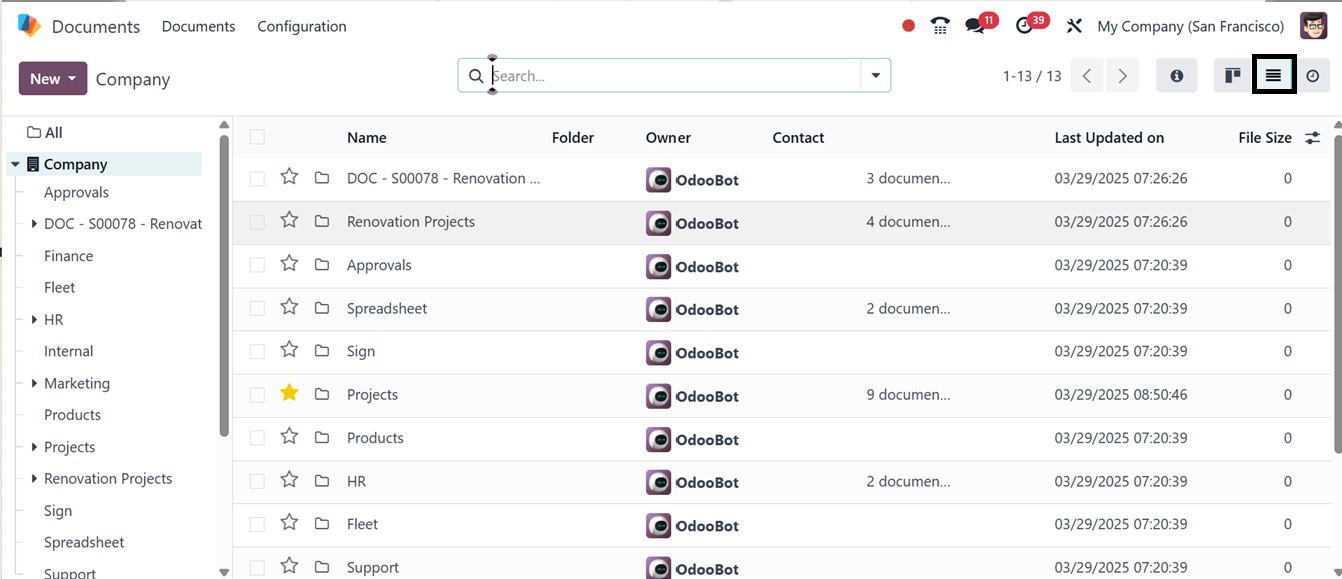
The module additionally enables you to view the dashboard window as a
list in addition to the Kanban view. You can click on the List view
menu icon in the window's upper right corner to view it in list
mode.
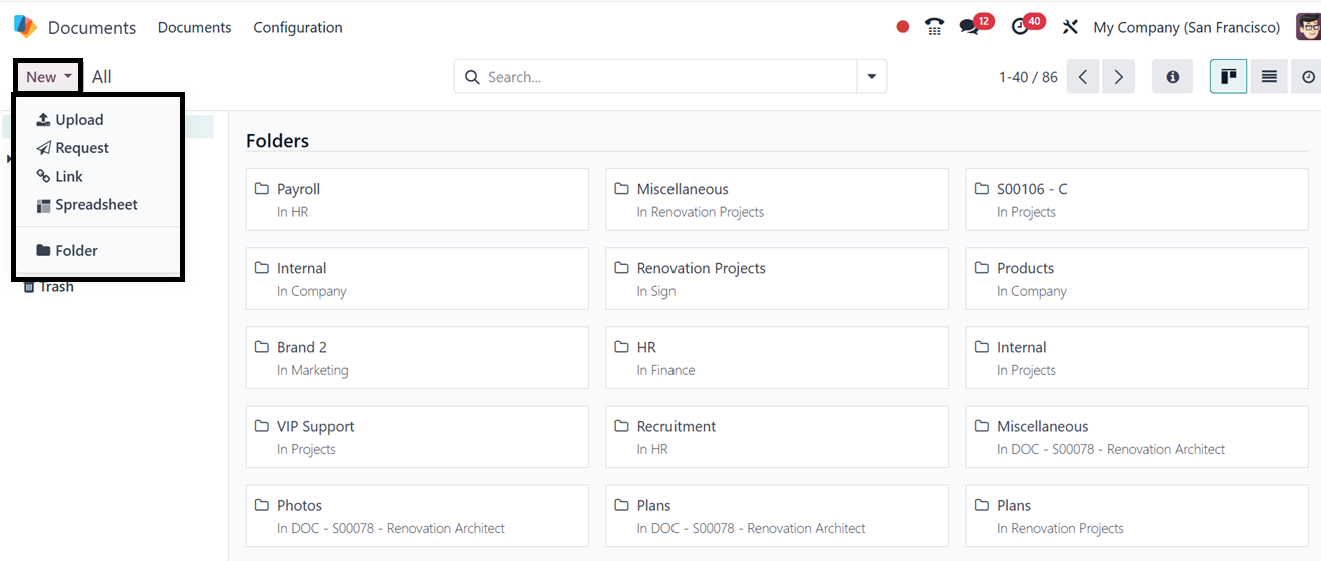
The ‘New’ button provided at the upper left corner of the window can
be used to upload a new document, request a document, add links,
create a Spreadsheet with the document data, and create new Folders
using the Upload, Request, Link, Spreadsheet, and Folder buttons
respectively as illustrated below.
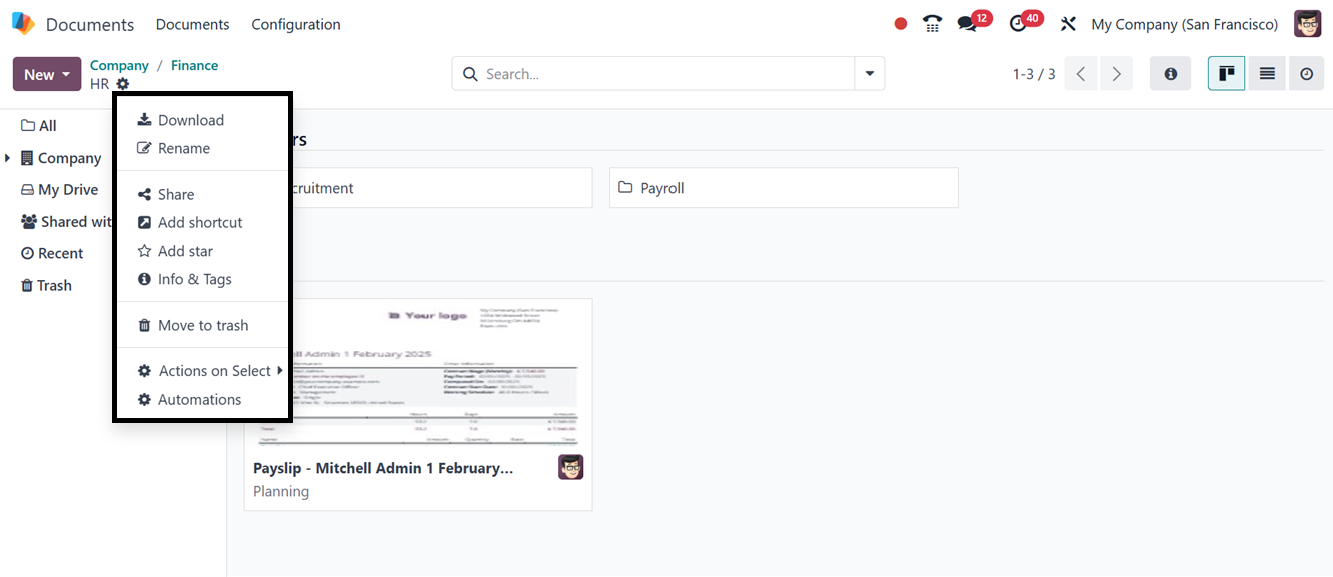
After choosing a relevant document category, the dashboard displays
the available documents stored under it. Using the ‘Action ’ menu,
you can Download, Rename, Share, Add shortcut, Add star, Info &
Tags, Move to Trash, Set actions on selection, and set various
Automations using the relevant options.