3. Signing a Document
With the integration of the Odoo Sign module application, Odoo offers
a "Sign" button in the document window for papers that require
signing. This button may be used to instantly sign the document
within the module, as illustrated in the screenshot below.
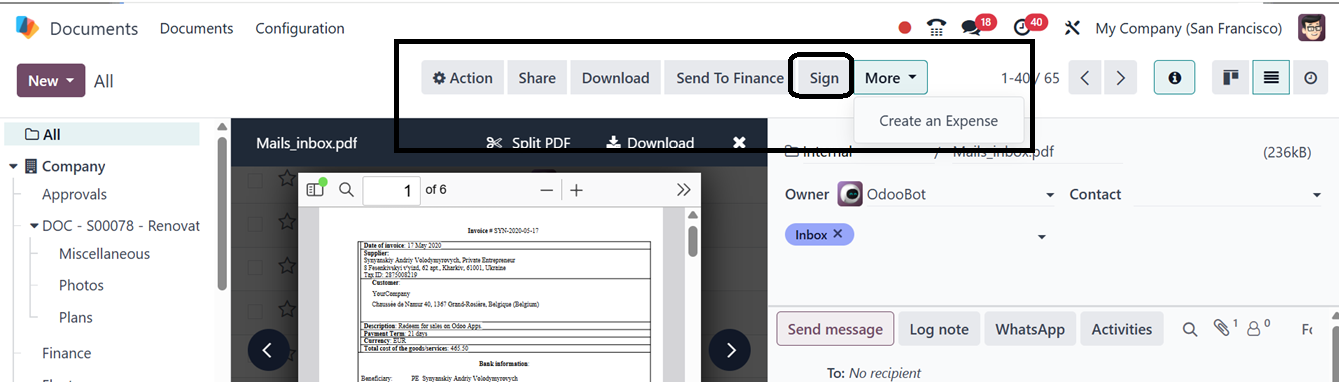
Simply click the "Sign" button to launch a new window with unique
features, such as different characteristics for the signature fields
and the editable document format, as seen below.
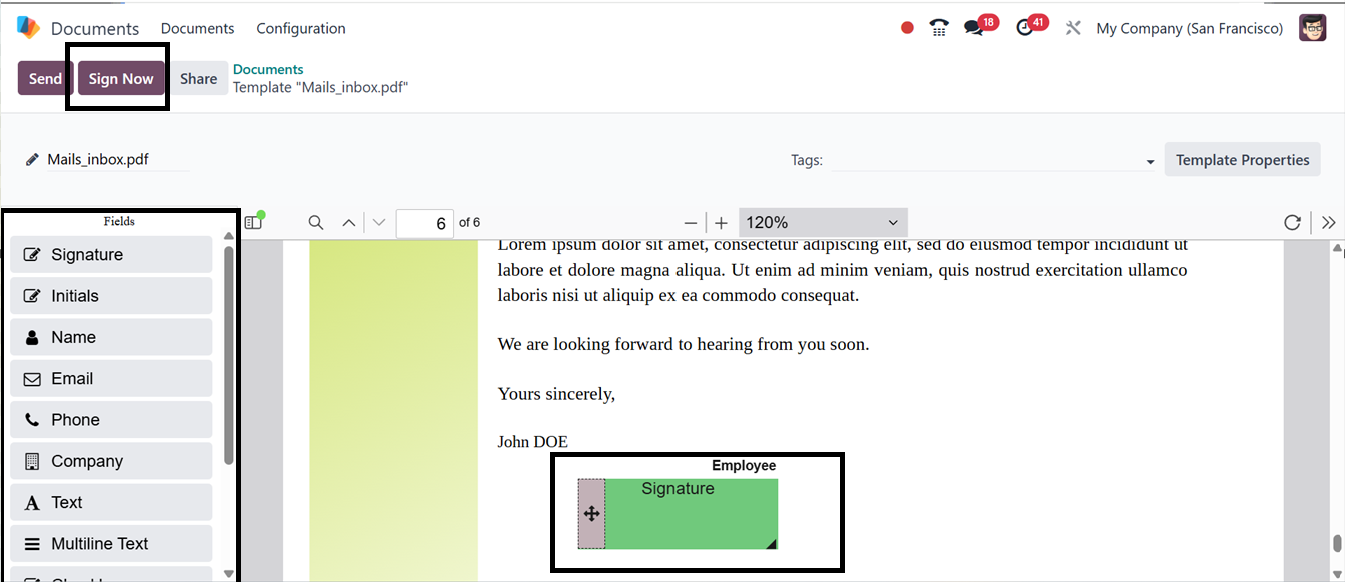
You can incorporate various document fields required for signing from
the 'Fields' editing section. These fields can then be dragged and
dropped into the appropriate location within the document, as
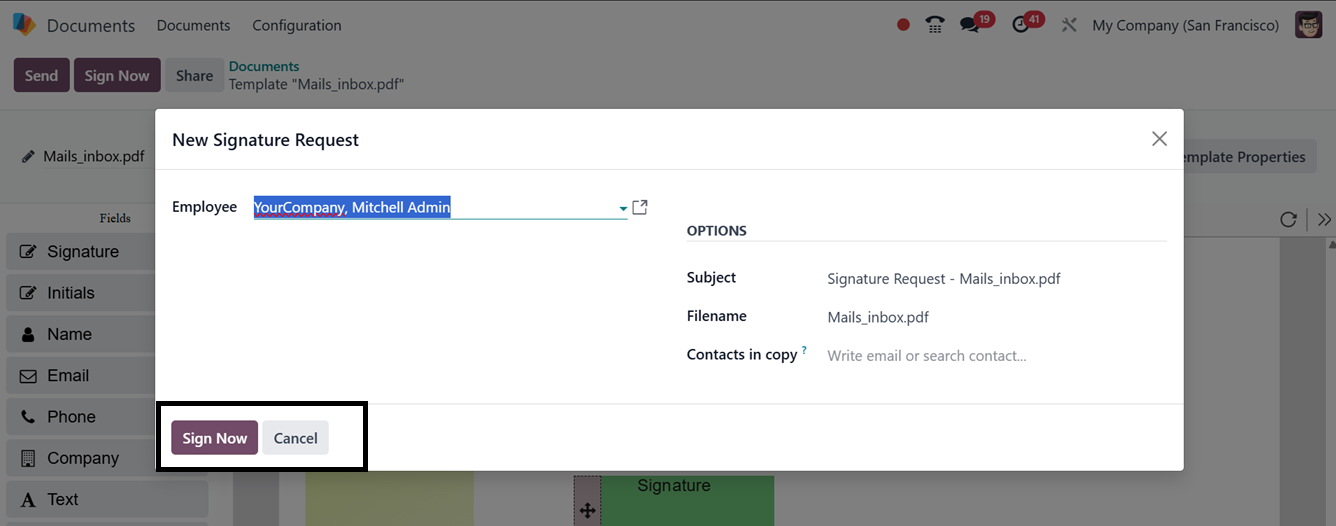
illustrated in the screenshot above. Finally, click the 'Sign Now'
button to start the signing process. This will open another
signature request pop-up window, where you can edit the Employee
Name, Subject, File Name, and Contacts in Copy as illustrated below.
To complete the process, press the ‘Sign Now’ button and you will be
taken to the document. Then, click on the sign field and this will
open a signature editing field, where you can automatically create a
new signature according to the name, Draw a signature or Upload a
signature from your device using the Auto, Draw and Load buttons as
illustrated below.
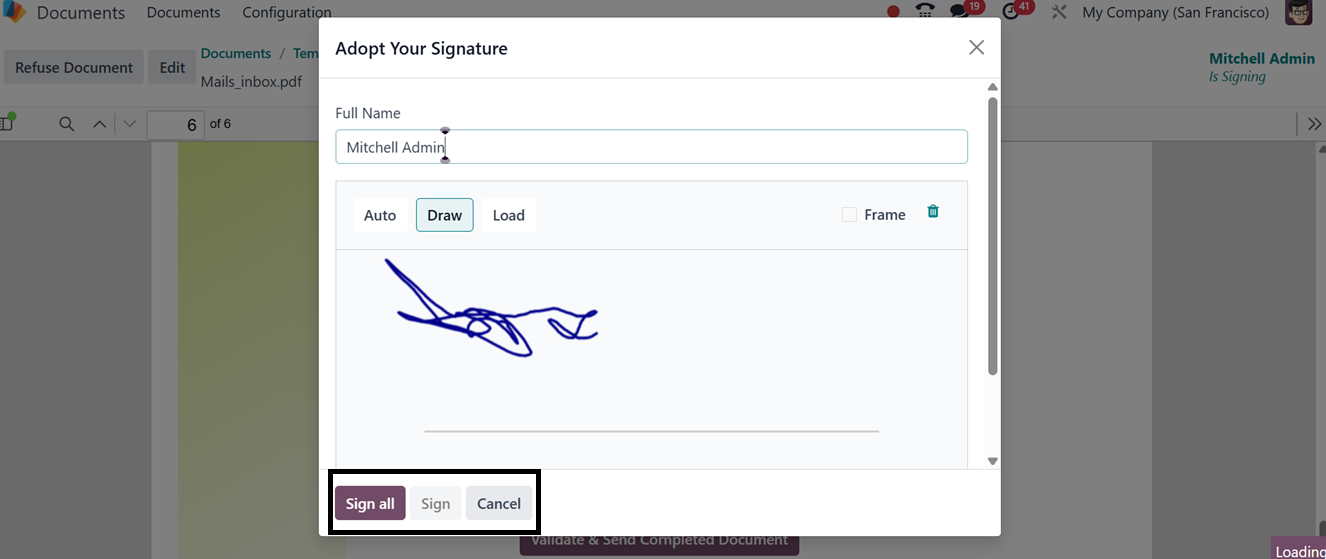
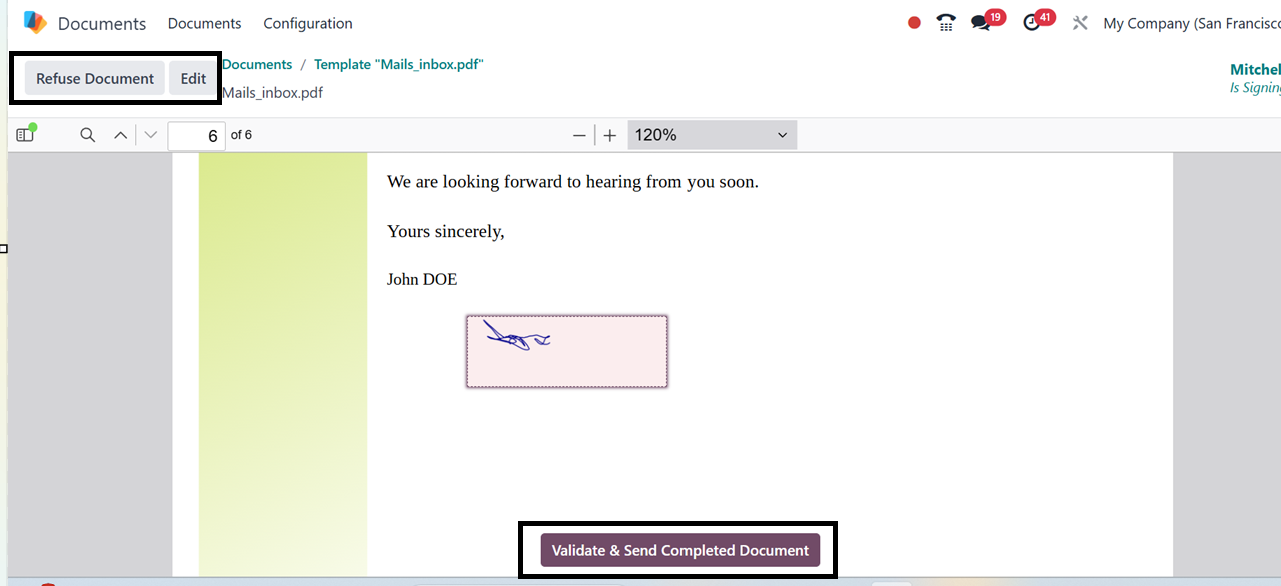
Press the ‘Sign all’ button to finalize. Now, the signing procedure
will be completed and then, you can verify and send the completed
document for further processing using the ‘Validate &Send Completed
Document’ button.
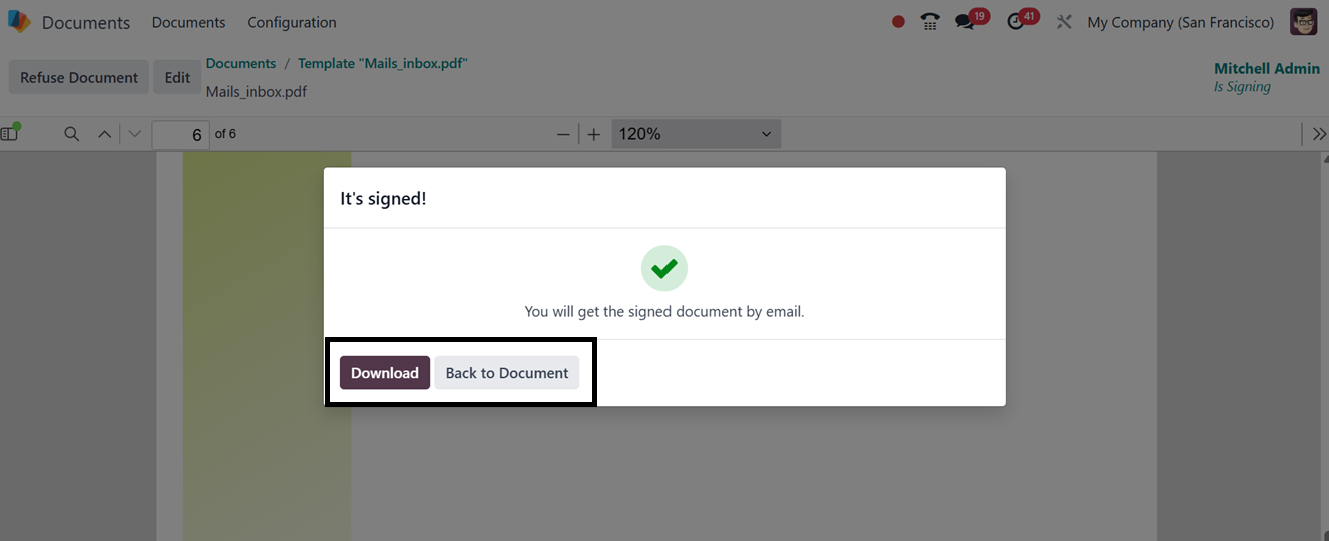
After validating the document, you can download the document using
the ‘Download’ button.
Finally, the responsible person or admin users can refuse the
document using the ‘Refuse Document’ button and further edit it
using the ‘Edit’ button.