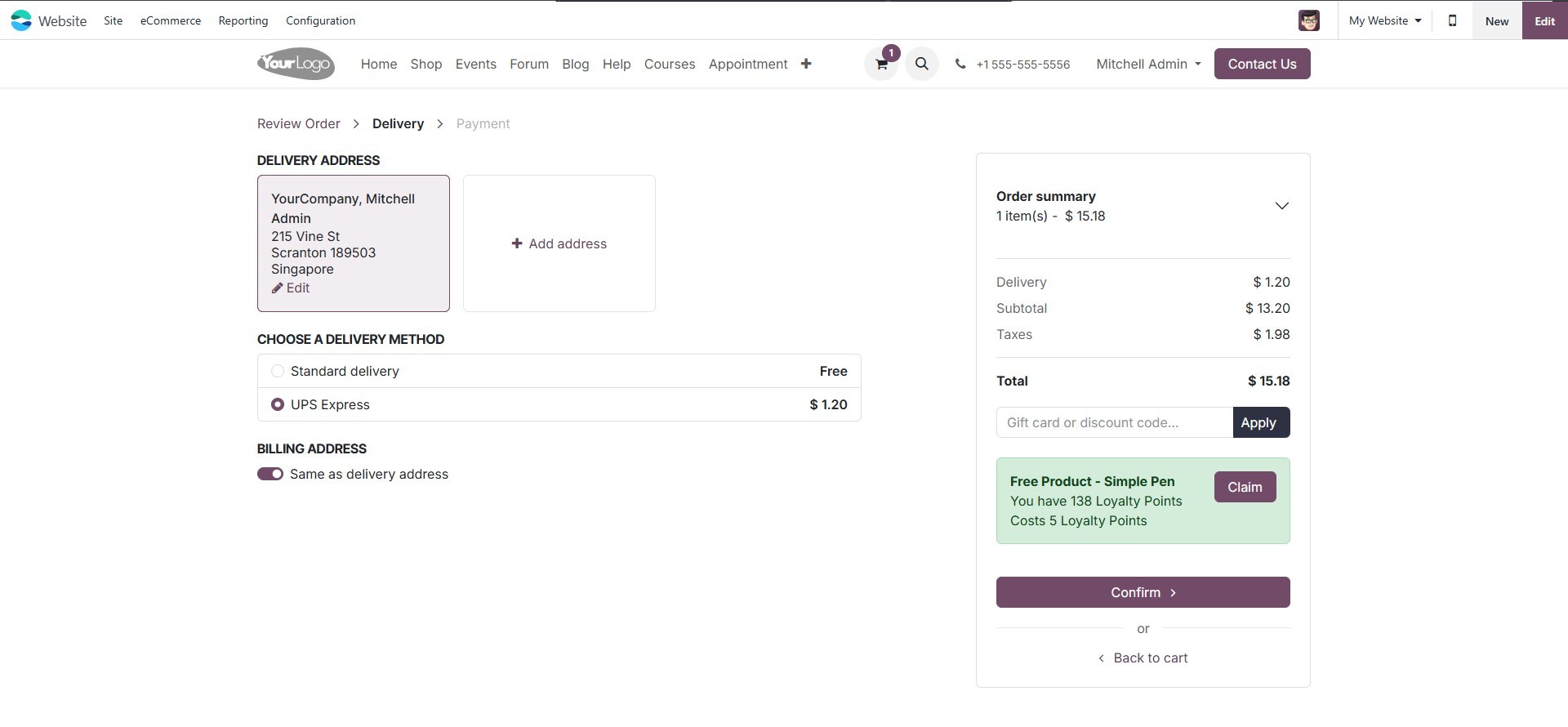
5. Configure eCommerce Payments
In today’s world of "techie-apps," e-commerce has become a vital
component of every business model. Online platforms greatly enhance
business operations by providing opportunities to sell goods and
services globally. With e-commerce, businesses can reach a wider
audience, allowing customers to easily browse and purchase products.
Moreover, the ERP platform offers a highly intuitive eCommerce
solution that seamlessly integrates into your business, providing a
dedicated platform for efficient management and operations.
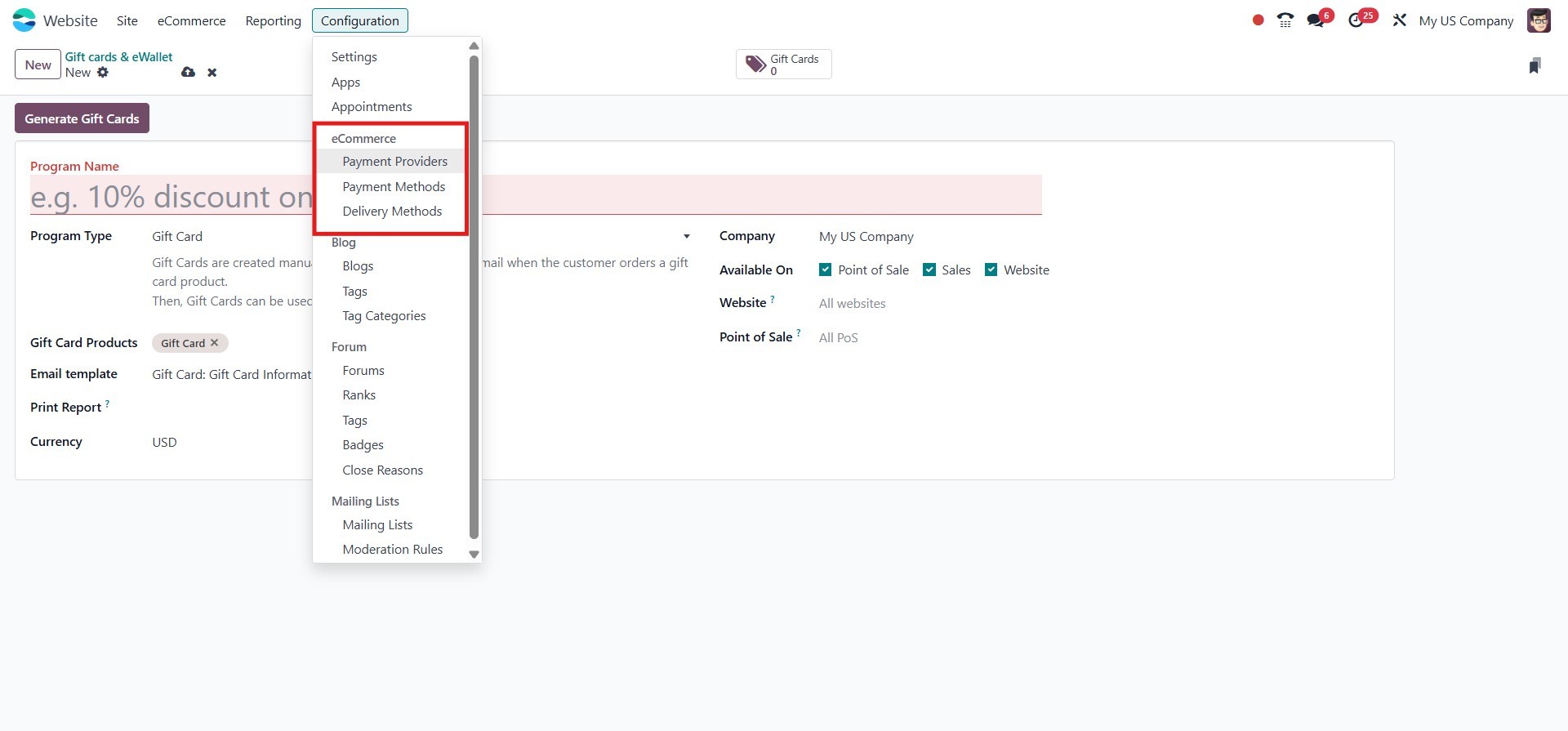
5.1 Payment Provider
Several Payment Acquirers are available to support secure and
efficient transactions on your e-commerce website or customer
portal. These can be configured using the Payment Provider option
found under the Configuration tab of the Website module. By setting
up suitable Payment Providers, you can offer your customers a range
of convenient and timely payment methods to complete their purchases
online. When you click on the Payment Providers menu, you will be
directed to the Payment Acquirers window, where all the configured
options are displayed for easy management and setup.
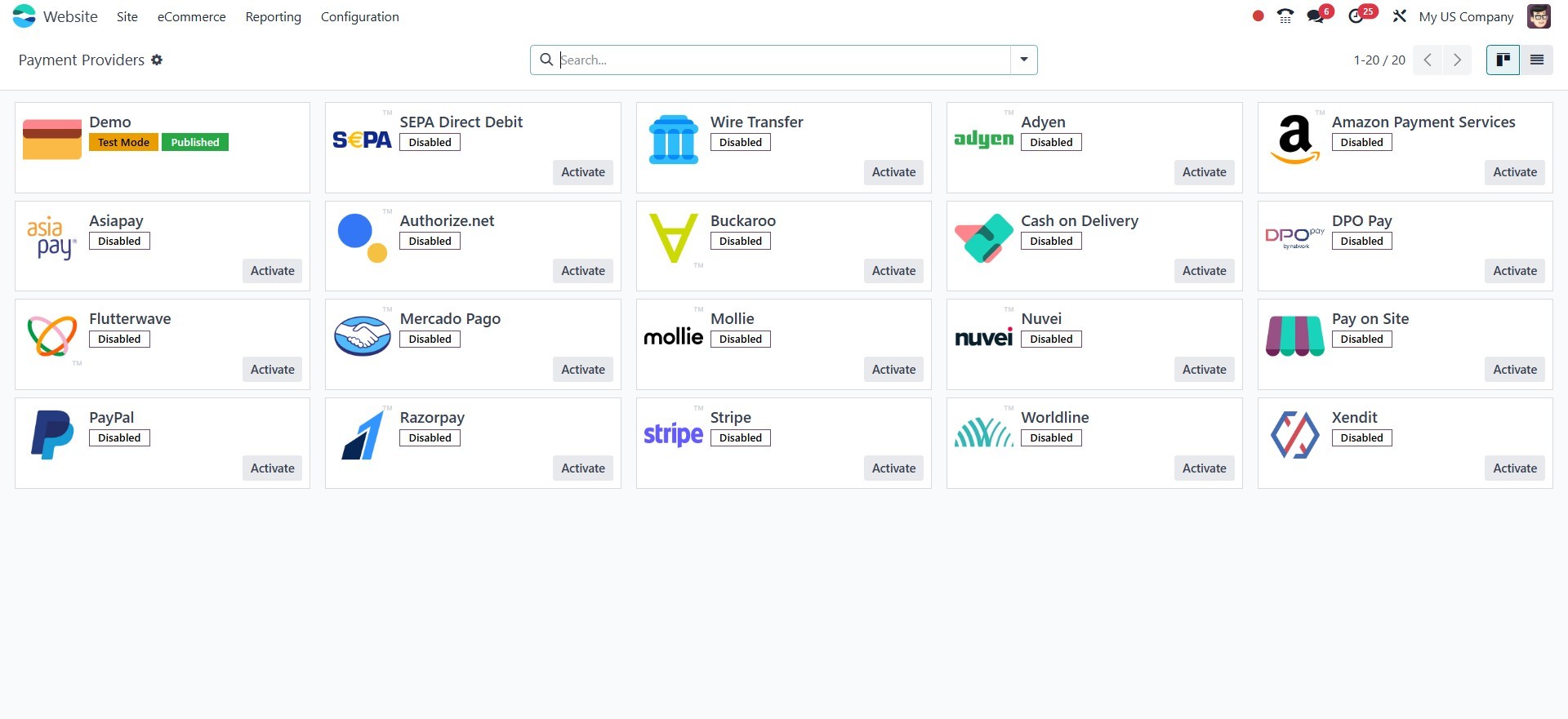
The Payment Acquirers pane provides a preview of each payment
acquirer configured on the platform. By selecting any of the listed
acquirers, you can access their detailed configuration settings. At
the top of the configuration window, the name of the payment
acquirer is displayed. You can also view and set the current
operational status of the acquirer through the State field—whether
it is enabled, disabled, or operating in test mode. To activate the
acquirer, simply select the Enabled option. When Test Mode is
selected, a simulated payment interface is used, allowing you to
process test transactions. This mode is useful for verifying the
setup before enabling live transactions.
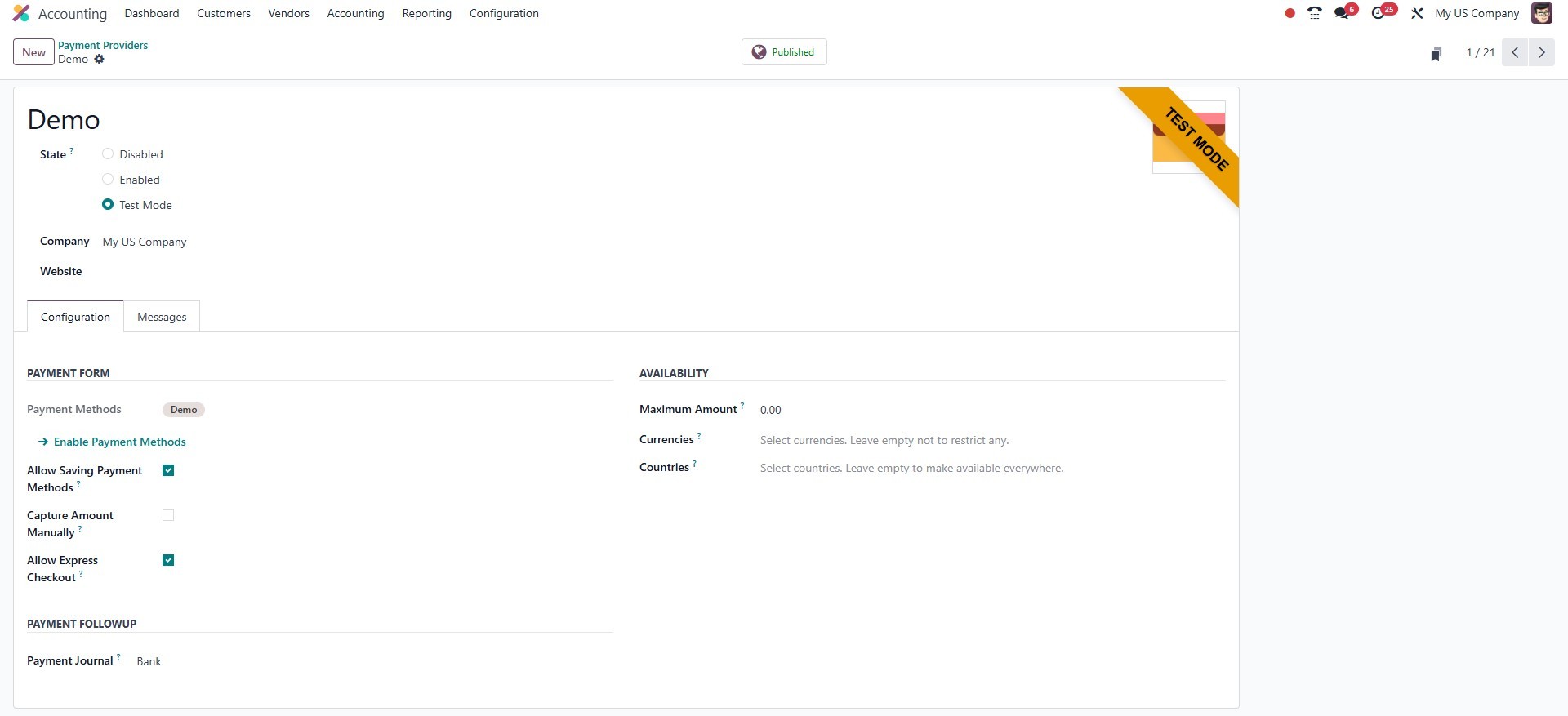
In the Availability area, you can specify the countries where this
payment option should be available. If no countries are selected,
the acquirer will be available globally by default.
Further down the configuration window, under the Payment Followup
section, additional options such as Payment Journal can be found.
The Payment Journal field allows you to select the journal where
successful transactions will be recorded. Under the Messages tab,
you can also customize the Help Message and Pending Message to guide
or inform users during the payment process.
It is important to note that each payment acquirer comes with its own
set of configuration steps and options. Offering a variety of
payment acquirers enhances the likelihood of receiving timely
payments and provides customers with the convenience of choosing
their preferred payment method.
Once the payment acquirers are configured, additional functionalities
become accessible on the platform. By enabling Developer Mode from
the general settings, the eCommerce section under the Configuration
tab will display more advanced features such as Payment Tokens,
Payment Icons, and Payment Transactions, allowing for deeper
customization and control over payment operations.
5.2 Payment Methods
Payment methods are a crucial element for any website that handles
online transactions. They act as visual indicators to help customers
identify the available online payment gateways and the types of
credit or debit cards accepted in the e-commerce store. This not
only streamlines the checkout experience but also boosts customer
confidence and the likelihood of completing purchases.
The system allows for the easy configuration of various payment
methods. When setting up new payment acquirers, you can include the
appropriate payment icons to guide your customers. To manage this,
navigate to the Configuration tab in the Website module and select
the Payment Methods menu. This action will open the Payment Icons
window, where all configured payment icons can be viewed and edited.
The Payment Methods window displays all the previously defined
payment icons on the platform. To view the details of any icon,
simply click on the corresponding entry. Similarly, if you wish to
create a new payment icon, you can do so by clicking the New button
located in the upper left corner of the window.
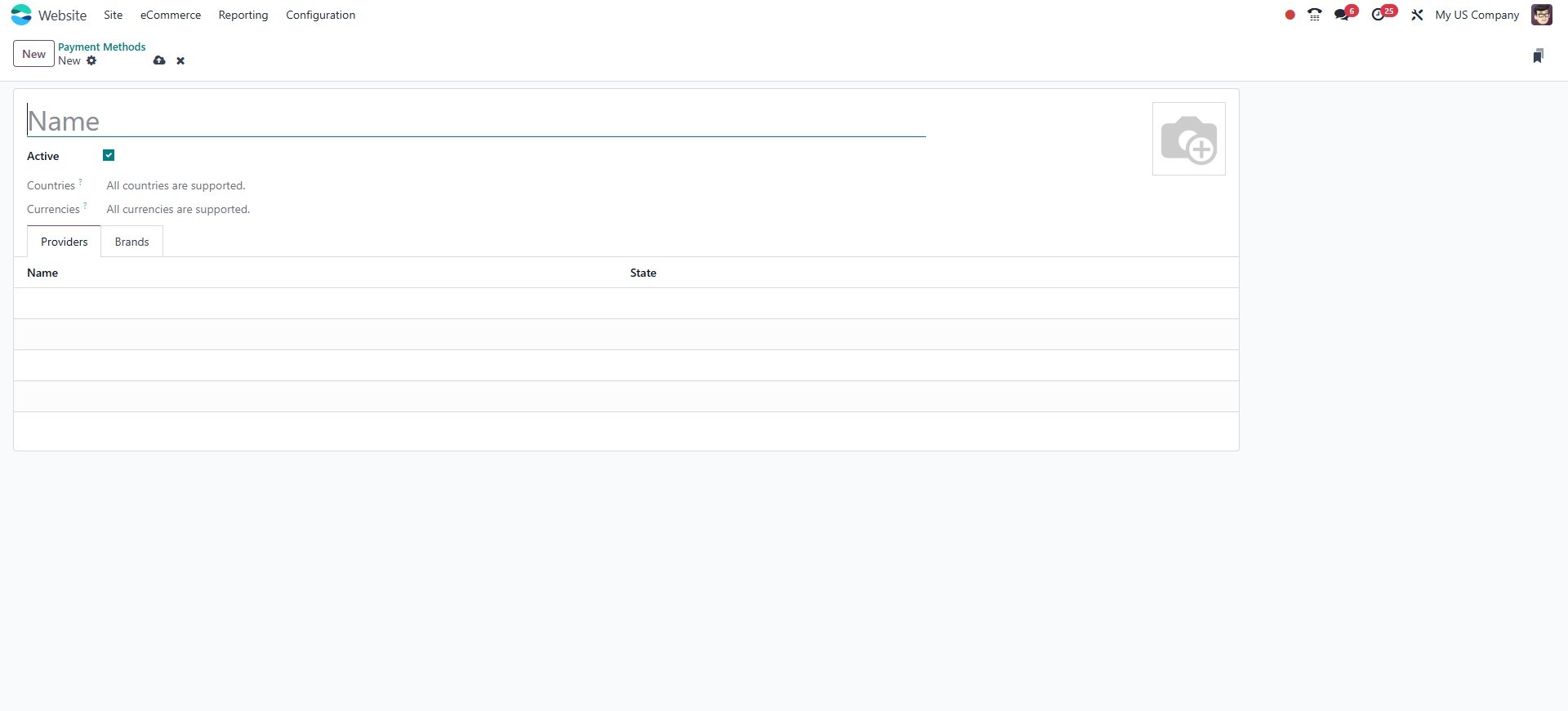
In the designated space, you can include the image that was used to
create this payment icon in addition to specifying its name. You can
include the acquirers that support this payment icon in the
Providers list tab. You can click the Add a line button to
accomplish this.
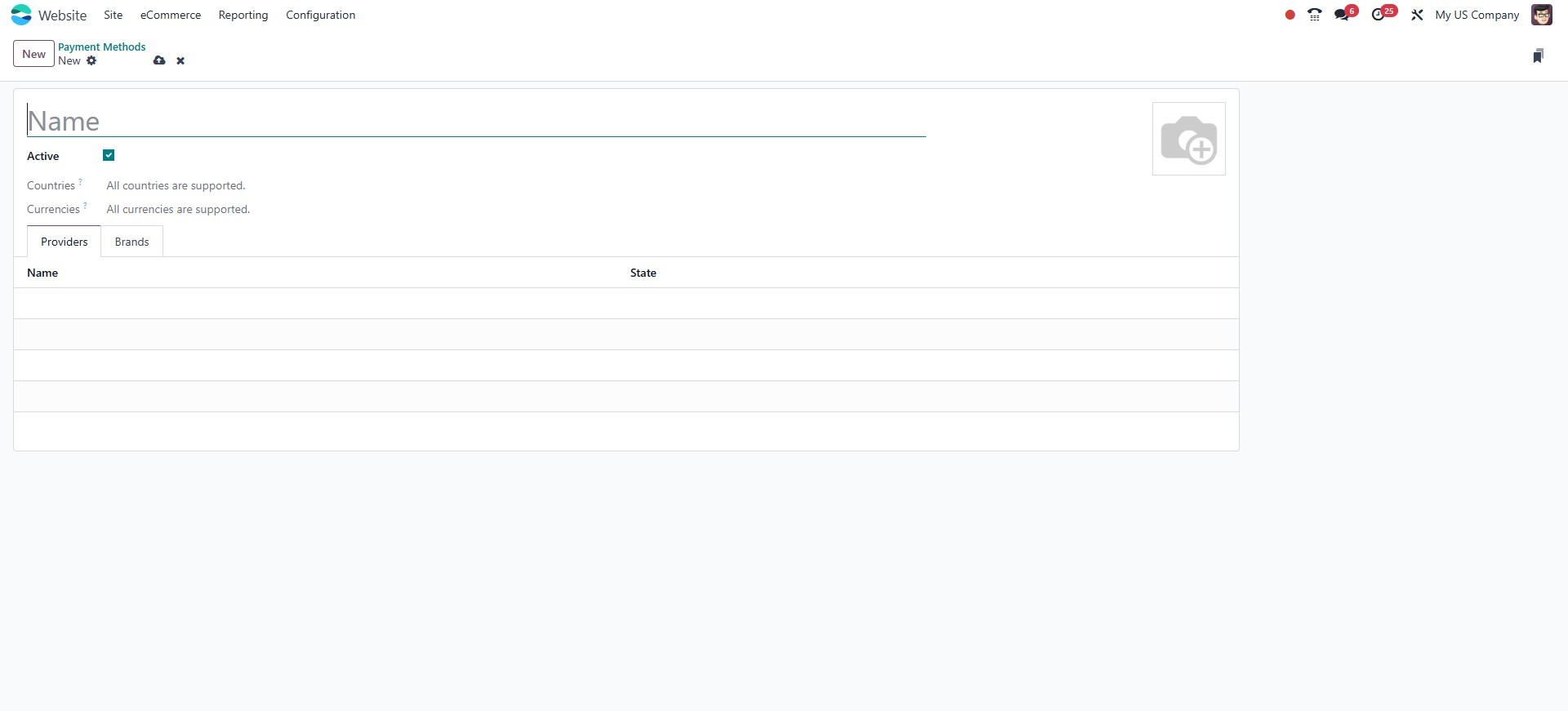
Next, you will display every Acquirer that is utilized on the
platform. By selecting the Save button after updating the list, you
can save the updated payment icon.
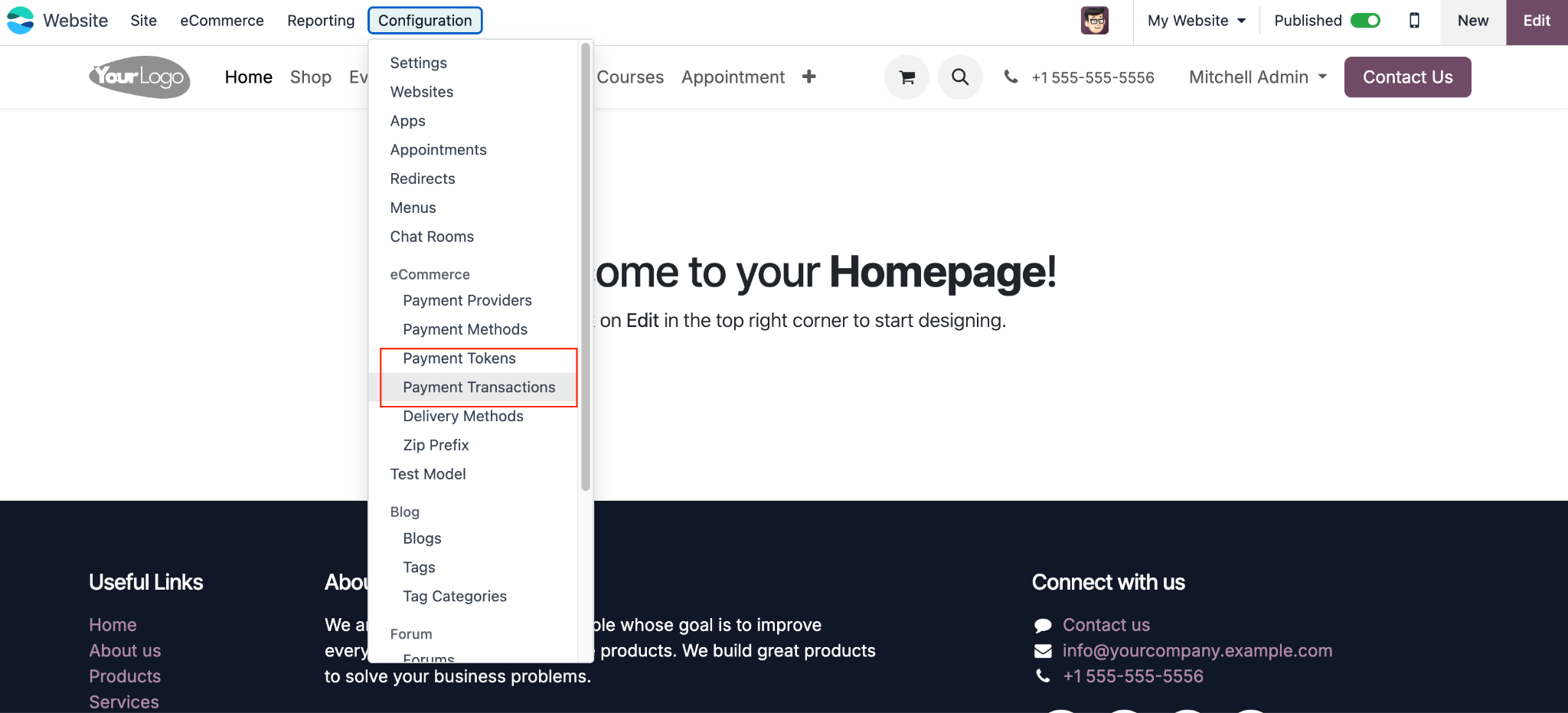
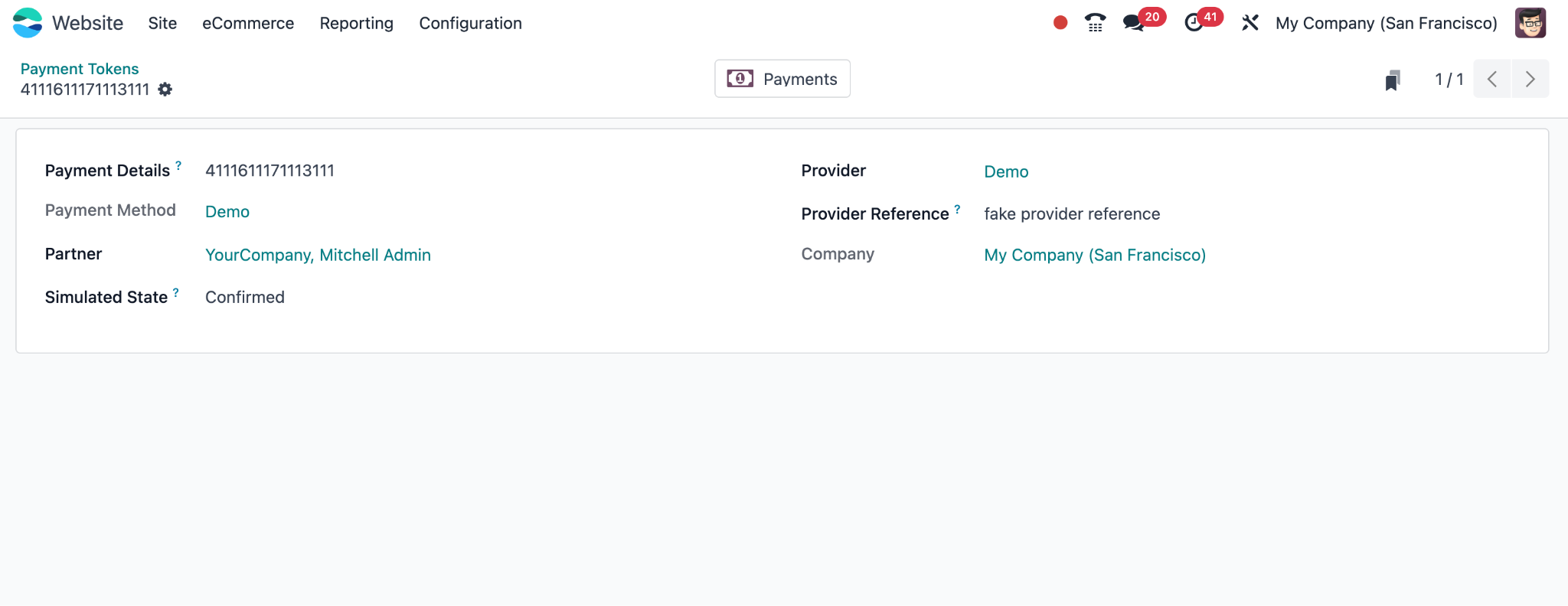
Additionally, when developer mode is activated, two more submenu
options become available under Payment Methods: Payment Tokens,
which are used to manage saved customer payment details.
Payment Transactions, which display all payment records processed
through the website along with their status.
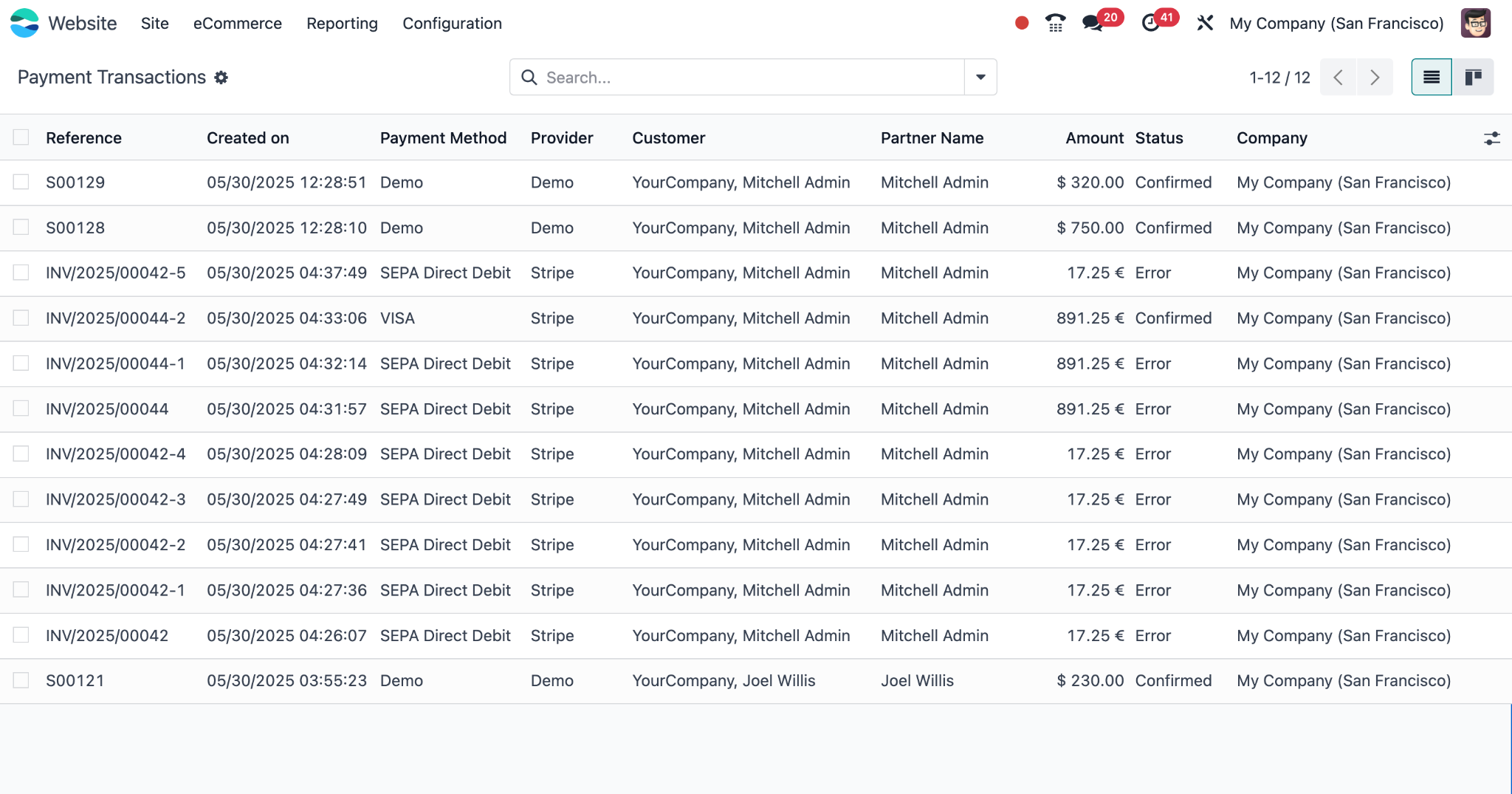
These extra options provide more detailed control over the payment
process in your eCommerce platform. Let's move on to the feature for
delivery methods now.
5.3 Delivery Methods
The Delivery Methods feature allows businesses to manage and
configure various shipping options for their e-commerce operations.
All existing delivery methods configured on the platform will be
listed in the Delivery Methods window, displaying key information
such as the name of the carrier, delivery type, and associated
pricing rules.
To create a new delivery method, you can click the New button located
in the top-left corner of the window. This opens a detailed
configuration form where you can specify the Carrier Name, Provider
Type (such as fixed price, based on rules, or third-party
integrations like DHL, FedEx, etc.), and configure the Pricing and
Destination settings accordingly.
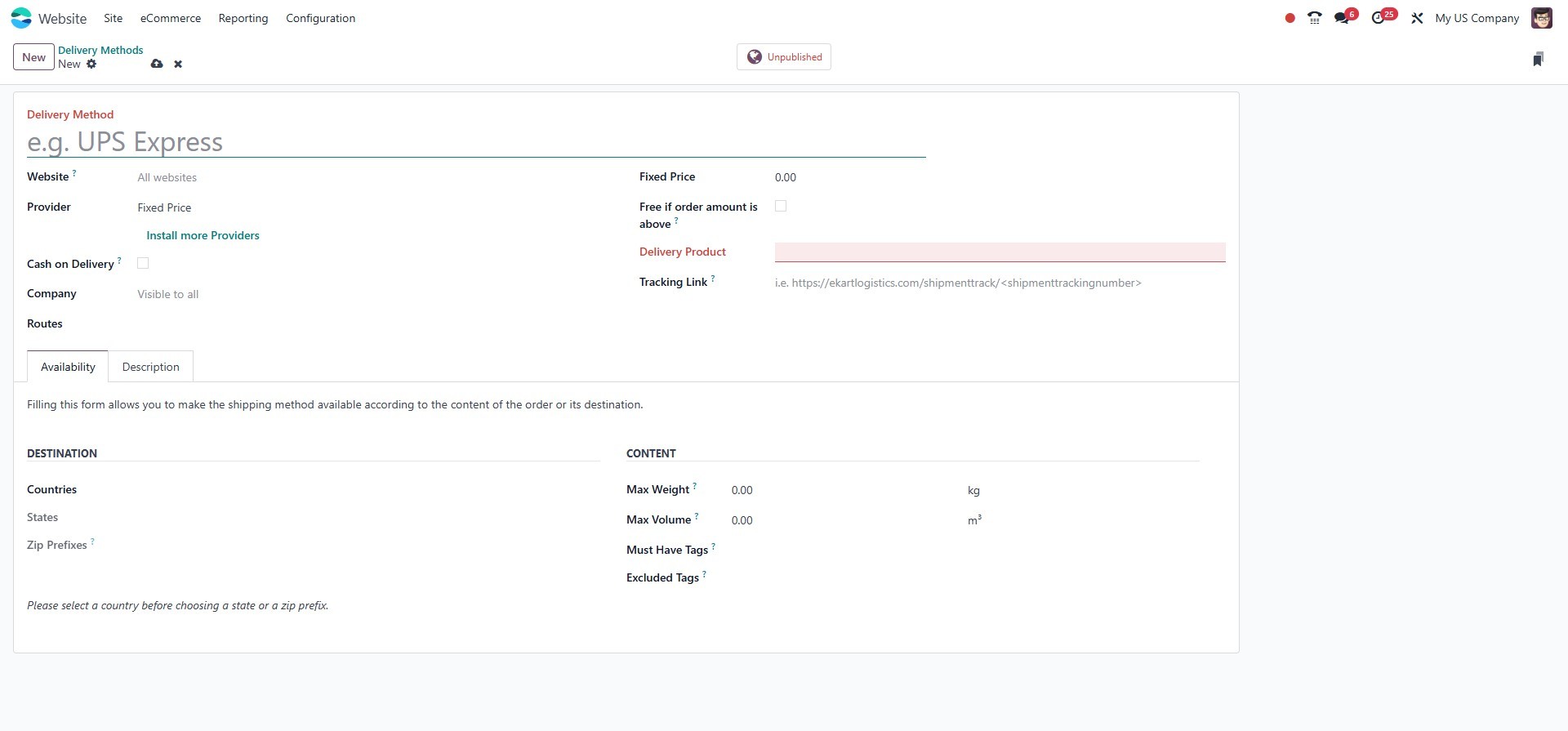
Additional configuration options include defining delivery margins,
free delivery thresholds, and integration credentials for external
shipping APIs. Under the Availability section, you can also choose
the countries or customer groups where the delivery method should be
made available. Once configured and saved, the delivery method will
be selectable during checkout, helping customers choose a preferred
shipping option based on speed, cost, or provider.