7. Settings
The Settings tab in the Website
module offers a comprehensive
range of advanced features to
customize and enhance the
e-commerce experience. To
access these configurations,
navigate to the Settings menu
within the Website module.
This panel is organized into
multiple sections, with each
group of options tailored to
a specific aspect of your
online store. The main
configuration sections
include:
- Shop - Checkout Process:
Controls features
related to the flow
and experience of the
checkout process.
- Shop - Product: Allows
for detailed
configuration of
product presentation
and interaction on the
website.
- Delivery: Includes
settings related to
delivery methods and
logistics
integrations.
- Invoicing: Provides
options for
configuring invoicing
preferences and
backend accounting
links.
Each section is designed to help
you fine-tune the
functionality of your
eCommerce site, aligning it
with your business
requirements.
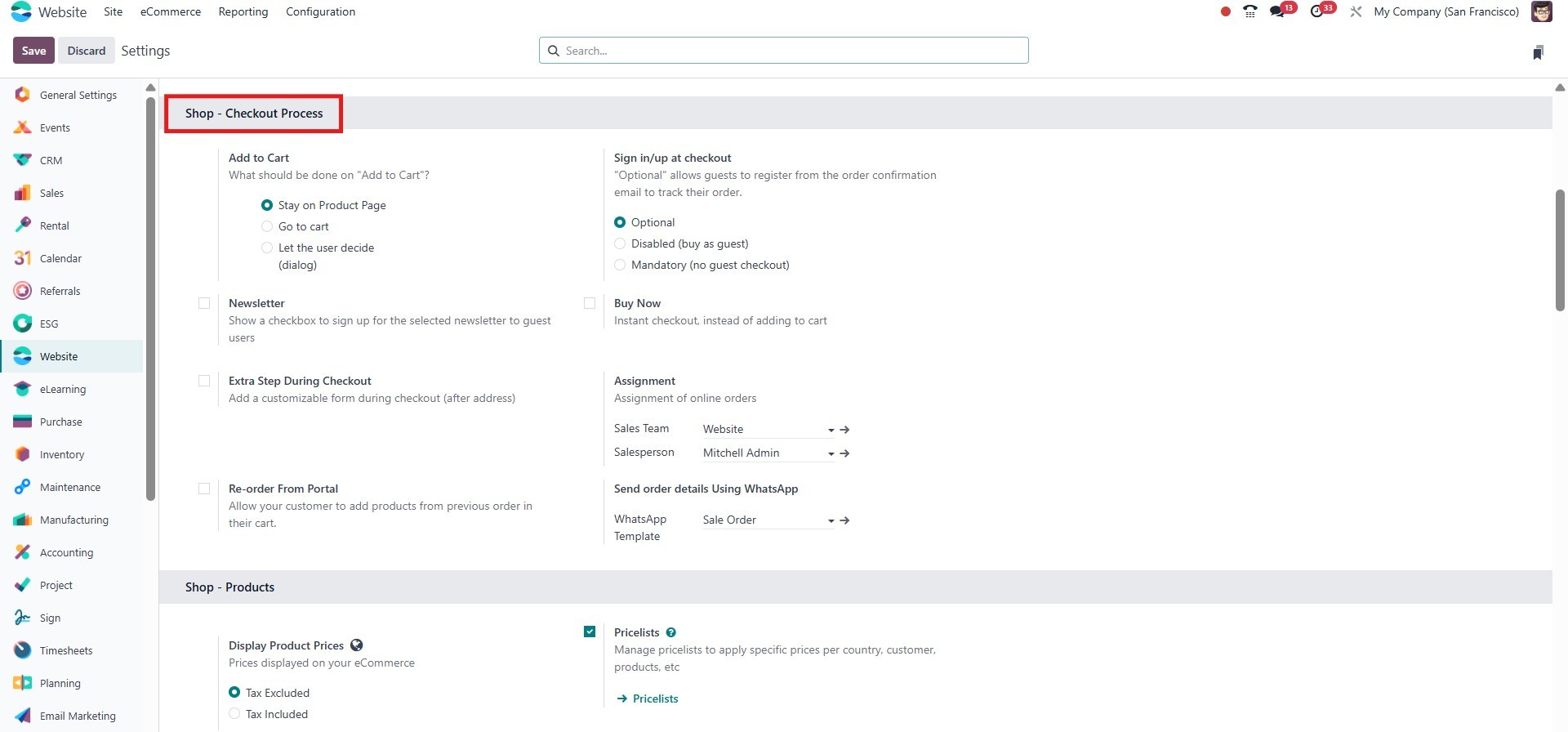
7.1 Shop - Checkout Process
The Shop - Checkout Process
section in the Website
Settings allows you to manage
how customers place orders on
your e-commerce website. It
includes several options that
help improve the shopping
experience and guide users
through a smooth and flexible
checkout flow.
7.2 Add to Cart
You can control what happens when
a customer adds a product to
their cart. If the Stay on
Product Page option is
enabled, the customer will
remain on the product page
after clicking the Add to
Cart button, allowing them to
continue browsing.
Alternatively, you can choose
the Go to Cart option, which
takes the customer directly
to the cart page after a
product is added. There is
also a Let the user decide
(Dialog) option that displays
a pop-up, giving customers
the choice to either continue
shopping or view their cart.
By enabling the Buy Now feature,
a Buy Now button appears on
the product page. This allows
customers to skip the cart
step and go directly to the
checkout page with that
product, speeding up the
purchase process.
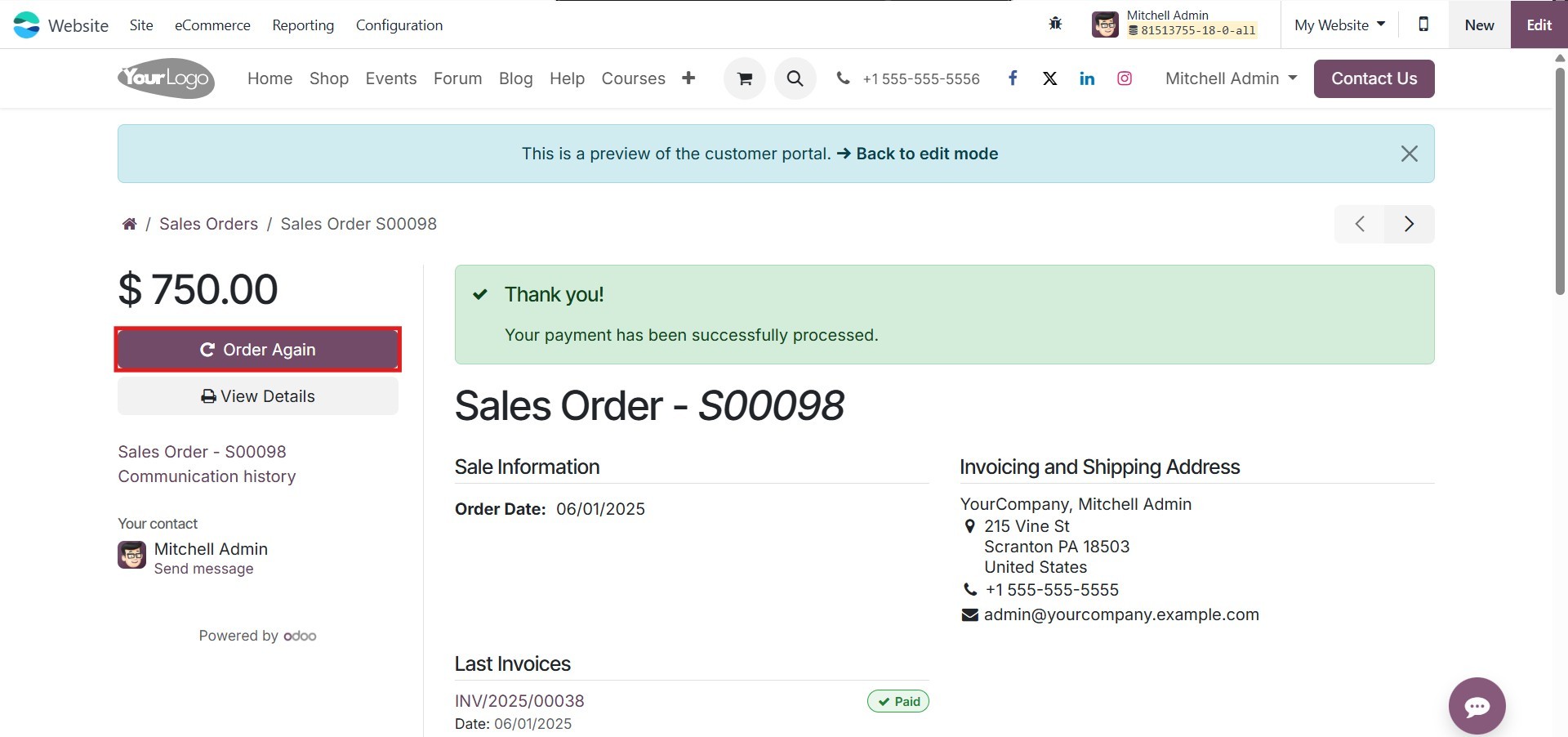
Another useful feature is
‘Re-order from Portal.’ When
enabled, customers can view
their previous orders in
their account and use the
Order Again button to add the
same products to their cart.
This is especially helpful
for customers who frequently
reorder the same items.
If your store offers digital
products, such as
downloadable content, you can
attach files to a product
using the New File button in
the product form. Once the
order is completed and the
payment is confirmed, the
customer can access the
digital files through their
order confirmation page. Make
sure the attached files are
published so they are visible
to customers.
The Sign In/Up at Checkout
setting controls how
customers log in during the
checkout process. If set to
Optional, customers can place
orders as guests and later
register using the same email
address to track their order.
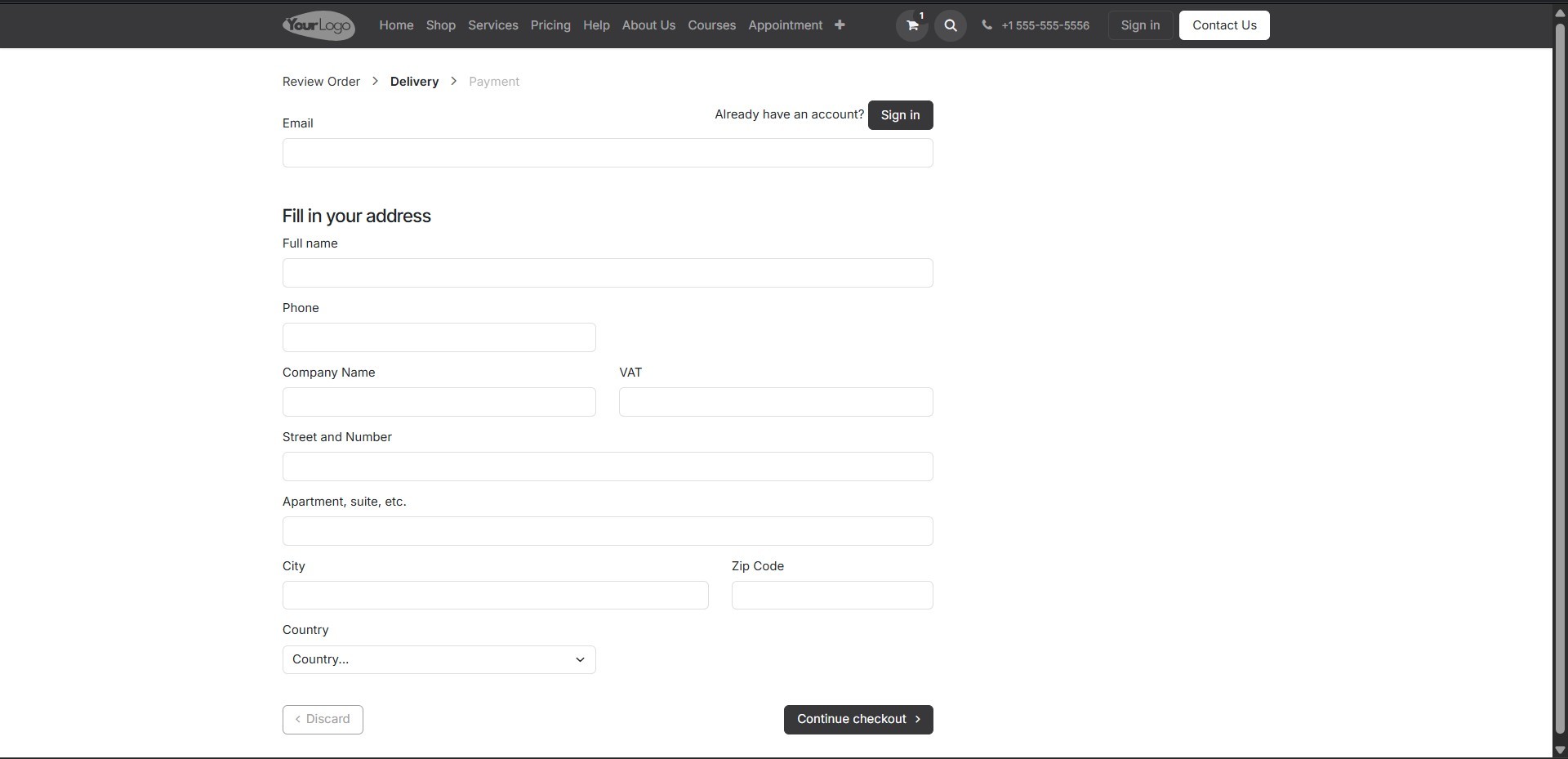
If set to Disabled (Buy as
Guest), guest checkout is
allowed without account
creation.
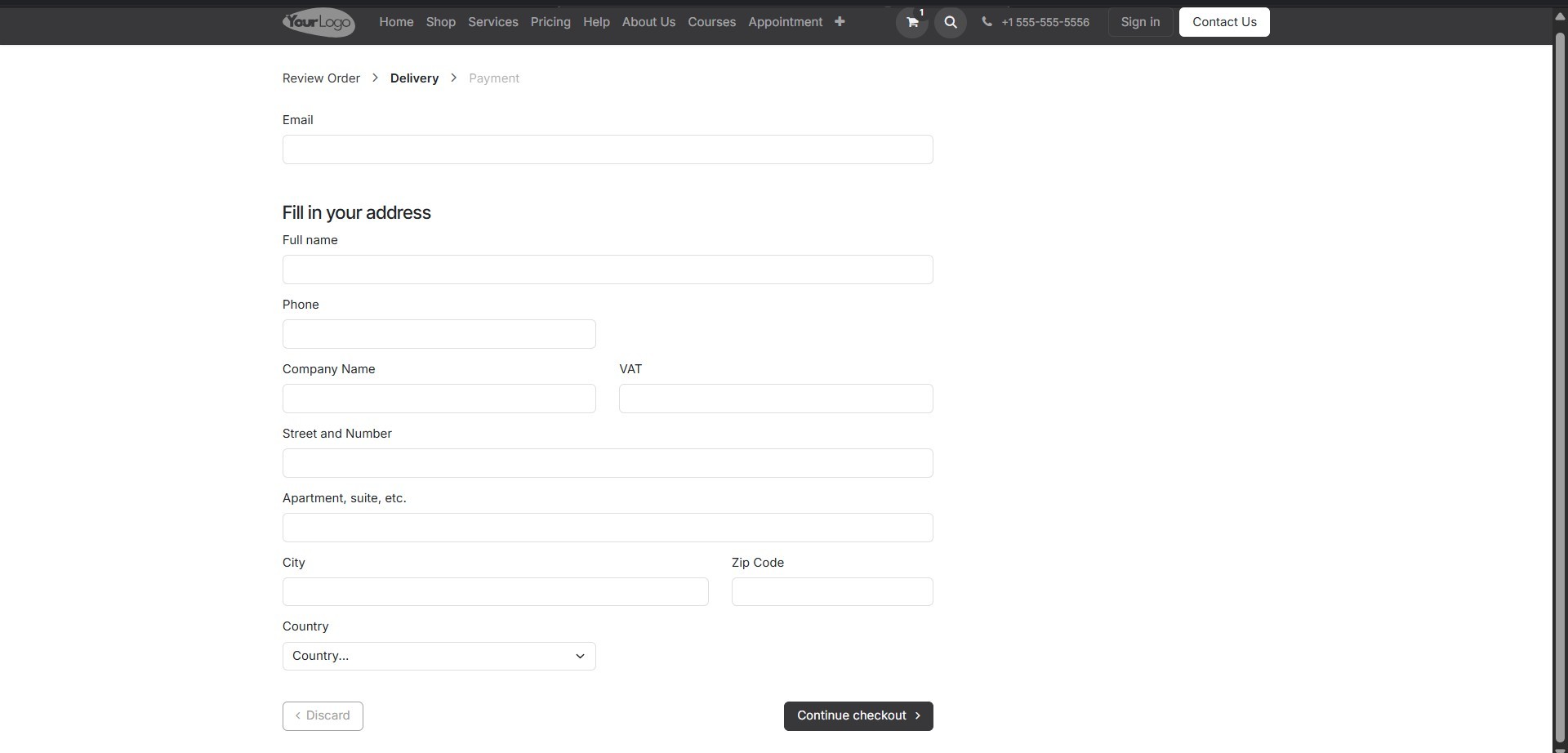
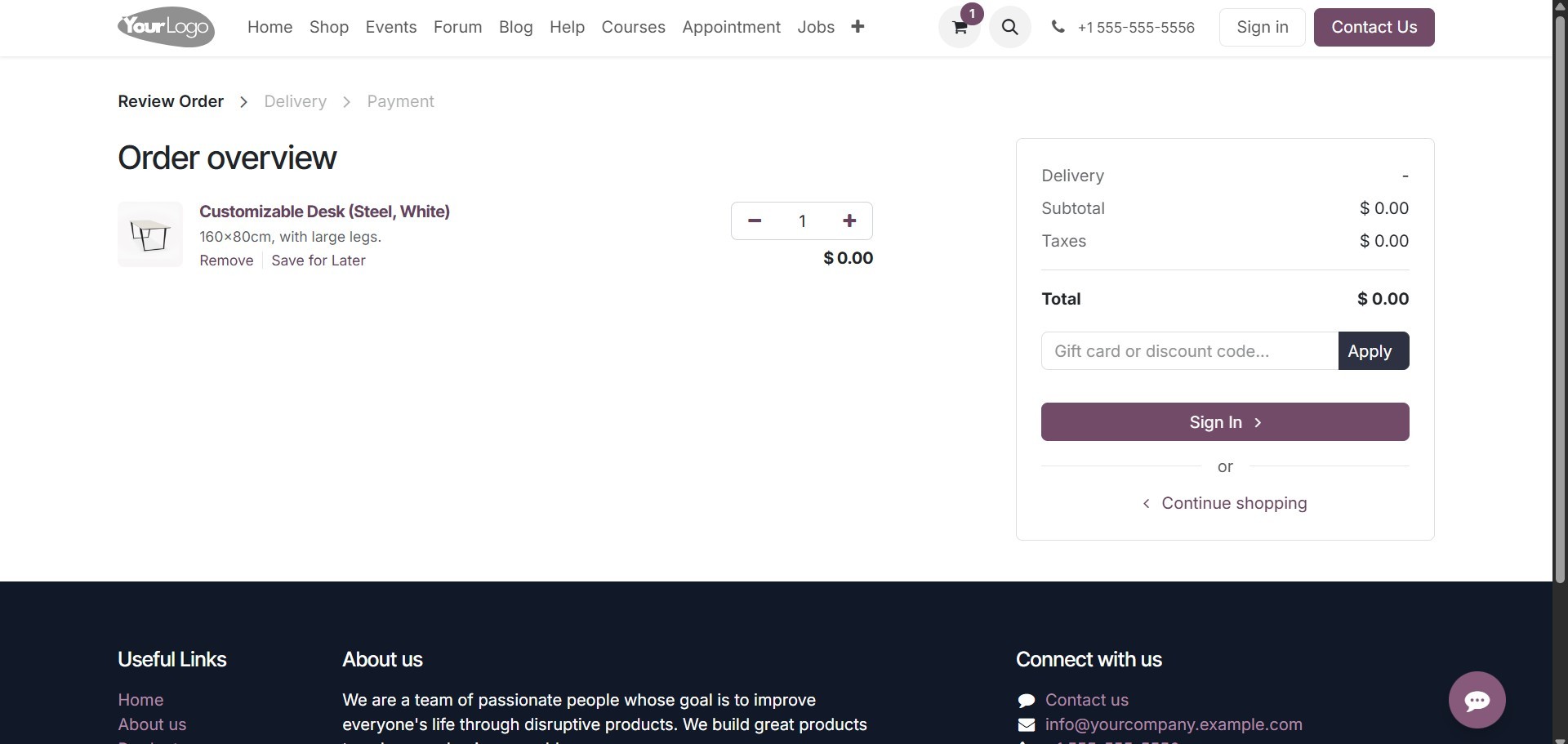
If set to Mandatory (No Guest
Checkout), customers must
sign in or create an account
before they can place an
order.
You can also enable an Extra Step
During Checkout to collect
more information from the
customer.
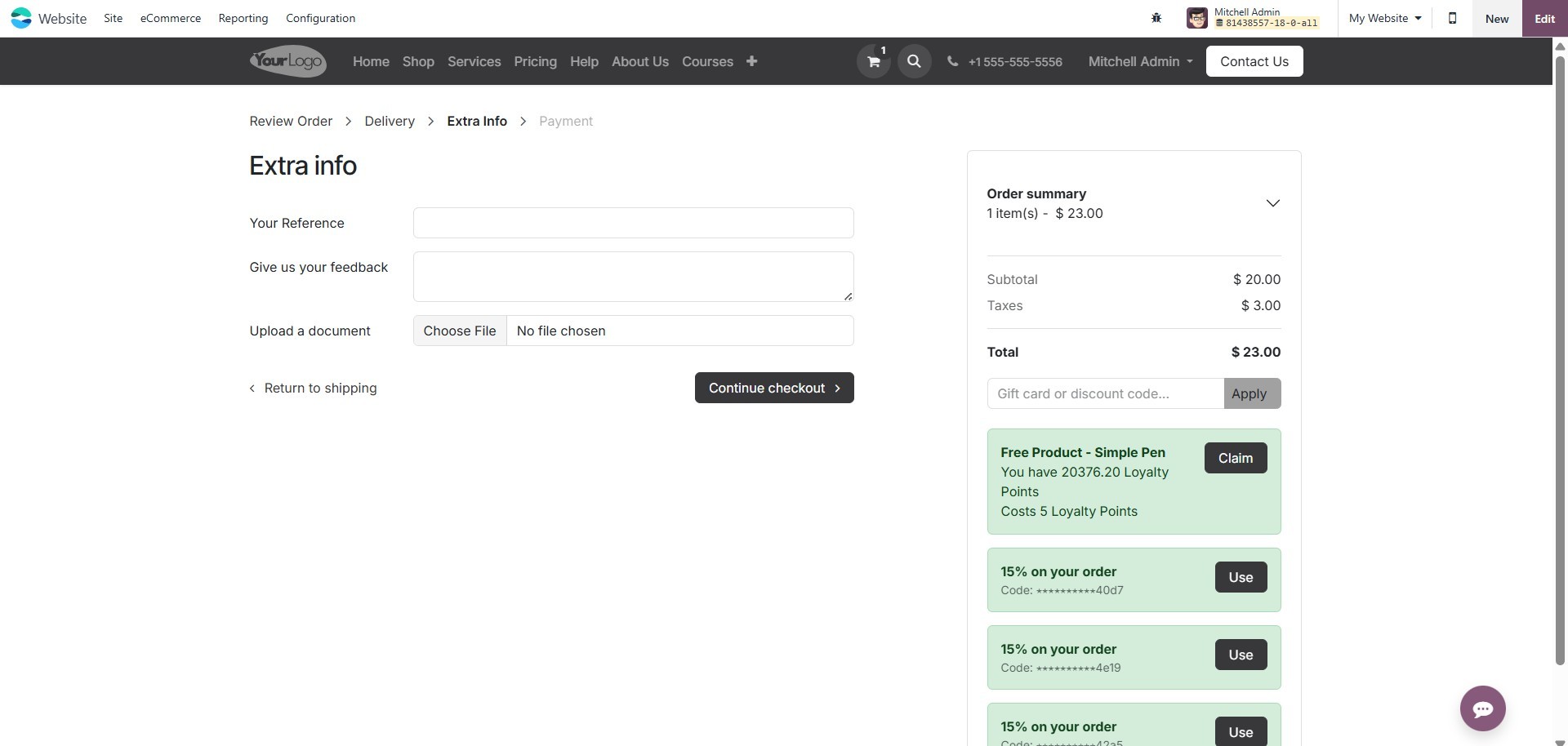
This step appears after the
delivery address form and can
be customized to gather
details like delivery
preferences, gift messages,
or any other fields needed
for your business. You can
activate this option in the
Website Settings and
configure the form based on
your requirements.
7.3 Shop – Product
The Shop – Product section of the
Website Settings window in
Odoo offers a broad range of
features designed to improve
the e-commerce experience and
ensure better control over
product display and sales
behavior.
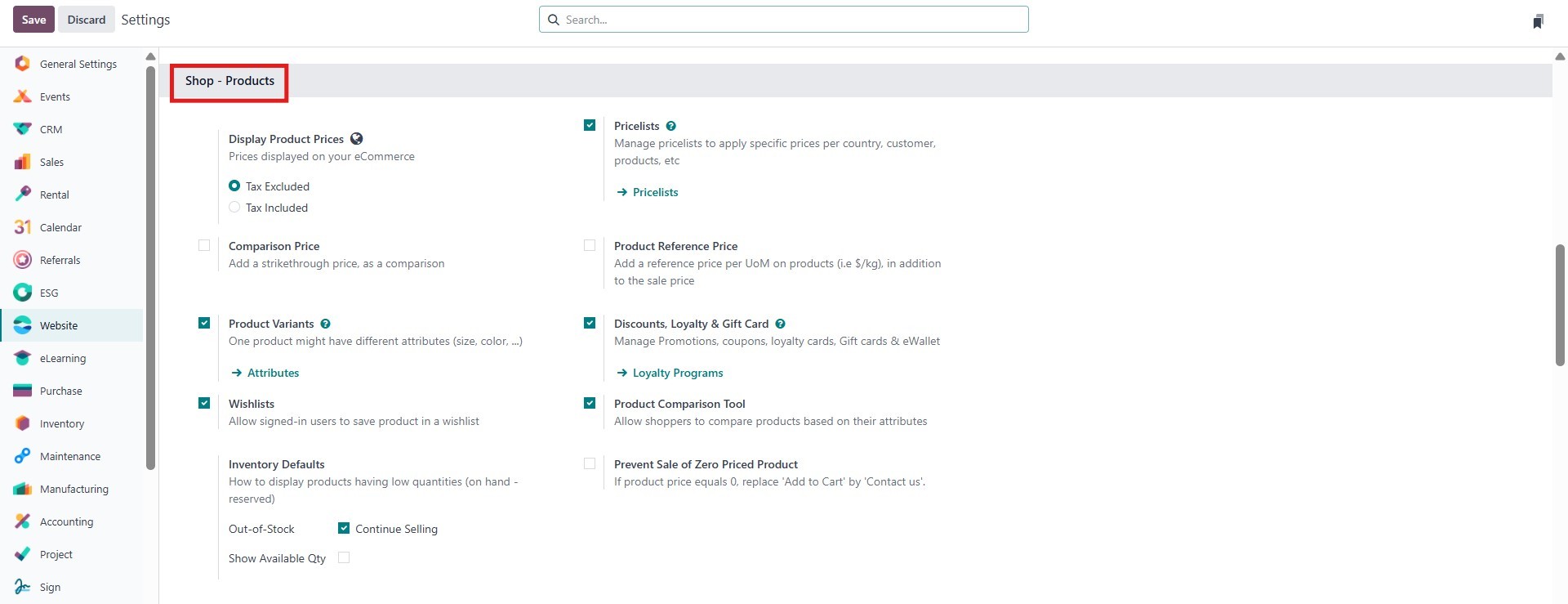
Here, users can choose to display
product prices, show a
comparison price alongside
discounted rates, and enable
product variants such as
color or size to allow for
detailed customer selection.
The wishlist feature can be
activated to let customers
save their favorite items for
future purchase. Inventory
Defaults help manage how
inventory information is
presented on the website,
while the Pricelists option
allows businesses to offer
different pricing based on
customer segments or sales
conditions.
Additionally, users can activate
the Product Reference Price
field for internal management
and display discounts
directly on the product
pages. Loyalty programs and
gift cards can be integrated
to encourage repeat
purchases. The Product
Comparison Tool lets shoppers
compare different items side
by side, enhancing the
decision-making process.
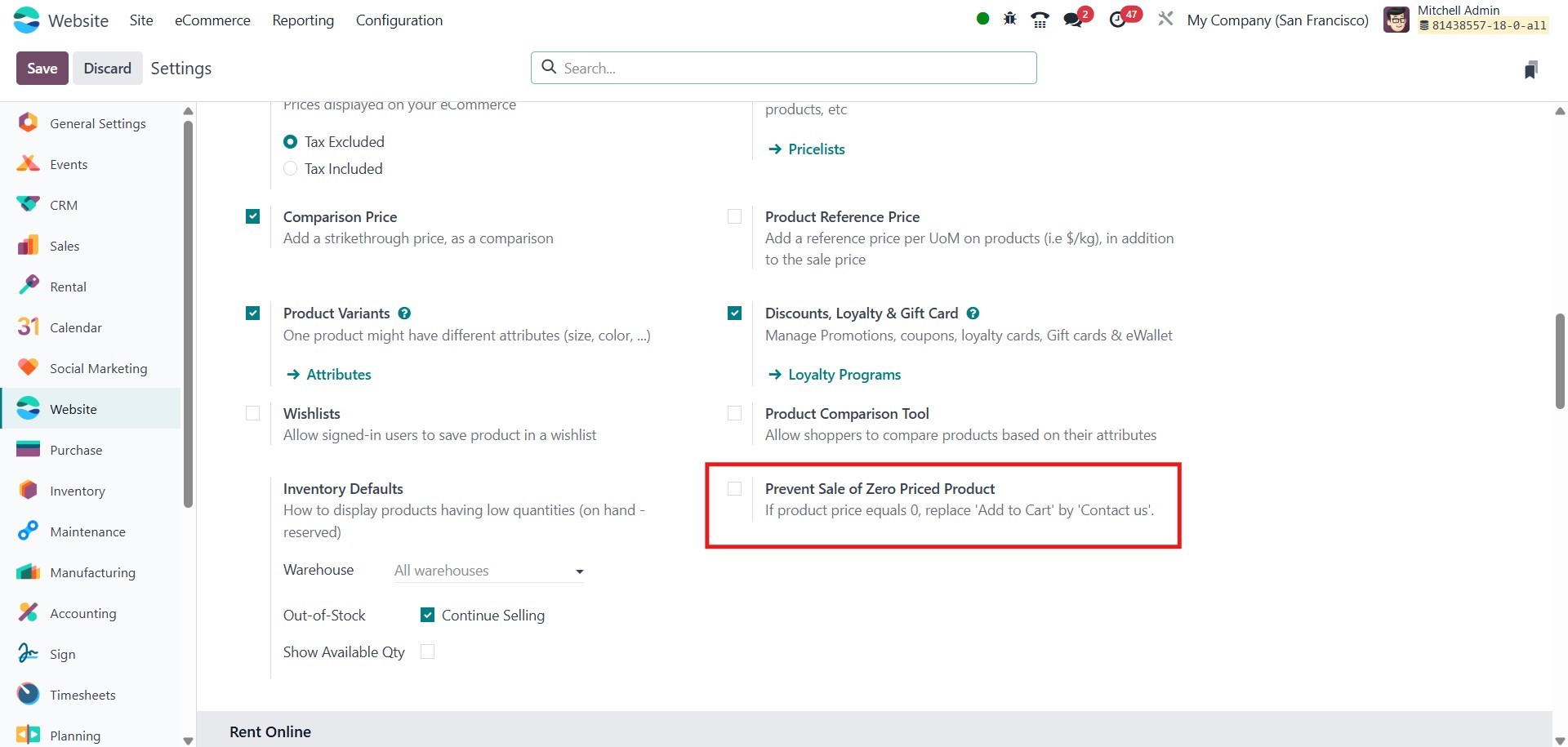
Lastly, the platform includes
an option to Prevent Sale of
Zero Priced Product, which
ensures that any product
without a set sales price
cannot be added to the cart
or purchased. This feature
helps avoid accidental orders
of products priced at zero
and maintains pricing
accuracy across your website.
You can enable this feature
from the Website settings
under the Shop section by
activating the Prevent Sale
of Zero-Priced Product
checkbox.
Together, these features offer a
comprehensive toolkit for
customizing product behavior
and presentation to match
specific business needs.
Odoo provides two options to
configure how product prices
are displayed in your online
catalog: either tax-included
or tax-excluded. This can be
defined based on your
business requirements by
navigating to the appropriate
settings.
In Odoo 18, the Pricelists
feature allows you to manage
product pricing based on
various conditions. Instead
of creating separate pricing
types, you can configure one
pricelist with different
rules to handle multiple
pricing needs. These rules
can be used to set specific
prices for products, apply
discounts, or calculate
prices using formulas. You
can also define conditions
such as minimum quantity,
date range, or customer
groups. This setup helps you
manage different pricing
strategies like volume
discounts, promotional
offers, and country-based
pricing—all from a single
pricelist.
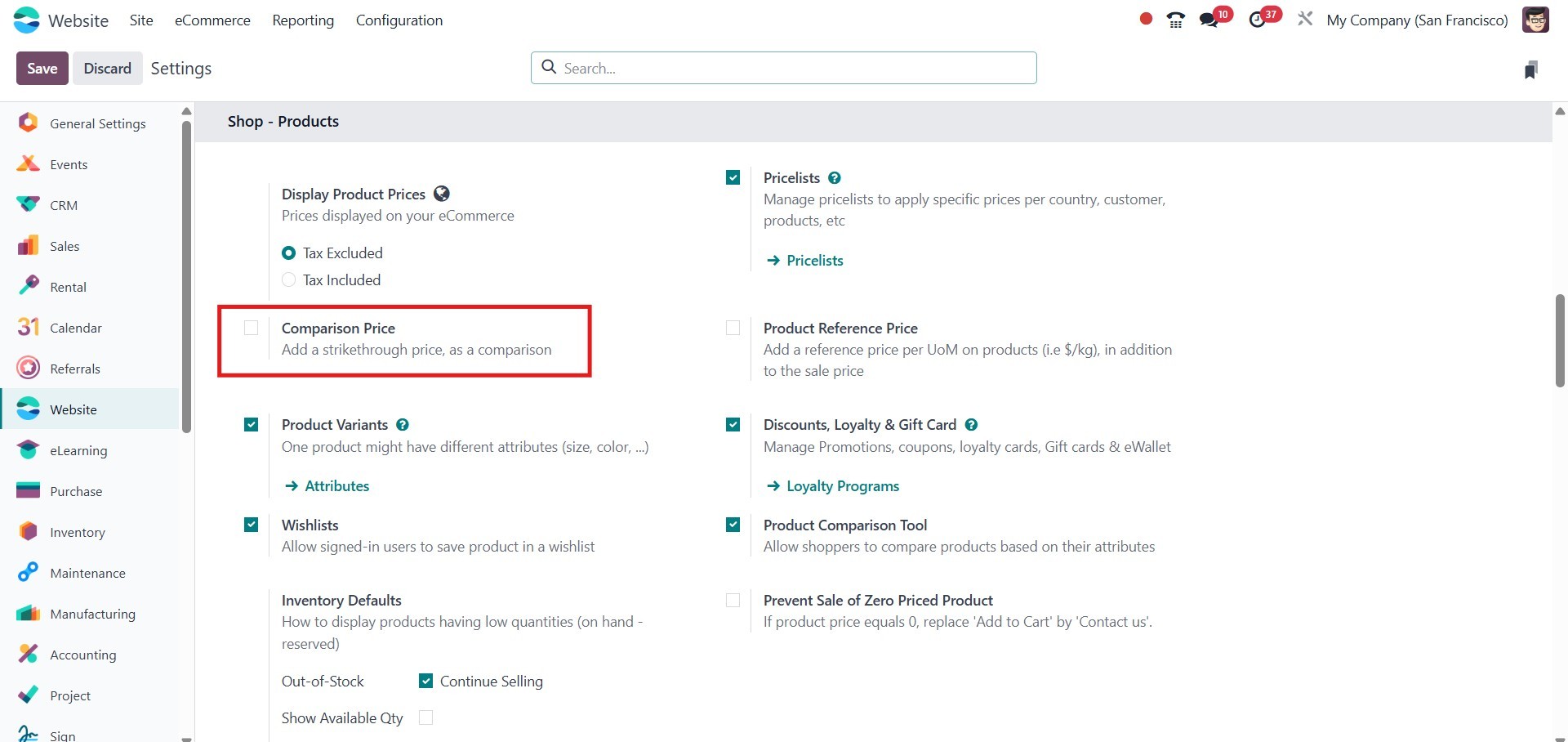
To show a comparative or
strikethrough price (e.g.,
for promotions), enable the
Comparison Price feature.
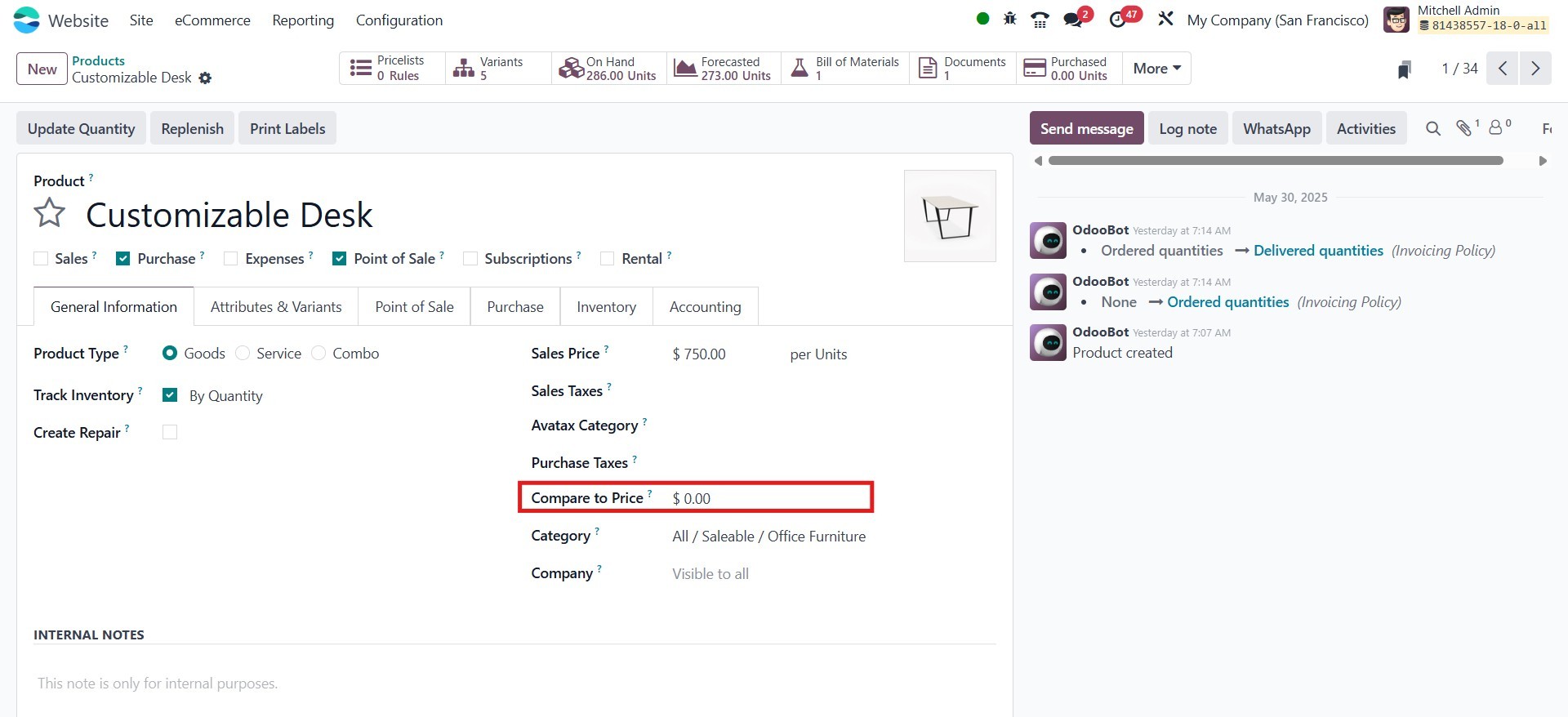
Once activated, a new field,
Compare to Price, will be
available on the product form
to highlight the original
price against the current
selling price.
The Product Reference Price
option, located in the
Website Settings ‣ Products
section, allows you to set a
price per unit of measure.
This feature is especially
useful when selling products
in bulk or by weight. Once
activated, the unit price
will be displayed clearly on
the product page.
To manage product variations such
as size or color, activate
the Product Variants option.
This enables the
configuration of multiple
variant combinations from the
product template.
To enhance customer engagement
and drive sales, Odoo
includes a flexible discount
engine. Under Website
Settings, you can enable
Discounts, Loyalty & Gift
Cards.
There are two types of
promotional mechanisms:
- Discount Programs: Apply
automatic discounts
based on set criteria.
- Coupon & Loyalty
Programs: Offer
customers coupon
codes, loyalty cards,
and gift cards.
You can configure:
- Minimum purchase amount
- Applicable products or
product categories
- Targeted customers
- Validity periods
Rewards may be a percentage, a
fixed amount, or free
products. Gift card
functionality is also
available and can be
activated from the same
section.
Under Website Settings ‣
Inventory, you can set the
default availability mode for
new storable products. This
includes:
- Assigning a default
warehouse
- Allowing sales of
out-of-stock products
by enabling the Allow
Sale of Out-of-Stock
Products
- Displaying real-time
product quantities on
the website
- Showing custom messages
for low-stock
thresholds
This ensures your customers
receive accurate and timely
information about product
availability.
Enhance the shopping experience
by enabling the Wishlist
feature, which allows
customers to save products
for later. Additionally, the
Product Comparison Tool lets
users compare different
products based on features,
helping them make informed
decisions.
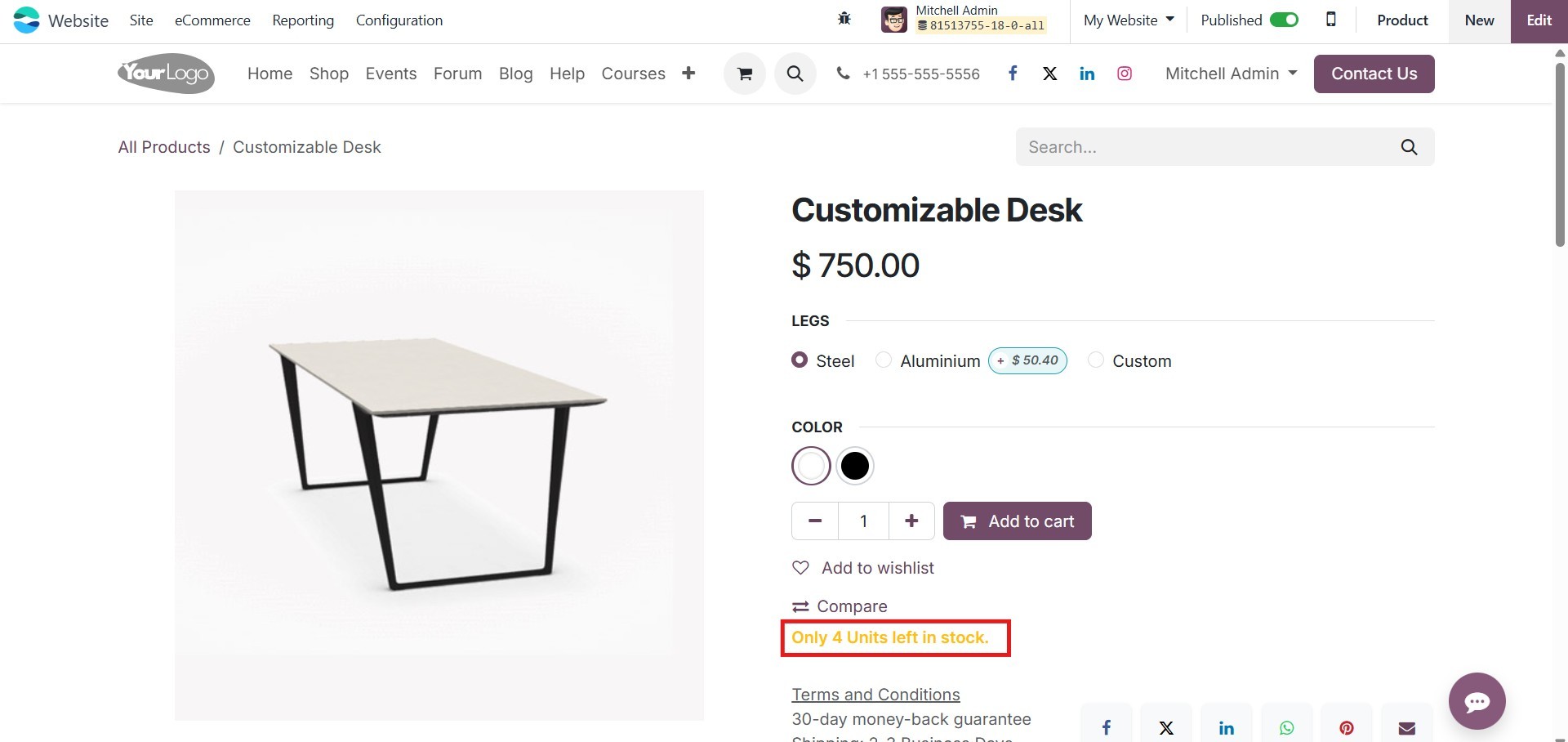
To prevent customers from
purchasing zero-priced
products, enable the Prevent
Sale of Zero-Priced Products
option. This replaces the Add
to Cart button with a Contact
Us button when the product
has no listed price.
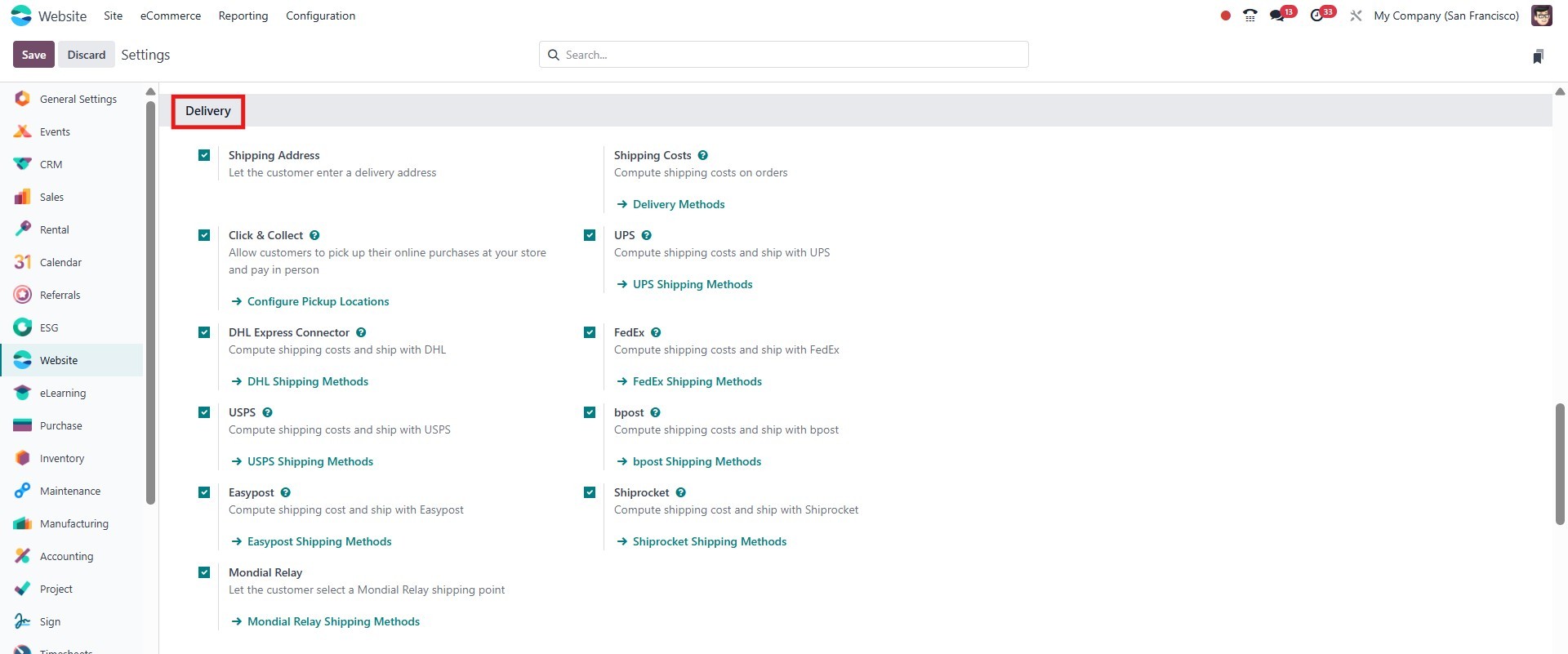
7.4 Delivery
Odoo supports various shipping
carriers and related
features, accessible via
Website Settings ‣Delivery.
Options include:
- DHL Express Connector
- USPS
- EasyPost
- UPS
- FedEx
- bpost
- Mondial Relay
You can enable Shipping Address
to allow customers to input a
delivery location, and
Shipping Costs to calculate
real-time rates. Activate the
relevant provider integration
to compute shipping charges
and generate shipping labels
directly from the backend.
7.6 Invoicing
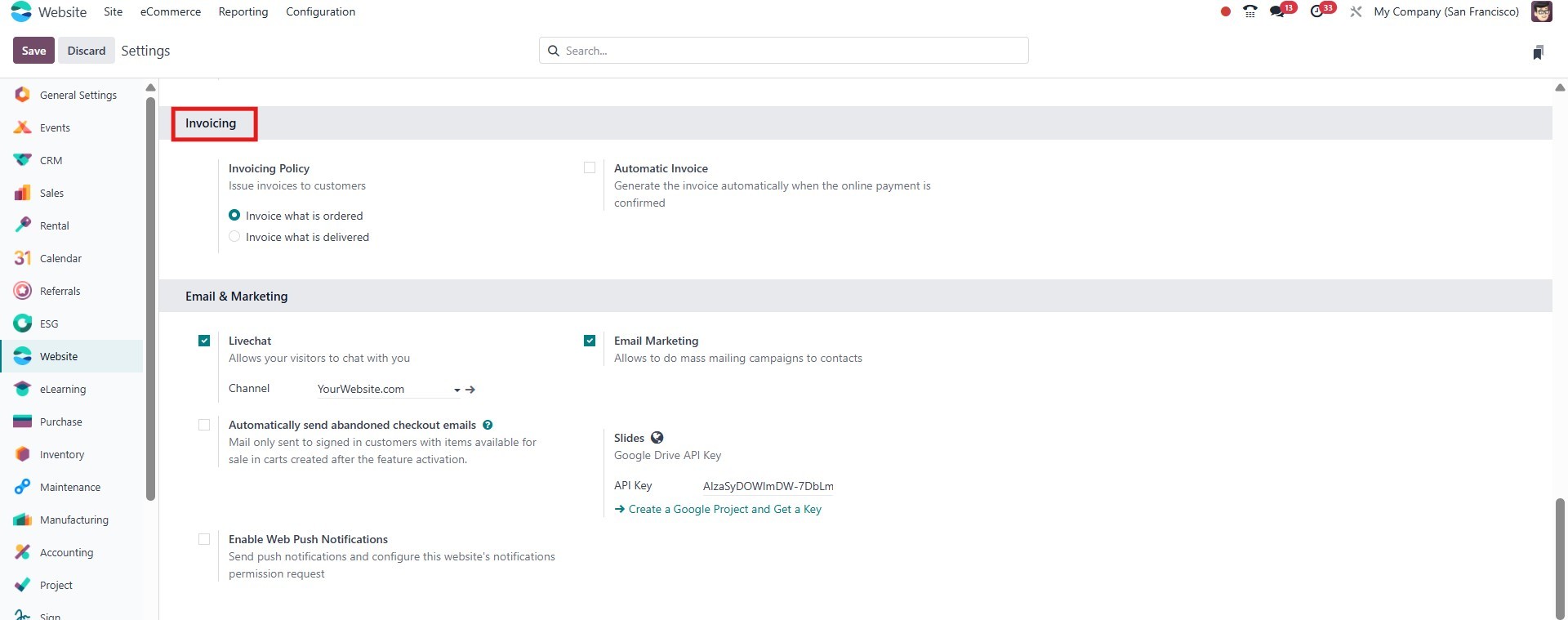
From Website Settings ‣
Invoicing, configure the
Invoicing Policy to either:
- Invoice what is ordered –
Invoice for the
ordered quantity.
- Invoice what is delivered
– Invoice based on
quantities actually
delivered.
Additionally, you can streamline
accounting processes by
enabling Automatic Invoice,
which generates invoices upon
confirmation of online
payment.
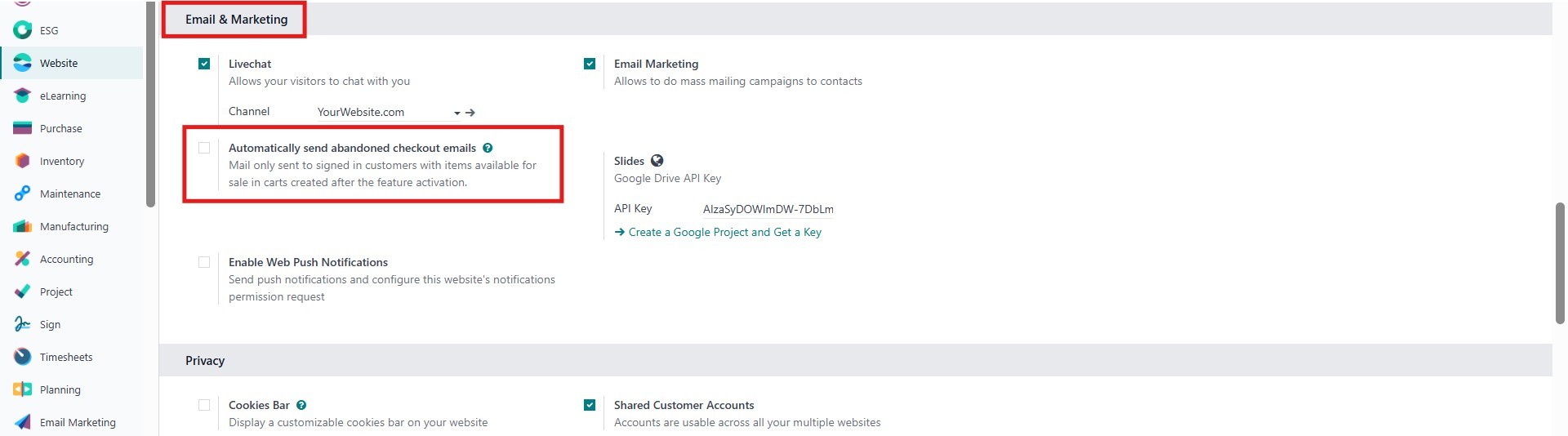
7.7 Email & Marketing
To improve cart recovery rates,
activate the Automatically
Send Abandoned Checkout
Emails option. This allows
Odoo to send follow-up emails
to customers who did not
complete their purchase. You
may also define a custom
Abandoned Email Template for
branding and personalization.