2. Forum Management
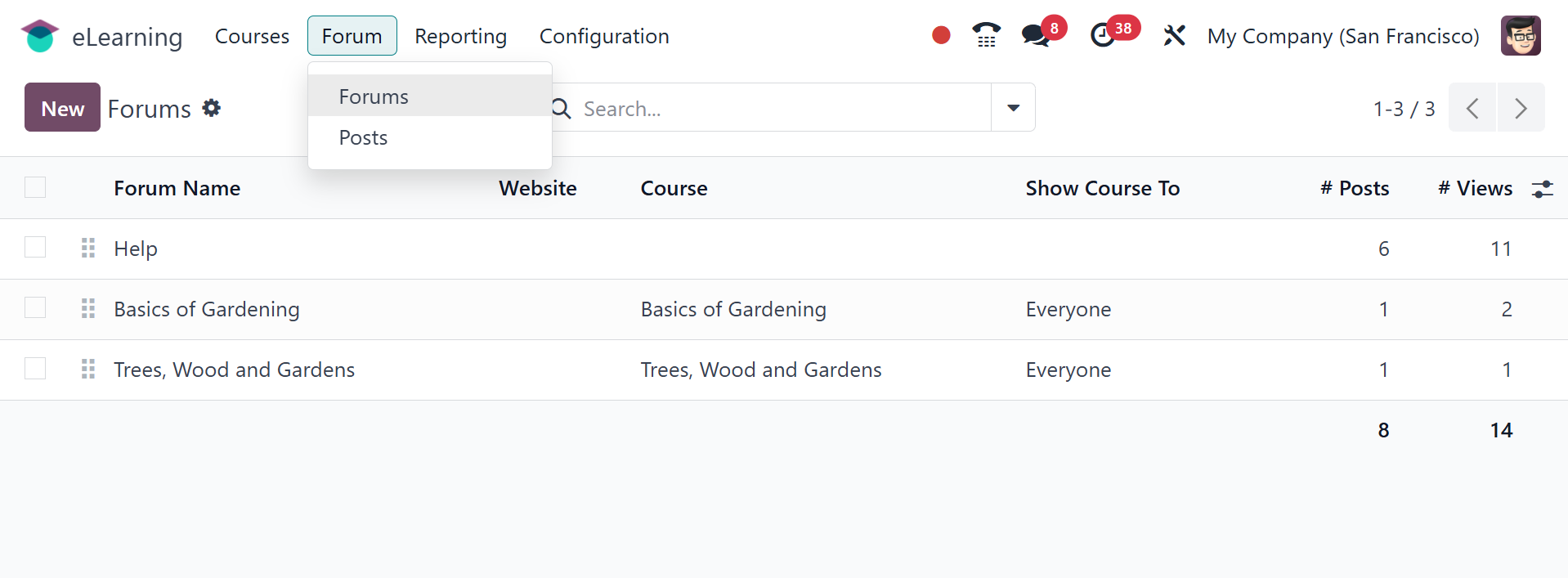
Under the forum menu, you have the options of forum and post, and
they are explained below. The option will be available once you
activate the option from the settings.
2.1 Forum
As you can see, a list of all the forums that are set up on the
platform is displayed in the window, along with details about each
one, including the website, forum name, number of posts, views,
answers, and favorites.
To begin a new forum, click the New button.
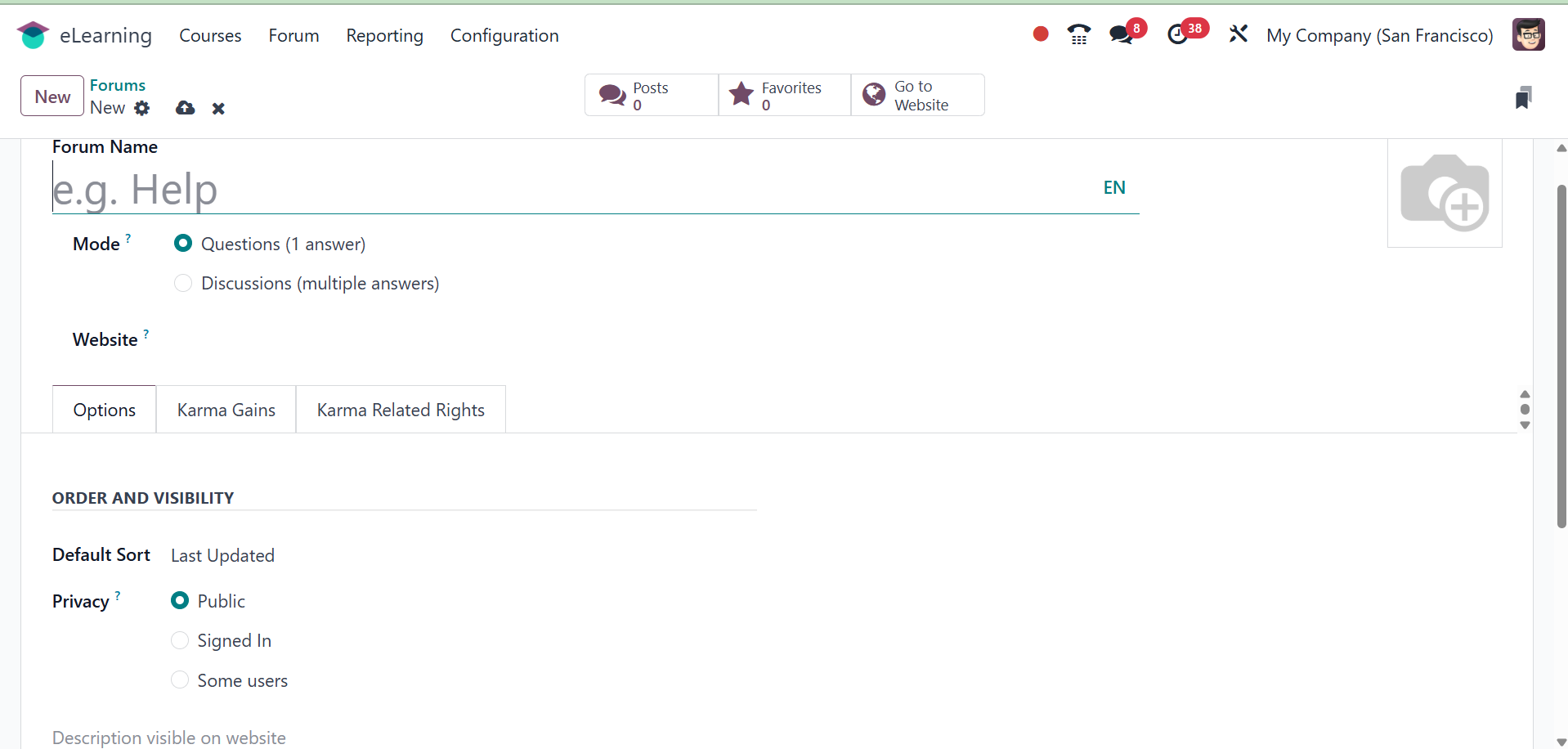
First, you need to input the Forum Name and select the Mode.
Discussion mode allows for a large number of answers, while inquiry
mode only allows for one. When this forum needs to be published, the
website can then be provided. You can also include the forum-related
photo in the appropriate space.
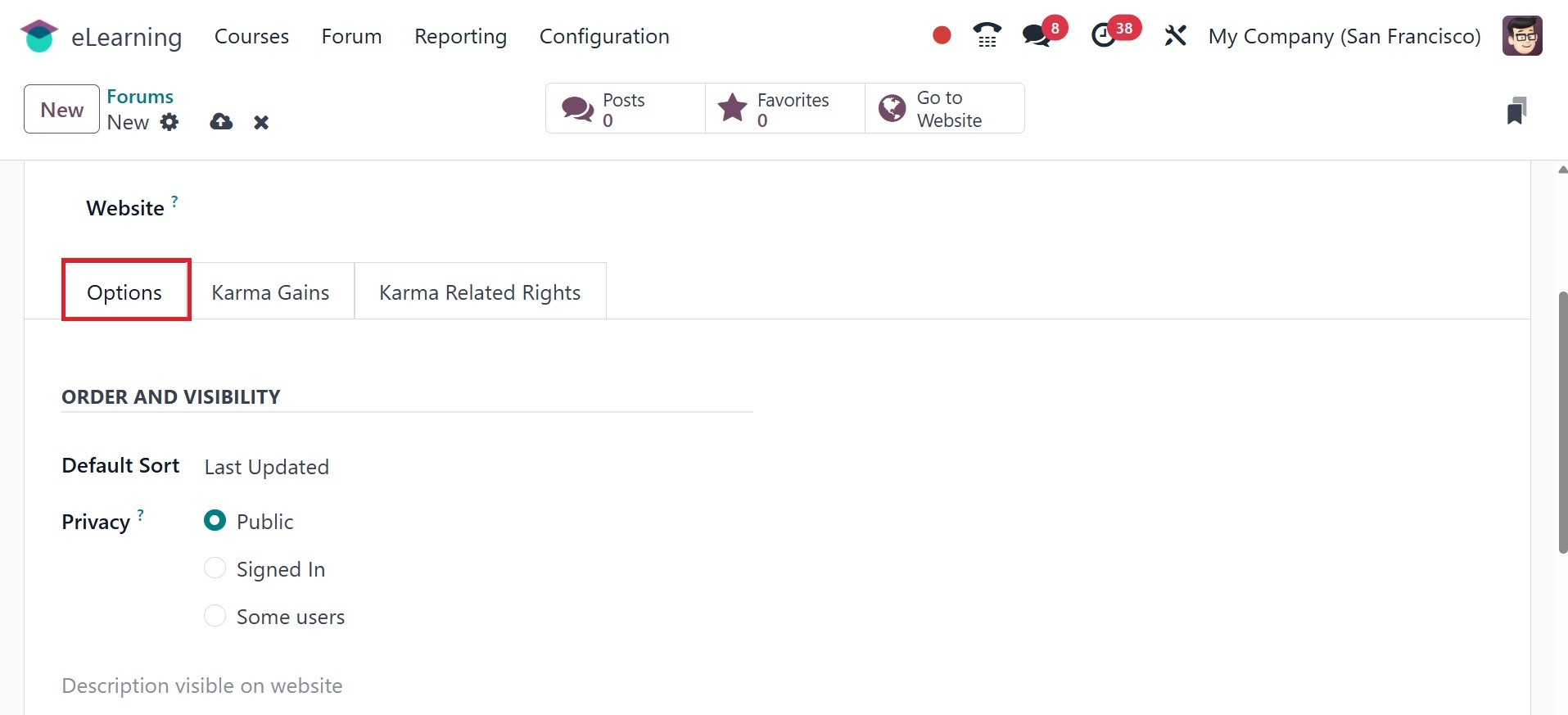
The Options Tab allows you to change the forum's visibility and
order. The Default Sort box allows you to select the default sorting
method. Relevance, Answered, Most Voted, Newest, and Last Updated
are the default sorting choices for this field. The privacy policy
can be defined in three different ways: Some Users, Signed In, and
Public. If you decide to make the forum public, all users will be
able to see it. A user will be able to access the form if they are
logged in. Finally, in certain circumstances, the forum and the
posts made by certain individuals are hidden from others who are not
members of the selected group. You can also choose to write a
description of the forum that will be displayed on the website.
You can choose to add a description of the forum that will be
displayed on the website. Under the Karma Gains page, you can assign
the participants various karma points for their diverse acts.
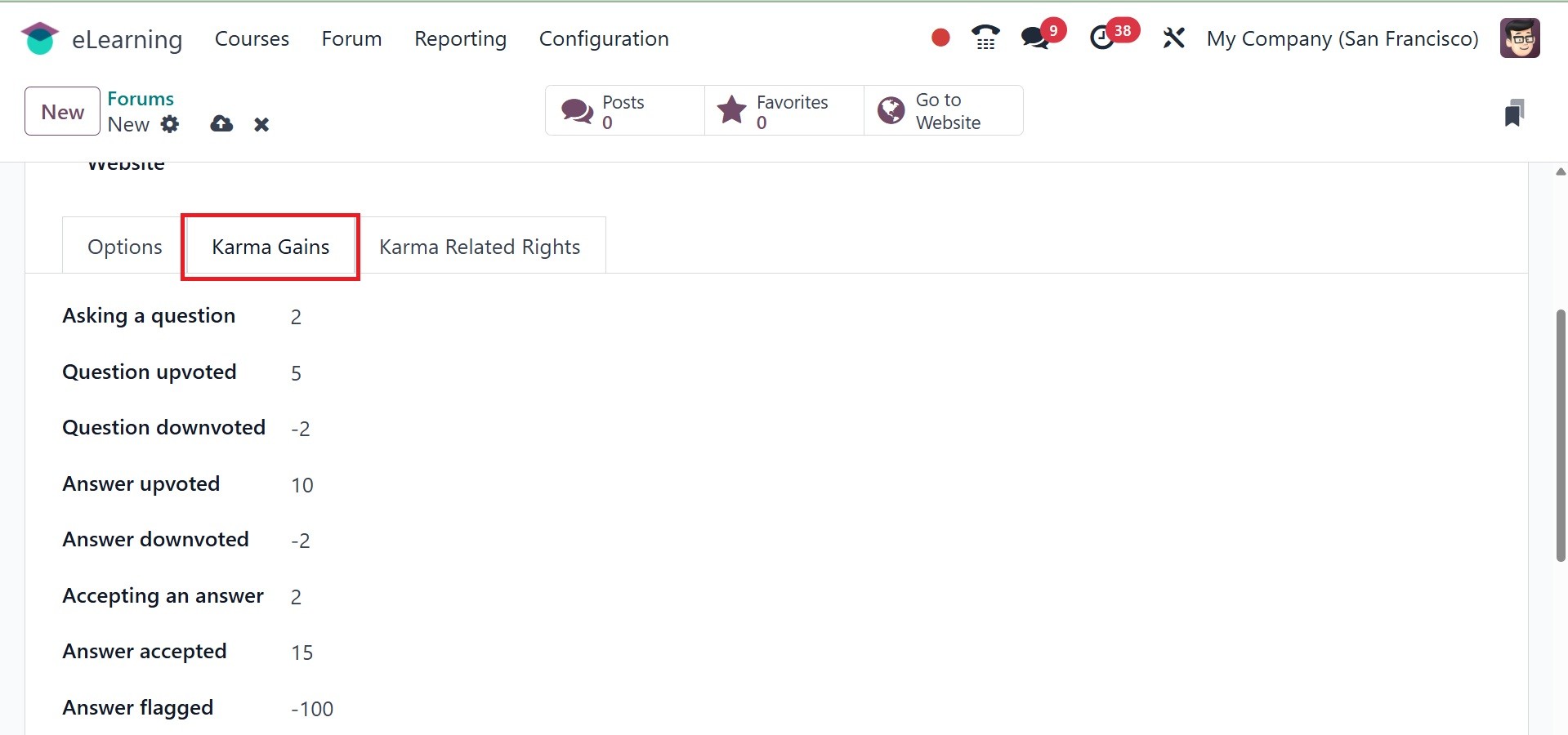
If the participants earn enough karma points, they will be able to
obtain a variety of rights. By selecting the Karma Related Rights
option in Odoo 18, you may describe the right.
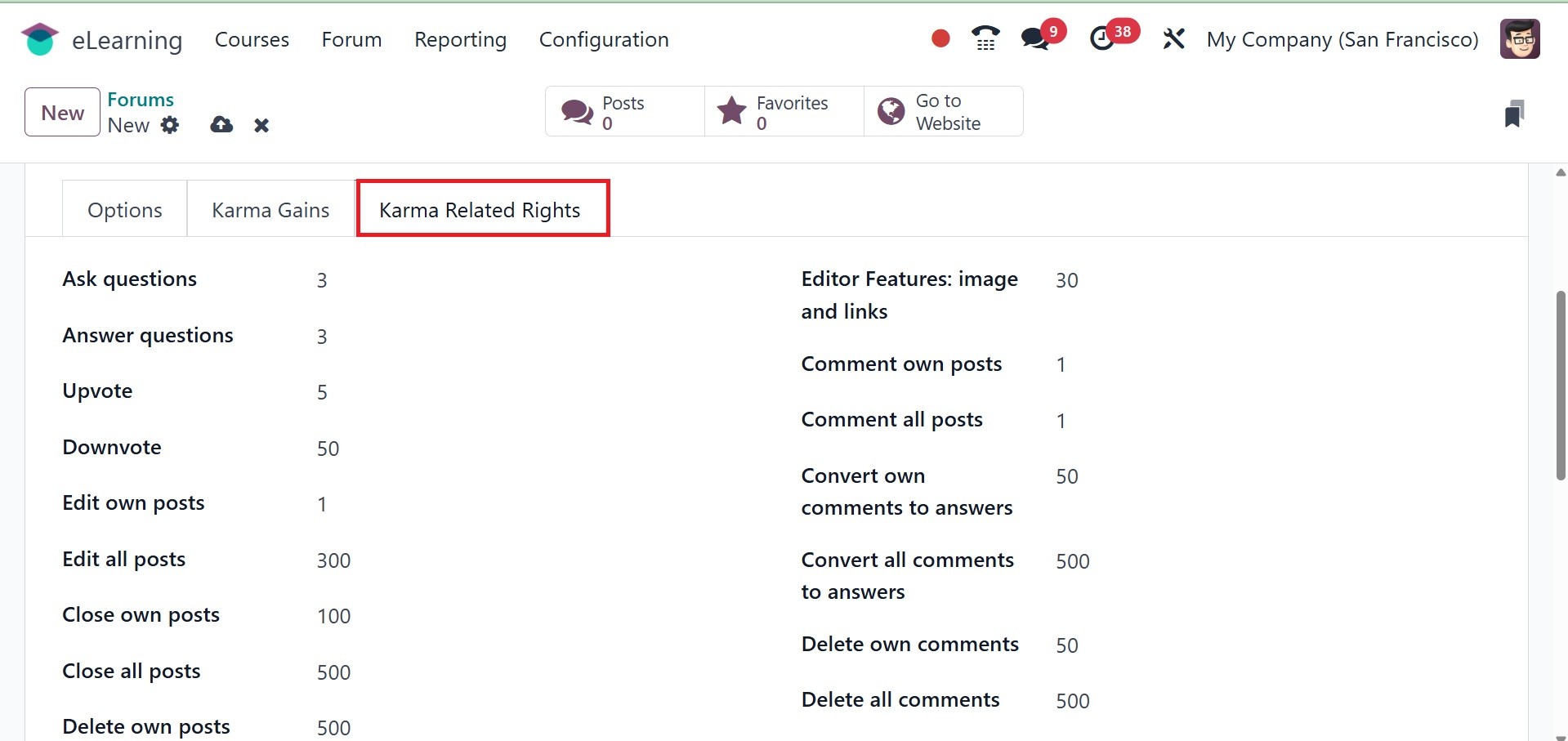
The Karma Related Rights tab displays a list of rights. Only after
earning the specified number of karma points may participants obtain
rights.
To save the details, click the preserve button after completing each
of these steps.
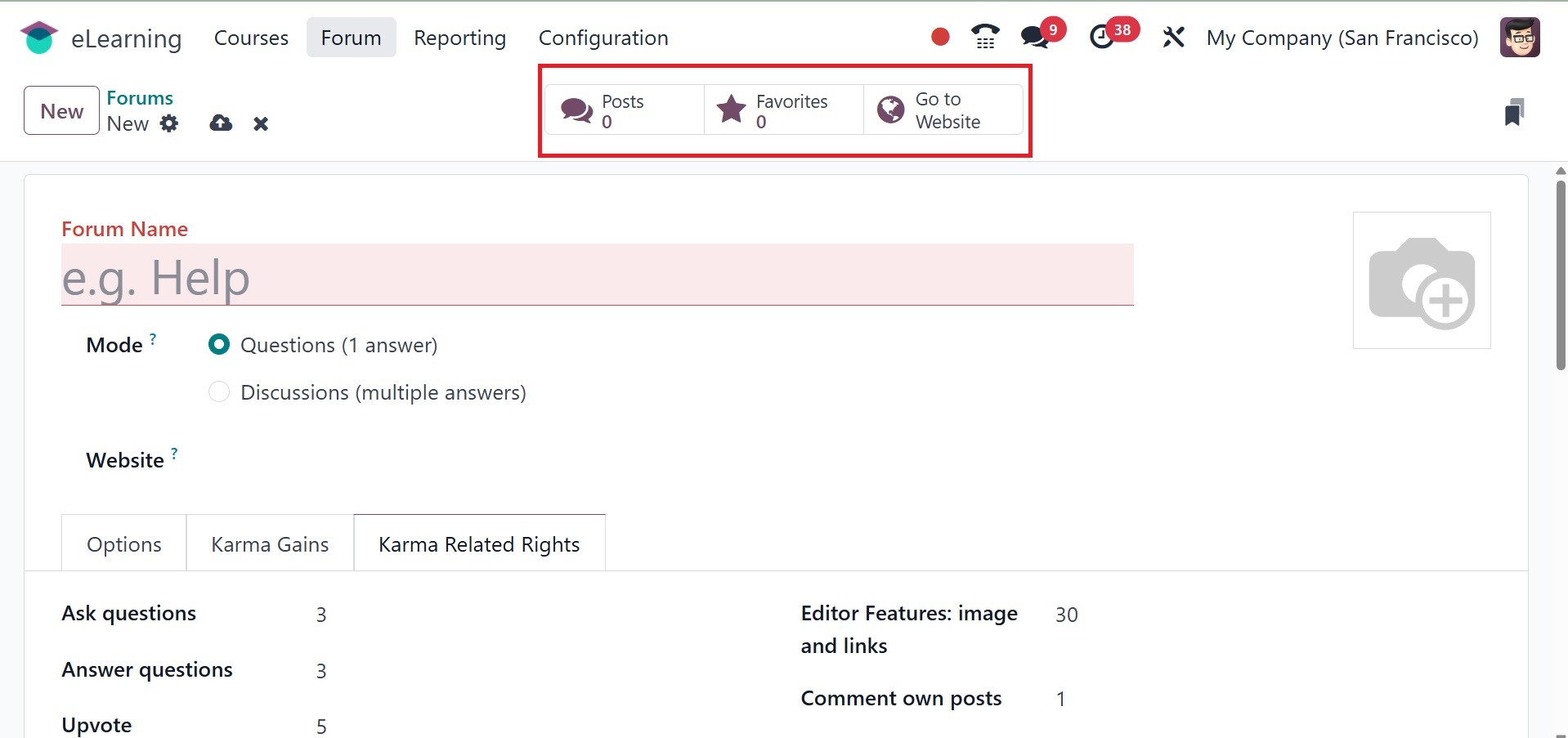
A smart tab Forum Post option is part of the Forum option. This
brings up the view of each created forum post page. Then, you have
the favourites tab and go to website smart tab as well, as in the
below image.
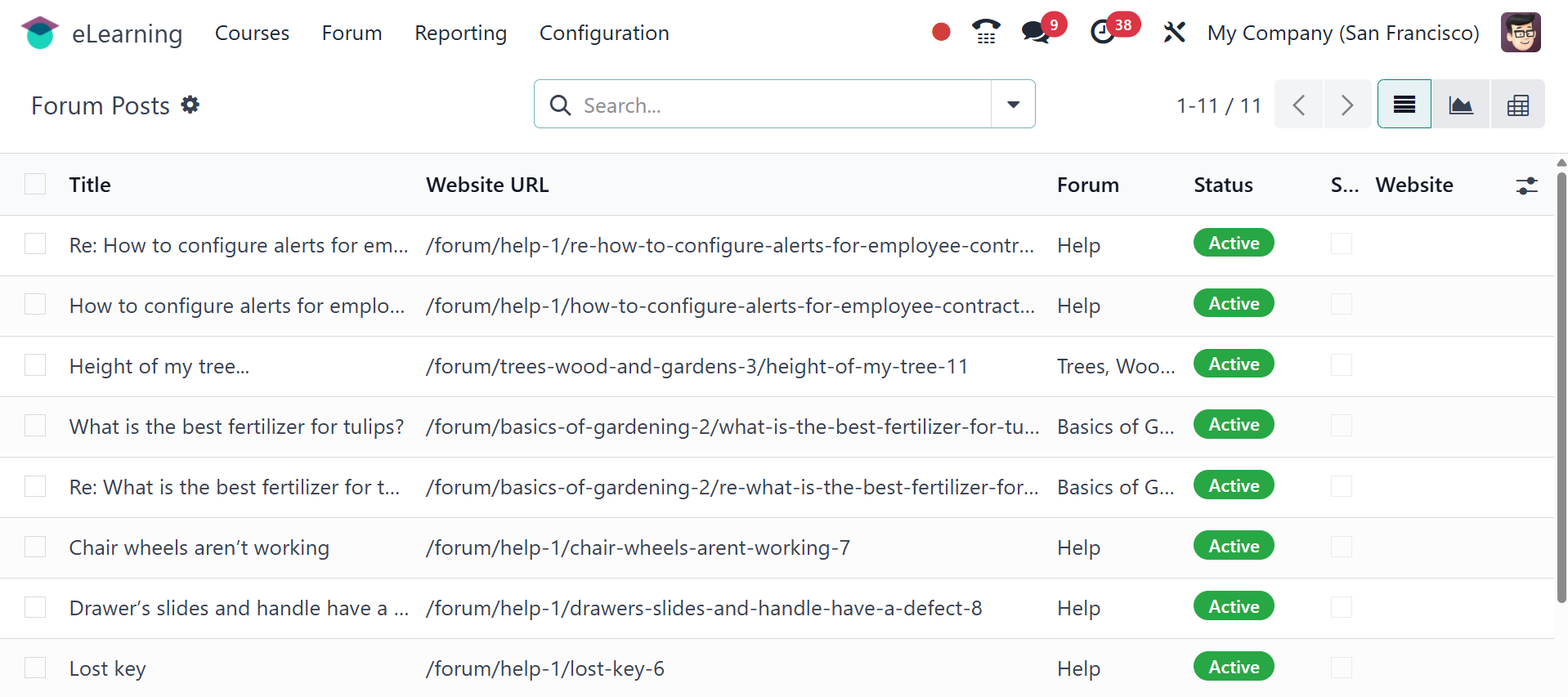
2.2 Forum Post
A discussion entry made inside the integrated Forum module is called
a Forum Post. It enables students to participate in discussions,
exchange ideas, and pose questions about the courses they are
taking. This feature improves the eLearning platform's interactivity
and knowledge-sharing. The page will be, as in the image below. On
this page, you will get the details like title, website URL, forum,
status, and website. resepctivley.