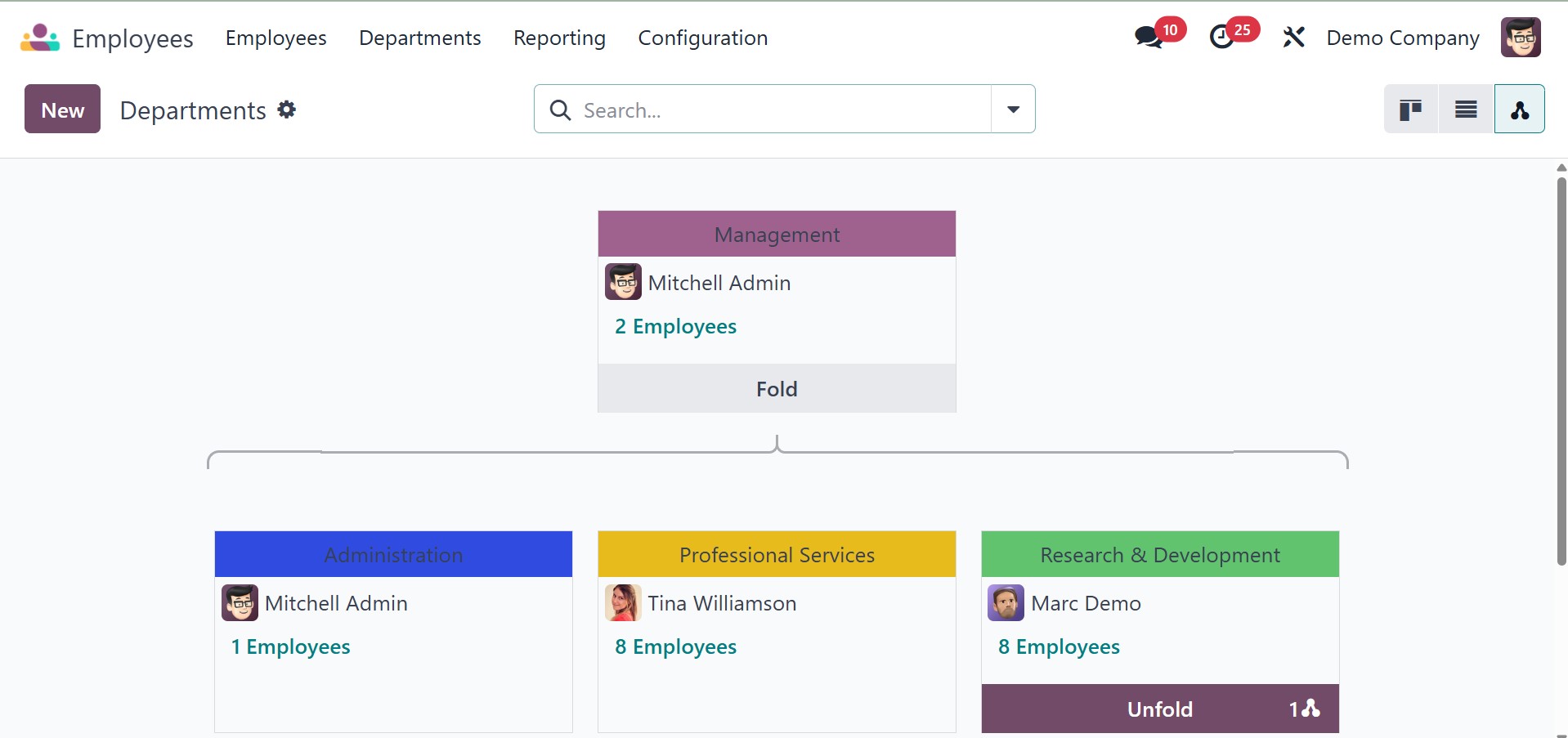
2. Departments
By setting up the departments' data that are available in your
business in the Odoo18 Employee module, you can easily group
employees according to their departments. To configure your
company's departments, go to the Configuration menu and select the
relevant option. As seen in the screenshot below, the Employees
module contains the pre-configured list of departments.
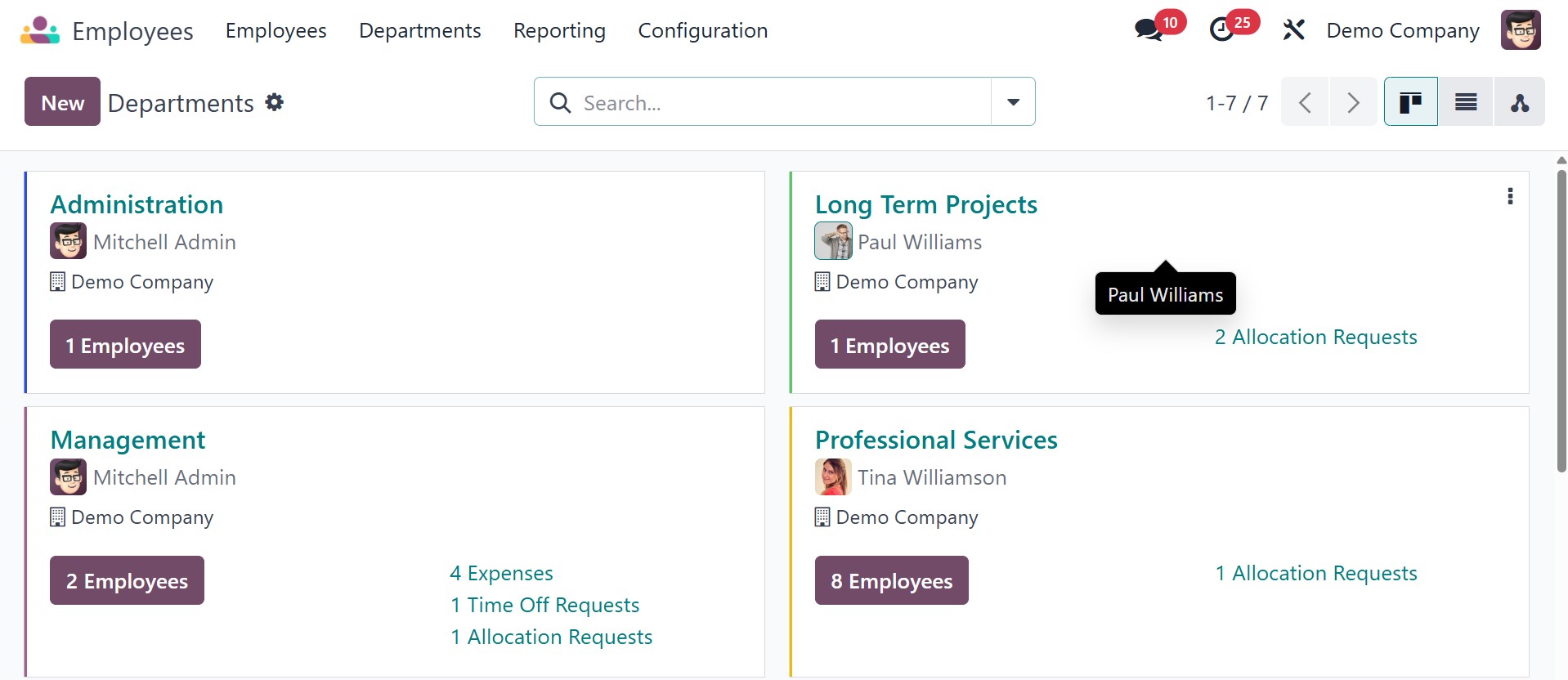
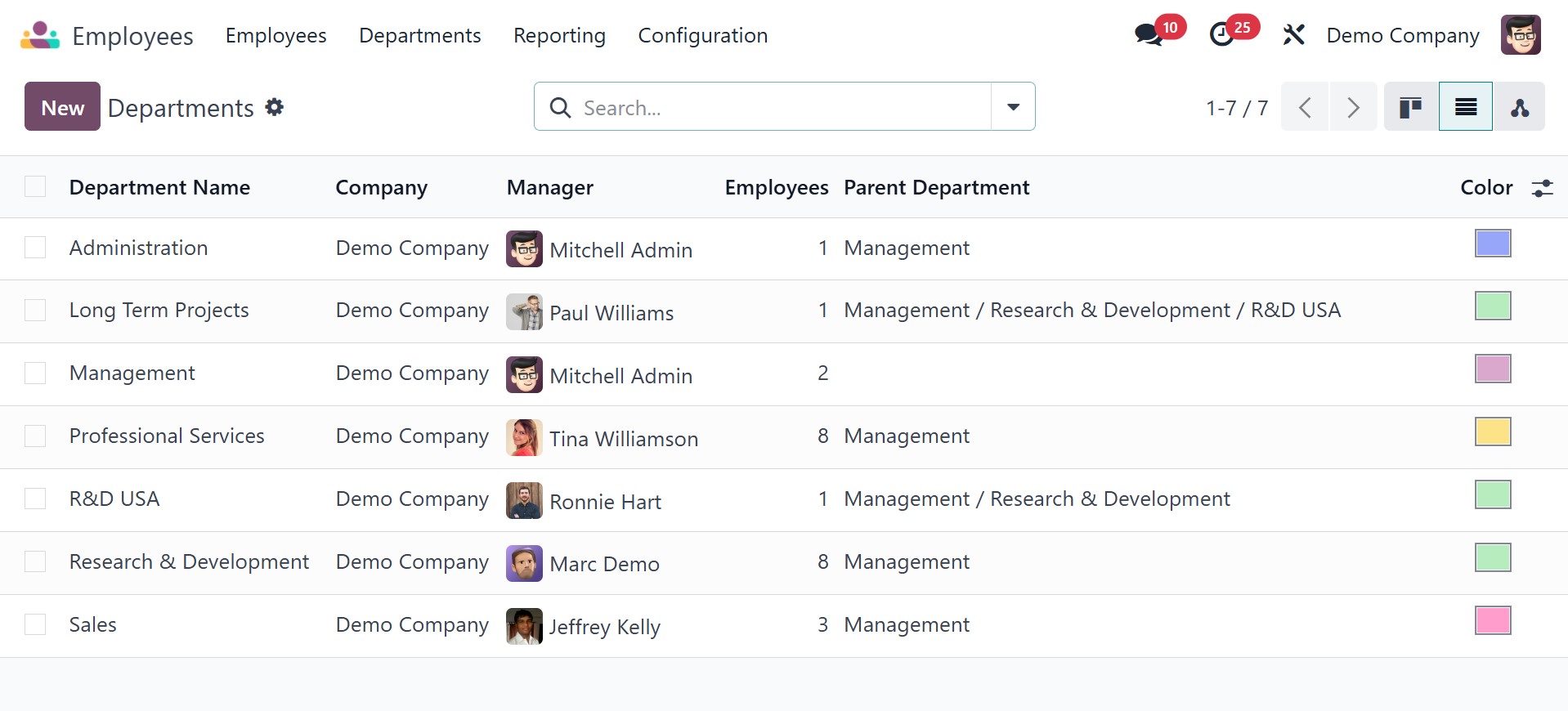
You can learn more about the Display Name, Company, Manager,
Employees, and Parent Department from the list view. Use the New
button to create a new department.
The new page will be, as in the screenshot below.
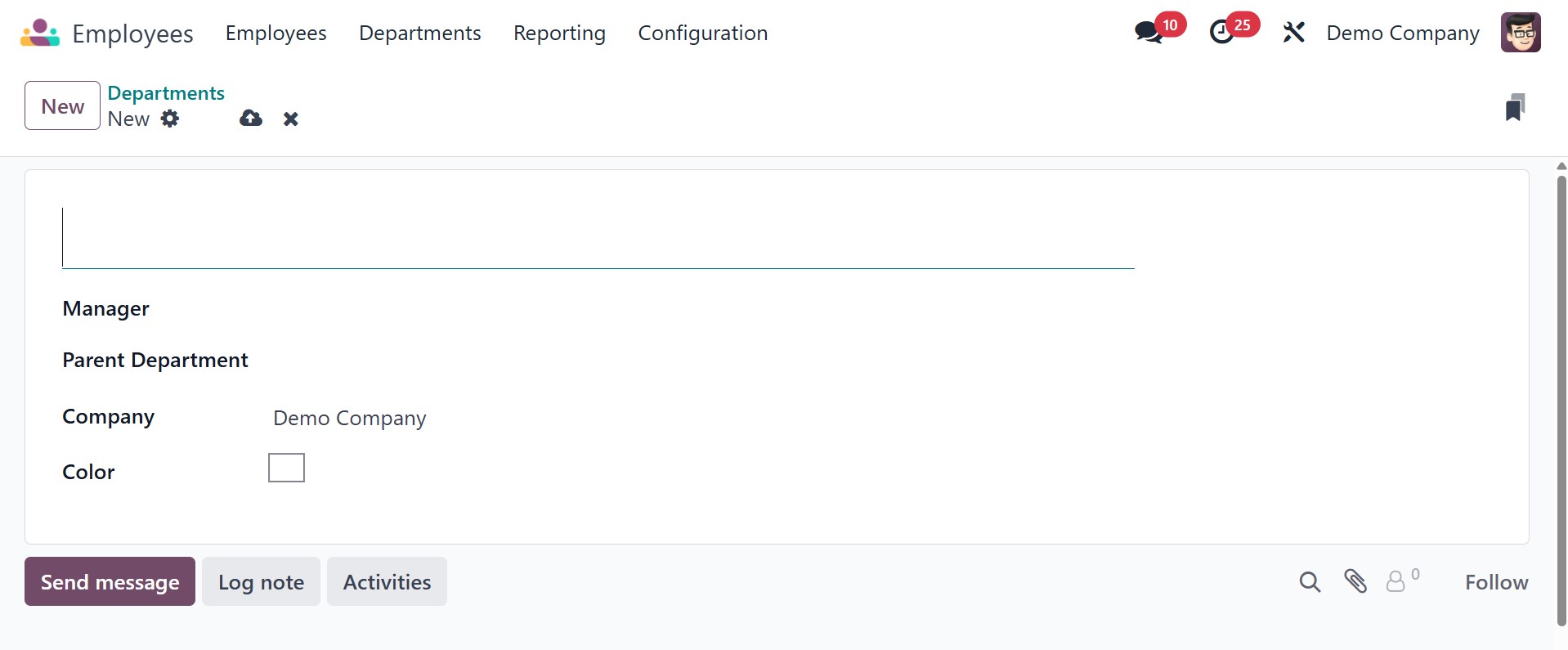
In the relevant boxes, you can enter the Manager, Parent Department,
and Department Name.
The name of the company will instantly show up in the relevant field.
Select the department-specific default survey template, the
Appraisal Survey. Once the department record has been generated, you
will be given the Employees smart button to examine the department's
employees and the Plans smart button to handle the department's many
plans.
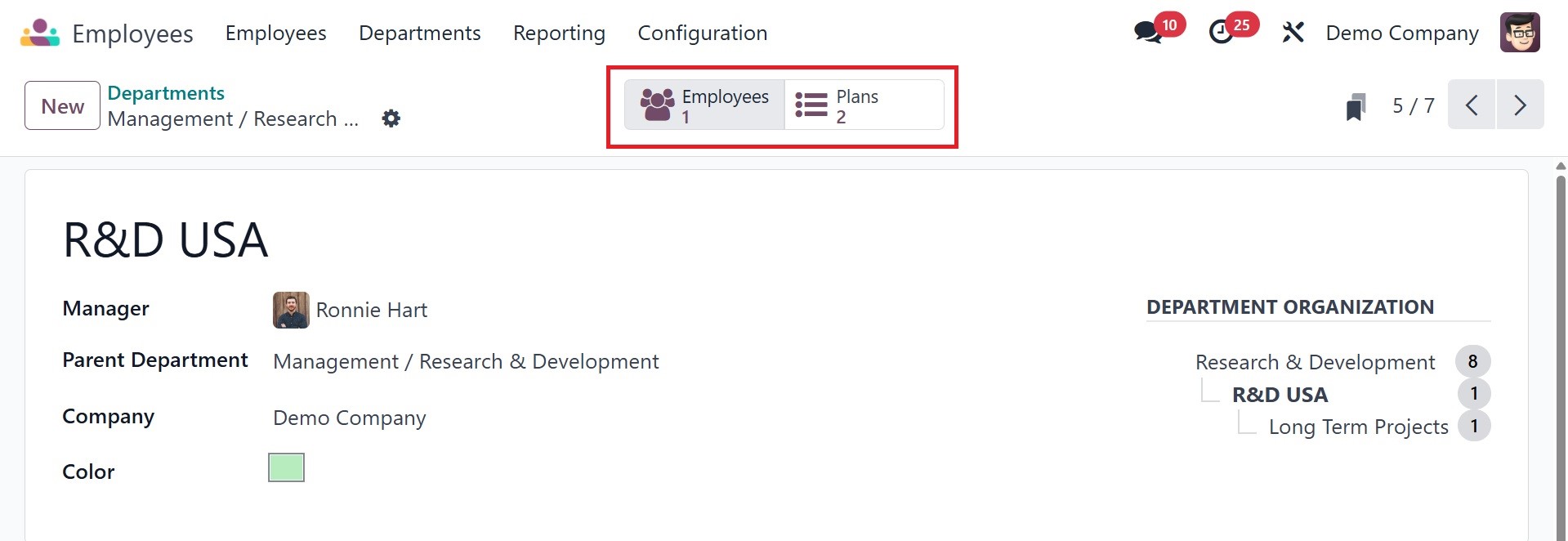
When the department has been created and saved, two smart tabs
appear: Plans and Employees. The Employees tab shows all of the
department's employees, while the Plans tab shows all activity
plans, including those for onboarding and offboarding. The
department also displays the Hierarchy Chart view, with a specific
number of employees under each block.