2. Expense Report
By choosing the Expense Reports tab, a user can view all report
details. Employee, Company, Status, Payment, and other report
details are available in the List view of the Expense Reports
window.
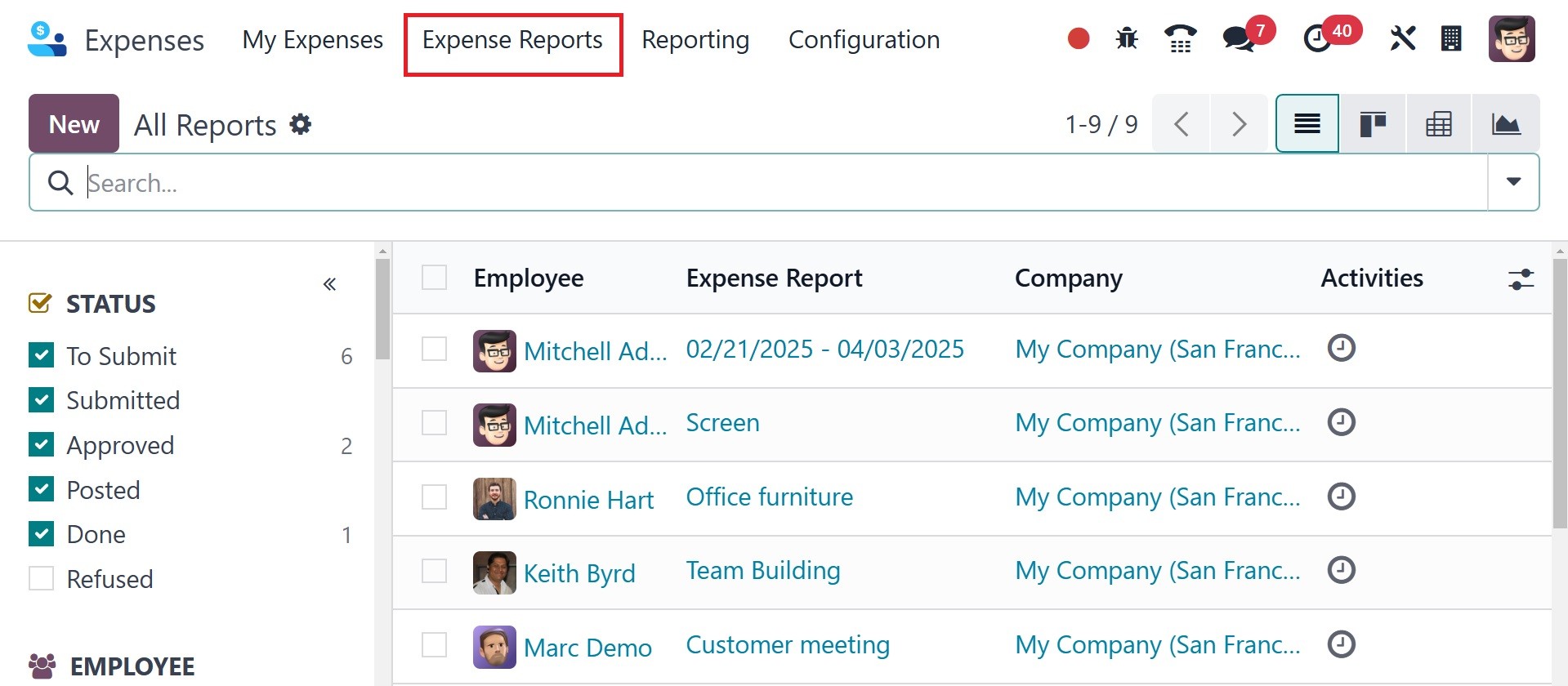
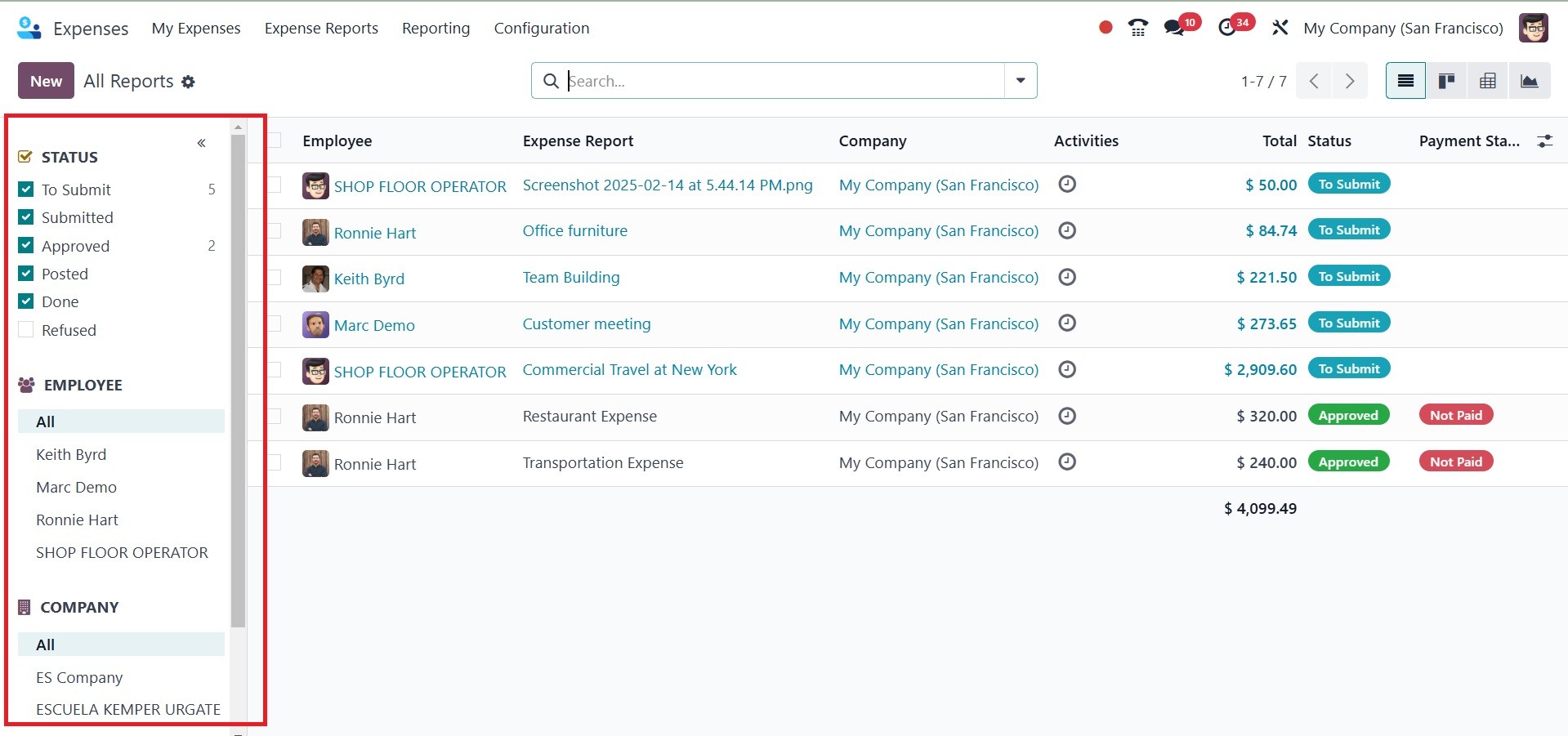
The reports can be sorted by EMPLOYEE, STATUS, and CATEGORIES. All of
these are visible to users in the left-hand corner of the window. By
choosing the Scan option, you may also add a record. Clicking the
New button requires you to specify a new report for an employee.
The Expense Report Summary section now includes a report description
when you click the New button, which opens a new page. Later on, you
might decide between the employee and the company. Choose the
relevant Manager for your report from the Manager section.
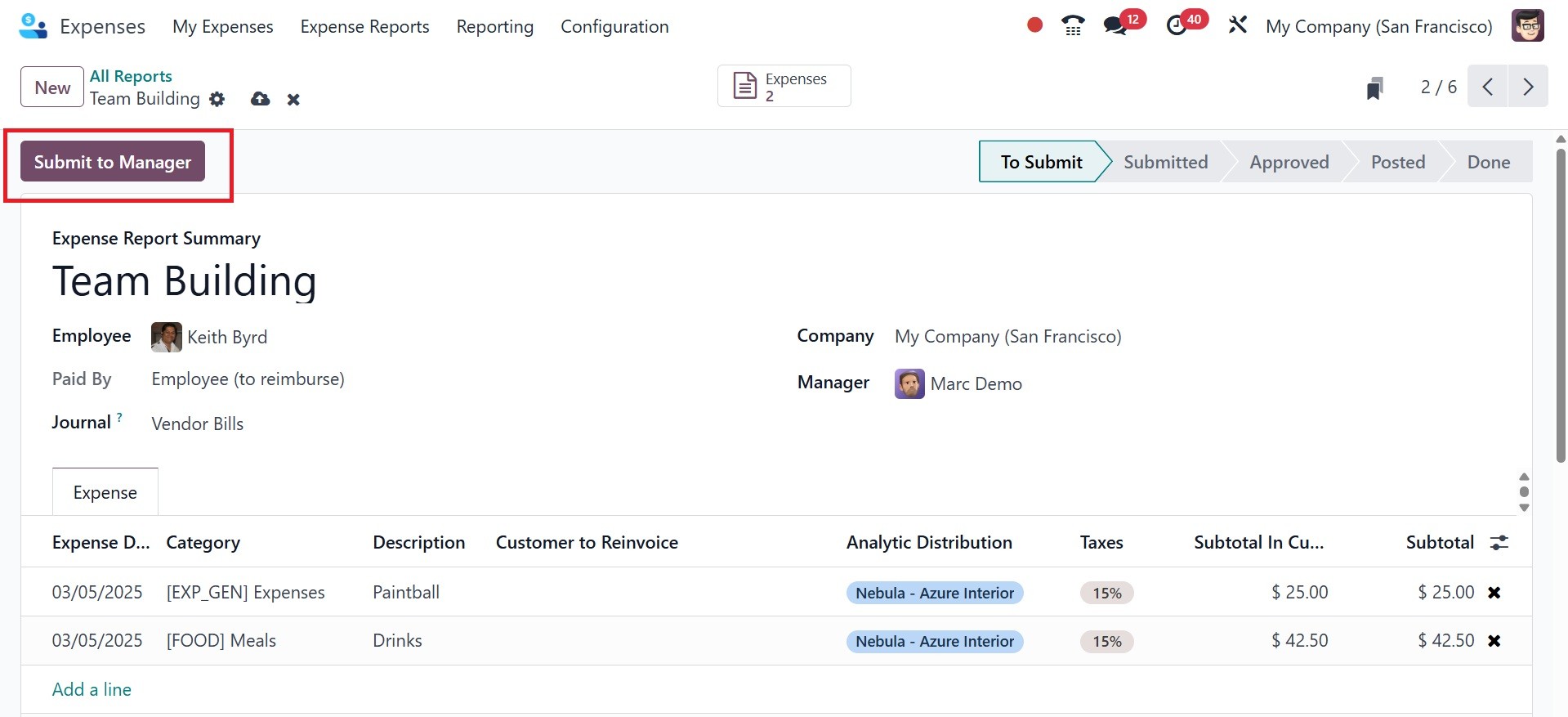
After choosing Add a line from the Expense tab, you can specify the
report's related expenses. The user is shown the total untaxed
amount after choosing the expenses. You can send the report to
management by clicking the Submit to Manager button once you have
filled out all the required fields.
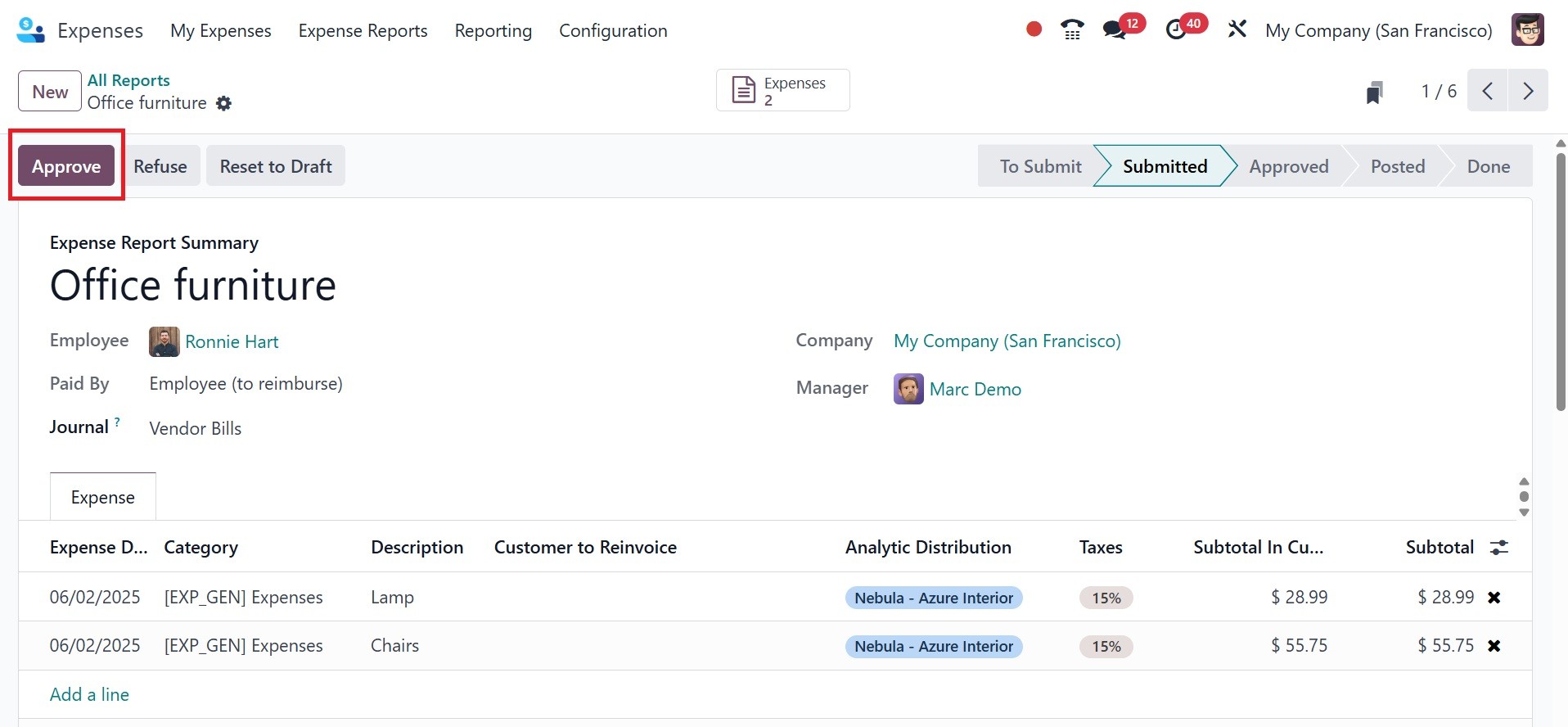
After sending the report to a manager, you may view the generated
expense document by clicking the Expenses smart button. The stage
has also been changed to Submitted. The report can be approved by
the relevant management by selecting the Approve icon.
This makes it easy to manage reports in the Odoo 18 Expenses module.