2. All Tasks Overview
The "All Tasks" menu in the Odoo 18 Field Service module provides a
record of all assigned field service tasks. Under the "All Tasks"
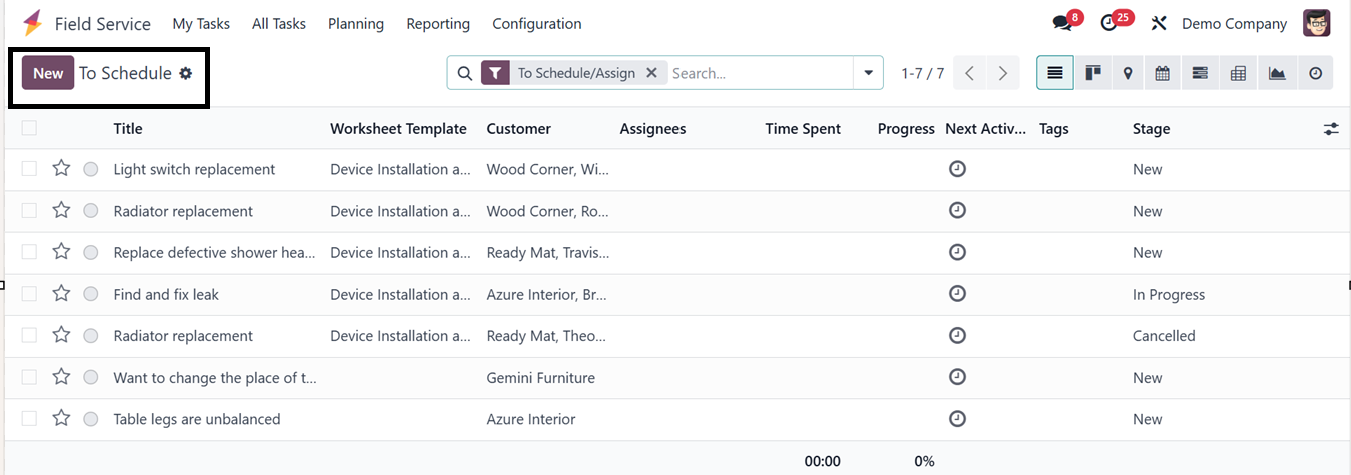
menu, the submenus for "To Schedule" and "To Invoice" are available.
The "To Schedule" section lists pending tasks, while "To Invoice"
displays tasks awaiting invoicing.
In the “All Tasks” window, you can see the List view displays
information such as Title, Worksheet Template, Project, Customer,
Assignees, Company, Start Date, End Date, Activities, and Tags.
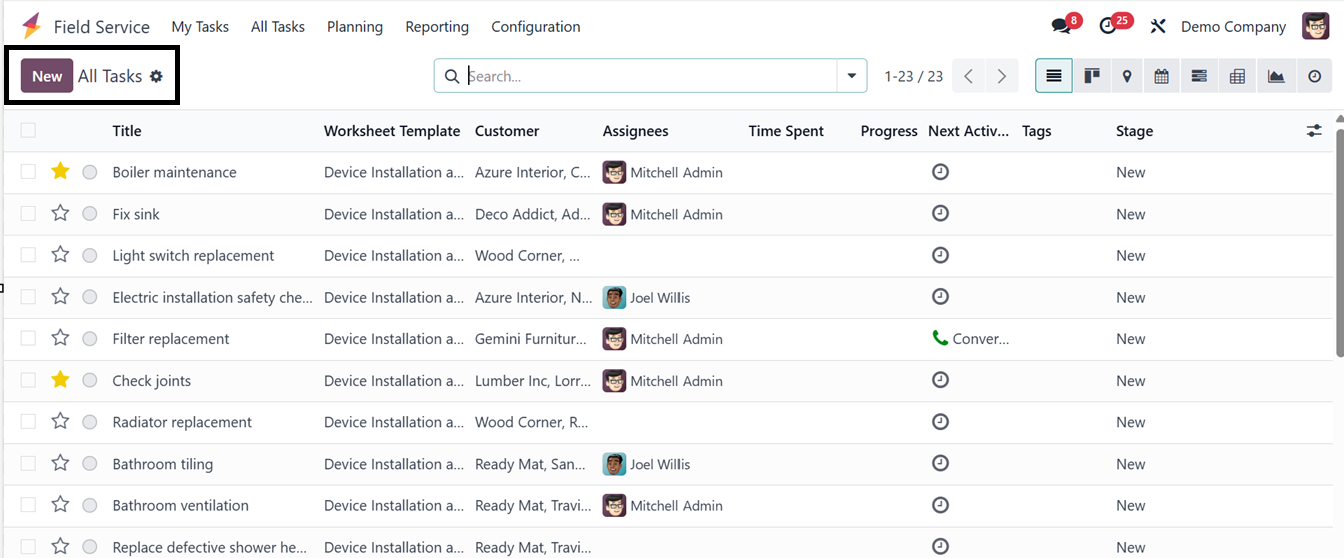
You can use the clock icon on each task column to schedule
activities, while clicking the ‘New’ link under the ‘Stage’ column
allows you to quickly advance tasks through their respective stages
as they progress. You can also view these tasks in List, Kanban,
Map, Calendar, Gantt, Pivot, Graph, and Activity formats. New tasks
can be created using the "New" button and filling the task
configuration fields with the relevant information that we have
discussed in the above section.
2.1 To Schedule
The “To Schedule” platform in Odoo Field Service allows users to see
jobs that need to be scheduled. To swiftly access the same list, you
can also use the To Schedule filter in the All Tasks view.
2.2 To Invoice
The “To Invoice” platform in Odoo Field Service displays all finished
tasks that are prepared for billing but have not yet been billed.
The billing process is made quick and accurate by the ability to
produce bills straight from this view and rapidly check job data,
such as time, materials, and client information.
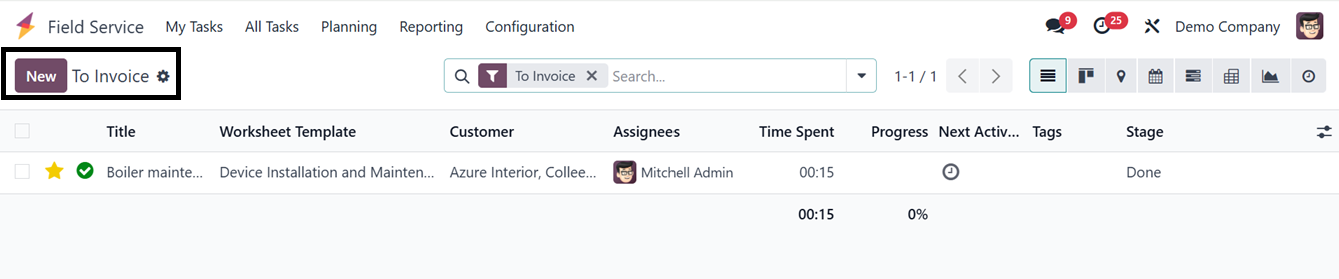
Clicking on the invoice data column will open the form view of that
particular task so that you can proceed with the creation of an
invoice using the ‘Create Invoice’ button, as we have discussed in
the previous task creation section.
