3. Badges
One special feature that Odoo18 offers is the ability to create and
manage badges, especially for forum post watchers on your website.
This tool allows you to specify the kind of activities that users
must finish, as specified on your forum, in order to be eligible to
receive badges. These specific badges can be awarded as rewards to
users who successfully complete the tasks on your website.
The Badges menu is accessed from the Configuration tab of the Odoo18
Website module. Now let's explore the Badges window.
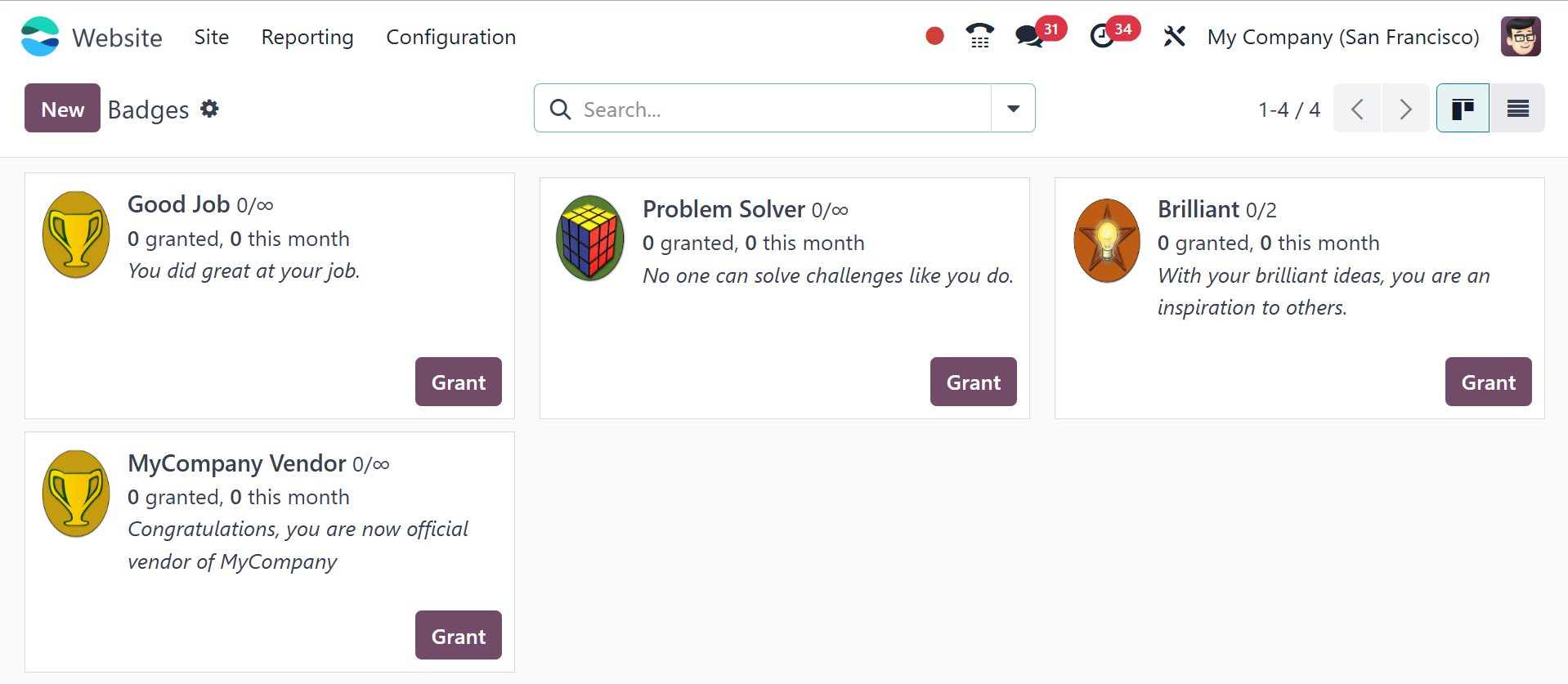
The Badges pane will display every badge that has been defined on the
platform. The image above shows the Badges window in Kanban view. In
the kanban perspective, you can see the GRAND button on the
underside of each insignia. Just click the icon to award this badge
to your participant. When you click on this button, a pop-up window
like the one in the picture below will appear.
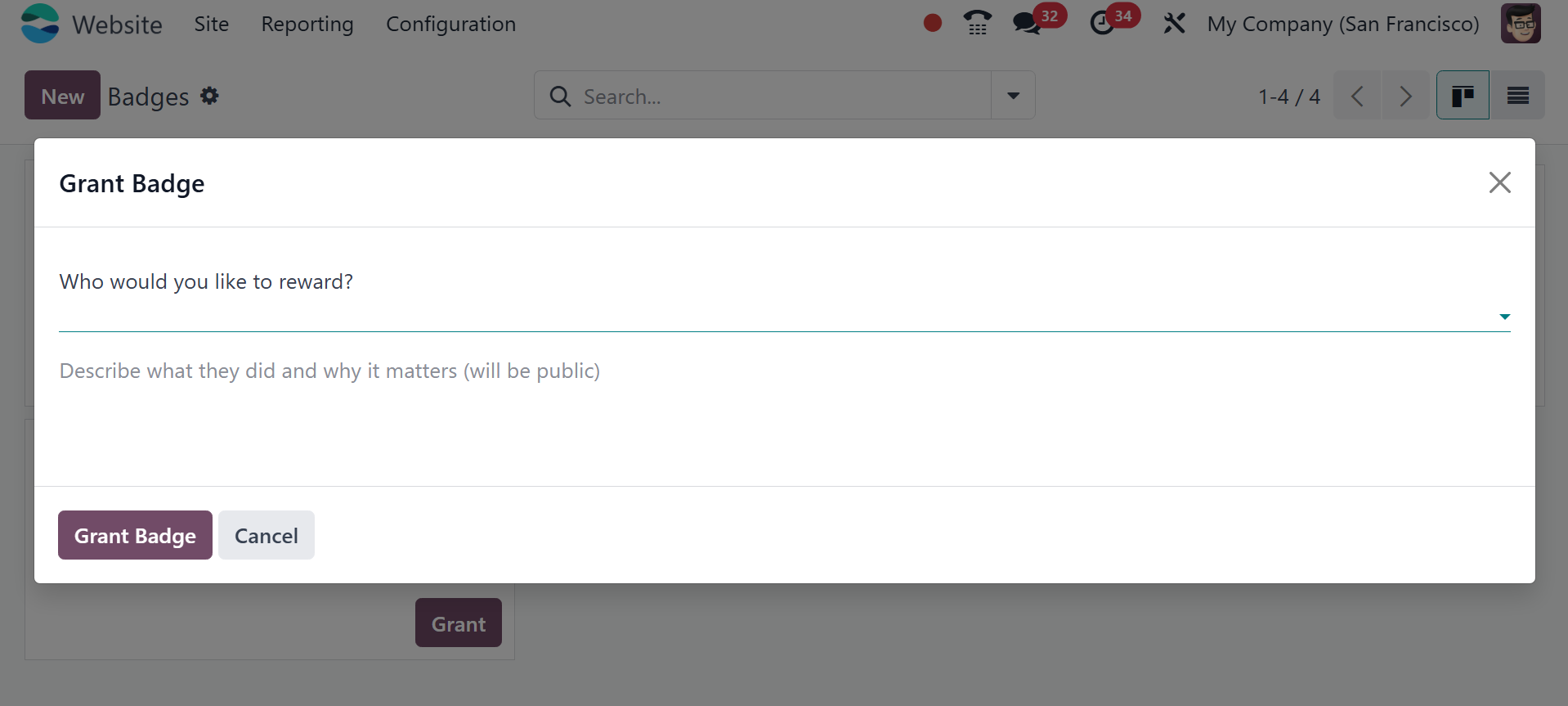
Here's where you can find out who won your reward. You can also
describe their actions and their significance. The public will have
access to your description. You can then choose the Grant Badge
option.
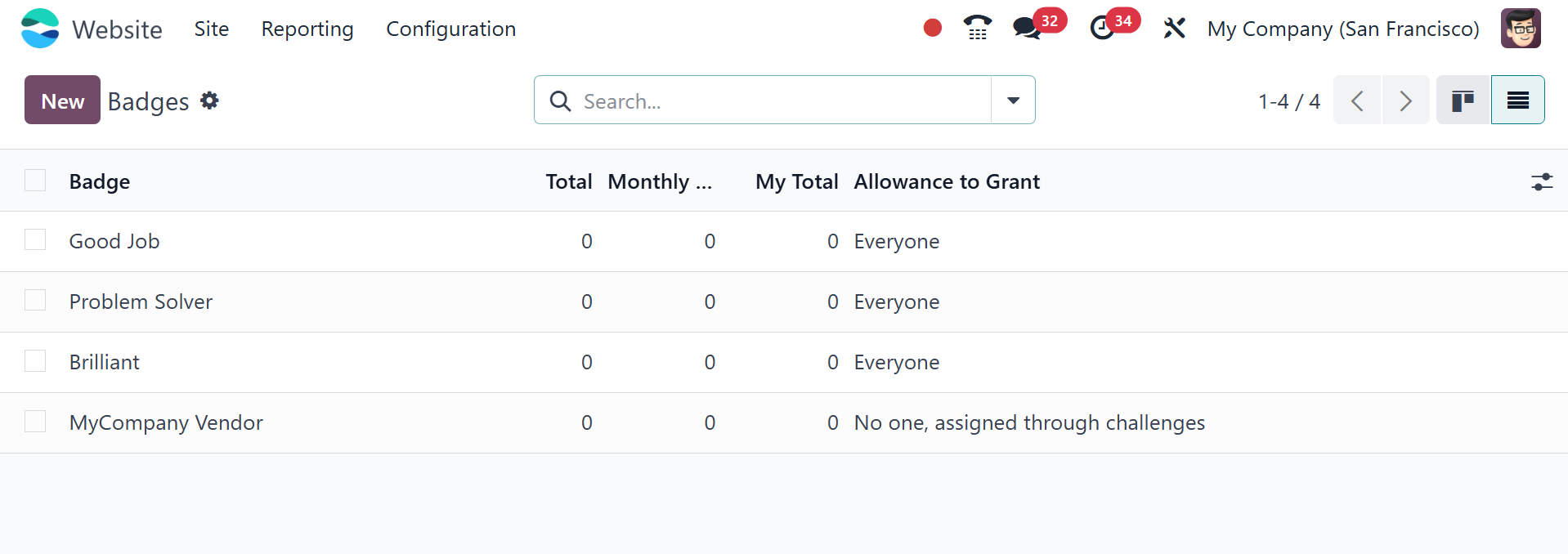
List view also provides access to the Badges pane.
To create new badges, click the New button. A screenshot of the
creation form can be found below.
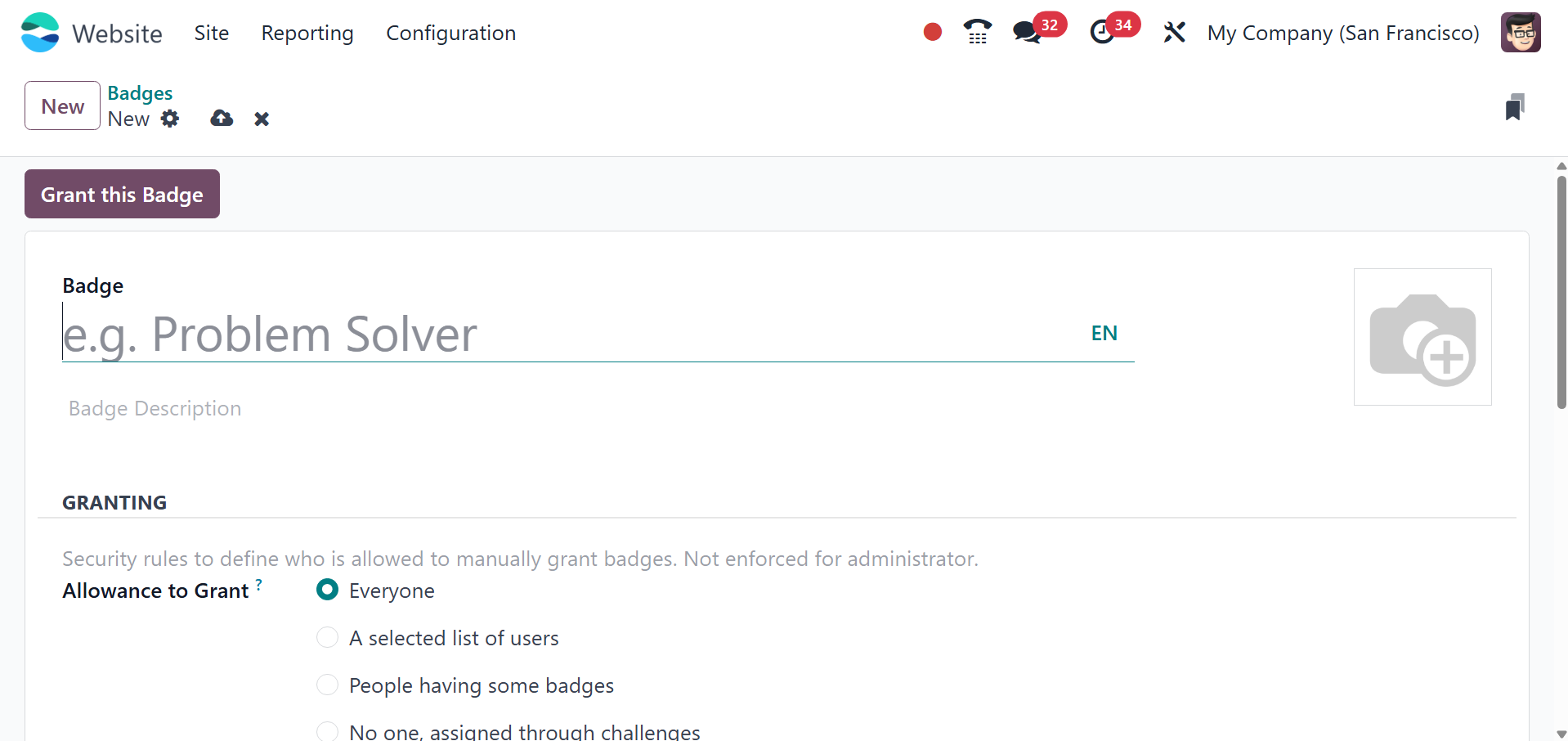
You can assign the Badge Name and Badge description in this Badge
creation form. The granting section contains the security
instructions for manually distributing badges; administrators are
exempt from these instructions. In the Allowance to Grant section,
you can indicate who is authorized to award this badge. This is one
of the alternatives open to you.
- Everyone
- A selected list of users
- People having some badges
- No one, assigned through challenges.
You can use the Monthly Limited Sending option to put a monthly limit
on how many times each user can send this badge. You can also
specify how much I send each month. Stated otherwise, it indicates
the number of times the current user has sent this badge this month.
You can use the Monthly Limited Sending option to put a monthly limit
on how many times each user can send this badge. You can also
specify how much I send each month. Stated otherwise, it indicates
the number of times the current user has sent this badge this month.
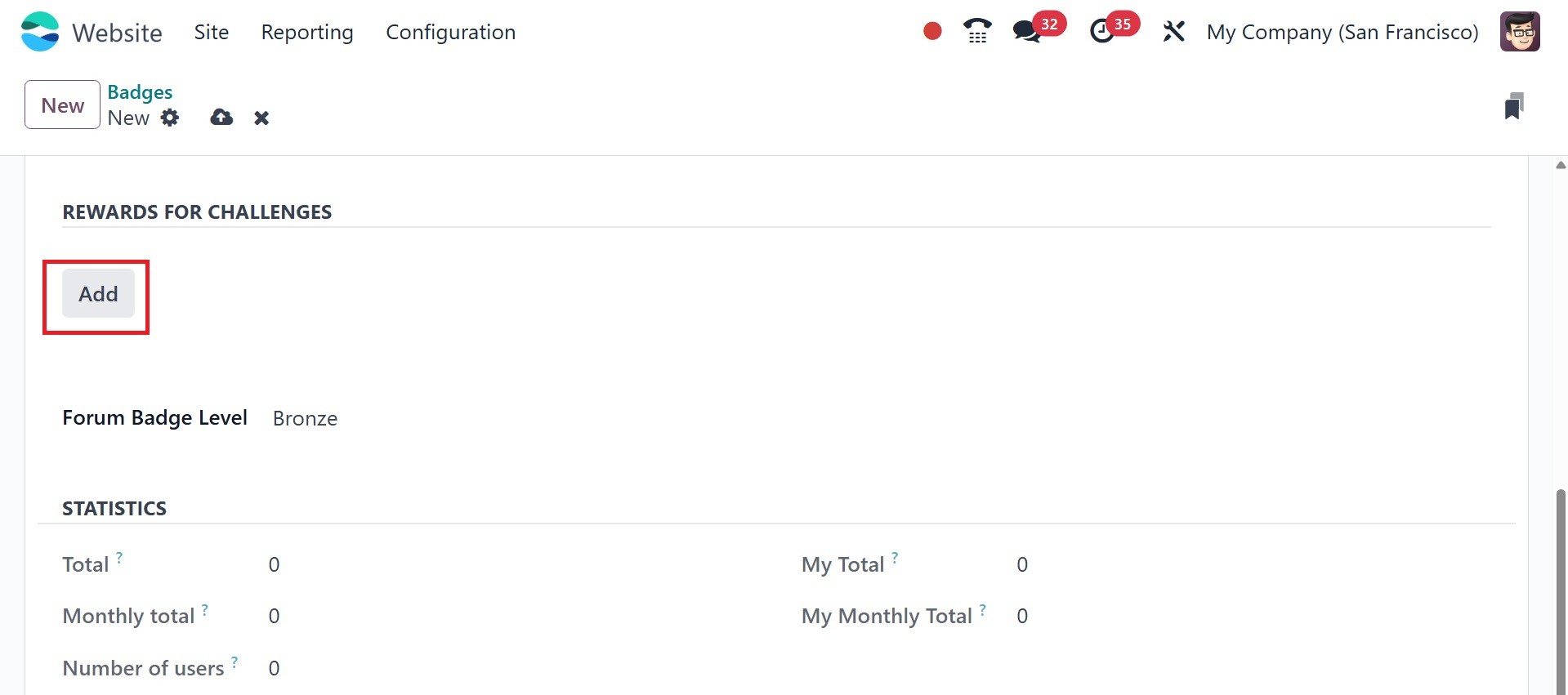
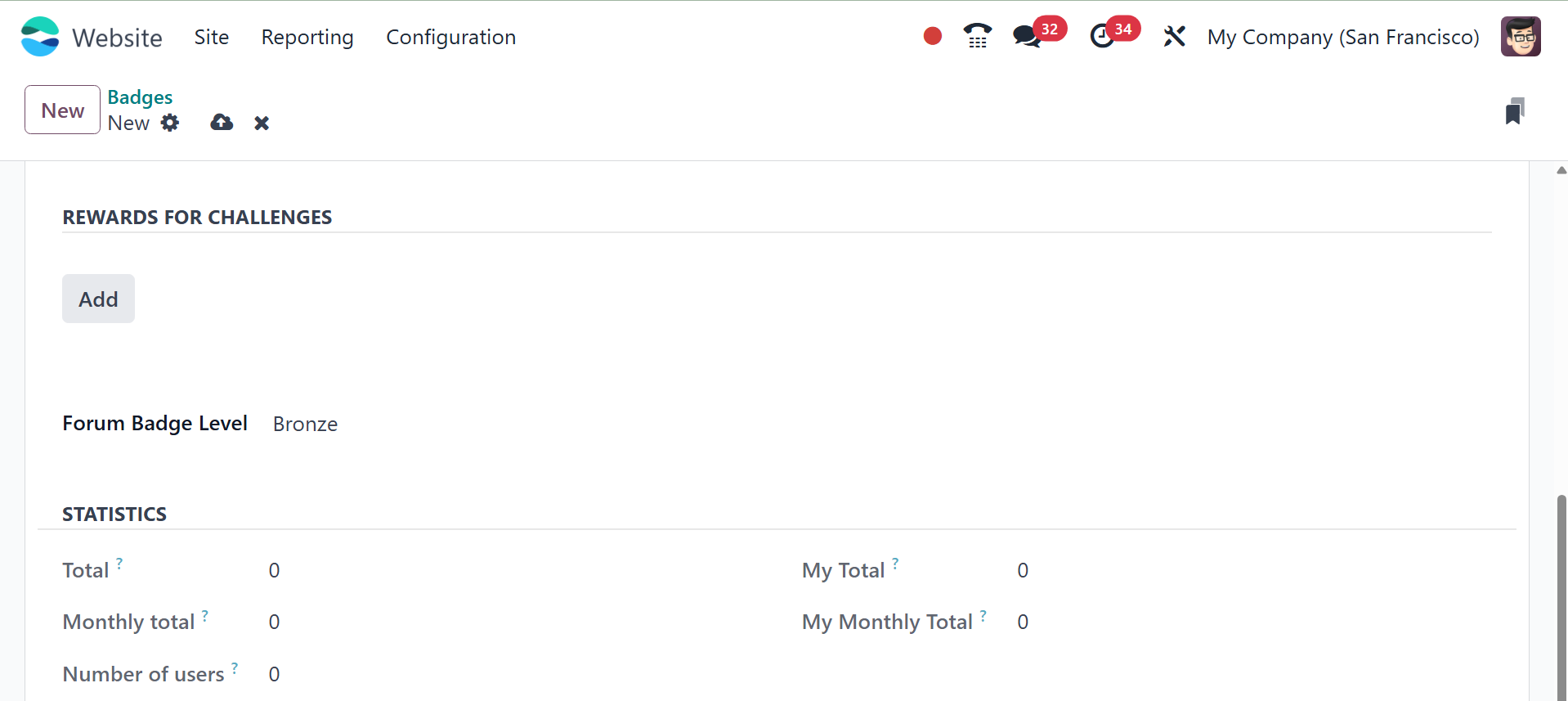
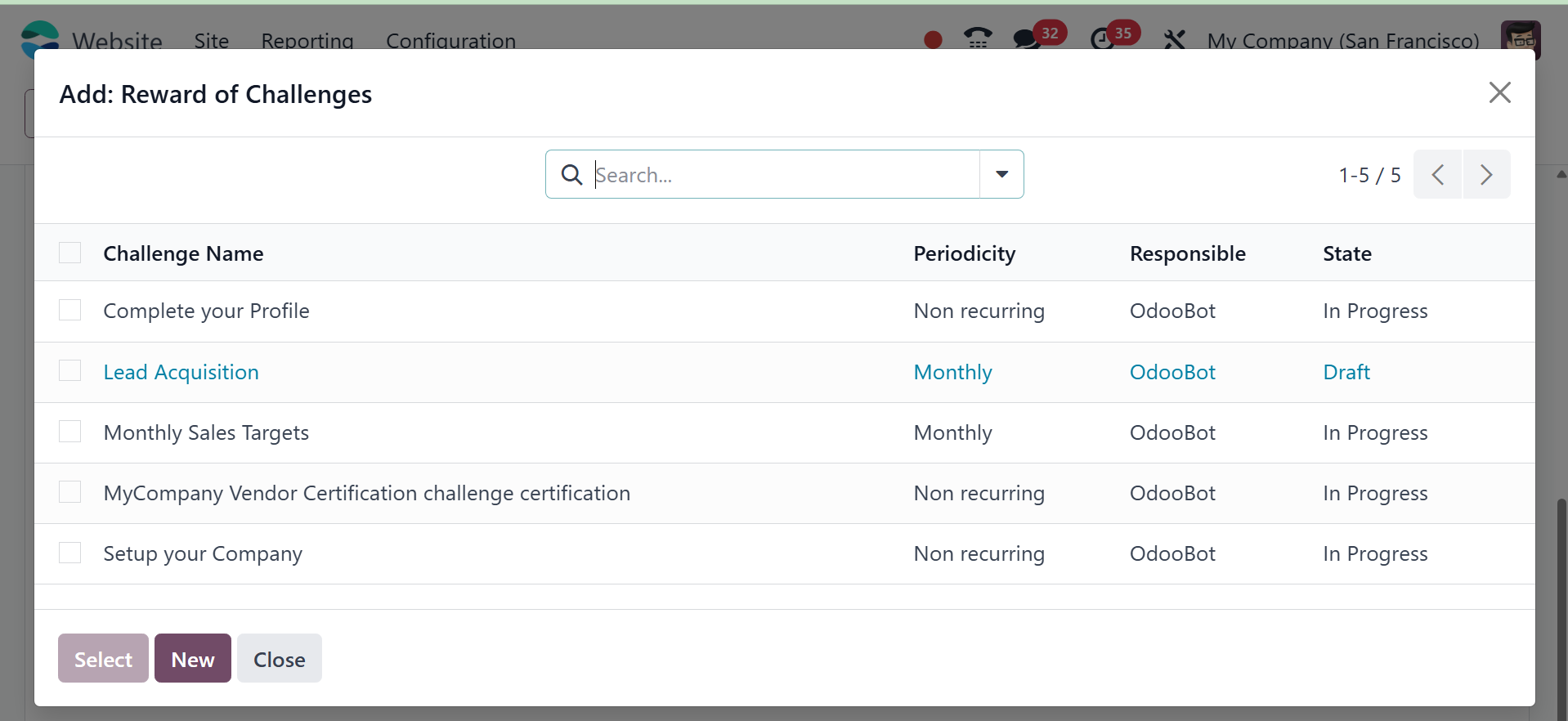
Another option is to offer rewards for finishing assignments. This
can be done by clicking the ADD button that shows up in the Rewards
for Challenges area. Clicking the ADD button will bring up a pop-up
window with all of the predefined challenge record awards.
You can add a pertinent record to this area.
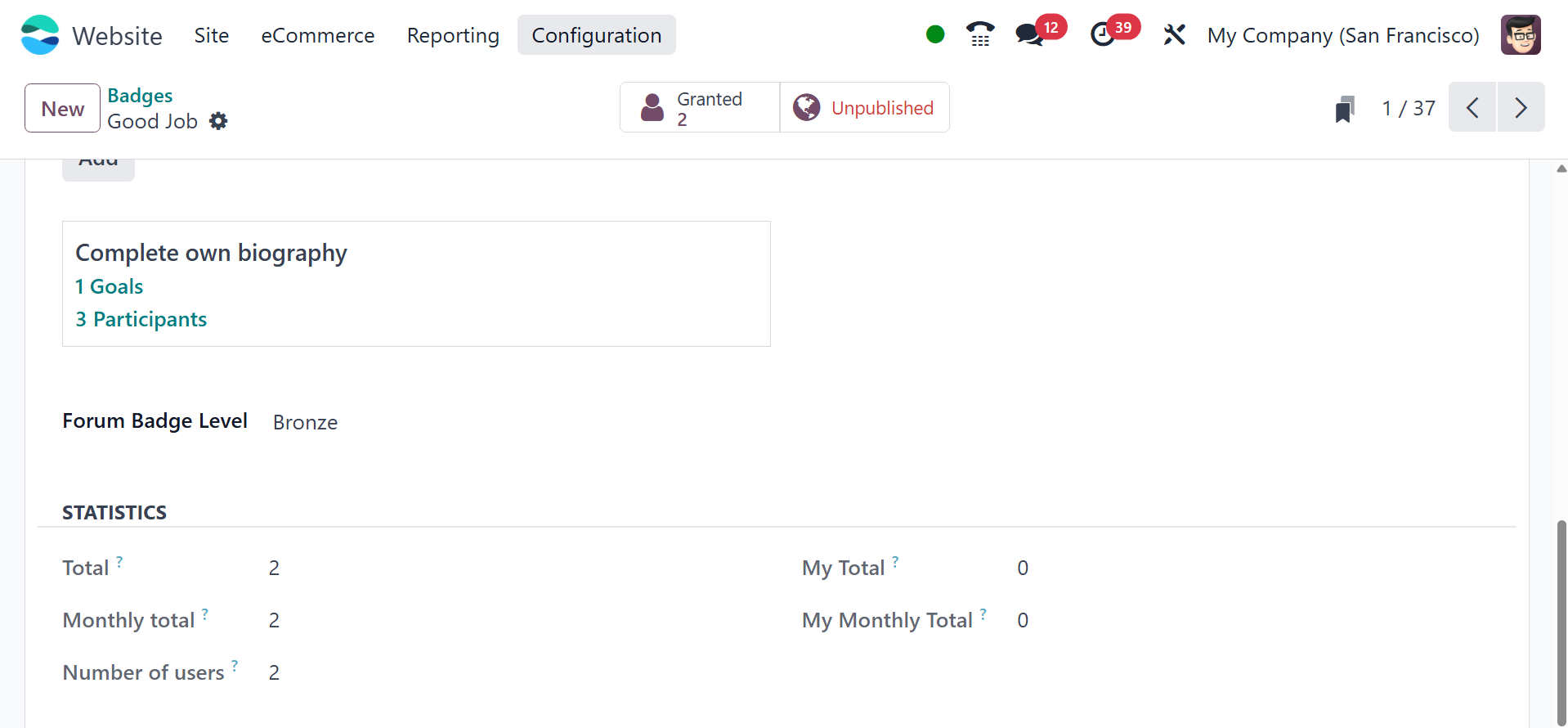
The Forum Badge Level can be found using the list that is provided.
The list includes choices like Bronze, Silver, and Gold. In the
Statistics area of the Badges creation window, you can see the
details automatically updated. Once the badge is assigned to anyone
upon challenges or gaining a particular points, its statistics are
identified and updated automatically
Total: The sum of all the badges that have been earned.
Monthly Total: The total number of times this badge has been given
out this month is the monthly total.
Number of Users: The overall count of unique users who have earned
this badge.
My Total: The total number of times the active user has received this
badge.
My Monthly Total: This is the total number of times the current user
has received this badge this month.
You can click the SAVE button to save the data once you've filled out
each field. After saving it, you can choose the Grant this Badge
option to provide it to your participants.
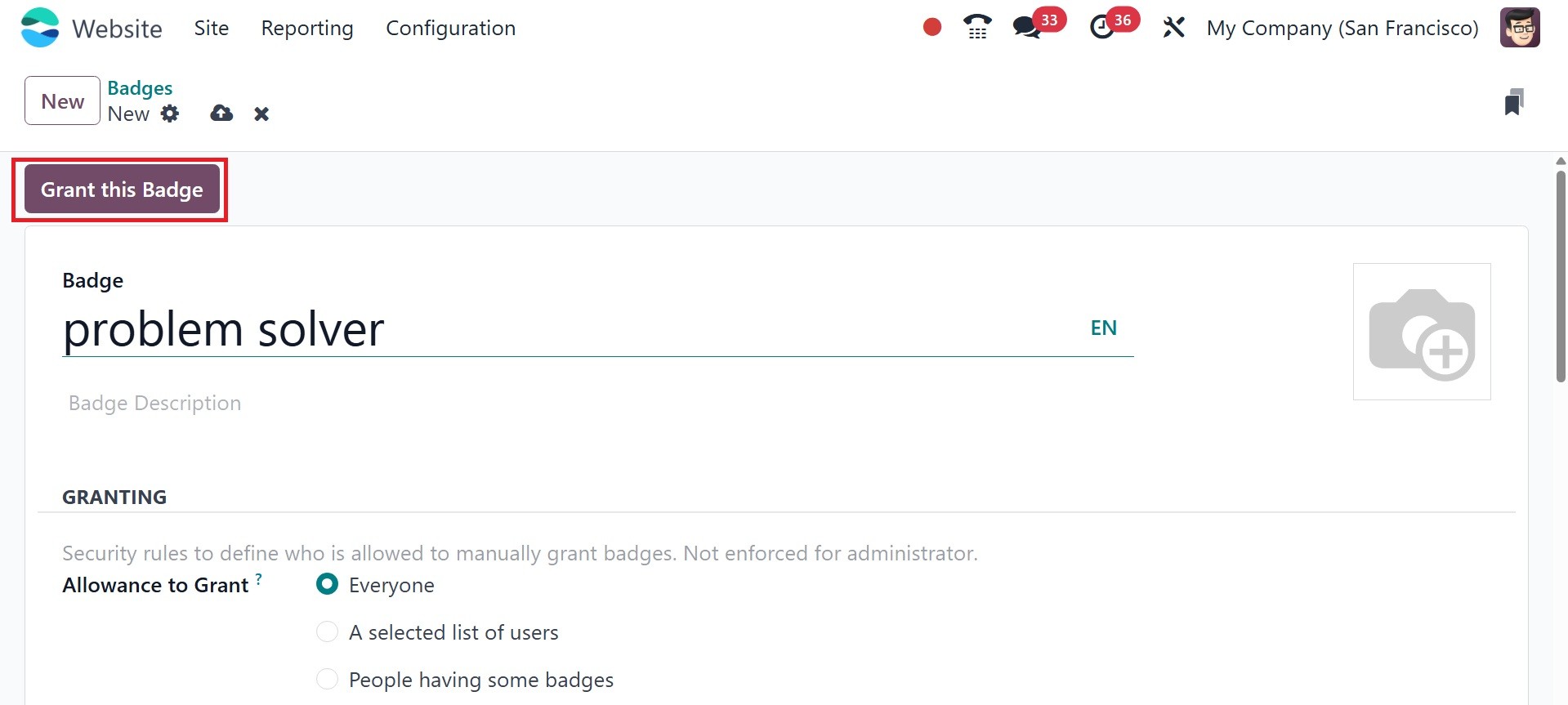
When you click the Grant this Badge button, as seen in the pop-up
window below, you may identify the participant and the real reason
for the prize. Next, click the Grant Badge button.
So far, we have discussed the many elements that are part of the
Forum area, which is located under the Configuration tab of the
Website module. The ability to create forums and post in them is
another feature of the e-Learning module. At the moment, forums can
be managed using Odoo 18's Forum module.