1. Forum management
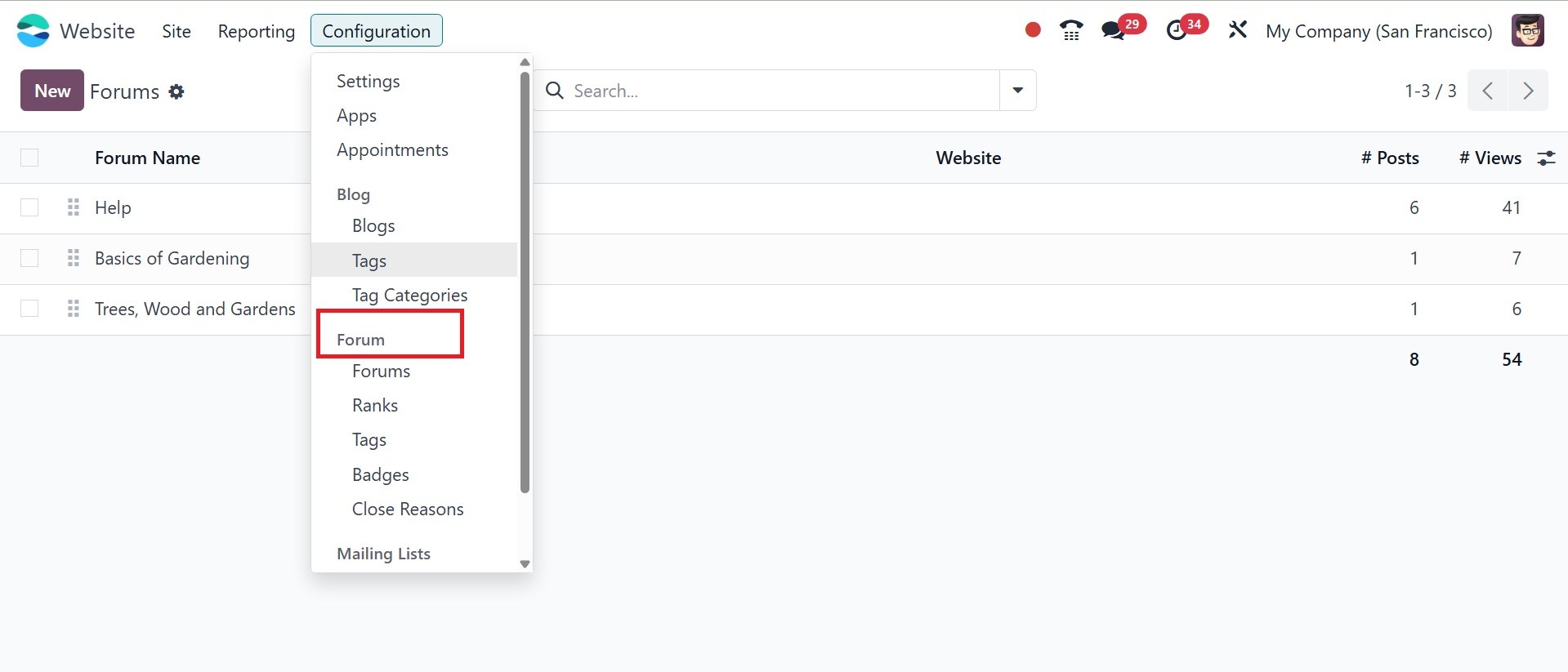
The Forum menu, located under the
Configuration tab of the
Odoo18 Website module, allows
you to configure forums in
accordance with our company's
needs. After selecting the
option, you will be
redirected to the Forum
window, as shown below.
Now that we've discussed the
front end of forum
publishing, we'll move on to
the back end. The forum on
your website enables people
to communicate with each
other and post messages.
Additionally, it is a very
helpful tool for increasing
website traffic. With the
help of this innovative
technology, you may present
your business to prospective
customers.
It is possible to develop a
unique forum posting platform
using the Odoo18 Website
module. You may easily create
posts and forums on the
website. It can be viewed as
a forum for discussion where
customers or visitors can ask
questions and receive
answers.
If you look at the main
navigation bar of the Website
module, you may see the Forum
tab. To manage forums, use
the Forum menu located under
the Forum tab.
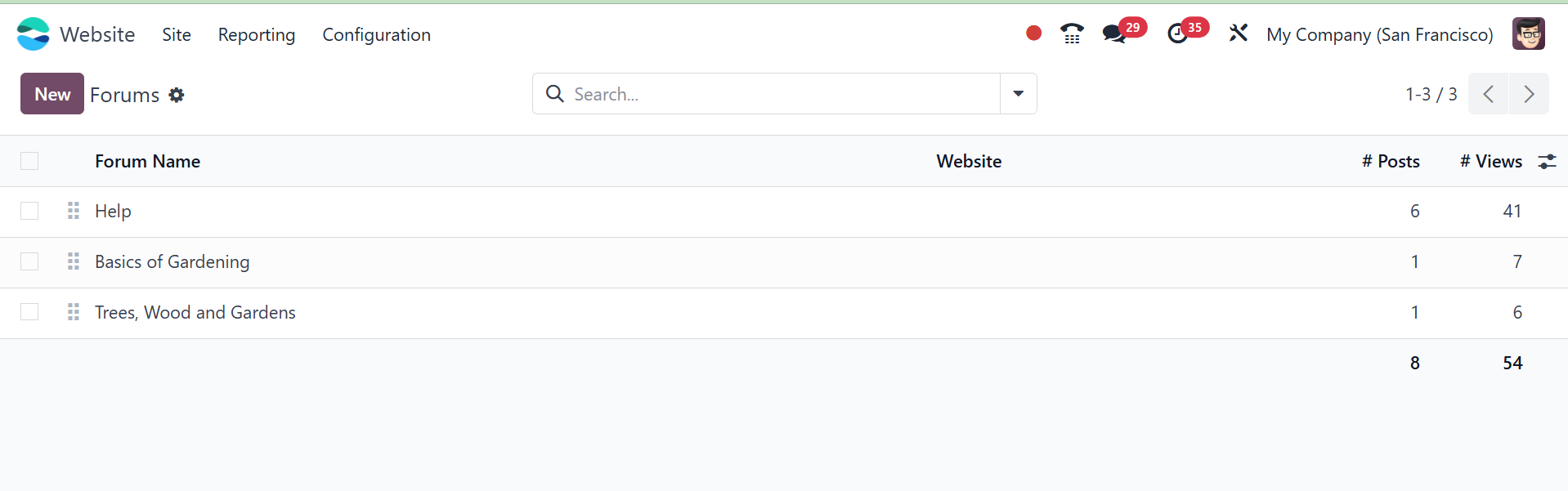
As you can see, a list of all the
forums that are set up on the
platform is displayed in the
window, along with details
about each one, including the
website, forum name, number
of posts, views, answers, and
favorites.
To begin a new forum, click the
New button.
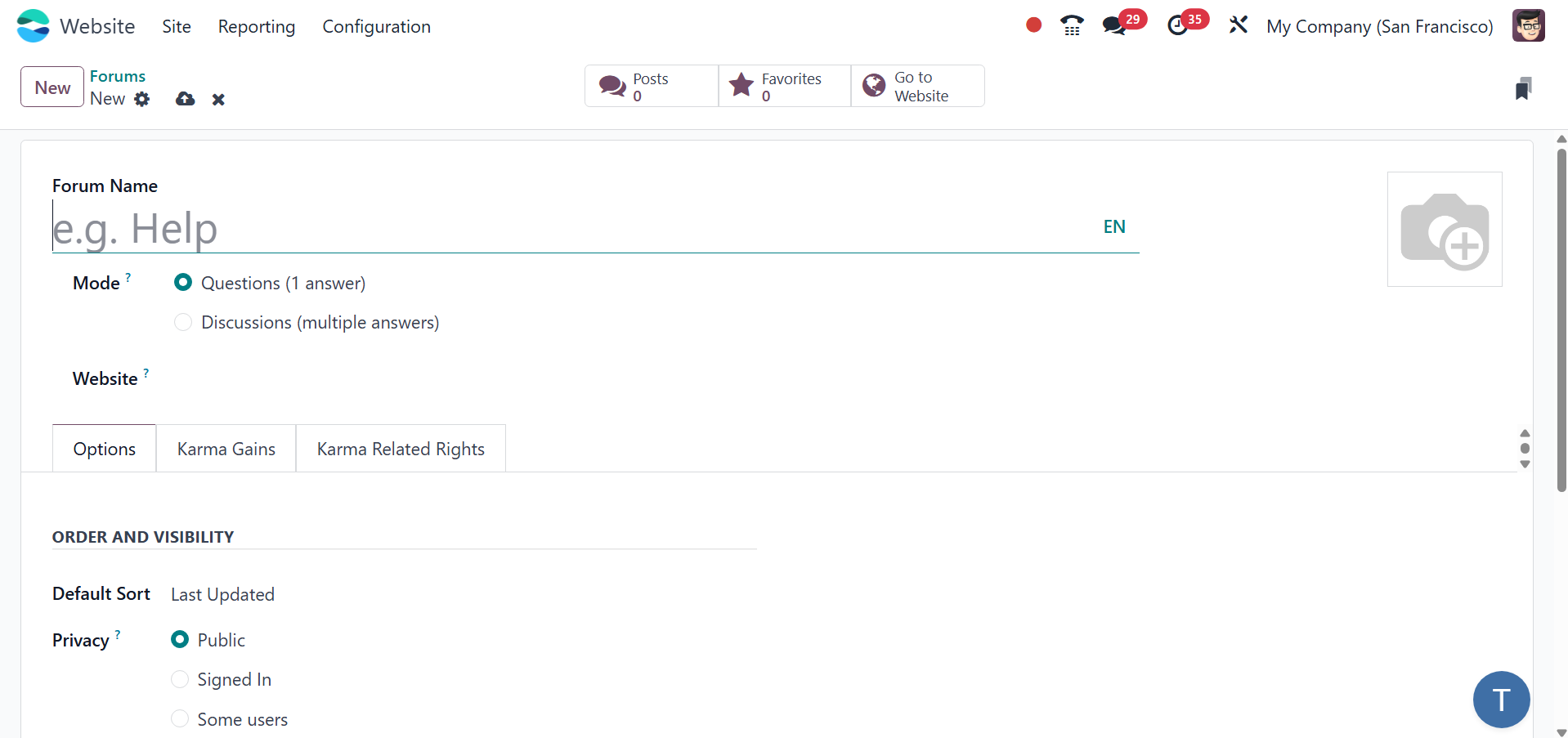
This creation form makes it
simple to set up new forums.
First, you need to input the
Forum Name and select the
Mode. Discussion mode allows
for a large number of
answers, while inquiry mode
only allows for one. When
this forum needs to be
published, the website can
then be provided. You can
also include the
forum-related photo in the
appropriate space.
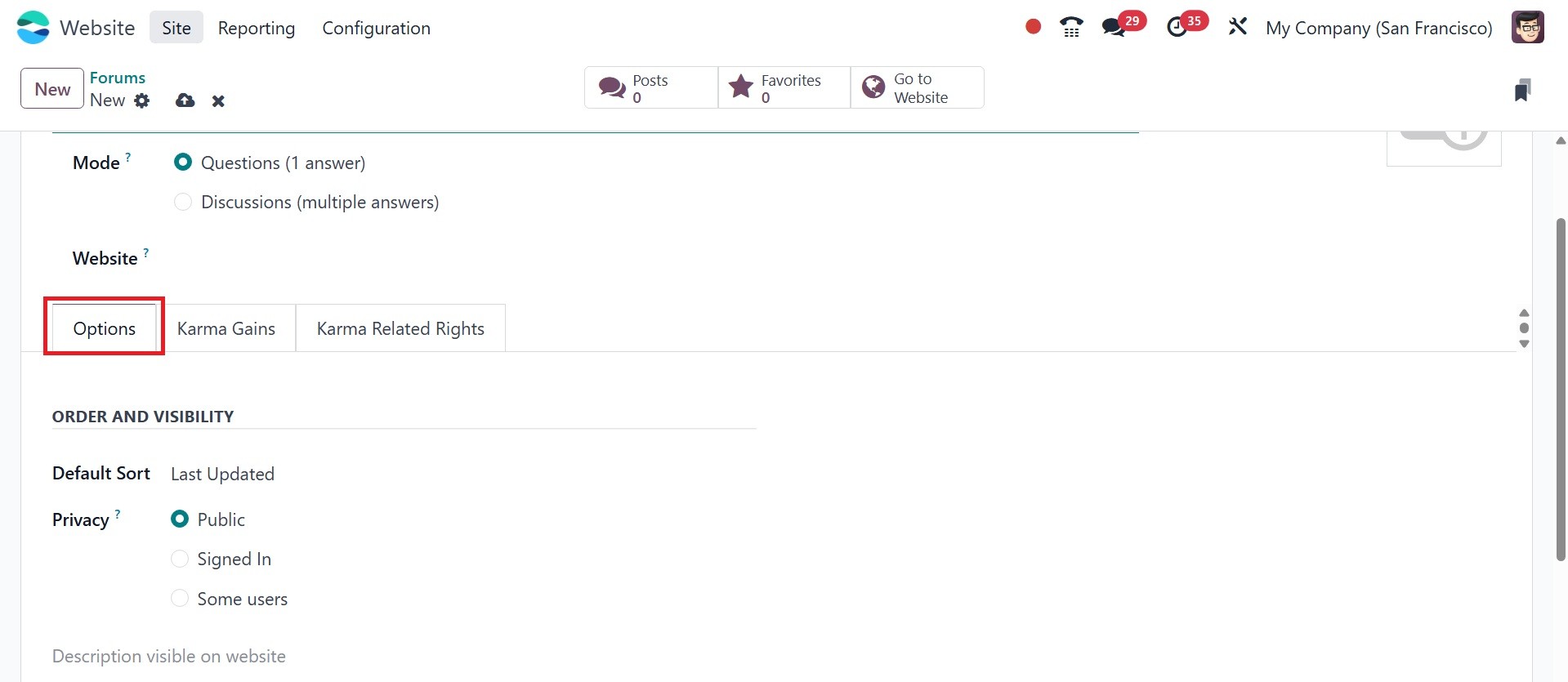
The Options Tab allows you to
change the forum's visibility
and order. The Default Sort
box allows you to select the
default sorting method.
Relevance, Answered, Most
Voted, Newest, and Last
Updated are the default
sorting choices for this
field. The privacy policy can
be defined in three different
ways: Some Users, Signed In,
and Public. If you decide to
make the forum public, all
users will be able to see it.
A user will be able to access
the form if they are logged
in. Finally, in certain
circumstances, the forum and
the posts made by certain
individuals are hidden from
others who are not members of
the selected group.
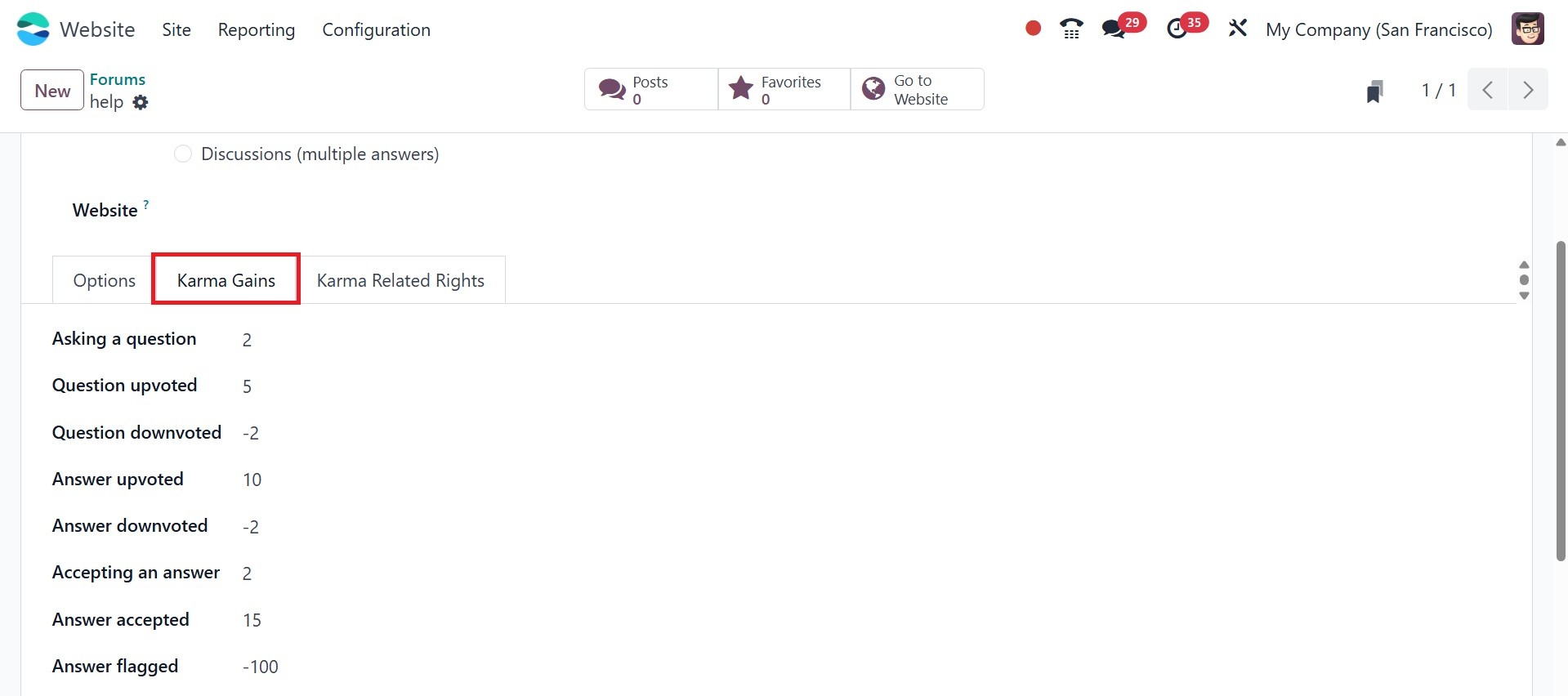
You can also choose to write a
description of the forum that
will be displayed on the
website. Under the Karma
Gains page, you can assign
the participants various
karma points for their
diverse acts.
If the participants earn enough
karma points, they will be
able to obtain a variety of
rights. By selecting the
Karma Related Rights option
in Odoo 18, you may describe
the right.
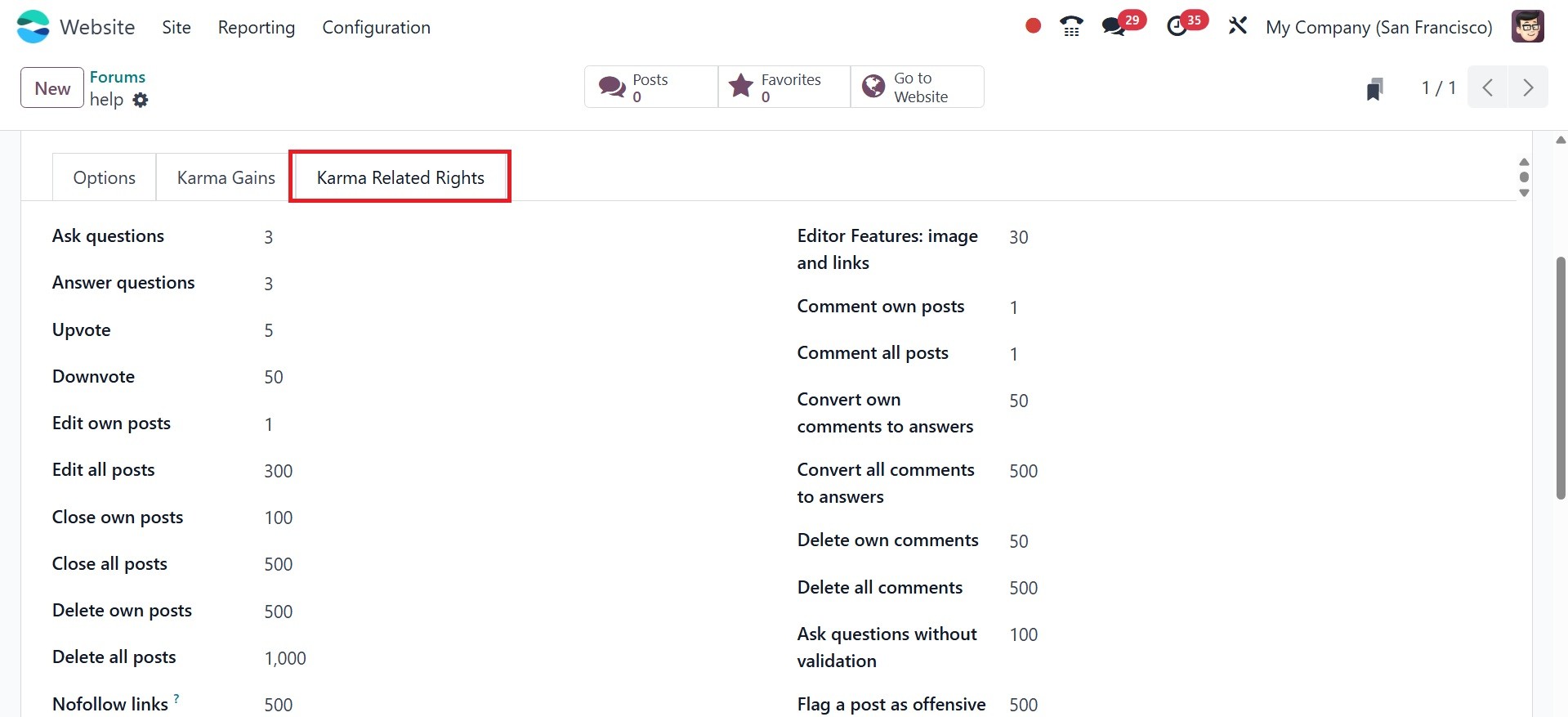
The Karma Related Rights tab
displays a list of rights.
Only after earning the
specified number of karma
points may participants
obtain rights.
To save the details, click the
preserve button after
completing each of these
steps.
A smart tab Forum Post option is
part of the Forum option.
This brings up the view of
each created forum post page.
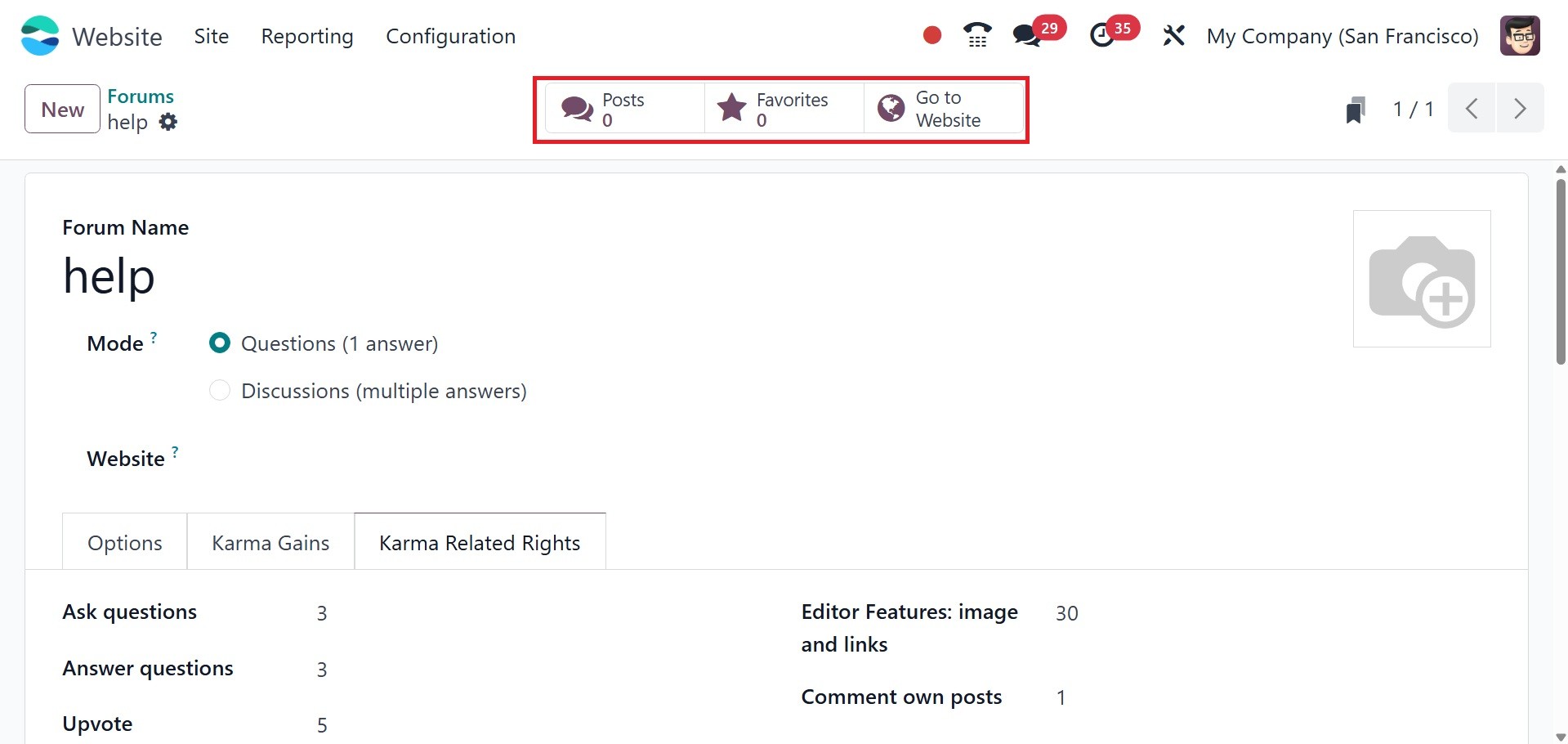
The user is taken to the website
page by selecting the Go to
Website smart tab. The left
side of the screen shows
Posts, My Posts, Favorites,
People, Badges, and other
options.
The previously created forum
post appears on the screen.
The responses, views, and
actions of the posts are
shown. The New Post button
allows the user to add new
forum posts.
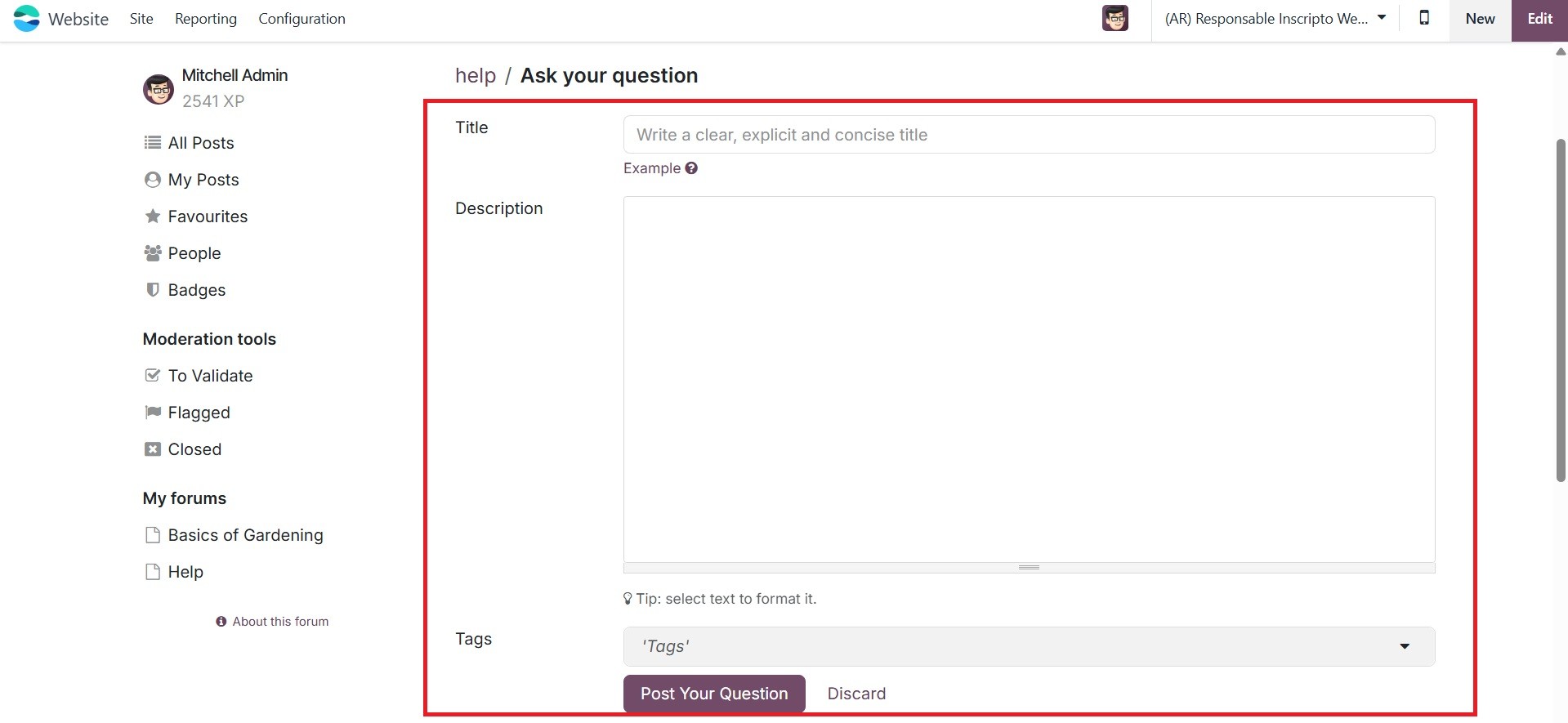
Include the Title, Description,
and tags when creating a new
thread in the forum. Next,
click the Post Your Question
box to submit your query.
You can add stars to a forum post
to make it a favorite. The
blog post has the following
options: Edit, Close, Delete,
and Flag.
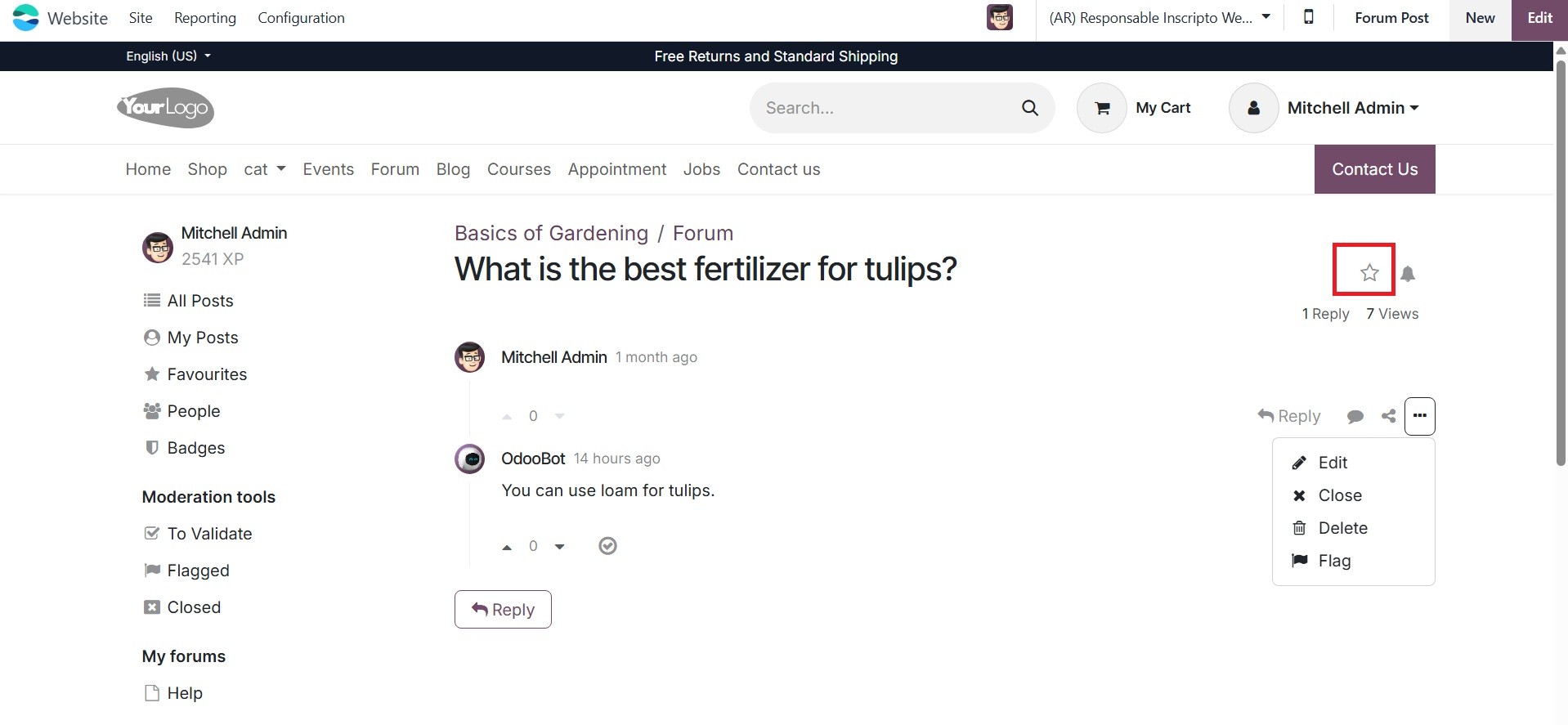
Below that are the Moderation
Tools, which include closed,
flagged, and validated posts.
The My forum area has a Help
section.
To validate: access all questions
and answers waiting for
validation before being
displayed to non-moderator
users.
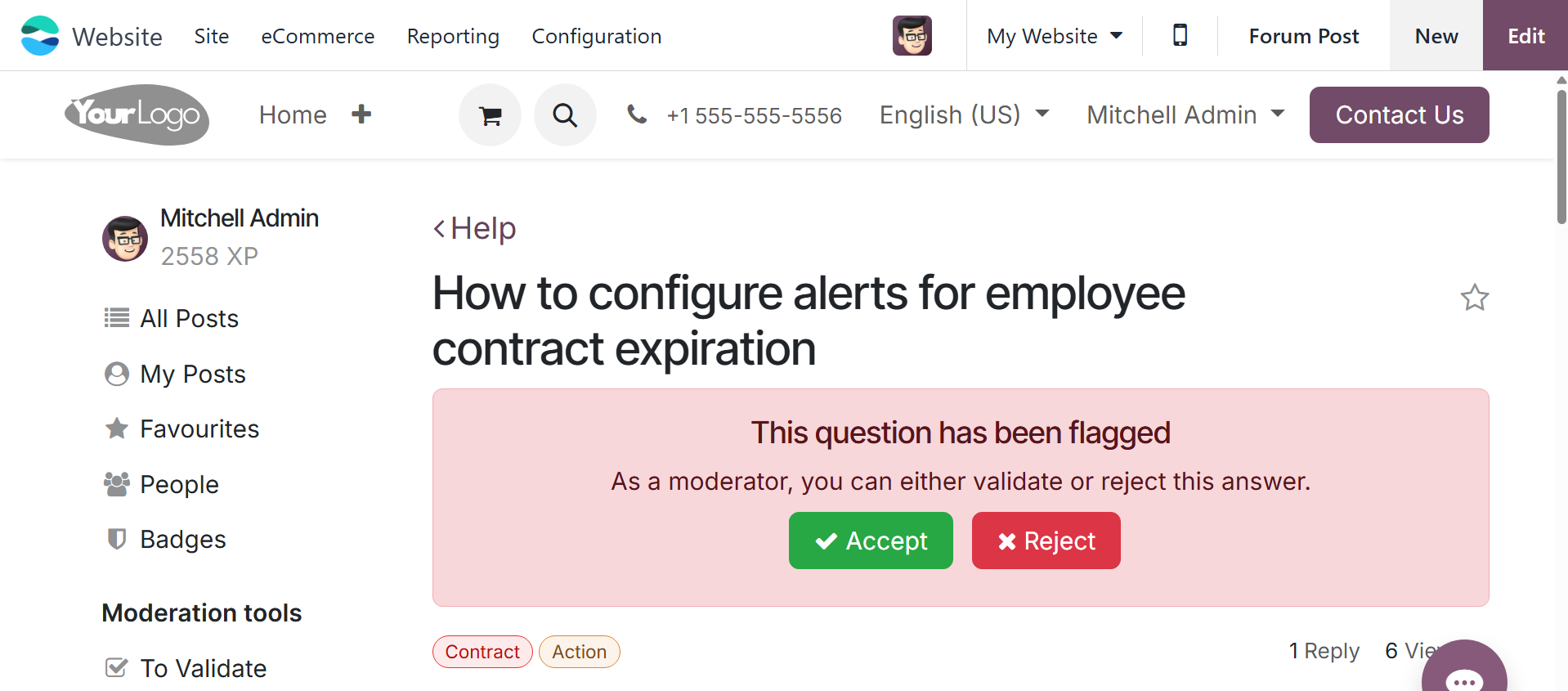
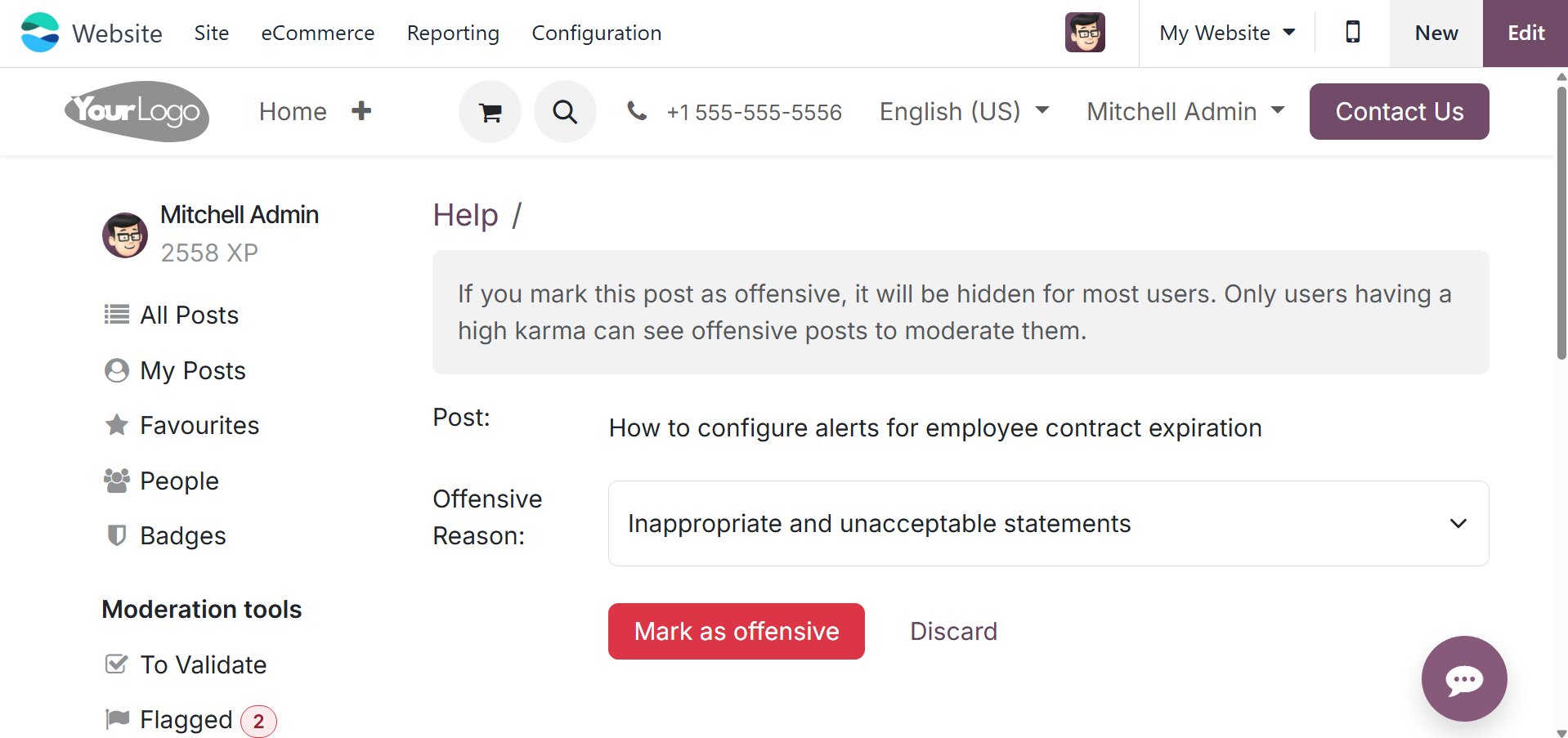
Flagged: Access all questions and
responses that have been
marked as objectionable by
selecting Flagged. After
choosing a justification,
click Mark as offensive.
Click Accept to remove the
offensive flag or Offensive
to confirm it. After that,
the post is hidden from users
who are not authorized to
moderate it, and the
offending user loses 100
karma points.
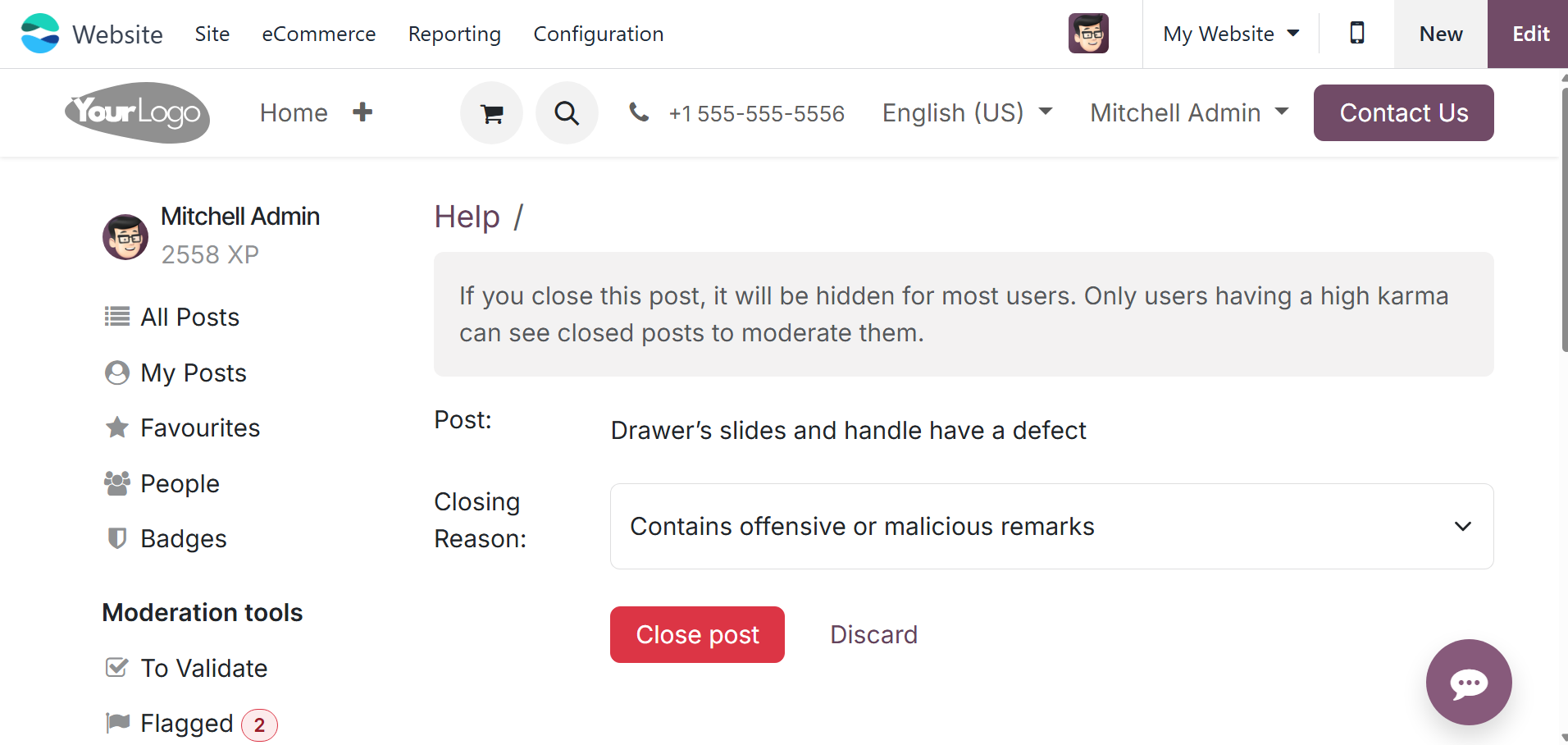
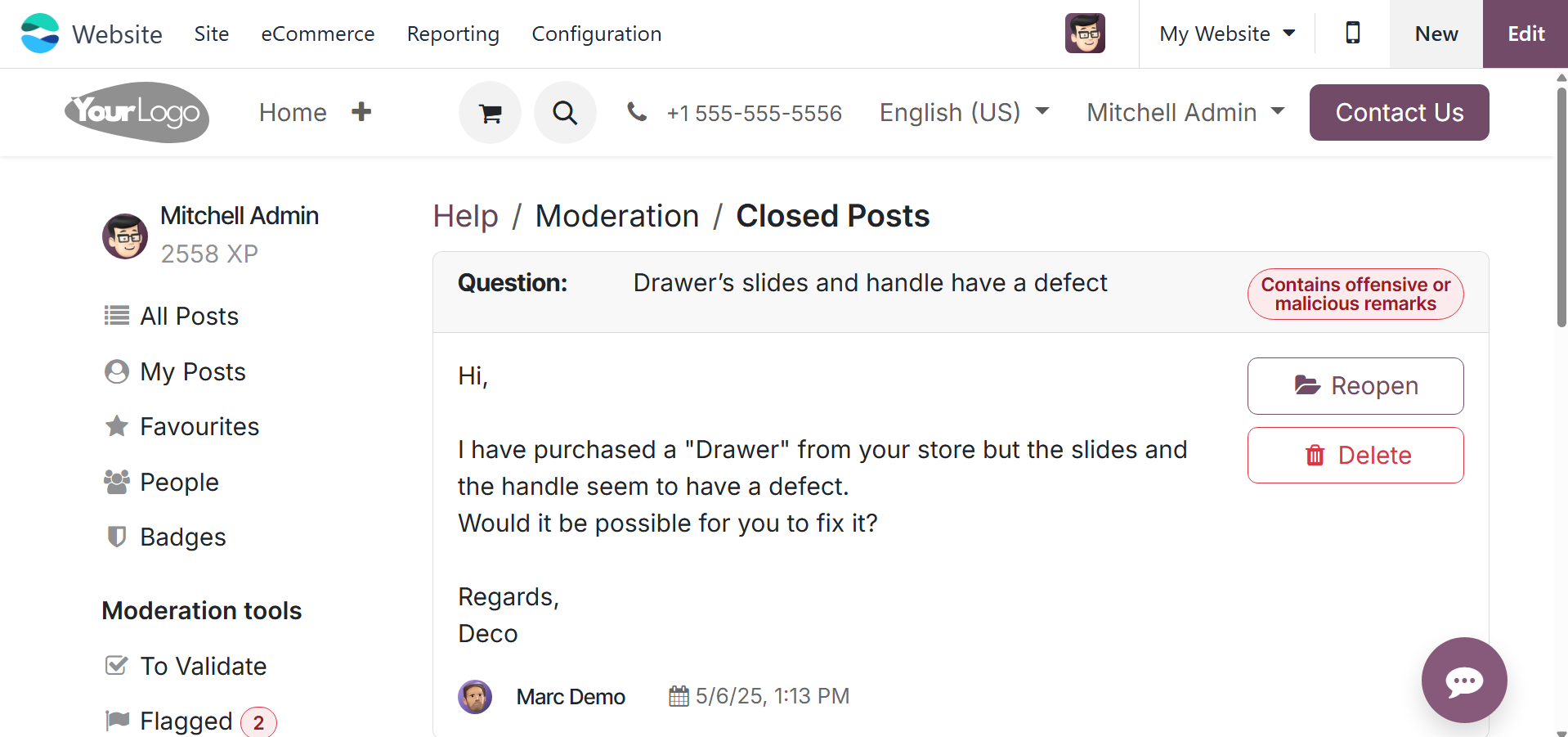
Closed: View all of the closed
questions. You can either
delete them or reopen them. A
question can be closed by
opening it, clicking the
ellipsis button (…), choosing
a Close Reason, and then
clicking Close post. After
that, users without
moderating rights cannot see
the post.
You can reopen the post if
needed.
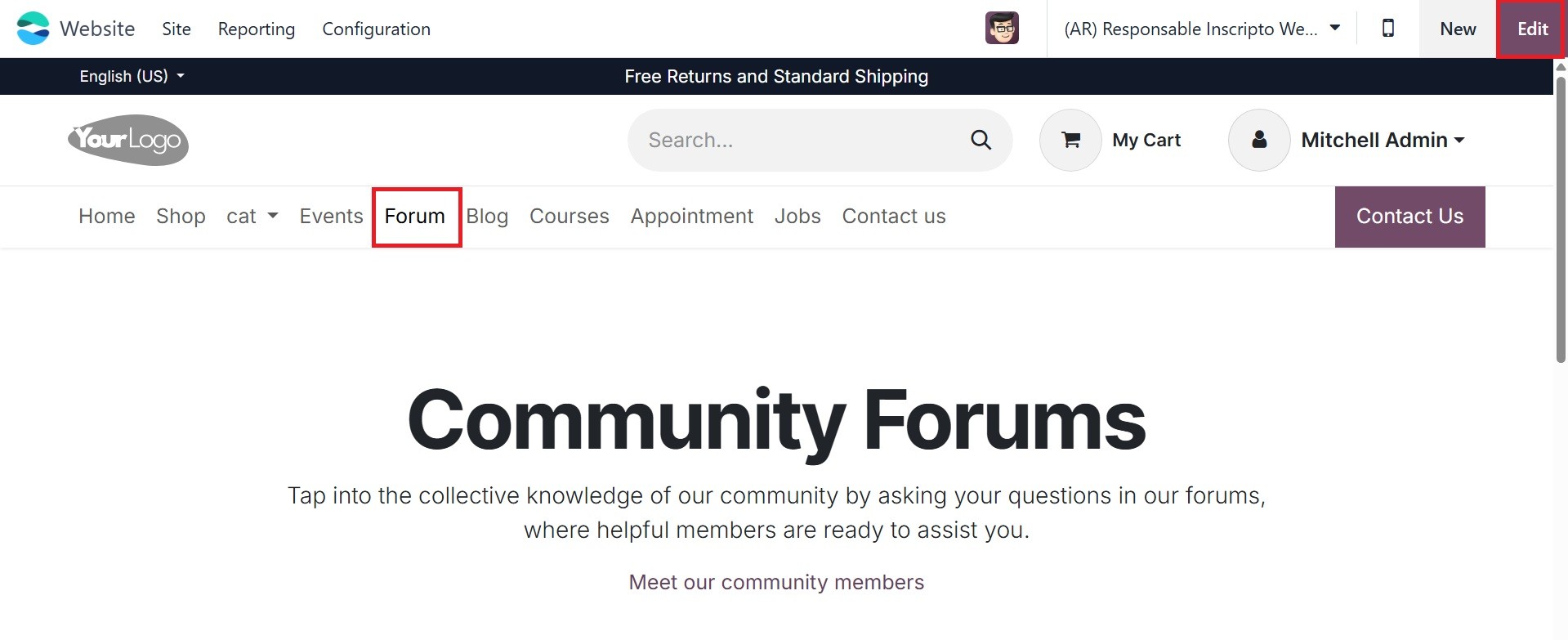
The Forum navigation on the
website displays all of the
produced Forums. An Edit
button is located in the top
right corner of the screen.
The Edit button allows you to
make changes to the current
Forum page. Using the
CUSTOMIZE tab in the editing
panel, the user can easily
alter the page.
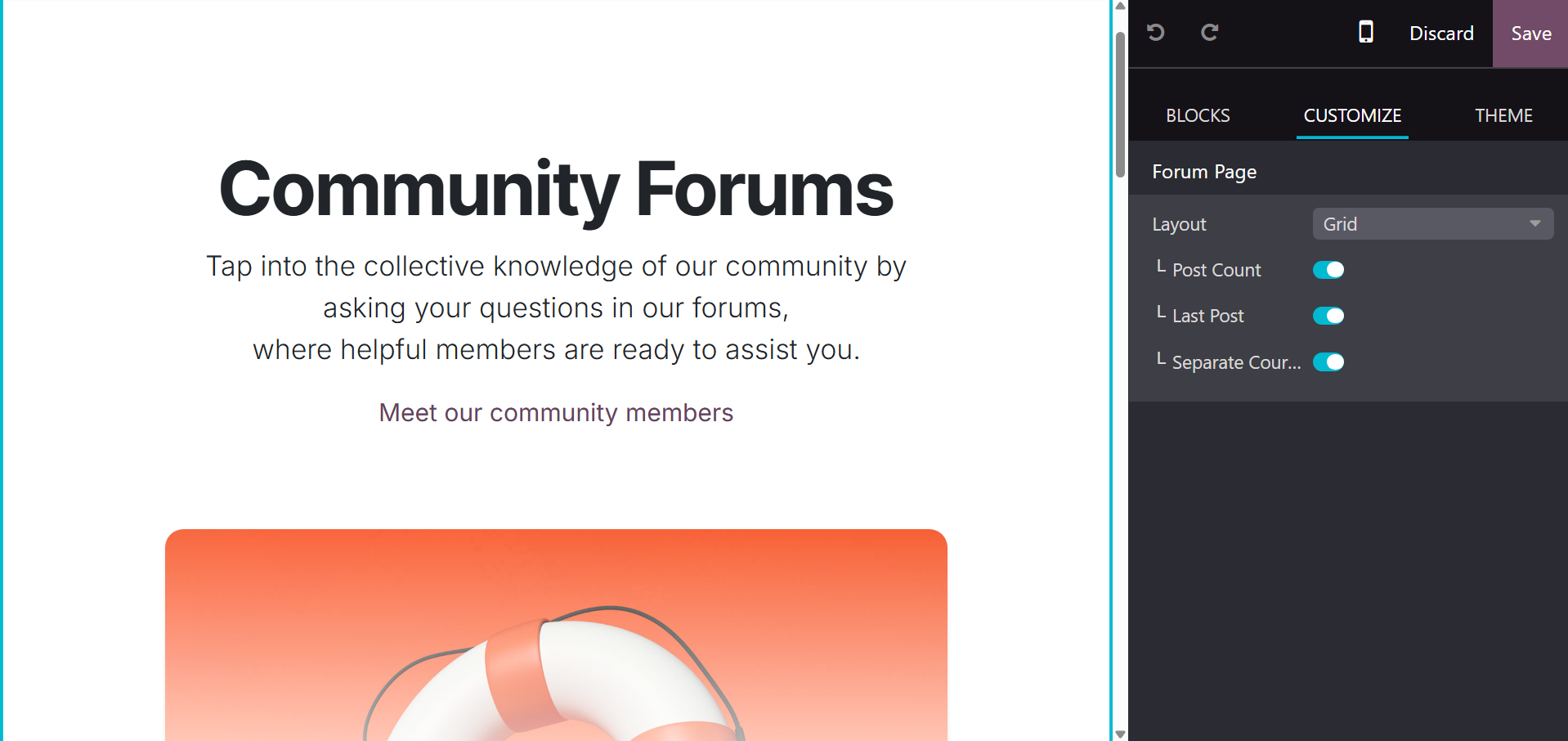
From the customization options,
the user can choose between
List View and Grid View for
the page layout. The total
number of new posts will then
be shown by selecting Post
Count. If you enable the Last
Post to display the latest
addition, you may also use
the Separate Courses option.
Let's now discuss the Ranks menu.