5. Reporting
You can easily analyze and
understand the workflow for
managing inventory with the
help of proper monitoring of
the inventory activities.
Odoo can offer you a platform
that is meant for generating
reports for the inventory
operations conducted in your
company with accurate data
presentation in graphical and
tabular formats.
To obtain comprehensive reports
that suit your requirements,
you can customize your
reports in real time. You can
obtain the reports for
Stocks, Locations, Moves
History, Stock Moves,
Valuation, and Performance
under the Reporting menu of
the Odoo Inventory module. We
will examine each of these
reporting interfaces in
greater detail.
6.1 Stock
Under the Reporting option in the
Stocks platform, you may see
a list of every stock that is
currently in your inventory.
You will receive information
about the product, unit cost,
total value, availability,
free use, incoming quantity,
and outgoing quantity.
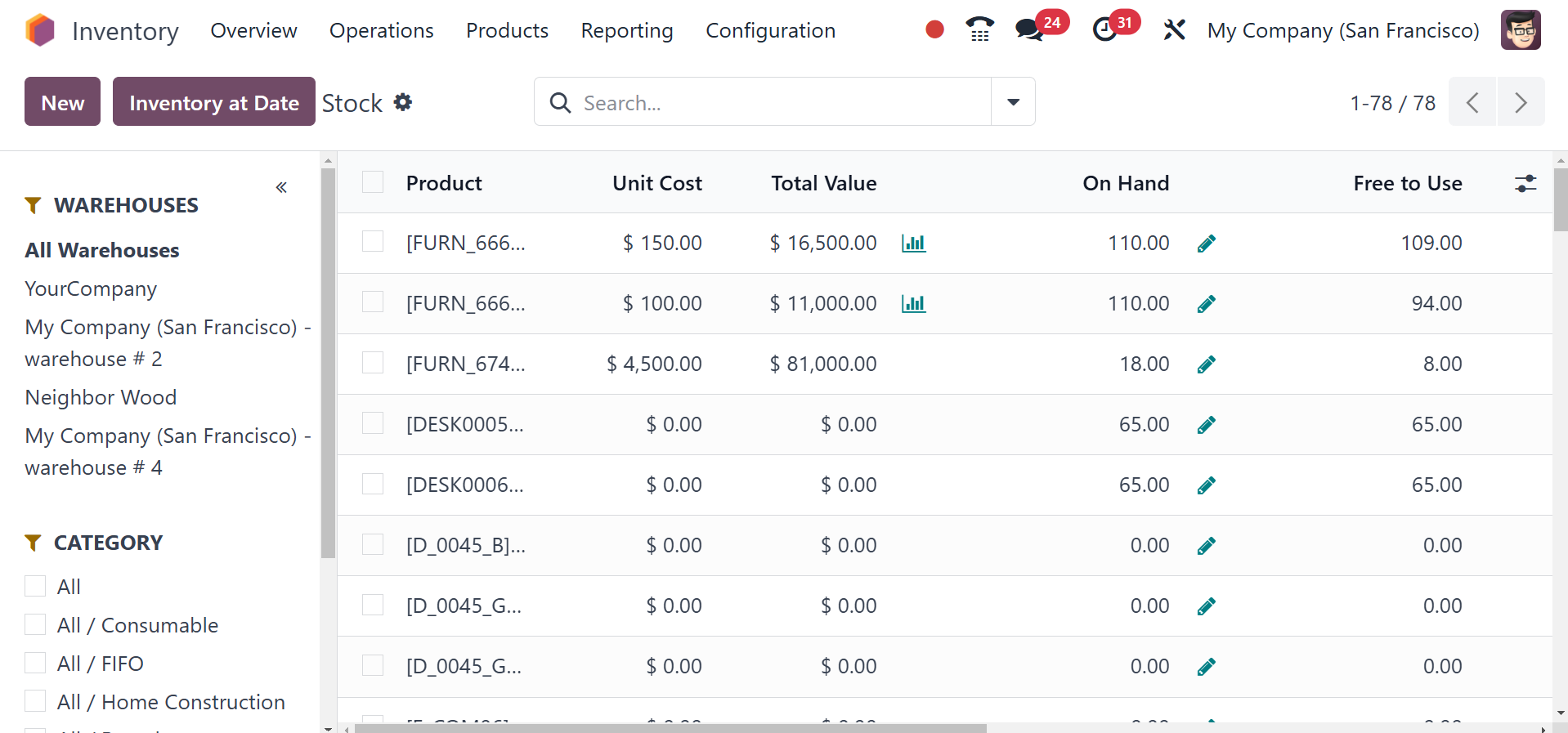
You can organize the stock list
based on the product category
by using the categories
available on the left side of
the screen as indicated in
the figure. You can utilize
the search box at any time to
simplify the process of
searching.
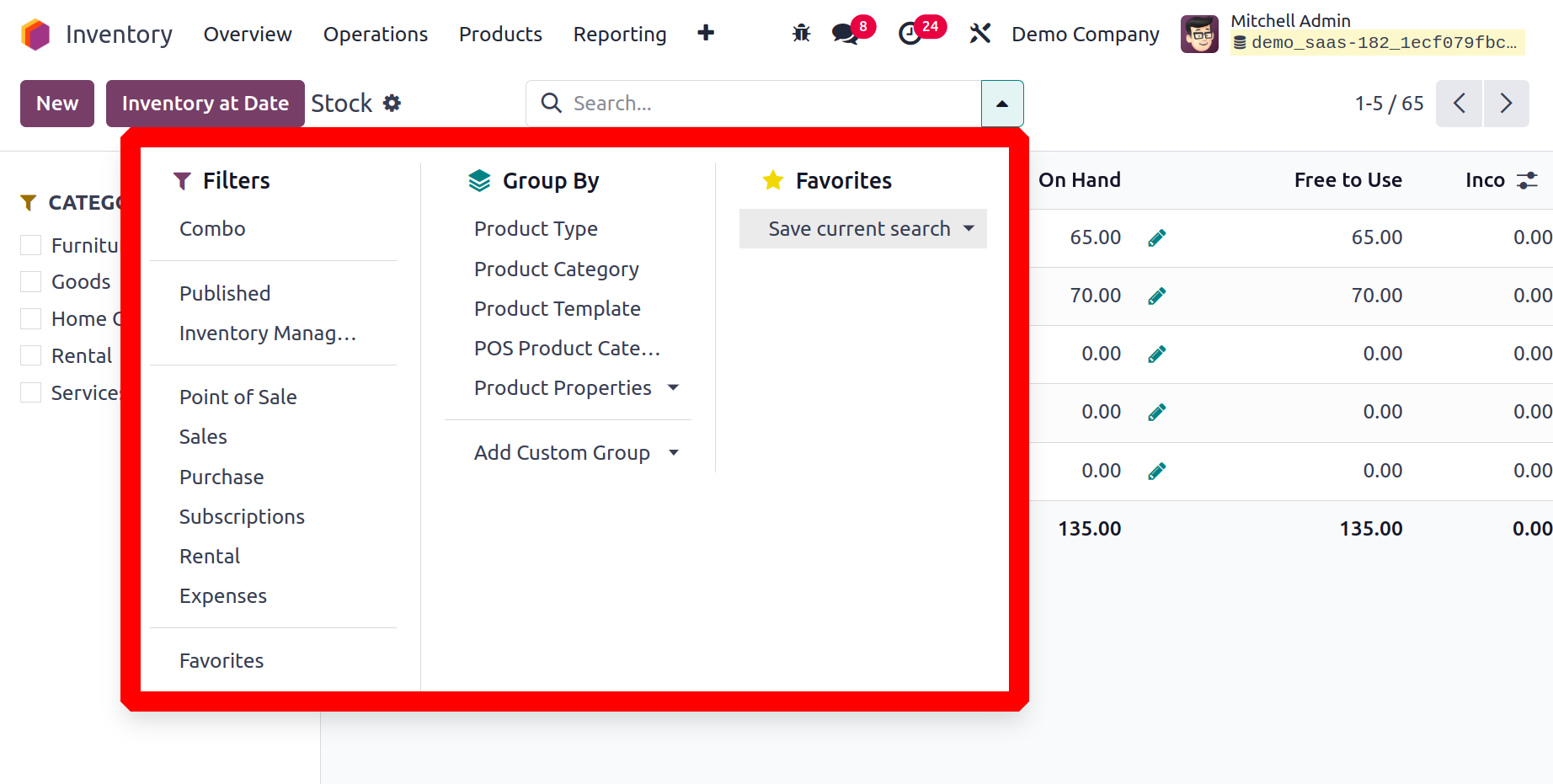
The stocks can be filtered by the
inherent default filters such
as Combo, Published,
Inventory Management, Point
of Sale, Sales, Purchase,
Subscriptions, Rental,
Expenses, and Favorites. The
default Group By fields are
Product Type, Product
Category, and PoS Product
Category. To add a custom
group by option, click the
Add Custom Group button. You
are also provided with
Favourites option as in the
image below.
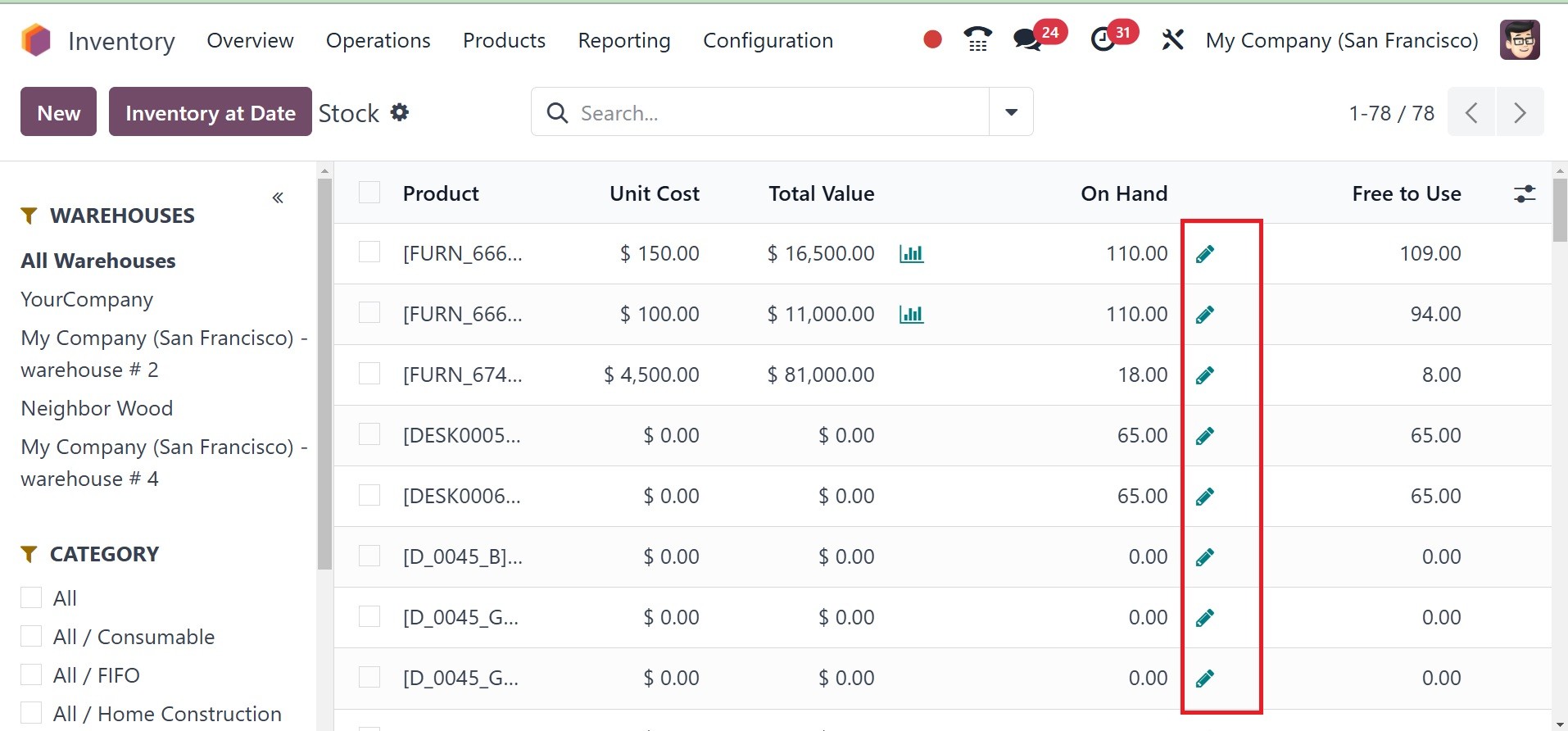
You can see the product's
Inventory Adjustment details
by clicking on the small icon
beside the On Hand field.
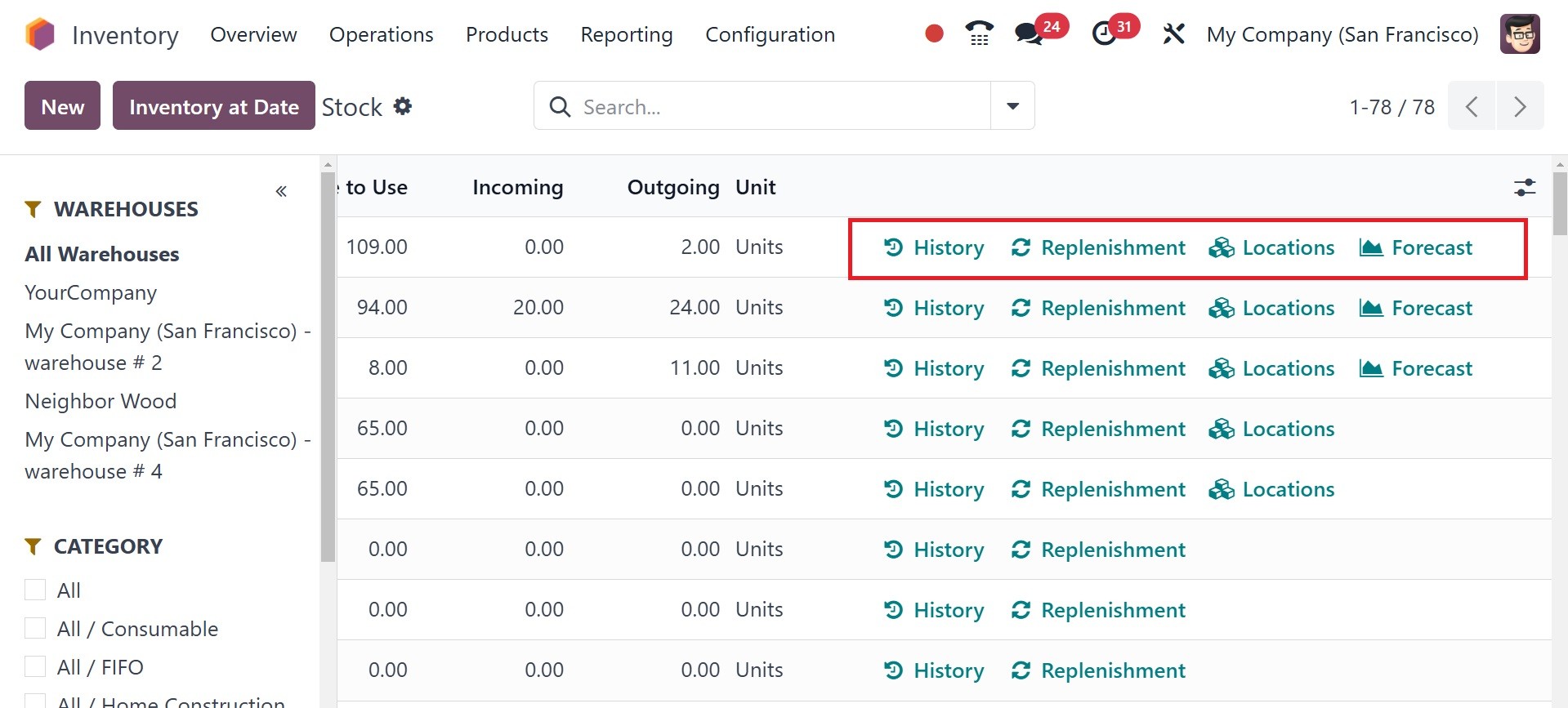
To see the movement history of
any product, click the
History button in the stock
window, as seen in the
example. In order to create a
new stock, click the "New"
button.
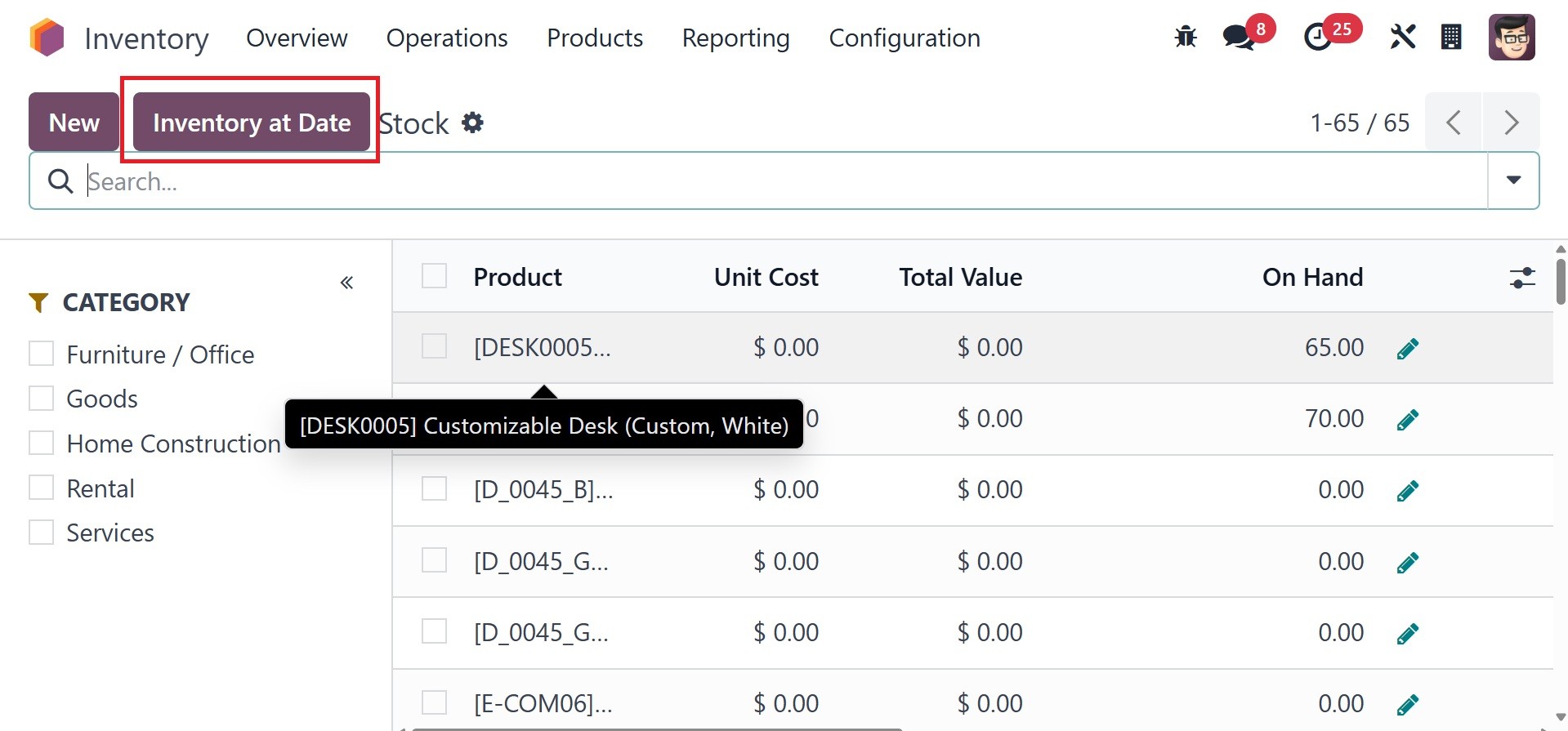
Inventory at Date is allows users
to check stock levels as they
were on a specific past date,
as in the image below.
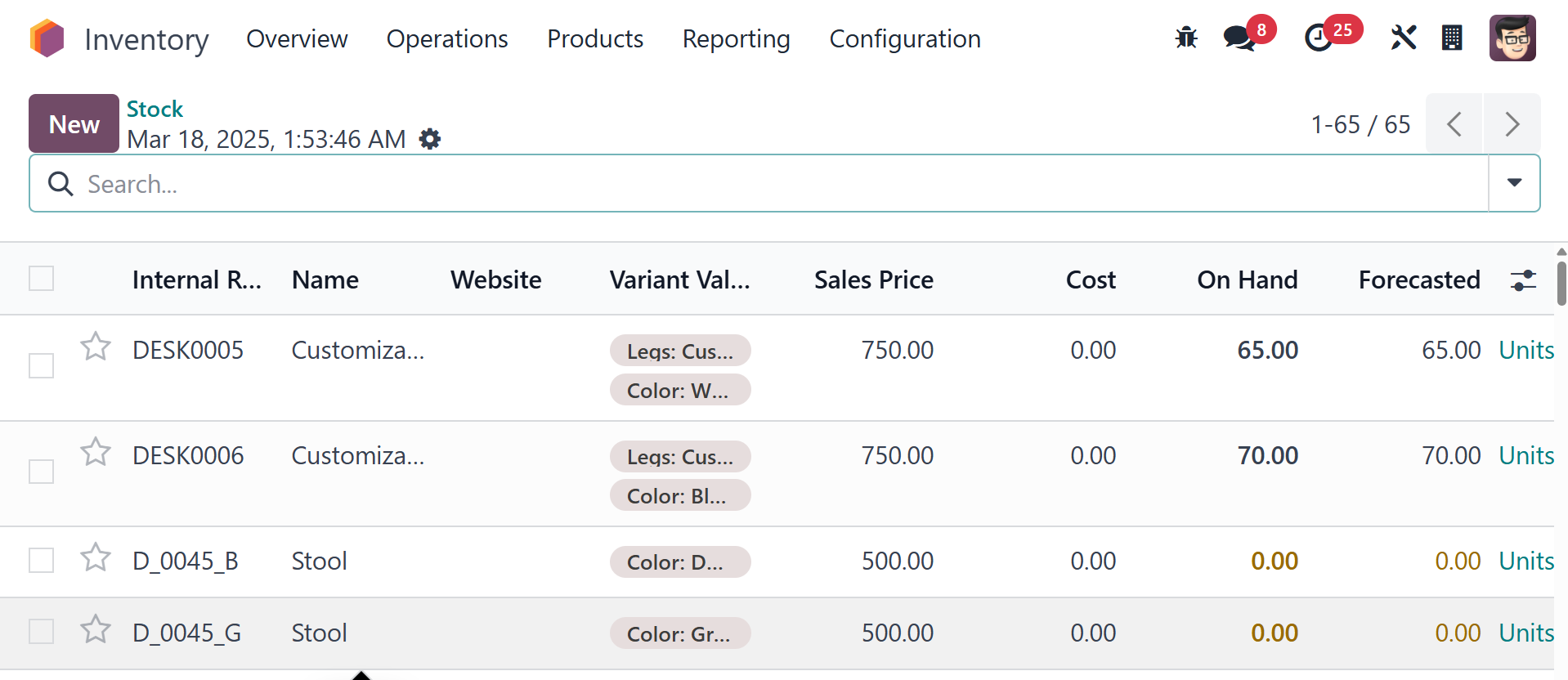
On selecting the option, you will
be directed to a page of
inventory stock at a
particular date.
6.2 Location
Below is a list view of the
Location report. This section
shows the following:
Location, Product, Package,
Lot/Serial Number, On Hand
Quantity, and Reserved
Quantity.
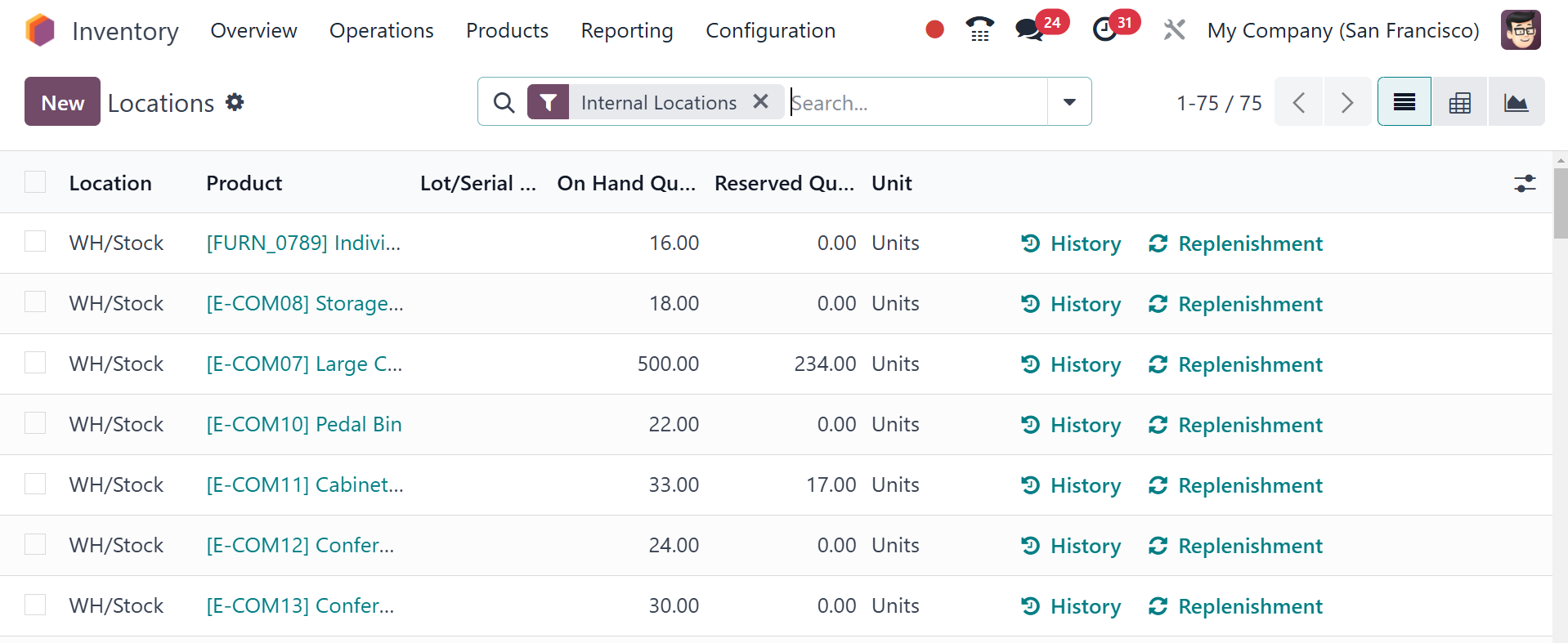
As we already pointed out, you
can replenish the products
through the Replenishment
button and see the moves
history through the History
button of the Location
reporting window. By using
the intelligent button on the
screen, the inventory
adjustment can be performed.
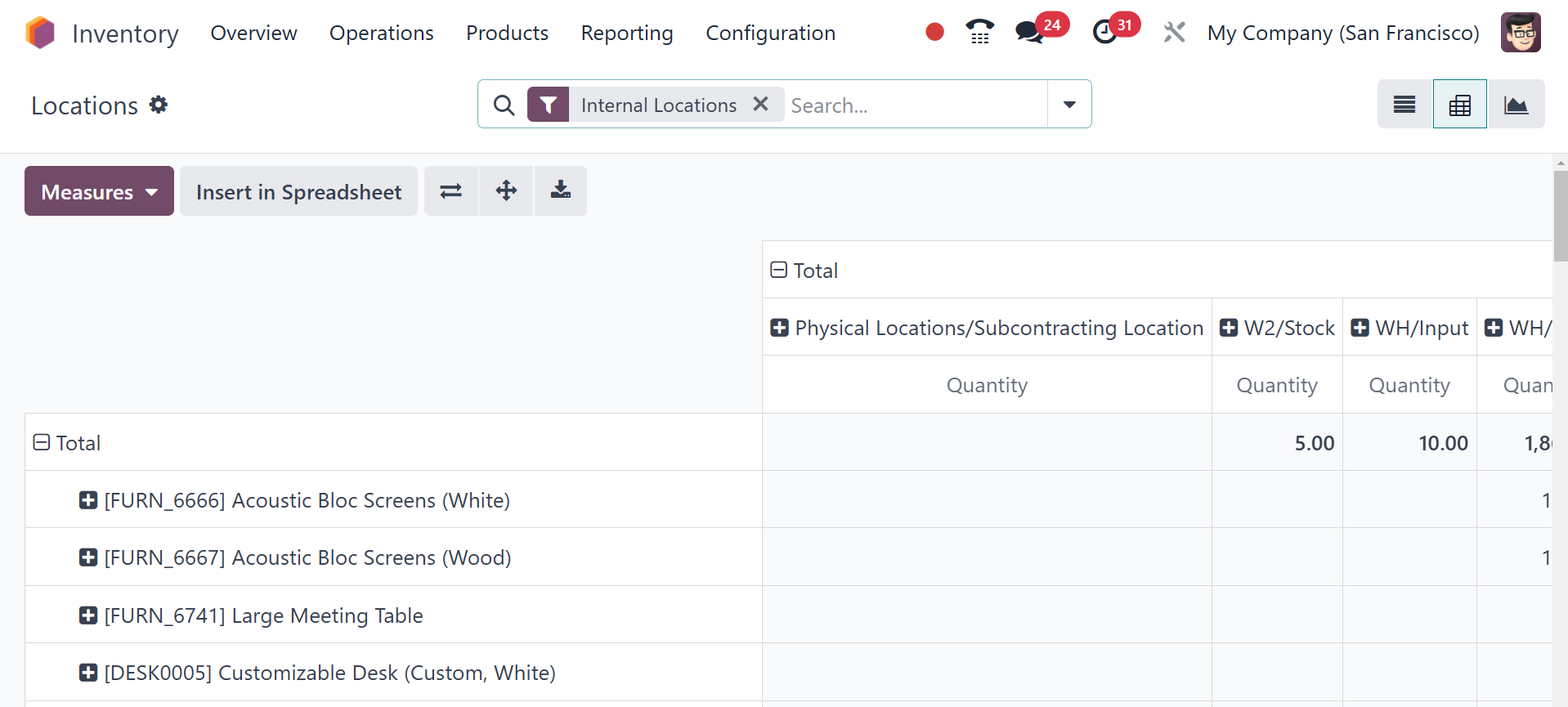
The Locations pivot table view is
shown in this screenshot. You
can use Measures, Filters,
and Group By options to
design reports that are best
suited for your requirements.
You can also transform this
window into a graphical view,
where you can modify the type
of graph to a line, pie, or
bar chart as per your
convenience.
If you choose Inventory at the
Date from the menu, you can
view the Stock Valuation
Report for every product.
6.3 Moves History
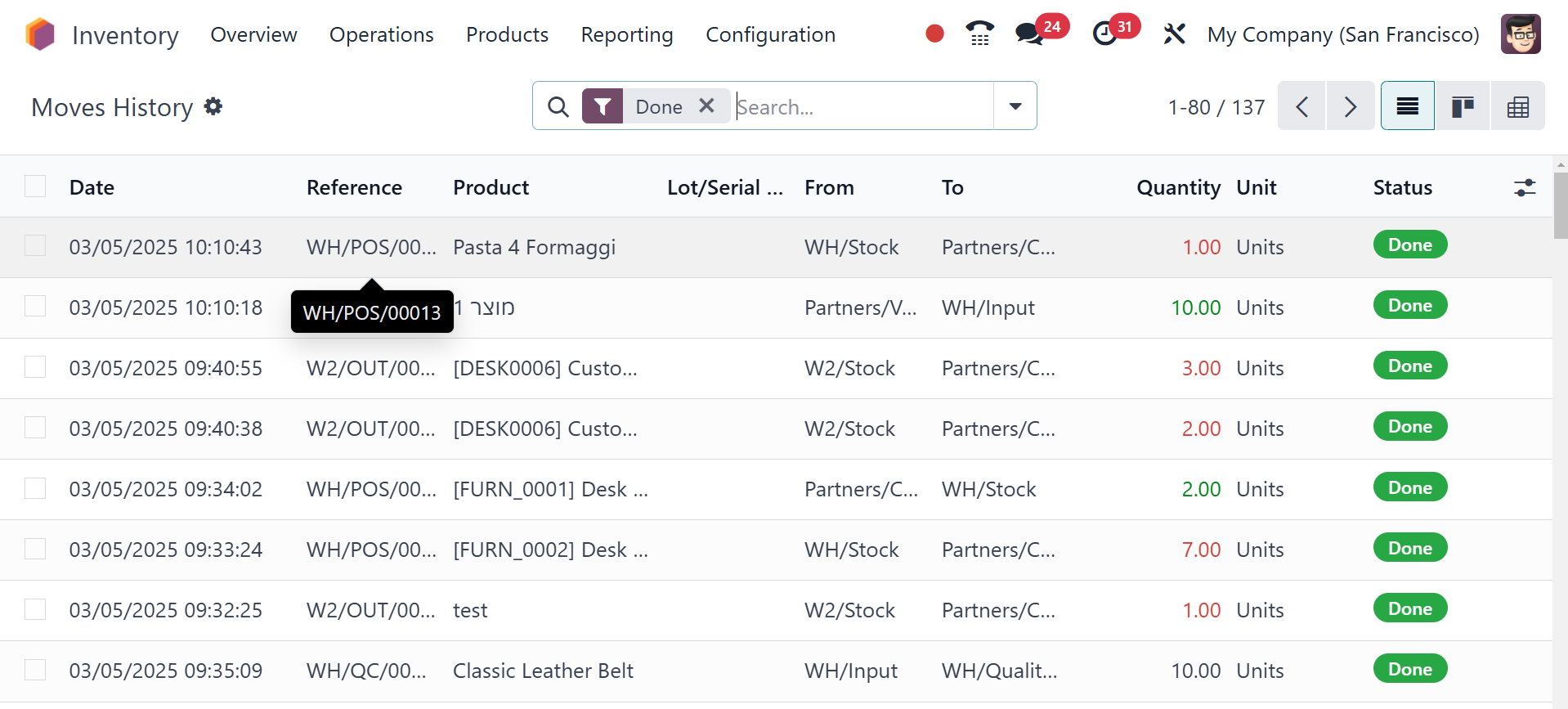
You can check the history of all
product moves for every item
in your inventory on a
different platform that
Odoo18 offers. With the help
of this report, you will be
able to clearly see how the
items in your inventory moved
on a given day.
The History button will lead you
to the movement history
window of the respective
product. Here, you can view
the Date, Reference, Product,
Lot/Serial Number, From, To,
Quantity, and Status of every
move.
6.4 Moves Analysis
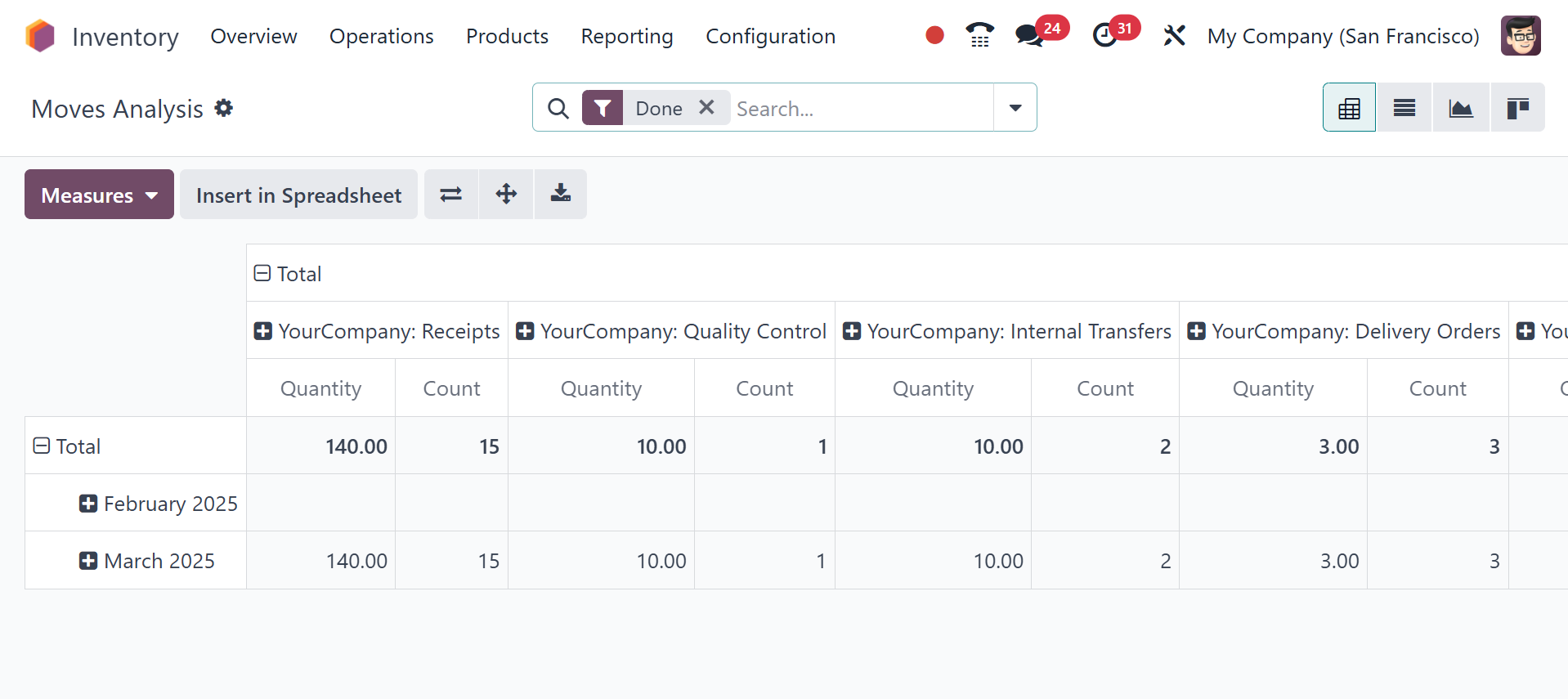
Moves history and Moves analysis
are similar as well. The
movement of the products is
presented here based on
stock. In this case, the
Pivot View will be used to
present the movement. Some
other views, like the List
View, Kanban View, and Graph
View are also available.
6.5 Valuation
The Valuation option, which is
located in the Reporting menu
in the Inventory module, can
be utilized to produce
reports on stock valuation.
This report may be utilized
to analyze stock valuation
appropriately.
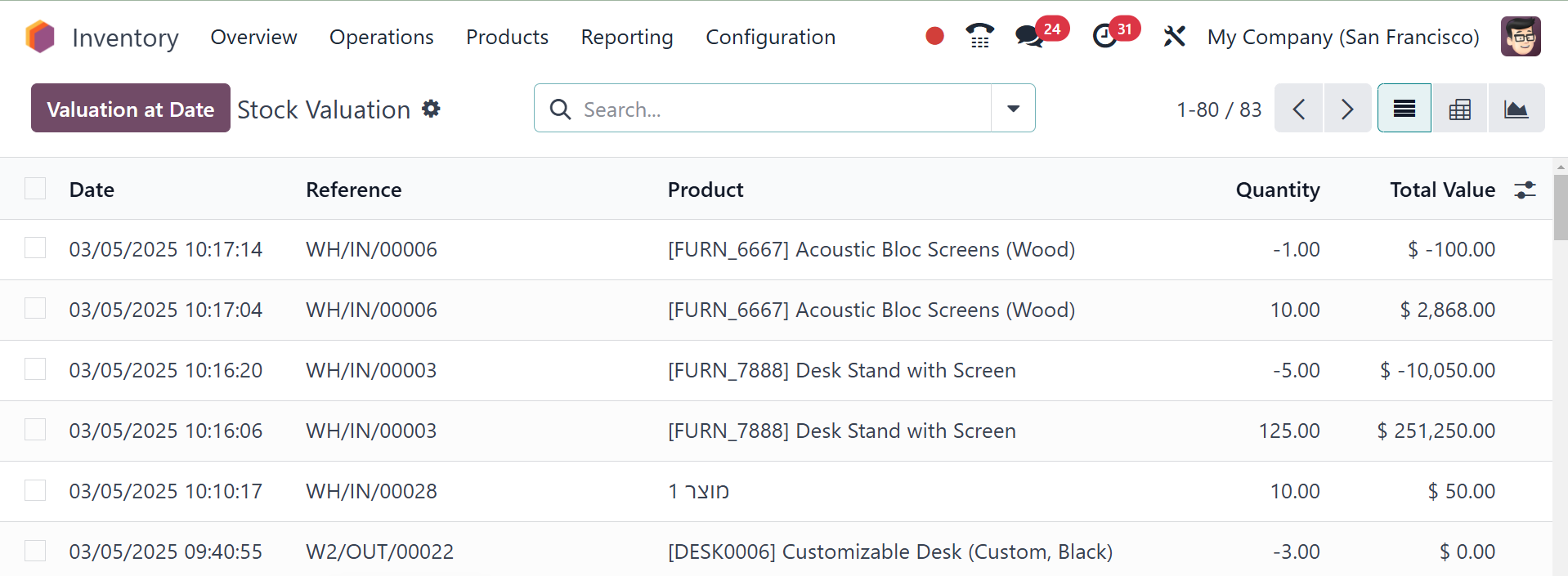
You are able to view the Date,
Reference, Product, Quantity,
and Total Value of the
inventory valuation from this
platform's list view. You are
able to click the Valuation
at Date button in order to
obtain the valuation report
for a particular date, at
which time a pop-up window
requesting the date will be
displayed.
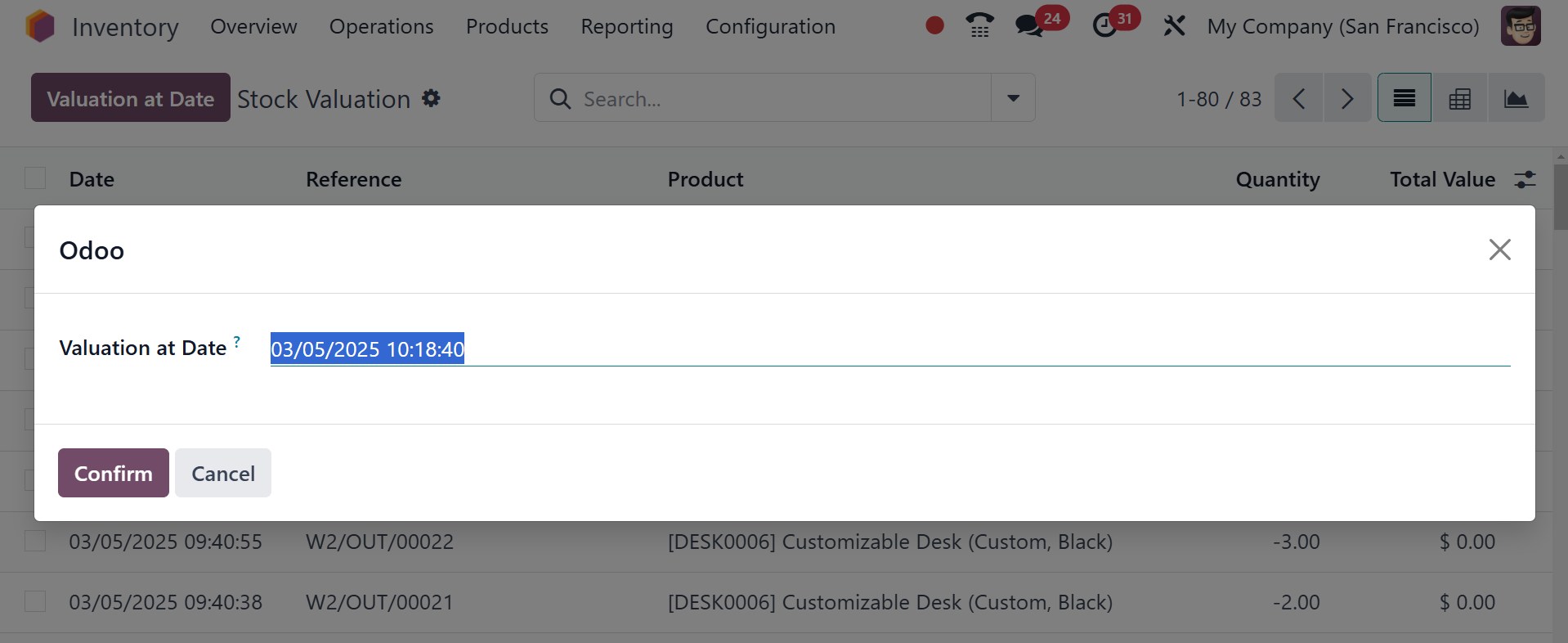
Odoo18 will display the valuation
report for the selected date
after you select it and click
the Confirm button.
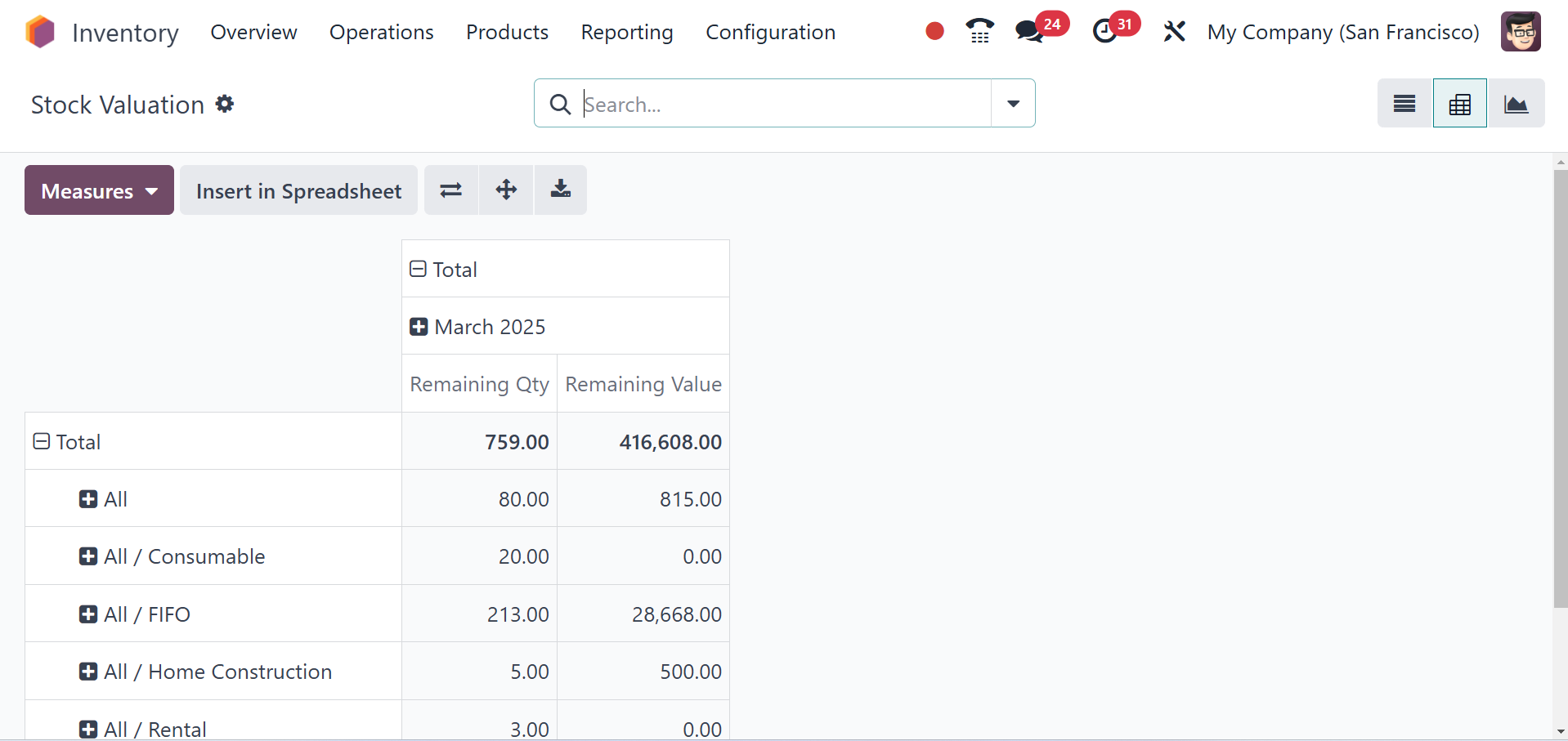
The above is the pivot view of
the stock valuation report.
You can use Quantity,
Remaining Quantity, Remaining
Value, Total Value, Unit
Value, and Count as measures
for the pivot table. To get
the expected report of the
stock value, use the special
features provided by the
Filters and Group By options.
The list view of the page will be
as in the page given below.
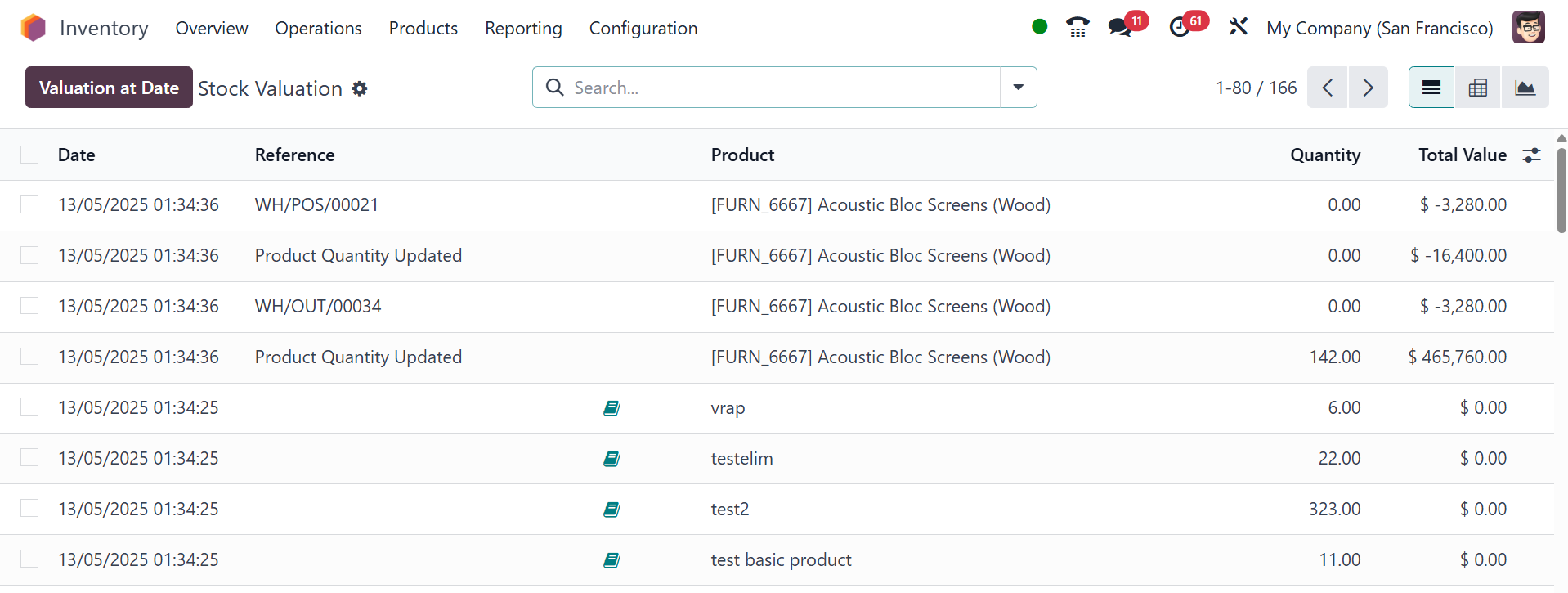
Here, you can view the date,
reference, product, quantity,
and total value.
Date: the date and time when the
stock move was created. The
valuation report is sorted by
this field by default,
emphasizing the importance of
time when valuing inventory.
To sort the report by a
different column, simply
click on the column title.
Reference: the reference document
associated with this stock
move (e.g., a warehouse
receipt, a delivery order, or
a manual inventory
adjustment).
Product: the product that is
being moved and valued.
Quantity: the number of units by
which this product’s stock
has increased or decreased in
this particular stock move.
Total Value: the value of the
product’s stock in this
particular stock move,
calculated by multiplying the
Quantity and Unit Value.
The Valuation at Date icon
allows you to view the stock
valuation as of a specific
point in time. This feature
is particularly useful for
comparing product prices or
analyzing inventory value at
different historical points.
On selecting the option, you
can have the page, as in the
image below.
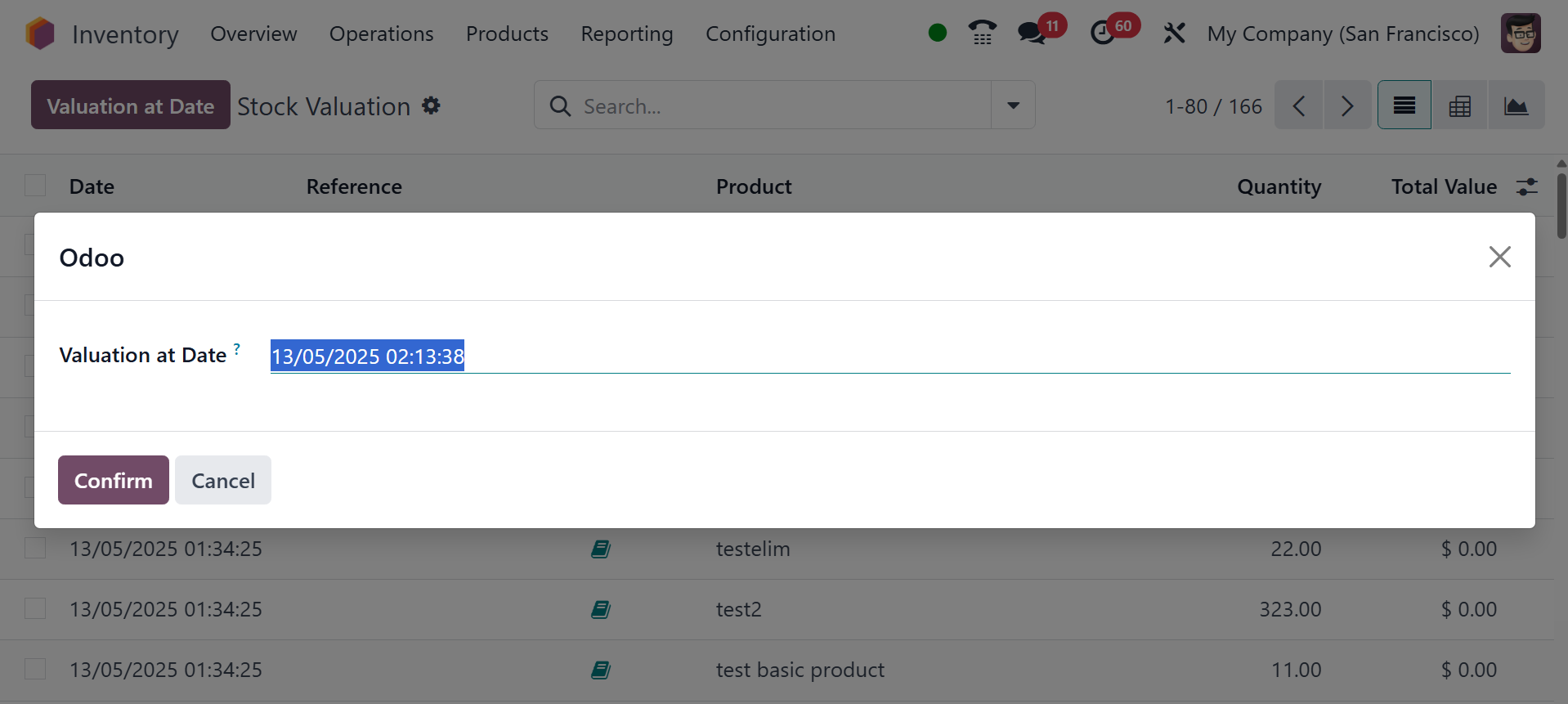
You can confirm it by adding a
particular date. You can
organize and monitor all
inventory activity in one
place by utilizing Odoo18's
advanced inventory management
system. You can trust the
extremely integrated
Inventory module to manage
your inventory and warehouse
activities entirely and
provide maximum workflow
efficiency.