Preparation Display Management
In order to maintain proper order and delivery procedures, Odoo 18
features a new module called "Kitchen Display" that doubles as a
display for the kitchen and for consumers. Consequently, the Kitchen
Display module is part of the Point of Sale module.
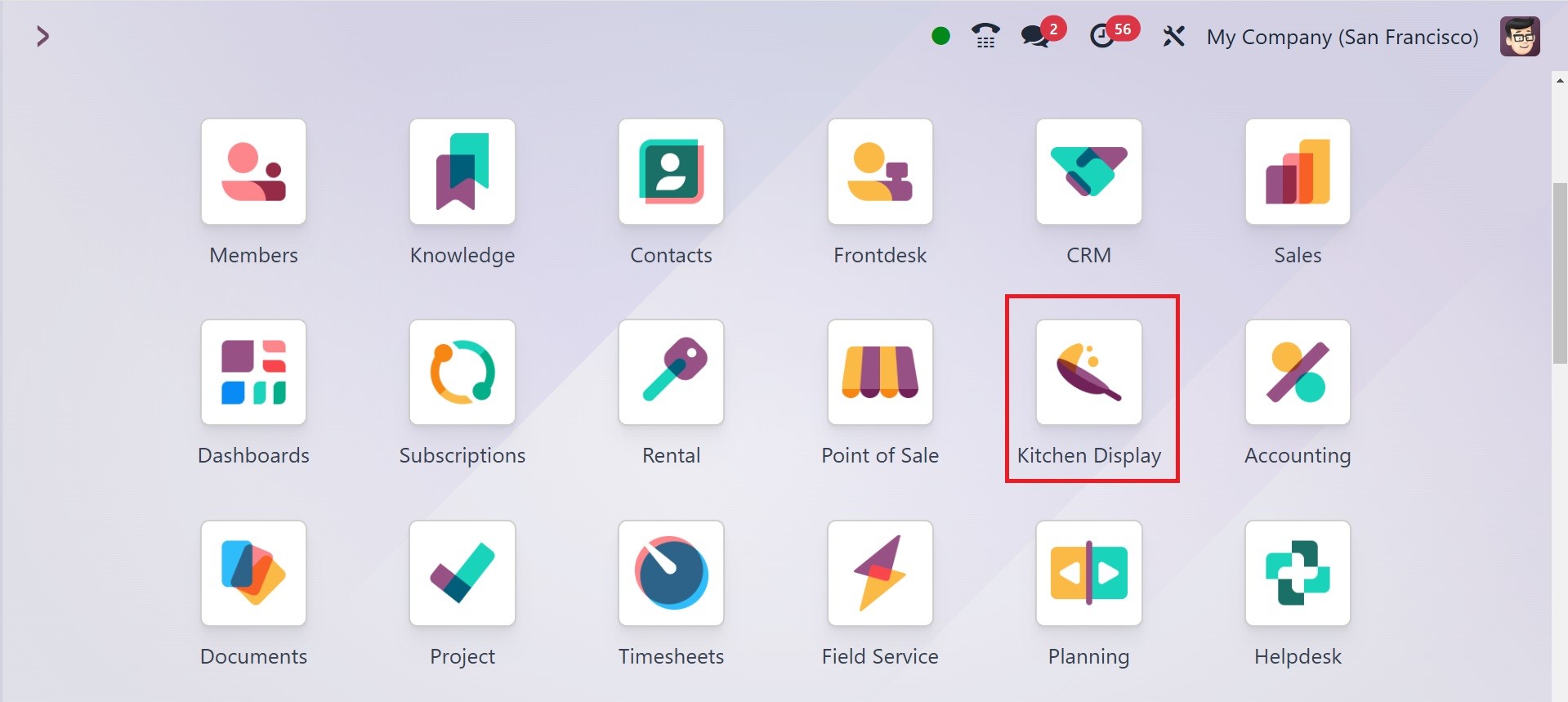
The two displays that are part of the Kitchen display module are the
Preparation Display and the Customer Display. The state of
preparation for any food items that a customer has ordered is shown
on the preparation display. Following completion of the preparation,
the meal will be moved to the client display for easy consumption.
Consequently, this module makes it easier to track food preparation
in the kitchen and client delivery.
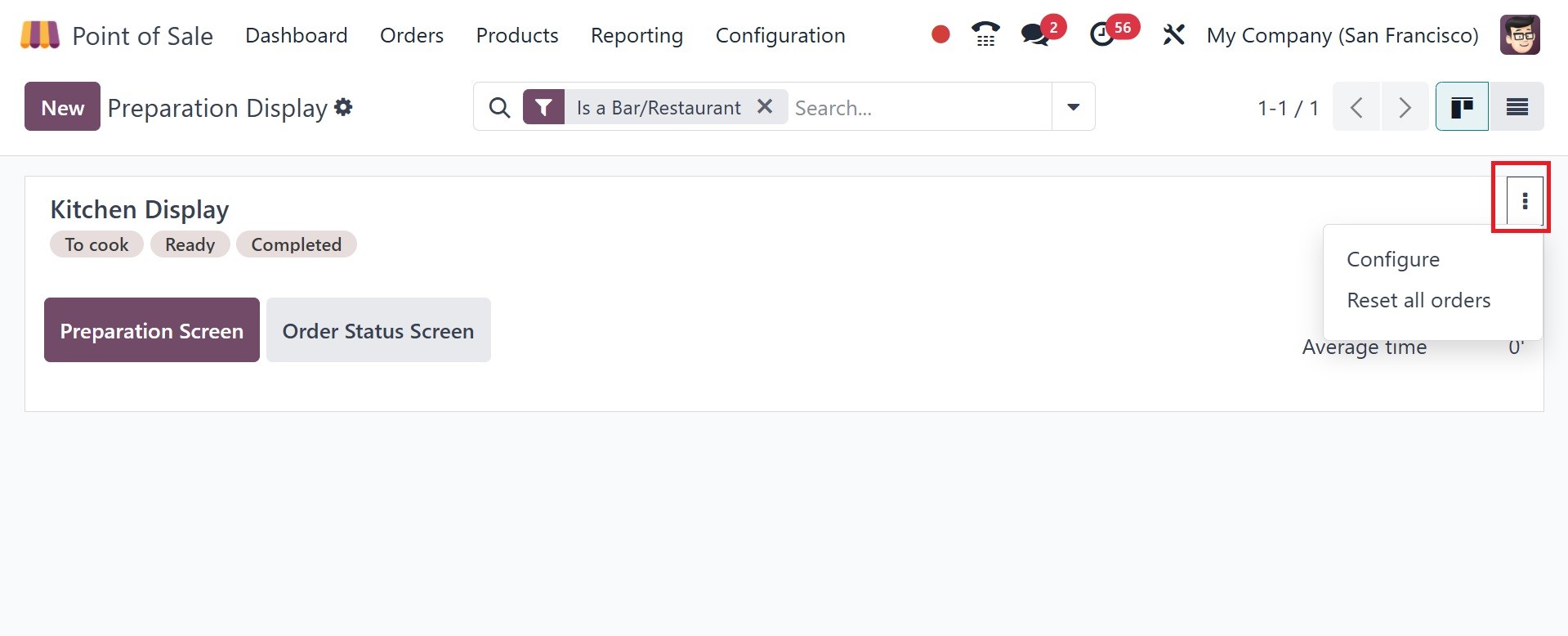
The dashboard view shows the customizable Kitchen Display. The
Kitchen Display on the dashboard shows the stages of the preparation
display. After that, users can click the Open Preparation Display
button to access the preparation display, and customers can click
the Open Customer Display button to view the display.
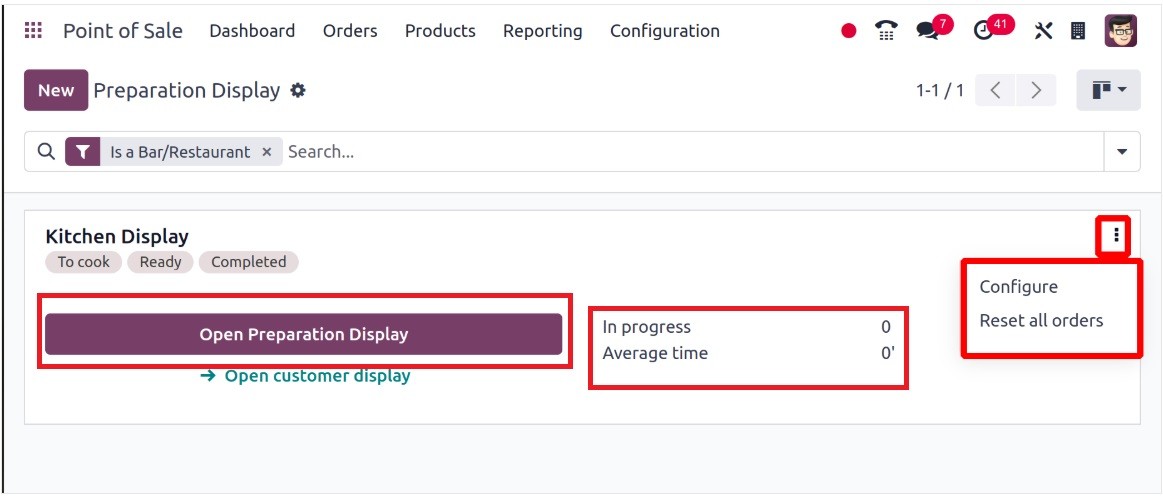
This dashboard shows the "Average Time" and the preparation orders
that are "In progress." The three dots allow the current Kitchen
Display to be configured and help reset all orders. To add a new
one, click the New button.
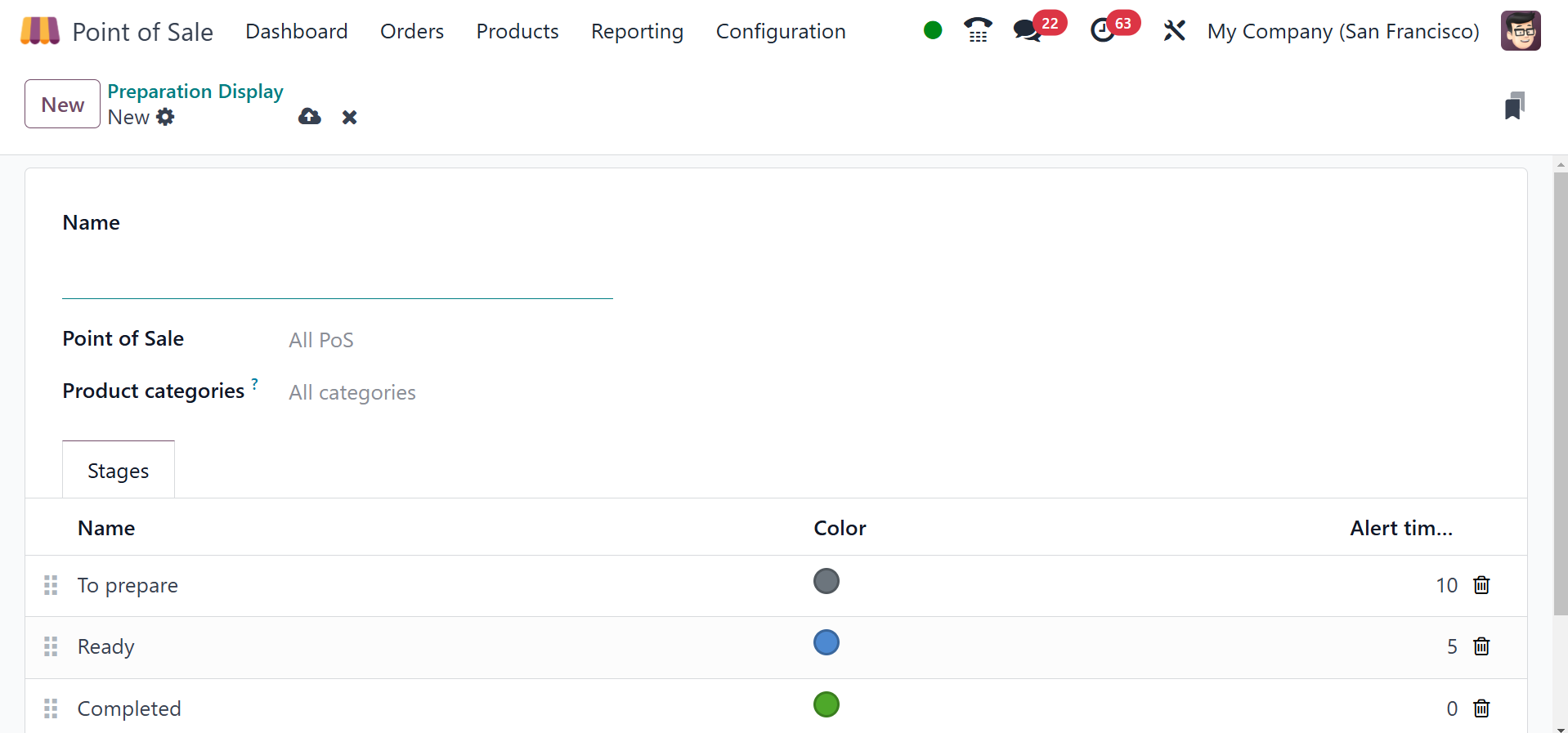
Put the name of the exhibit here. Here, they specify the product
categories that were created in this kitchen as well as the point of
sale session for which the display is intended. In the Stages tab,
add the color and alert time to the stage name.
A customer ordered a bacon burger.
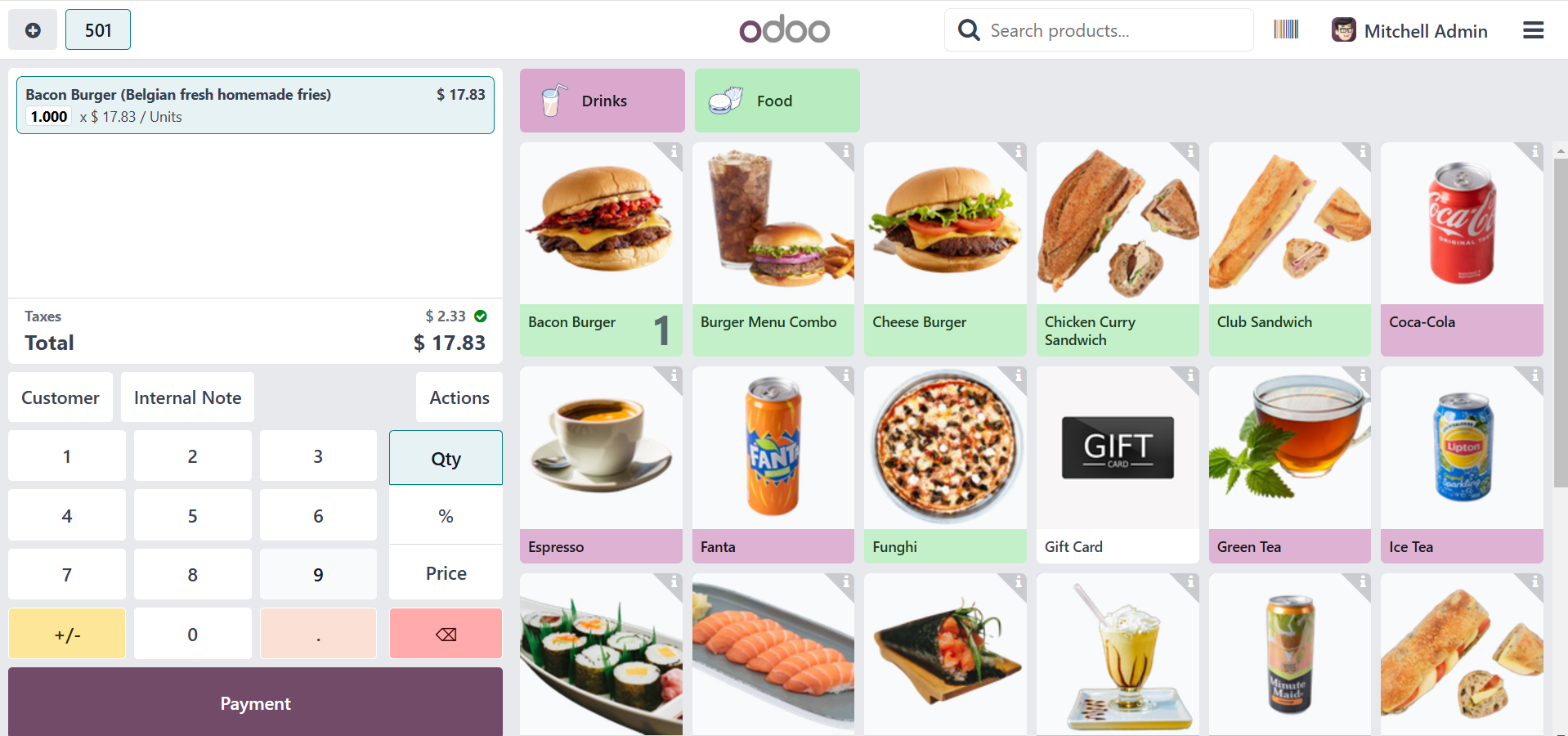
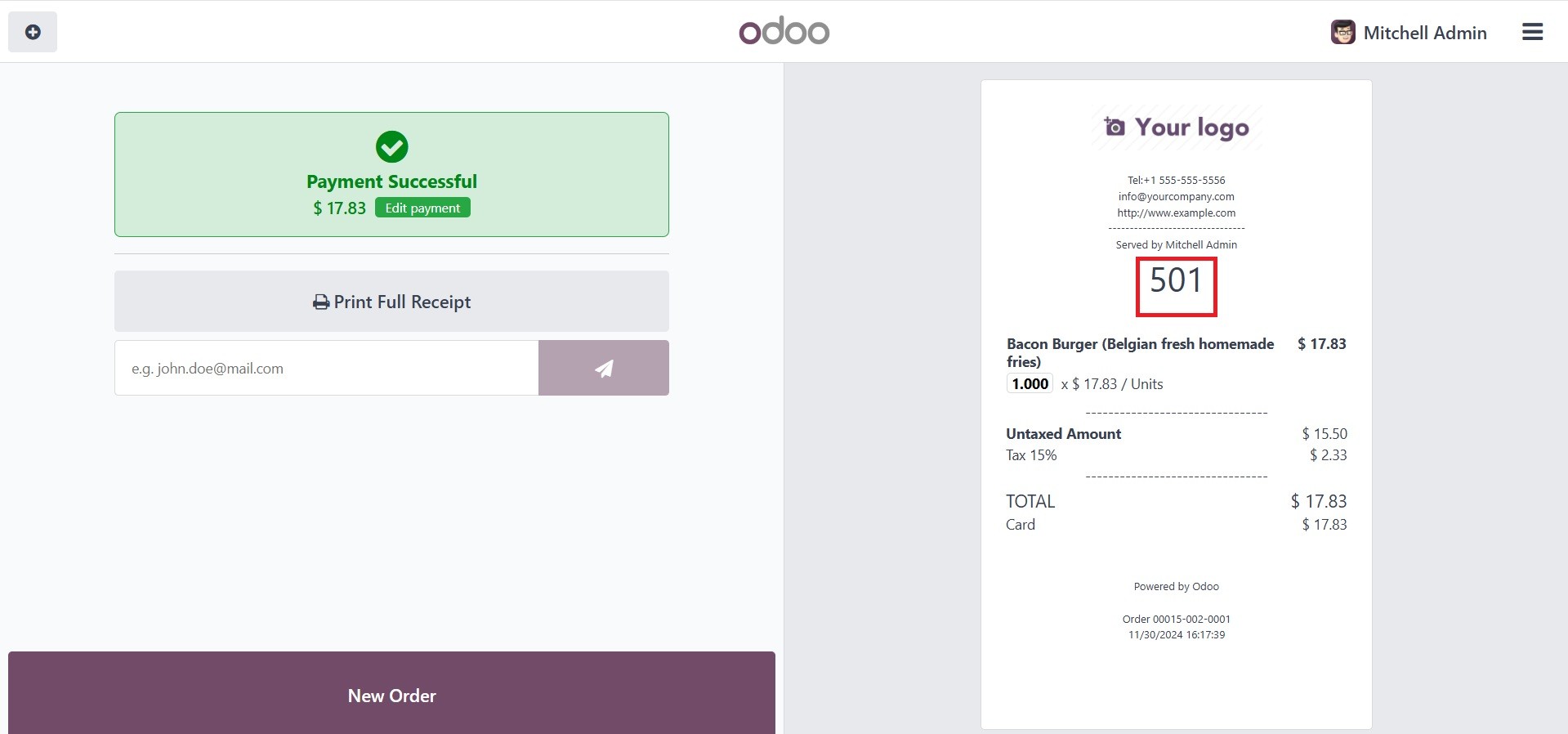
The customer must next finish the payment process in order to place
the order. A token bearing an order number is then given to the
customer.
One order is shown as being in the "In progress" stage on the Kitchen
Display dashboard, indicating that a customer has placed an order.
Click the Open Preparation Display option to see the preparation's
current state.

In the below screenshot, you can view those items prepared, ready,
and completed.
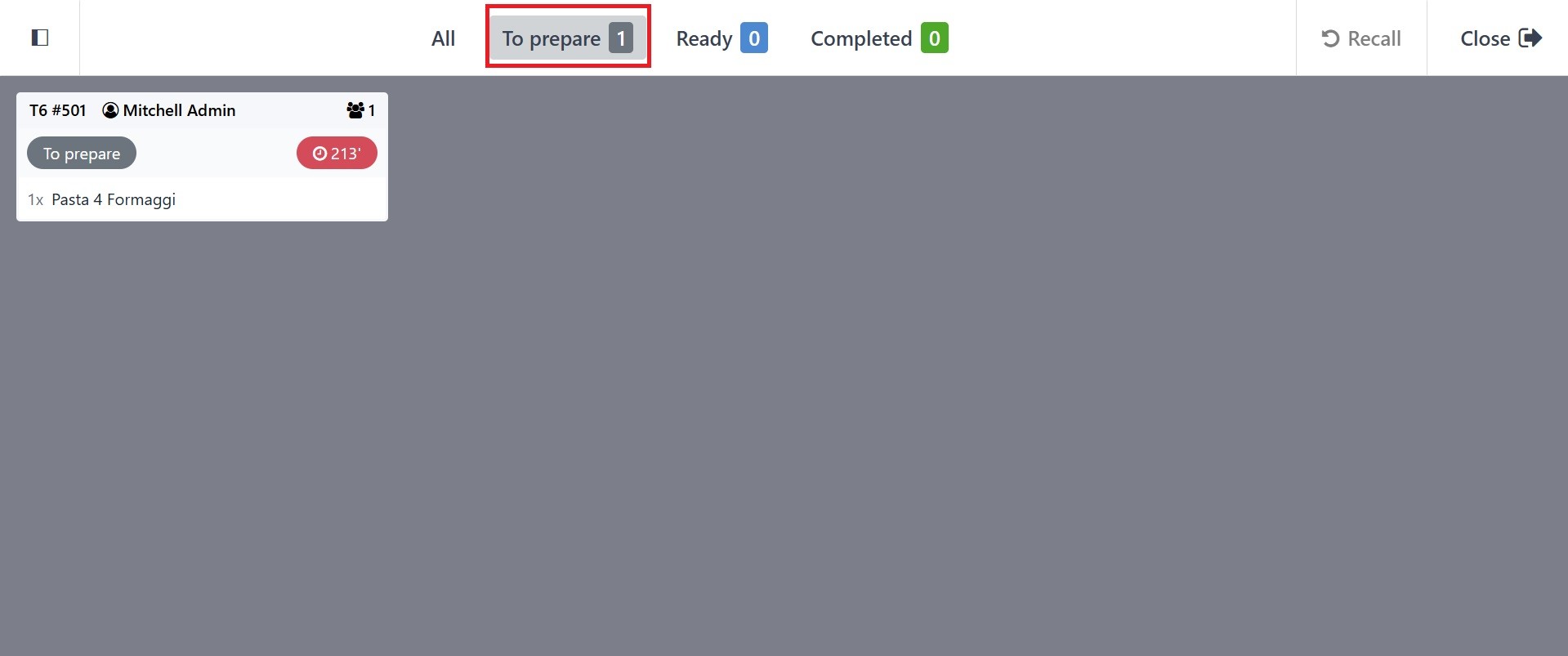
This is the preparation display, when employees at kitchen can see
the orders to prepare and later it will be move to ready and once
preparation is done, it will show under completed. On the left side
of the preparation display are the ordered foods. The upper portion
of the display shows the number of orders in each preparation phase.
The order is currently in the To Prepare stage; it will go to the
Ready stage after the cooking is complete.
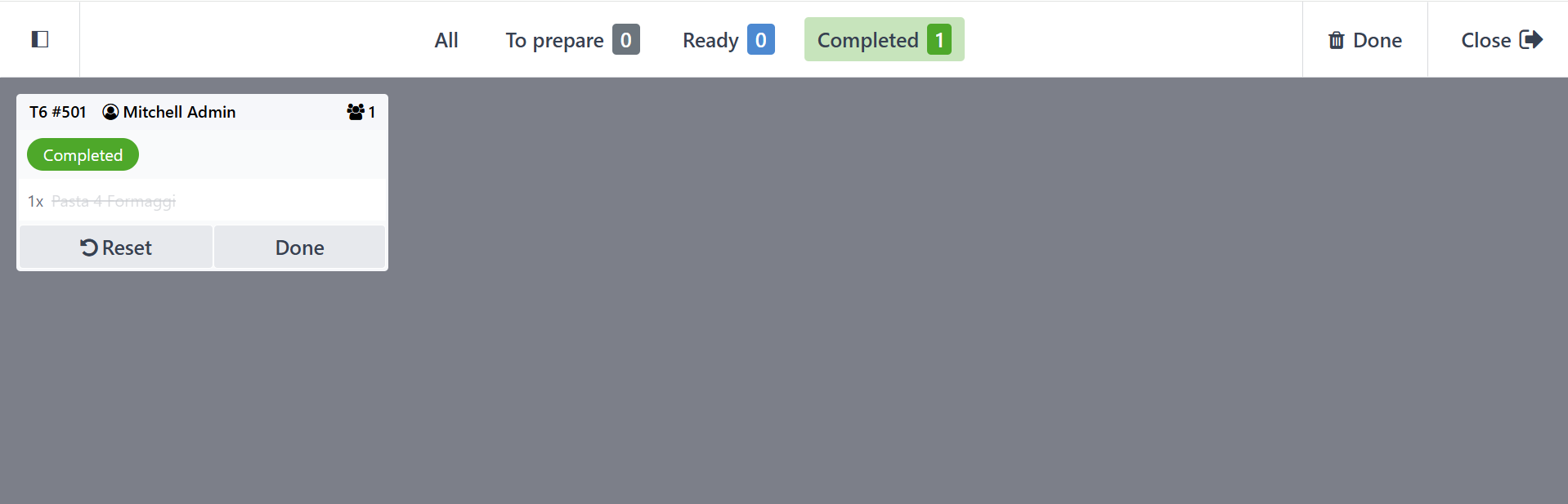
After that, move the order to the completed stage. From the Completed
stage of the order, users can remove and reset the Close button,
which is situated in the upper right corner and enables them to
close the Preparation Display.
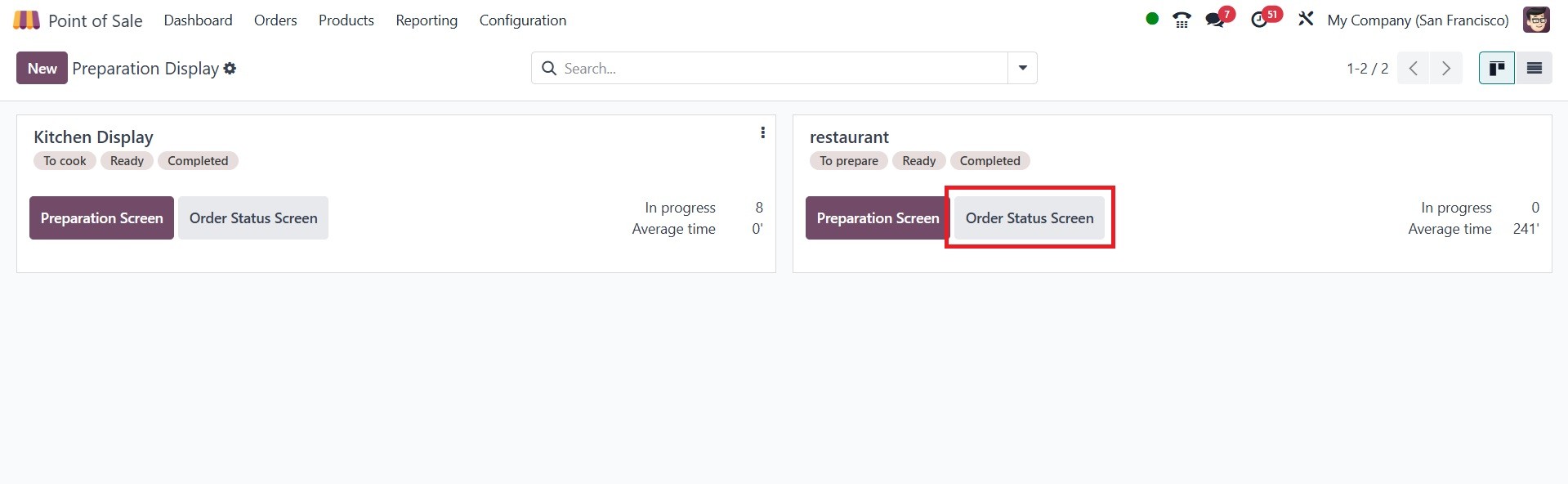
Next, select the order status screen option to view the display for
customers.
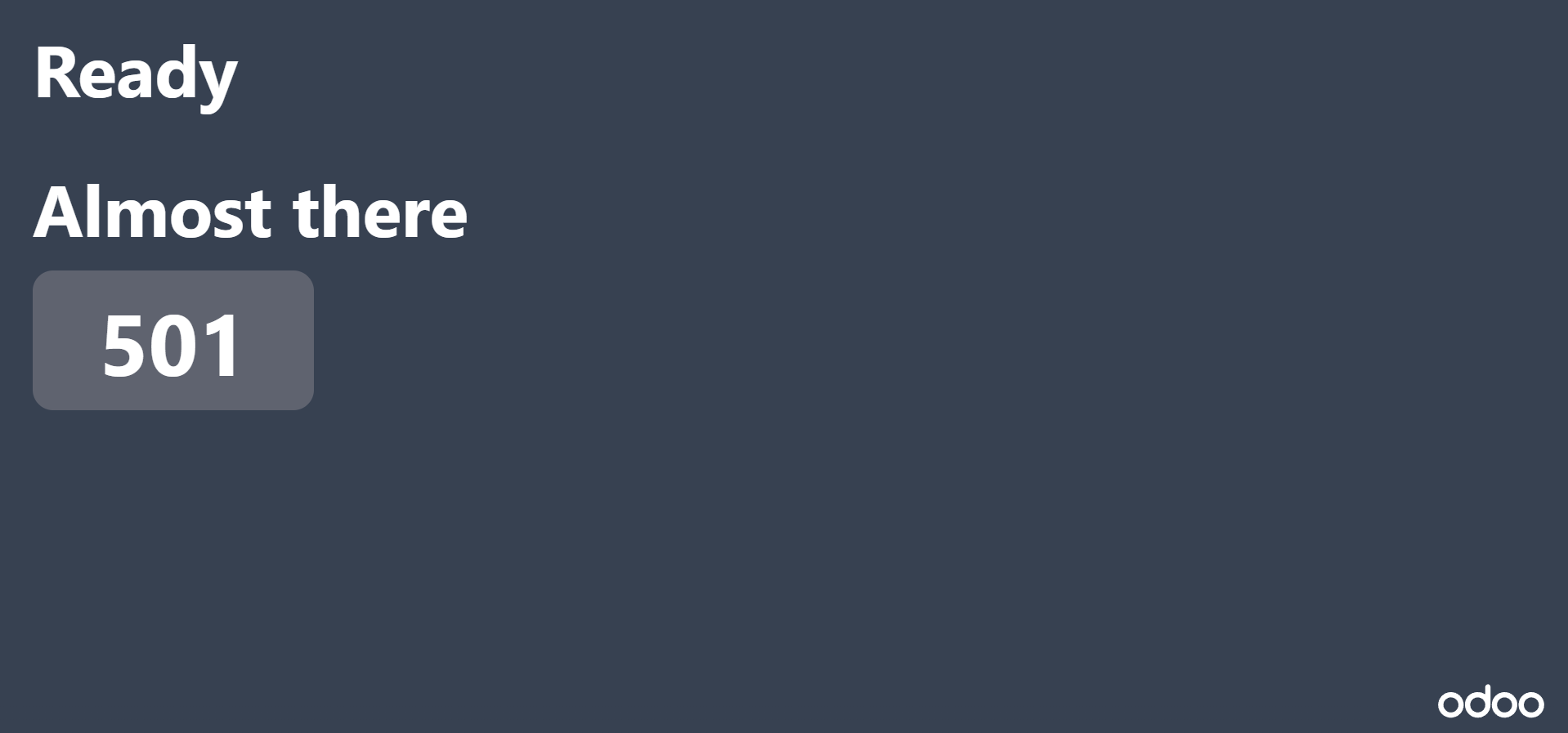
The comparison of the customers' displays is seen in the screenshot
below. As soon as preparation is finished, the order number is
displayed on the customer display, making it simple for consumers to
pick up their purchase.
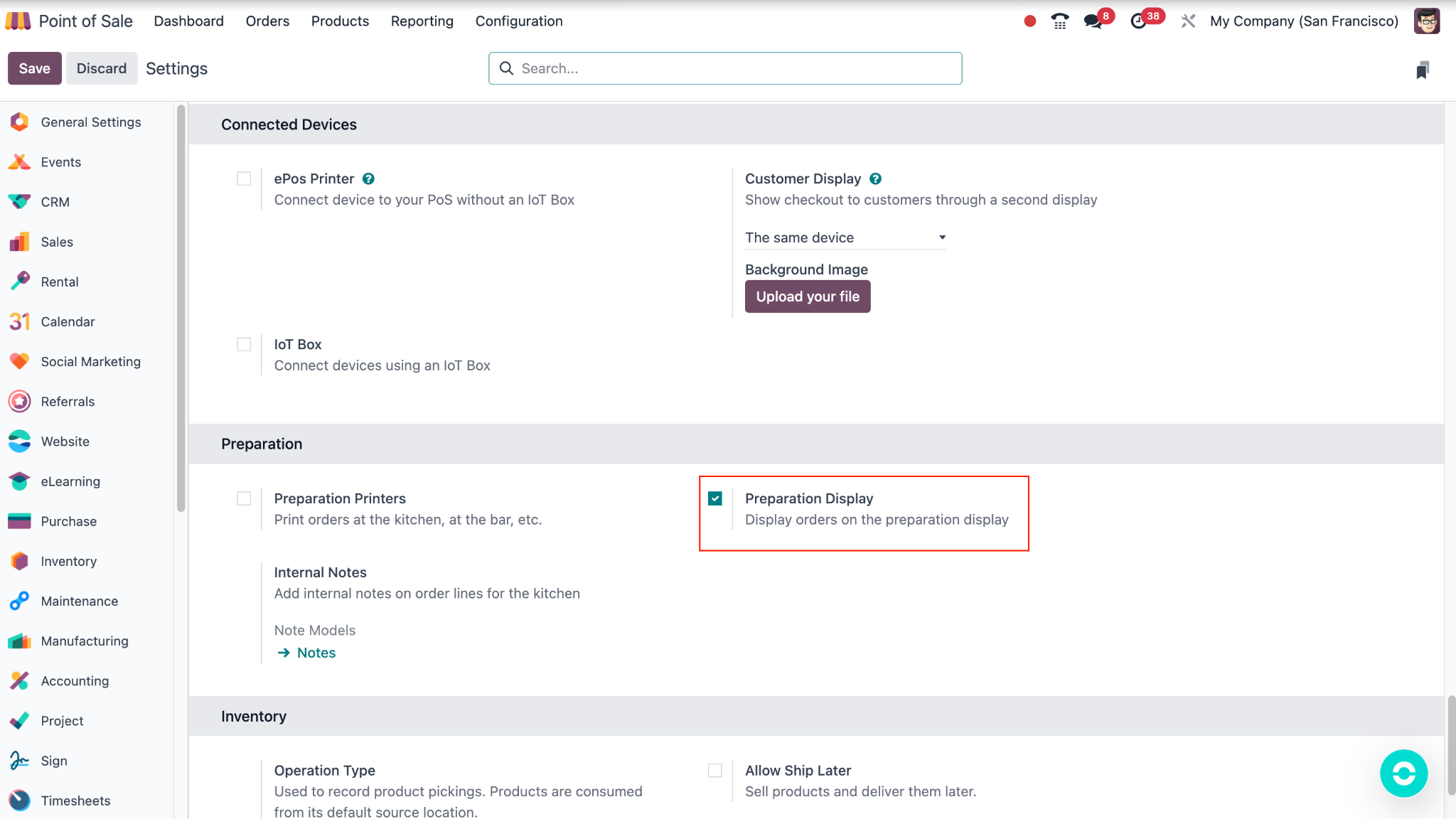
The preparation display is also accessible via the Point of Sale
module. The Orders menu at the point of sale now includes the
Preparation Display option. For that the feature ‘preparation
display’ need to be enabled from the point of sales configuration.
The page will be, as in the image below.
As a result, handling customer orders at the restaurant has never
been simpler. With the use of the preparation and customer displays,
users can easily oversee kitchen preparation and let customers know
when their order is ready so they can conveniently pick it up.