4. Reporting Menu
The Reporting section of the Live Chat module provides insights into
various aspects of chat interactions. It includes sub-menus such as
Session History, Session Statistics, Operator Analysis, and Customer
Ratings.
4.1 Session History
The ‘Session History’ window presents details of past chat sessions,
including the Visitor Number or Name, Date, Time, Duration,
Participants, duration of messages exchanged, and customer ratings,
as shown in the screenshot below.
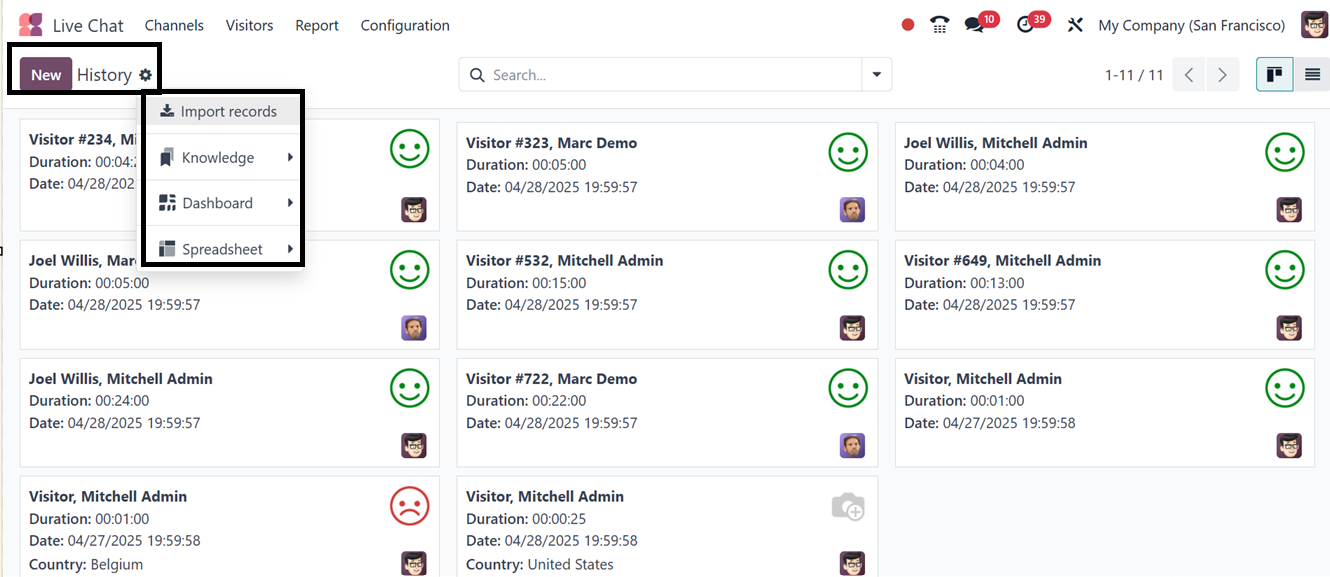
You can create articles using the Knowledge interface, import
records, and create dashboards and spreadsheets using the
corresponding icons placed inside the action button at the top of
the window for a thorough analysis and documentation of website
history.
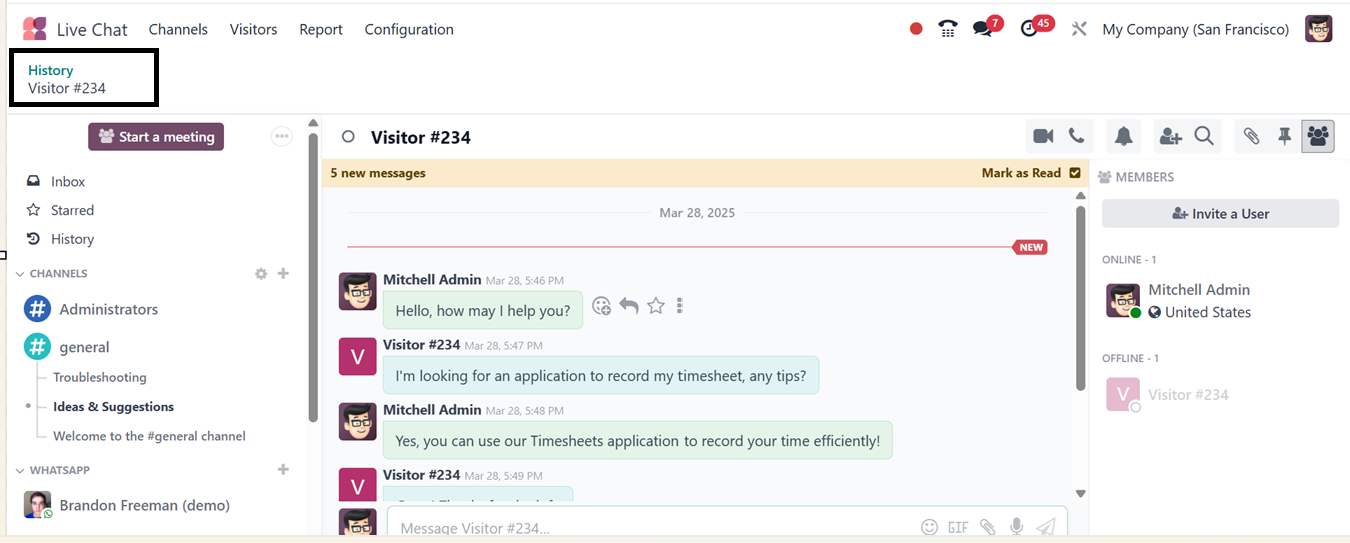
Clicking on a visitor column will open the detailed history of the
visitor, and you can also start a chat with the visitor.
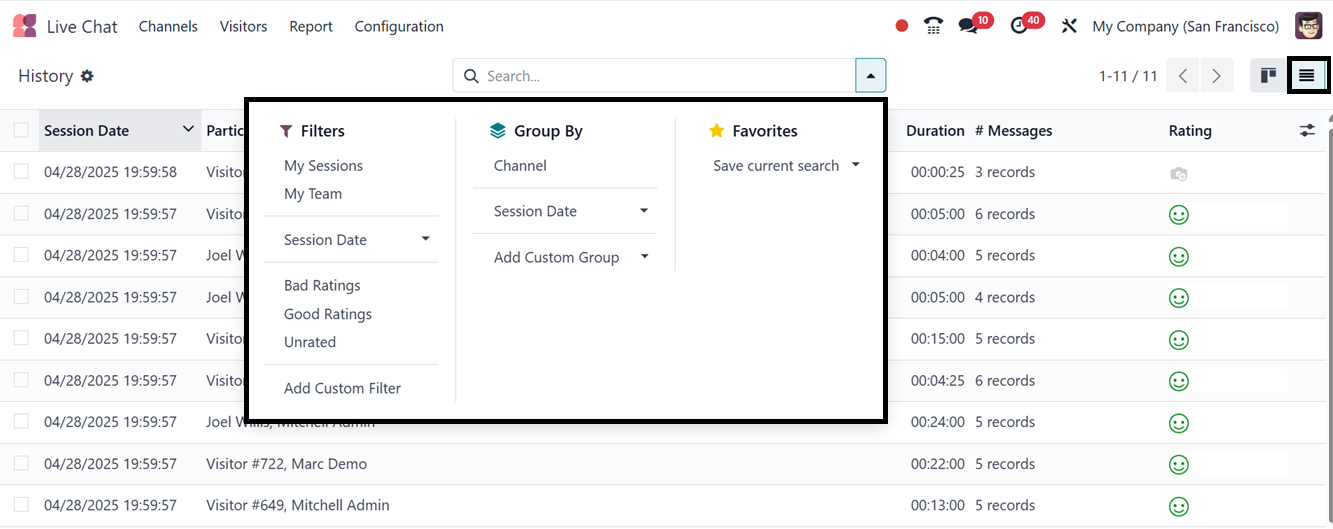
Apart from the kanban view, you can also change the reporting window
to a list view using the ‘List’ icon. Using the search bar filters,
you can create or customize various filter and grouping options to
get specified visitor data using the Filter, Group, and Favorites
buttons provided inside the search bar area.
4.2 Session Statistics
The ‘Session Statistics’ reporting feature provides a detailed
overview of live chat interactions between website visitors and
support agents. This tool helps businesses monitor the performance
and effectiveness of their real-time customer engagement activities.
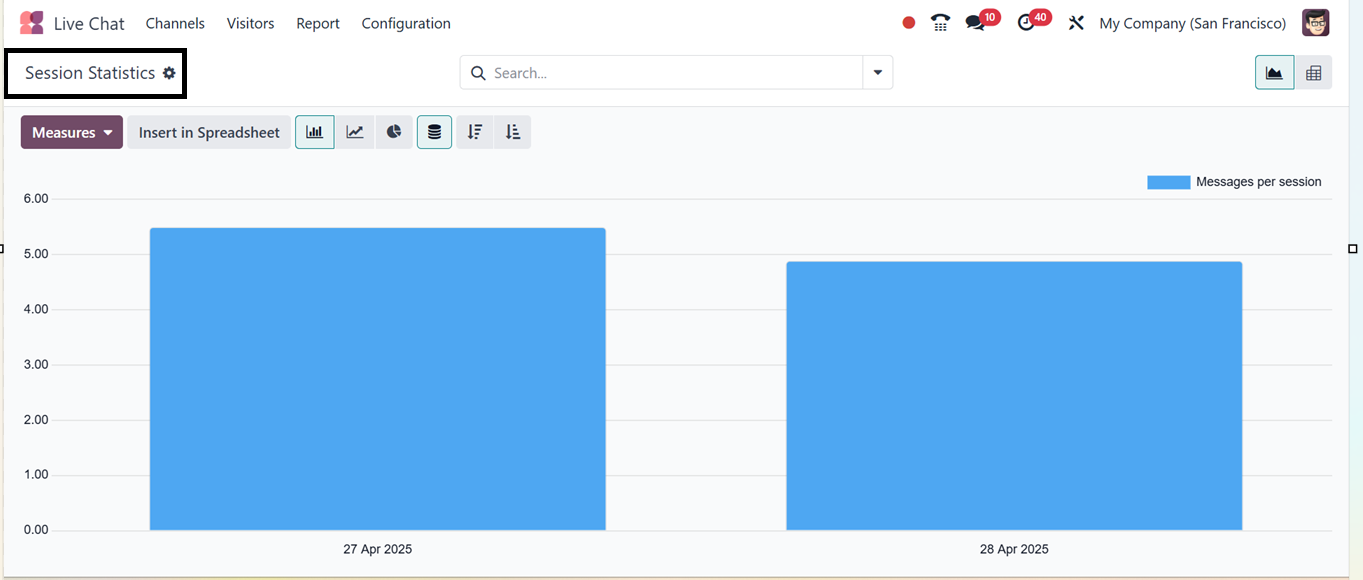
Key features include the number of speakers, Days of activity,
Duration of Session in minutes, Is visitor anonymous, Rating,
Messages per session, Session not rated, Time to answer, and
count-based filtering options are included in the ‘Measures’ filter
option. By analyzing these metrics, managers can maintain high
service standards and identify areas for improvement. The feature
also allows for comparing agent performance across the team. The
‘Session Statistics’ window allows users to analyze session data in
graphical and pivot formats.
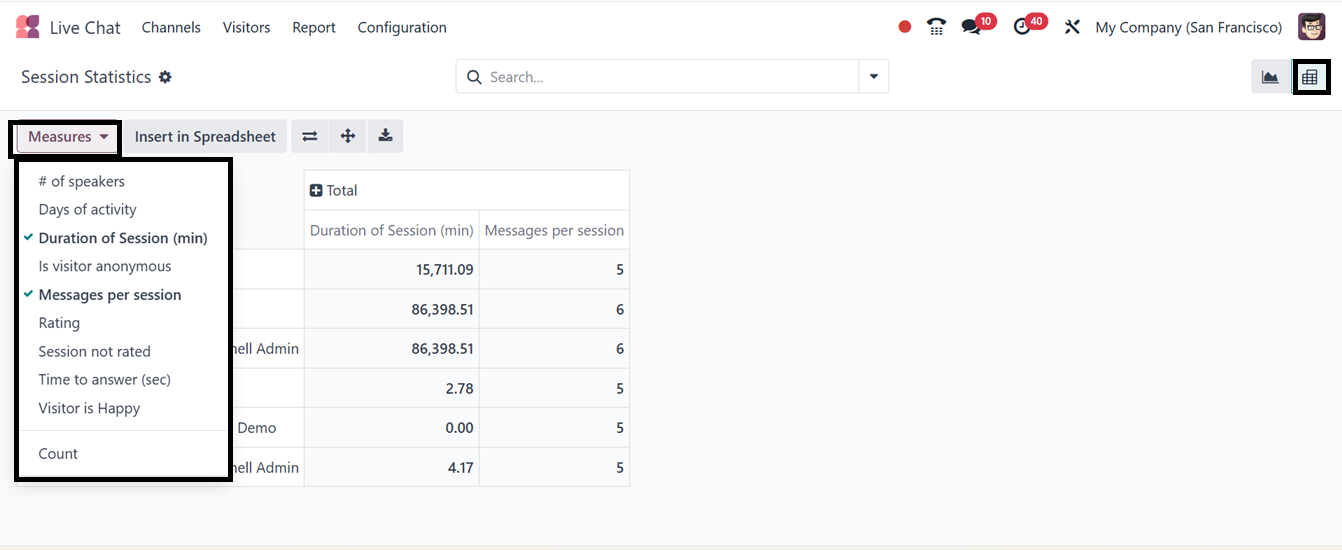
The session statistical reports can also be customized using filters
and various groups by options using the advanced search bar area.
4.3 Operator Analysis
The ‘Operator Analysis’ menu provides reports on chat performance
based on individual operators. Opening the window will show the
graphical view of all the operators based on their number of
sessions handled by them, as illustrated in the screenshot below.
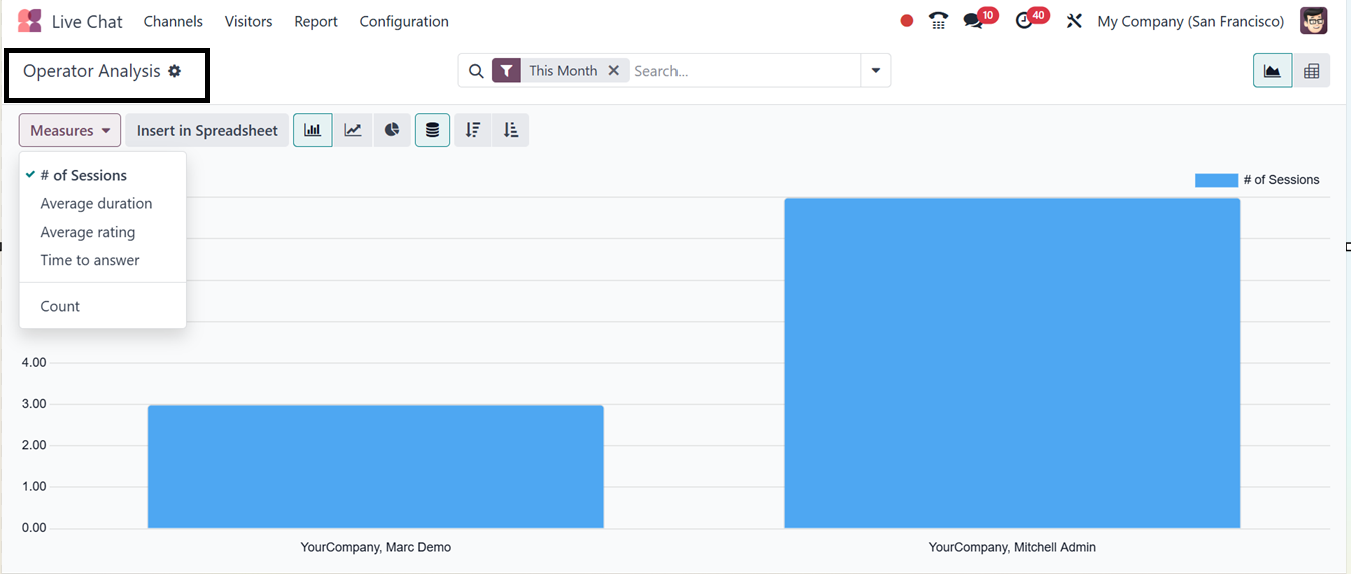
This reporting feature evaluates the performance and activity of each
live chat operator. This helps businesses maintain high service
quality and improve team performance. Here, the key ‘Measures’
include the number of handled sessions, Average ratings, Average
duration, Time to answer, and Count option help to change the
reporting perspective based on these different metrics.
The reporting can also be viewed in pie, bar, or line charts, with
multiple filtering and grouping options available for customized
reporting.
4.4 Customer Rating
The ‘Customer Rating’ feature records visitor feedback on chat
interactions. This reporting feature is crucial for understanding
customer satisfaction levels and evaluating the quality of service
provided by support agents. You can see the kanban dashboard view of
the customer ratings with the Customer Name, Website ID, Date, Time,
and Ratings, as illustrated in the screenshot below.
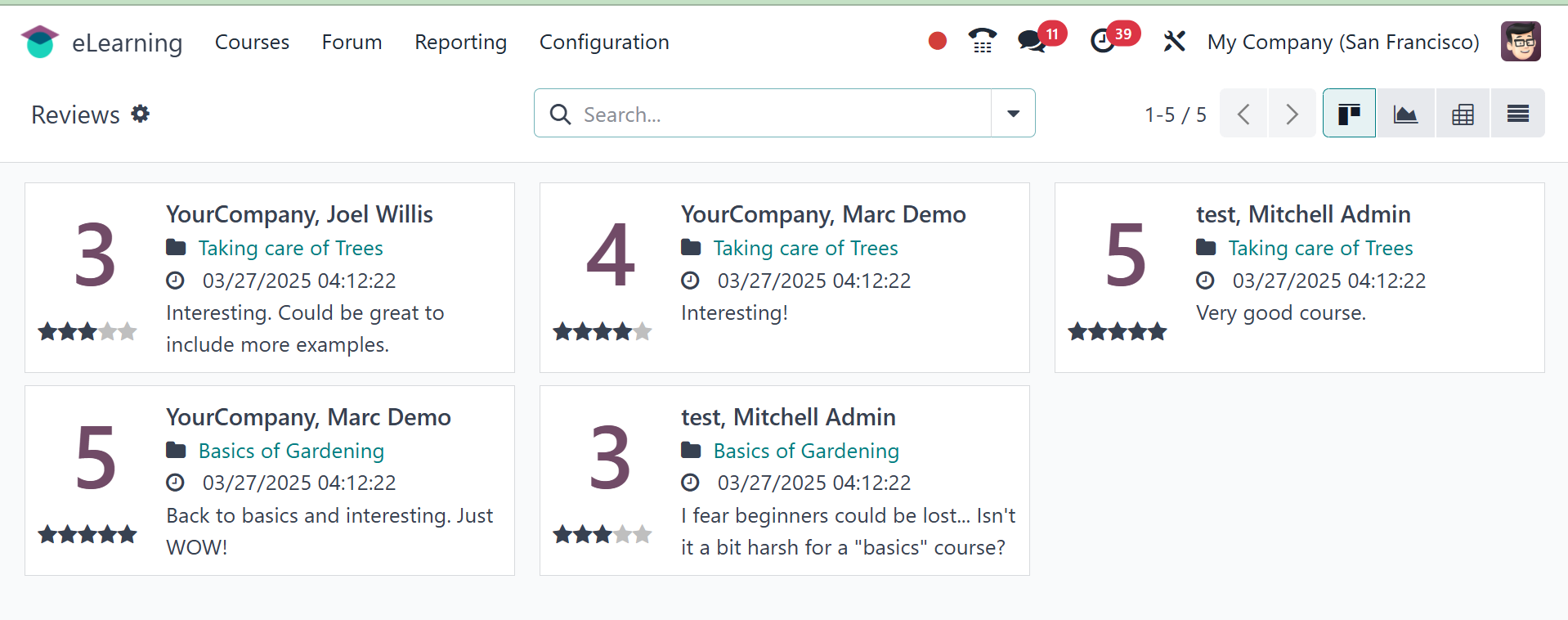
Reports can be accessed in Kanban, List, Pivot, and Graph views,
offering businesses valuable insights into customer satisfaction.
For example, you can see the graphical view of the Customer Ratings
report from the screenshot provided below.
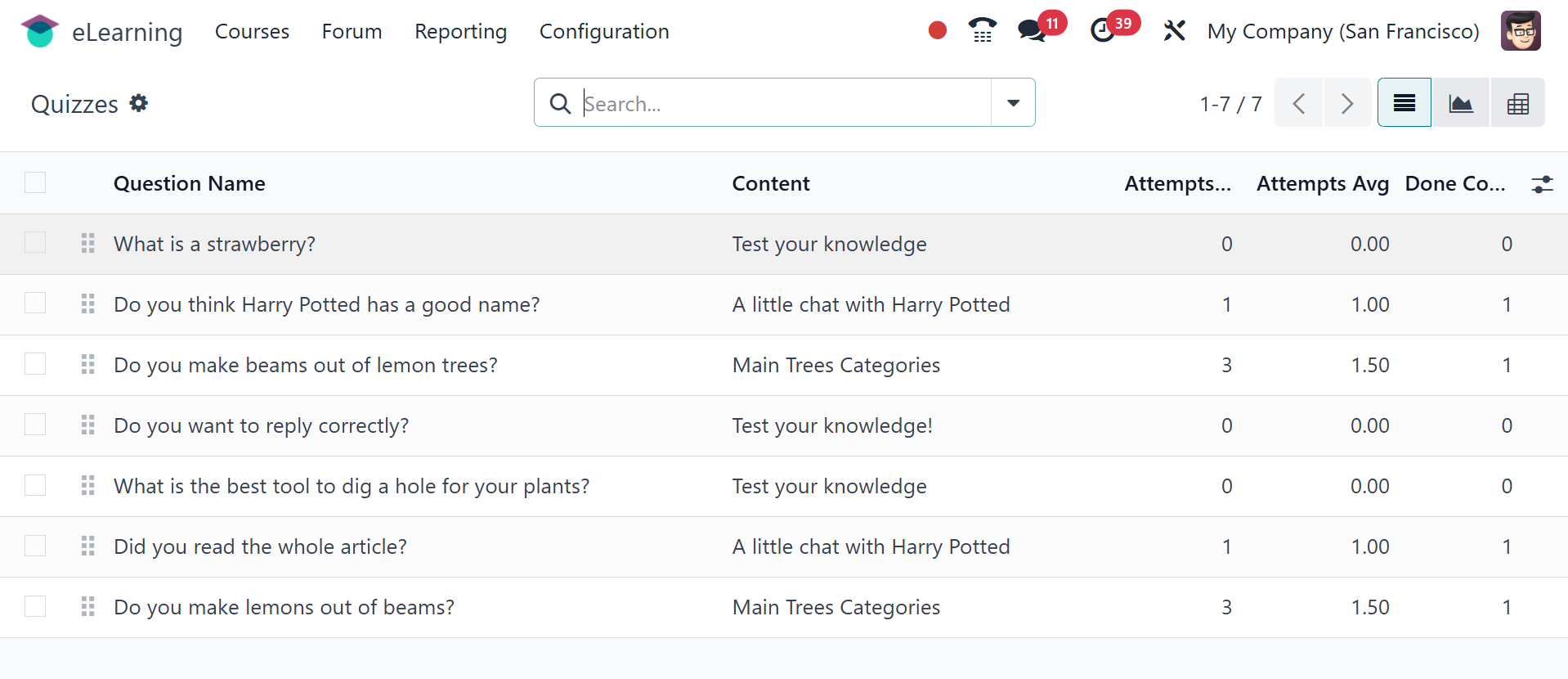
In the graphical view, the key features include the Count and Rating
metrics to get a detailed breakdown of the customer ratings. Using
the Filter and Group By options included in the advanced search bar
area, you can view ratings by individual operators, specific live
chat channels, or over selected time periods to identify patterns
and trends. To get more specifics, you can customize the filters and
grouping options as per the requirements.
By monitoring customer ratings, companies can ensure their live chat
support meets customer expectations and make informed decisions for
training, staffing, and service improvements.