In order to have a productive workplace, it is essential to consider
the health of each employee. It will be difficult to talk to every
employee about their lunch needs and preferences. In these
situations, Odoo18 can help you improve the food supply system for
your business. Using this ERP system, each employee will be able to
order food based on their tastes by using the credits they have been
given. The Lunch module will help them save time by allowing them to
order in their free time instead of having to wait in line all day.
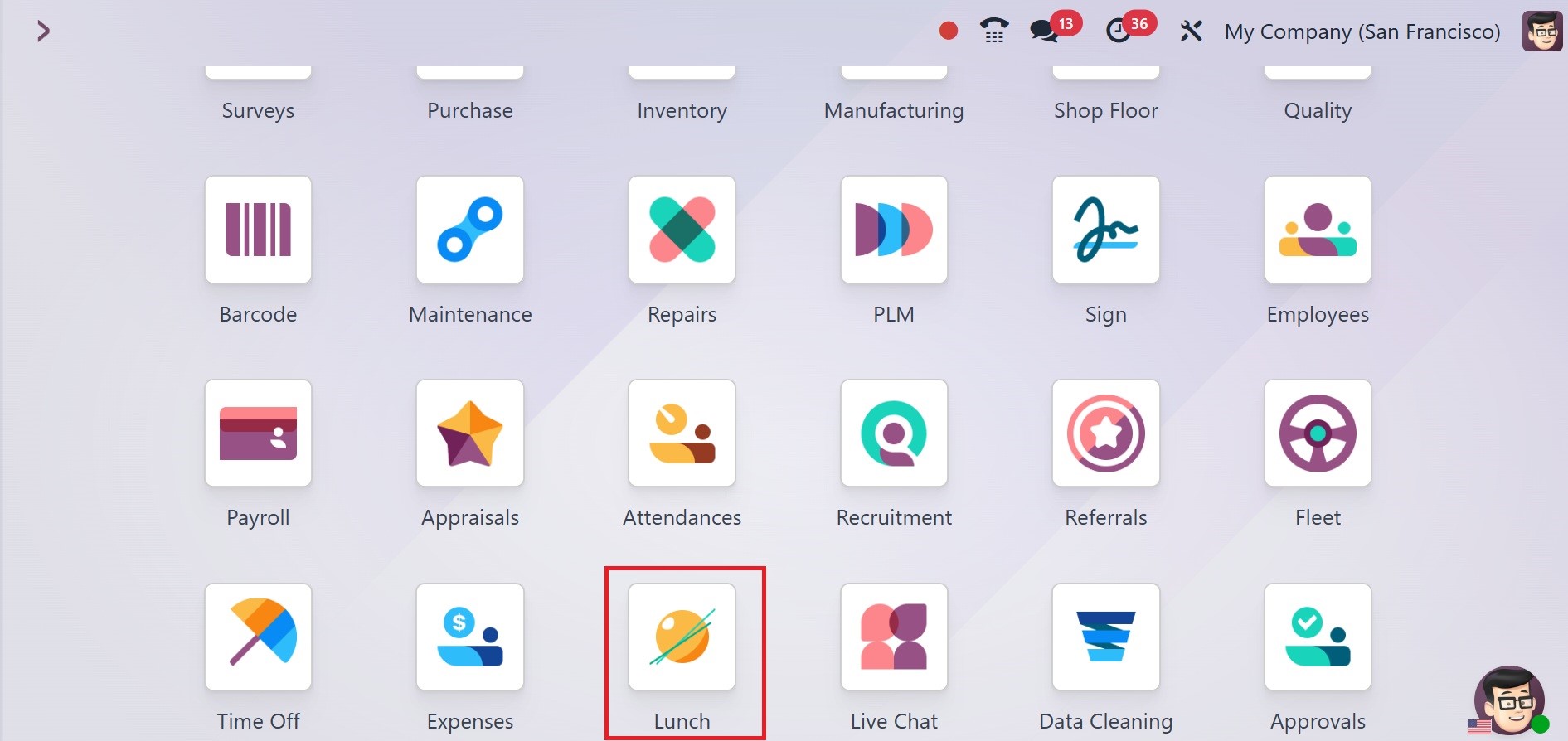
After installing the module from the Odoo18 App Store, you can click
on it to launch it.
This is your lunch dashboard when you first open the module. All of
your lunch's main courses are visible on the dashboard, as seen in
the screenshot.
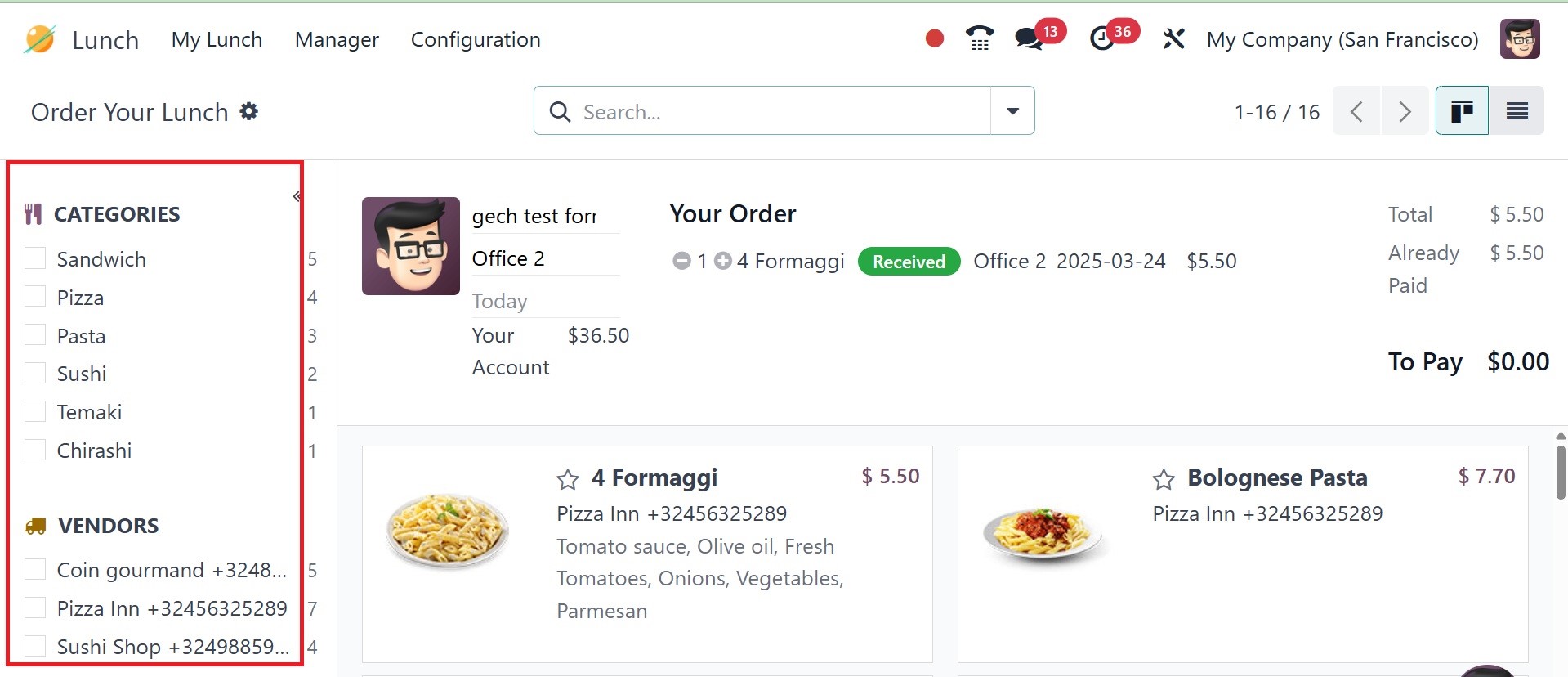
The staff can place their orders and make their selections from this
dashboard. On the left side of the screen are the vendors and
categories. To order products from a certain vendor or category, use
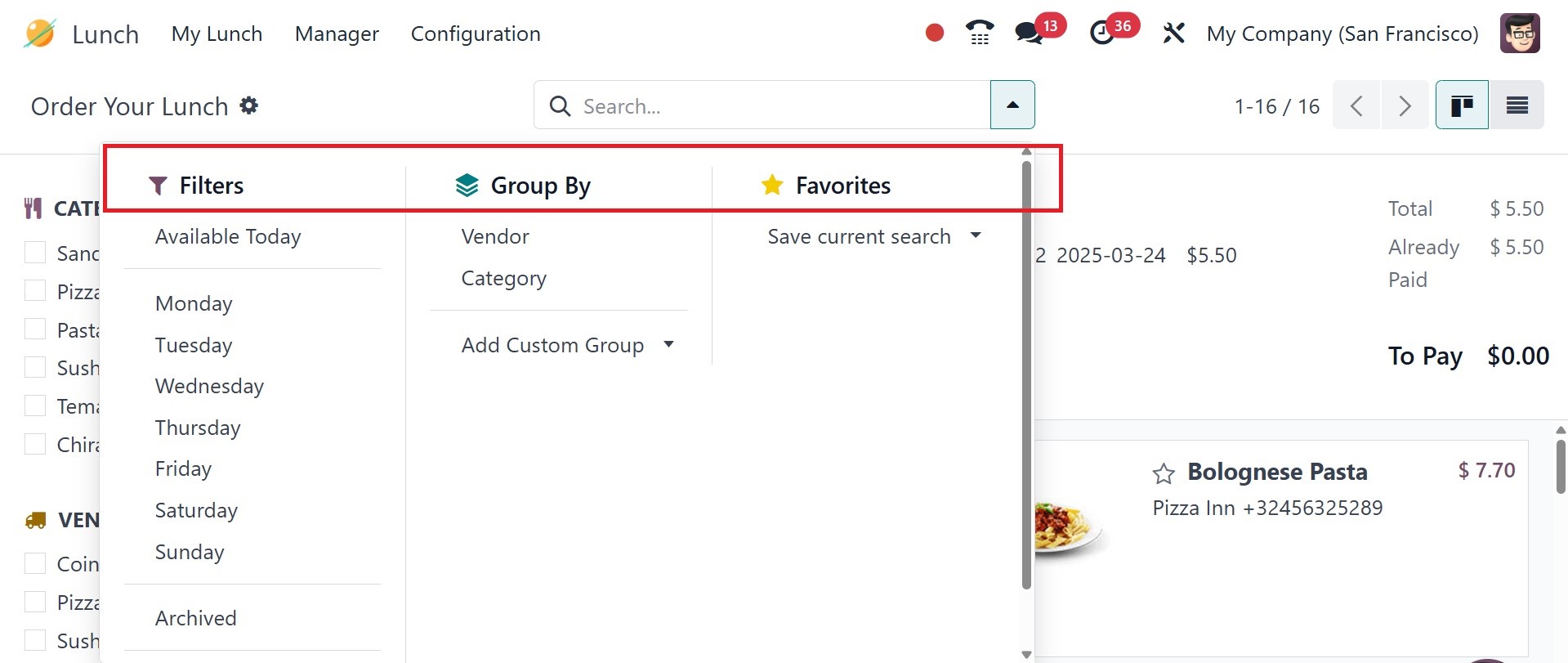
this panel. You can use Available Today, Archived, and Days of the
Week as filters. Group By options include Vendor and Category.
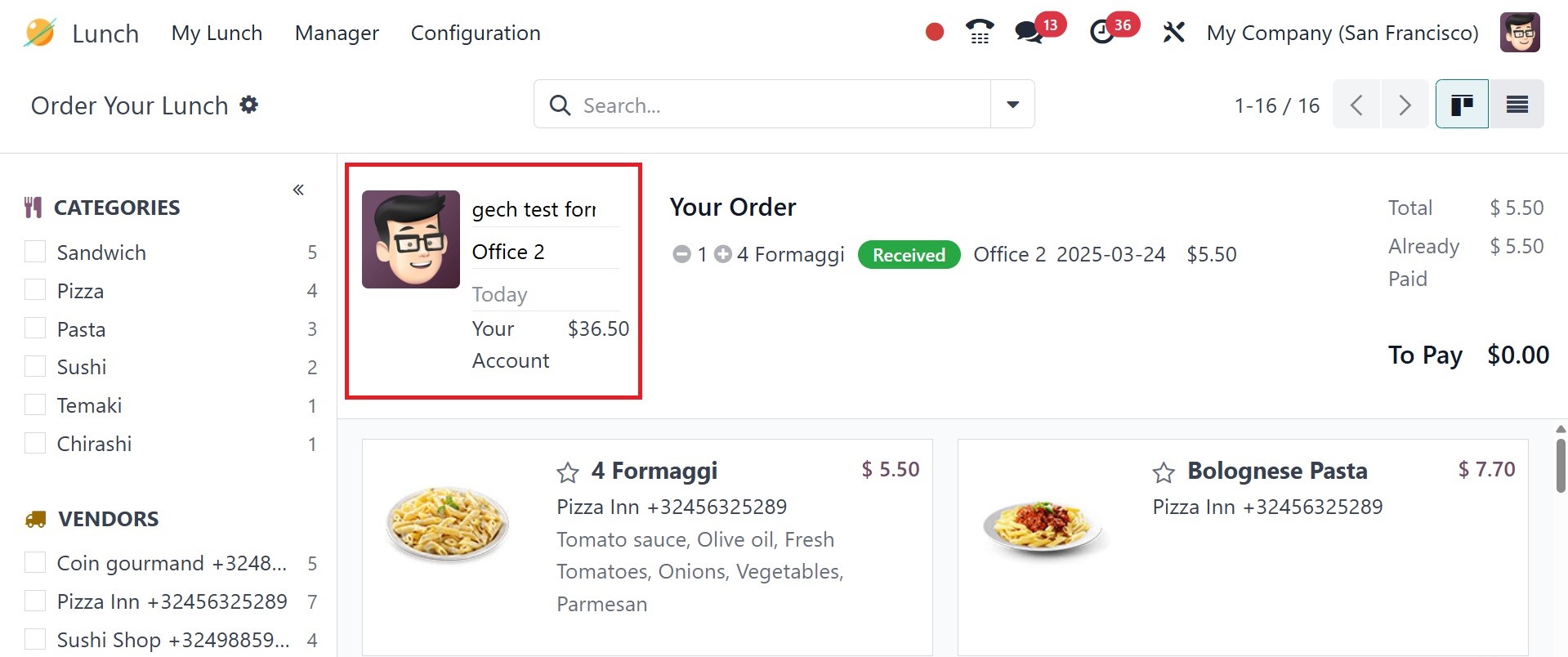
As you can see in the screenshot above, your profile is on the lunch
dashboard. It will show your name, address at work, and account
balance. You can order lunch with this account balance.
Now let's examine the ordering procedure for the Lunch module. To
place an order, click on the meal item that most closely matches
your preferences. A pop-up window like the one below will show up
once you click on the item.
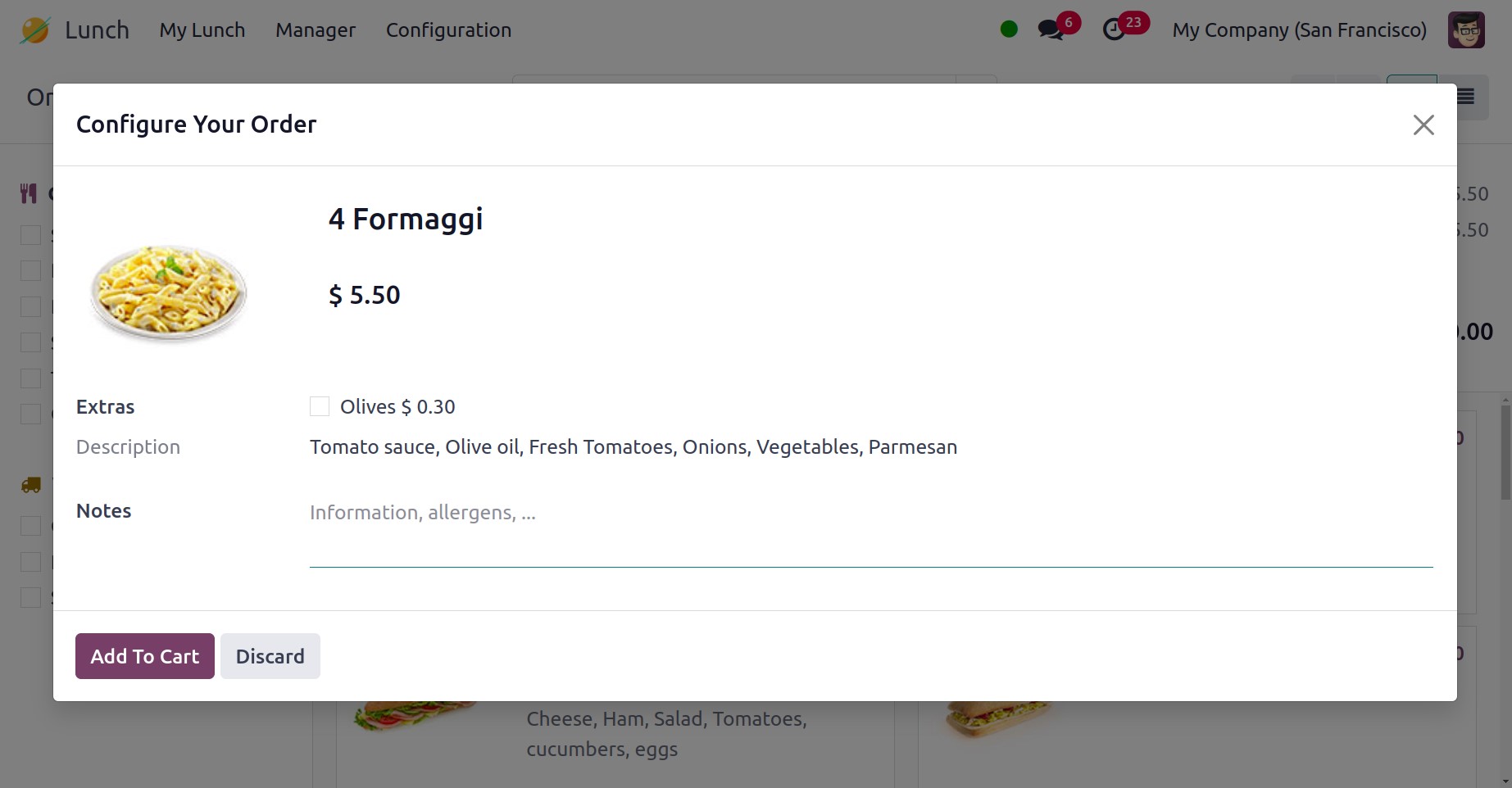
The window will display the product's name and an image. You will
also be given a description of the food item. Any further
information, such as excluding specific allergens or products you
don't want to include in your lunch, can be added in the Notes area.
The Extras field may occasionally show up in the window if the
merchant is offering any extras with the main entrée. Click the Add
To Cart button to put this item in your shopping cart.
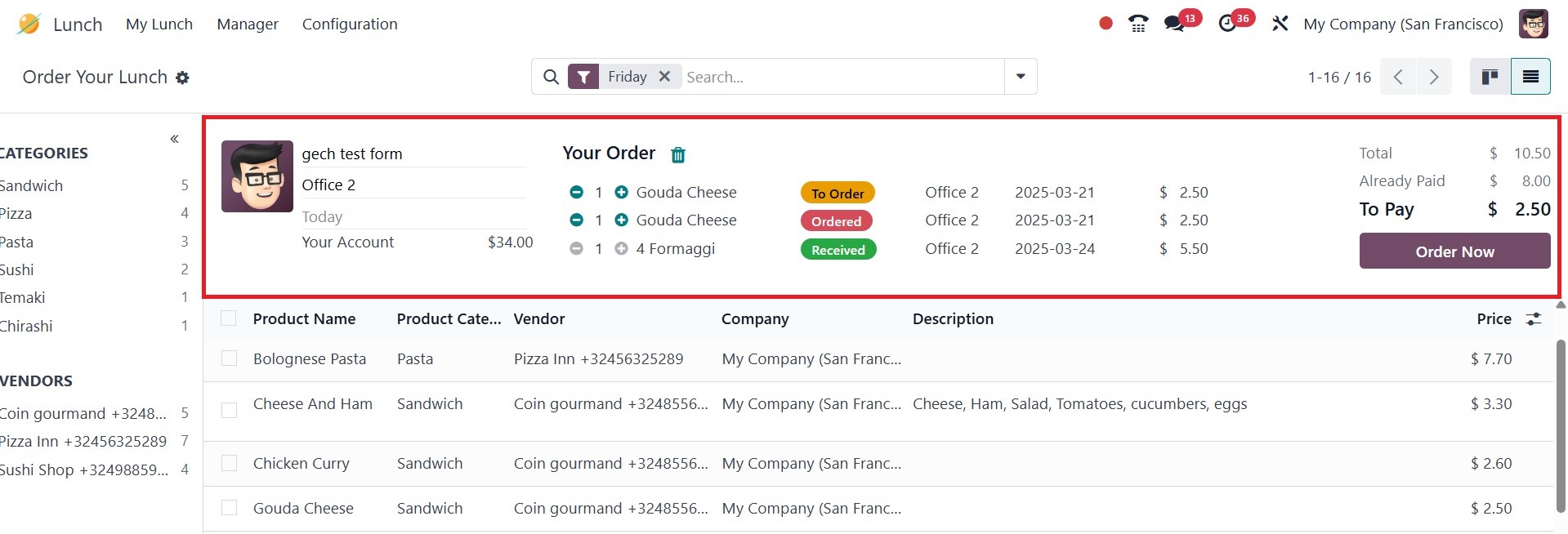
This button will add the item to your cast in the way it is depicted
in the above image. On the dashboard, the words "Your Order" will
appear next to it. You can cancel the order by clicking the Delete
button. You can select the product's quantity by using the available
icons next to the product name. Once you know how much of the
product you need, you can click the Order Now button.
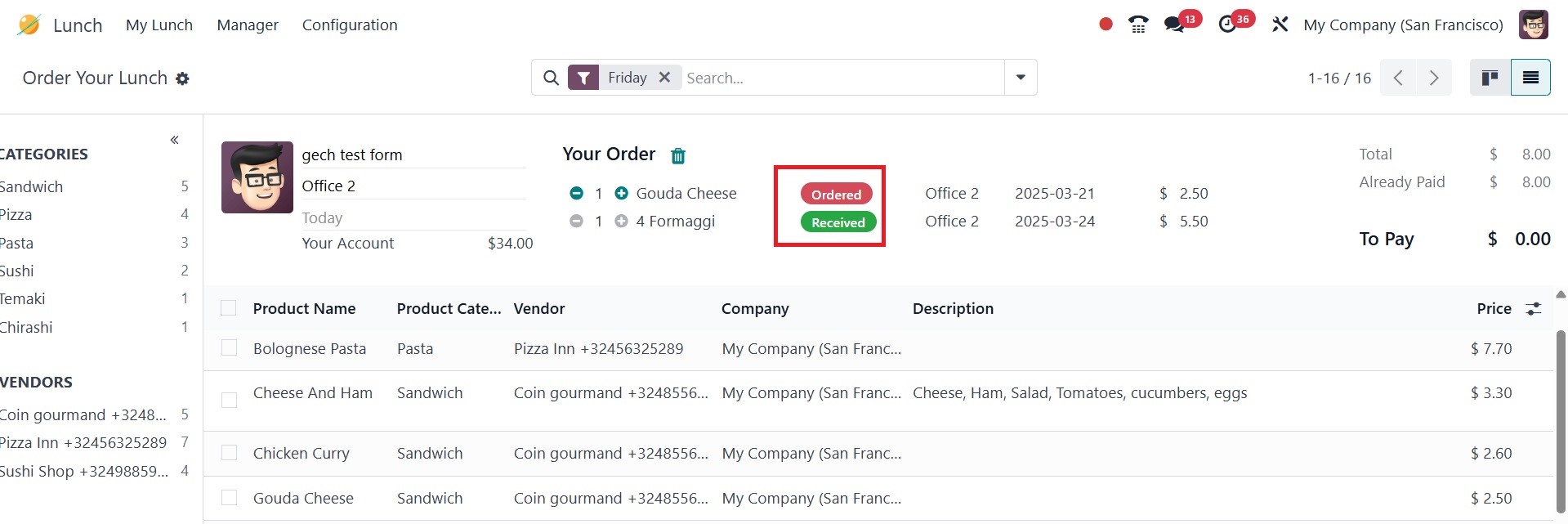
Your order will be placed and the money will be taken out of your
account balance when you click the Order Now button.