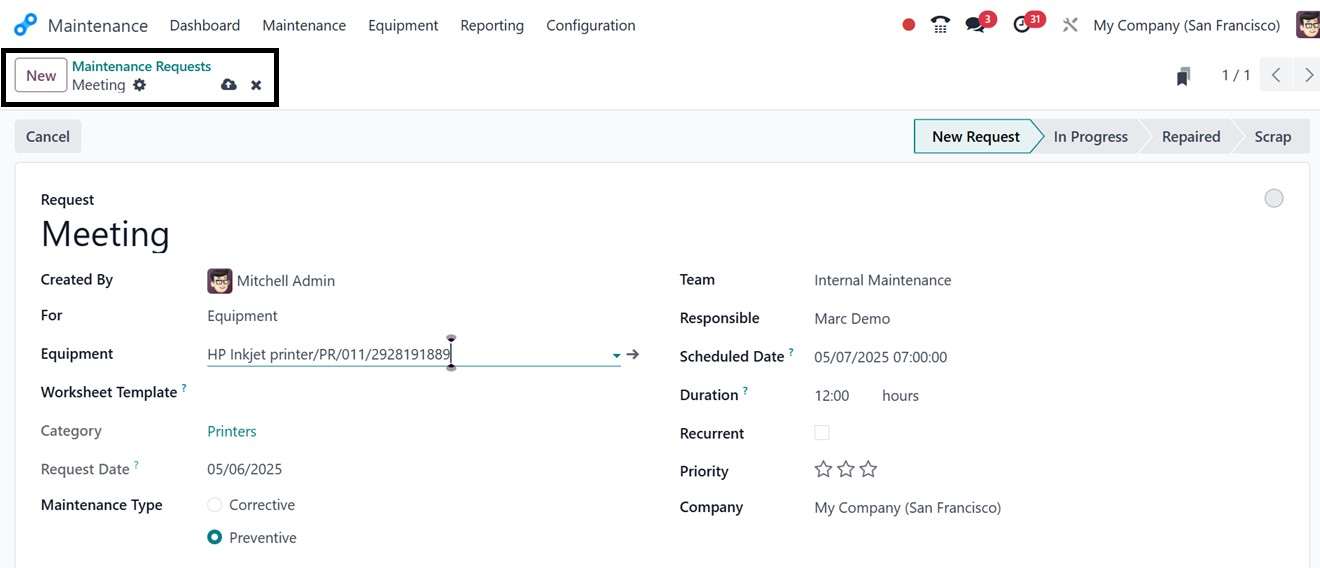
2. Maintenance Menu
The ‘Maintenance’ Menu in Odoo 18's Maintenance module streamlines
maintenance tasks, allowing users to make, track, and monitor
preventative and corrective maintenance requests. This menu consists
of two sub-menu options, including Maintenance Requests and
Maintenance Calendar. This effective maintenance management improves
plant operations, reduces costs, increases revenue, enhances product
quality, workplace safety, productivity, and minimizes errors.
2.1 Maintenance Requests
Once the equipment has been categorized and maintenance teams have
been established, users can start managing maintenance requests
through the "Maintenance" menu. You can also create a new request
from the Maintenance Request dashboard provided under each
maintenance category provided under the ‘Dashboard’ menu. By
selecting "Maintenance Request," they are taken to a dashboard
displaying all active requests along with their statuses.
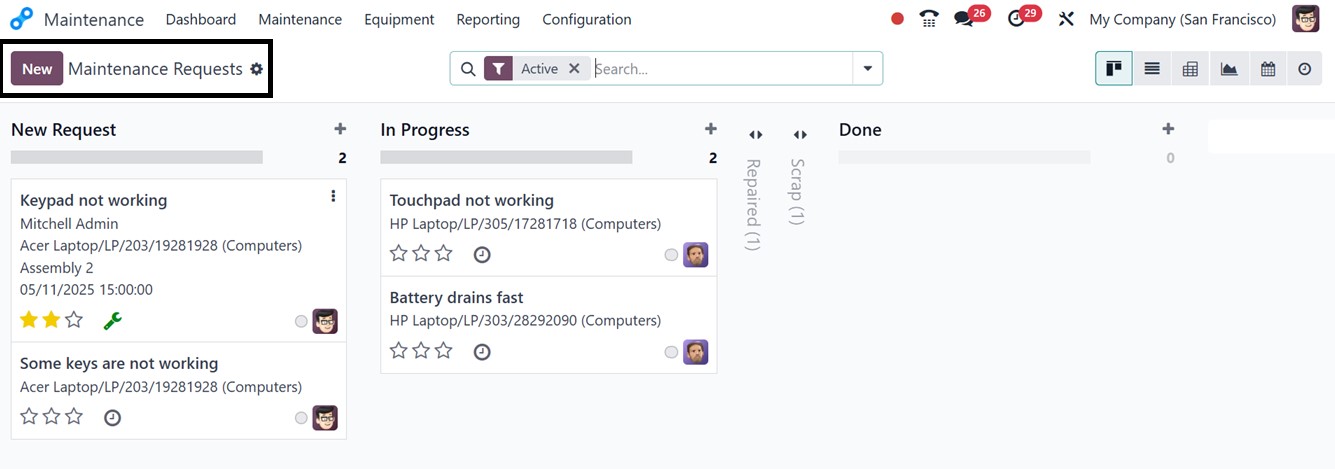
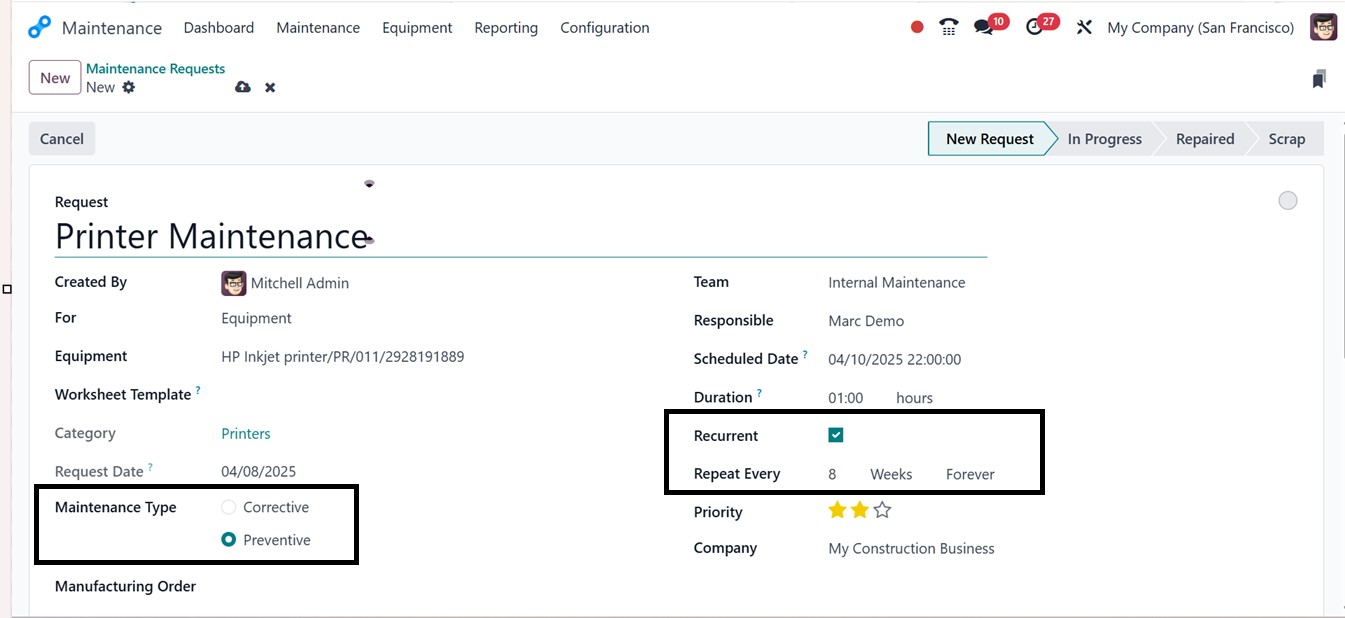
To create a new request, users can click on the "New" button and
enter key details such as the Request description, Created By, For
Equipment, Worksheet Template, Team, Maintenance Type (Preventive or
Corrective), Responsible Personnel, Scheduled Date, estimated
Duration, Priority level, and Company details.
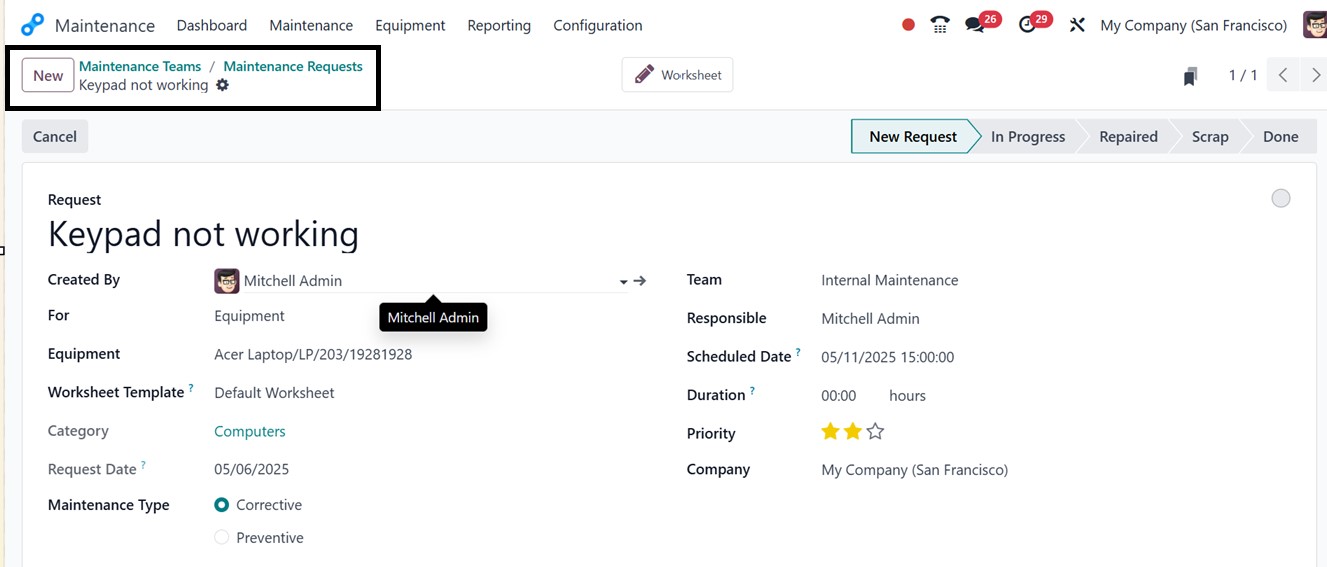

The Category and Request Date will be automatically generated as per
the form fields and request date in the relevant fields. You can
also add additional information, instructions, or attachments
pertaining to the problem or equipment, like warranty cards or other
papers in other formats, as seen in the example below using the
‘Notes’ and ‘Instructions’ tabs.
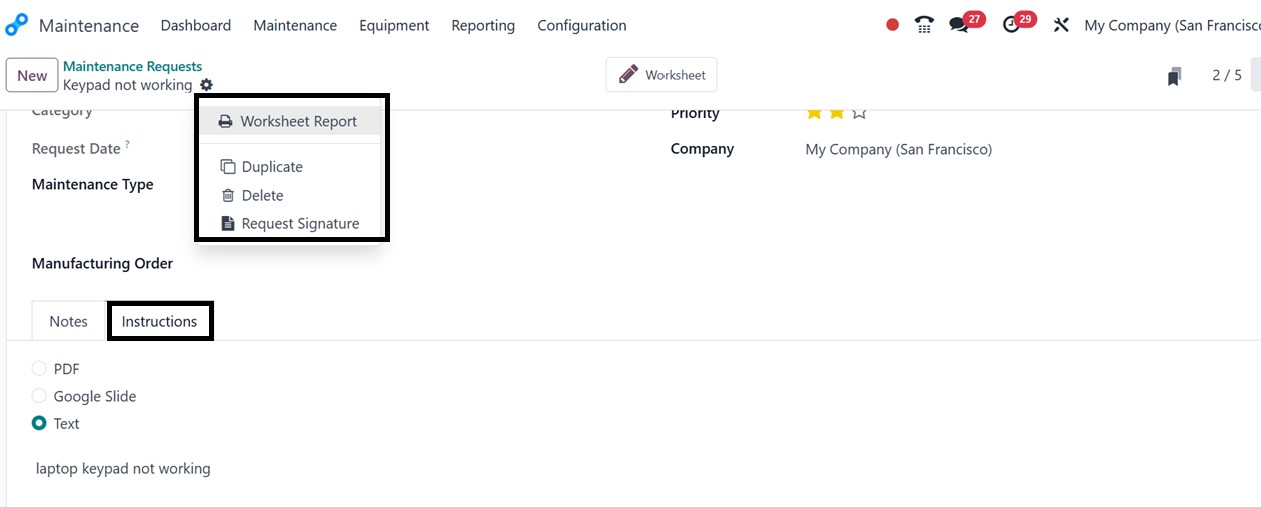
The action button provides options to print the Worksheet Report,
Delete, Duplicate, or Request Signature to proceed with the
maintenance request.
The "Worksheet" smart tab will show the worksheet linked to that
particular request when the request setup is finished.
Corrective vs. Preventive Maintenance
Maintenance requests in Odoo can be categorized as either corrective
or preventive. Corrective maintenance is performed when an issue or
failure has already occurred and requires immediate attention to
restore functionality. Preventive maintenance, on the other hand,
focuses on regular servicing and inspections to avoid potential
failures in the future.
To schedule preventive maintenance, users can select "Preventive" in
the Maintenance Type field and define a recurrence frequency to
ensure routine servicing is conducted on time, as depicted in the
screenshot below.
This proactive approach helps minimize unexpected equipment failures
and extends the lifespan of machinery and tools.
2.2 Maintenance Calendar
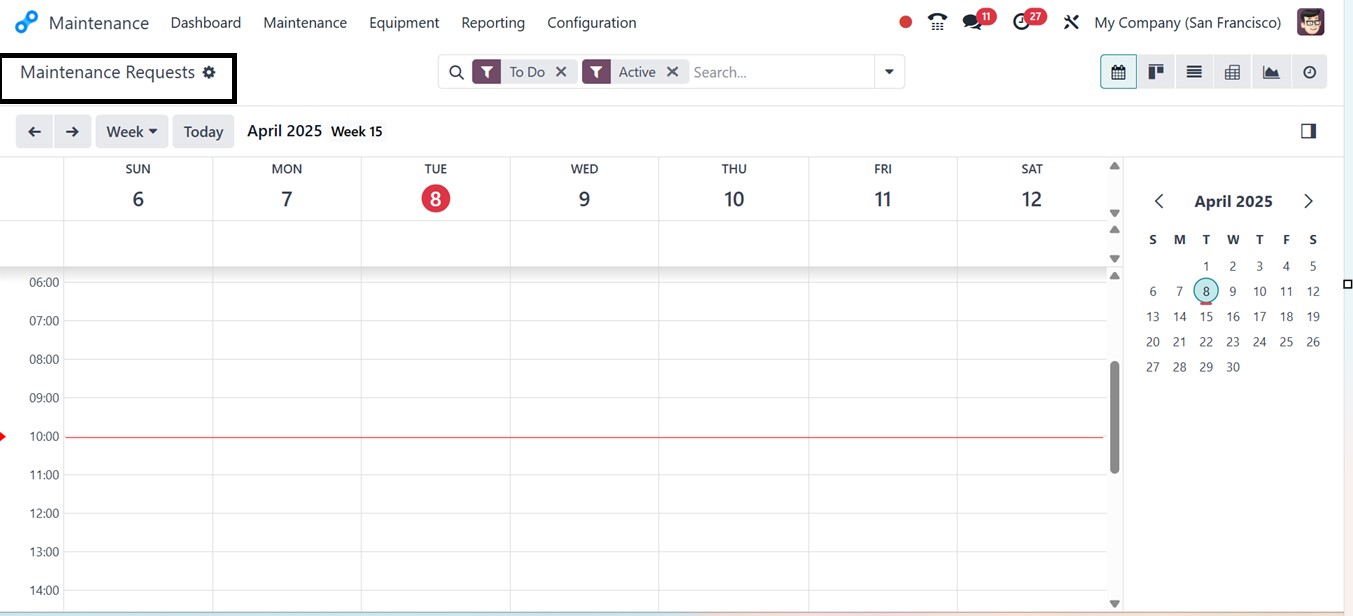
The “Maintenance Calendar” provides a visual representation of
scheduled maintenance requests, allowing users to plan and allocate
resources efficiently. Users can view tasks by day, week, month, or
year, making it easy to track ongoing and upcoming maintenance
activities
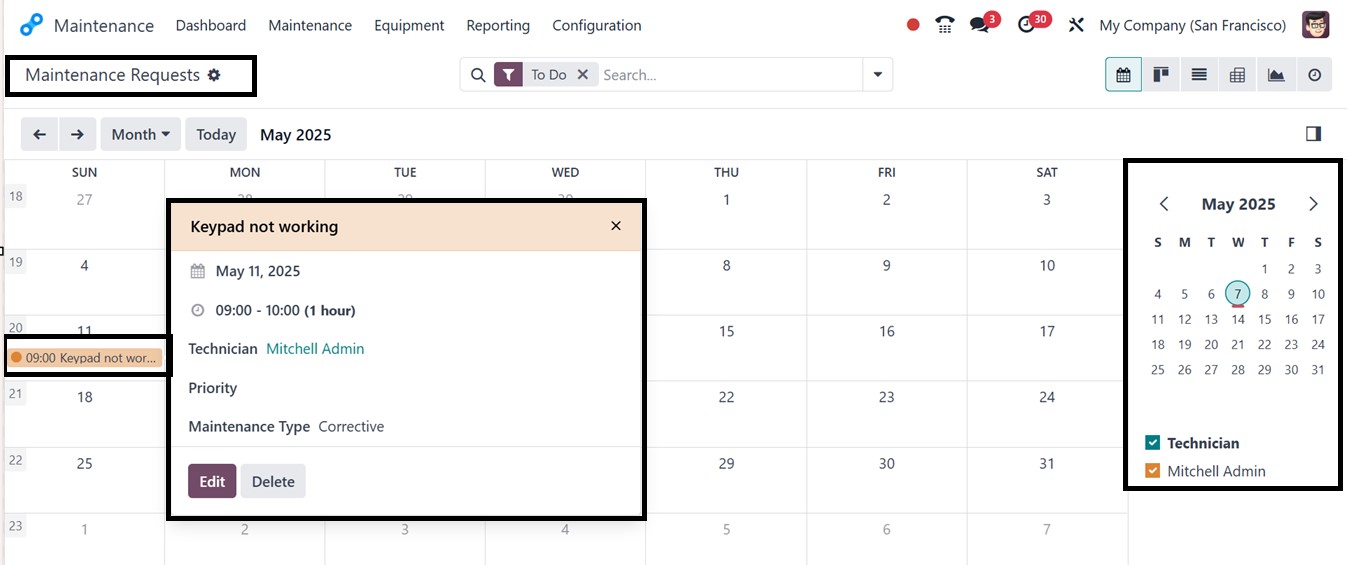
Clicking on a specific date displays a summary of scheduled tasks,
and users can edit or reassign tasks directly from the calendar
view, as illustrated in the screenshot below.
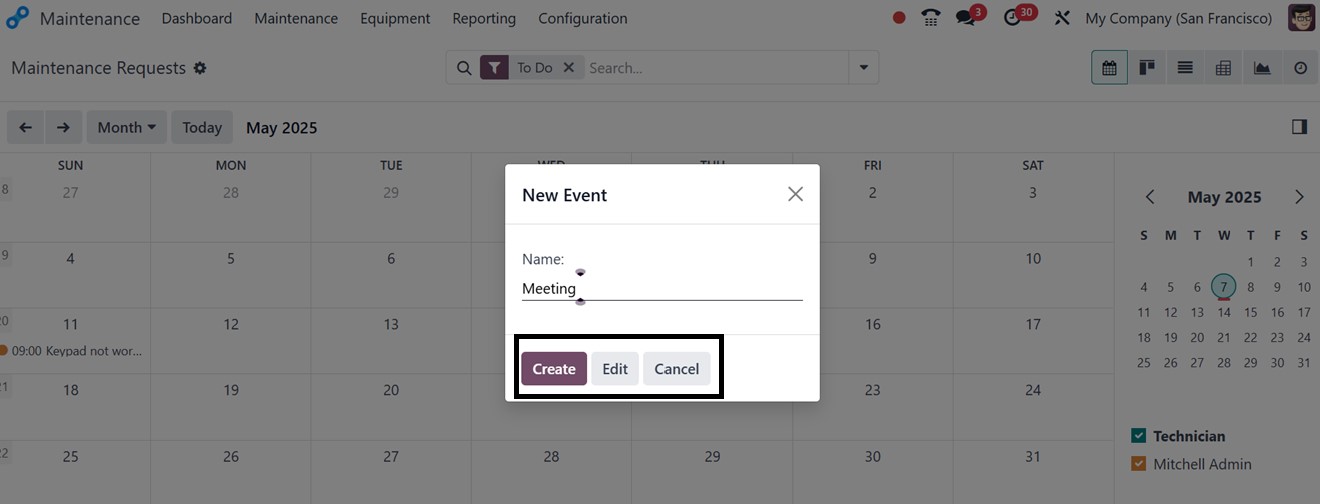
Additionally, new maintenance requests can be created from the
calendar by selecting a date and entering the Event Name, ensuring a
seamless scheduling process.
Once the event has been created, click the "Edit" button on the
request card in the calendar view to amend specific event or
maintenance request details using the form view, as seen in the
picture below.