4. Products Menu
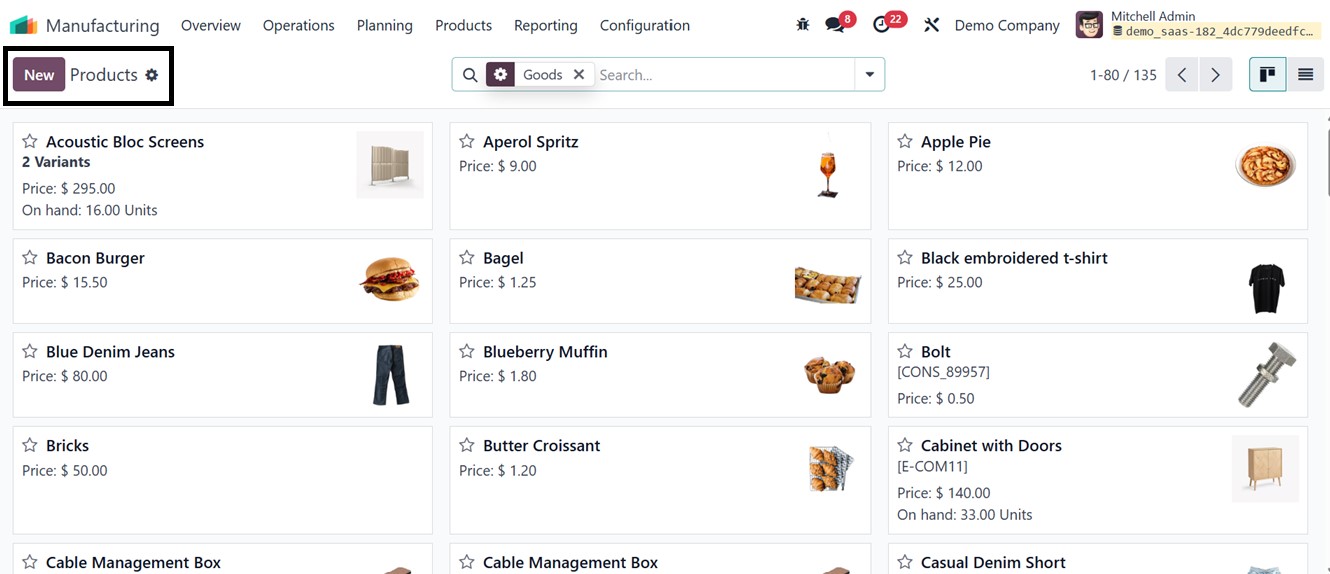
The manufacturing module offers a
centralized space to manage
and monitor products and
their variations. We can see
the available products and
the product catalog from the
Products menu, with their
name, Price, and Quantity
available, in a Kanban view,
as shown in the screenshot
below.
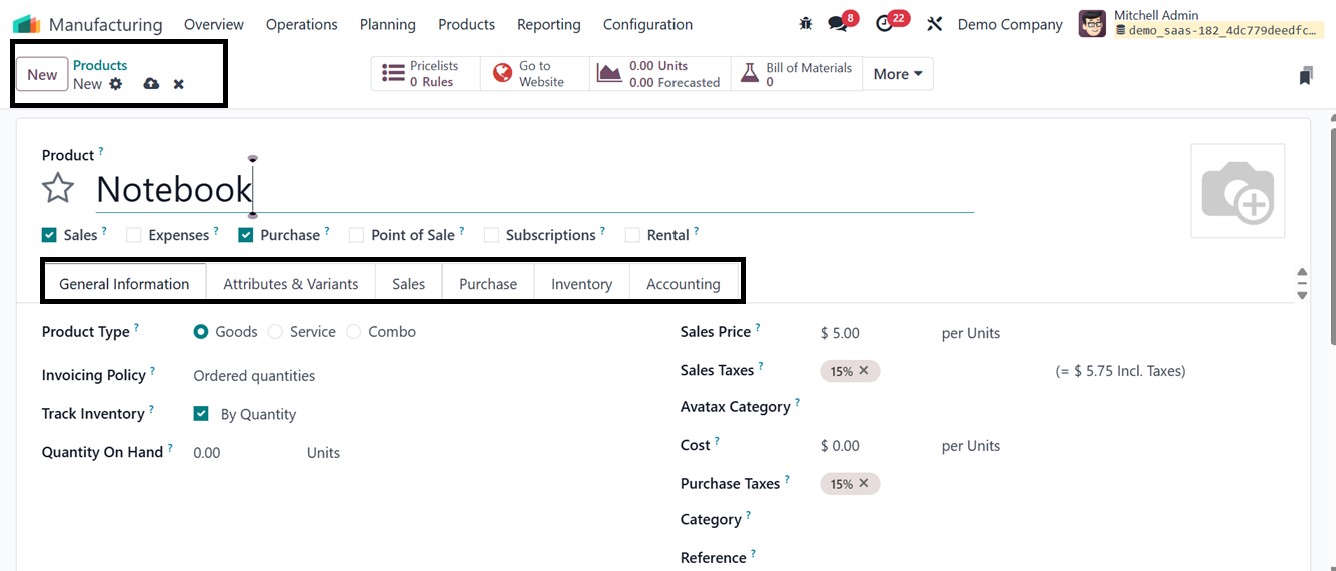
We can also add new products to
the product dashboard using
the ‘New’ button. When
developing a product, you
need to include General
Information, Attributes, and
Variants, as well as details
about the Purchase, Sales,
Inventory, and Accounting.
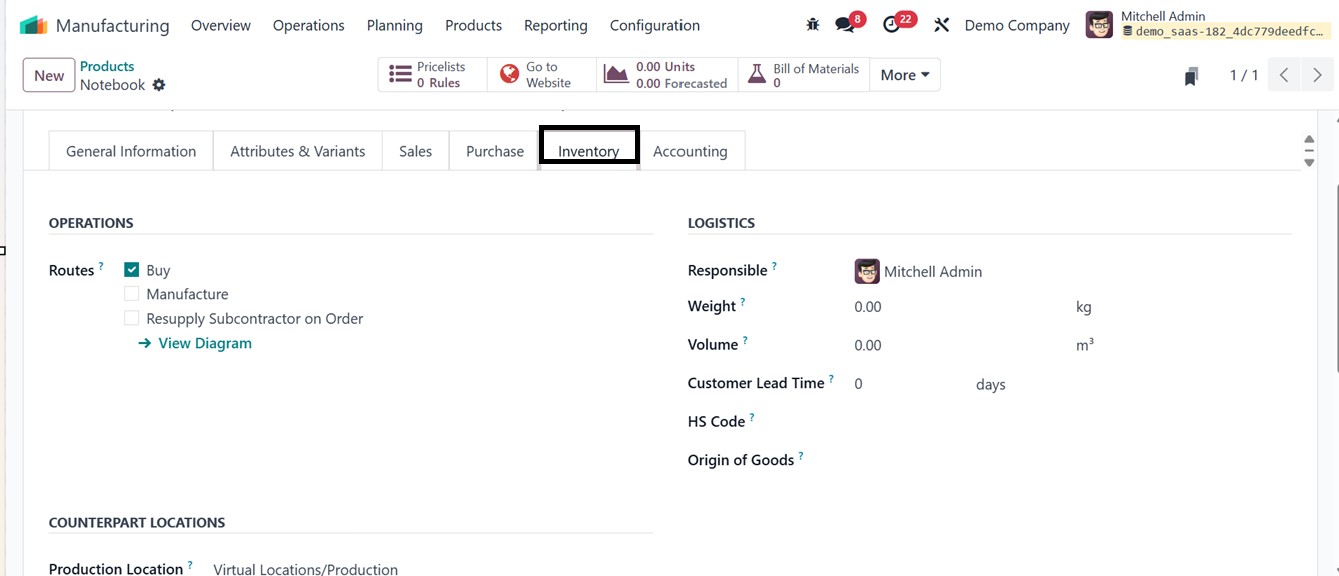
In the Inventory tab, there is a
field for mentioning the
Routes in the ‘OPERATIONS’
area, where you can specify
multiple routes and the
typical number of days
required to deliver the
product. For products
manufactured internally by
the company, the appropriate
routes can also be assigned
as ‘Manufacture’.
The product's Weight, Volume,
Customer Lead Time, Origin of
Goods, and HS Code options
can be configured using the
LOGISTICS feature. After
configuring the product
details, save the data. The
form also contains various
smart buttons to track and
manage various product data
and inventory options,
including;
- Pricelists: Displays all
sales pricelists for
pricing management
across different
customer segments.
- Go To Website: Directs to
the product's page on
the company's website
for easy access.
- On Hand Units: Displays
current physical stock
in the warehouse for
tracking inventory
levels.
- Forecasted Units: Shows
projected inventory
level based on current
stock, incoming
shipments, sales
orders, and
manufacturing orders.
- Bill of Materials (BoM):
Lists all Bills of
Materials linked to
the product for
manufacturing.
- Documents: Access files
or documents attached
to the product.
- Sold: Displays the sold
product units.
- Purchased: Displays the
dashboard of all the
purchased products.
- Reordering Rules:
Displays and manages
automatic reordering
rules.
- In/Out: Displays the
product In/Out
movement history from
one location to
another.
- Quality Points: Shows the
quality points
received while quality
checking the product.
5.1 Product Variants
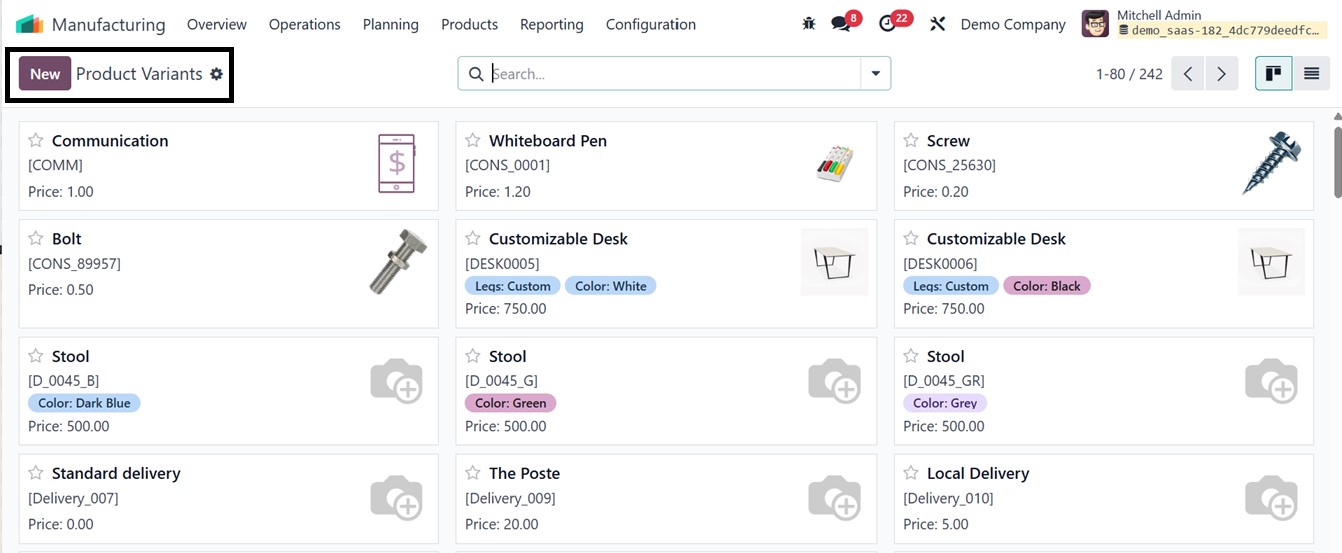
Odoo's product variants
streamline inventory,
pricing, and sales processes
by grouping similar items
under a single product
template while tracking each
variant individually. This
feature can be managed in the
Odoo manufacturing module
under the Product Variant
option, which displays a
dashboard of all possible
product variants created
earlier in a Kanban view as
shown below.
Creating a new product variant is
similar to the configuration
of a new product that we have
discussed in the above
section.
5.2 Bills of Materials
Odoo's Bills of Materials (BoM)
is a tool used in the
Manufacturing module to
define components,
ingredients, and parts needed
for a finished product. It
serves as a detailed
production blueprint,
outlining materials,
quantities, and optional
operations. Key features
include component management,
enabling multi-level or
nested BoMs, and linking
components to sub-assemblies.
We can manage these from the
‘Bill of Materials’ menu. On
the BoM page, you will find a
list of existing bills of
materials with details like
Product name, Reference, BoM
Type, and Company name.
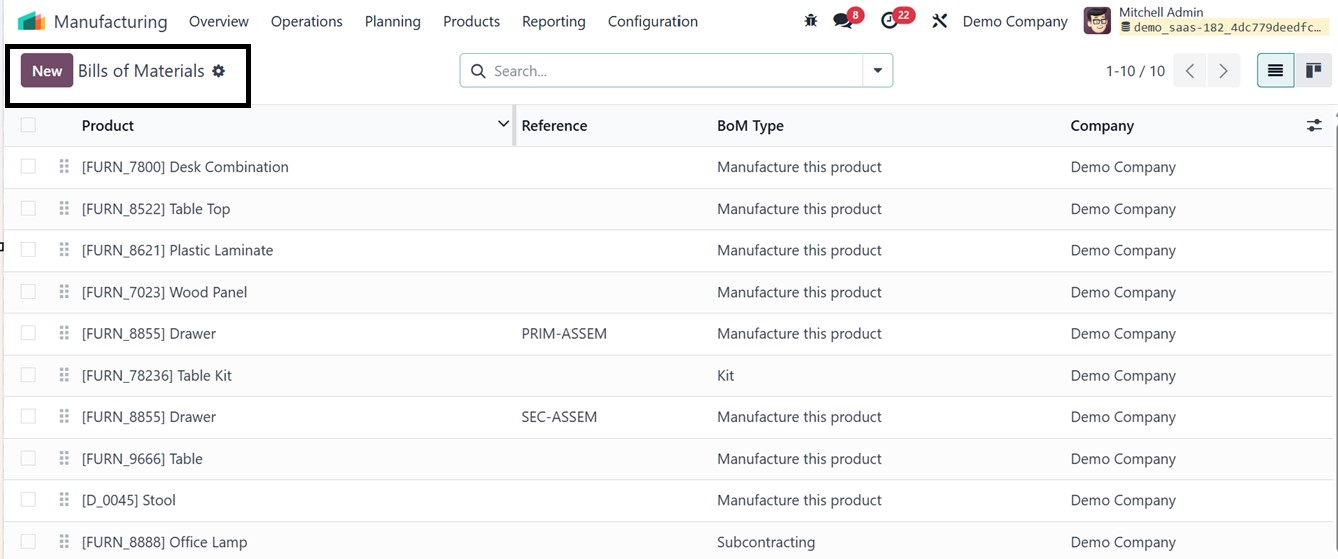
The list view can be transformed
into a Kanban view. Then, the
advanced search bar allows
you to get customized results
through various Filters,
Group By, and Favorite
features. To create a new
BoM, use the "New" button
provided at the top of the
page. This will display the
new BoM creation form, as
shown in the screenshot
below.
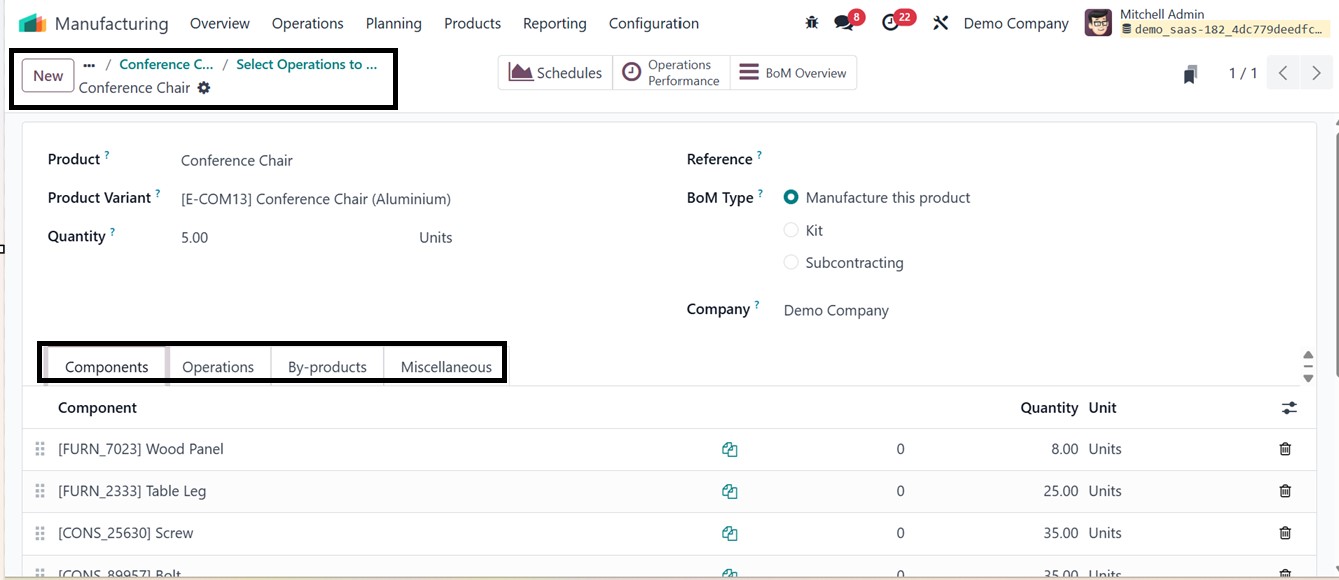
On the BoM creation page, you can
enter details like the name
of the Product, Product
Variant (selectable from a
drop-down menu), Quantity,
Reference, and BoM Type (such
as manufacturing, kit, or
subcontracting).
Additionally, you can specify
the Company name.
Components Tab: Next, add
components using the "Add a
line" option under the
Components tab. You can also
specify the quantity and unit
of measurement for each
component of the product, as
shown in the above
screenshot.
Operations Tab: In the
‘Operations’ tab, you can add
information such as operation
type, work center, duration
computation, and duration
using the "Add a line"
option. This leads to a new
page, as shown below.
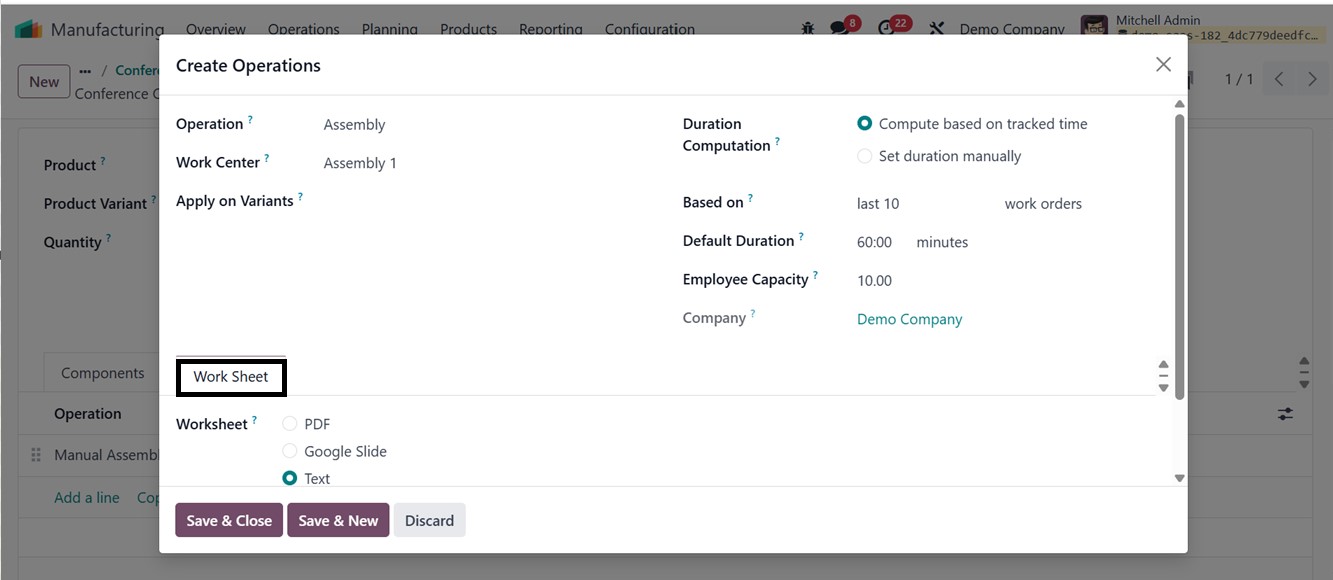
You can define the name of the
work in the Operations field.
Then, choose the Work Center,
Duration. Then, set the Apply
on Variants to apply this
particular operation to a
particular product variant
without further delay, or
leave it as empty. The
duration of this operation
can be manually set or
calculated based on monitored
items using the ‘Duration
Computation’ options. You can
set the operation's duration
in two ways: either by ‘Set
duration manually’ or by
allowing Odoo to calculate it
using the ‘Compute based on
tracked time’ option. The
default duration is displayed
by default in this section.
Additionally, it is possible to
specify how many employees
are required to complete this
task in the Employee Capacity
section. Then, mention your
company's name. Under the
‘Work Sheet’ tab, you can
upload a worksheet in PDF,
Google Slides, or text format
and provide a description
about the worksheet or
operation. Finally, click the
"Save & Close" icon, or if
you want to add more, use the
"Save & New" option. These
operation details will be
displayed inside the
Operations tab, as depicted
in the screenshot below.
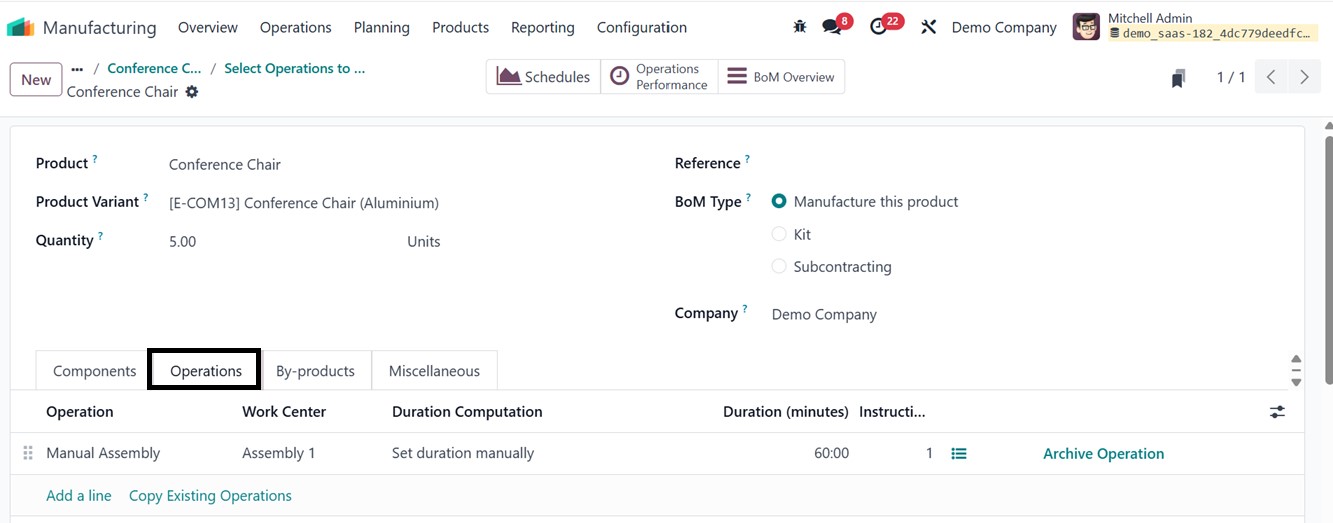
You can repeat previously
completed operations when
doing any manufacturing
activities for this product
by using the "Copy Existing
Operations" option in the
Operations tab.
Once you activate the work orders
and by-products options from
the settings window, tabs for
operations and By-products
will appear, and you can then
add by-products by clicking
the "Add a line" option under
the by-product tab or you can
directly select from the
product catalog window by
clicking on the ‘Catalog’
button, as illustrated in the
screenshot below.
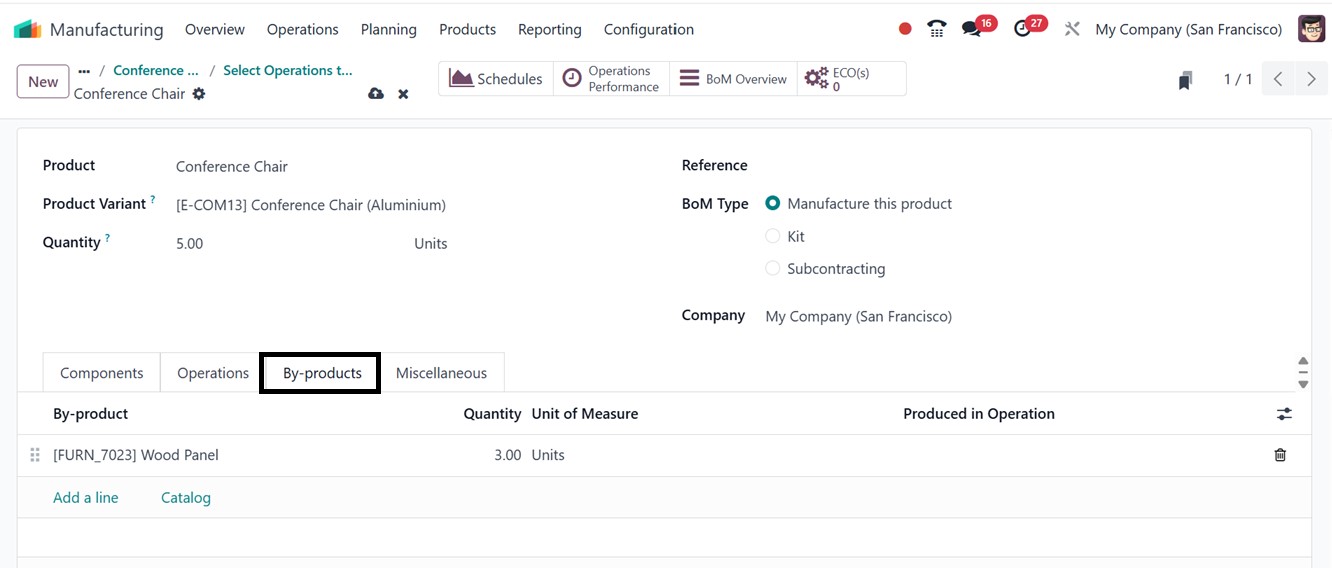
Here, you can specify the
by-products by choosing a
Product, Quantity, Units of
Measure, and Produced in
Operation. So, during the
mentioned operations, the
By-products will be produced.
Miscellaneous Tab: In the
Miscellaneous tab, you can
set "Manufacturing
Readiness," which defines
whether all components must
be available before starting
or if only the initial
components are needed. This
setting helps decide when
production can begin. Then,
you will find the "Flexible
Consumption" setting option
that can determine if the
consumption of materials can
vary from what is specified
in the BoM. It can be set to
either Allow, Blocked or
Allow with warning.
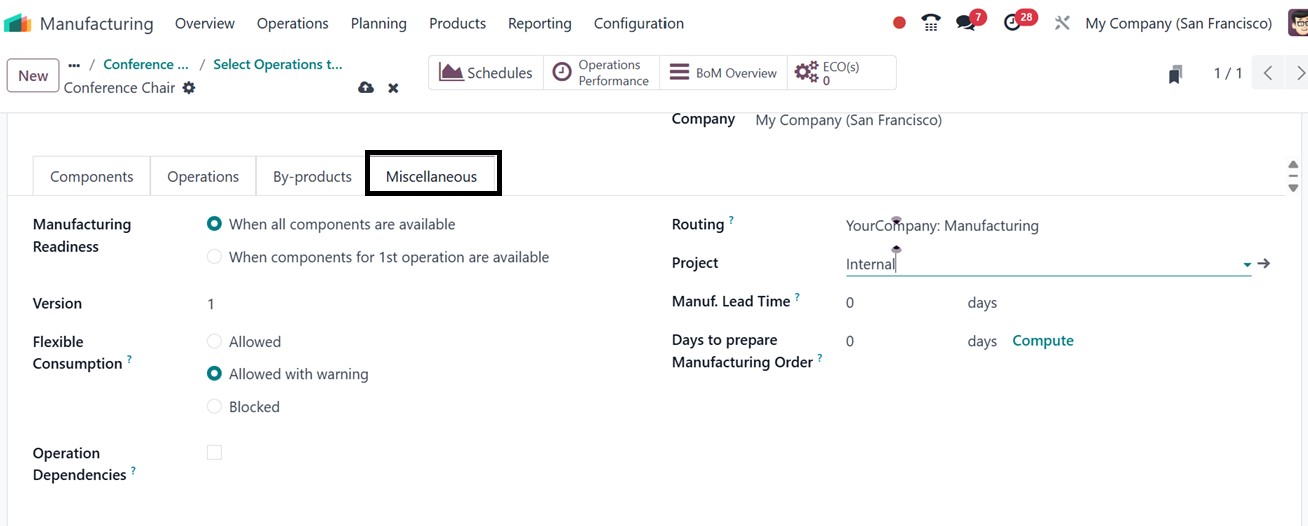
The Bill of Materials (BoM)
form's "Version" field is
used to note the BoM's
version or revision number.
It facilitates improved
control and traceability by
tracking modifications to
parts, processes, or
quantities across time. This
feature is especially
important in sectors where
accurate versioning is
essential for maintaining
production history,
compliance, and quality
assurance. The ‘Routing’
field allows you to define a
route that generates
manufacturing orders using a
Bill of Materials (BoM)
aligned with the product's
"Manufacturing" route. Here
we will set up the operation
type “YourCompany:
Manufacturing” produce the
item with route manufacturing
as defined in the operation
type.
In Odoo 18, the ‘Manufacturing
Lead Time’ is the average
amount of time needed to
create a final product. The
approach also accounts for
component lead times when a
product has a multi-level
Bill of Materials (BoM),
adding them together to
determine the overall
manufacturing time. This
helps establish when
components must be supplied
to the subcontractor in order
to fulfill deadlines, which
is very helpful when working
with subcontracted items.
Additionally, by drafting and
verifying manufacturing
orders beforehand, the ‘Days
to Prepare Manufacturing
Order’ option enables you to
plan ahead. This makes sure
there is enough time to make
semi-finished products or
restock essential parts
before the last stage of
manufacturing starts.
If you wish to set dependencies
between operations that
affect work order statuses
upon confirmation and
planning, enable the
"Operation Dependencies"
feature. If no specific
parameters are set, Odoo will
assume that all operations
can start concurrently. To
use the Operation
Dependencies feature, you
must first enable the "Work
Order Dependencies" options
from the settings window.
Once all the information is
entered, you can save the BoM
by clicking the "Save" icon.
Once the BoM configuration is
complete, this can be used to
create a manufacturing order
for the corresponding product
in Odoo. Then, a
comprehensive assessment of
every operation pertaining to
this BoM product will be
available via the "Operations
Performance" smart button.
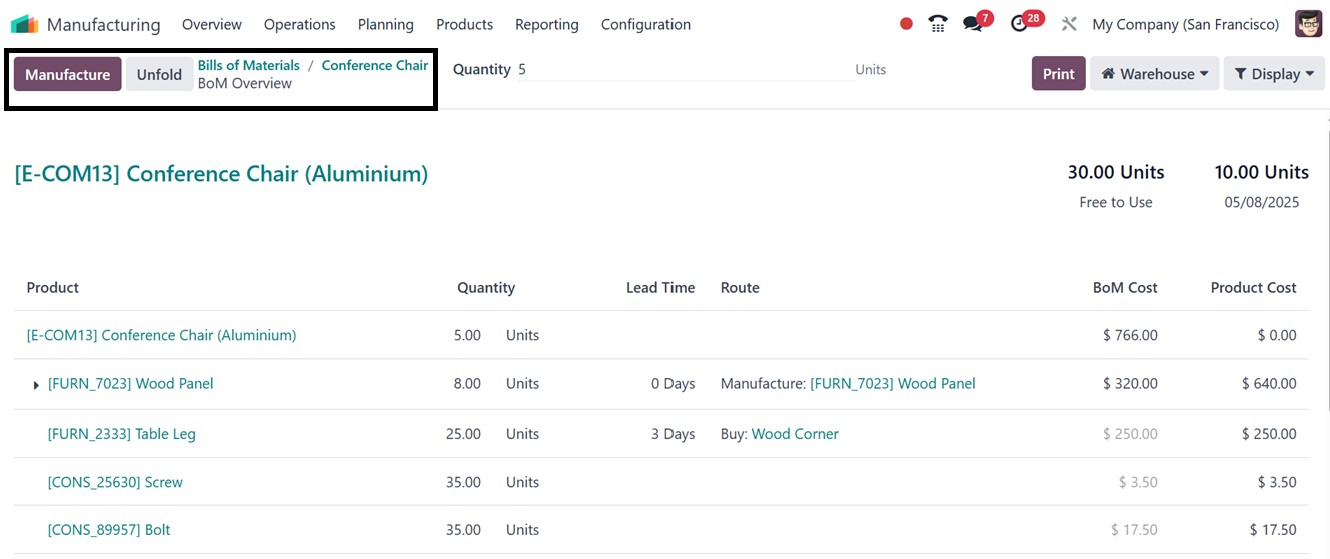
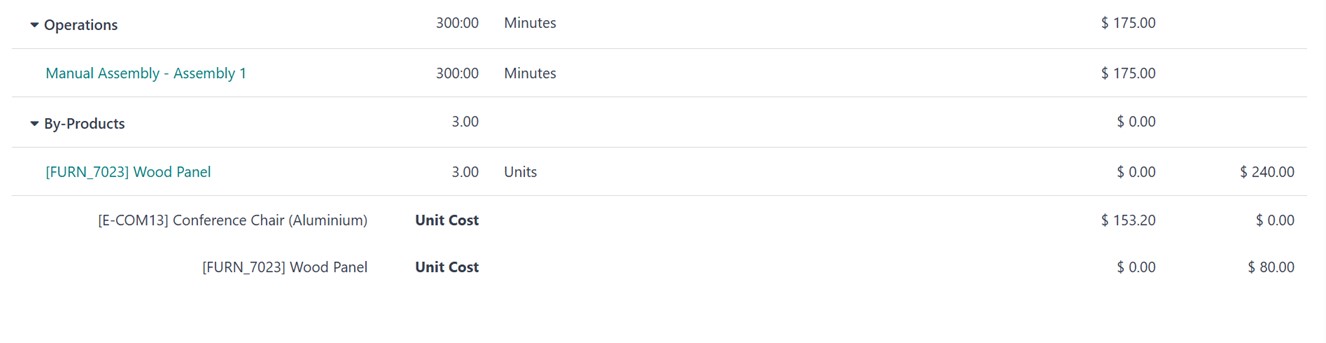
The whole overview of this
BoM product, including its
operations, by-products, lead
time, and other details, will
then be shown by clicking the
"BoM Overview" smart button,
as depicted in the
screenshots below.
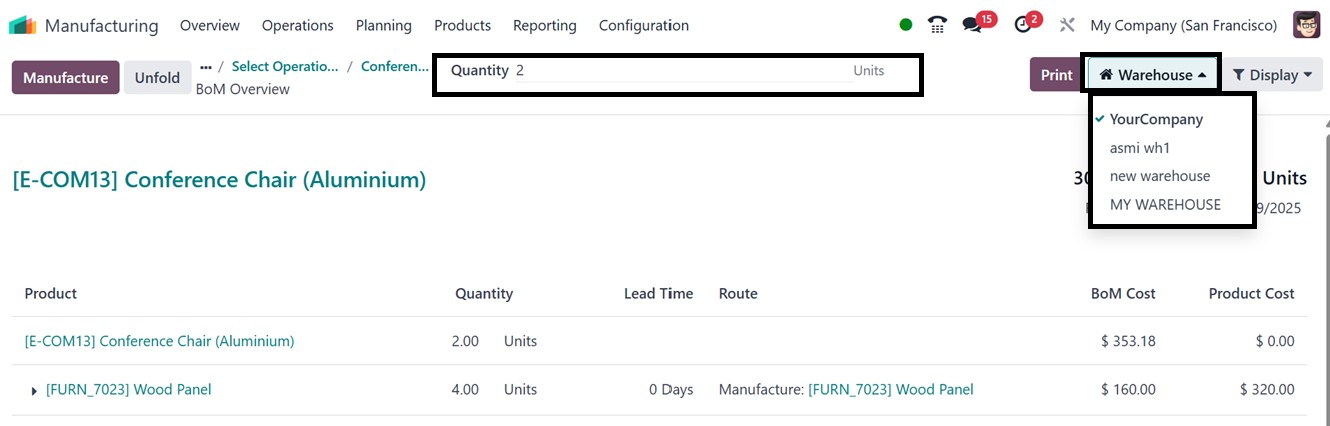
The 'Quantity' filter option
allows you to adjust the
number of units for a given
product and see how it
affects different
cost-related data. By
changing the amount, you can
see the latest estimates for
the Bill of Materials (BoM)
Cost, Product Cost, and other
pertinent parameters, as seen
in the screenshot below.
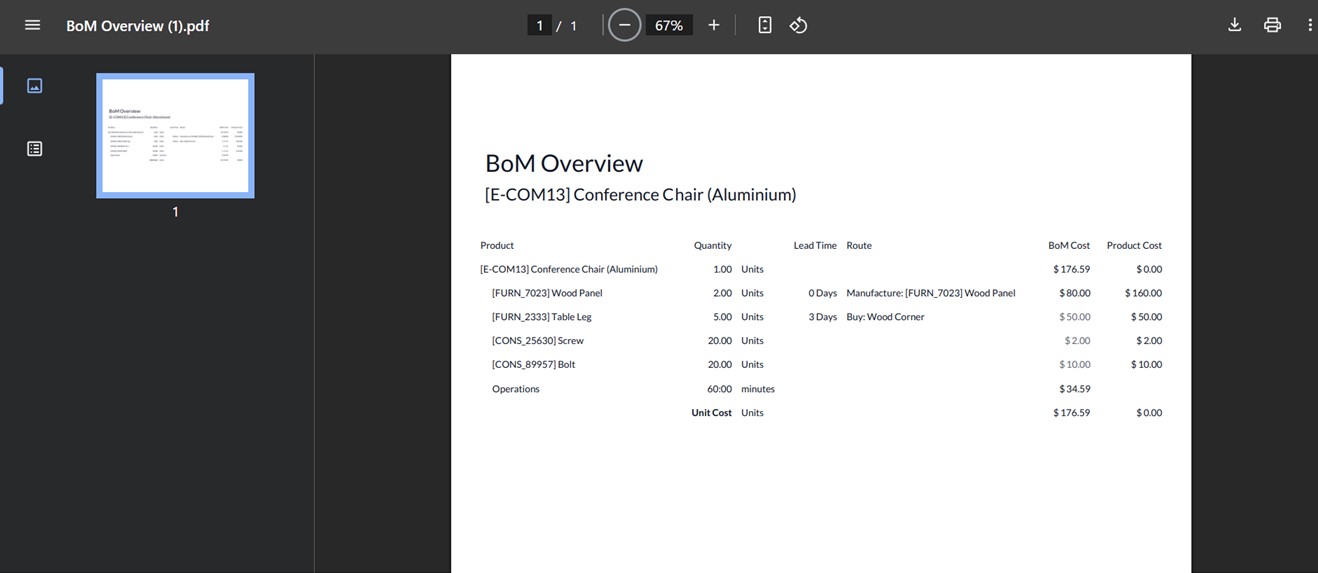
The ‘Print’ button on the BoM
overview window will download
the BoM details in a
printable document format, as
shown below.
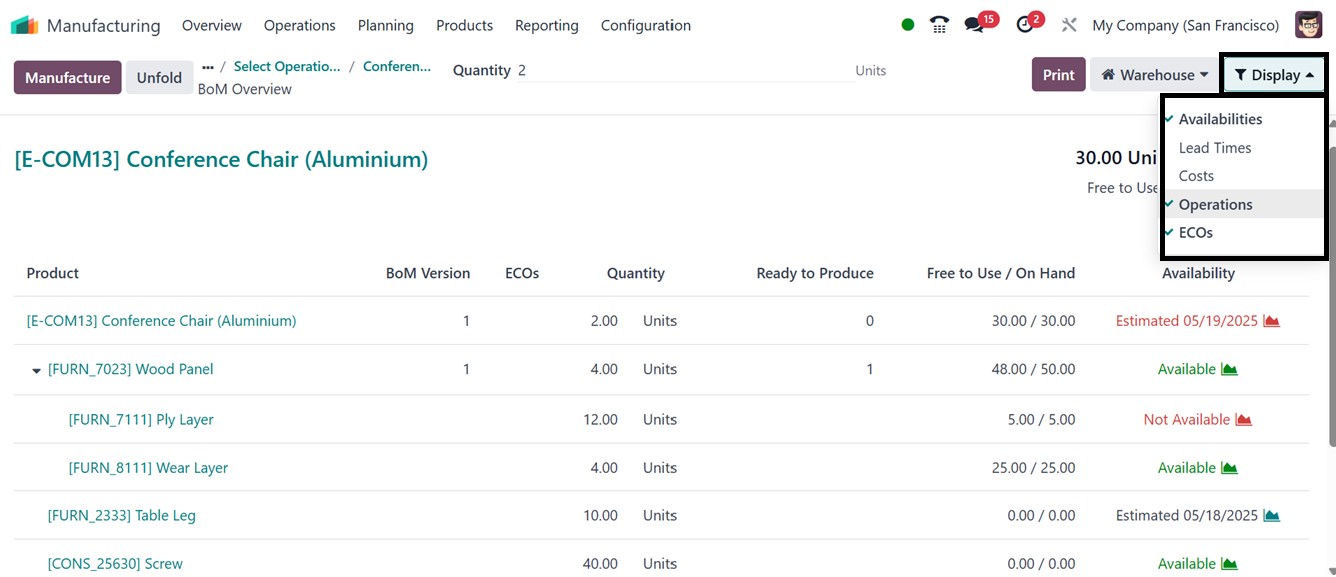
The ‘Warehouse’ filter allows you
to switch the warehouse
associated with the BoM.
Additionally, the ‘Display’
filters let you adjust the
BoM overview to show
different perspectives such
as Product Availabilities,
Lead Times, Costs,
Operations, and ECOs,
providing a more detailed
analysis as shown below.
5.3 Lot/Serial Numbers
Odoo 18's manufacturing module
features Lot/Serial Numbers,
a powerful tool for product
traceability and quality
control. It assigns unique
identifiers to products or
batches, enabling precise
tracking throughout the
production process. This
feature is particularly
useful for industries
requiring strict regulatory
compliance, ensuring
accountability and
simplifying recalls.
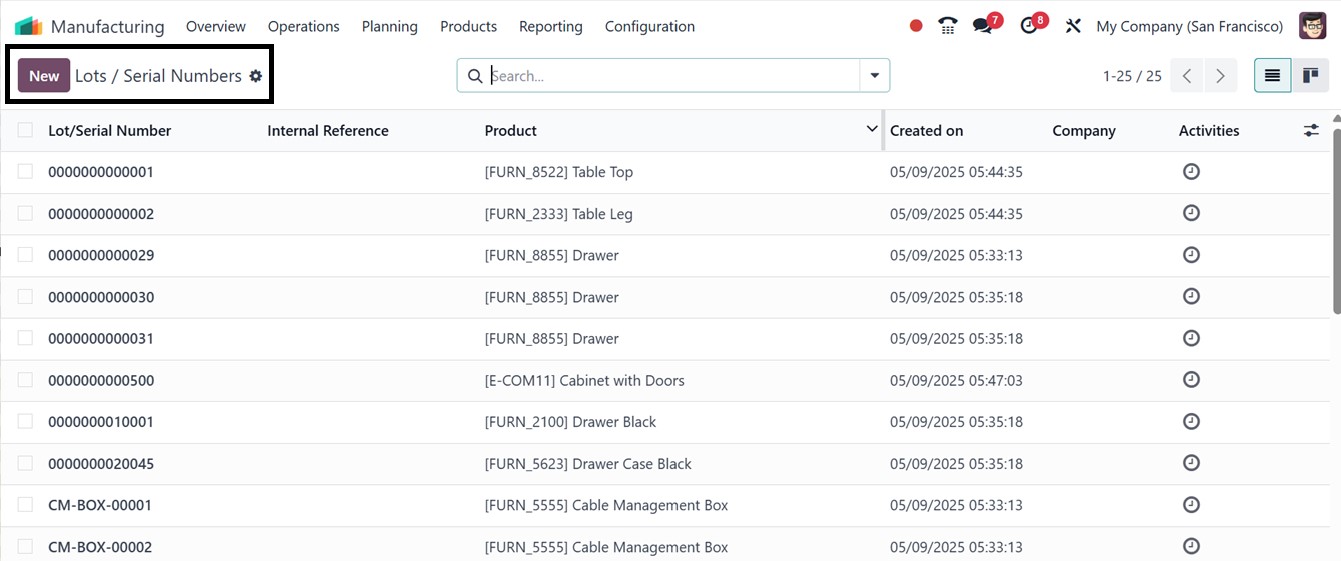
The “Lot/Serial Numbers” window
of the “Products” menu will
show all the previously
configured Serial and Lot
numbers with their Internal
Reference, Products, and
Created dates, as you can see
from the screenshot below.
It's also simple to generate
fresh Lot/Serial numbers with
this window using the ‘New’
button. Once a new creation
window has opened, edit the
details, including the
Lot/Serial Number, to meet
your needs or the policies of
your business. Then, the
product, internal reference
number, and price should be
mentioned.
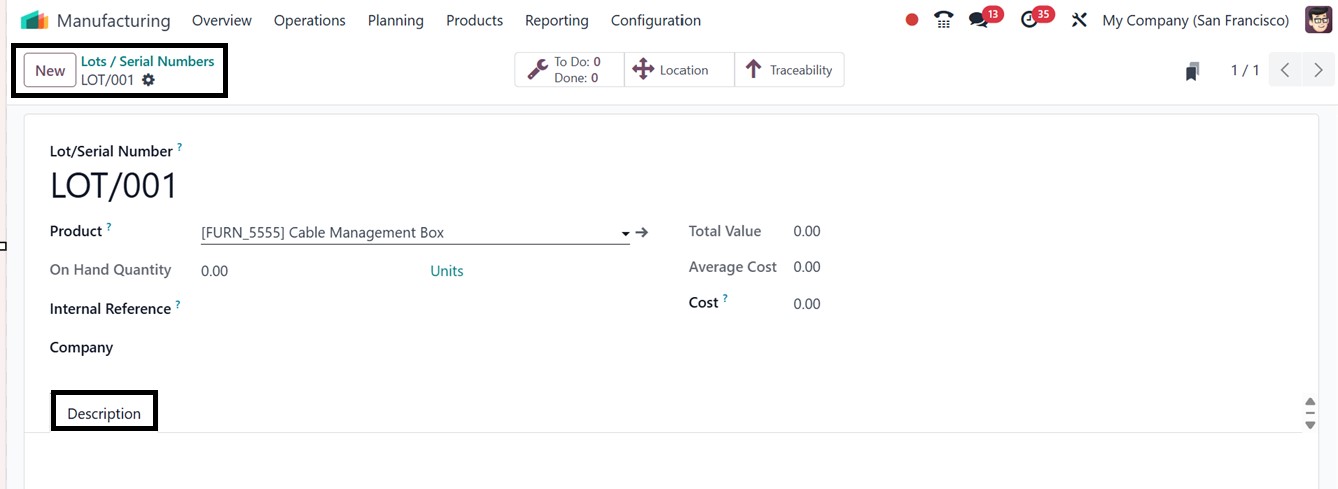
In the "Description" tab box, we
can also include a
description of the product.
Editing the other field data
is limited to the
Manufacturing module's
enterprise edition.
After completing the editing and
saving the details. We can
check the location of this
product and its traceability
report from the “Location”
and “Traceability” smart
buttons, respectively. The
pending and completed tasks
or work orders associated
with this specific product
will be displayed when you
click the "To Do" smart
button. The action menu
placed on the upper left side
of the configuration form
helps us print the lot/serial
number, delete it, or
duplicate it. Additionally,
the “Add properties” option
can be used to add extra form
fields according to the
requirements.