Adding Child Activity
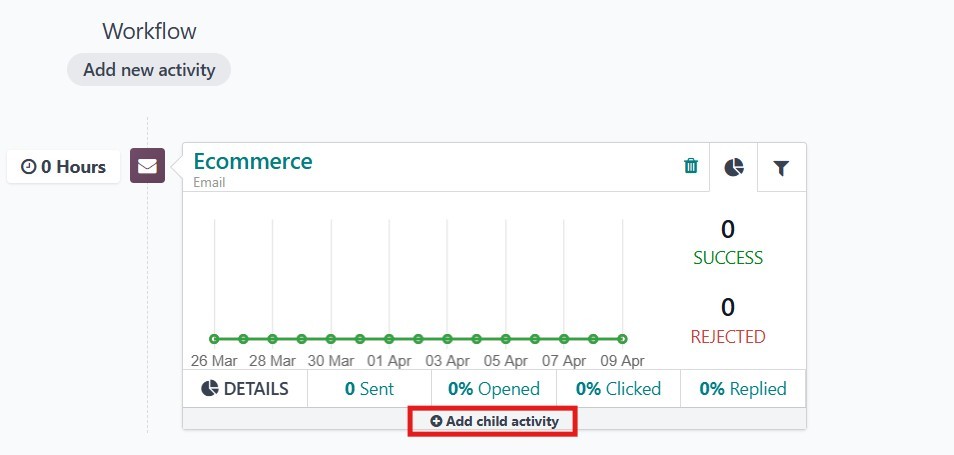
To add a child activity, click the "Add child activity" button at the
bottom of the activity box. You can decide when the child activity
should be triggered, for example, after the first email is opened,
not opened, clicked, or not clicked.
As previously mentioned, the child activity creation window closely
resembles that of the main activity. Users can select from three
available activity types: Email, SMS, or Server Action. The
appropriate trigger condition may then be defined to determine when
the child activity should be executed.
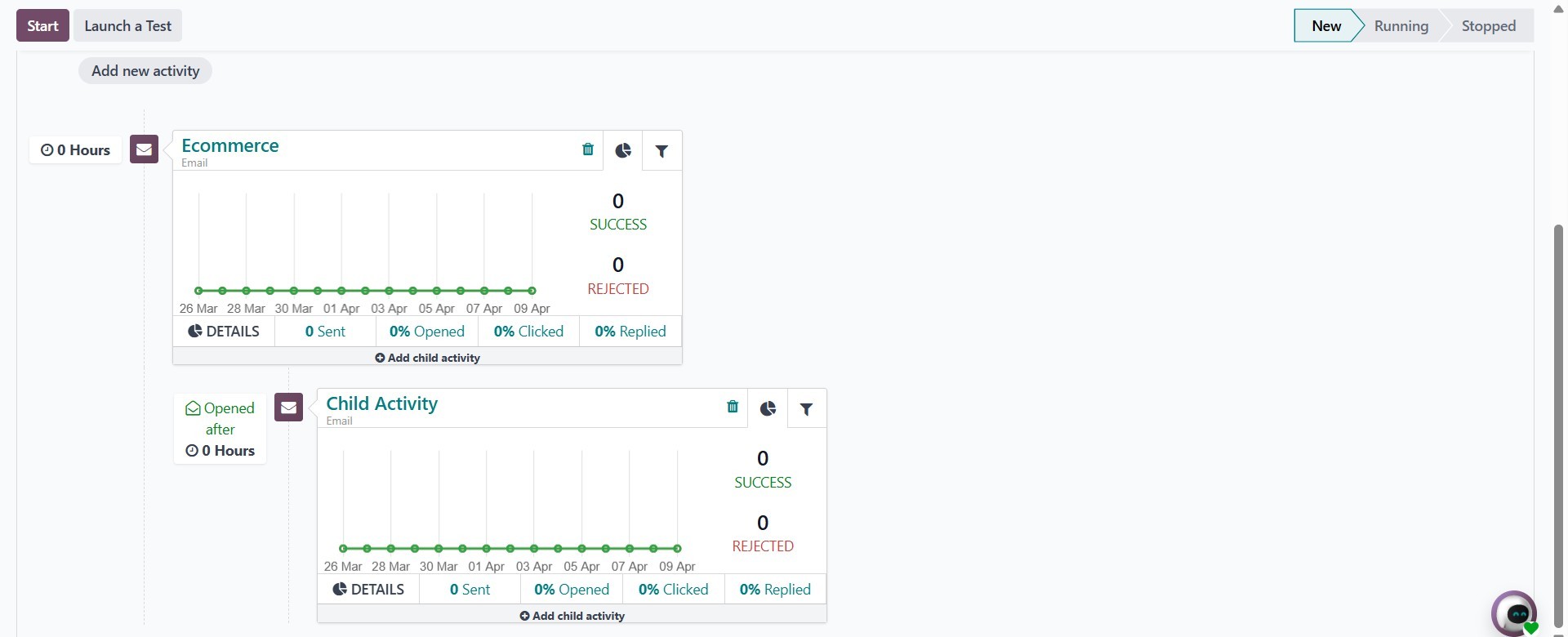
Once the configuration is complete, click Save to finalize the child
activity. This action will be added as a continuation of the
original activity. For example, the child activity may be scheduled
to run one hour after the initial email is opened by the recipient.
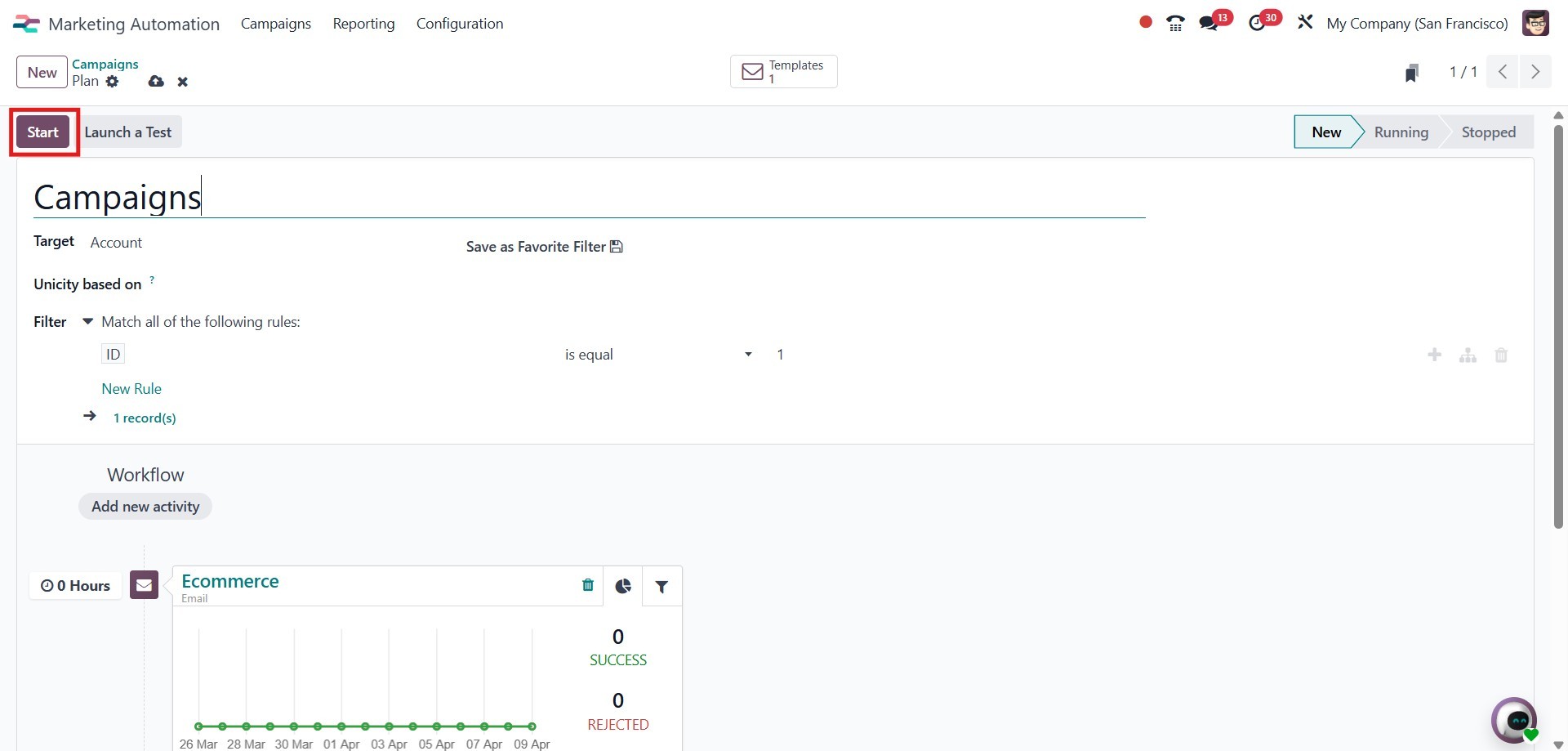
To activate the campaign, click the Start button. This will initiate
the automated workflow based on the defined activities and trigger
conditions.
To terminate the campaign, click the Stop button. This will halt all
ongoing and scheduled activities associated with the campaign.
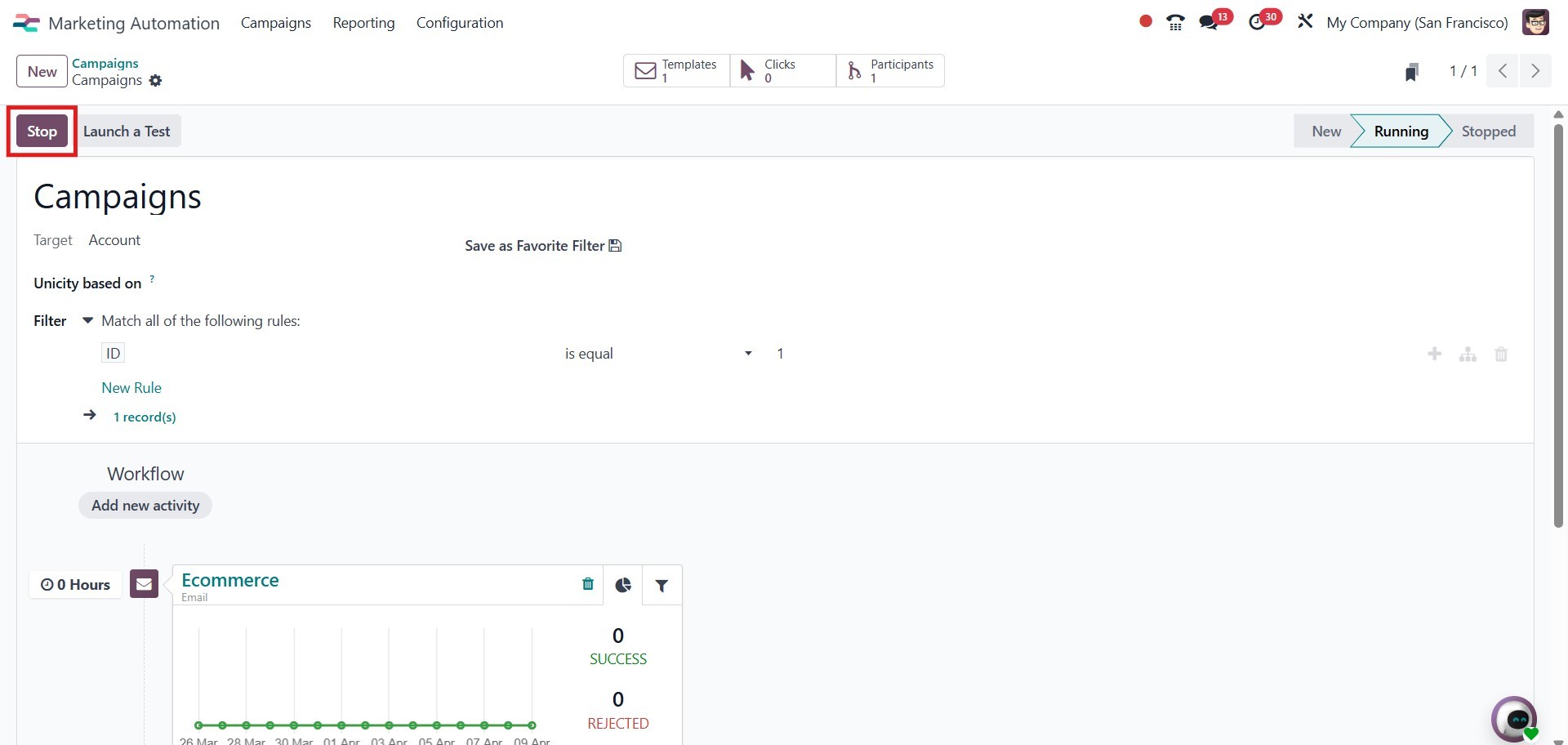
To test the campaign, click the Launch a Test button. This allows
users to simulate the activity flow. To execute the activity for a
specific participant, click the Play button.
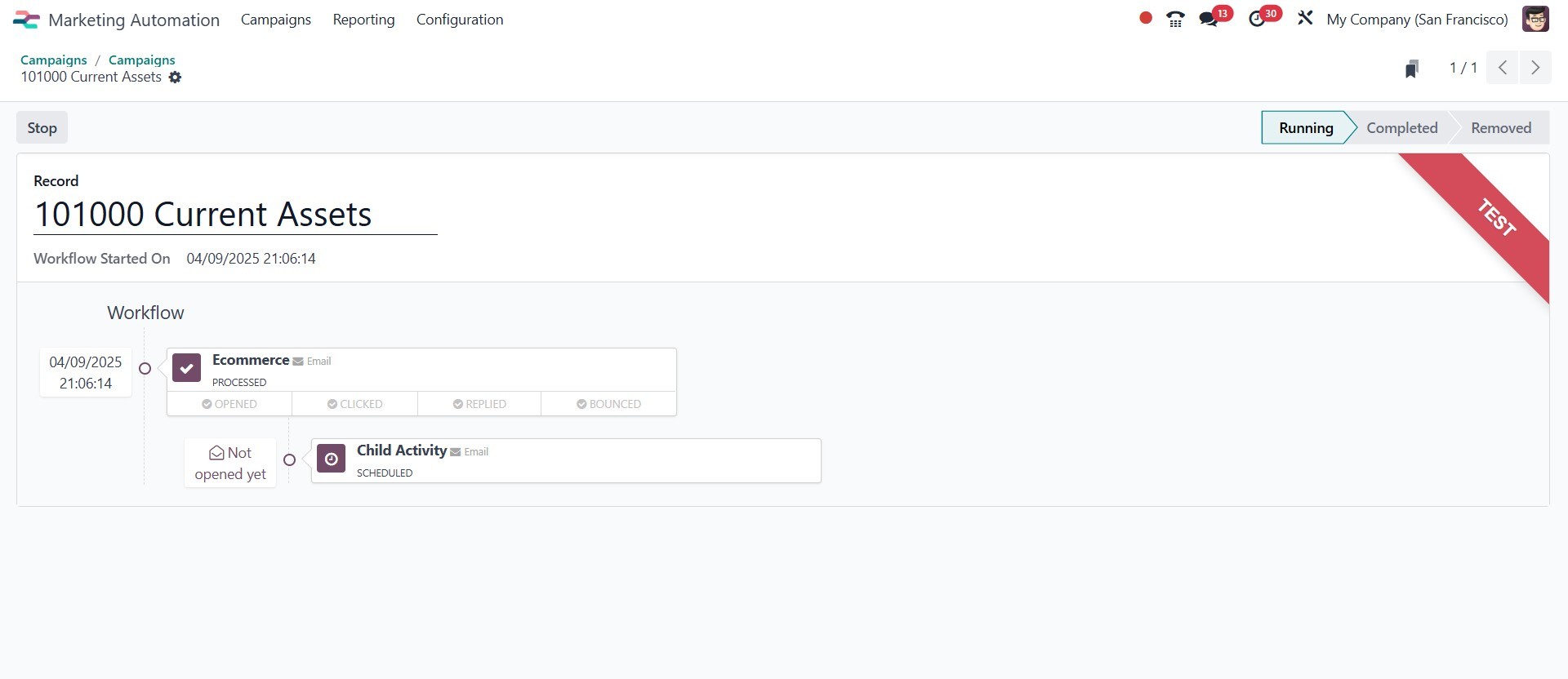
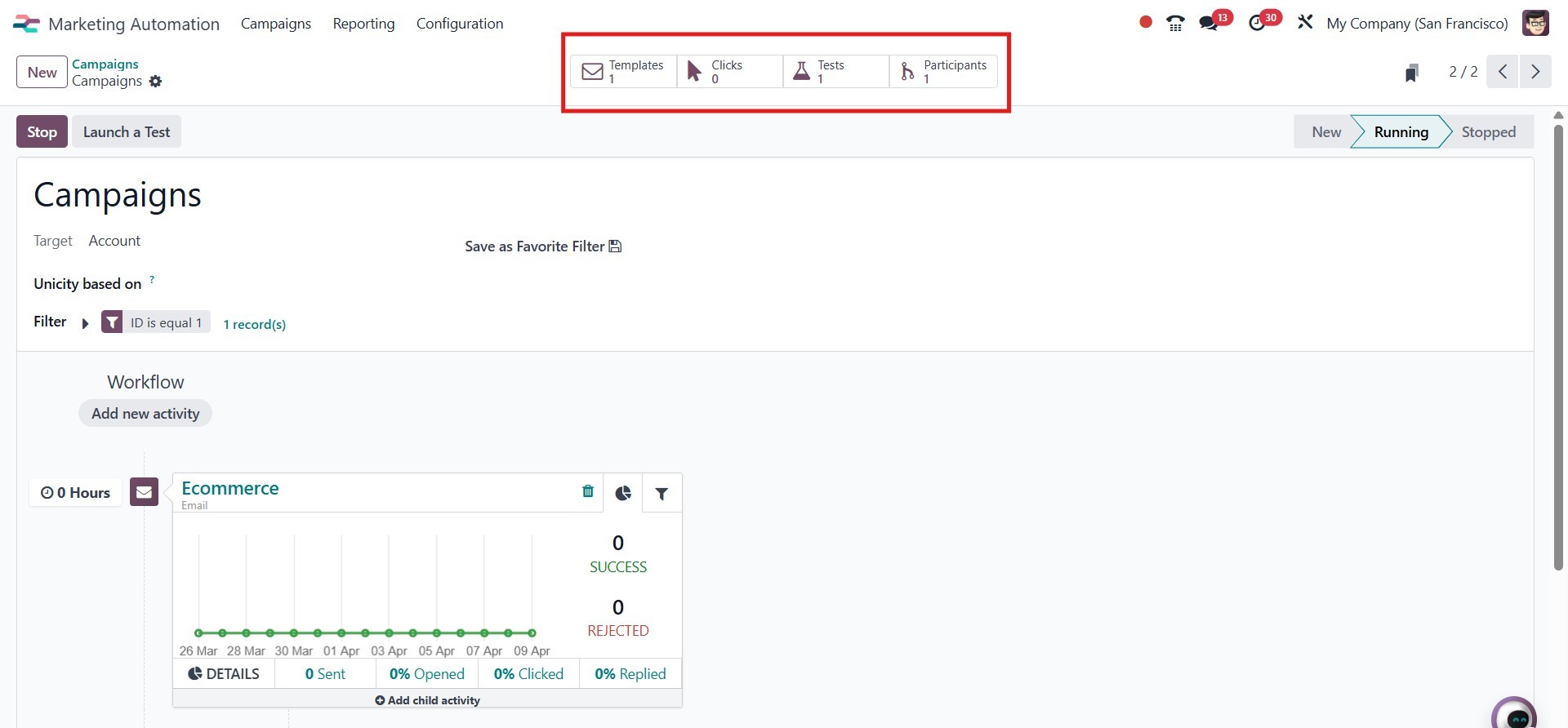
Selecting the Participants option will provide you access to a list
of all the campaign's participants. Clicking on a participant's name
will display the specific activities scheduled for that individual.