Creating a Campaign
To begin working with Odoo 18 Marketing Automation, users may create
a campaign from scratch or initiate one using a predefined campaign
template. A campaign in this context refers to a sequence of
automated marketing activities executed based on specific filters,
triggers, and time intervals. These workflows are designed to engage
a targeted audience efficiently and systematically.
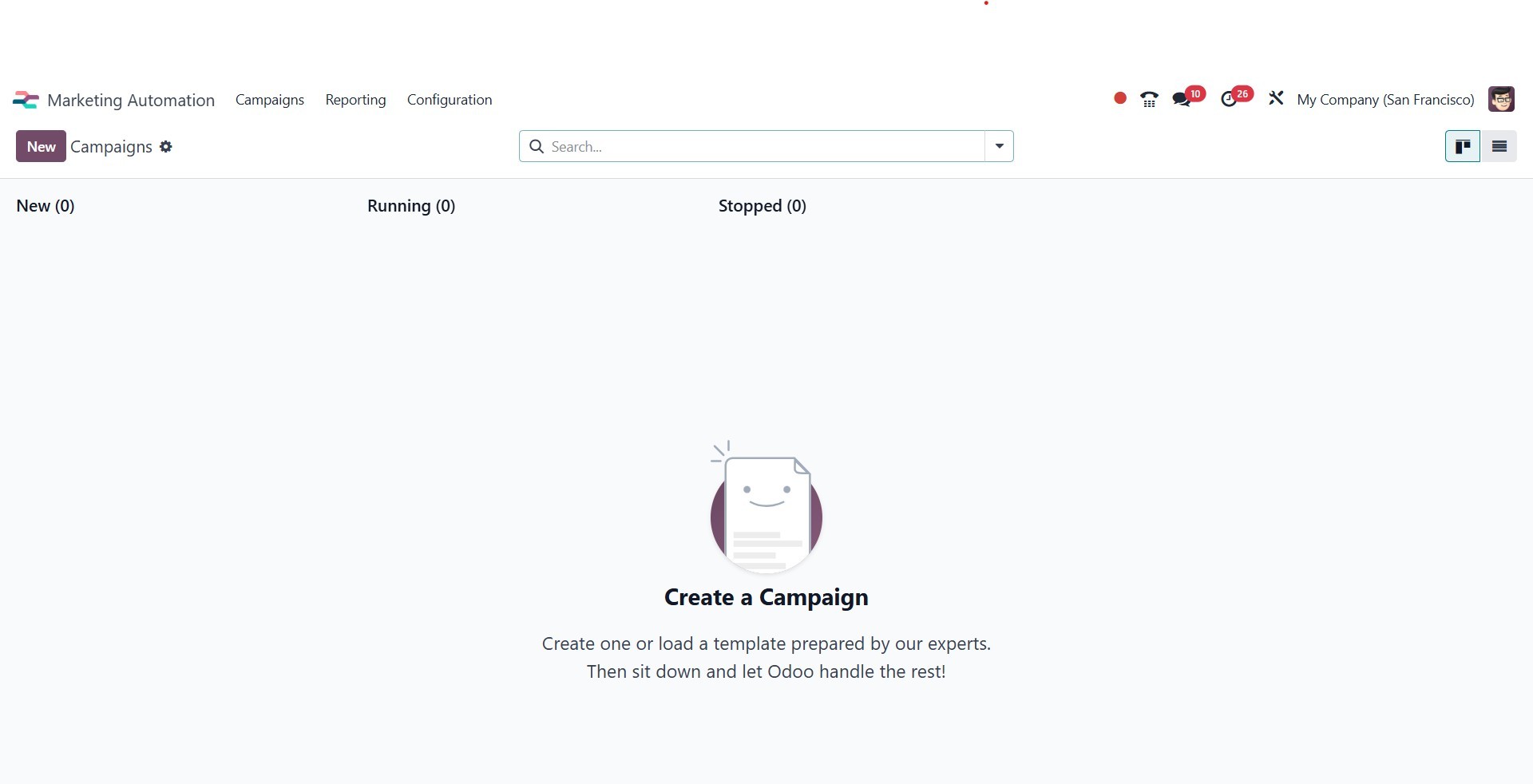
From the main Odoo dashboard, select the Marketing Automation
application to start a new campaign. Click on the "New" button to
open a blank campaign form, where you can configure your marketing
workflow according to your business requirements.
For users who prefer to begin with a guided structure, Odoo offers
six built-in campaign templates. These templates serve as a
practical starting point and are particularly useful for users new
to marketing automation. It is important to note that these template
cards are only visible on the Campaigns dashboard when no campaigns
have yet been created in the system. Once a campaign exists, the
dashboard switches to a Kanban view, displaying the active and
archived campaigns.
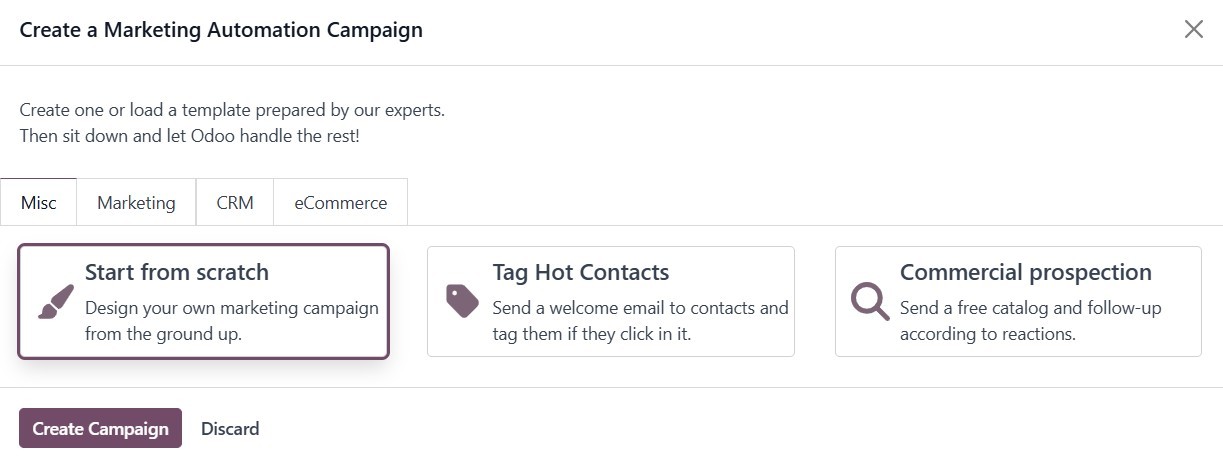
If the database is free of any campaigns, the following six campaign
template cards will be displayed:
Tag Hot Contacts
Sends a welcome email to contacts and applies a tag if the recipient
clicks the email.
Welcome Flow
Send a welcome email to new subscribers, and eliminate any addresses
that cause delivery bounces.
Double Opt-in
Sends an email to new recipients requesting confirmation of their
consent to receive future communications.
Commercial Prospection
Sends a catalog to prospects and triggers follow-up actions based on
their responses.
Schedule Calls
Automatically schedules a call with the salesperson when a lead is
created for an existing contact.
Prioritize Hot Leads
Sends an introductory email to new leads and flags them with high
priority if they open the message.
Purchase Follow-up
This campaign is triggered after a customer completes a purchase. It
sends a follow-up email, typically to thank them or suggest related
products, encouraging repeat engagement and cross-sells.
Create Repeat Customers
Aimed at turning one-time buyers into loyal customers, this campaign
re-engages past customers with exclusive offers or personalized
product recommendations based on their previous purchase behavior.
These templates help streamline the campaign creation process,
enabling businesses to implement effective marketing strategies with
minimal setup time.
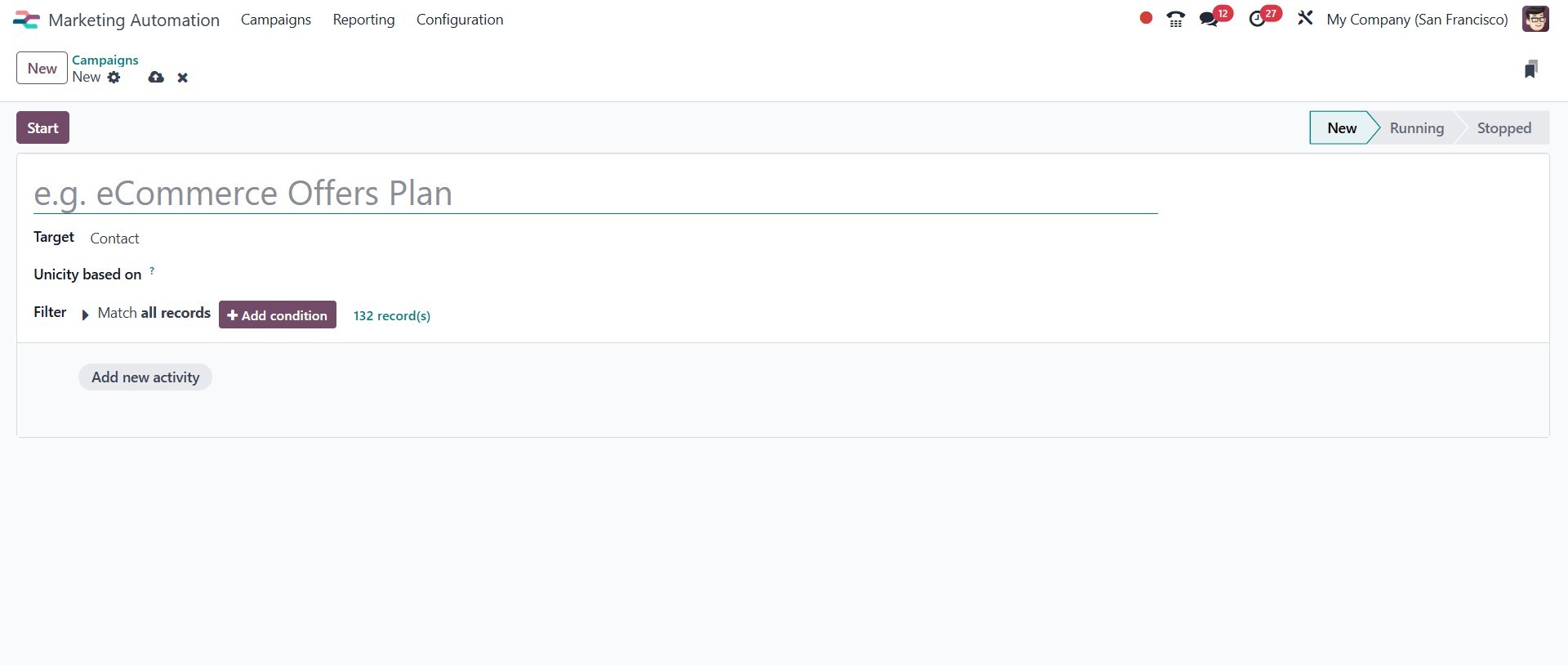
When creating a new campaign in Odoo 18 Marketing Automation, the
user is presented with a structured form designed to capture
essential information for the campaign setup. The primary fields on
this form include:
Name
This field is used to specify the title of the campaign. It serves
as a unique identifier and helps distinguish the campaign from
others within the system.
Target
Specifies the types of records that can be used in the campaign,
including Lead/Opportunity, Event Registration, and Contact. The
allocated records model specifies which fields are available
throughout the campaign, including those found in the Filter section
and dynamic placeholders.
Unicity is based on:
Specifies the Target model field where duplicates should be avoided.
Traditionally, the Email field is used, but any available field can
be used.
Filter:
It includes an interactive form with configurable logic for
fine-tuning the targeting settings inside the specified Target
model. See more details in the Defining Filters section.
Add a New Activity
By selecting this option, users can configure one or more activities
to be executed within the campaign. Each activity represents a
specific step in the marketing workflow, such as sending an email,
assigning a task, or applying a tag, and can be tailored with
filters, delays, and triggers to match the desired engagement
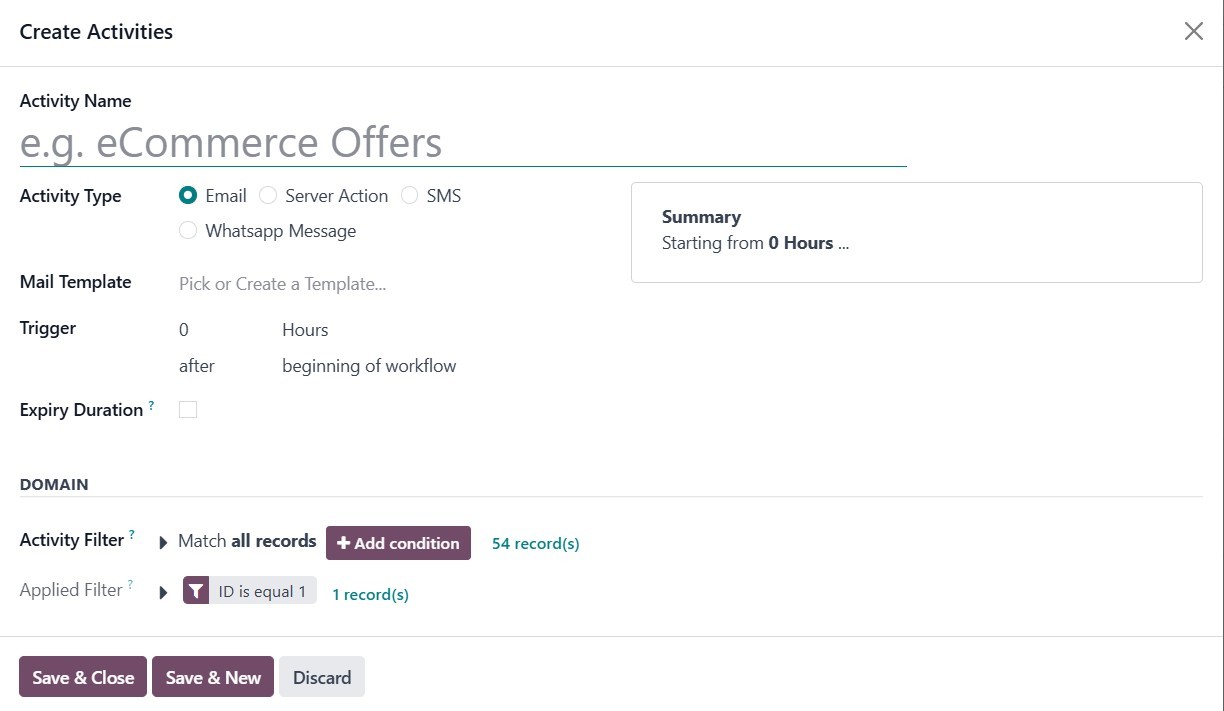
strategy. There are four different types of activities available in
the Marketing Automation app:
- Email: an email that is sent to the target audience.
- Server action: an internal action within the database that is
executed.
- SMS: a text message that is sent to the target audience.
- WhatsApp Message: Sends a message directly via WhatsApp to the
recipient. This channel is especially useful for personalized
and high-engagement communication, such as sending order
updates, promotional messages, or follow-ups on customer
support.
The default campaign Filter configuration is set to match all
records, indicating that the campaign is targeting all records of
the Target model.
To refine the Filter rules of a campaign, click the Add condition
button to reveal a new row with configurable rule parameters. See
the Search, Filter, and Group Records documentation for more
information on how to create filter rules. At the bottom of the
filter rules is a record(s) button, which indicates the total number
of records targeted by this domain. Select the record(s) button to
open a Selected Records pop-up window, in which the targeted records
can be viewed.