2. Customizing Job Postings
Odoo’s website builder offers users the flexibility to add detailed
descriptions and additional information related to the job.
Employers can define the responsibilities, qualifications, and any
other unique criteria expected from applicants. The layout and
design of the job post can be personalized to match the company’s
branding and aesthetic using the various editing tools provided in
the ‘Edit’ section.
Then, you can effortlessly personalize your Job portal using the
editing tools, including multiple BLOCKS, CUSTOMIZE, and THEME tools
by dragging and dropping construction components from the right
panel. For a simple demonstration, I have just replaced the color
themes of the website and edited the Job Post Name as ‘Sales
Manager,’ as illustrated in the screenshot below.
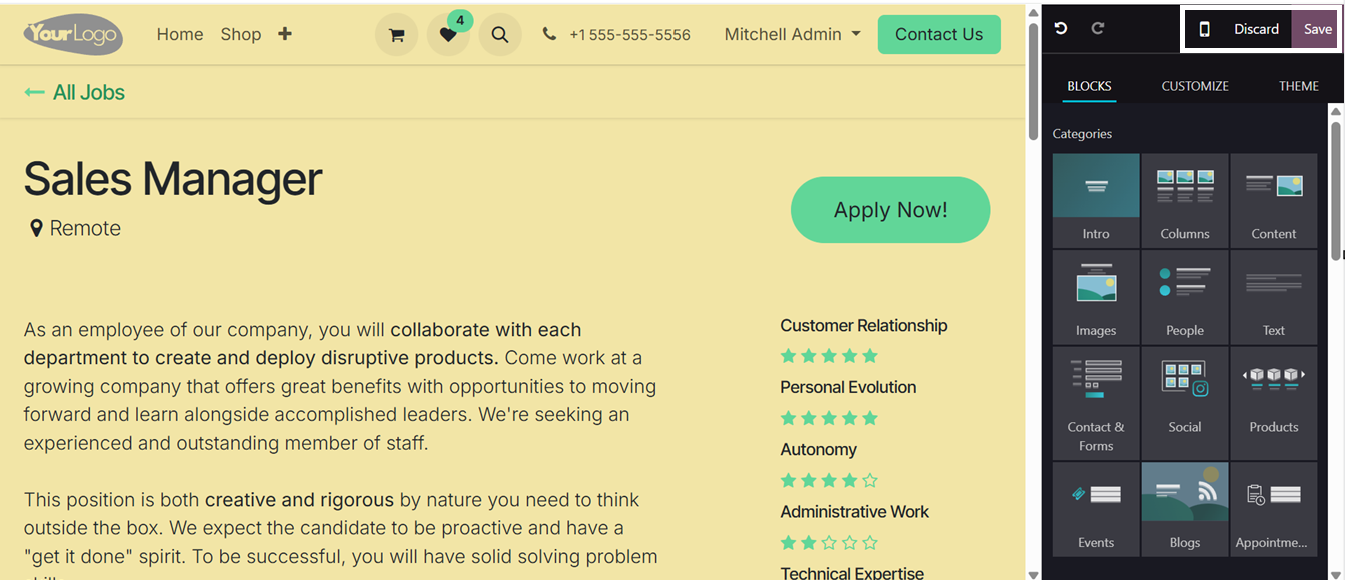
You can choose a theme from the Odoo App Store or Odoo 18's built-in
choices, then modify pages as needed. Also, you can edit the
contents of the website using the text tools that we are normally
using in a document, including Font Size, Font Color, Italic, Bold,
Underline, etc. Once you're happy with the layout and design, click
the ‘Save’ button to apply the changes.
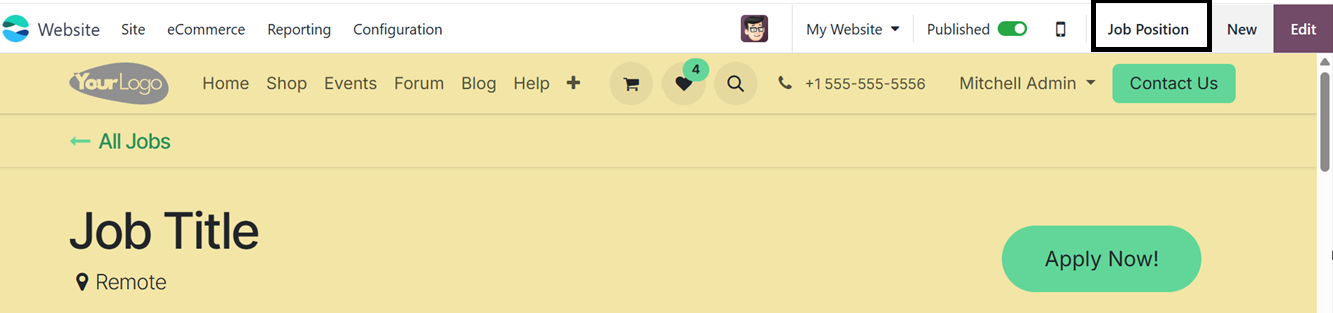
Once the online job creation and interface design, these job listings
are immediately viewable on the company’s website. These listings
are dynamic, meaning they can be updated or modified at any time.
Users can edit the job listing by clicking the Job Position button,
which opens a detailed editing interface, as depicted in the
screenshot below.
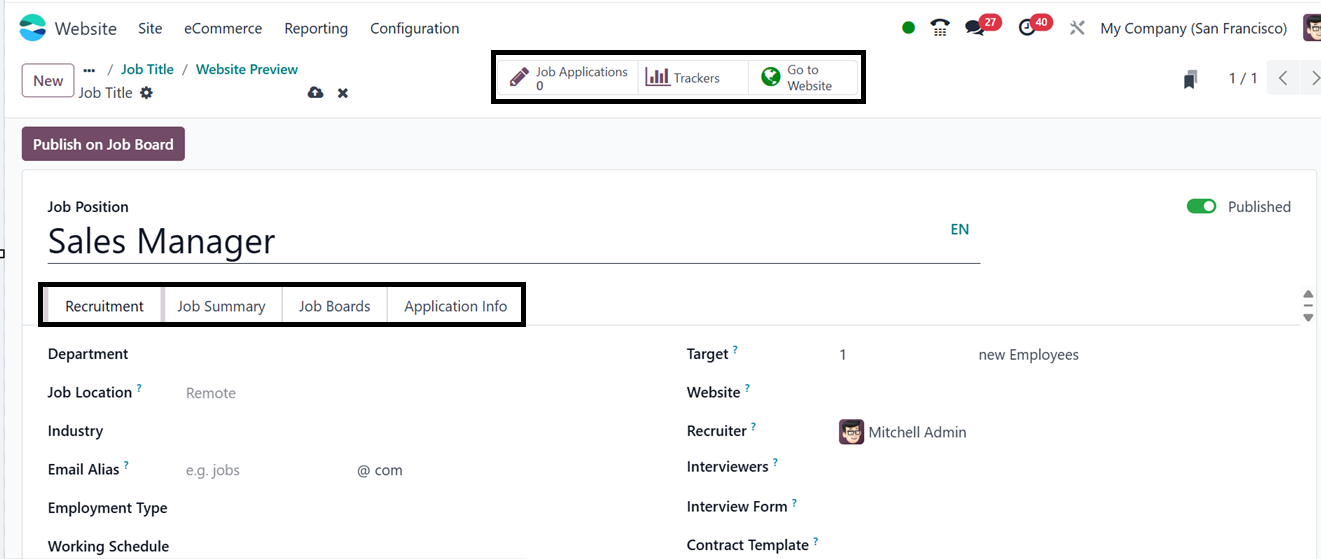
In the job editing page of Odoo 18, users have the ability to
configure several essential fields related to a job position. These
include the Job Title, which represents the official title of the
role.
In the ‘Recruitment’ tab, users can assign the job to a specific
Department, set the Job Location, Industry, and add an Email Alias
to receive resumes. These fields help create application records in
Odoo. Then you can define the Employment Type (e.g., Permanent,
Temporary, Full-Time), specify the hiring Company, set a Target
Number of Hires, and choose whether to publish the job online.
Additional options include selecting the Website for the listing,
assigning a Recruiter and Interviewers, attaching an Interview Form
for candidates, and linking a Contract Template for job offers.
Also, you can mention the Working Schedule, Salary Range, Expected
Skills from the candidate, and a Mission Date.
From the Odoo backend, you can manage a job posting's visibility by
selecting the "Published/Unpublished" button in the form view's
upper-right corner. You can instantly publish or unpublish the job
posting by toggling this button without having to go through the
website interface. This offers a rapid and practical method of
controlling job posting availability, guaranteeing that candidates
can view them only when you provide enough specifications.
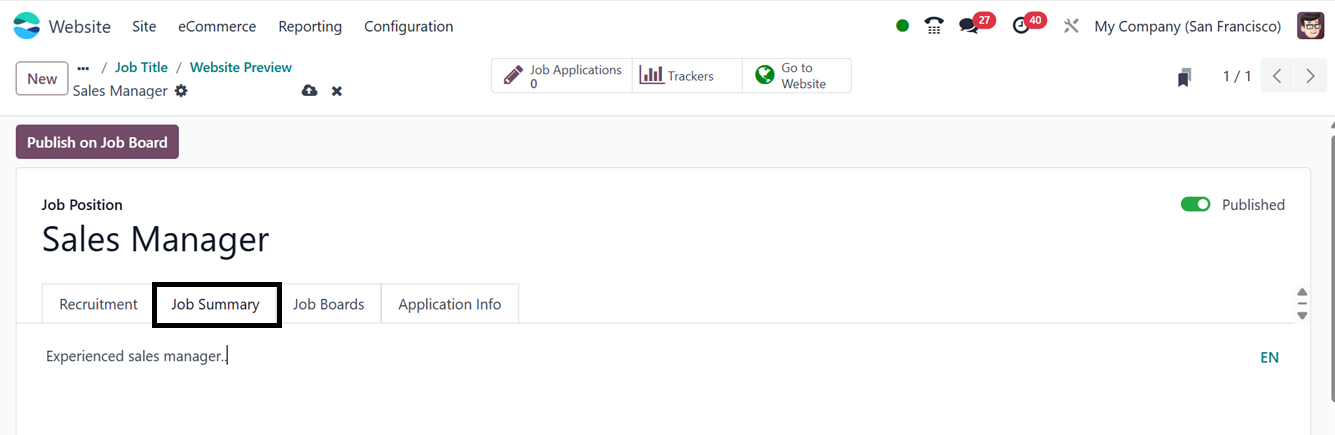
The ‘Job Summary’ page provides a brief overview of the key aspects
of the employment role, helping both applicants and internal teams
understand the position’s purpose and scope.
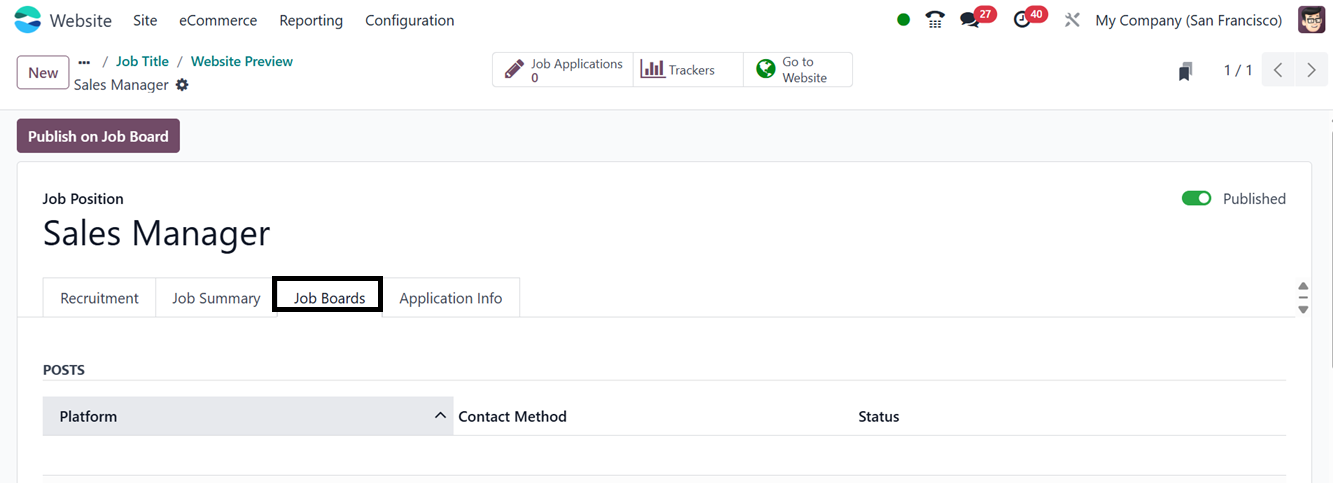
The ‘Job Boards’ section manages the visibility of job ads across
different platforms. With third-party integrations, you can control
job board channels, preview or copy the job URL, and publish the
listing on your website to reach a wider audience.
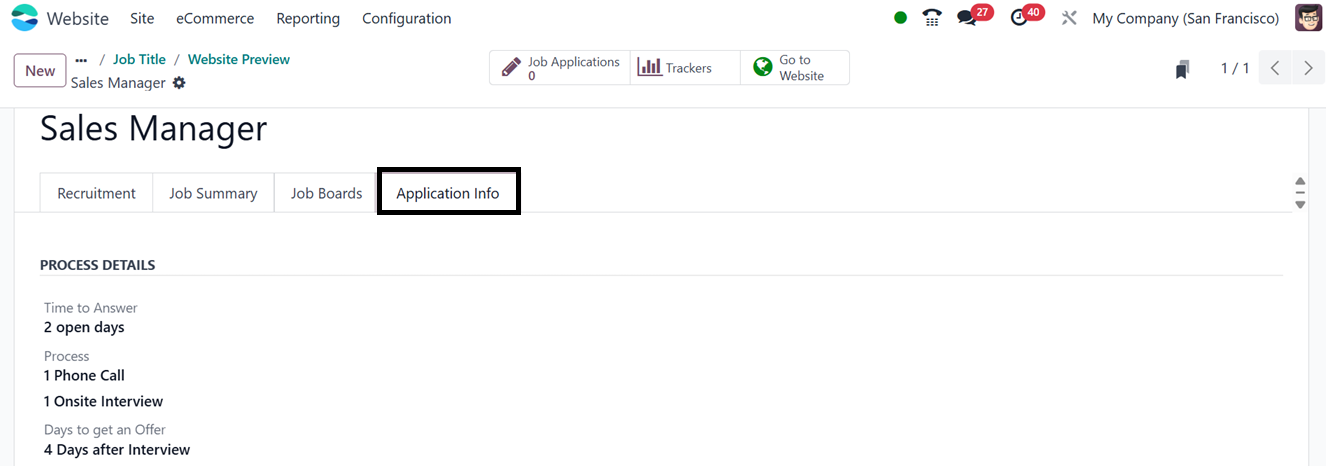
The ‘Application Info’ page focuses on handling incoming job
applications. It allows you to define the interview process,
including response time, process steps, and estimated days to get an
offer, ensuring consistent and organized application management.
After completing the editing process, you can publish a job opening
on your company website or other employment portals by selecting the
'Publish on Job Board' option. After it is enabled, the candidates
can browse the job and submit an online application. You can choose
the Job Board, Apply Method, Job URL, and choose the start and
finish dates of your application from the ‘Publish on Job Board’
window, as shown below.
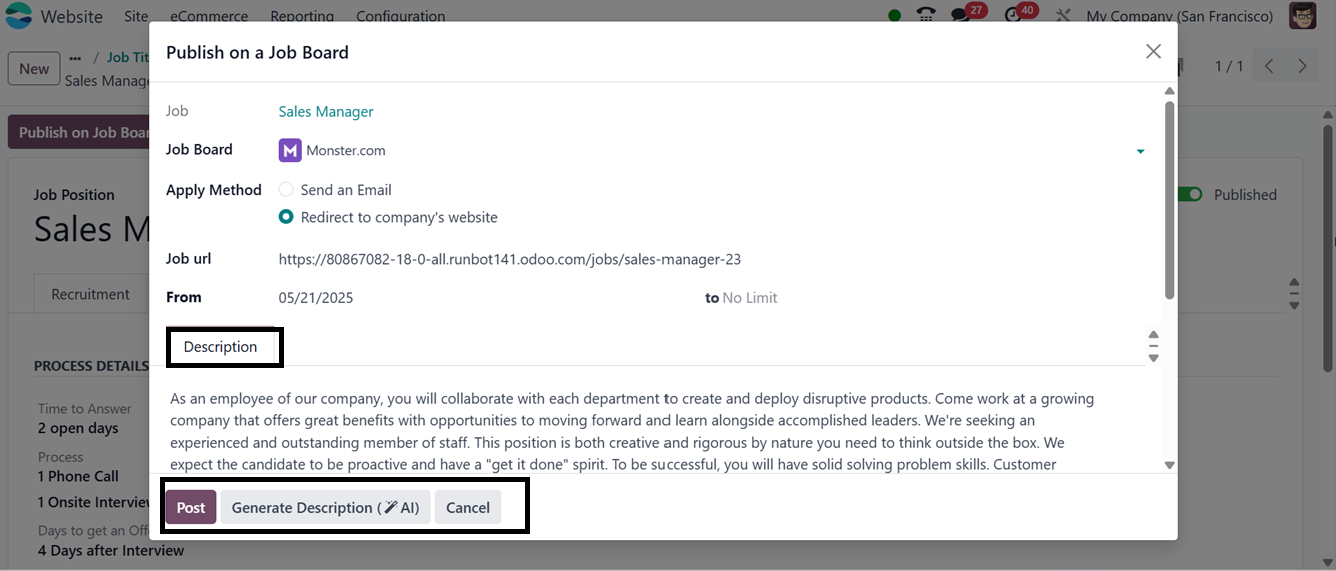
Finally, you have the option to manually write a job description
under the "Description" page or utilize the "Generate Description
(AI)" button to have one generated automatically. Once everything is
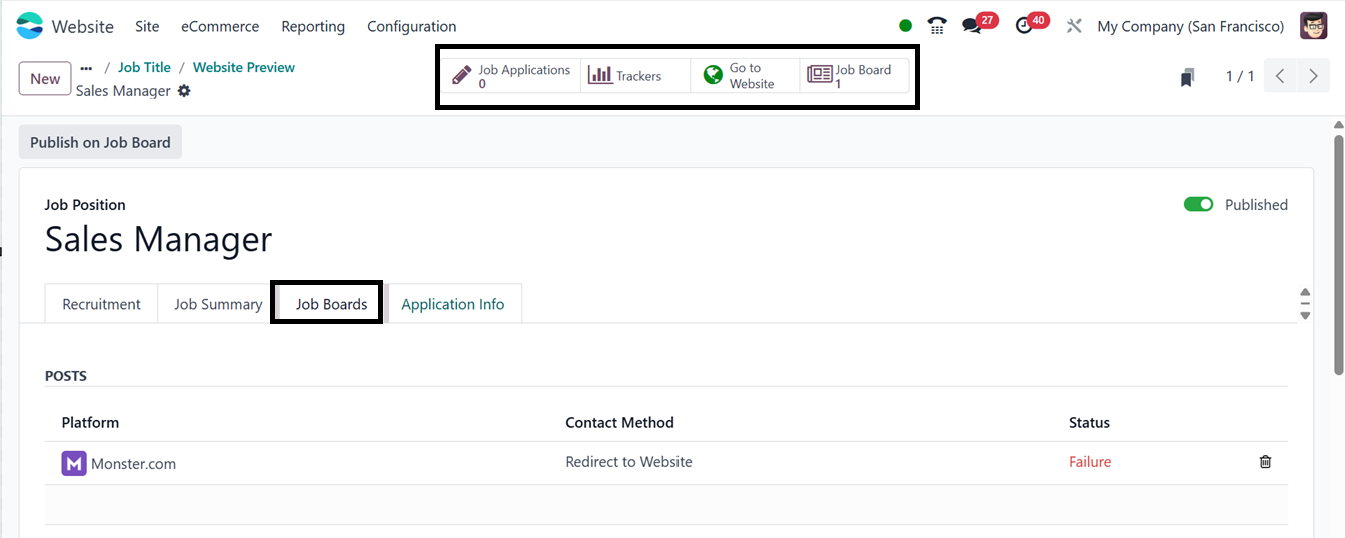
finalized, publish the task by clicking the "Post" button. The "Job
Board" smart button and the "Job Boards" tab will display any online
platforms where the job is posted.
After creating the job, you can go to the ‘Go To Website’ button and
check and apply to the job posting website for easy access to
recruitment and employment-related information. Additionally, the
Odoo 18 Website module's backend allows you to monitor and manage
the Job Position inside the ‘Jobs’ option from the ‘Site’ tab. Here,
you can see the list of every job posting on your website enabling
you to check, modify, or update job postings as necessary, as shown
below.
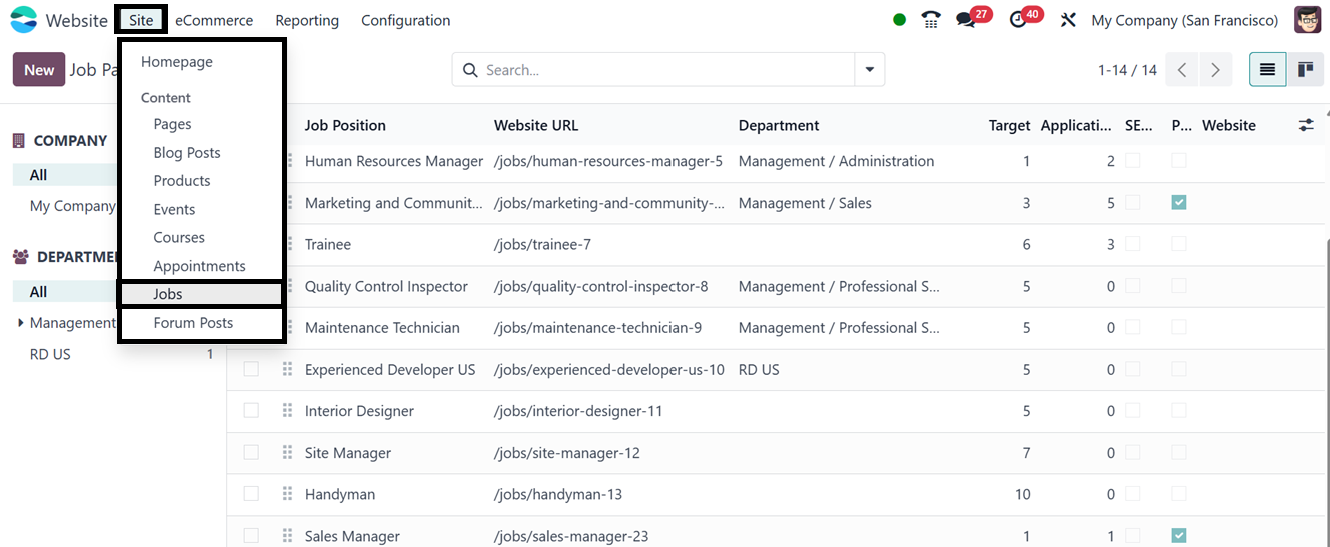
To check more details about the particular job position, you can
simply click on the column and this will open the form view.