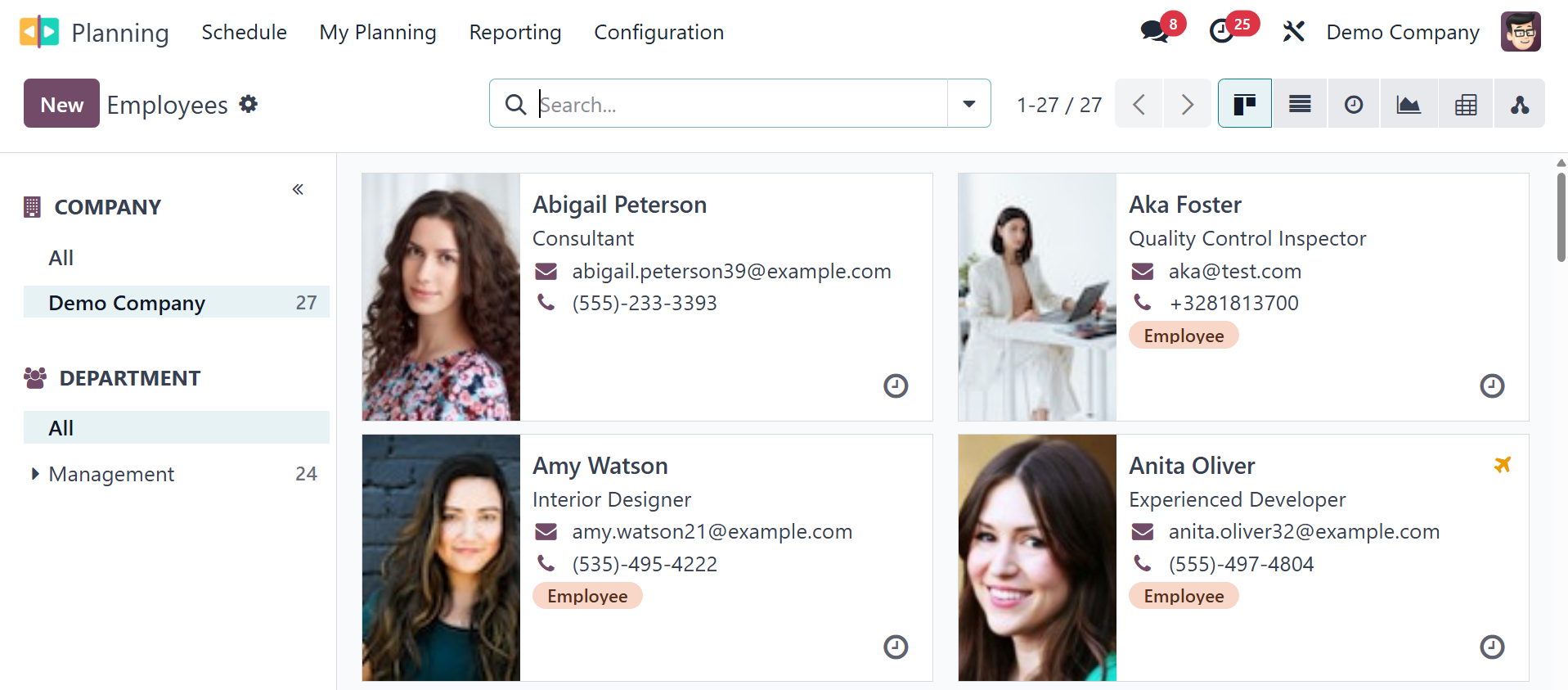
3. Configuration
Under the configuration menu, you have the options, like settings,
employees, materials, role, and shift templates, respectively.
3.1 Settings
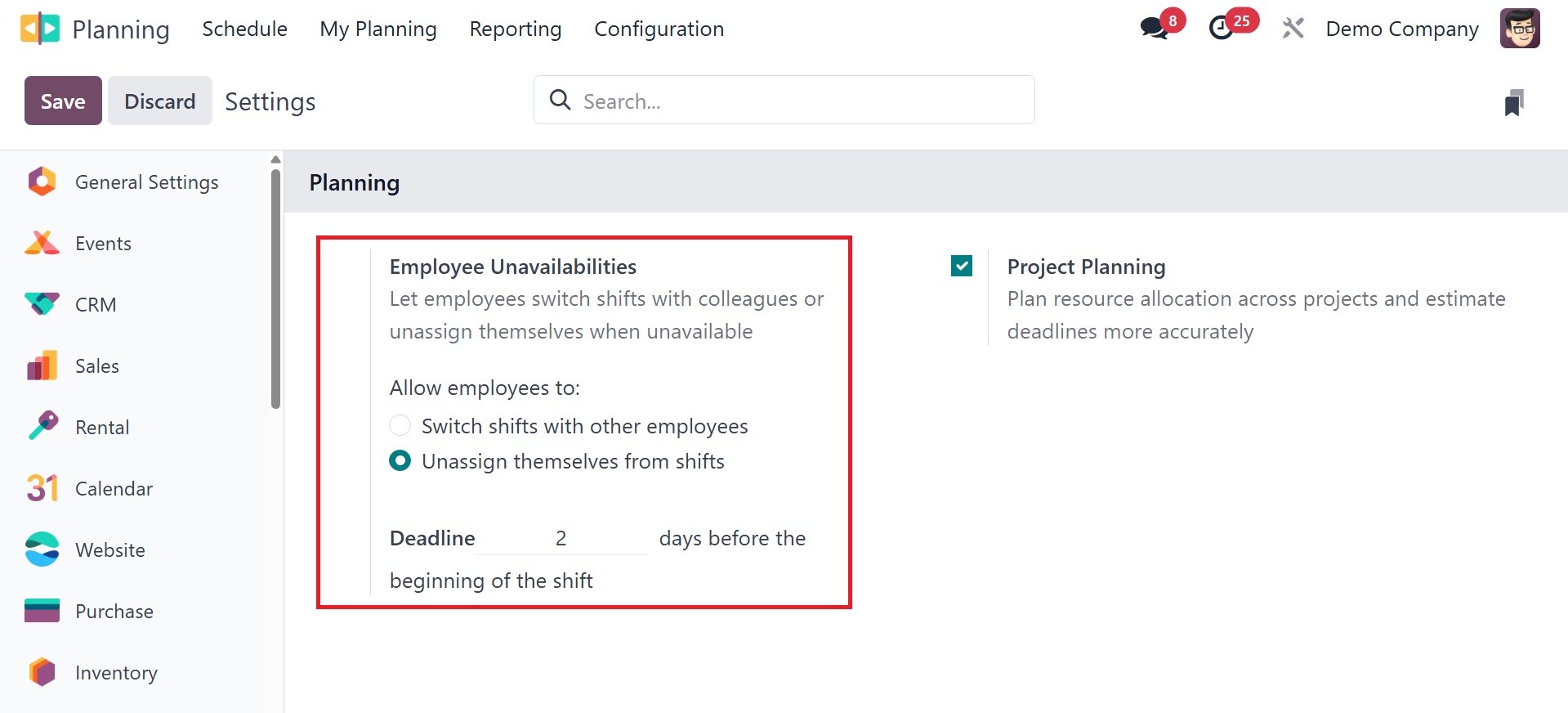
Under the settings option, you have the employee unavailability and
project planning. The employee availability option lets employees
switch shifts with colleagues or unassign themselves when
unavailable. permits workers to abstain from designated tasks,
enabling them to leave their shifts by a date established by the
administrator.
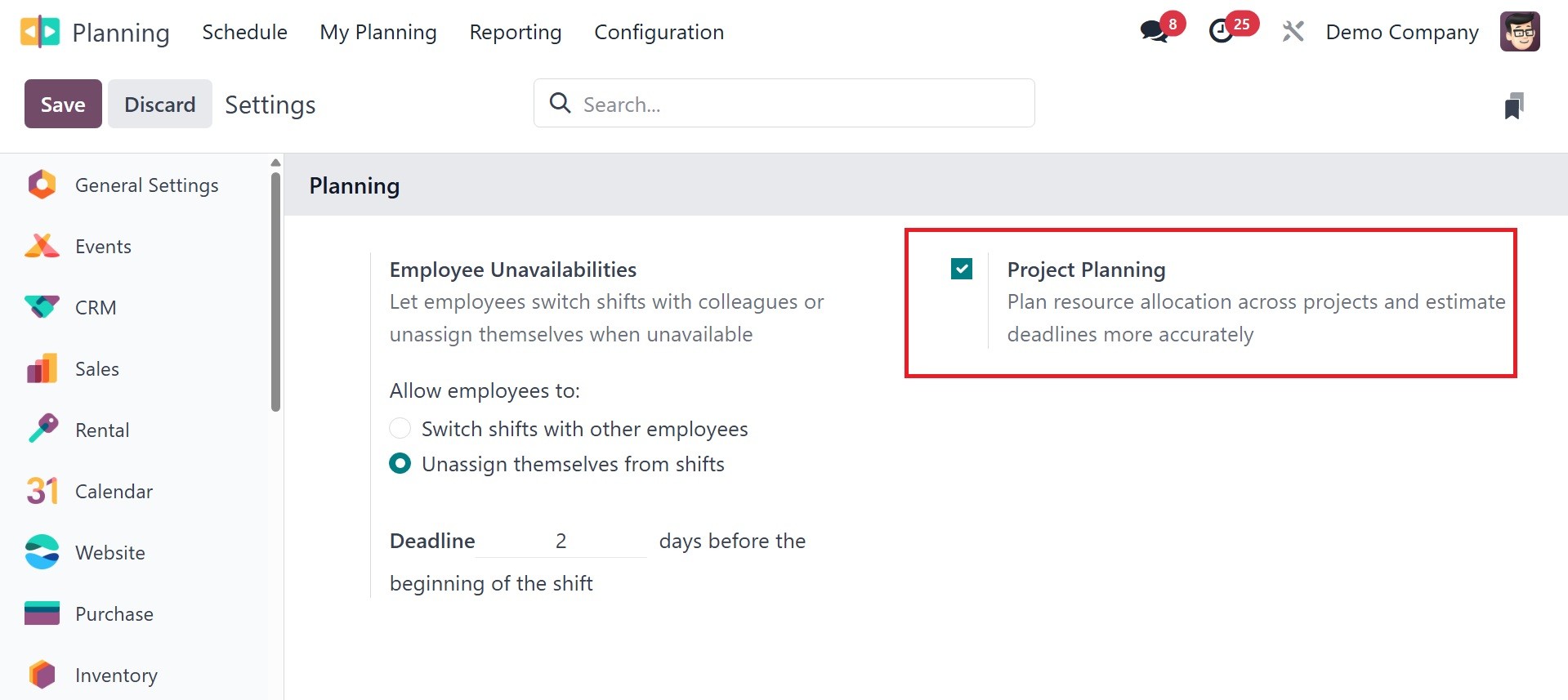
Project Planning: To better manage resource allocation between
projects and forecast deadlines, turn on or off the Project Planning
option.
3.2 Roles
Having distinct roles allocated to them will help employees
understand the responsibilities and duties associated with each
function. The administrator can swiftly assign duties to each
employee in line with their responsibilities by doing this. It will
provide them insight into what they need to do when portraying the
role. The Configuration menu of the module can be used to set up
these roles. As seen in the figure below, the Roles option is
located under the Configuration menu.
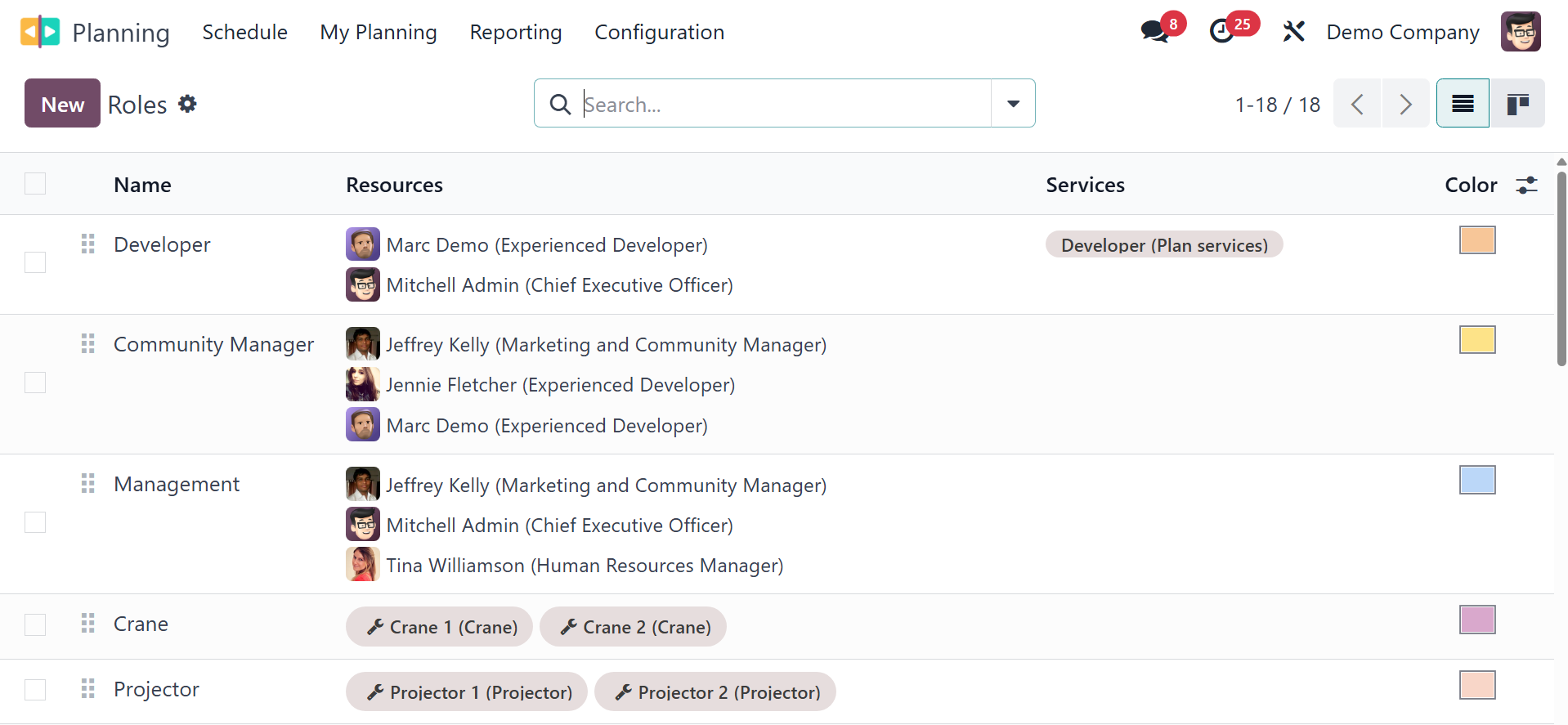
In the list view, the roles' Name, Resource, and Services are shown.
You can create a new role by clicking the New button. Clicking the
New button will add a new line to the available list. In the field
provided above, you can provide the role's name.
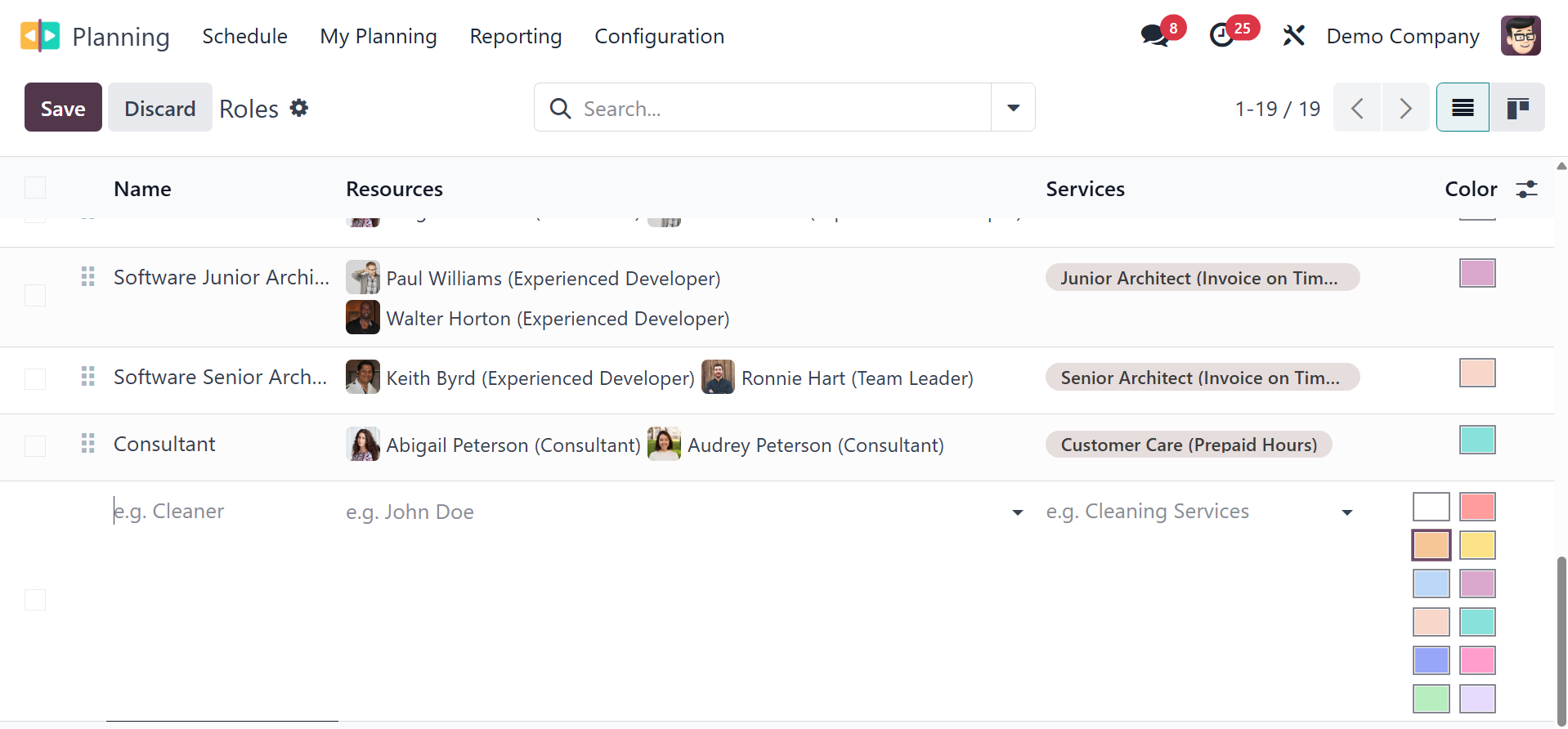
Employees can be assigned to this function using the Resources field.
The Services that the Resources provide in this role can be
specified using the relevant field. You might designate distinct
colors for particular jobs to make identification simpler.
3.3 Materials
The Odoo 18 Planning module has a new option under the Configuration
menu that allows you to set up the materials that will be used or
required for a planned activity. To specify such materials, go to
the Configuration menu and select the Materials option.
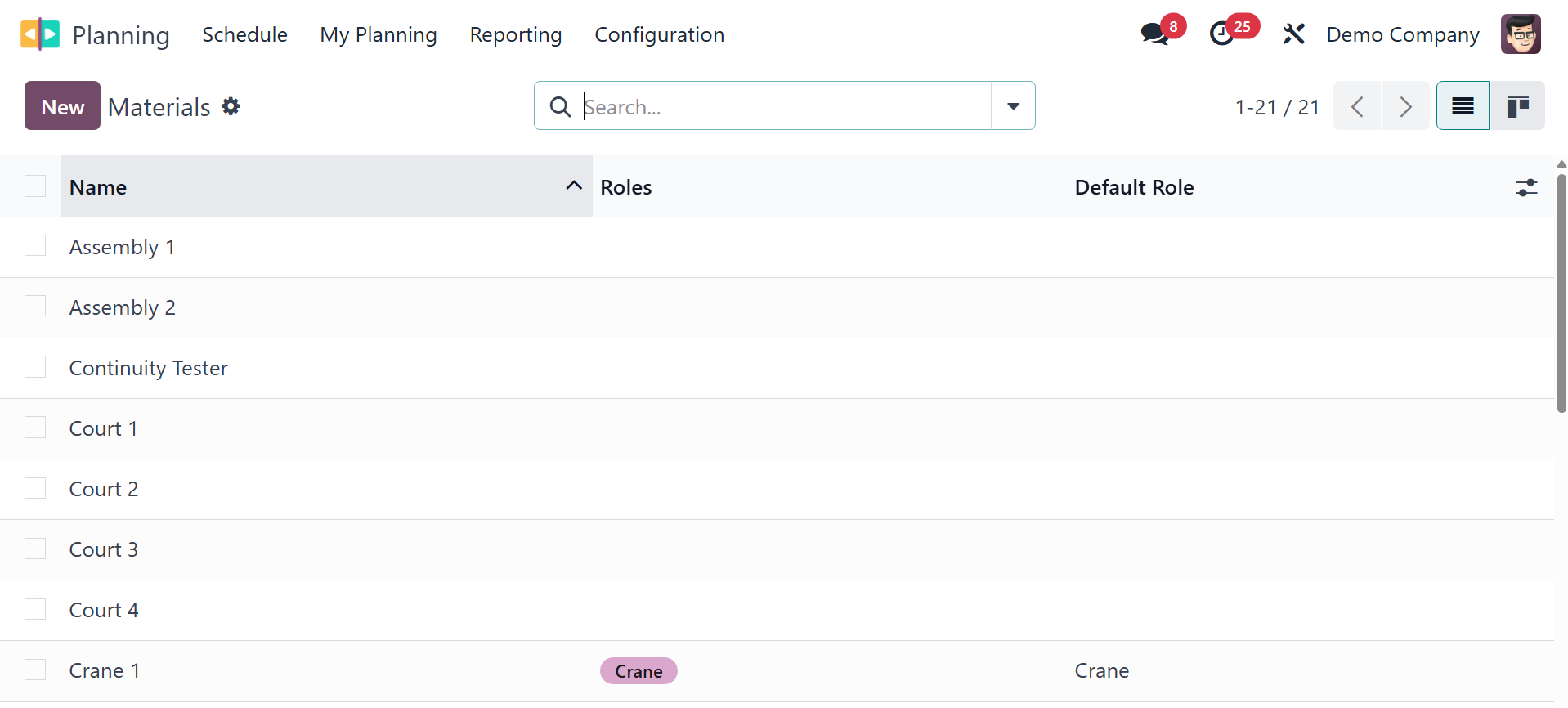
The list of previously produced things, along with details on each
one's name, roles, company, flexible hours, and working time, may be
found here. You may submit new content by clicking the New button. A
new line will be added beneath the options list as a result. Give a
name to the material in the specified field. In the appropriate
fields, you can discuss the roles, company, flexible hours, and
working time.
3.4 Shift Template
When creating new schedules, shift templates can be inserted in the
Odoo18 Planning module. This will instantly merge the pre-configured
data from the template into the updated schedule. You can avoid
manually mentioning the details by doing this. You will have the
option to save a new schedule as a template when customizing Odoo
18. You can also create a new shift template from the module's
Configuration menu. Select the Shift Template option from the
Configuration menu to accomplish this.
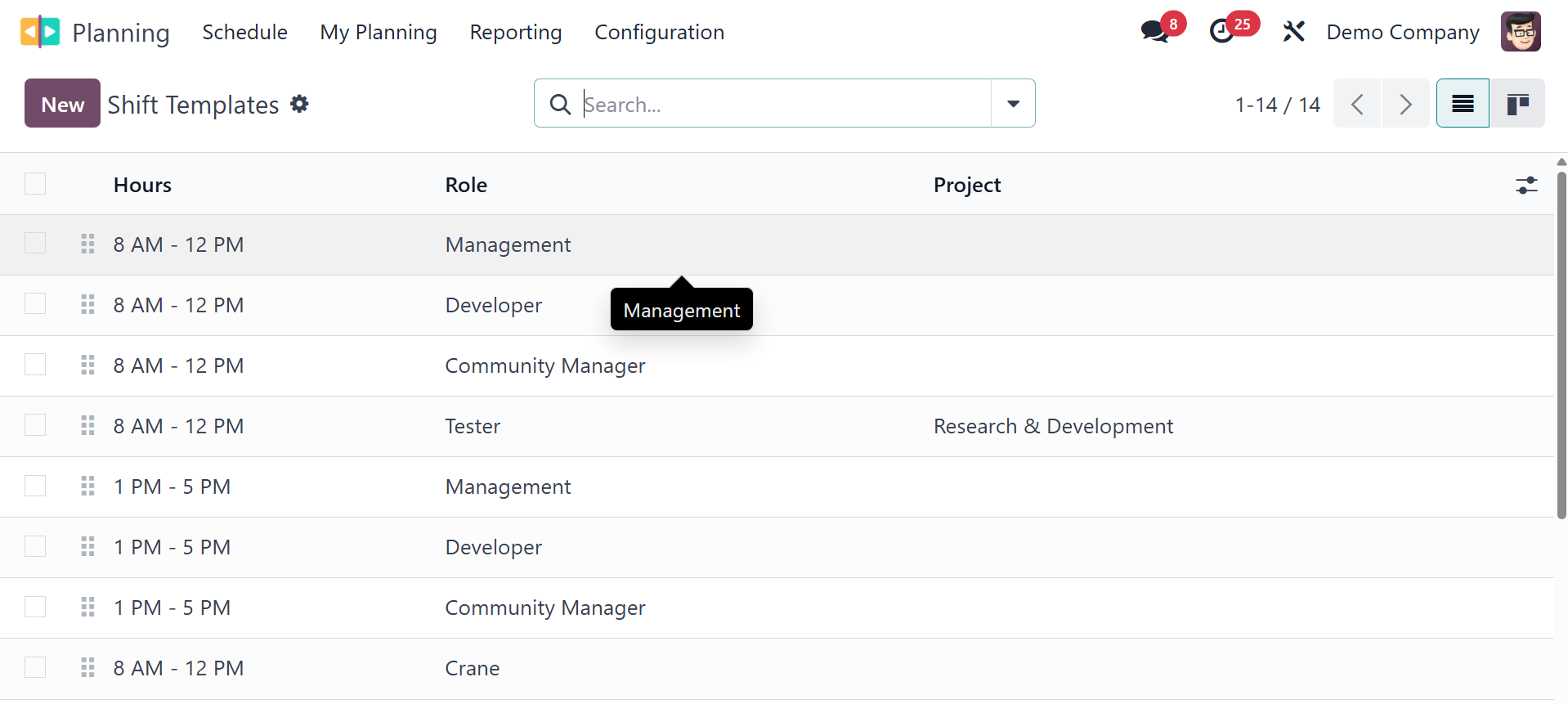
The shift templates that are already configured with Hours, Rule, and
Project are displayed here. Click the New button to create a new
shift template.
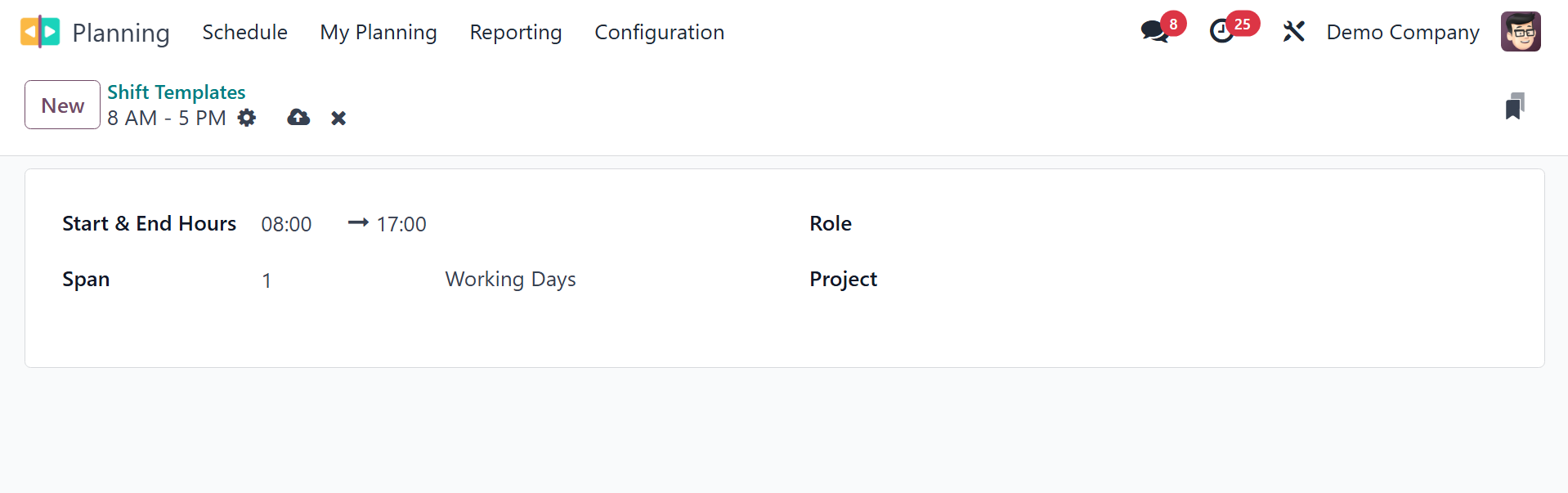
A new type of viewpoint will appear, as seen in the image. Here, you
can complete the fields for the Project, Role, Duration, and Planned
Hours.
3.5 Employee
Employee duties, work schedules, skills, availability, vacation time,
job positions, classifications, authorization, and other employee
details can all be established, managed, and set up by users through
the Employees settings panel. Adding new employee data is made
simpler by using the 'New' button.