4. Configuring ECO Stages
The Configuration menu enables users to define multiple ECO stages
based on the progress of engineering activities. The list view
displays key attributes such as Stage Name, Approval Roles, Kanban
View Fold Status, and ECO Type, as depicted in the screenshot below.
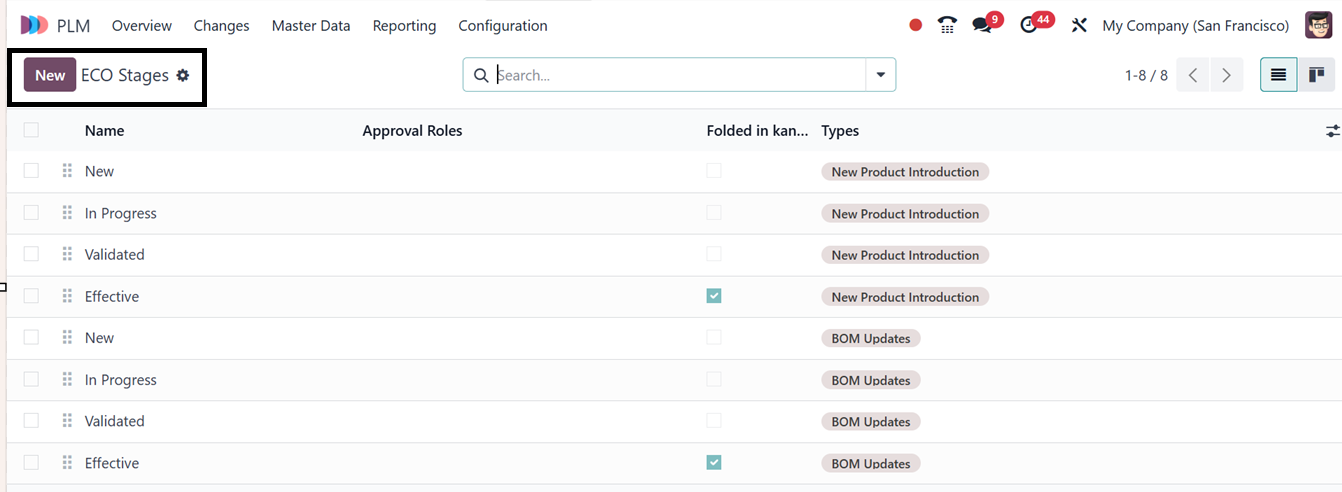
To create a new stage, start by clicking the New button. In the
provided field, enter a suitable Stage Name that clearly identifies
the stage's purpose.
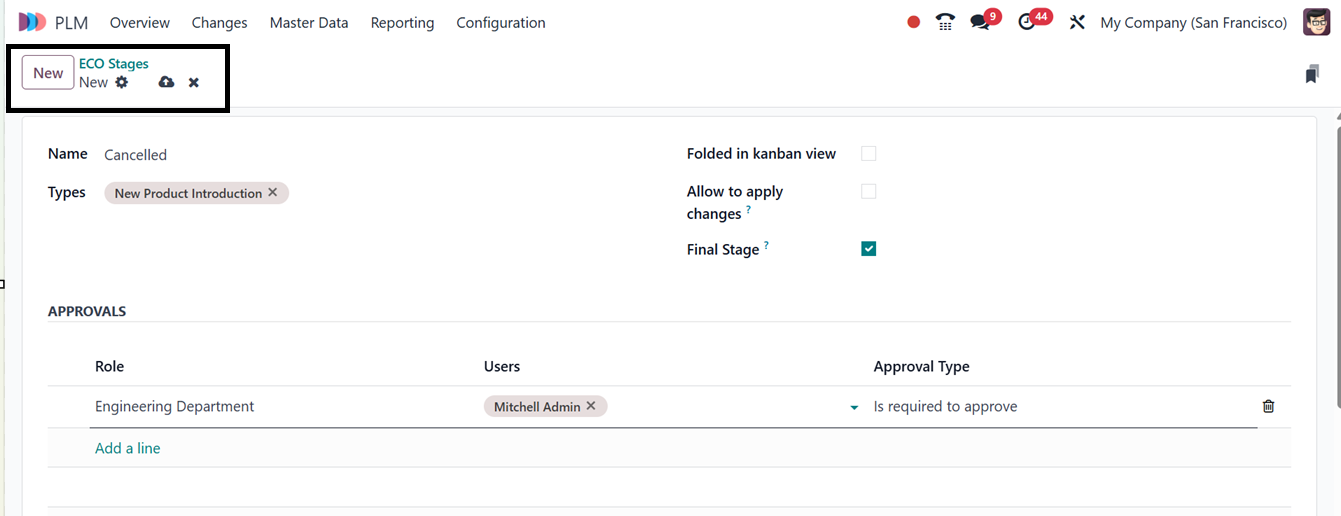
Next, select an appropriate ECO Type to categorize the stage
accurately. If you wish to minimize the stage’s visibility in the
Kanban view, enable the Folded in Kanban view option. To ensure that
modifications can be implemented at this stage, activate the Allow
to apply changes setting. If this stage represents the final step in
the engineering change order process, mark it as the Final Stage as
needed. Moving to the Approvals section, define the approval
workflow by assigning specific Roles, Users, and Approval Types to
regulate the transition of ECOs through the stages.
4.1 ECO Types
ECO Types categorize different types of engineering change orders.
Users can create and manage these types through the Configuration
menu. The platform displays existing ECO Types, and new ones can be
added by:

To create a new ECO Type, start by clicking the New button. Next,
enter a suitable Name and an Email Alias to define and categorize
the ECO Type. Finally, complete the configuration process to enable
the new ECO Type, ensuring it is properly set up for use within the
system.

4.2 ECO Tags
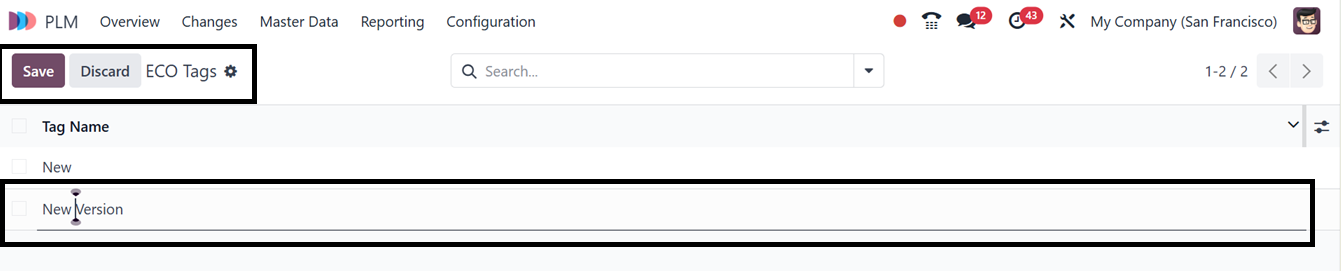
To facilitate organization, users can assign tags to ECOs. The
Configuration menu includes an ECO Tags option where new tags can be
created simply by clicking New and entering a Tag Name.
Next, let's explore the Reporting section of the PLM Module to review
the available analytical features.