3. Master Data Menu
The Product Lifecycle Management (PLM) module of Odoo 18's Master
Data menu offers crucial capabilities for effectively managing
engineering modifications and product-related data. Important
settings that facilitate version control and product changes are
included in this menu including; Product, Bill of Materials (BoM),
and Work Center management options.
3.1 Products
The PLM module of Odoo 18 facilitates cross-departmental cooperation,
ECOs, and version control in product development. With a
consolidated view of all accessible products, the PLM module's
"Products" dashboard is the same as the product management dashboard
seen in other Odoo modules. It does not have a specific 'Products'
menu, but it interfaces with other modules for smooth
administration, allowing companies to effectively track BoMs and
product versions.
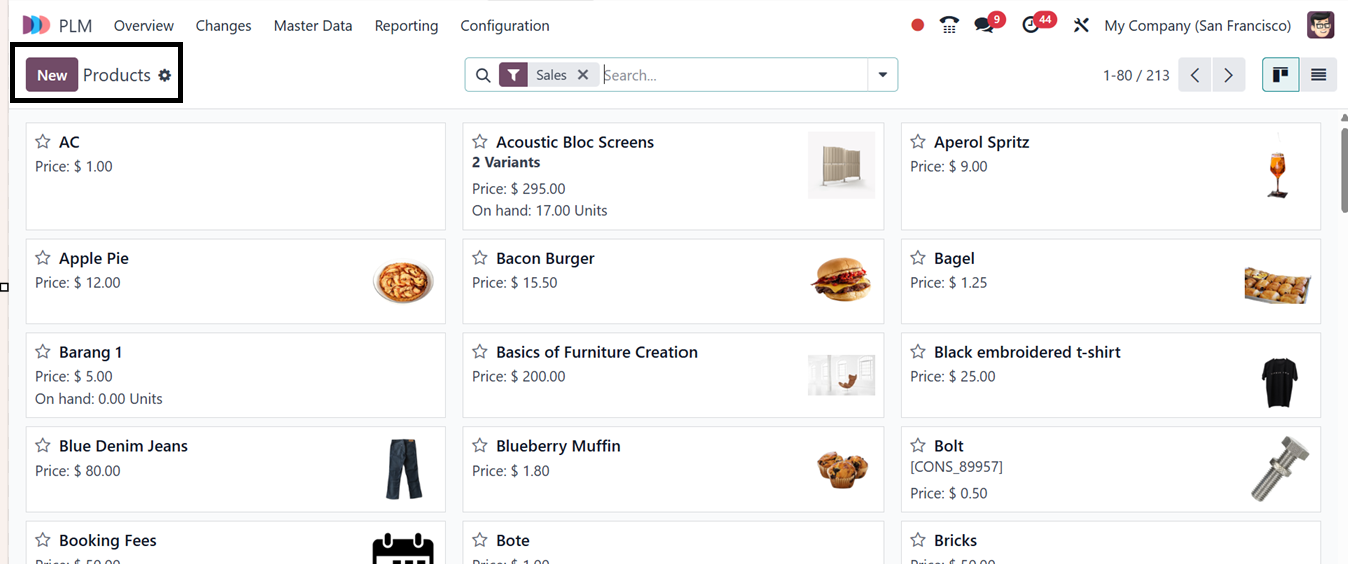
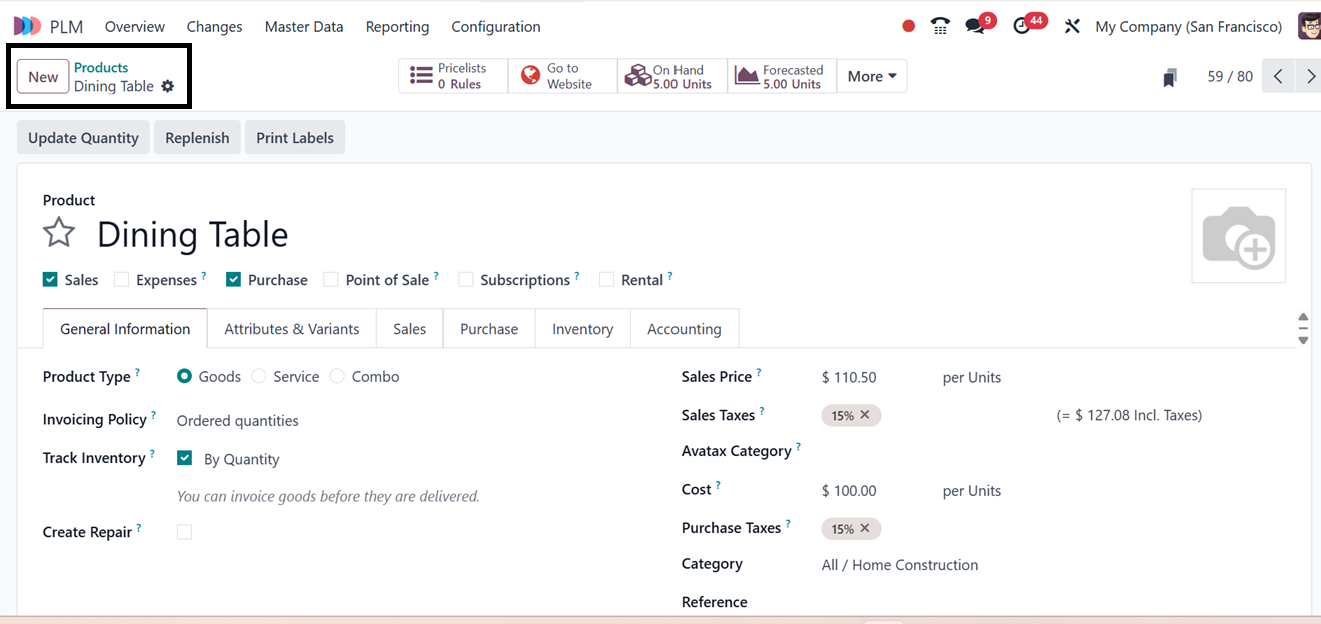
Similar to the previous versions of the Odoo modules, clicking the
"New" button enables you to quickly create a product by completing
the necessary information, as seen in the screenshot below.
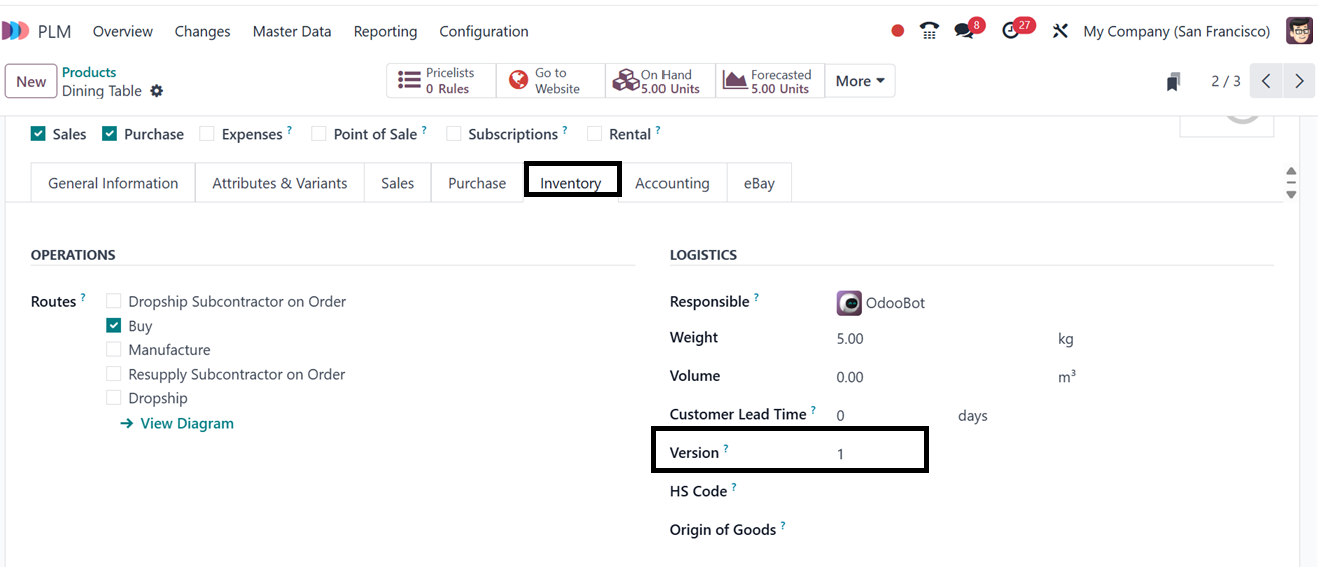
In the ‘Inventory’ tab, you can see the product version of this
particular product. Because each time you create a new Engineering
Change Order (ECO) with this product, Odoo will automatically change
the product versions. Here, we have not created any ECO products for
this particular one, so you can see ‘1’ in the 'Version’ field, as
illustrated in the screenshot below.
3.2 Bill of Materials
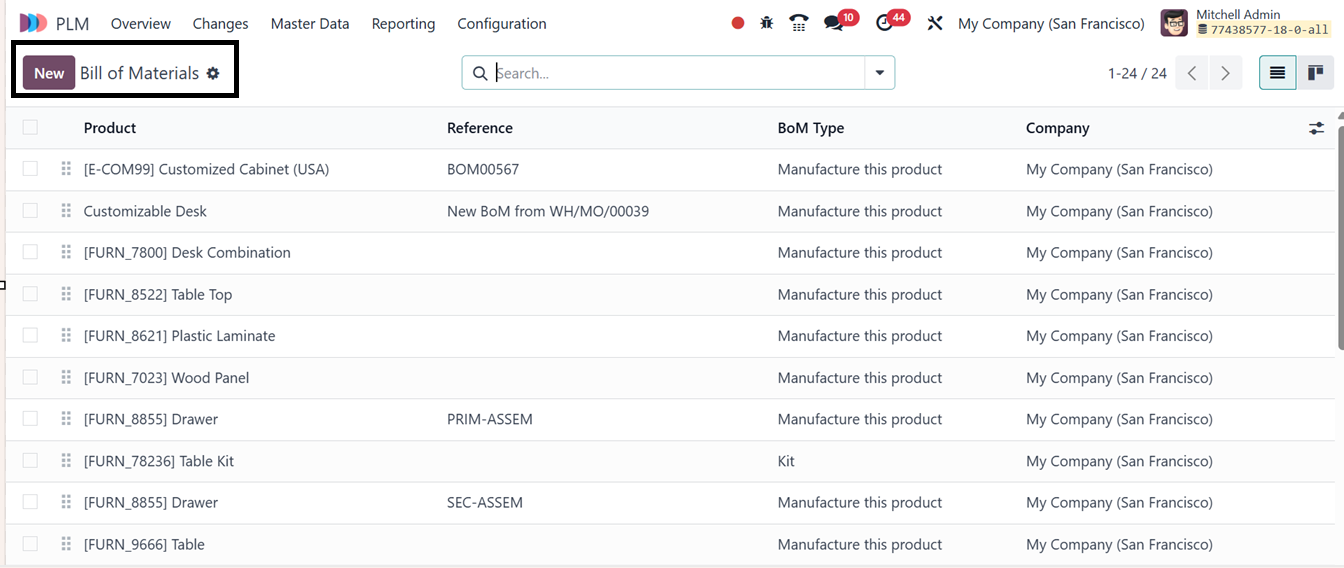
The Odoo 18 PLM (Product Lifecycle Management) module's Bill of
Materials (BoM) menu enables users to effectively manage engineering
modifications, version control, and product architectures. This
menu, which includes the dashboard for each BoM Product, Reference,
BOM Type, and Company information, is essential for monitoring and
changing BoMs throughout the product lifetime, as illustrated in the
screenshot below.
Click the New button to generate a new Bill of Materials (BoM) in
Odoo. Next, fill in the appropriate areas with the necessary
information, including Product, Product Variant, Reference, and
Quantity. You may establish three different kinds of BoMs using
Odoo: Subcontracting, Kit, and Manufacture This Product. Choosing a
Manufacturer The BoM for in-house production is indicated by this
product. By selecting Kit, the parts will not be created but will
instead be sold as a set. A designated subcontractor is instructed
to use this BoM for manufacturing using the Subcontracting option.
Every kind operates differently and is handled as such.
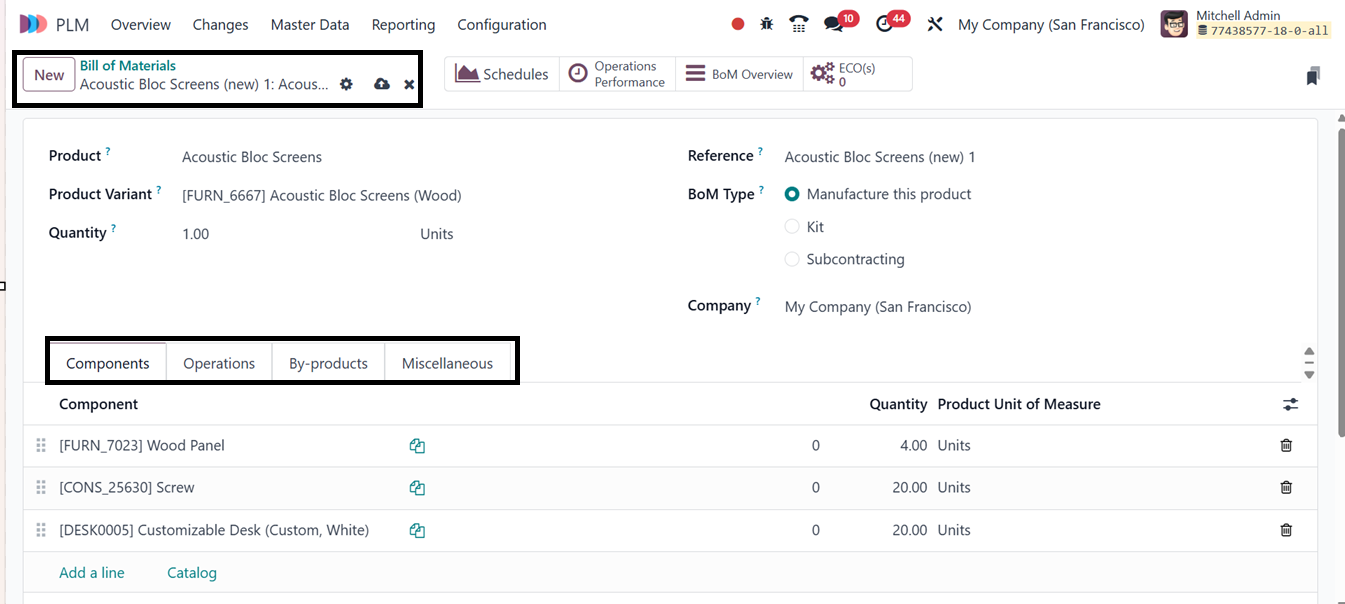
Click the ‘Add a line’ under the Components tab and enter the needed
quantities to establish a Bill of Materials for product manufacture.
Next, provide the work center procedures required to finish
production under the Operations tab.
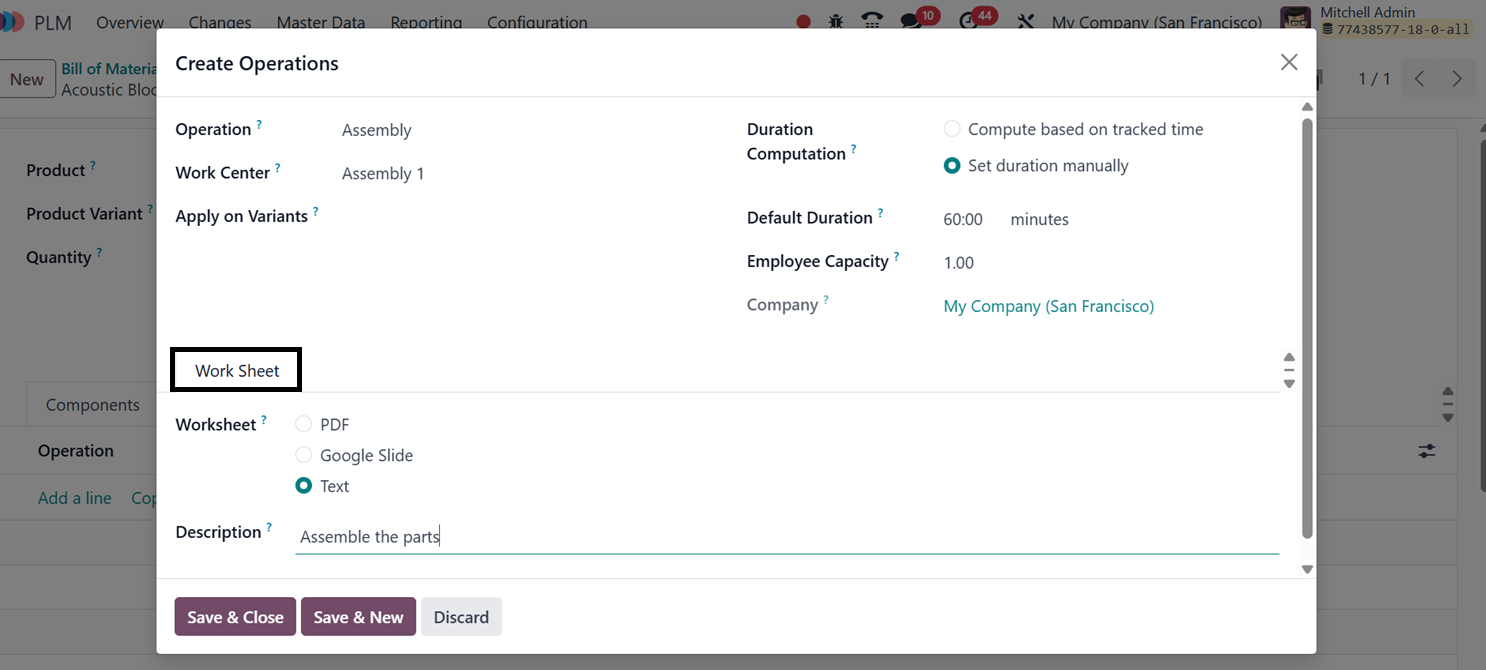
You can name the Operation and choose the right Work Center and
define the operation to be carried out in the pop-up box that
appears when you add an operation in Odoo. If product variations are
affected by the operation, you may add them in the Apply on
Variations area to ensure consistency across different variants.
Next, set up the Duration Computation by either manually determining
the duration of the process or allowing Odoo to calculate it using
the time that has been monitored, with the Default Duration being
shown automatically. The number of personnel required for the
operation can be specified in the Employee Capacity column.
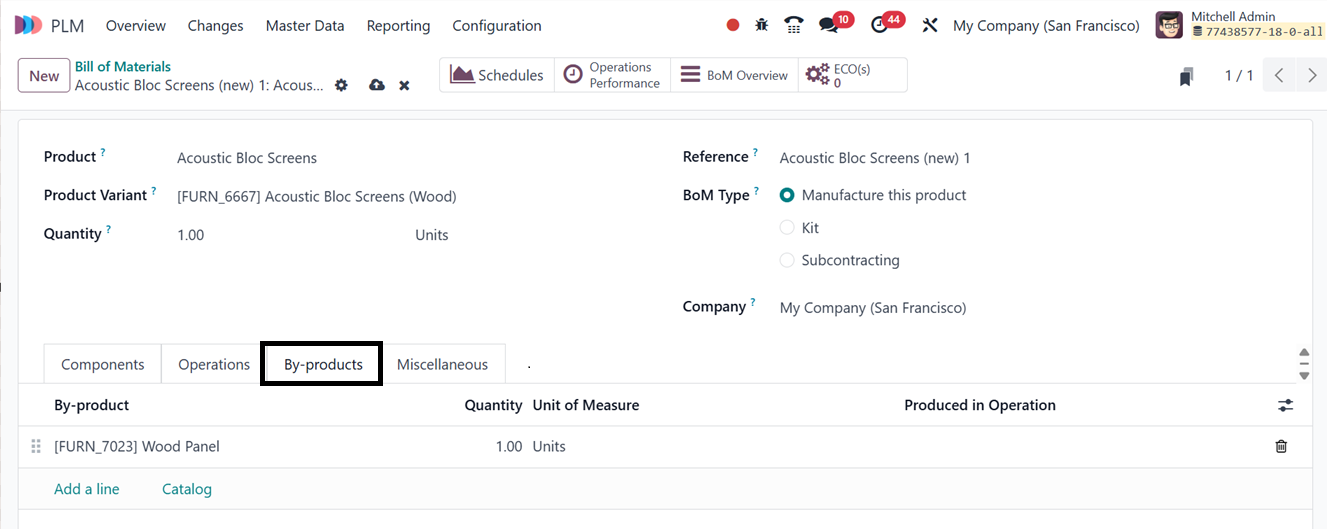
In the ‘By-products’ tab, the related by-products of the primary
product can be added using the ‘Add a line’ button.
You may modify the sequence of operations in the BoM by turning on
the Operation Dependencies button located under the Miscellaneous
tab. You may choose the order in which work orders are finished by
turning on the Work Order Dependencies option from the Settings
menu. When enabled, a Blocked By field will appear in the Operation
window, allowing you to define dependencies for additional
activities. Furthermore, Manufacturing Lead Time is the average
amount of time needed to manufacture a product, taking component
lead times into account in multi-BoM scenarios. This aids in
deciding when to send component parts for items that are
subcontracted. The Days Needed to Prepare Manufacturing Orders
setting ensures that orders are made ahead of time, giving
sufficient time for the replenishment of components or semi-finished
goods.
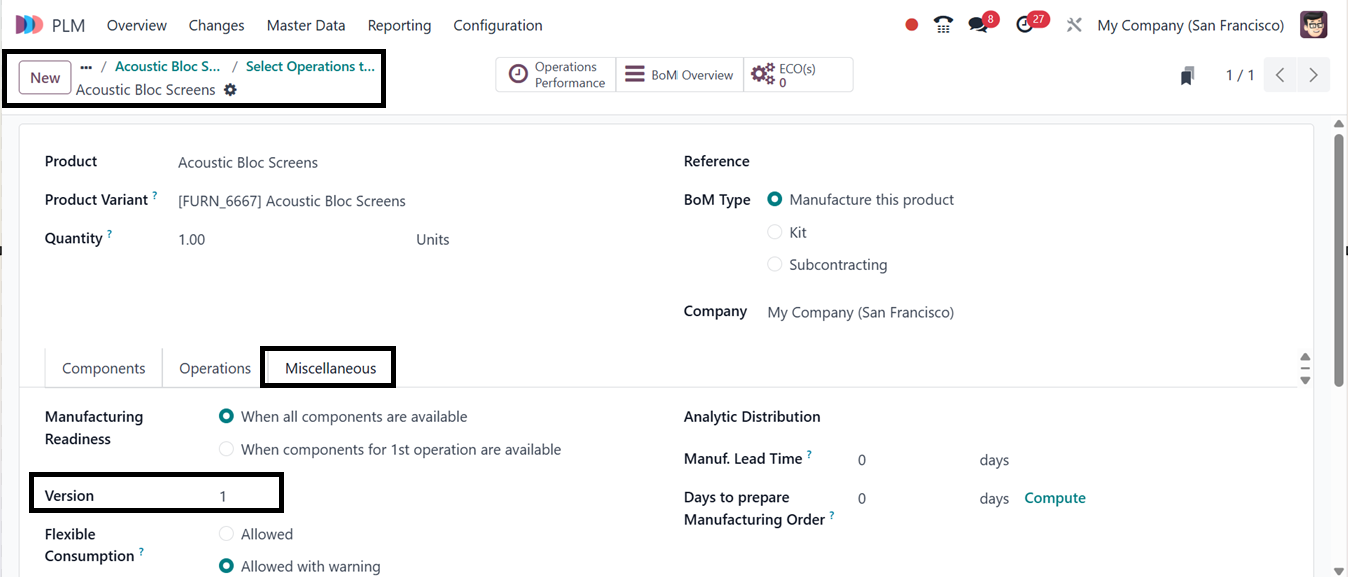
You can specify the start date of production in the Manufacturing
Readiness box located under the Miscellaneous tab. Select "When
components for the 1st operation are available" to start with enough
materials for the first step, or "When all components are available"
to start only when all parts are ready.
The "Version" field in the ‘Miscellaneous’ tab represents the
engineering version or revision level of a product, tracking changes
in design or specifications over time. It distinguishes between
different iterations of the same item, ensuring correct version
usage across manufacturing, purchasing, and inventory operations.
The versioning system supports engineering change orders (ECOs) and
version-controlled updates, allowing for easier tracking of current
stock or use of a product's version due to design improvements or
material changes.
When an Engineering Change Order (ECO) is applied in the PLM module
of Odoo 18, the Bill of Materials (BoM) version will be updated.
Users can change components or routings in a BoM using the ECO, and
Odoo will either update the current BoM or generate a new one based
on the configuration. This updated version may be seen in the
product's inventory data as well as on the BoM form in its ‘ECO(s)’
smart button. By preserving prior versions for reference, versioning
guarantees the traceability of changes. The revised BoM may
optionally go into effect on a given future date.
With the choices of Blocked, Allowed, or Allowed with Warning,
Flexible Consumption establishes whether you are permitted to
utilize more or less components than those listed in the BoM. To
specify the sequence of BoM actions, you may also activate Operation
Dependencies.
You may define the manufacturing process for the product and the
project that it is linked to using the Routing and Project options.
The Version in a Bill of Materials (BoM) is a revision control
system that tracks changes, ensures accuracy, and manages updates
through Engineering Change Orders (ECOs) for approval, effective
dates, and seamless transitions in manufacturing.
After the Bill of Materials (BoM) has been configured up, a
Manufacturing Order for the relevant product may be made using it.
Routing-related work order duration statistics are provided by the
Operations Performance Smart button feature. Use the BoM Overview
smart button to examine all of the BoM's important information,
including Product, Operations, Quantity, Free to Use/On Hand,
Availability, Lead Time, Route, BoM Cost, and Product Cost.
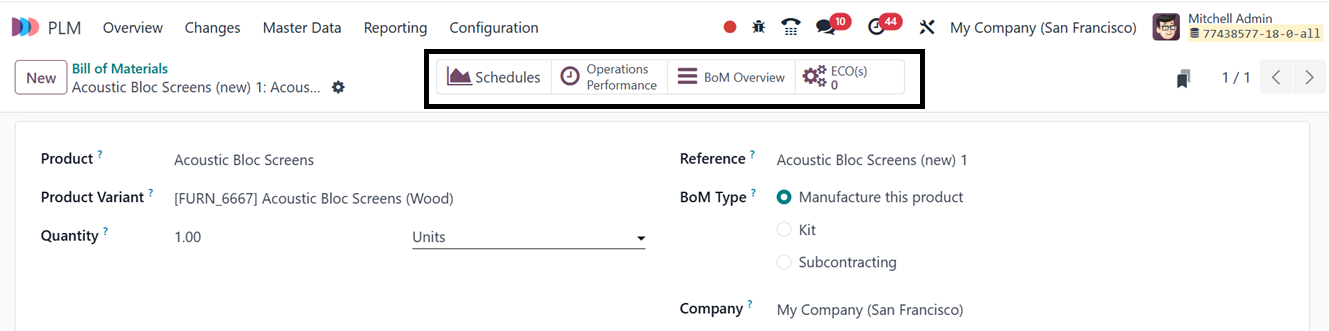
The Schedules smart button will provide the details of all the
schedules related with this product and the ECO(s) smart button will
show the details of all Engineering changed orders.
3.3 Work Centers
Work Centers in Odoo 18's PLM (Product Lifecycle Management) module
stand in for the actual buildings or equipment used for
manufacturing processes. These facilities provide resource
management, workflow optimization, and production efficiency
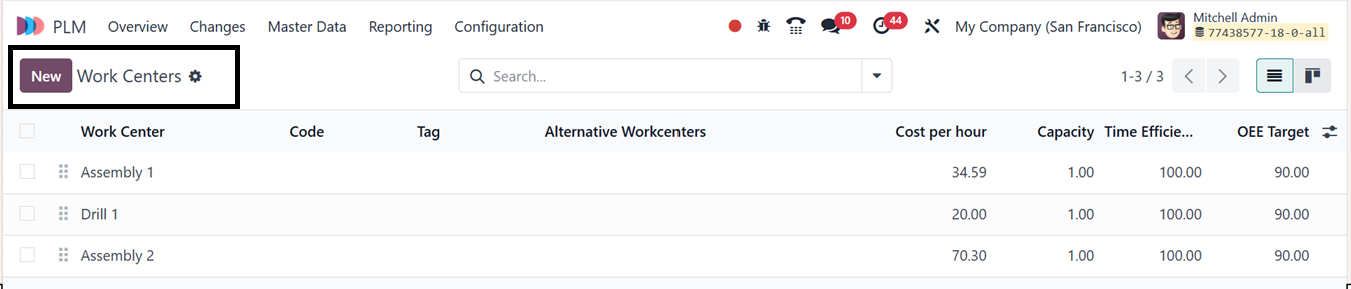
tracking. The dashboard provides the details of Work Center, Code,
Tag, Alternative Workcenters, Cost per hour, Capacity, Time
efficiency and OEE Target as illustrated in the screenshot below.
Click the "New" button to bring up the configuration form for a new
Work Center in Odoo. Provide an alternative work center, code,
working hours, and company in the "Workcenter Name" section. You can
also include pertinent tags. For a thorough configuration, the form
has sections for General Information, Specific Capacities,
Equipment, and IoT Triggers.
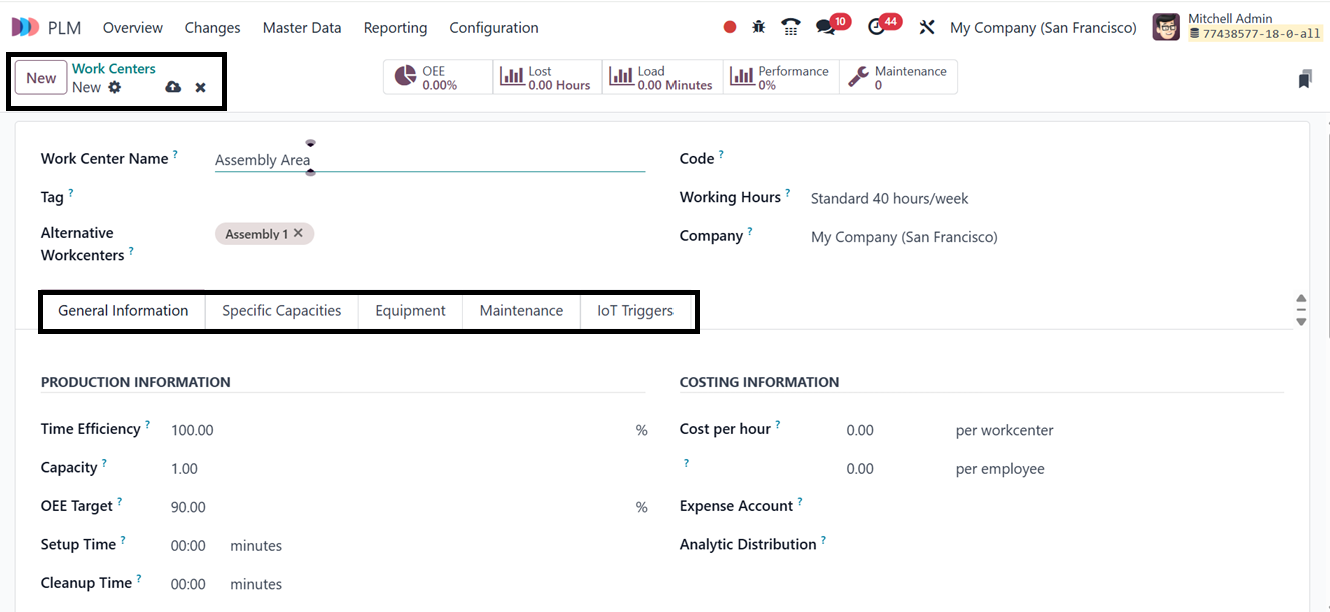
- Production Information, Operations, and Costing, including OEE
Target, Capacity, and Time Efficiency, may be defined under the
General Information tab. While the Costing Information part
allows you to link an Analytic Account and define Cost per Hour,
the Operations portion allows you to limit access to select
staff.
- While the Equipment tab includes allocated equipment and permits
maintenance tracking.
- The Specific Capacities tab allows determining work center
capacity per product. The "Add a line" button can be used to add
new equipment.
- Automation is made possible by connecting external devices to
the work center via the IoT Triggers tab. In a specific form,
users may change IoT settings and specify device ID, Key, and
Action.
- The Maintenance Tab allows you to determine the maintenance team
and technician details.
After saving the details, the Work center efficiency is revealed via
smart buttons such as OEE, Lost, Loads, Performance and Maintenance.
Performance is monitored by the OEE Smart Tab according to cost,
duration, and loss factors. Productivity losses brought on by things
like equipment breakdown and inefficiencies are recorded by the Lost
Smart Tab.
The "Performance" smart tab analyzes Work Center Performance based on
Work Orders. The Work Center Loads display real-time work order
status compared to the estimated time. The Maintenance tab provides
details of all maintenance activities within the Work Center.
After saving all the work center details, you can utilize them for
the future PLM as well as manufacturing operations.