2. Orders
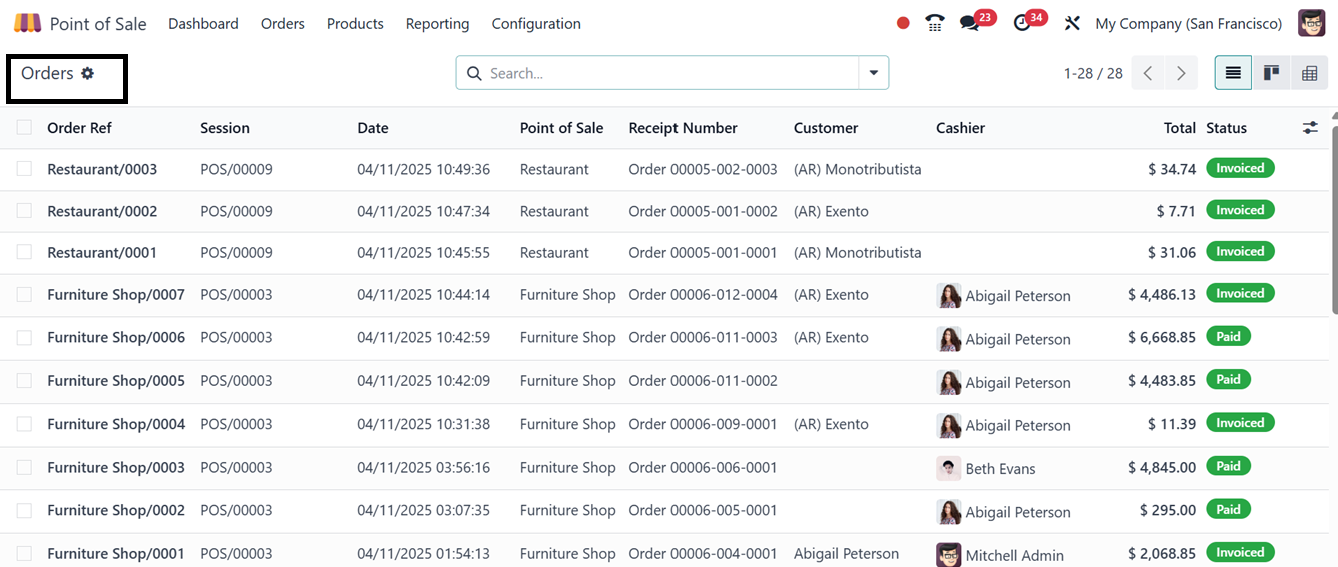
A detailed record of every Point of Sale (POS) order made during each
session on your POS application platform is shown in the "Orders"
dashboard. Order Reference number, Session ID, Date, Point of Sale
location, Receipt number, Customer, Cashier, and Status are all
included in the details of each order. As seen in the picture below,
this window enables users to effectively handle all orders from
several POS sessions within a single, cohesive platform.
3.1 Sessions
All active and completed sessions within the Point of Sale module can
be accessed via the "Sessions" option under the Orders menu. This
section provides a comprehensive overview of both ongoing and closed
sessions. The interface presents a list of sessions, which can be
viewed in either List or Kanban format.
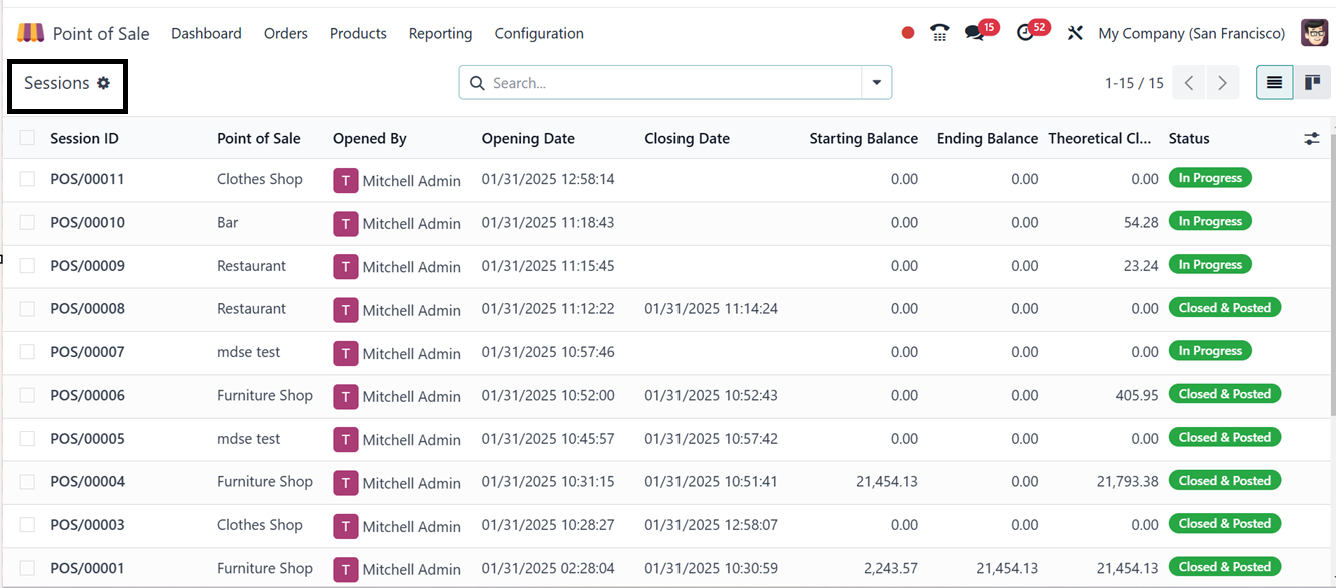
Each session entry includes essential details such as the Session ID,
Point of Sale location, User who initiated the session, Opening and
Closing Dates, Starting Balance, Current Balance, and Status.
You can also sort or filter the session data using the various
Filter and Group By options provided in the search bar area.
3.2 Payments
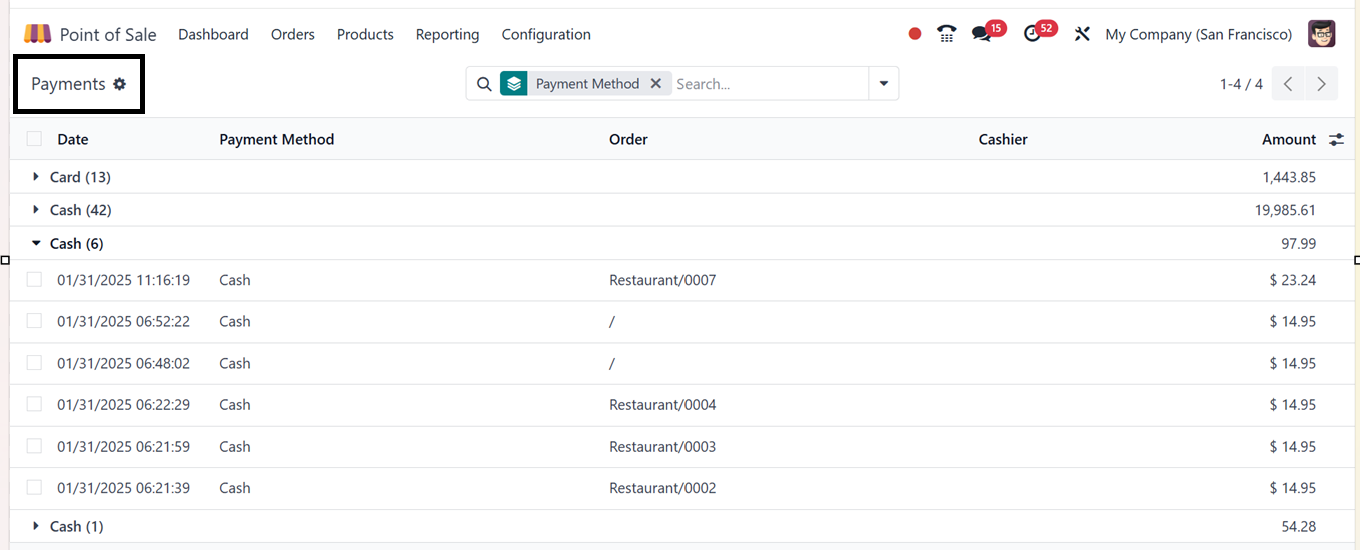
The Orders menu's "Payment" option allows you to manage all the
previously created payment methods , whether they were made with
cash or a card, along with comprehensive details including the date,
payment method, order number, cashier, and amount paid.
To open and edit the available payment methods, simply click on the
column. In the opened form view, edit the changes. Additionally, the
"Filters" and "Group By" options can be used to effectively sort and
filter the payment data.
3.3 DSFinV-K Exports
The DSFinV-K Exports feature in Odoo 18 POS is a compliance tool for
businesses in Germany, enabling the generation of financial reports
that meet the German Federal Tax Office requirements. It ensures POS
transaction data is recorded in a standardized, audit-friendly
format mandated by German tax authorities.
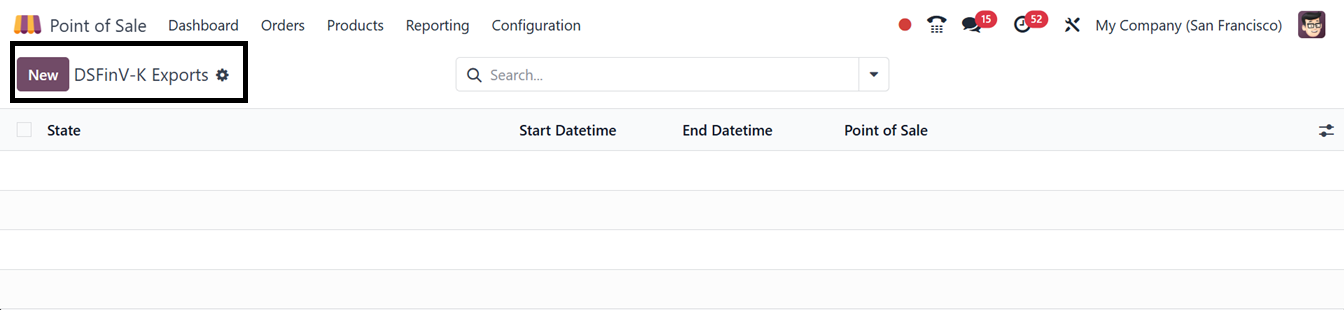
The ‘DSFinV-K Exports’ option of the ‘Orders’ menu will display the
available records in a list view with the details of State, Start
Datetime, End Datetime and Point of Sale details, as illustrated in
the screenshot below.
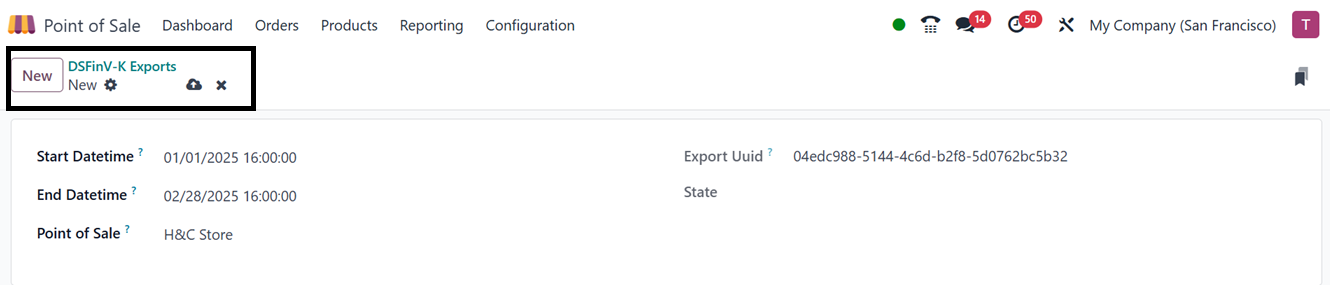
You can simply create a new DSFinV-K Exports entry by clicking on the
‘New’ button and editing the relevant details, as illustrated below.
This feature allows businesses to export detailed transaction data,
including sales, payments, discounts, and taxes, for tax reporting
and financial audits. By utilizing DSFinV-K exports, businesses can
streamline compliance with German tax regulations and simplify data
submission for audits.
3.4 Preparation Printers
The Preparation Printers menu in Odoo 18 POS enables businesses like
restaurants and cafés to manage kitchen or station printers by
assigning them to specific product categories. This ensures order
tickets are automatically sent to the appropriate preparation
stations, such as the kitchen or bar.
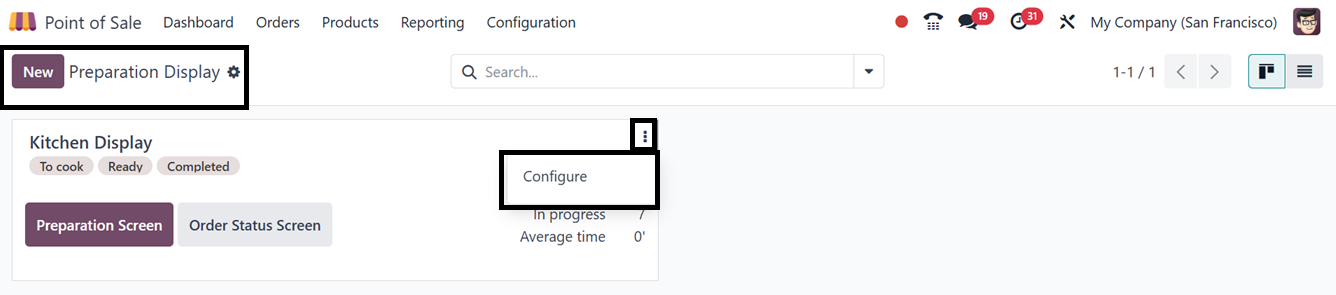
You will see the dashboard of the available kitchen printers from the
“Preparation Printer” window with the details including the Printer
Name, IoT Device and Printed Product Categories, as illustrated
below.
The ‘Preparation Screen’ button will show the preparation window with
the latest status of the currently ordered food product with various
stages options as shown in the screenshot below.
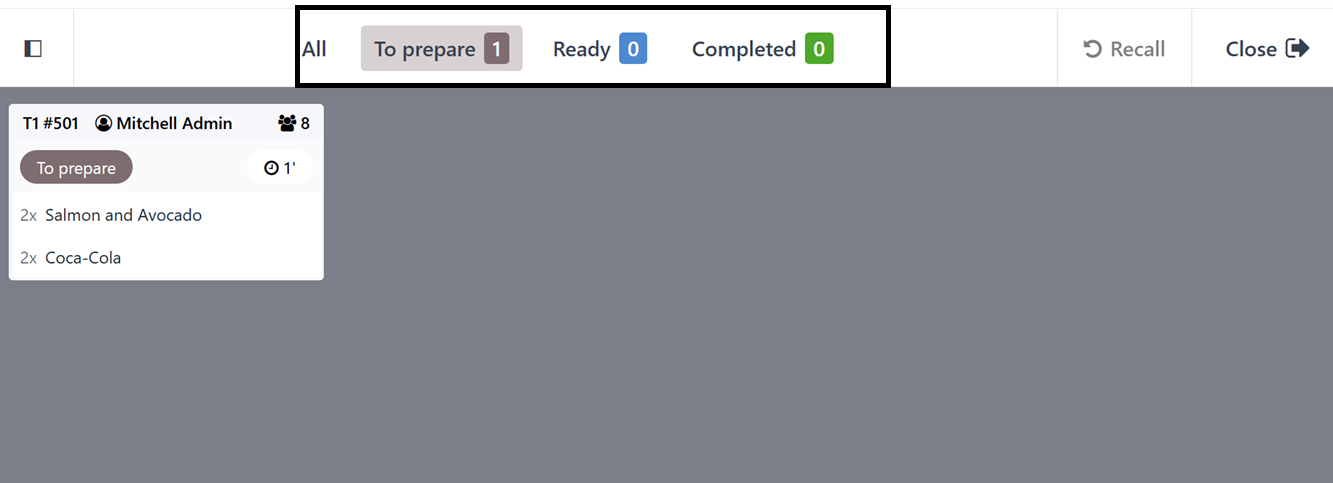
Then, the ‘Order Status Screen’ button will open the order status of
the current order in a full screen mode as shown below.
The ‘Preparation Screen’ button will show the preparation window with
the latest status of the currently ordered food product with various
stages options as shown in the screenshot below.

To create a new Preparation Display, click on the “New” button and
start editing the Display Name, Point of Sale sessions and Product
Categories, as illustrated in the screenshot below.
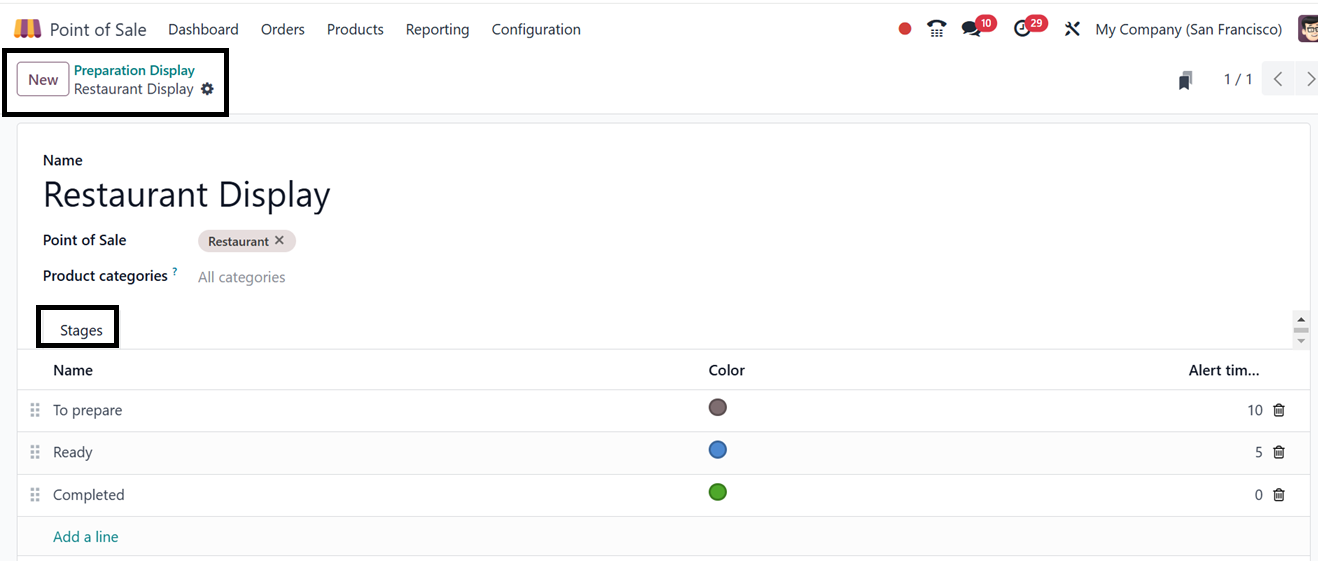
In the ‘Stages’ tab section of the form,you can add various display
stages according to the restaurant order completion procedures using
the ‘Add a line’ button. Finally, save the data using the ‘Save’
icon.
By streamlining order processing and reducing errors, this feature
improves efficiency and enhances workflow automation, ensuring staff
receive accurate order details instantly.
3.5 Customers
By selecting the "Customers" option within the Orders menu, users can
access a comprehensive list of customers, including essential
details such as Name, Company, Address, and other Contact
Information. This feature facilitates efficient management and
creation of customer profiles. The information is initially
displayed in Kanban view, but users have the option to switch to
List view for an alternative presentation.
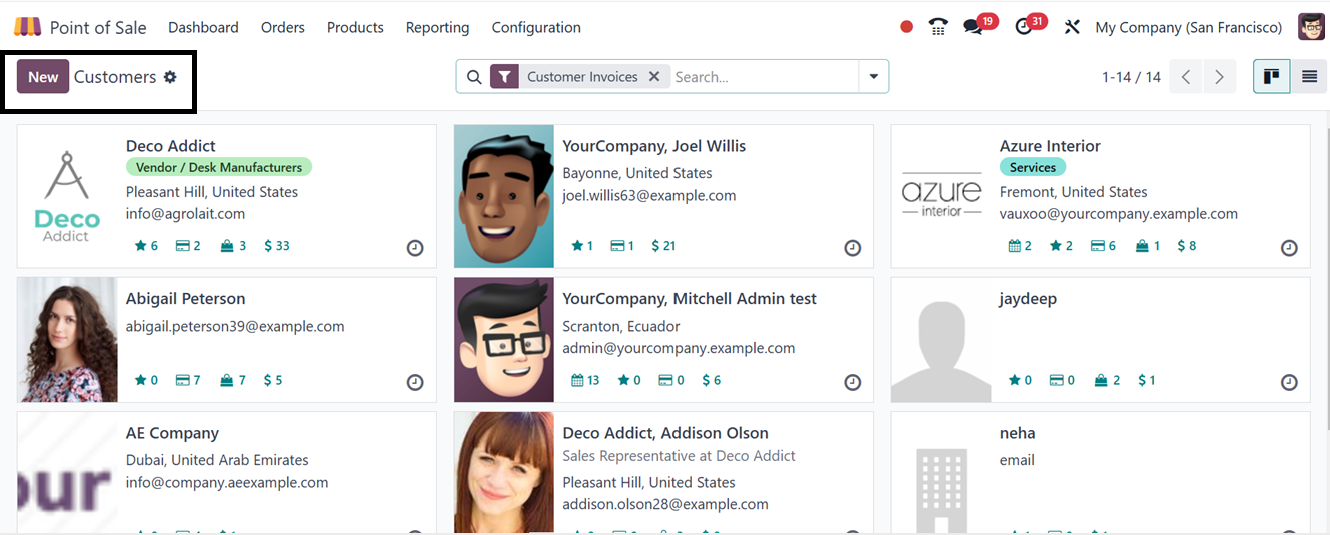
At the bottom of each Kanban card, users can track the number of
Meetings, Opportunities, Purchases, and Sales Orders by clicking on
the corresponding icons. Additionally, the Activity icon enables
users to schedule activities directly with the customer.
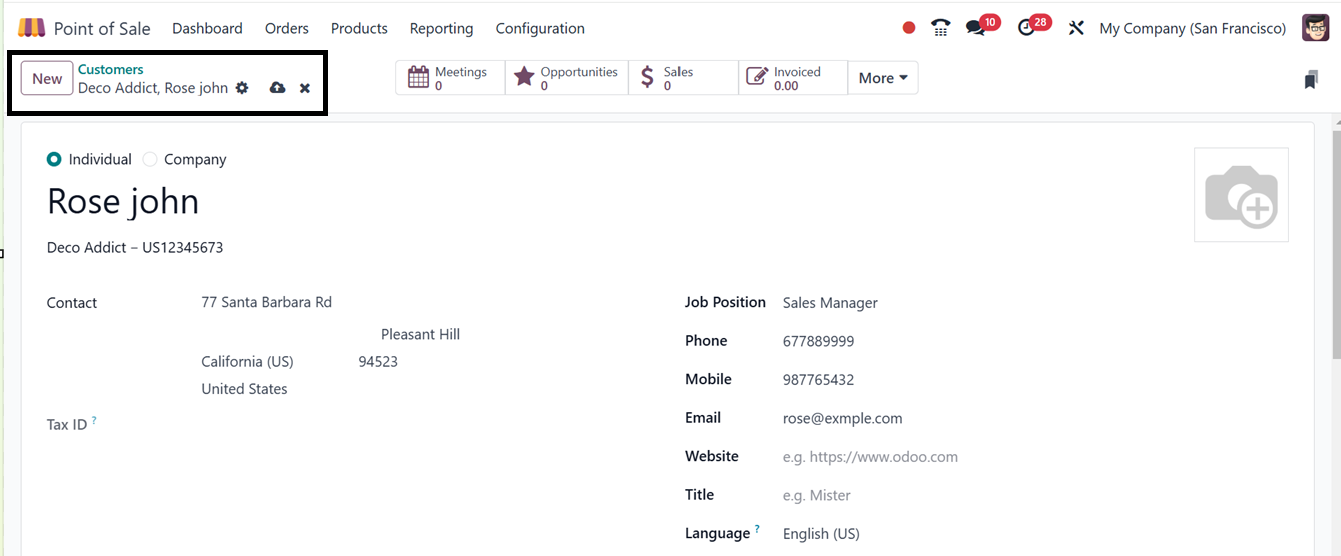
To add a new customer to the Point of Sale (PoS) database, users can
click the "New" button, which opens a customer configuration form
similar to those available in other Odoo modules. This form allows
users to enter fundamental customer details, including Name, Contact
Information, and Address. For enhanced customer data management,
additional details related to Sales & Purchases, Invoicing, Partner
Assignments, and Membership Information can be specified through
various tab sections.