3. Products Menu
The "Products" menu, accessible
from the main module window,
displays a catalog of
products available for retail
within the company. The
product list is presented in
Kanban view, showcasing key
product details such as
Product Reference Code,
Price, and Available
Quantity.
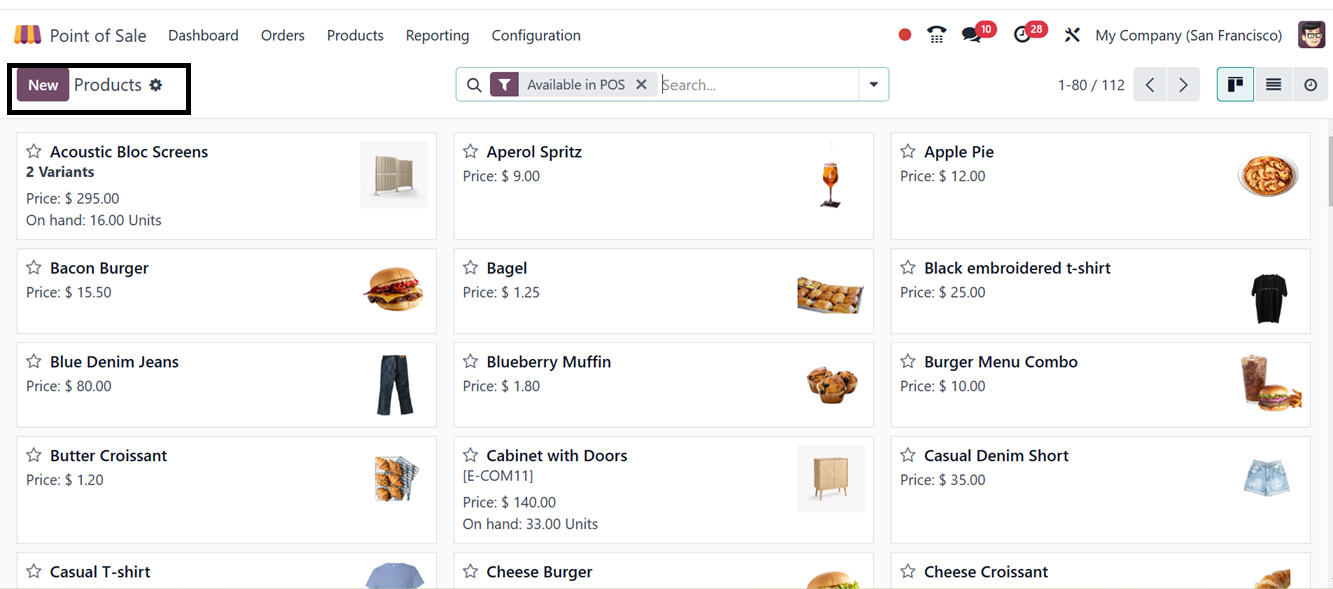
Users can switch to List view for
an alternative display
format. By selecting a
product, they can access a
detailed form view containing
additional product
specifications. The "Filters"
and "Group By" options allow
users to sort products based
on specific criteria,
improving organization and
ease of access. To add a new
product, users must click the
"New" button. The process is
similar to product creation
in the Purchasing module.
Users begin by entering the
Product Name and can upload
an image.
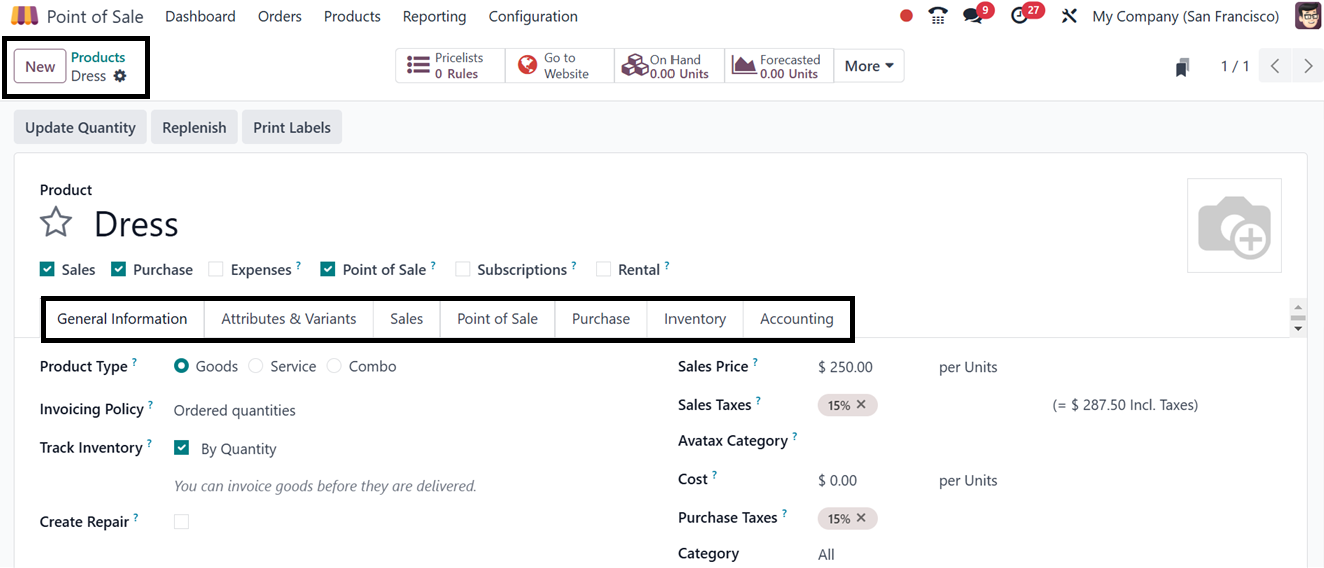
Under the "General Information"
tab, details such as Product
Type, Invoicing Policy,
Ordered/Delivered Quantities,
Units of Measure, Sales
Price, Customer Tax, Cost,
Product Category, Reference,
Barcode, and Associated
Company can be specified.
Additionally, an internal
note can be added for
reference.
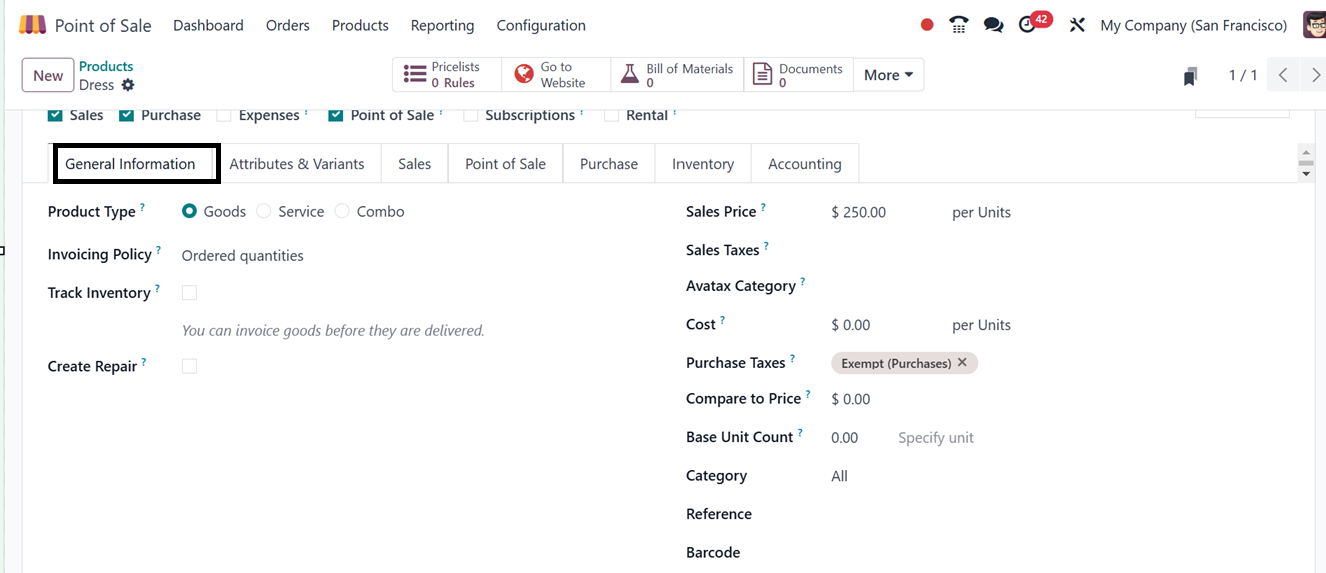

In the "Attributes and Variants"
tab, users can define
different product variations
by selecting the "Add a Line"
option to include various
properties and values.
The "Sales" tab allows users to
configure upselling and
cross-selling options, set up
points of sale, manage
product media, define sales
descriptions, and specify
eCommerce settings. Users can
also determine optional,
supplemental, and alternative
products for upselling and
cross-selling strategies.
The "Point of Sale" tab in
product configuration form
has several settings that
define product behavior in
the PoS interface. These
settings include the
"Available in Self Order"
checkbox, which controls
visibility and sellability,
and the "To Weigh With Scale"
option, which allows products
to be sold by weight using a
connected electronic scale.
The "Category" dropdown
assigns the product to a
specific PoS category, and
mentions the product “Color.”
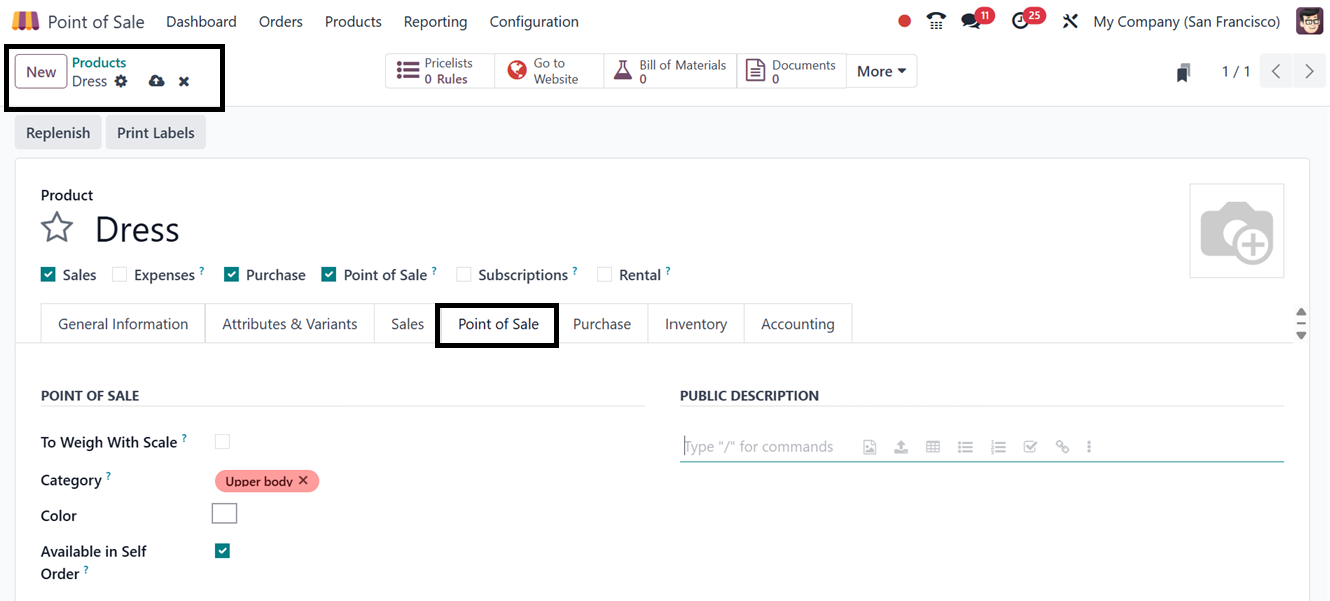

The ‘PUBLIC DESCRIPTION’ area can
be used to provide any
product description. Finally,
the ‘URBAN PIPER’ area can be
used to mention if the
product belongs to a food
category, Available on Food
Delivery, Meal Type, Is
Alcoholic, and Is Recommended
options to recommend the item
on food platforms.
In the "Purchase" tab, vendors
can be added through the "Add
a Line" option. Users can
specify vendor details,
currency, price, delivery
lead time, taxes, and control
policies under the "Vendor
Bills" section.
The "Inventory" tab allows users
to define operational routes
such as buying, repairing,
manufacturing, restocking,
subcontracting, or
dropshipping. Logistics
details, including inventory
officers, weight, volume,
lead times, HS codes, and
origin, can be configured.
The tab also allows users to
define customer lead times,
manufacturing lead times,
production locations, and
inventory storage locations.
The "Accounting" tab contains
sections for Receivables and
Payables, where users can
specify income, expense, and
price difference accounts.
The tab also provides an
option to configure automated
invoicing emails. Once all
details are entered, clicking
the "Save" button finalizes
the product entry.
Following this, the newly created
product becomes available for
sale in Point of Sale (PoS)
sessions. Additional
configurations and details
can be accessed through Smart
Tabs, including Pricelists,
Website Integration,
Variants, Bill of Materials,
Documents, and Putaway Rules.
4.1 Product Variants
The Odoo 18 Point of Sale (PoS)
module offers an intuitive
way to manage product
variants. Under the "Product
Variants" section in the
"Products" menu, users can
view a list of previously
created product variations,
including Internal Reference,
Product Name, Website,
Variant Attributes, Sales
Price, Cost, Available
Quantity, and Unit of
Measurement.
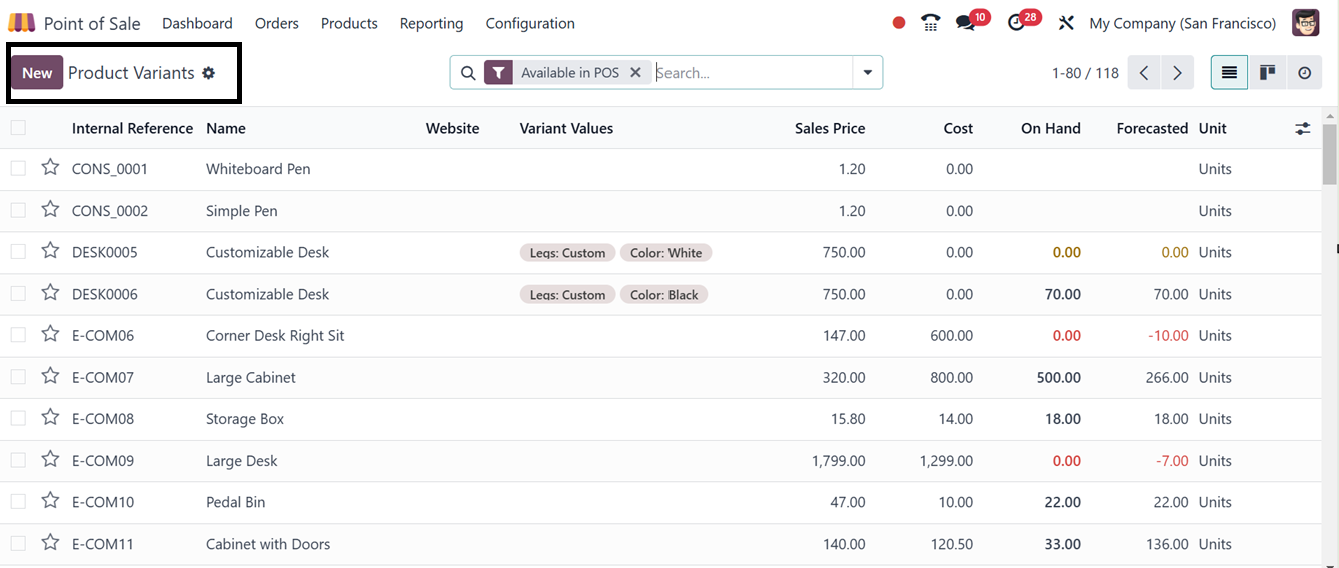
For instance, a product such as a
Notebook may have multiple
size and color variants, all
of which are accessible
through this section. Users
can categorize product
variants using "Group By"
filters for better
organization.
When a user initiates a Point of
Sale session and selects a
product with multiple
variants, an attribute
selection window appears,
allowing them to choose the
required size, color, or
other specifications before
adding the product to the
cart.
4.2 Combo Choices
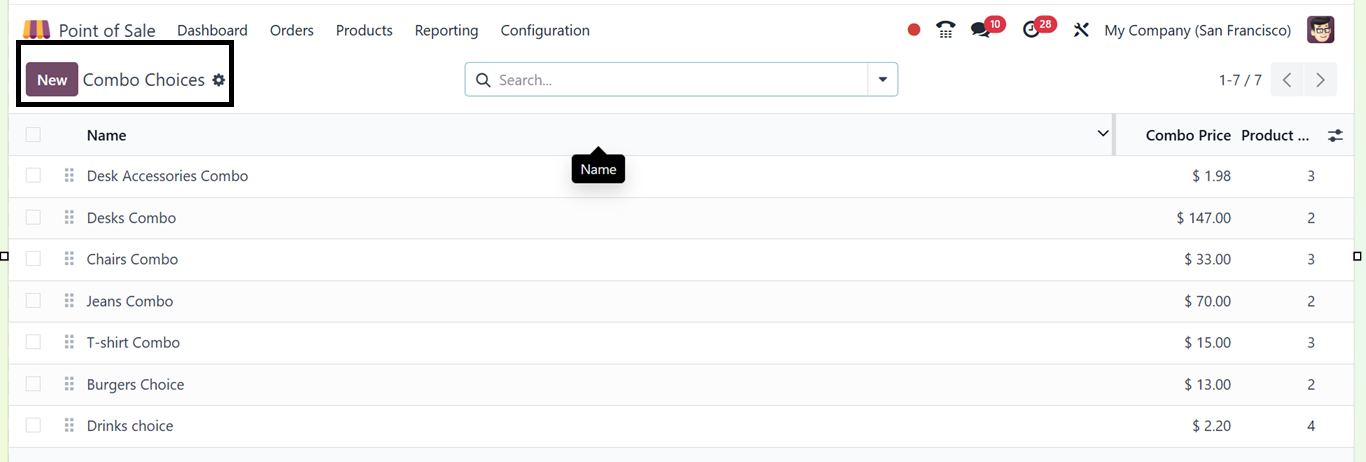
The "Combo Choices" feature in
Odoo 18 allows businesses to
create product bundles for
Point of Sale (PoS) sessions.
This section, accessible
under the "Products" tab,
displays details such as
Combo Names, Product Prices,
and Included Product Numbers.
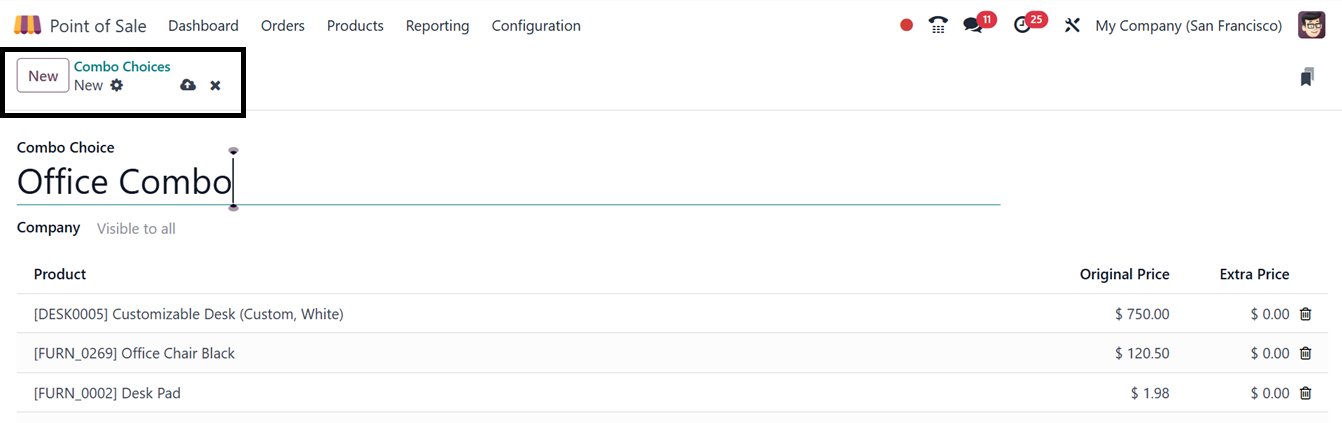
To create a new product bundle,
users must click the "New"
button, enter a Combo Name,
select products, and define
Extra pricing, as depicted in
the screenshot below.
4.3 Price Lists
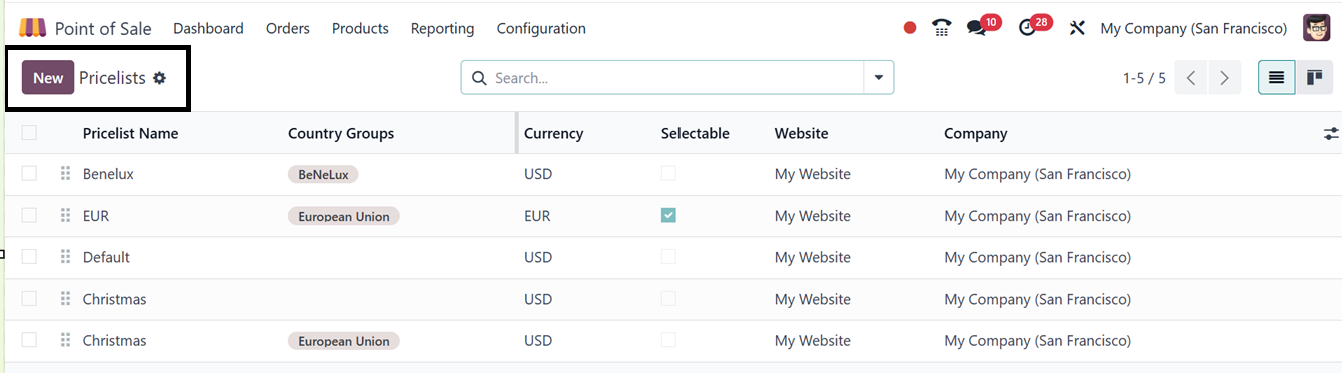
Price lists allow businesses to
define customized pricing
structures based on
predefined criteria. This
feature is accessible through
the "Pricelists" section of
the "Products" menu.
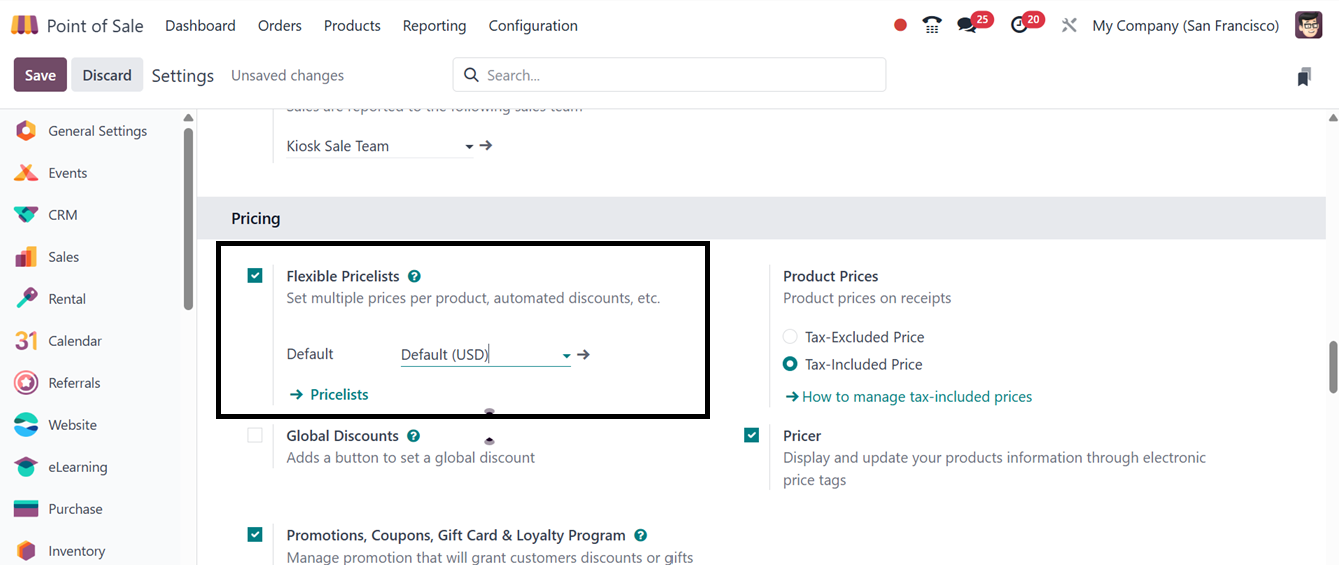
To activate this feature, users
must enable the "Flexible
Pricelists" option under the
Pricing tab in the PoS
configuration settings. Once
enabled, the Pricelists menu
becomes available.
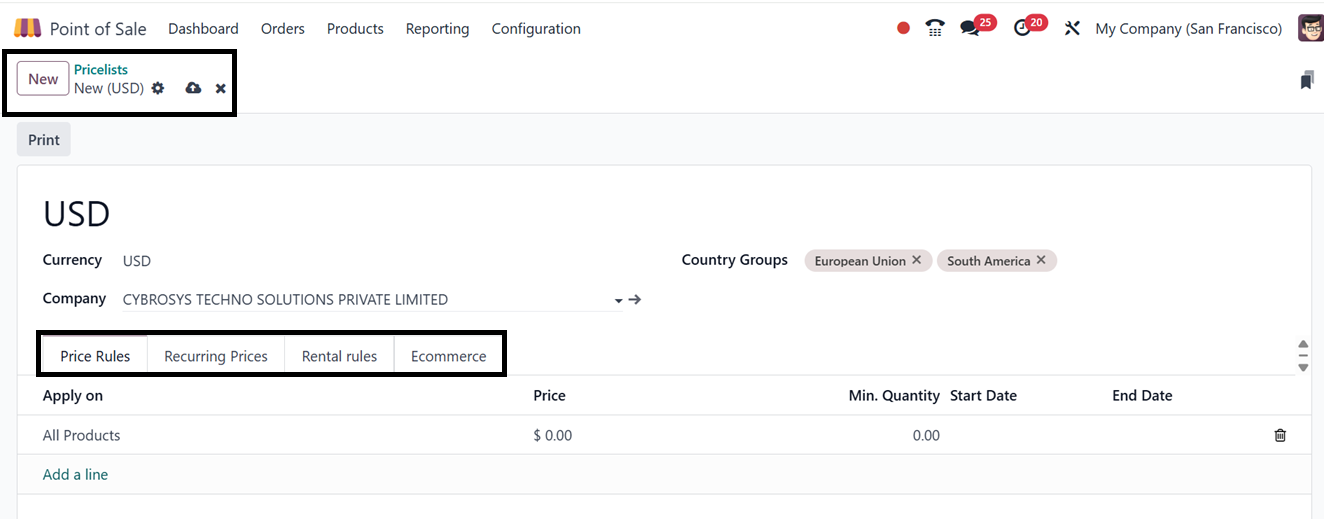
Then, you can create a new price
list by selecting "New", then
specifying the Name, Company,
Currency, and Country Groups
applicable to the pricing
strategy.
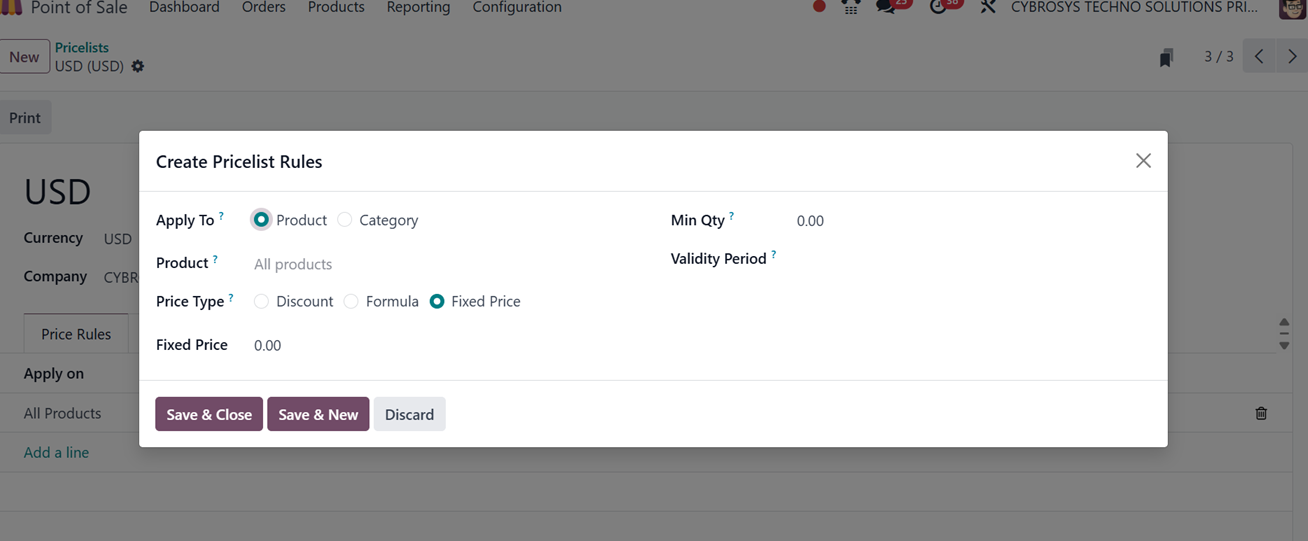
In the "Price Rules" tab, pricing
rules can be defined by
clicking "Add a Line", which
opens a configuration window.
Users can define applicable
Products, Price Types,
Discounts, Minimum
Quantities, and Validity
Periods.
The ‘Recurring Prices’ tab allows
you to set a recurring price
rule for a specific product
variant, linked to its
recurring plan and price.
Then, the ‘Rental Rules’ tab can
be used to add various rental
rules for a product based on
the product variant and
rental period.
Finally, the E-commerce tab
allows users to define the
Website where the pricing
list is applicable.
Additionally, the
"Selectable" option enables
customers to manually select
a pricing list, while the
"E-commerce Promotional Code"
field allows for the
configuration of discount
codes for online purchases.
After configuring the
necessary settings, users
must click "Save" to finalize
the price list.
Available and Default Price
Lists
- Available
Pricelists:
These are customizable
pricing lists
applicable to specific
customers or
conditions, allowing
businesses to define
prices based on
factors such as
customer segmentation,
discounts,
time-sensitive
promotions, or
regional pricing.
- Default Pricelist:
This serves as the
standard pricing
reference for all
products unless a
different price list
is selected.
Once price lists are configured,
users can test their
functionality within a Point
of Sale session. After
selecting a product, the
"Actions" button provides
access to pricing options,
including Discount Codes,
Cancellations, Quotations,
Orders, Taxes, Refunds, and
Pricelist Selection.
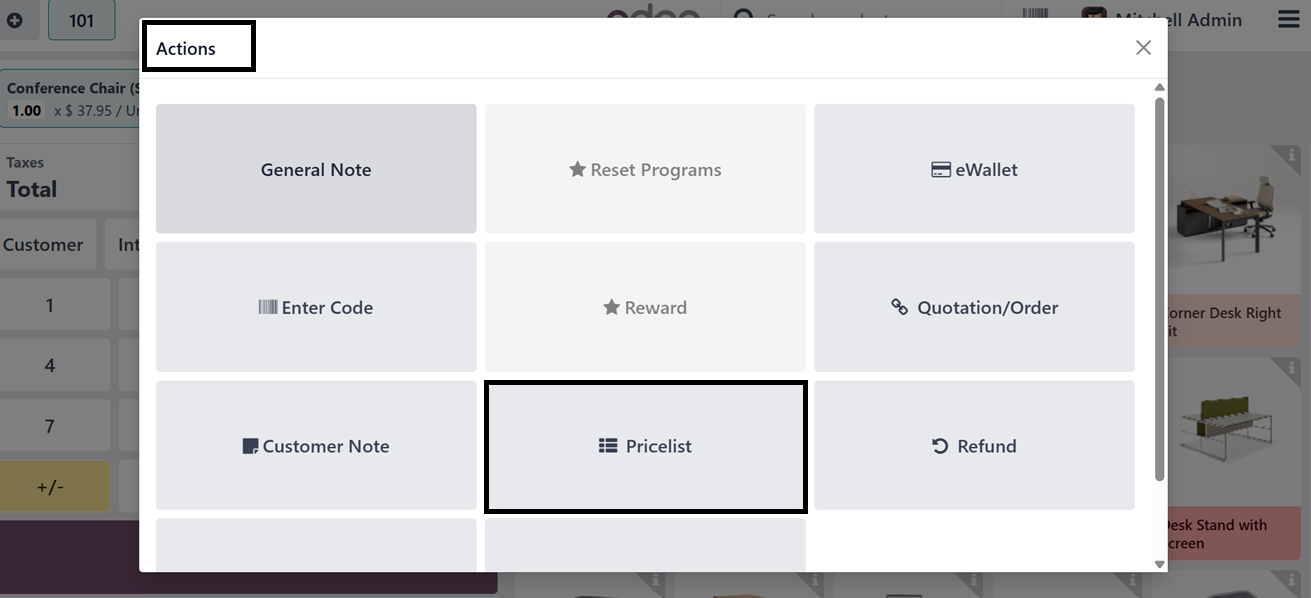
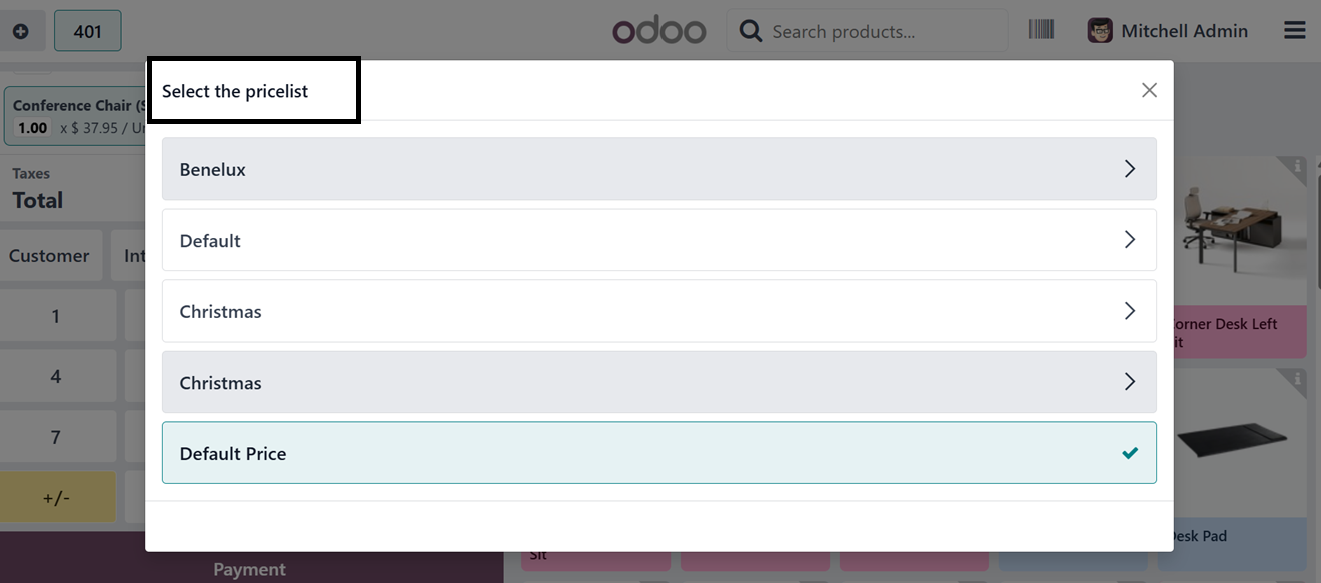
By choosing "Pricelist", users
can apply a custom price list
to a specific product. The
Default Pricelist and
additional configured price
lists appear in a selection
window, as illustrated in the
screenshot below.
Once a price list is chosen, the
transaction proceeds within
the Point of Sale system
accordingly.
4.4 Discounts and Loyalty
Programs
The Point of Sale (PoS) module
makes it easy to apply
discounts and manage loyalty
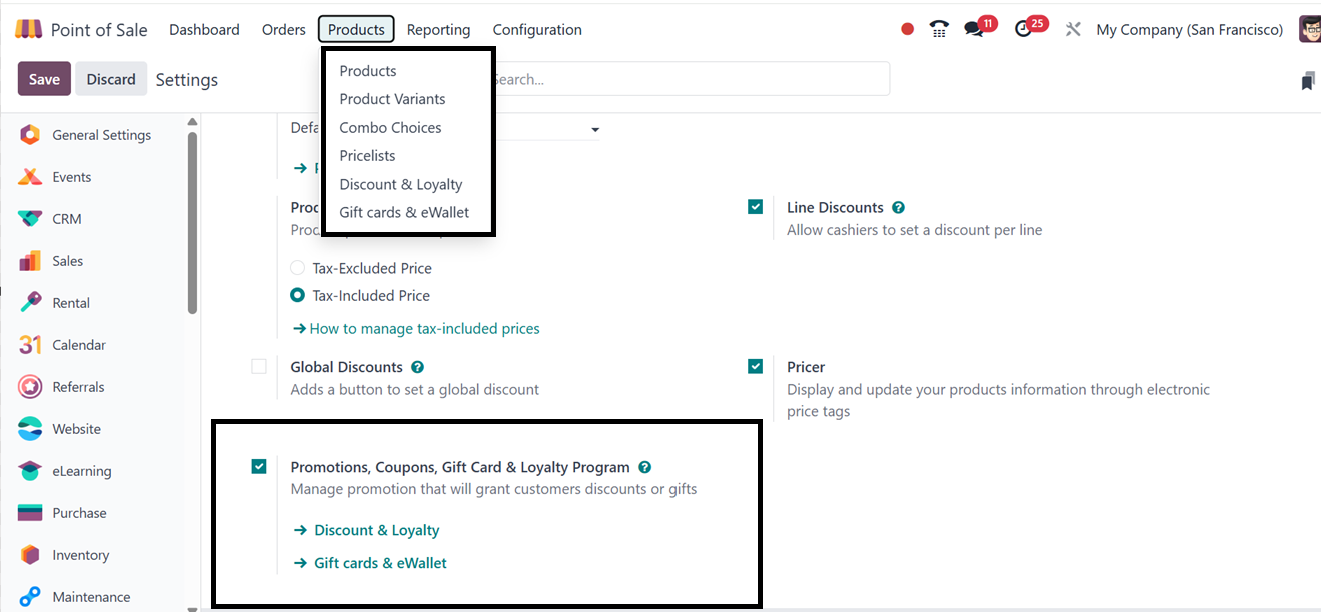
programs for different
products. To activate this
feature in your point of sale
platform, enable the
“Promotions, Coupons, Gift
Card & Loyalty Program”
option from the configuration
settings window from the
“Pricing” tab, as shown in
the screenshot below,
You must first select the
"Promotions, Coupons, Gift
Card & Loyalty Program"
option before you can access
this function under the
"Discount and Loyalty" area
under the "Products" menu.
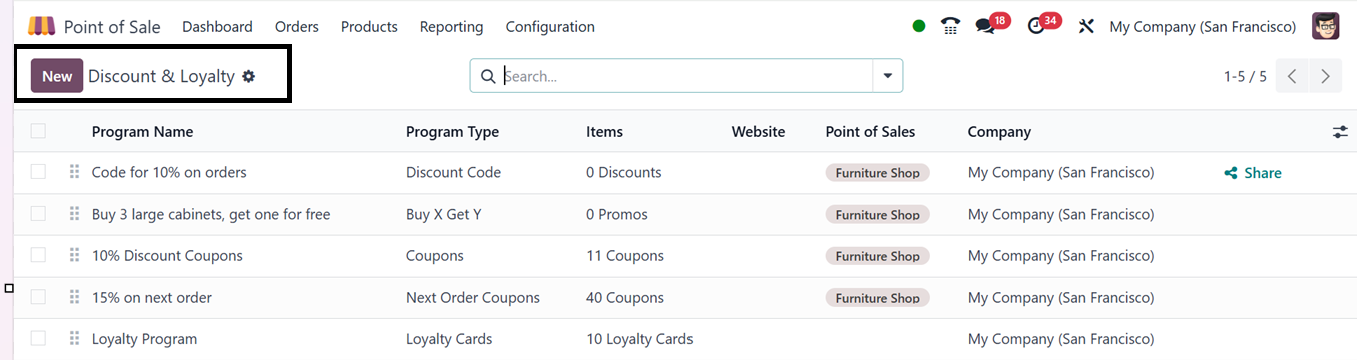
This section gives you a list of
all the existing discount and
loyalty programs, complete
with filtering and grouping
options. You’ll also see
details like Program Name,
Type, Applicable Products,
PoS Availability, Website,
and Company.
To set up a new program, just
click the "New" button. When
creating a new program, start
by picking a Program Type
(Coupon, Loyalty, or
Promotion) and give it a
name. Then, choose a currency
and set up a points system if
needed. You can enable the
"Available On Point of Sale"
option and add a validity
period. There’s also an
option to limit usage based
on company policies.
Additionally, you can define
where the program will be
available, whether in PoS,
Sales, or Online Stores.
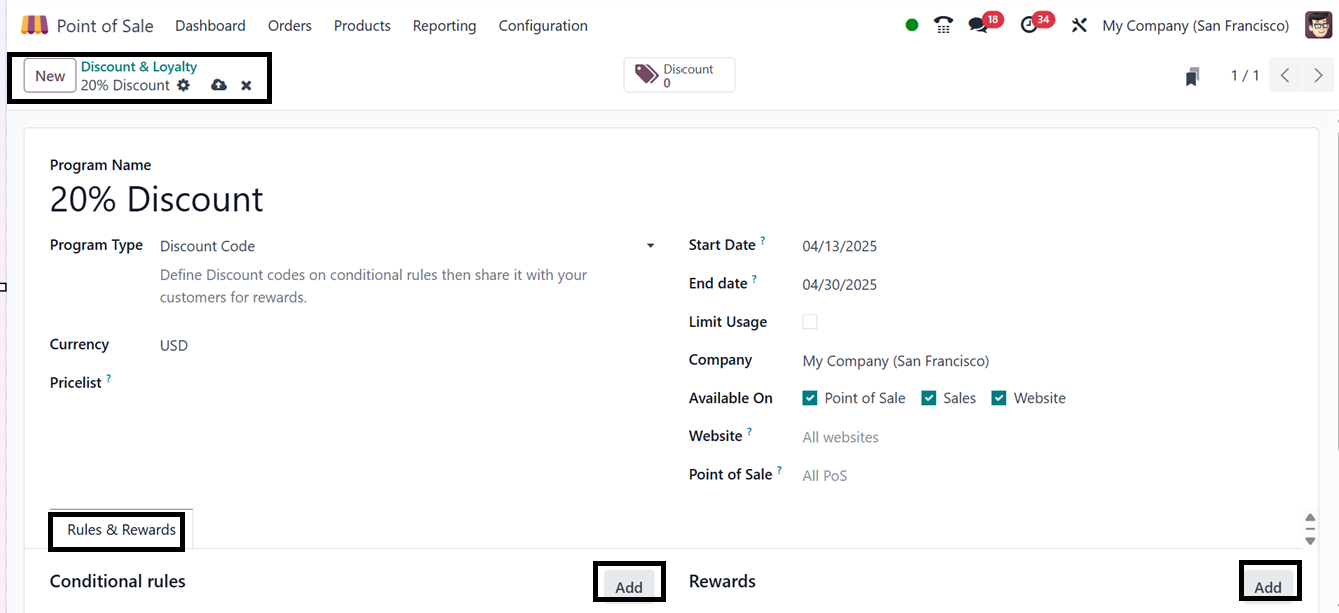
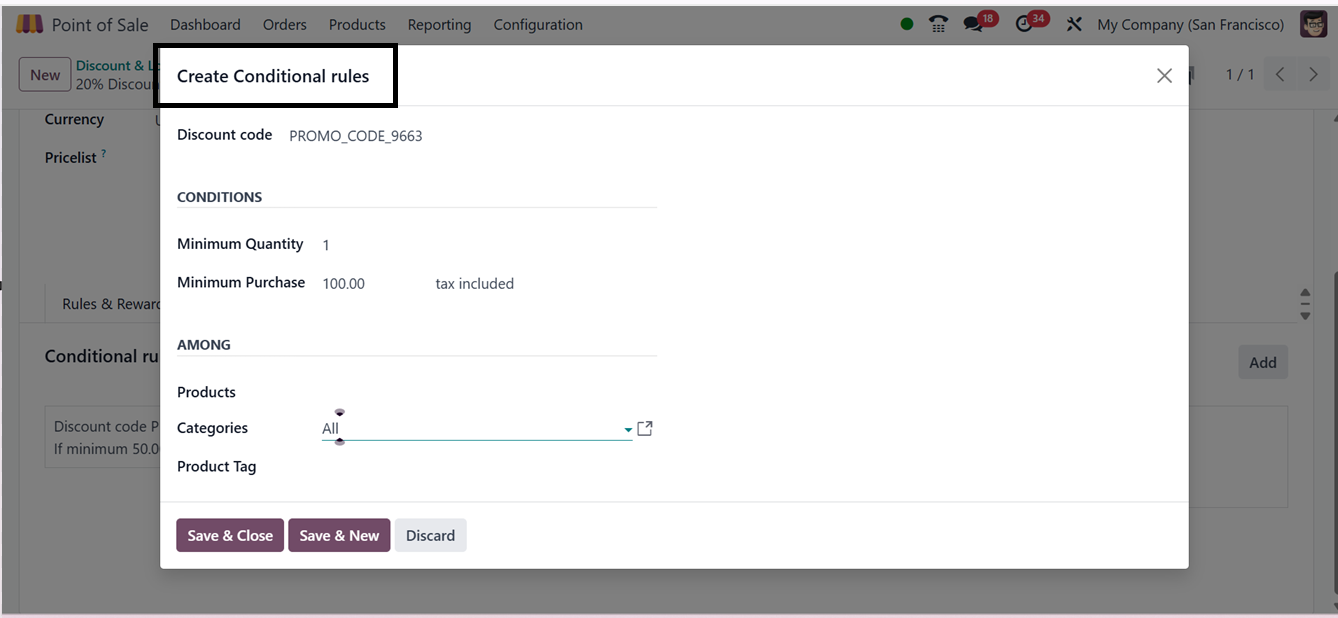
To apply for a discount, go to
the "Rules & Rewards" menu
and click "Add". A pop-up
window will appear where you
can enter details like
Discount Code, Conditions,
Applicable Products,
Categories, and Product Tags.
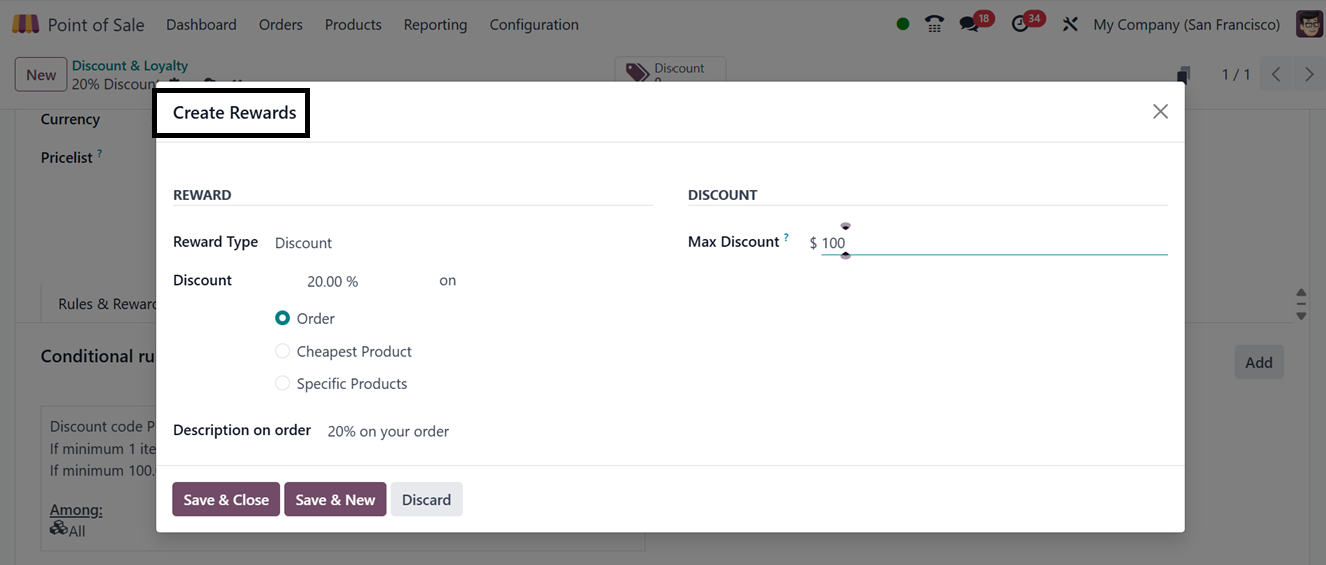
Similarly, under the "Rewards"
section, you can click "Add"
to define Reward Type,
Discount Amount, Maximum
Discount, and Applicable
Products or Categories. Once
you’ve entered all the
necessary details, just click
"Save" to finalize the
program.
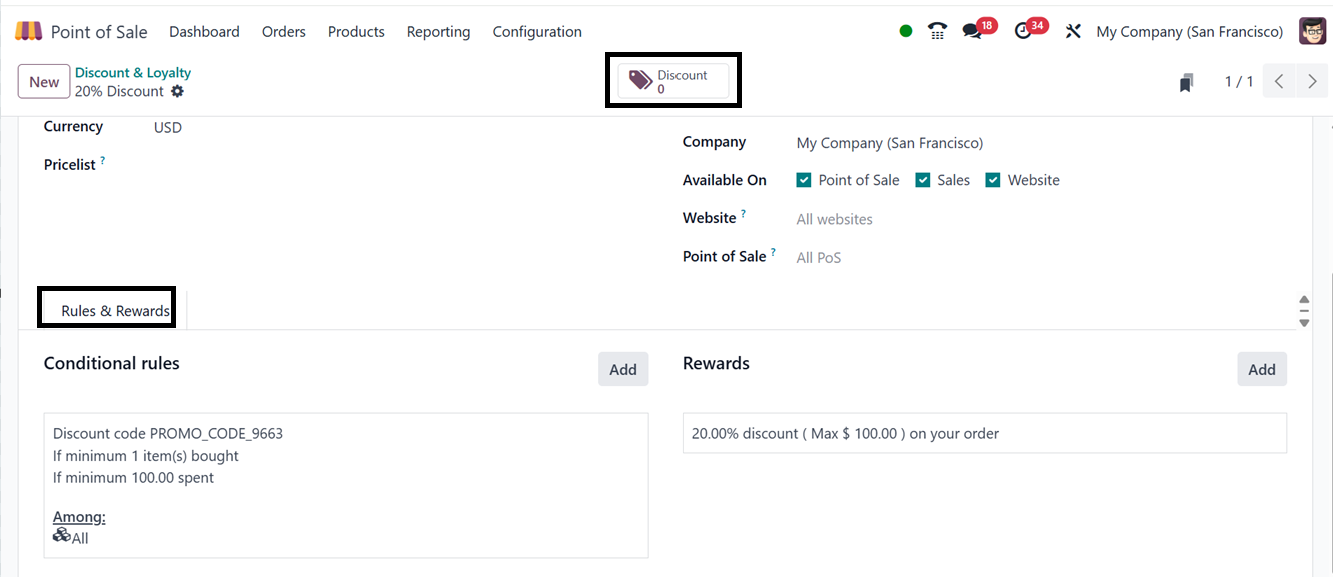
The added conditional rules for
rewards can be seen under the
‘Rules & Rewards’ tab. Then,
you can generate the required
discount coupons from the
‘Discount’ smart button.
The ‘Discount’ smart button shows
the available coupons with
the coupon Code, Balance,
Expiration Date, Program and
Partner details as shown
below.

Setting up a loyalty program
follows the same steps,
except you need to select
"Loyalty Cards" as the
Program Type. You can then
manage and create discount
coupons using the "Discount"
tab. When you open this tab,
you’ll see all available
discount coupons.
From here, you can send discount
coupons to customers using
the "Send" and "Share"
buttons. If you need a new
discount coupon, hit "New",
and the system will generate
a unique discount code
automatically. Set an
Expiration Date and link the
coupon to a specify an
Partner if needed.
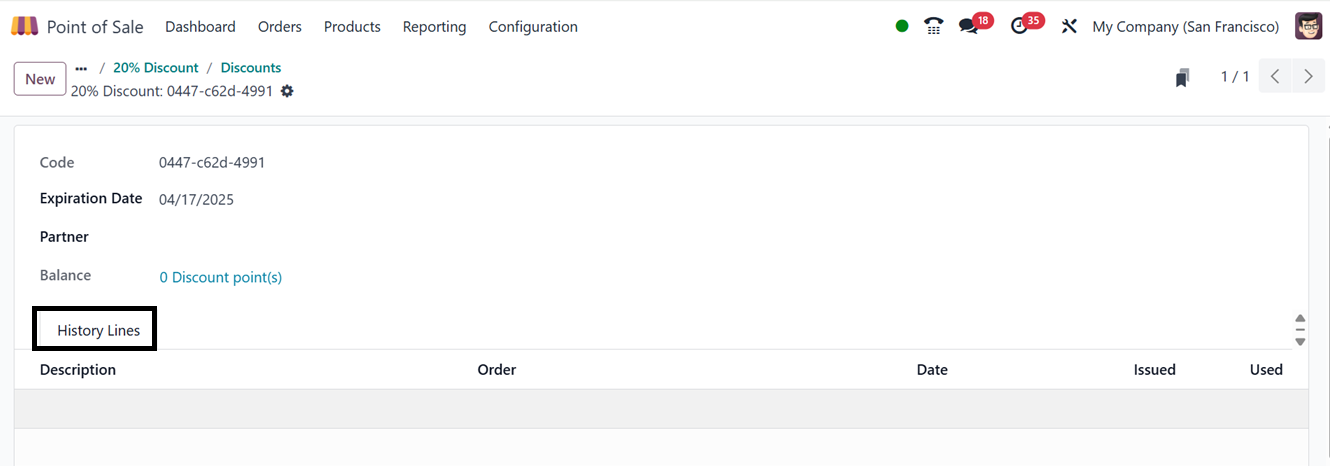
To manage balance points, go to
the "Discount Points" field
and update the balance in the
pop-up window. Once
everything is confirmed, the
balance will be saved in the
"History Lines" tab, and you
can start using the discount
coupons in a PoS session.
Using Discount Codes in a
Sales Session
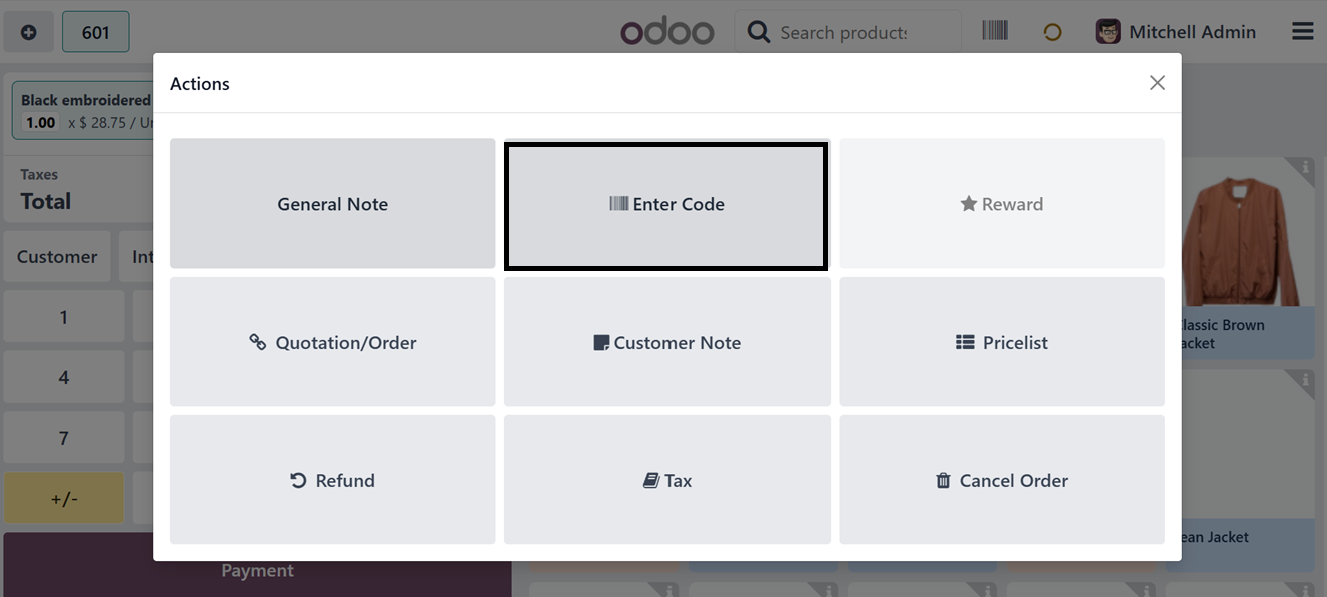
Inside a PoS session, click on
the "Actions" button and
select "Enter Code" option,
as illustrated in the
screenshot below.
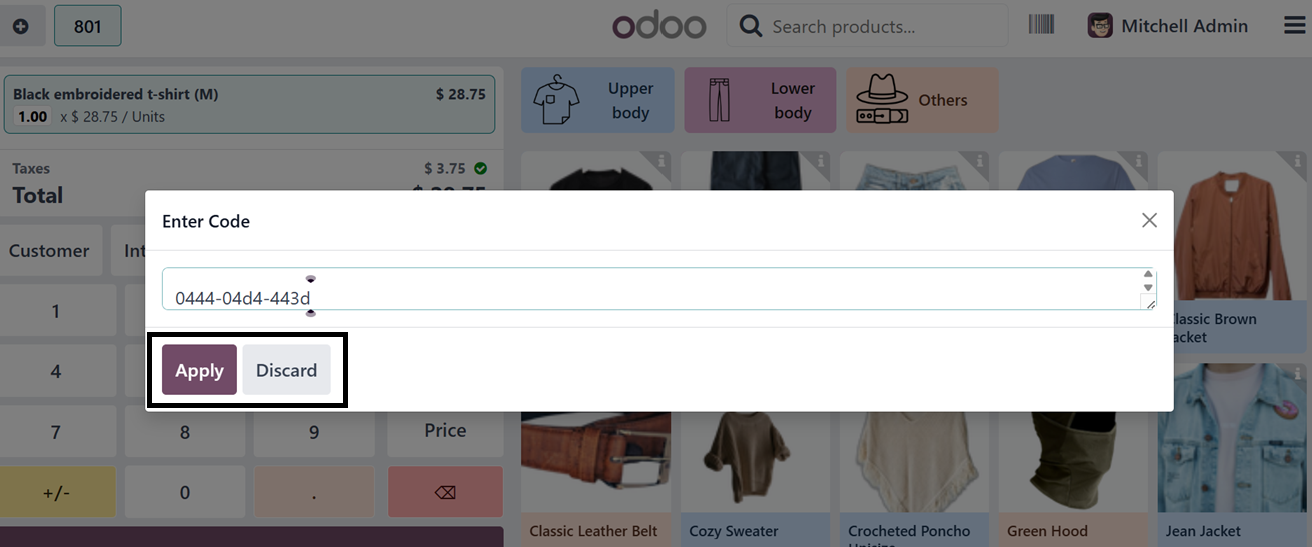
A new window will pop up where
you can enter or edit the
discount code. Click "Apply",
and the discount will be
reflected in the invoice and
the total price of the
selected products.
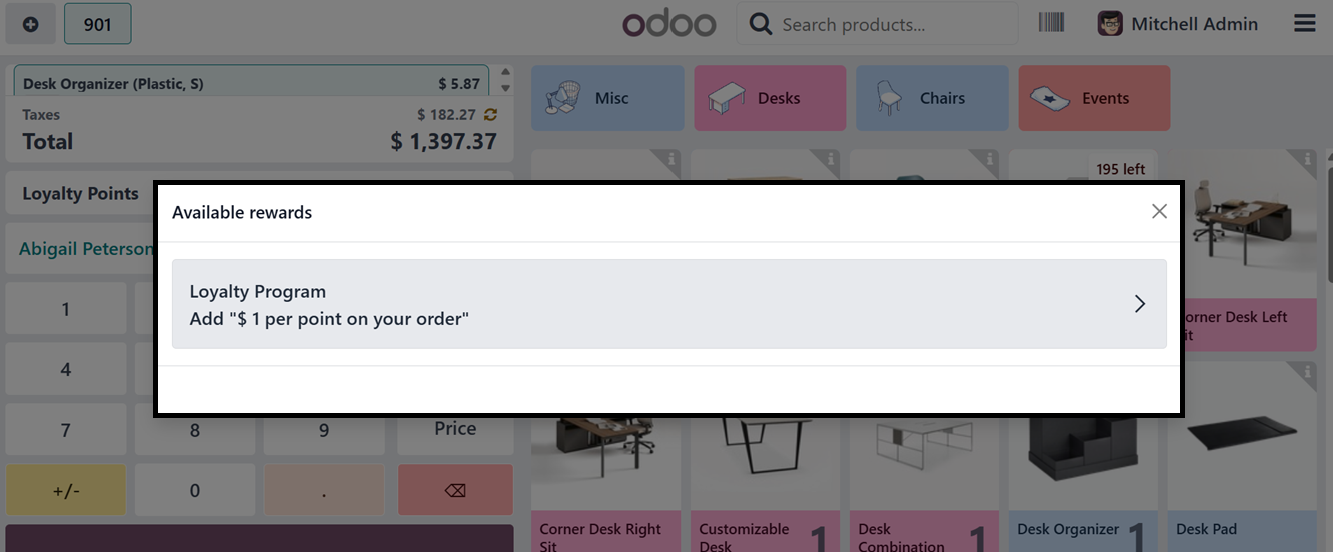
Additionally, you can use the
"Rewards" button to apply for
promotions. Choose the
products you want to buy, go
to the "Actions" menu, and
select "Rewards". A pop-up
will appear showing the
available reward programs.
Pick a reward program, and the
benefits will automatically
be applied to your cart. If
it’s a discount, the amount
will be deducted from the
total. If it’s a gift item,
it will be added for free.
4.5 Gift Cards & eWallets
The PoS module also allows you to
create and manage gift cards
and eWallets. You can find
this option under the
"Products" menu in the "Gift
Cards & eWallets" section.
This page displays all
existing gift card programs,
showing details like Program
Name, Type, Associated Items,
Website, PoS Availability,
and Company.

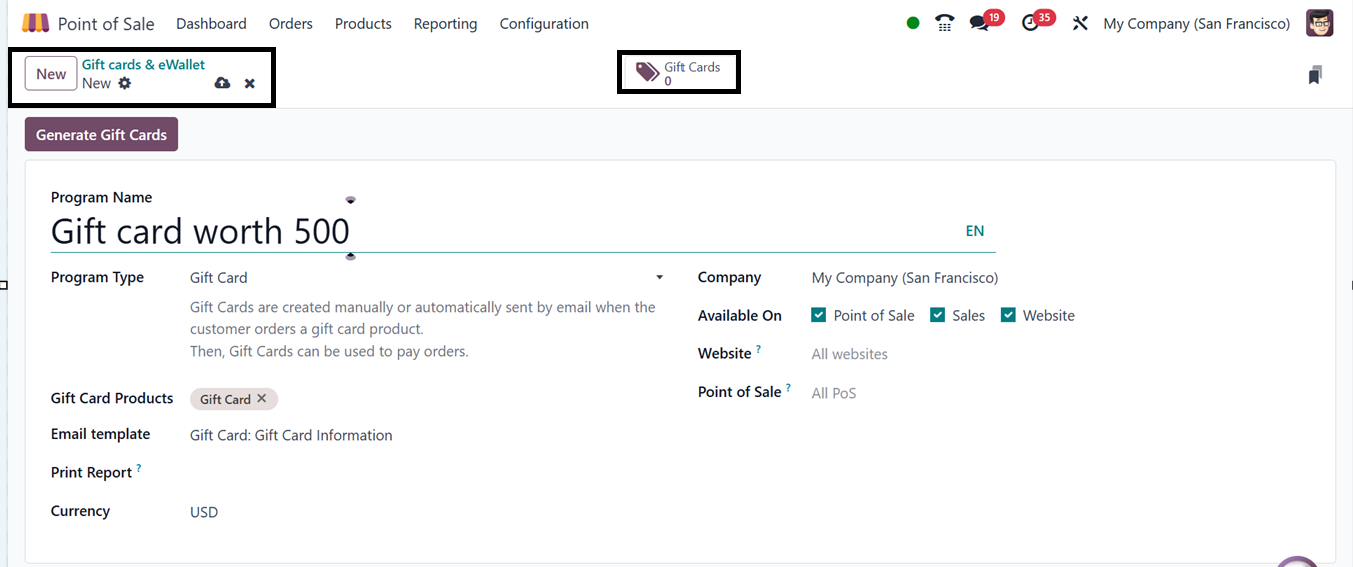
To create a new gift card, click
"New". Then, enter a Program
Name, select a Program Type,
and list the products that
will be linked to the gift
card. Fill in details like
Currency, Print Report
Options, and Email Template.
You can also specify where
the gift card can be used
(PoS, Sales, or Online).
Once everything is set, click
"Save", then select "Generate
Gift Cards" to create the
desired number of gift cards.
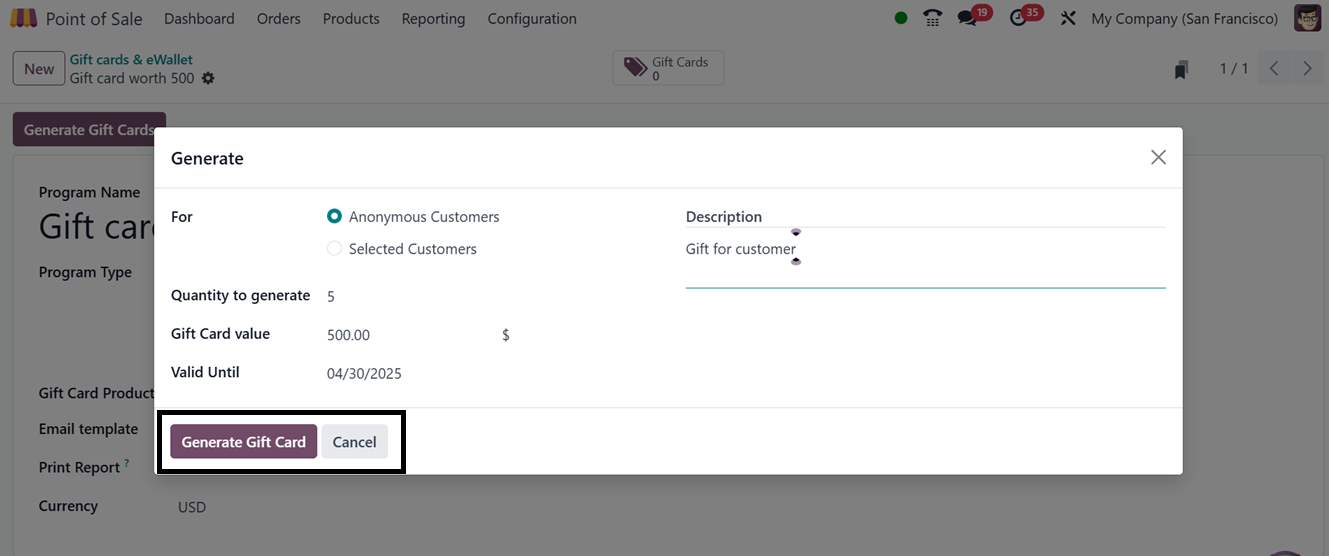
A pop-up window will appear
where you can enter customer
details, set a Validity
period, and define the Gift
card value. Click "Generate
and Send Gift Card", and the
system will create the gift
cards accordingly.
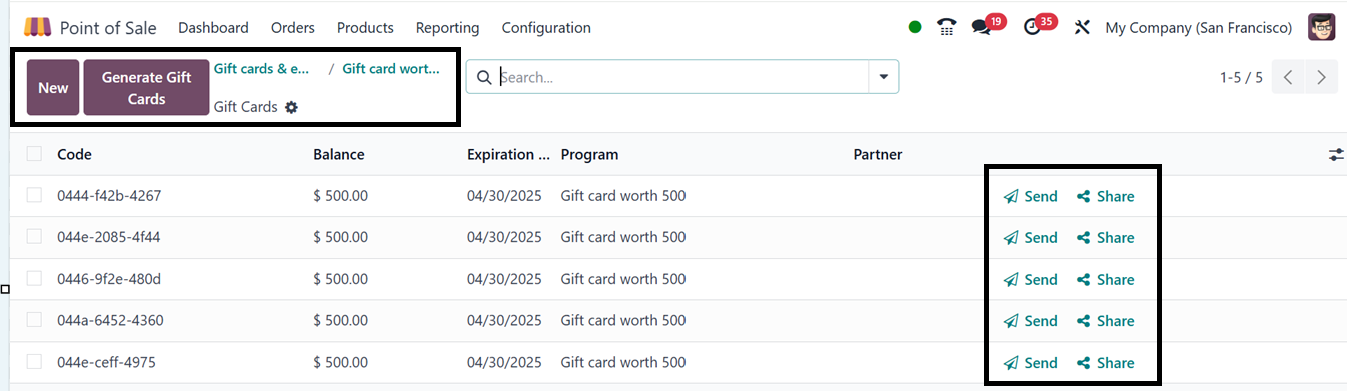
All generated gift cards will be
listed under the "Gift Cards"
smart tab section, where you
can quickly send or share
them with customers. If you
need more cards, you can
generate additional ones
anytime.
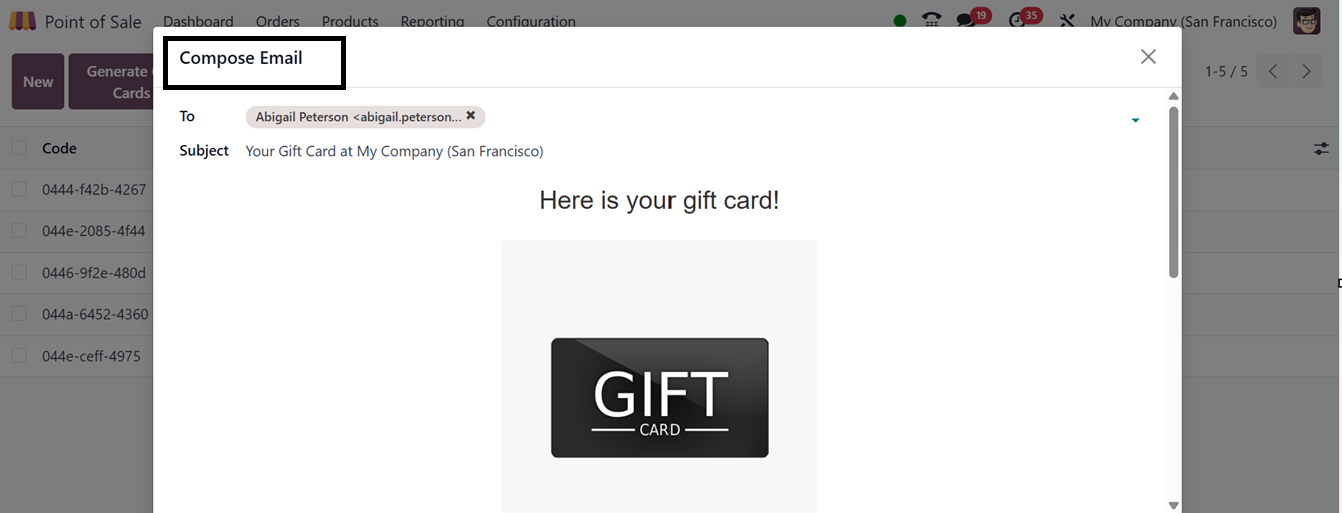
To send a gift card, click the
"Send" button next to the
selected gift card. A Compose
Mail window will open,
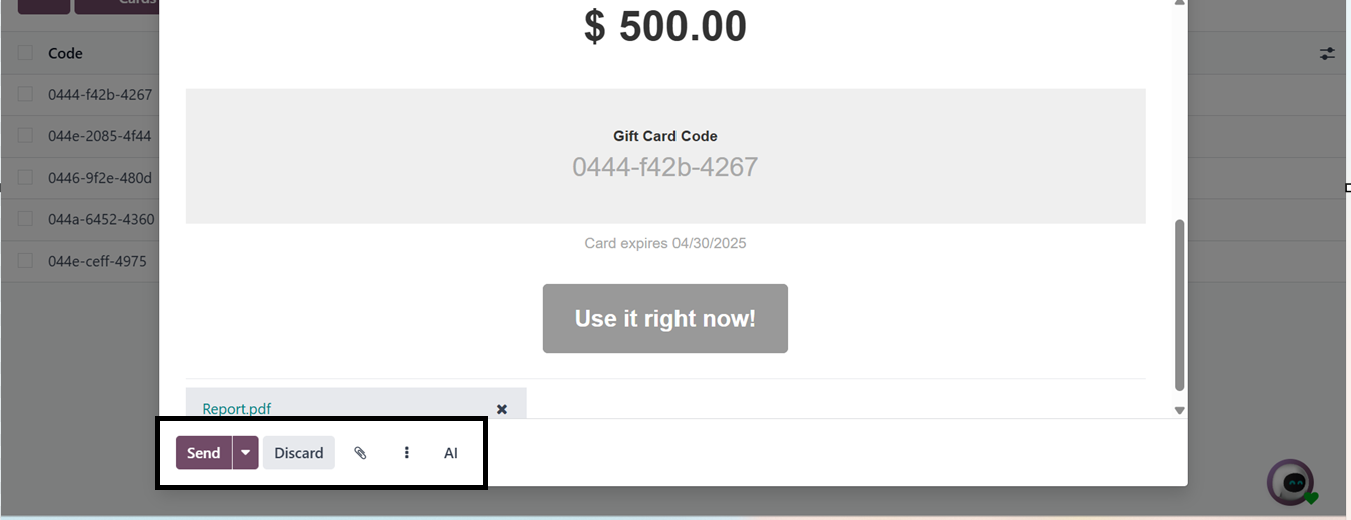
showing the Gift Card Code,
Expiry Date, and Value.
Simply enter the recipient’s
email and subject line, then
click "Send". The customer
will receive an email with an
option to copy the gift card
code or redeem it instantly.
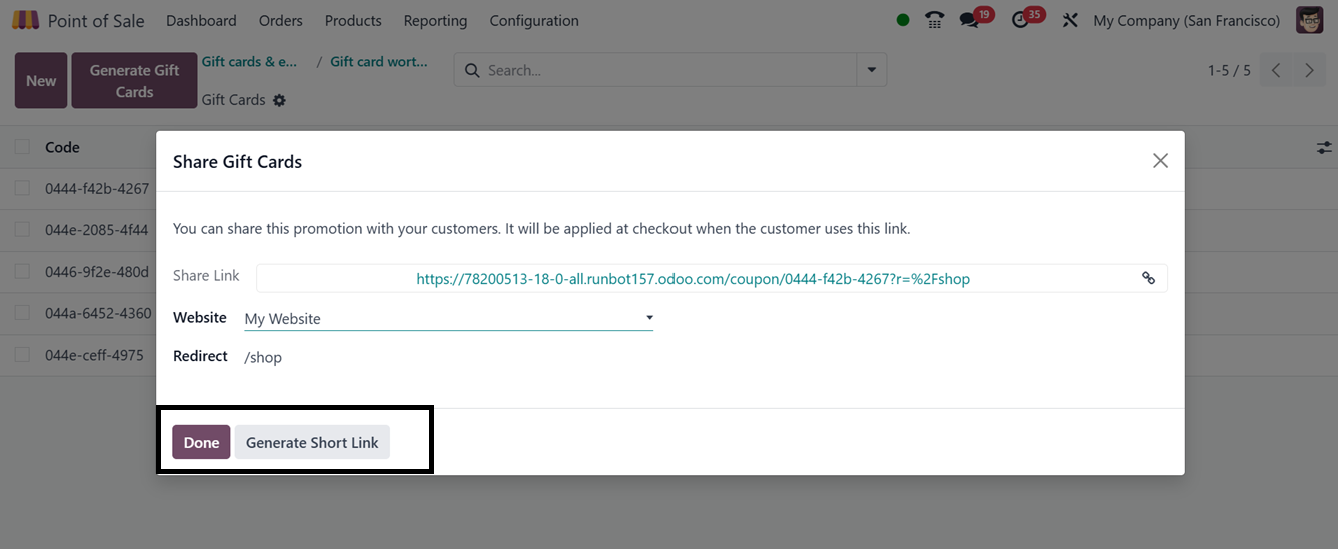
To share a gift card via a link,
click "Share". A pop-up will
appear with the Gift Card
URL. Copy the link and send
it to the customer, or
generate a shorter version
using the "Generate Short
Link" option.
If you need to manually copy a
gift card code, click on the
relevant card in the Gift
Cards list, and a detailed
form will open where you can
copy the code.
4.6 Redeeming Gift Cards in a
Sales Session
To use a gift card during
checkout, open a PoS session,
select the desired products,
and click "Actions". This
will open a new window where
you can choose the “Enter
Code” option to enter coupon
or gift card codes.
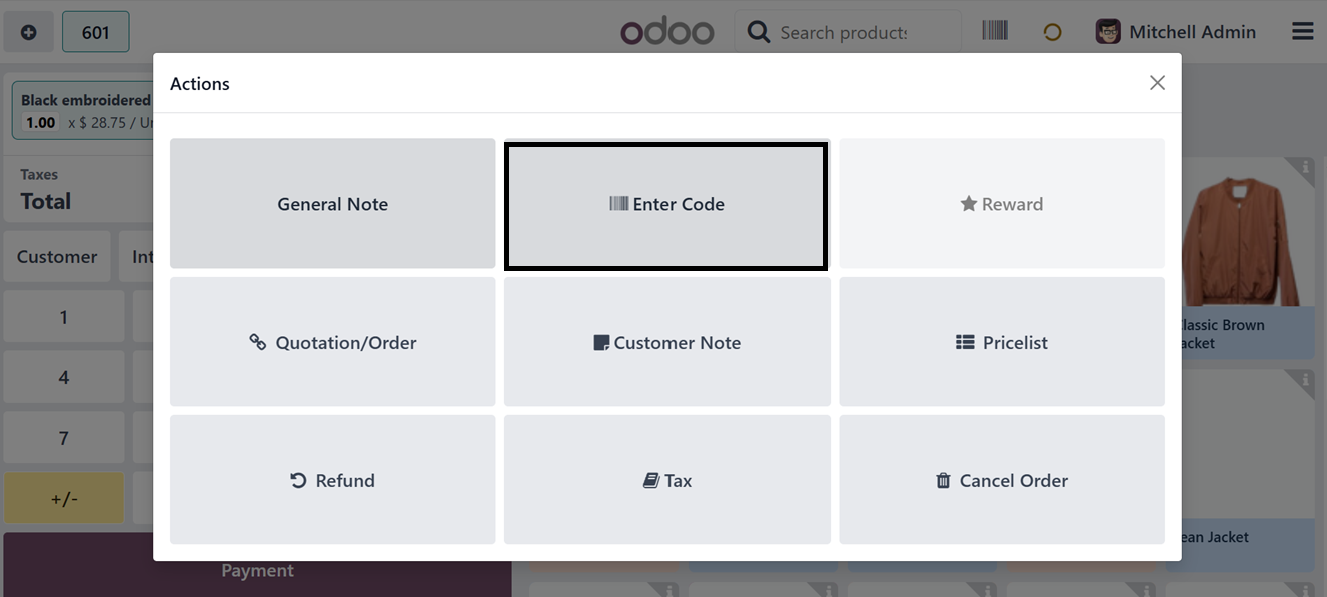
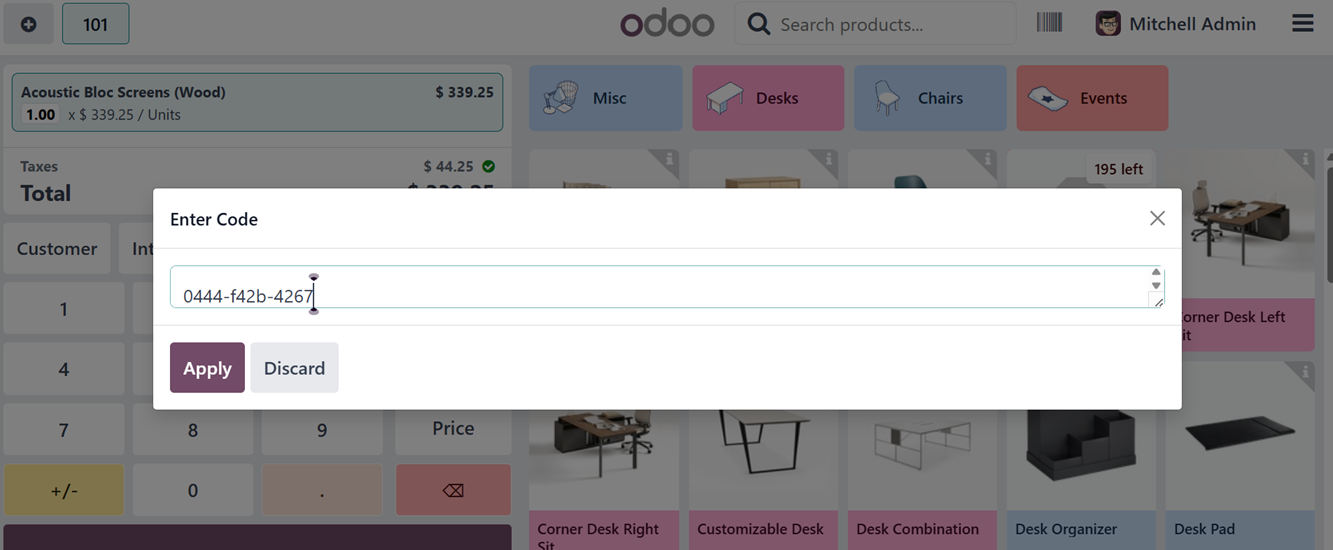
Click "Enter Code", paste the
gift card code, and hit
"Apply". Once applied, you’ll
need to confirm the
transaction again to complete
the process. The balance will
be deducted from the total
bill.
After applying the gift card, you
can proceed with the
remaining payment options as
needed.
4.7 Creating eWallets
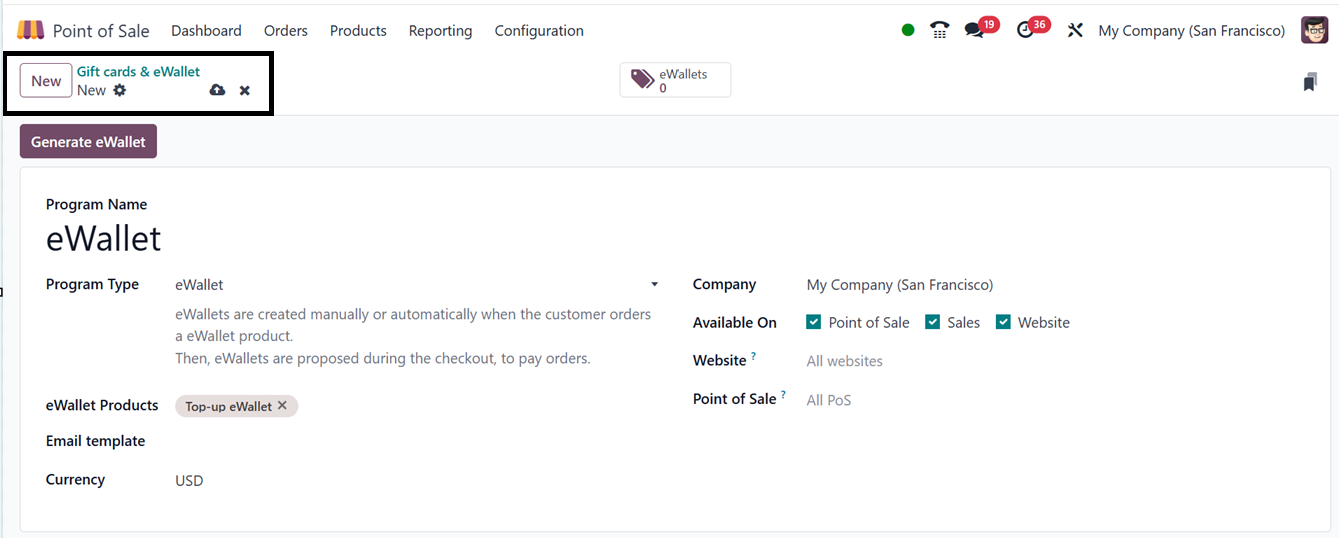
The process of creating eWallets
is similar to that of gift
cards. The only difference is
that in the Gift Cards &
eWallets setup page, you must
select "eWallets" as the
Program Type.
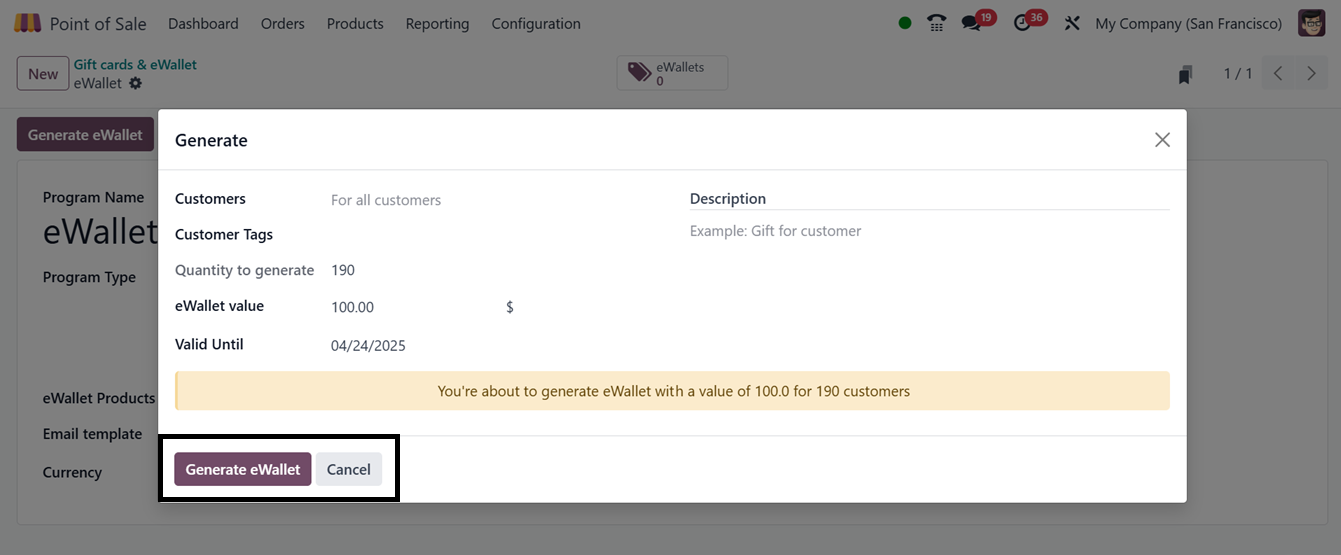
Once configured, you can generate
new eWallets by clicking
"Generate eWallet". A pop-up
window will appear where you
can enter details like
Customer Name, eWallet Value,
Quantity, Validity Period,
and Description. Click
"Generate and Send eWallet",
and the eWallets will be
created instantly.
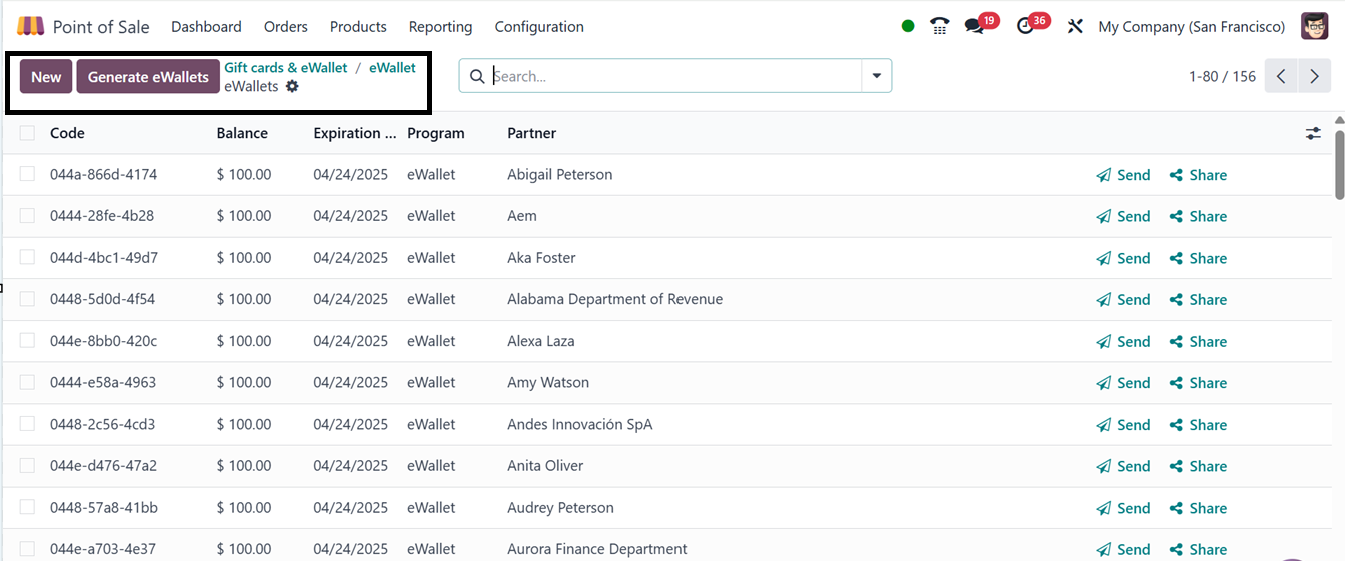
Like gift cards, eWallets can be
managed from the "eWallets"
smart tab section, where
users can track balances and
issue new ones when needed.
To apply the eWallets in Point of
sale order, you can utilize
the ‘Enter Code’ option from
the ‘Action’ button from the
Point of Sale window. By
offering gift cards,
eWallets, and loyalty
programs, businesses can
boost customer engagement and
sales while making checkout
smoother and more rewarding
for customers.