2. Task
Under the task option, you have the My Task option, where you can see
the task's progress and remaining hours on this page.
2.1 My Task
The My task page will be, as in the image below.
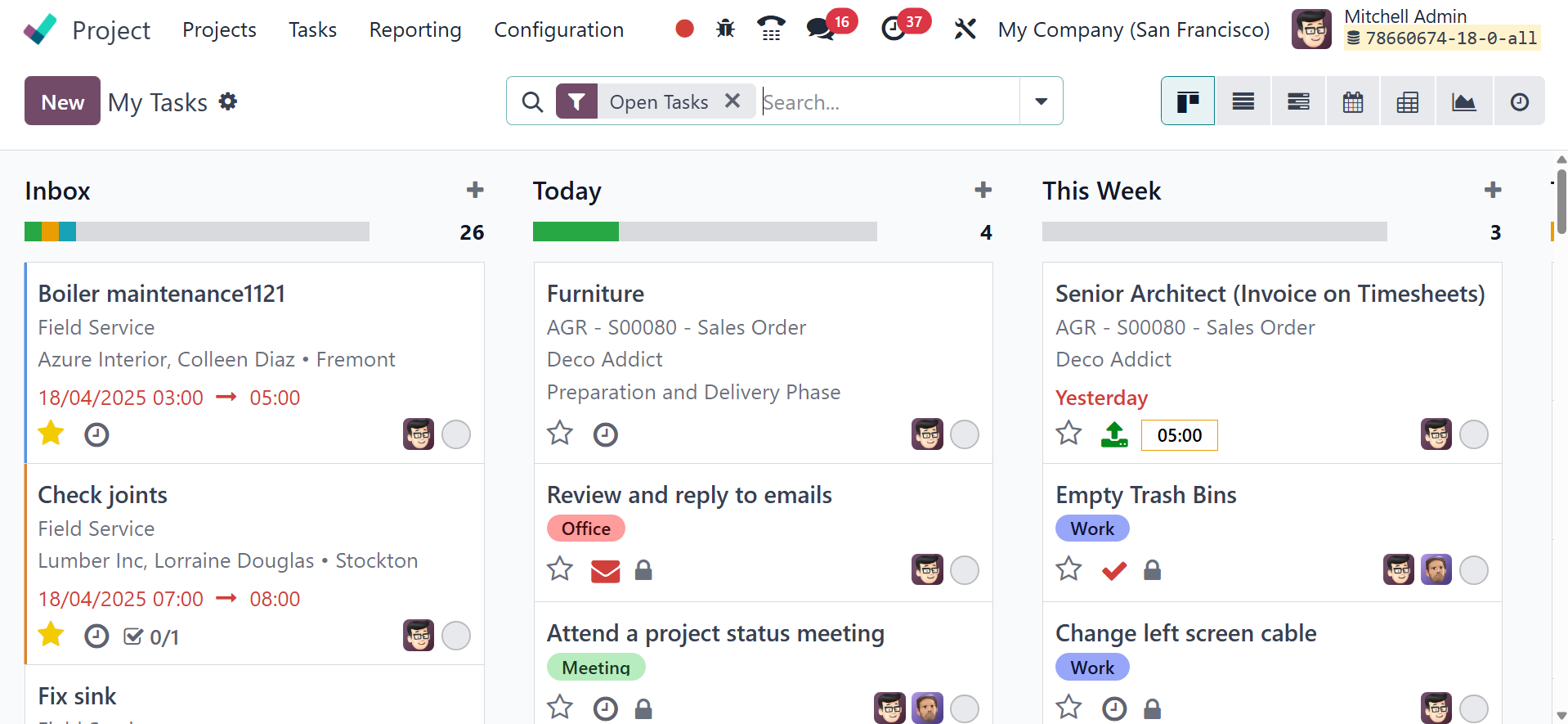
The Project module's My Tasks option will track and record every
assignment that has been given to you. The Activity, Map, Pivot,
Gantt, List, Kanban, Calendar, and Activity views are all useful for
managing these activities.
My Tasks shows all of the tasks that have been assigned to the
logged-in user. Mitchell Admin is the designated person for all
responsibilities here since they are the one who logs in. By
selecting the New button, the user can add new tasks. The task
creation form is the same, as we previously stated.
2.2 All Task
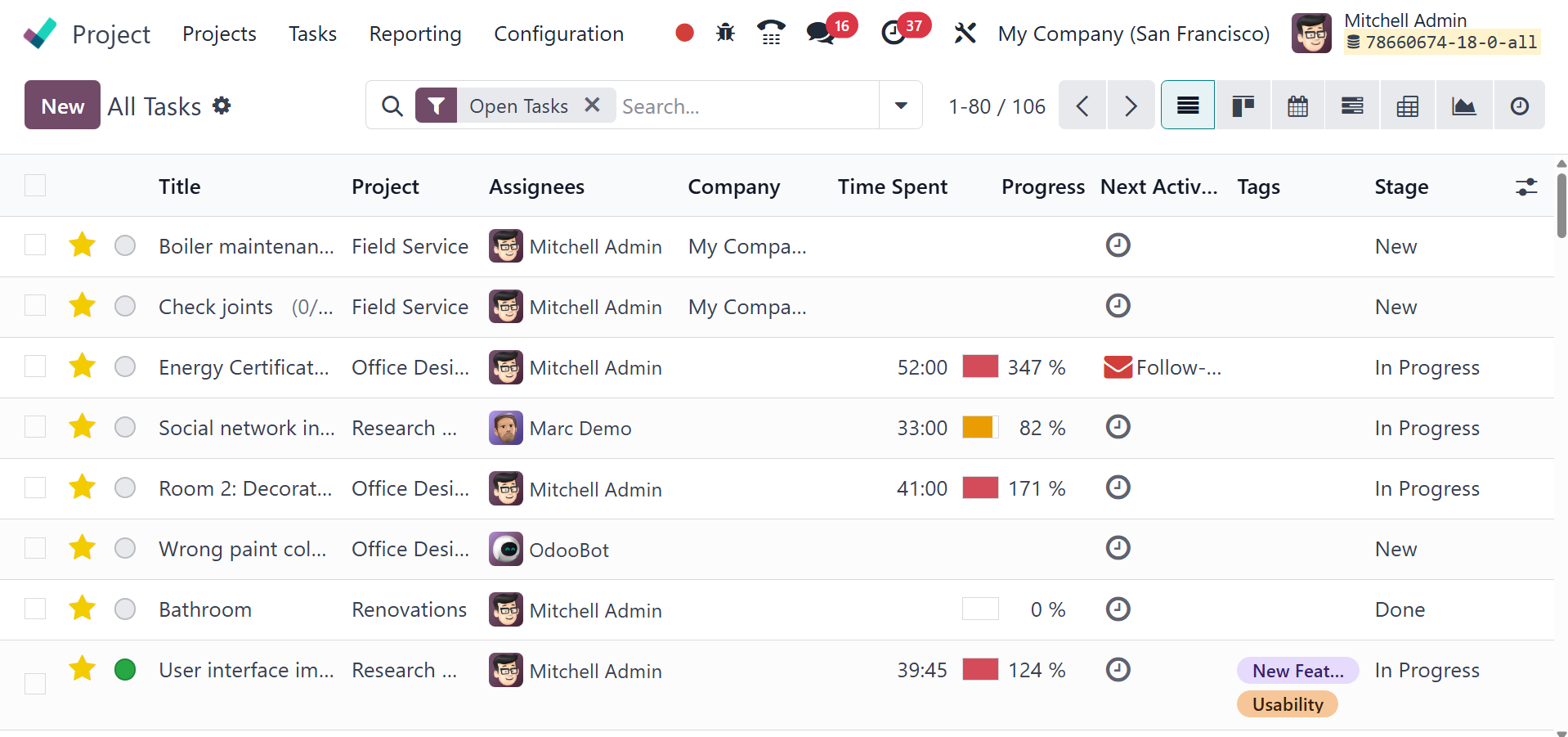
Every task that has been created is displayed in the ‘All Task’ menu.
Under this All Task, a list of all the tasks that have been assigned
to each user is displayed. Projects can also be expanded with new
tasks by using the New button.