2. Products Menu
Within the ‘Products’ menu, users can define purchasable products and
their variants using the Products and Product Variants options.
2.1 Products Management
The ‘Products’ menu in Odoo 18 Purchase module serves as a central place to manage items for procurement, allowing users to configure products, set vendor prices, define units of measure, and track inventory, lead times, and variants for streamlined purchasing operations.
Upon opening the menu, we can see the kanban dashboard of the product catalog that are used in various purchase or sales purposes in the Purchase database.
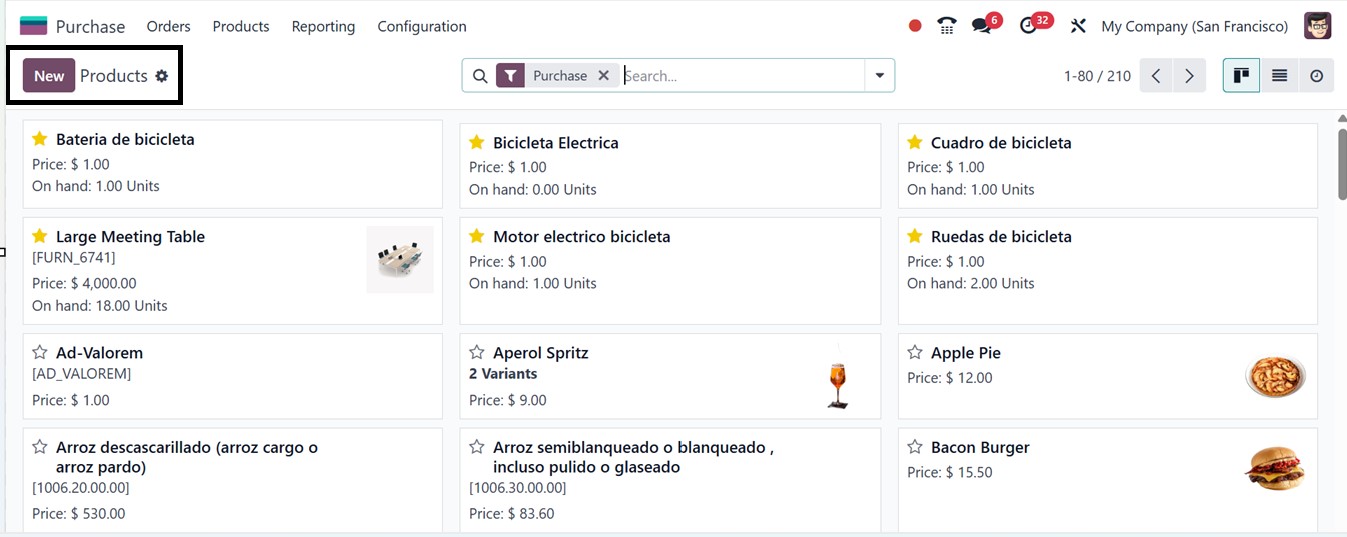
You can change the kanban view into a List or Activity view using the respective icons provided in the top right corner of the window. To view a list of items available for procurement, simply apply the "Can be Purchased" filter from the advanced search bar filter area.To designate a product as purchasable, enable the Can be Purchased option when configuring the product in the Purchase module.
To add a new product click on the New button, which opens a form where you can enter all relevant product details. Begin by providing the Product Name, and optionally upload a product image using the camera icon. You can then select applicable checkboxes such as Sales, Purchase, Expenses, and Point of Sale, based on how the product will be used.
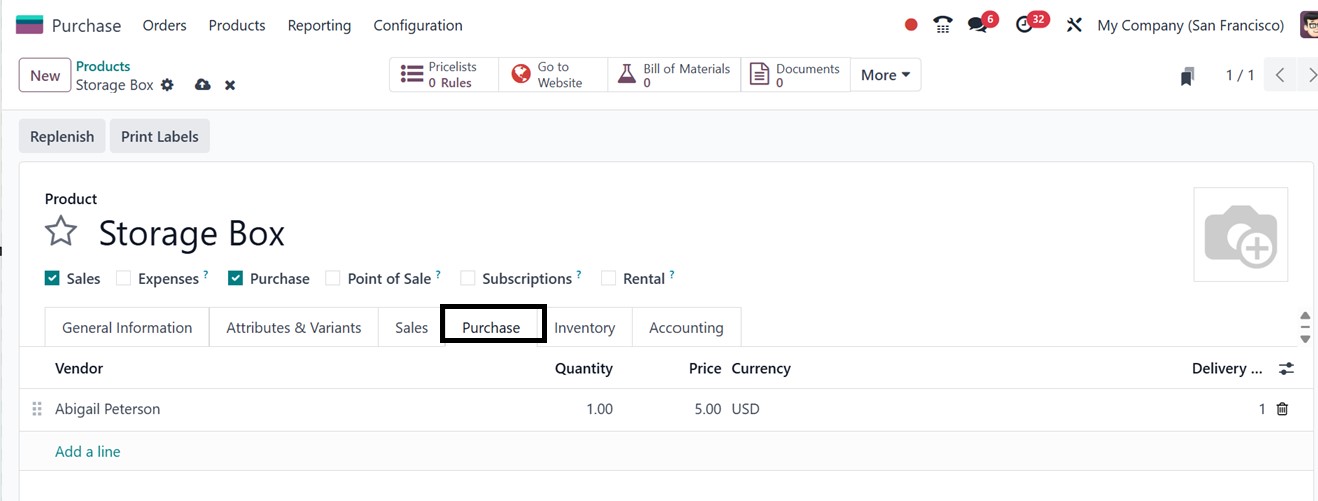
Next, choose the appropriate Product Type such as Goods, Service, or Combo to reflect its purpose. You’ll also set the Invoicing Policy, either as Ordered Quantities (invoice created at order time) or Delivered Quantities (invoice generated upon delivery). Additional fields allow you to define specific product attributes, including Track Inventory, Create Repair, Purchase Taxes, Sales Price, Sales Taxes, Cost, Product Category, Internal Reference, and Bar Code. If your business operates in a multi-company setup, you can assign the product to a specific company using the Company dropdown, ensuring accurate product configuration across different business units.
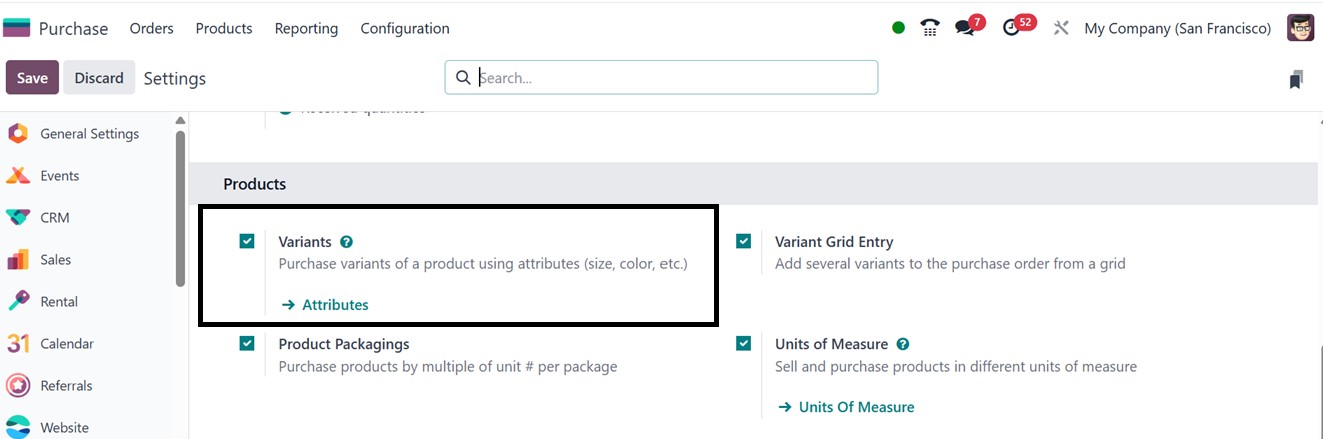
If there are several sizes or colors available for a product, you may adjust these settings under the ‘Attributes & Variants’ page. By enabling the ‘Variants’ and the other product related features from the ‘Settings’ window of the purchase module, you can handle product variations in the Purchase database using the same procedure as in the Sales module with Odoo’s integration properties.
The ability to link several vendors to a single product is a noteworthy feature of the Purchase module. To enter vendor-specific information, click Add a Line under the Purchase tab. Your purchasing procedure may be fluid and adaptive by allowing you to choose the Lead Time for Delivery, Minimum Quantity, and Purchase Price for each vendor. Businesses may use this configuration to evaluate vendors and make well-informed decisions about purchases based on factors like price, delivery time, or stock availability.
Assigning Vendors to Products
Under the ‘Purchase’ tab in the product settings window, users can specify the vendors supplying the product. By clicking on the ‘Add a line’ button, multiple vendors can be linked to a single product with different vendor currencies and prices, as depicted in the screenshot below.
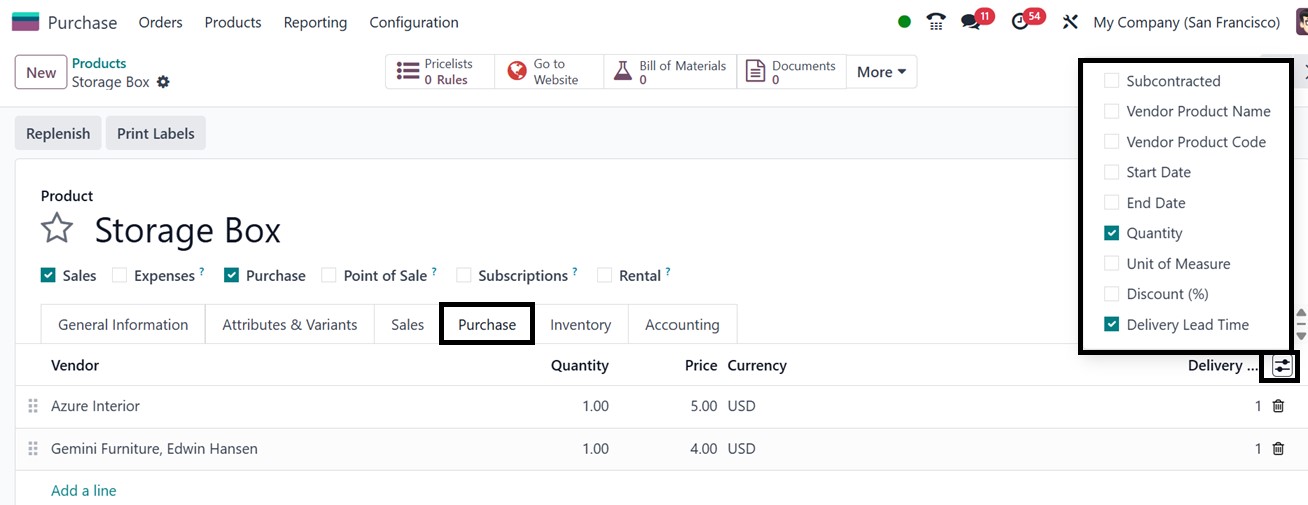
The Purchase tab section allows you to define key procurement parameters for each vendor. You can specify the Currency used for transactions, set the minimum Quantity required for ordering, and you can enter the Unit price agreed upon with the vendor and define the Delivery lead time, which indicates the number of days expected between confirming a purchase order and receiving the products in the warehouse.
Vendors can be chosen from an existing list or created as new contacts. Additional field options, available at the top-right corner of the tab, allow you to add custom fields to set more vendor-specific purchasing details. If the vendor also acts as a subcontractor, you can enable the Subcontractor option. Subcontracting features and configurations are further covered in the Manufacturing module.
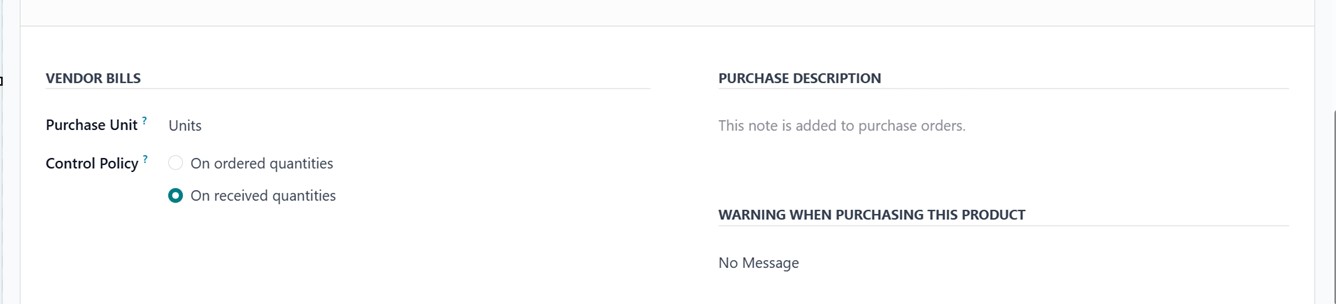
The form fields inside the ‘VENDOR BILLS’ area helps for controlling the way invoices are produced during the purchase procedure. Whether vendor invoices are generated based on ordered amounts or just after the items are received is determined by the ‘Control Policy’ feature. You can also specify the Purchase Units for a product, indicating the default quantity in which it is procured such as individual Units, Cartons, Dozens, or any other applicable unit of measure.
The ‘Settings’ window in the Purchase module allows you to change this default policy by specifying a default invoicing method for all products using the ‘Bill Control’ option, but they can also change this setting for particular products. Users can include remarks or information that will be automatically included in purchase orders in the ‘PURCHASE DESCRIPTION’ field as an additional Purchase Configuration.
After providing all the product specifics and saving the data, you can utilize them for various sales and purchase operations in Odoo. To get more details on configuring products, product variants, attributes, and categories, refer to the Sales or Inventory Modules of the Odoo.
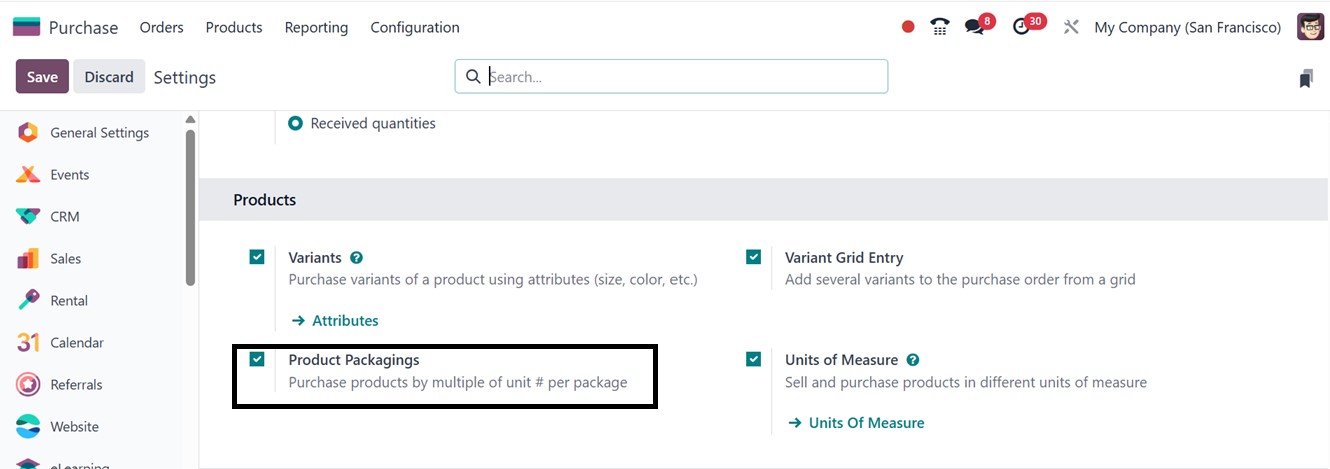
Assigning your product items to certain vendors is another feature of the purchase module. This lets you provide vendor-specific information like prices, lead times for deliveries, and conditions of purchase. This configuration guarantees precise and adaptable procurement management. Furthermore, the Purchase module's Product Packagings’ functionality from the ‘Settings’ window provides a productive method for managing package options during the procurement process.
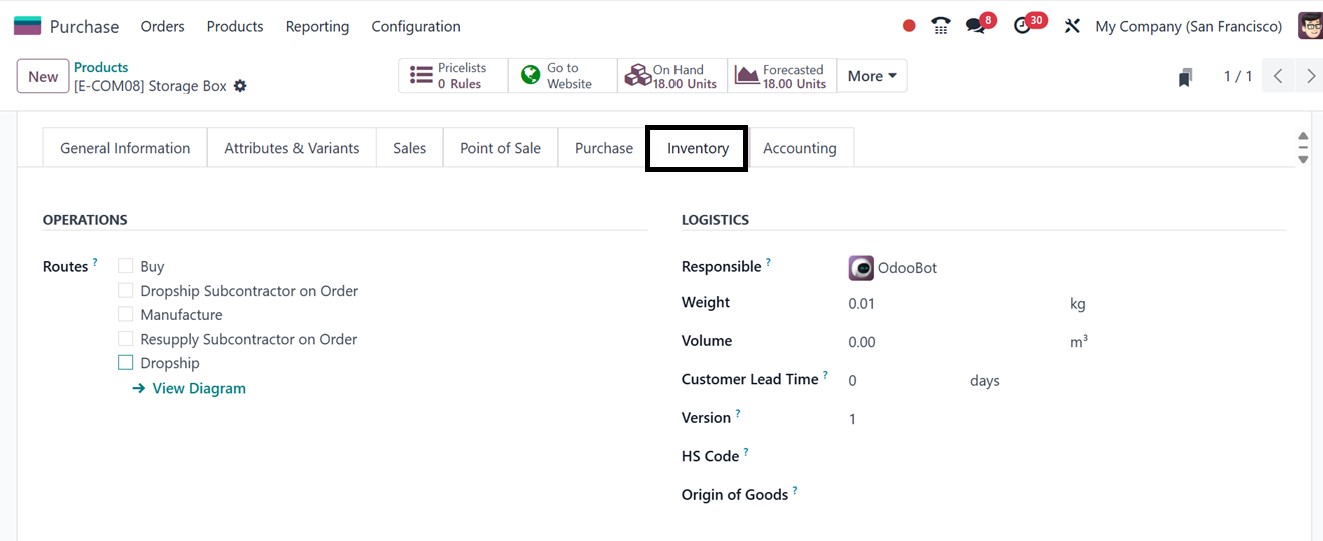
Then, you can specify comprehensive package details right inside the ‘Inventory’ tab of the product configuration form once the packaging option is enabled. This enables them to define the grouping, bundling, or packaging of particular things for reasons of purchase.
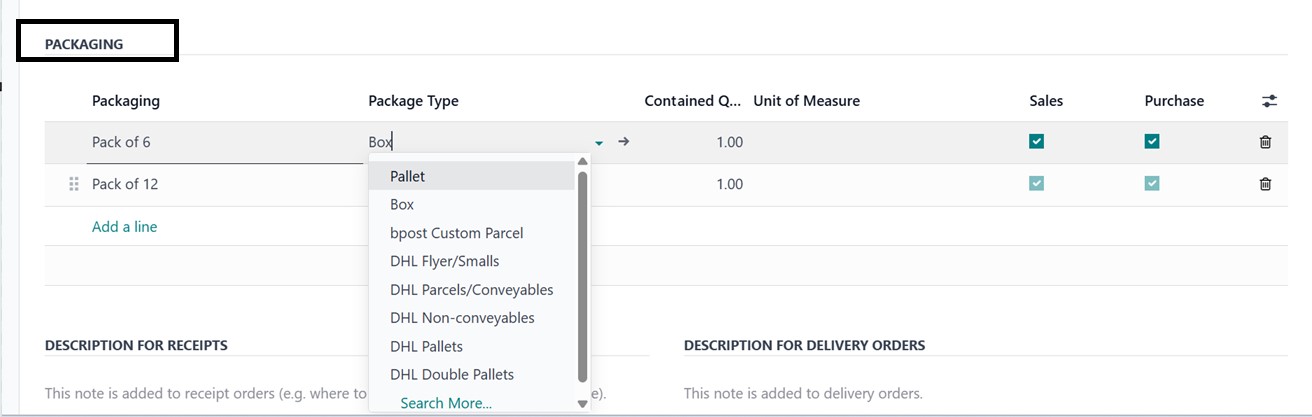
For instance, a product can be set up to be sold on pallets made up of several boxes or in boxes with a specific number of units using the ‘Add a line’ button provided under the ‘PACKAGING’ section of the Inventory tab.
In this section, you can begin by entering a name for the package in the ‘Packaging’ field. Next, select the appropriate ‘Packaging Type’ from the available options, such as Box, Unit, Pallet, Parcel, or any other predefined type. After that, specify the quantity of products included in the package under the ‘Contained Quantities’ section. Then, define the ‘Unit of Measure’ that applies to the packaged items. Finally, choose whether the packaging should be used in Sales and/or Purchase operations by enabling or disabling the corresponding options, as illustrated in the screenshot below.
In summary, the ‘Packaging’ feature is especially helpful when suppliers provide products in predetermined forms. So, the companies can guarantee precise handling of product quantities and optimize buying processes by enabling and designing product packaging.
2.2 Product Variants
The ‘Product Variants’ menu in Odoo 18's Purchase module is crucial for handling items that have several versions, such as various sizes, colors, or materials. In order to ensure precise selection during purchase orders, it enables users to inspect and modify specific variants created from product templates.

In Odoo 18, creating a new product variant follows the same configuration process as creating a new product, making it familiar and easy to manage. The functionality and configuration process of product variants are similar with those in the Sales and Inventory modules.
You can customize each variant's details, including SKU, barcode, pricing, and vendor information, to ensure accurate product identification and supplier coordination. Additionally, the Product Variants menu supports variant-specific procurement rules and precise inventory tracking, which helps improve purchasing accuracy and enhances reporting efficiency across procurement operations.