2. Configuration
Menu
The ‘Configuration’ menu in Odoo
18 Recruitment offers a wide
range of options that help
users manage essential
elements of the recruitment
process. This includes
general Settings, Employment
Types, Degrees, refusal
reasons, Other Refusal
Reasons, Tags, Departments,
Skill Types, Contract
Templates, Activity Types,
Activity Plans, Emails, and
Interviews. Below is a
comprehensive breakdown of
all the configuration
features available in this
menu.
2.1 Settings
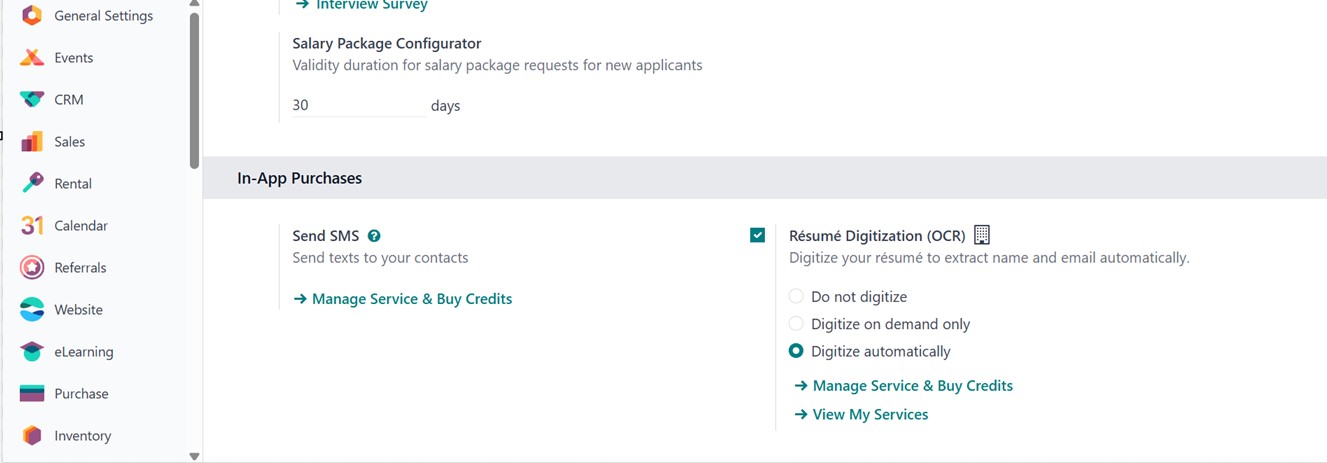
The Settings section under the Configuration menu consists of three primary areas: Job Posting Process and In-App Purchases, as depicted in the screenshot below.
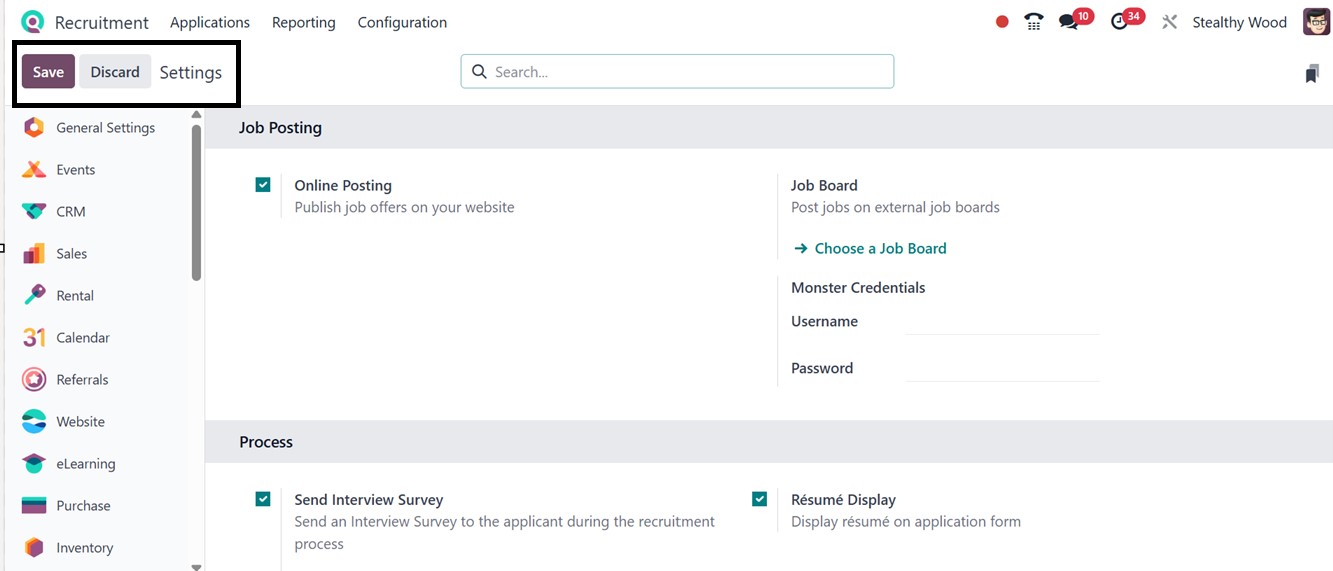
The Job Posting section includes an option to activate Online Posting, enabling users to publish job vacancies directly on the company’s website. This simplifies the process of making job listings publicly available and encourages direct applications through the online portal.
The Job Board options help to manage various job portals or external job boards such as Monster, LinkedIn, Indeed, etc.
The Process section offers automation tools like the Send Interview Survey, which streamlines the process of sending interview forms to applicants. This feature helps standardize feedback collection and improve overall recruitment efficiency. The ‘Salary Package Configurator’ option helps to set a validity duration for salary package requests for new applicants.
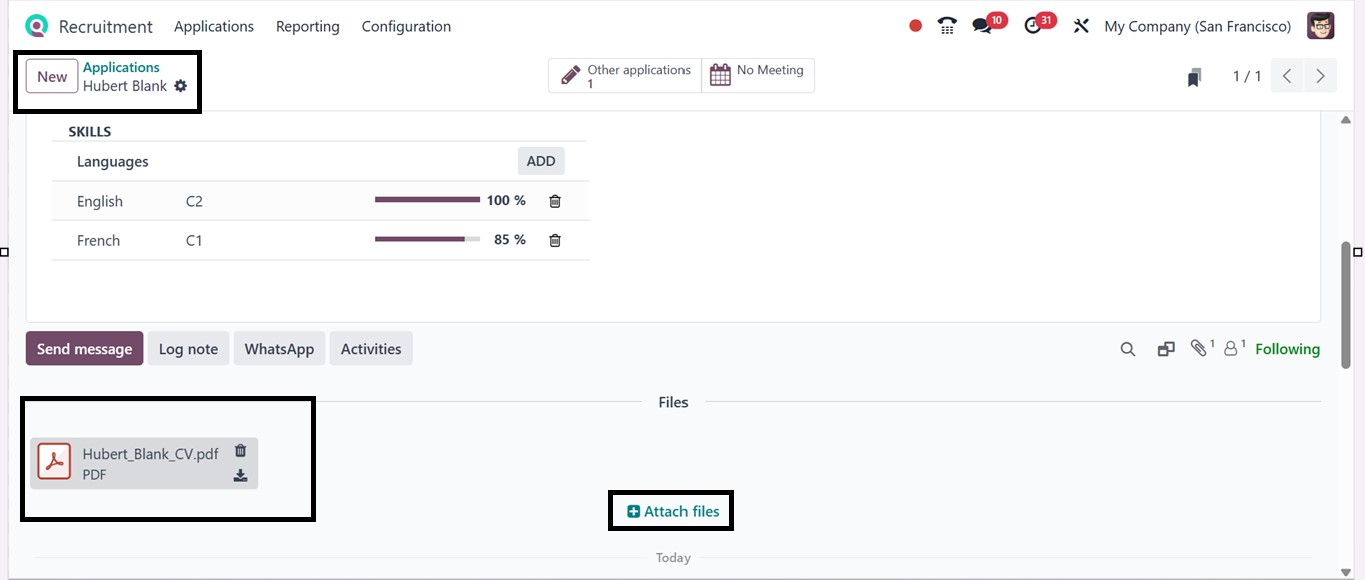
Another useful tool is the Resume Display feature, which allows recruiters to view applicant resumes directly within the application form. Once an application is submitted, the resume appears in the chatter section, providing quick access to a candidate’s profile. This single-click CV preview enhances decision-making by offering immediate visibility into qualifications and experience.
Lastly, the In-App Purchases section includes the option to enable the Send SMS feature. This allows recruiters to send text messages to applicants, facilitating timely updates and improving communication throughout the hiring process.
The ‘Resume Digitization (OCR)’ option helps to digitize the employee resumes to extract the employee names and emails automatically using the OCR technology from uploaded resumes, scanning PDF or image-based resumes and filling in key fields like name, contact information, education, and experience, enhancing data entry accuracy and saving time, especially for managing high application volumes.
2.2 Employment Types
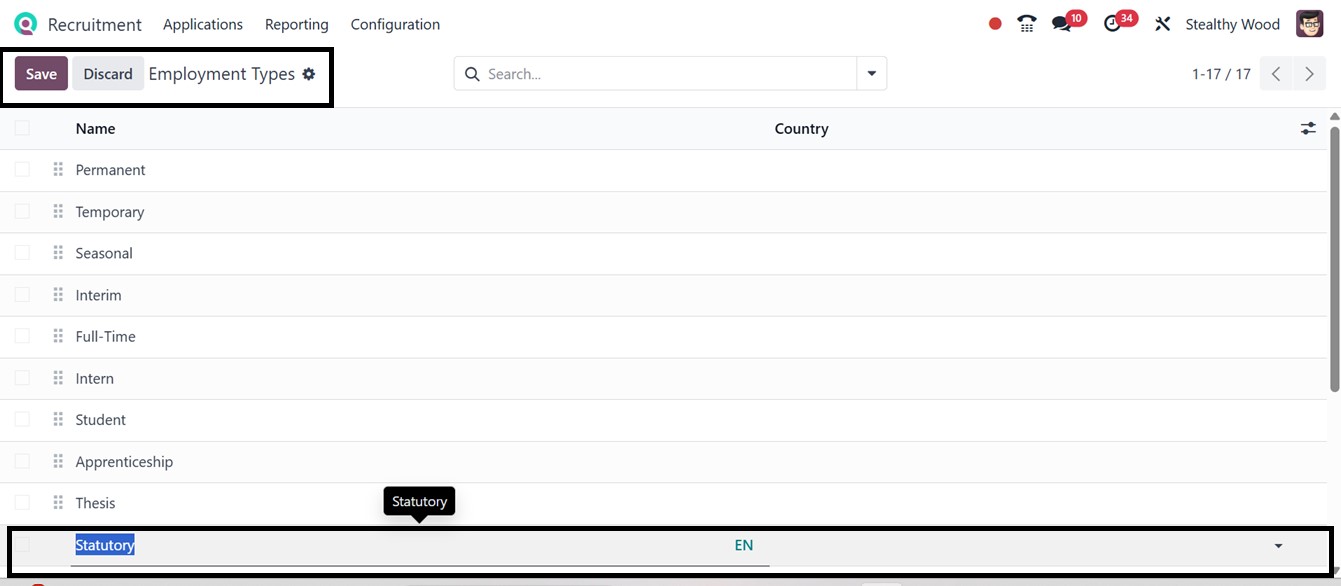
Organizations may offer various forms of employment, such as full-time, part-time, or temporary roles. The Employment Types section under the Job Positions category allows users to manage these categories. Pre-configured Employment types are displayed in this section in a list format. To add a new type, simply click on the New button and enter the name of the new employment type as demonstrated in the example screenshot given below.
2.3 Degrees
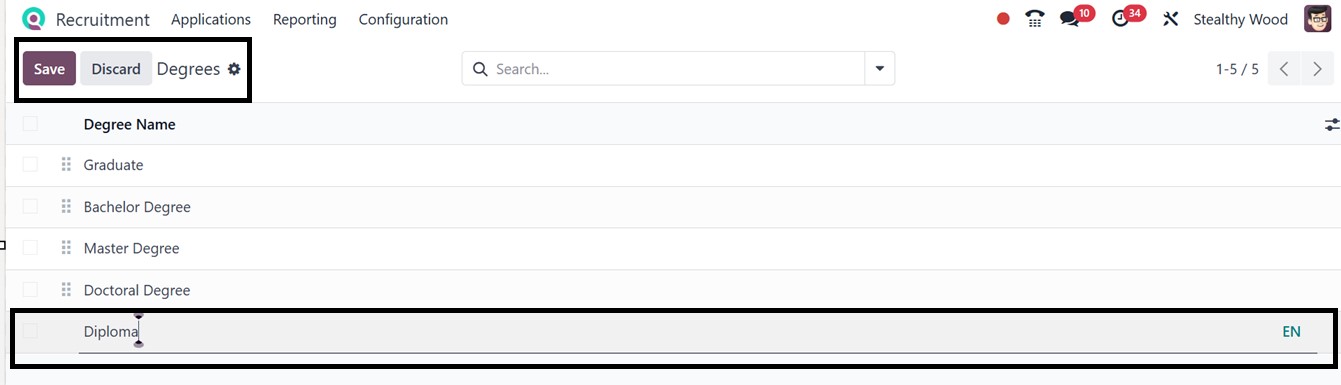
Recruiters often require educational qualifications from applicants. The ‘Degrees’ configuration option allows users to manage different levels of education. To add a new degree, click on the New button, fill in the relevant ‘Degree Name’ in the new field, and save the data, as depicted in the screenshot below.
2.4 Refuse Reasons
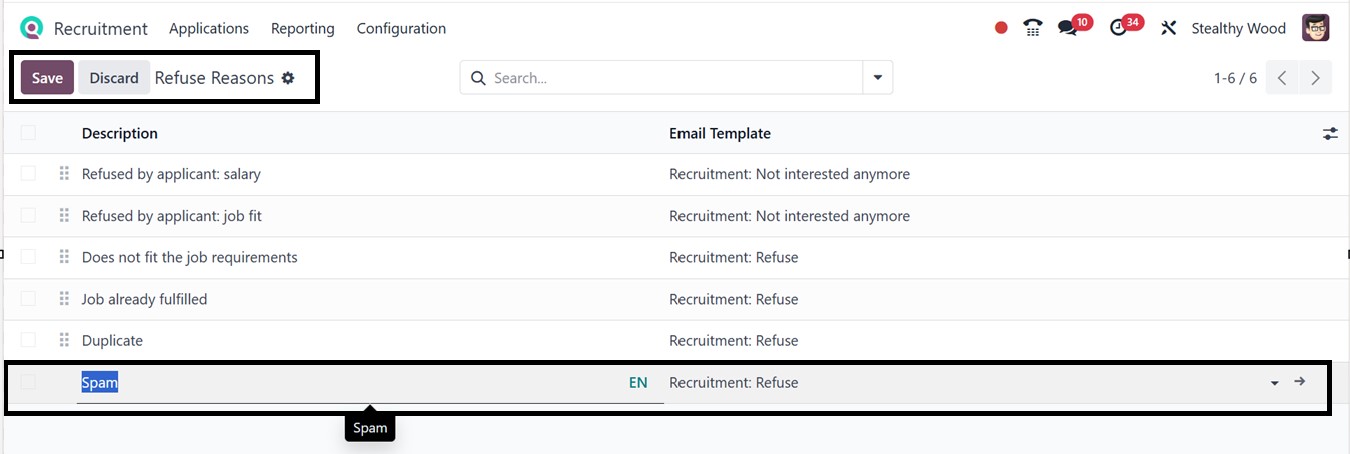
When an applicant is not selected for a job post, it’s important to provide a reason for the refusal. The Refuse Reasons configuration allows users to define and manage such reasons. This section includes customizable templates, email descriptions, and a predefined list of refusal reasons. New reasons can be added by clicking the New button and mentioning the refusal Description and an Email Template to help maintain a consistent and professional communication style, as illustrated in the screenshot below.
2.5 Offer Refuse Reasons
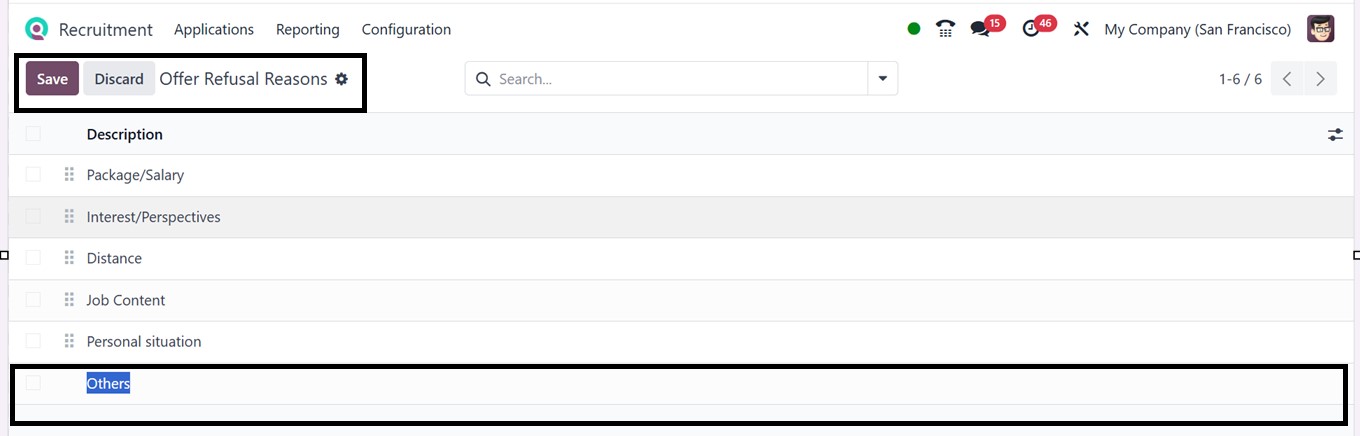
The “Offer Refuse Reasons’ accessed via the ‘Configurations’ menu feature helps track and categorize the reasons why candidates decline job offers. It allows recruiters to choose from predefined or custom reasons, such as salary concerns or competing offers, making it easier to analyze trends and improve hiring strategies. This data supports better reporting, helps refine offer terms, and provides HR teams with insights to enhance the overall recruitment process
From the available reasons, you can add customized reasons using the ‘New’ button and just edit the reason in the ‘Description’ area, as illustrated below.
2.6 Tags
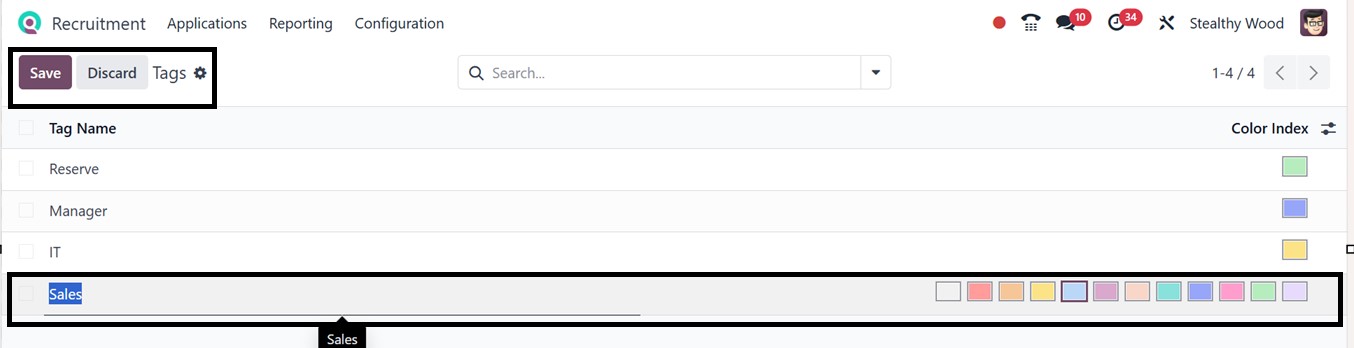
Tags are useful for organizing and filtering recruitment-related data. The Tags section helps in classifying candidate profiles, job postings, and application records. Click on the New button to add a tag. You can assign a new ‘Tag Name’ and select a ‘Color Index’ for quick identification and highlight specific records, as illustrated in the screenshot below.
2.7 Departments
The Departments section enables users to manage company departments. Fields include the Department Name, Manager, Parent Department, Company, and assigned Employees, as depicted in the screenshot below.
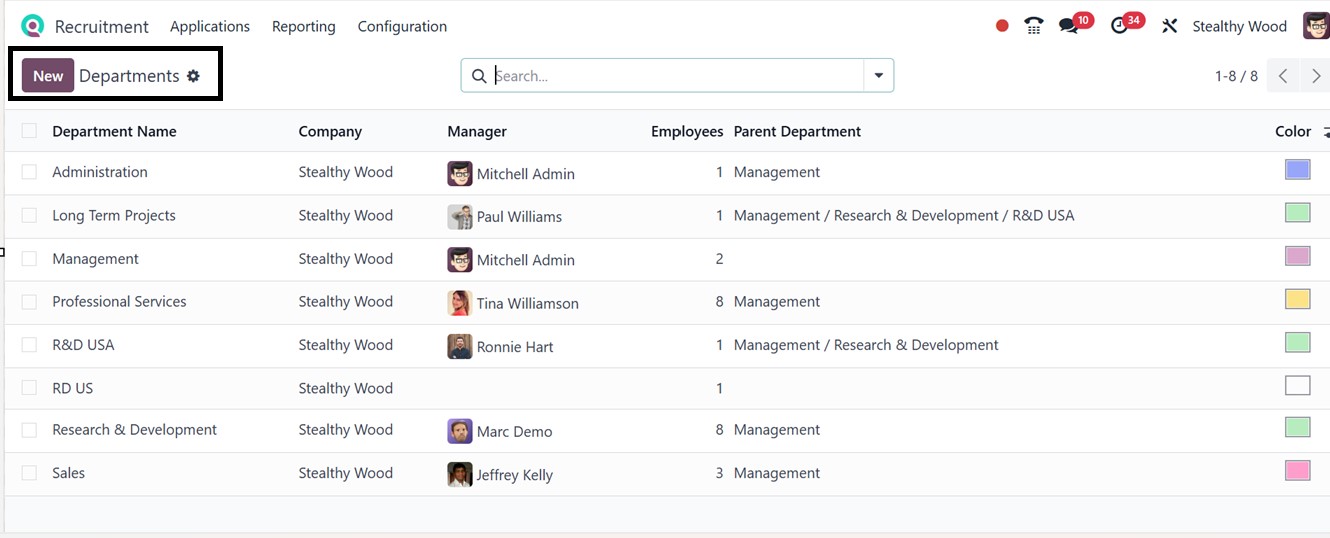
Click on the New icon to create a department and enter all required data including the Department Name, Manager, Parent Department, Company, Color, Appraisal Templates and Appraisal Survey to set a default survey template related to this particular department, as shown below. Once completed, save the new department using the ‘Save’ icon.
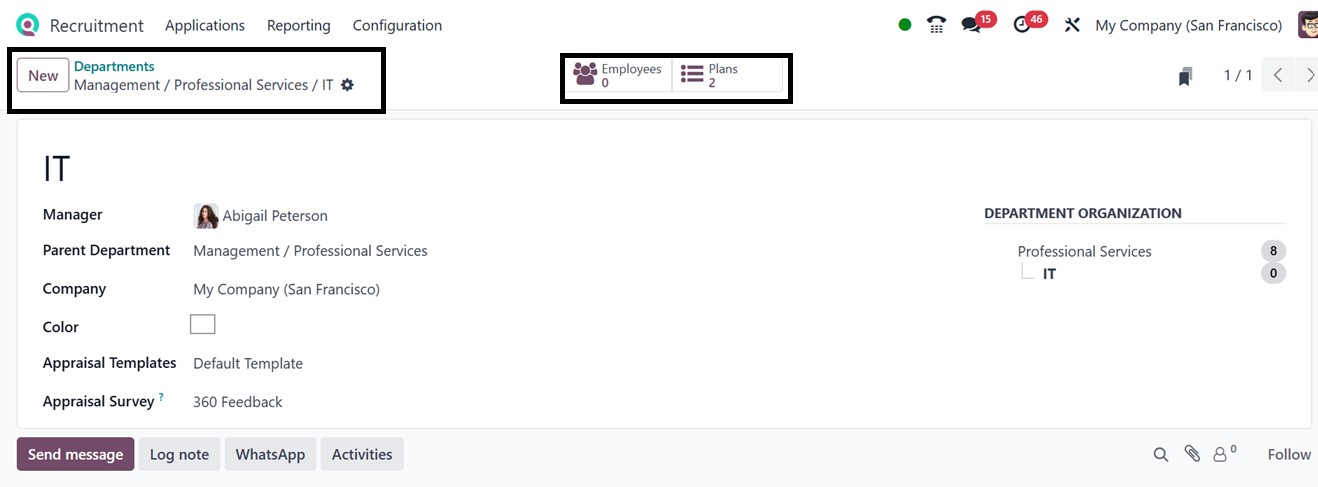
After saving the data, you can see the smart buttons, such as Employees and Plans, to manage staff details and internal plans including Employee Onboarding and Offboarding plans.
- Onboarding Plan: When a new employee joins for a job position, the onboarding assists management, IT, and HR in adhering to a planned process. It involves things like configuring work equipment, establishing user accounts, disseminating corporate regulations, and scheduling orientations or training. For new hires, these predetermined processes guarantee a seamless start.
- Offboarding Plan: By collecting company assets, cutting system access, conducting exit interviews, and completing paperwork, offboarding oversees the employee departure process. This guarantees a seamless and expert transfer.
The 'Plan' smart button lets you manage job-specific Onboarding and Offboarding plans for this particular department streamlining hiring and resigning processes with predefined tasks. It automates task assignment by role or department, ensuring nothing is missed and providing a smooth, organized experience for new hires and departing employees.
The Action menu at the top allows users to Delete, Duplicate, or Archive the form. The ‘Request Signature’ button can be used to request a signature in any recruitment form or departmental documents.
A notable feature is the Skill History Report, which provides in-depth insights into candidates’ skills, qualifications, and career history. Clicking this button opens a report window showing relevant employee data for the selected department.
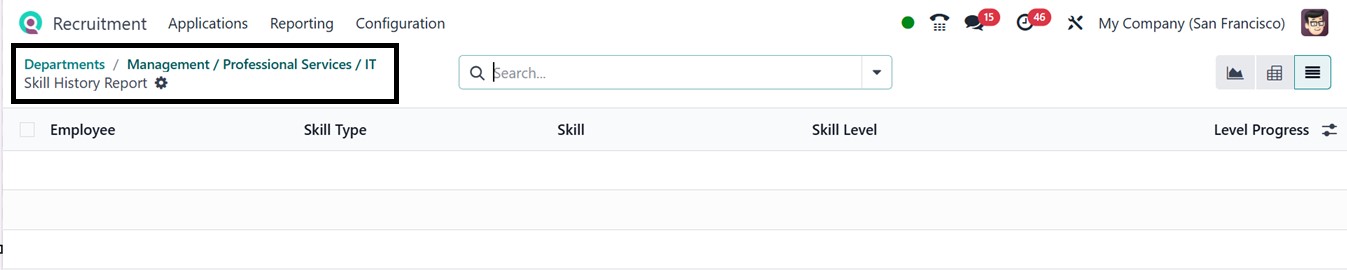
In the Skill History Report window, use filtering and grouping tools from the search bar for tailored analysis. The data view can be toggled between Graphical, List and Pivot view modes.
2.8 Skill Types
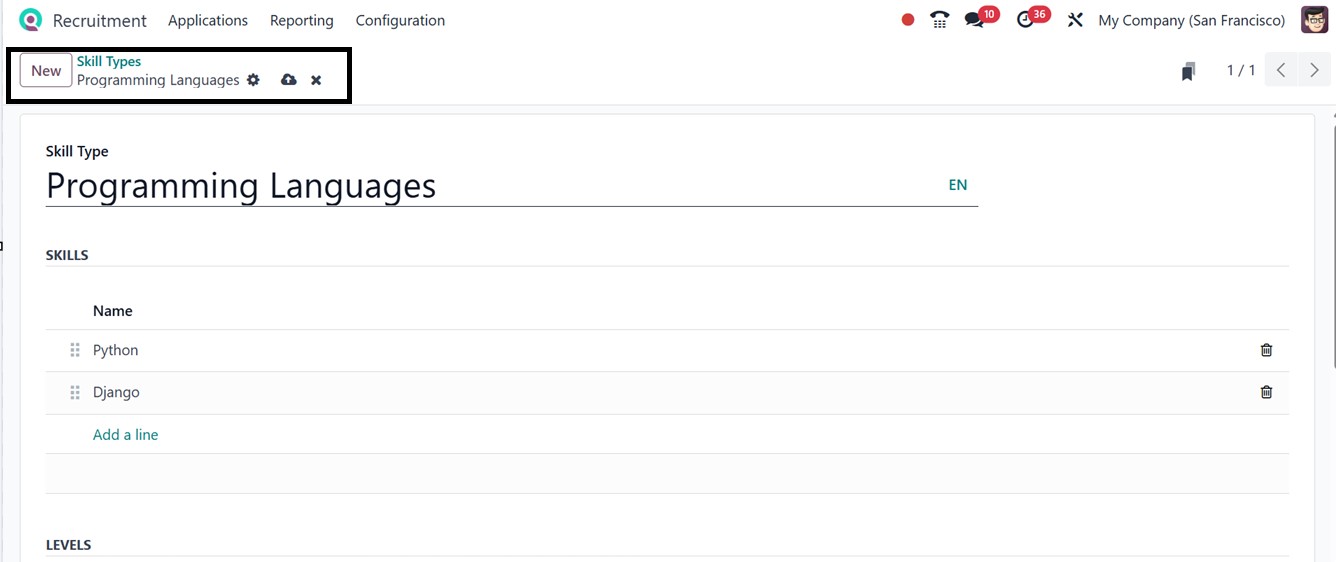
Specific skill sets are vital during candidate evaluation. The Skill Types section allows users to define and manage categories like language skills, technical competencies, and professional expertise.
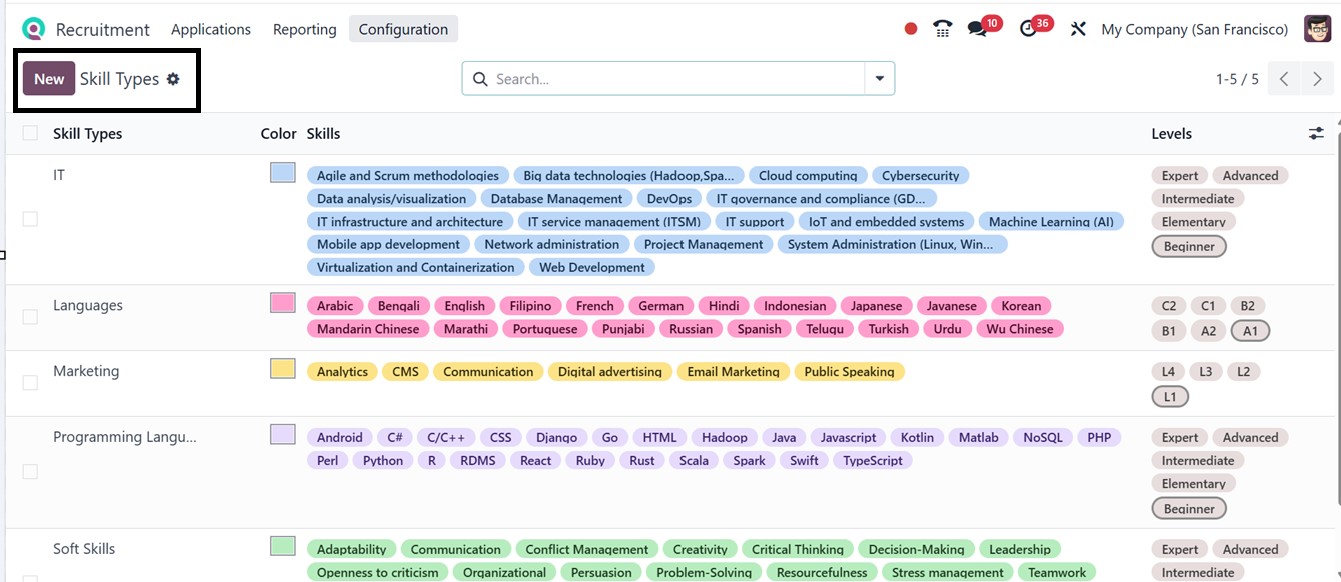
To add a new skill type, click the New button, name the Skill Type, and then add relevant skills in the ‘SKILLS’ area using the ‘Add a line’ button, as depicted in the screenshot below.
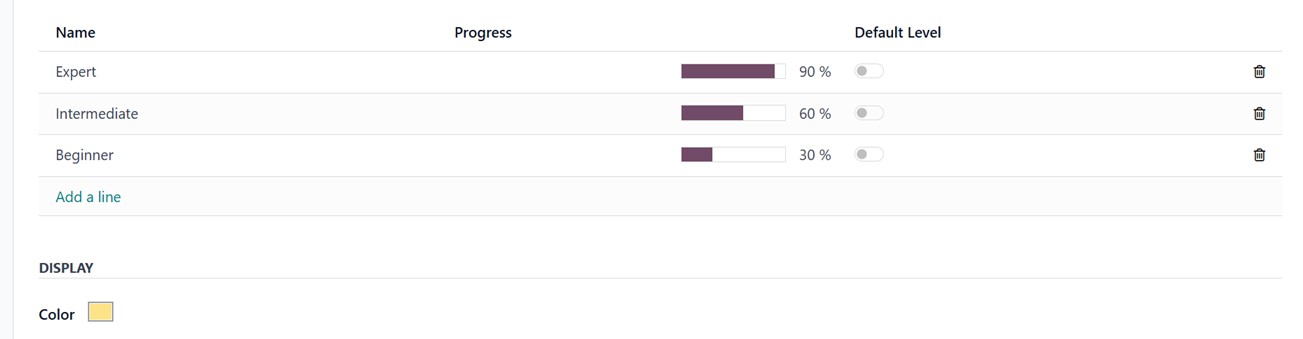
In the LEVELS section, you can define various skill levels, such as Beginner, Intermediate, or Expert, based on your needs. The Progress area allows you to specify the proficiency percentage for each level and set a default level using the toggle switch. Additionally, the Color option lets you assign a specific color to each skill level, making it easier to visually highlight in a job post window or the website interfaces.
2.9 Contract Templates
The ‘Contract Templates’ in Odoo 18 Recruitment Module help to ease and standardize the process of creating employee contracts when a candidate has been hired. These templates define standard contract parameters such as compensation structure, working hours, job position, and perks, allowing them to be reused in other positions or departments. This maintains uniformity, reduces manual input, and speeds up onboarding.
The ‘Contract Templates’ dashboard will list all the available templates with their Contract Reference, Department, Job Position, Start and End Dates, Contract Type, Yearly Cost, Working Schedule, and Status, as illustrated in the screenshot below.

To configure new contract templates, click on the ‘New’ button from the dashboard. But first, verify that the Employees module, which manages contracts, is installed. To define a new template, edit the template name in the relevant area.
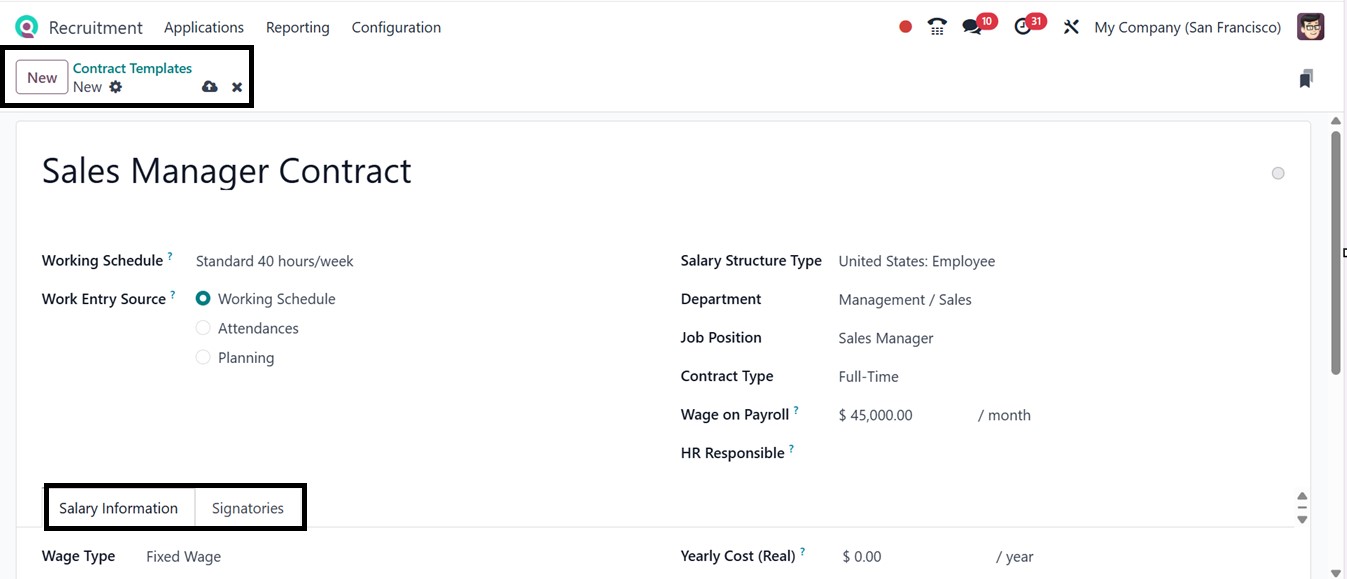
The ‘Working Schedule’ defines expected working hours, while the ‘Salary Structure Type’ is used to calculate payroll, and the Job Positions and departments can be assigned to tailor contracts to specific roles or teams. The ‘Work Entry Source’ option defines the source for work entry generation. Then, mention the Department, Job Position, and Contract Type options. By setting the Wages on Payroll amount, employees can get an overview of their payroll. Finally, mention the responsible person for validating this contract in the ‘HR Responsible’ field.
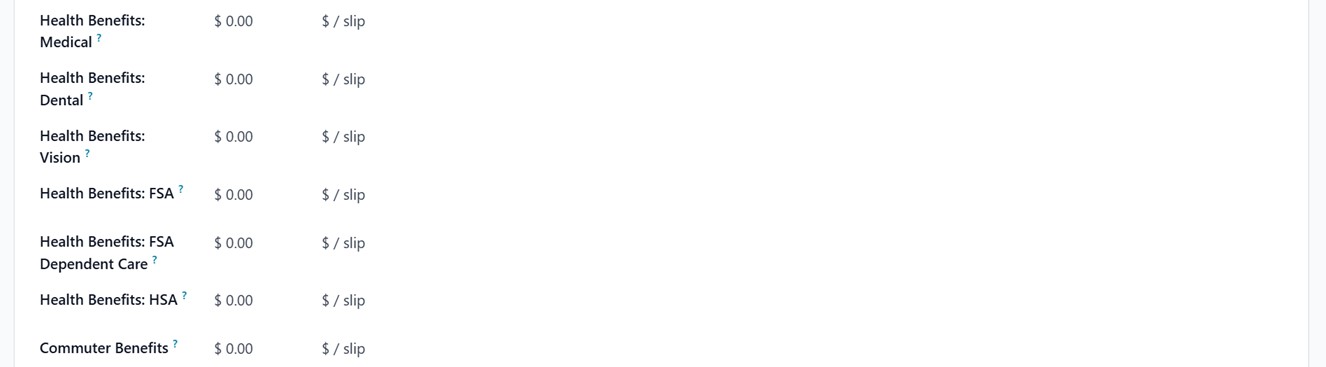
In the ‘Salary Information’ tab, you can specify the Wage Type, Schedule Pay, Wage, Yearly Cost, Monthly Cost, PRE-TAX BENEFITS, and POST-TAX DEDUCTIONS, as illustrated in the screenshot below.
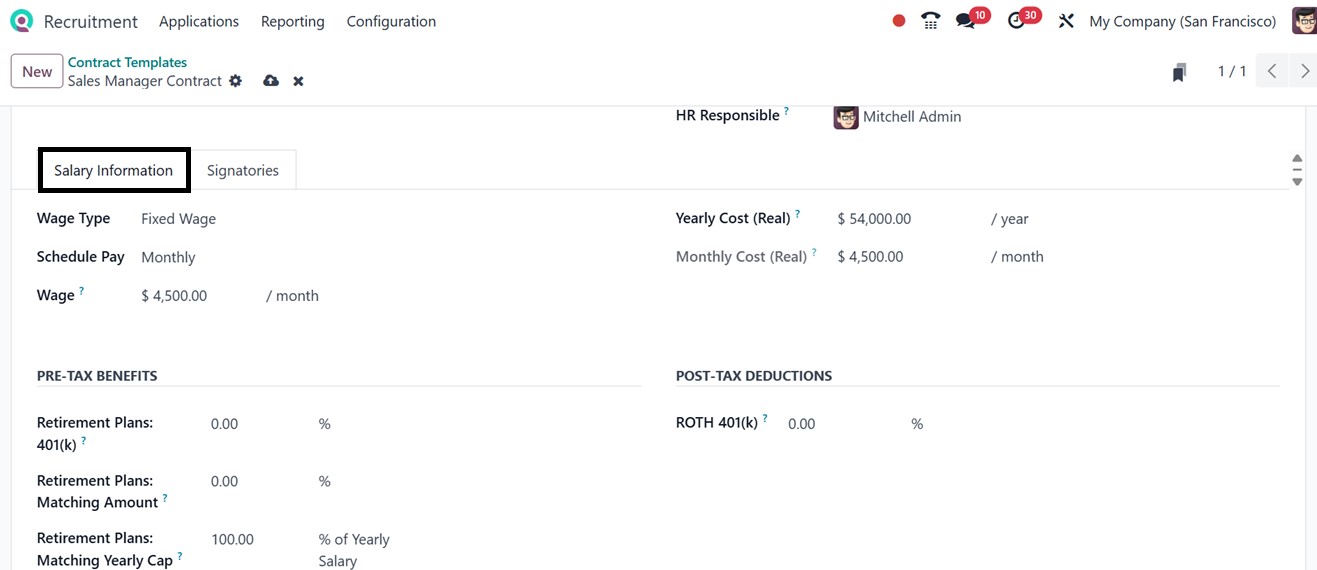
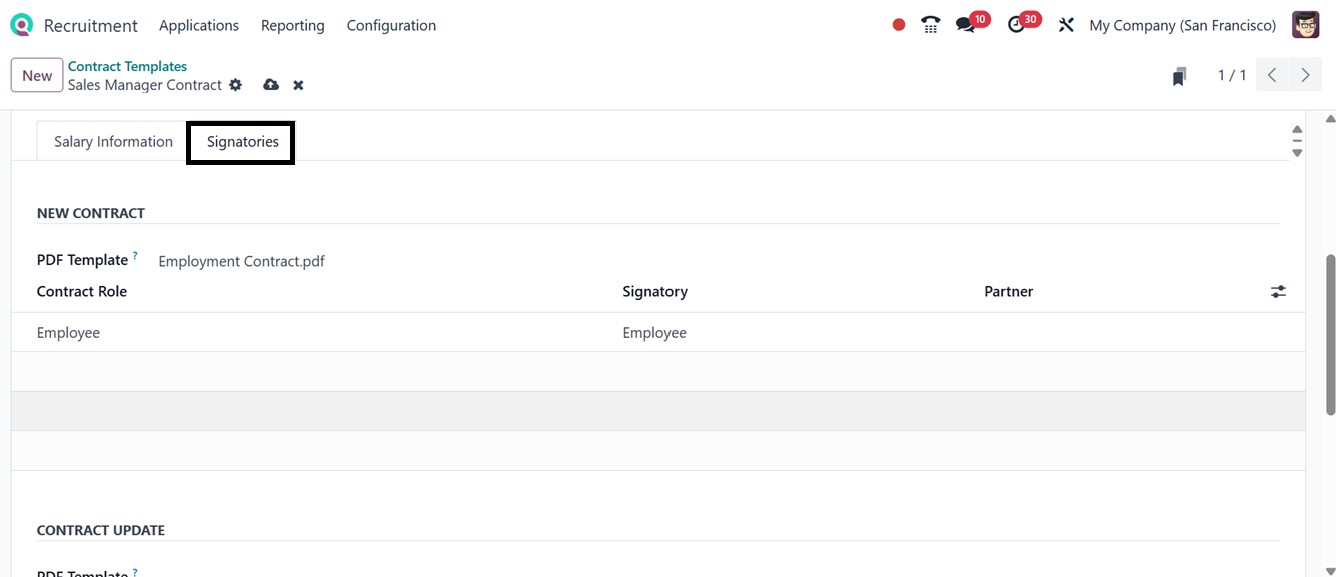
The ‘Signatories’ tab allows you to upload ‘PDF Templates’ for employee contract documents, one in the New Contract section for signing upon joining, and another in the ‘UPDATE CONTRACT’ section for signing during contract updates.
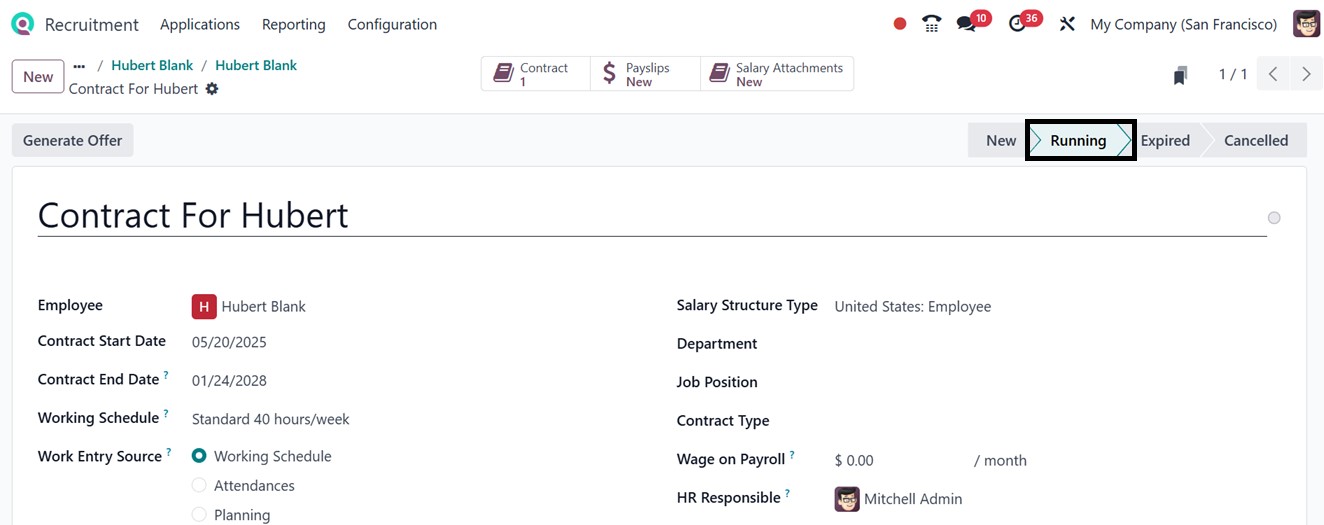
After saving the data, these templates can be used during the recruitment process, and when a candidate reaches the Hired stage, you can utilize the ‘Create Employee’ button to change the applicant into an employee. Then, we must draft an employment contract for a candidate after employing them using the ‘Contracts’ smart button with important information such as the job title, pay, working hours, and validity of the contract, etc. The contract status has to be adjusted to "Running" in order to activate the employee in the system, as shown in the screenshot below.
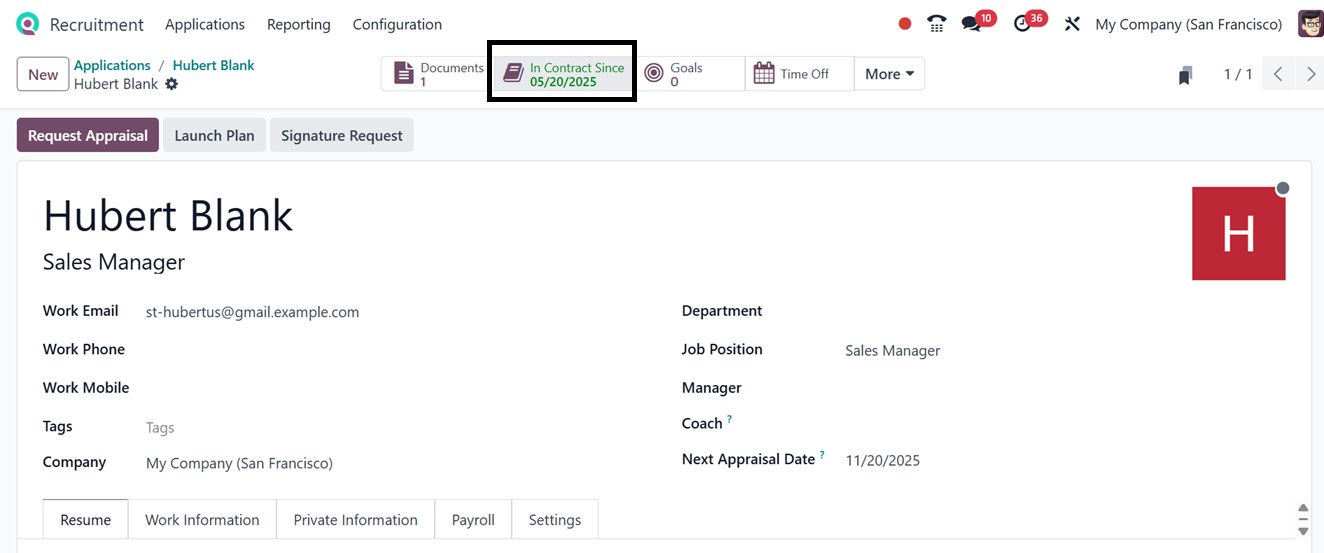
Then, you can click on the ‘Generate Offer’ button to proceed. So, this employee will subsequently be considered active and qualified for departmental assignments, payroll, and other HR procedures. The visual indication of an active ’In Contract Since’ smart button in green color signifies that the person has been formally onboarded and their job contract is running, as depicted in the screenshot below
2.10 Activity Types
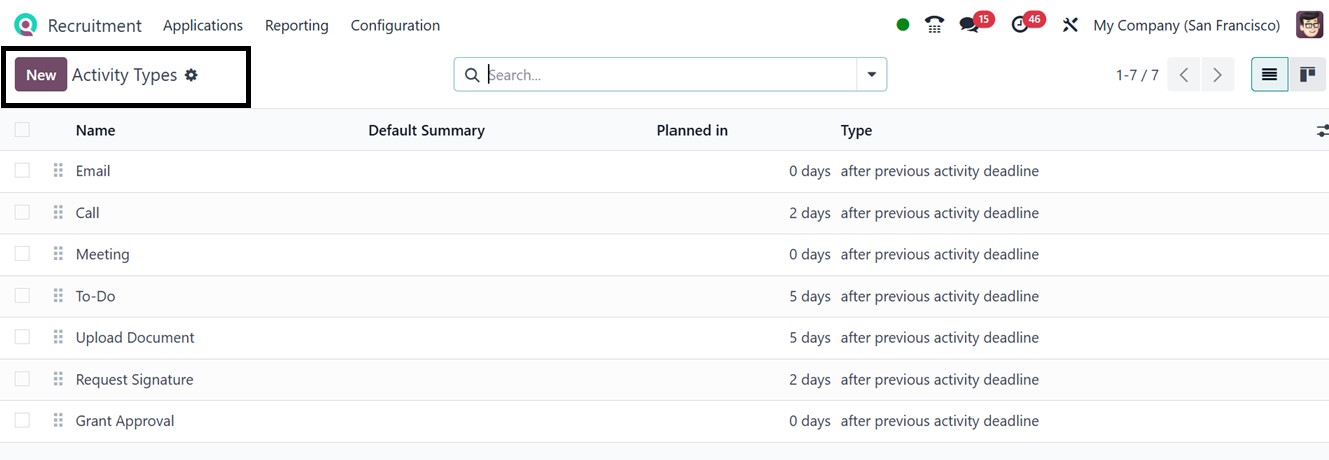
The Activity Types help track and manage recruitment-related actions such as interviews, feedback collection, and applicant follow-ups.
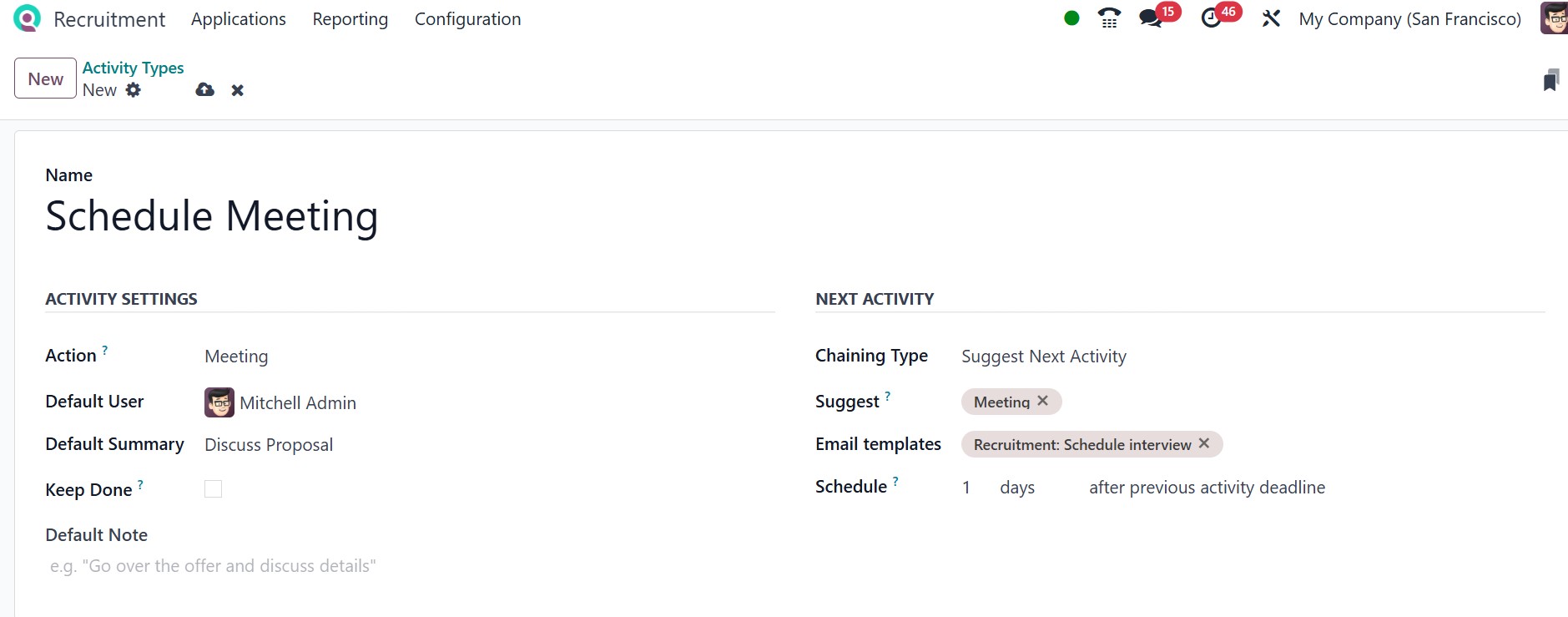
To create a new activity type, click the New icon and fill in attributes such as Activity Name, Actions, Default User, Default Summary, Default Note, and Keep Done. You can also choose the Chaining Type, Suggest, Use built-in Email templates and Scheduling period for scheduling that activity after the previous activity deadline. Once all information is added, click Save to finalize the activity type, as depicted in the screenshot below.
2.11 Activity Plans
Activity Plans in Odoo are structured task flows designed to guide users through repetitive workflows such as onboarding or project milestones. The Activity Plans menu displays all preconfigured recruitment task flows.

To create a new plan, click New, and enter details like Plan Name, Model, Company, and Department. Under the Activities To Create tab, define the sequence of activities necessary to complete the process using the ‘Add a line’ button.
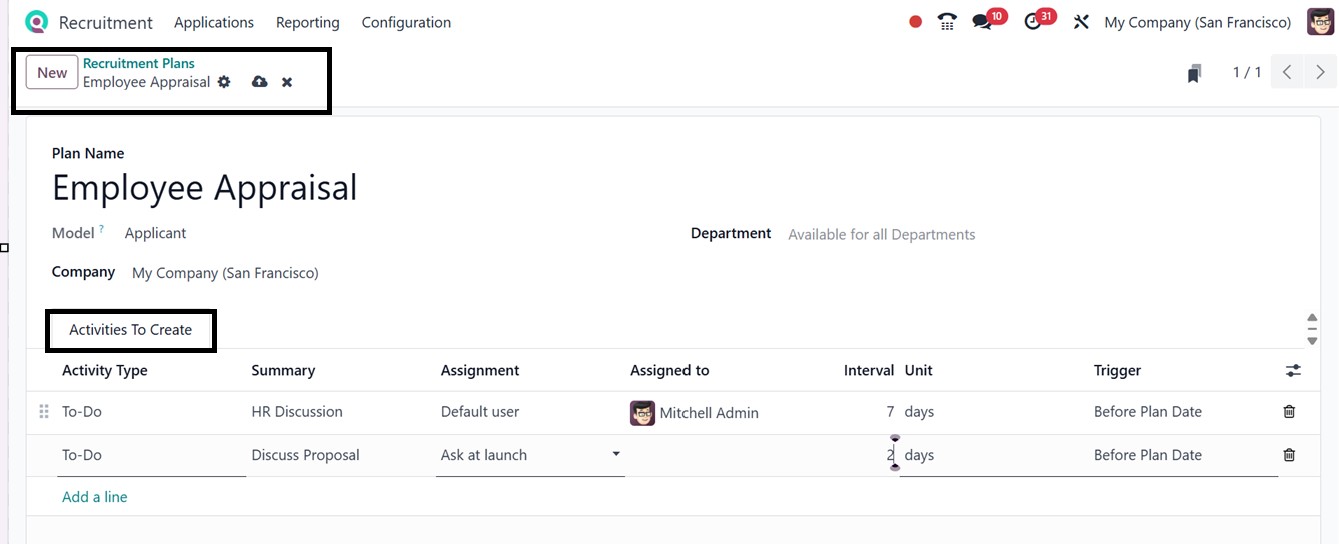
You have to mention the Activity Type, Summary, Assignment, Assigned Person, Interval Unit, and Trigger options to create the new activity plan. After setting up the activities, click Save. These plans enhance process consistency and ensure critical steps are not missed.
2.12 Emails
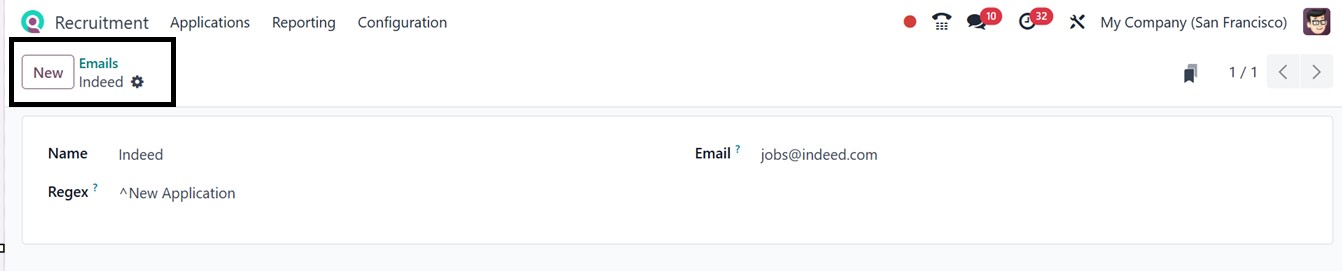
The Emails section manages email addresses used across different recruitment channels. This view shows email addresses alongside their associated Regex patterns for validation.
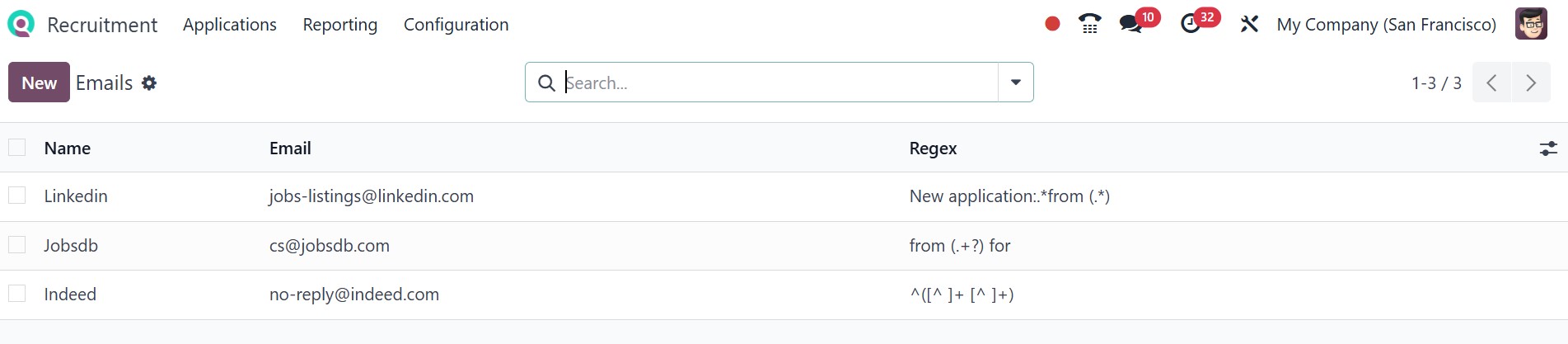
To add a new email, click the New button and complete the required fields as shown in the provided screenshot.
2.13 Interviews
The Interviews menu in Odoo 18 facilitates the scheduling, monitoring, and management of job interviews. From the Configuration > Interviews section, you can view all interview templates with their Recruitment Form, Questions, Average Duration, Registered, and Completed status.
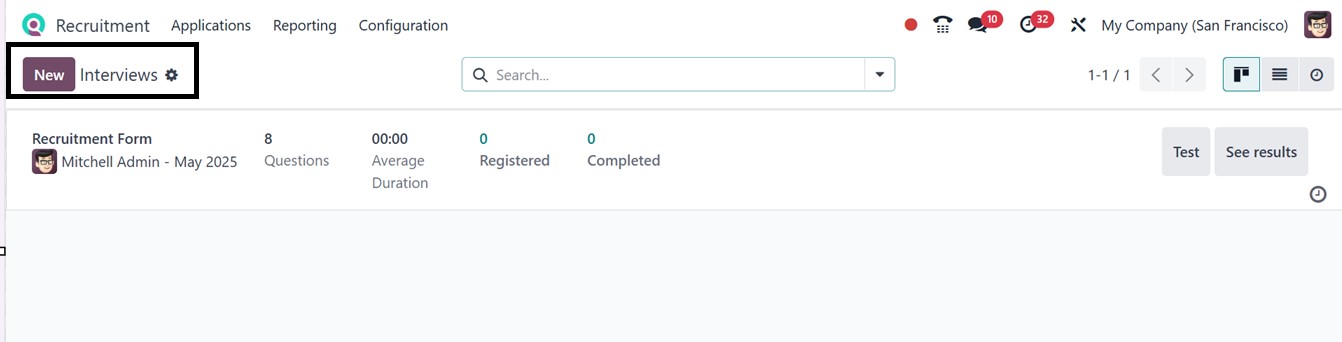
Users can initiate the test or view results via the Test and See results buttons. To create a new interview form, click New, then specify the Interview Name, Responsible, and Restricted To fields.
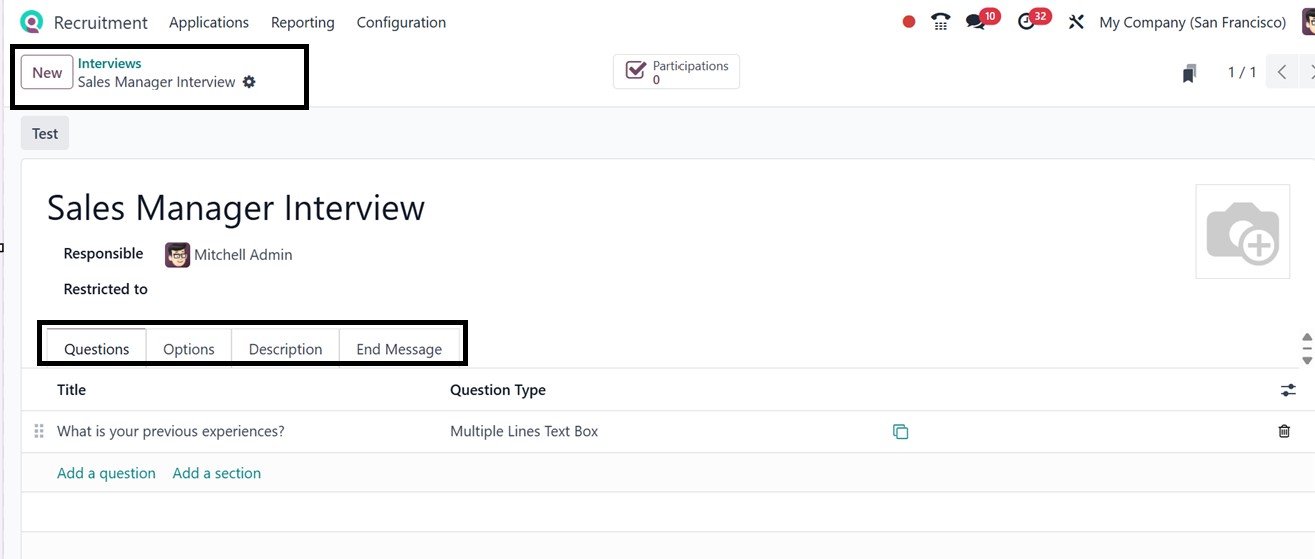
Under the Questions tab, you can structure interview questions by adding sections and descriptions. Use the Add a Question button to open a new pop-up for question entry. Choose the question format from types like Multiple Lines, Text Box, Single Line, Date, Datetime, Numerical, or Matrix. The default type is Single Line Text Box.
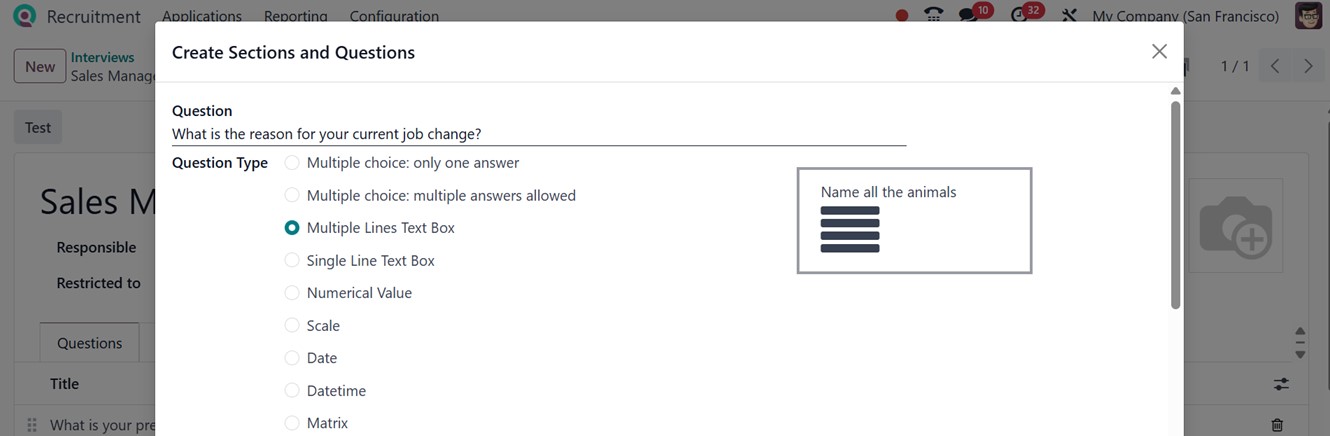
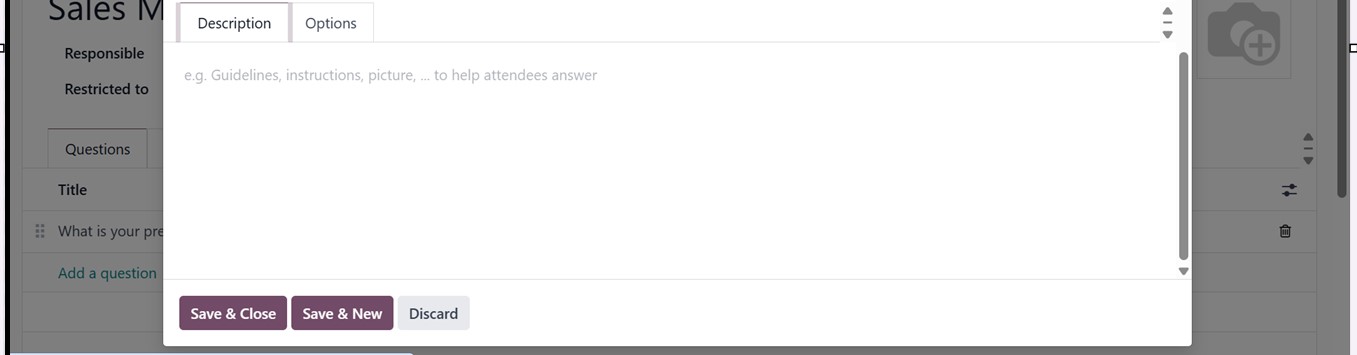
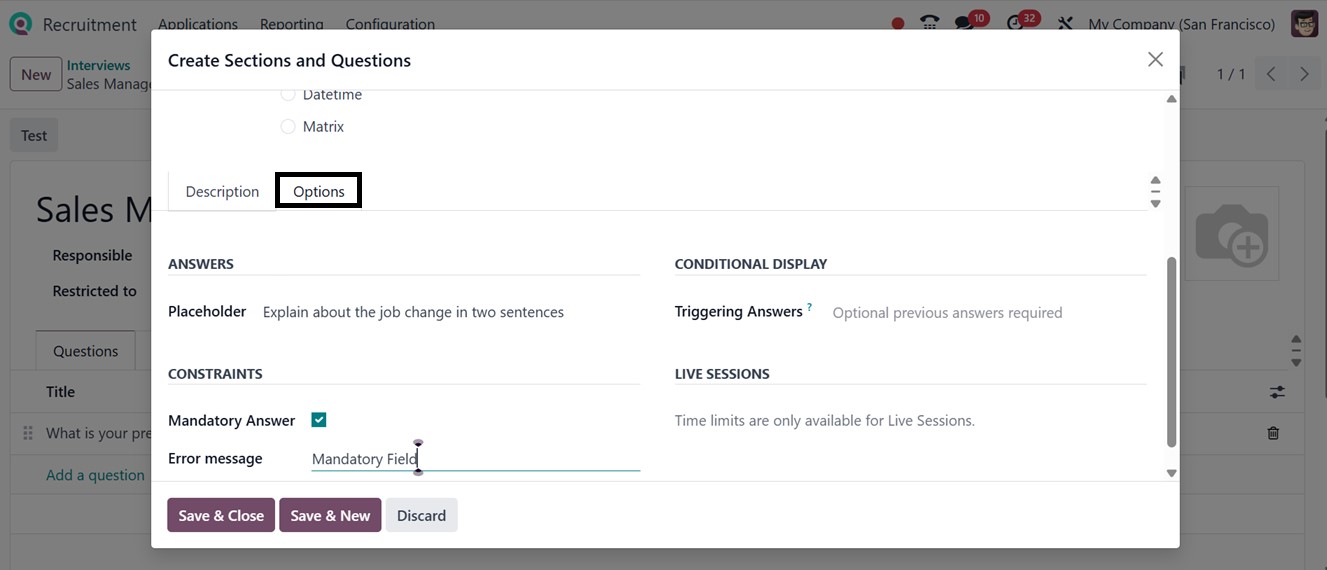
In the Description tab, explain the purpose of the question. The Options tab allows customization like setting Placeholders, Triggering Answers, Defining Error Messages, and marking questions as Mandatory.
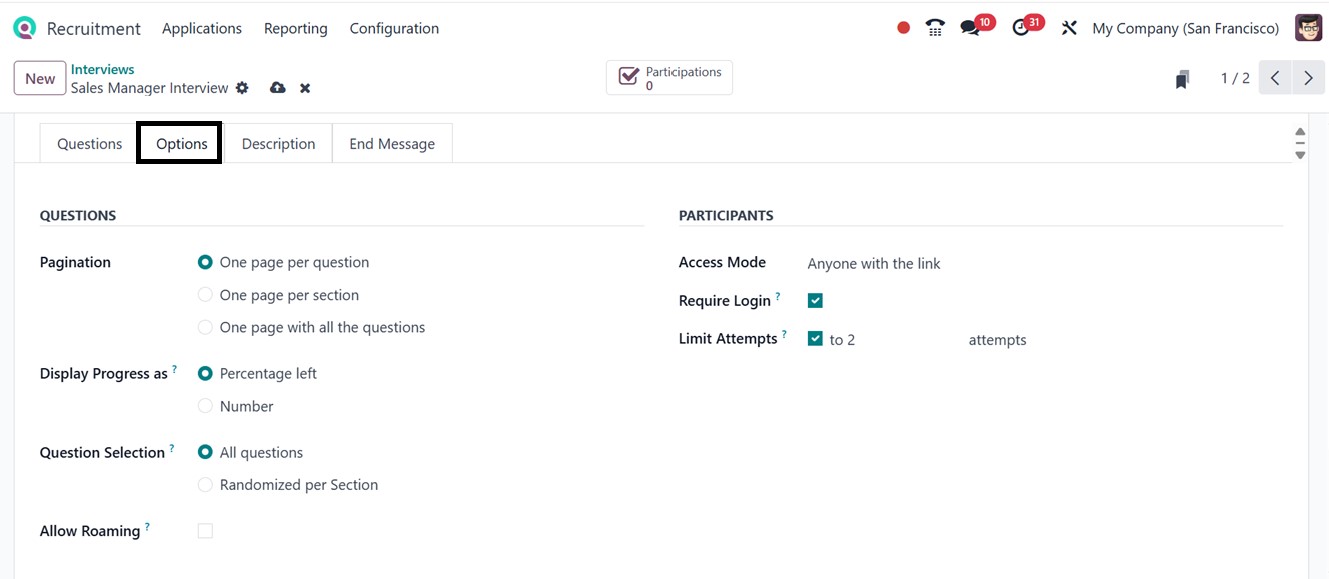
After saving individual questions, continue building the interview template. In the Options tab of the main form, you can set options such as Pagination, Display Progress, Allow Roaming, Access Mode, Require Login, and Limit Attempts.
Use the Description tab to give an overview of the interview purpose, and the End Message tab to add a final note for candidates after submission. Once the form is configured, save it and test the interview by clicking the Test icon. This opens a web version of the interview. Candidates can begin the process by clicking the Start Survey button. This will lead you to the website interface, as depicted in the screenshot below.
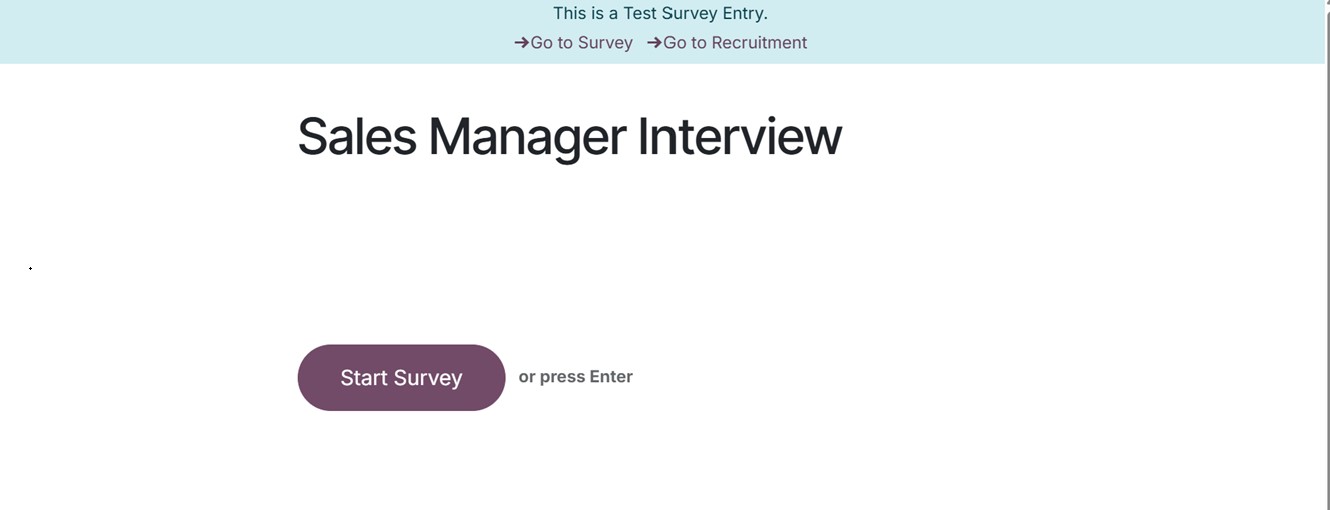
Then, answer the questions one by one using the Continue button.
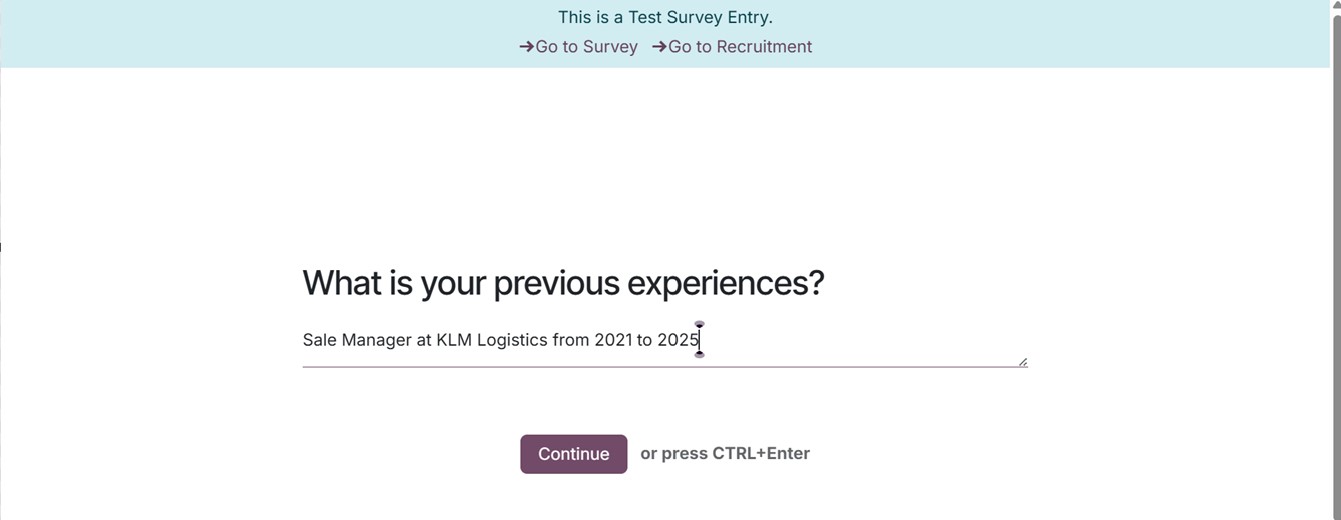
Finally,submit the survey using the Submit button, as illustrated in the screenshot below.
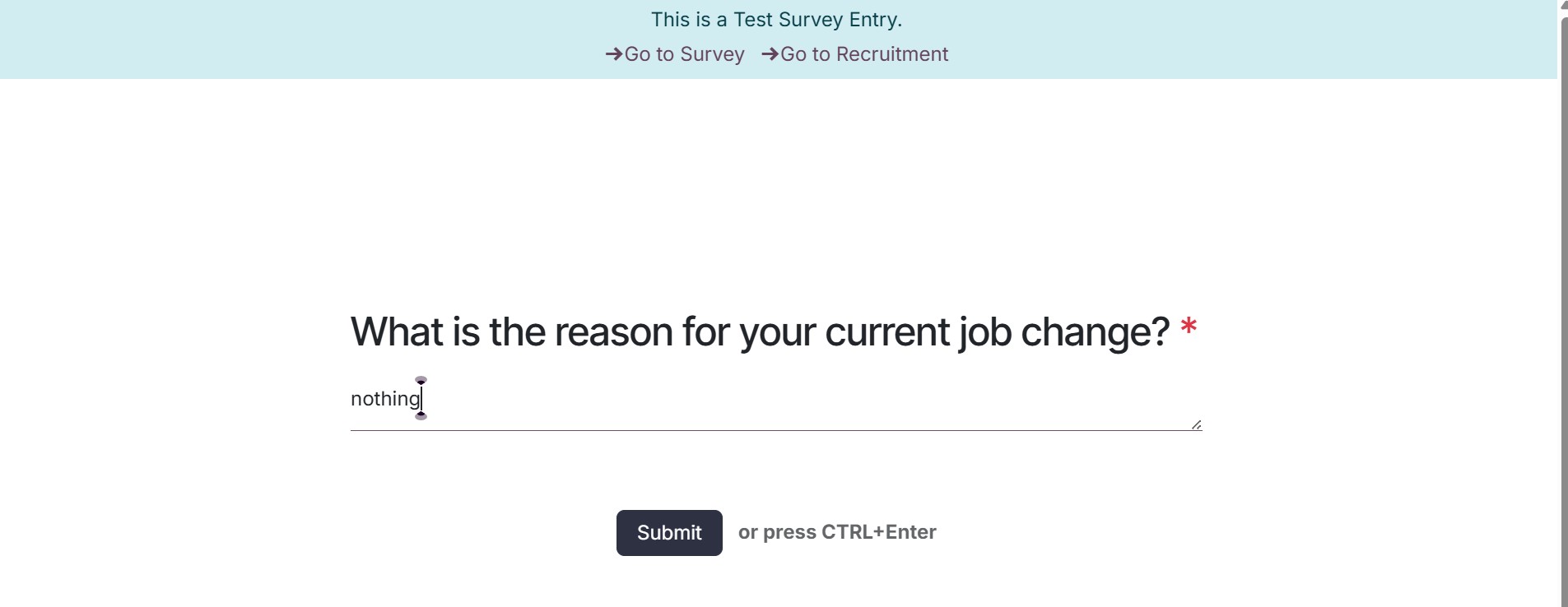
Based on the configured settings, candidates can retry the interview and view submitted answers using the ‘Take Again’ or ‘Review your answer’ buttons.
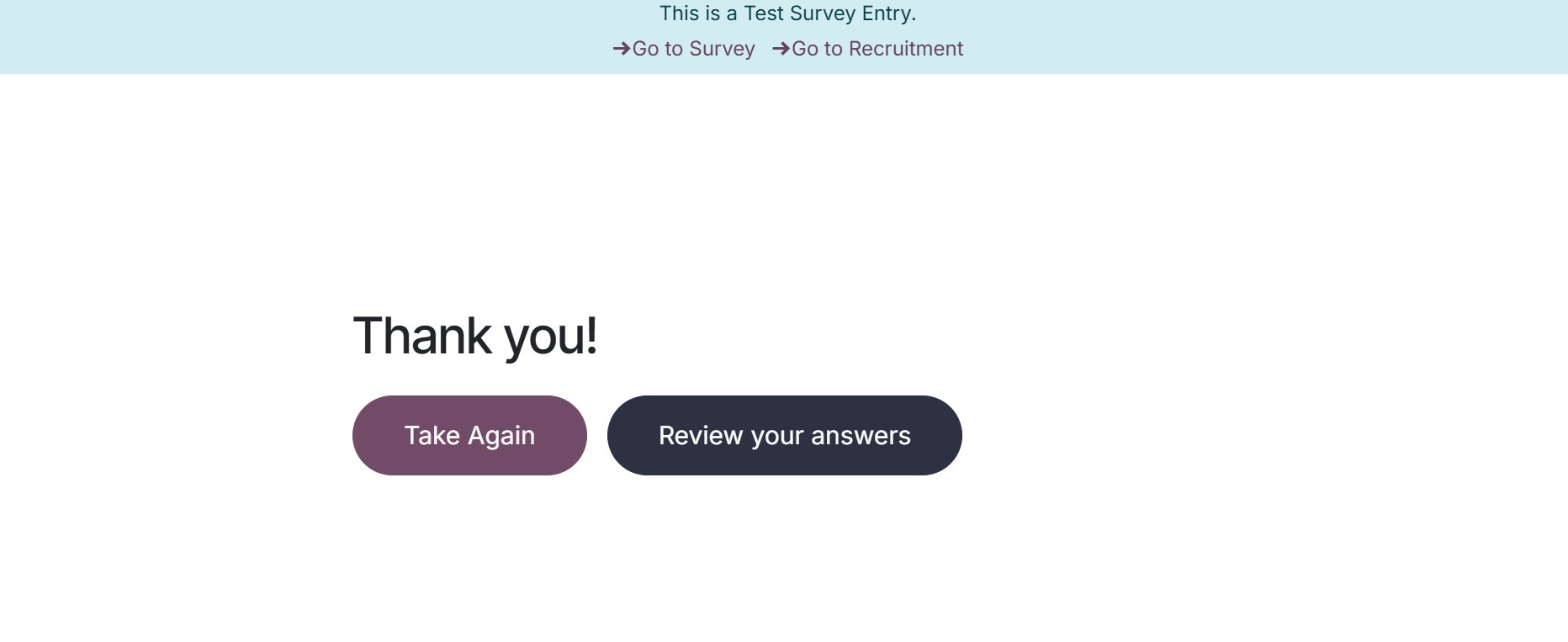
After submission, you can monitor participant data via the Participants smart button. The Interview feature supports calendar sync, feedback collection, and result reporting, which helps recruiters track and improve their hiring process. It also contributes to key performance metrics like time-to-hire and conversion rates. The interface ensures a collaborative and efficient recruitment experience with centralized control and insightful evaluations.